How to Generate Audit-Ready PDF Reports from Airtable
Generate audit-ready PDF reports from Airtable using TypeFlow. Export entire views as branded, versioned PDFs with e-signature approval - or generate per-record documents like QC reports and certificates. For audit-ready reports and more, see our reports and certificates solution. TypeFlow is the only Airtable view-to-PDF solution that also appends an e-signature approval page, sends it for signing, and stores the signed PDF - no separate e-sign platform needed.
Generate audit-ready reports from Airtable in minutes
Branded headers, version control, e-signature approvals, and audit trail. No code required.
Start free with 20 documentsWhat Makes a PDF Report Audit-Ready
An audit-ready PDF report contains accurate, traceable information that auditors can verify against your source data. According to McKinsey, digital document workflows reduce cycle times by 50%. The PDF format locks in formatting and prevents edits after generation, which is why auditors prefer PDFs over spreadsheets or live database views.
Here are the key characteristics:
- Accurate data. The report matches the source information with no missing or inconsistent values.
- Timestamps. The document shows when data was created, updated, approved, or exported.
- Version control. Anyone reviewing the report can identify which version they are looking at - with document codes like RTA-SMQ-001-V3.
- Tamper-proof format. PDFs preserve formatting and make unauthorized changes visible.
- Traceability. Auditors can trace each report back to the original record, the user who created it, and related documentation.
- Approval signatures. Signed reports prove that a responsible person reviewed and approved the data at a specific point in time.
If your reports check all six boxes, you are in good shape for most audits - whether ISO 9001, GxP, or FDA inspections.
Why Use Airtable for Audit-Ready Reports
According to Deloitte, 73% of teams still spend significant time on manual document creation. Airtable works well for audit reporting because it centralizes data in linked, structured tables with built-in field history and automation capabilities. That combination gives you a solid foundation for generating traceable documentation.
A few things make Airtable particularly useful here:
- Centralized data in one place - no scattered spreadsheets.
- Linked records that connect related information across tables (inspections linked to products, users linked to changes).
- Field history that tracks changes over time on paid plans.
- Automation capabilities that trigger actions without manual work.
The catch? Airtable does not generate PDF reports on its own, and its native print/export options produce ugly, editable files that auditors will not accept. Even Page Designer only handles single-record layouts, as Airtable Community users have noted. You need a tool like TypeFlow to transform your Airtable data into formatted, branded, signable PDFs. For a general overview of export options, see our guide to exporting Airtable views to PDF.
Types of Audit-Ready Reports You Can Generate from Airtable
The most common audit-ready reports from Airtable are QC inspection reports, compliance certificates, data snapshots for auditors, financial documents, and traceability reports. Each uses a different TypeFlow generation method depending on whether you need a per-record document or a full table export.
| Report Type | Common Use Case | TypeFlow Method |
|---|---|---|
| QC Reports | Manufacturing inspections | Per-record (Google Docs template) |
| Compliance Certificates | Regulatory submissions | Per-record (Google Docs template) |
| Data Snapshots | Periodic table exports for auditors | View Report (full view export) |
| Financial Reports | Tax and expense audits | Per-record or View Report |
| Traceability Reports | Supply chain, batch tracking | Per-record with linked records |
QC and Inspection Reports
QC reports capture inspection results, pass/fail status, inspector name, and related quality checks. Manufacturing teams use these to document that products meet specifications. See our QC report guide for the full setup.
Compliance Certificates
Certificates of conformity or completion prove that required standards were met. These are critical in manufacturing, healthcare, and education. See our certificate of conformity guide and training certificate guide.
Data Snapshots for Auditors
This is the use case that sets TypeFlow apart. Your auditor asks "show me what this table looked like on June 15th." You generate a branded, versioned PDF of the entire Airtable view - with your company logo, document code, timestamps, and page numbers. Frozen at that exact moment.
Financial and Invoice Reports
Invoices, payment records, and expense reports come up during financial reviews. See our invoice automation guide.
Traceability Reports
Batch tracking, lot numbers, and supply chain documentation. Food and pharmaceutical companies rely on traceability reports for FDA and FSMA compliance. See our traceability document guide.
How to Structure Your Airtable Base for Audit Reporting
Set up core tables (Products, Inspections, Users) with Record ID, Created Time, Last Modified By, and linked records between them. This structure gives TypeFlow the data it needs to produce complete, traceable PDFs.
Core Tables and Fields
Start with essential tables like Products, Inspections, Users, and Documents. Each table benefits from these fields:
- Record ID (autonumber or formula) - unique identifier for traceability.
- Created Time (created time field) - when the record was created.
- Last Modified Time (last modified time field) - when the record was last changed.
- Last Modified By (last modified by field) - who made the last change. This is critical for audit trail attribution.
- Status (single select) - tracks the record lifecycle (Draft, In Review, Approved, Closed).
Linked Records for Traceability
Linking tables creates an audit trail. For example, connecting an Inspection record to a Product record shows exactly which product was inspected and when. TypeFlow traverses linked records up to 3 levels deep without creating lookup fields. See our linked records PDF guide.
Views to Lock Down Audit Data
Filtered views help you show only completed, approved, or audit-ready records. Create views like "Approved - Q2 2026" or "Open NCs - Last 12 Months" that filter for the exact dataset your auditor needs.
These filtered views are what TypeFlow's View Report exports as PDFs.
How to Set Up Audit-Ready View Reports Step by Step
TypeFlow View Report exports an entire Airtable view - all columns and rows - as a branded, versioned, multi-page PDF with optional e-signature approval. No other Airtable tool combines branding, version control, pagination, and built-in e-signature in one export. Here is the full setup.
Step 1. Open Airtable View to PDF
Sign in to your TypeFlow account and click "Airtable View to PDF" in the top right corner of your dashboard.
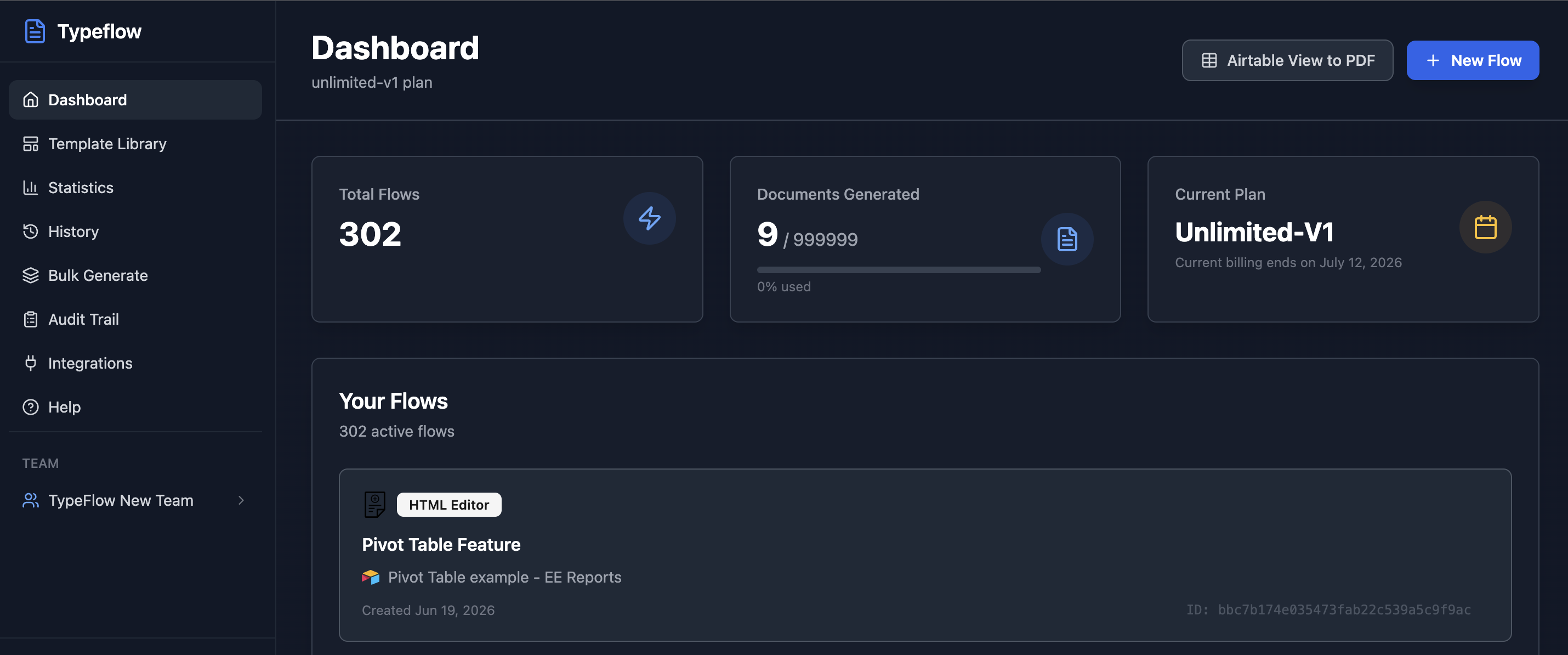
Click "+ New Configuration" to create a new report.

Step 2. Name Your Configuration
Give it a name that identifies the report (e.g., "Monthly NC Register" or "Equipment List Export"). Enter the email address where the generated PDF will be sent - the report is delivered by email, not saved back to Airtable.
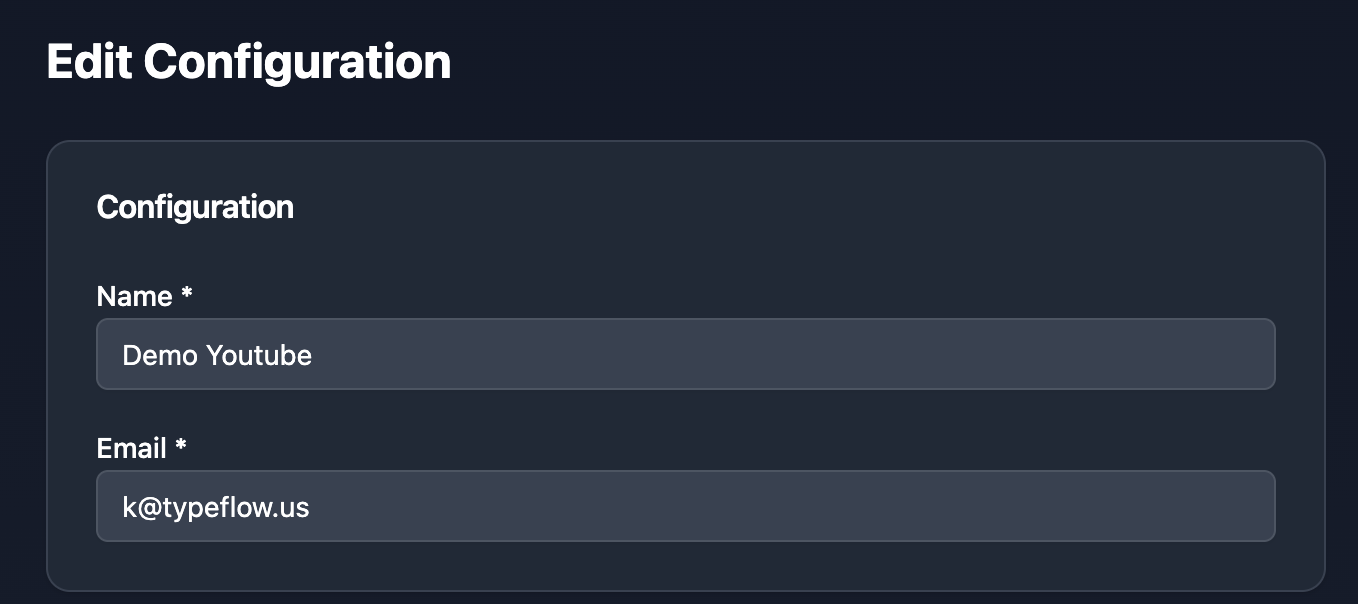
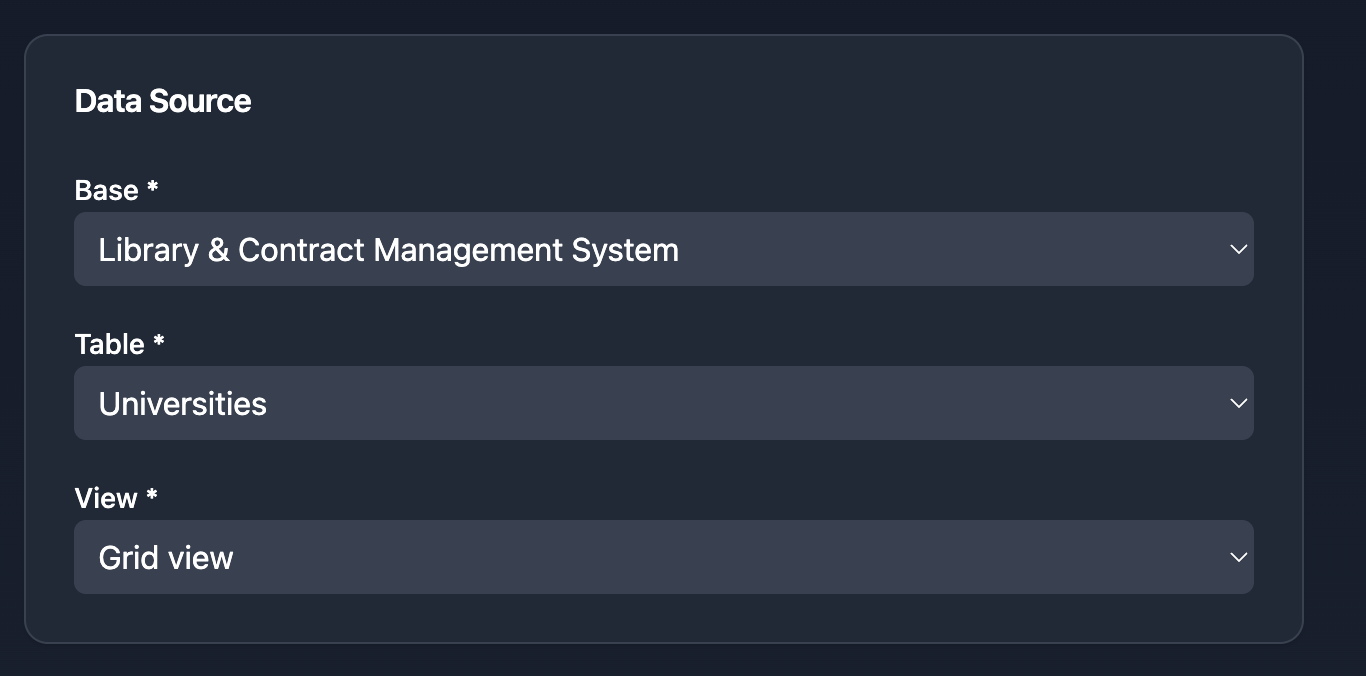
Step 3. Select Your Data Source
Pick the Airtable base, table, and view you want to export. The view determines which records and filters appear in the PDF. Use a filtered view like "Approved - Q2 2026" or "Open NCs - Last 12 Months" to show only the data your auditor needs.
Step 4. Choose Visible Fields
Select which columns to include in the PDF. You do not need to export every field - pick the ones relevant to the audit. TypeFlow shows all available fields with checkboxes.
You can also group records by a field (e.g., group by Status or Department) for clearer organization in the PDF.
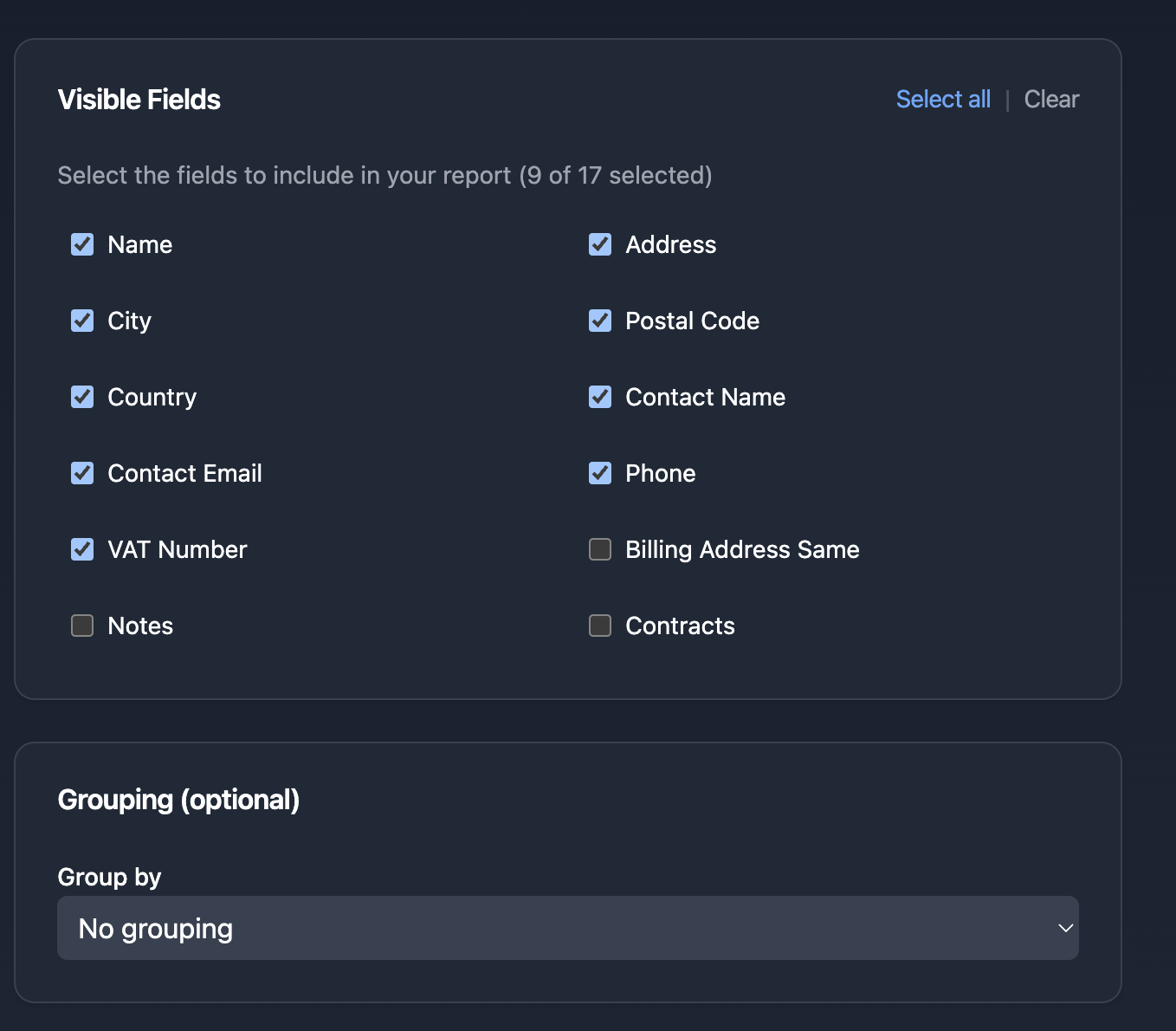
If your table has many columns (60+), TypeFlow automatically splits the table into groups of approximately 7 columns per page. The primary field (key column) repeats on every group so you always know which record you are looking at. A group indicator appears in the header: "Group 1/10", "Group 2/10". For per-record documents with complex layouts, see our guide on multi-page PDFs from Airtable.
Step 5. Enable E-Signature Approval
Toggle on e-signature and add the people who need to approve the report - quality manager, director, or external auditor. Enter their name and email. TypeFlow will send them a signing link automatically after the report is generated.
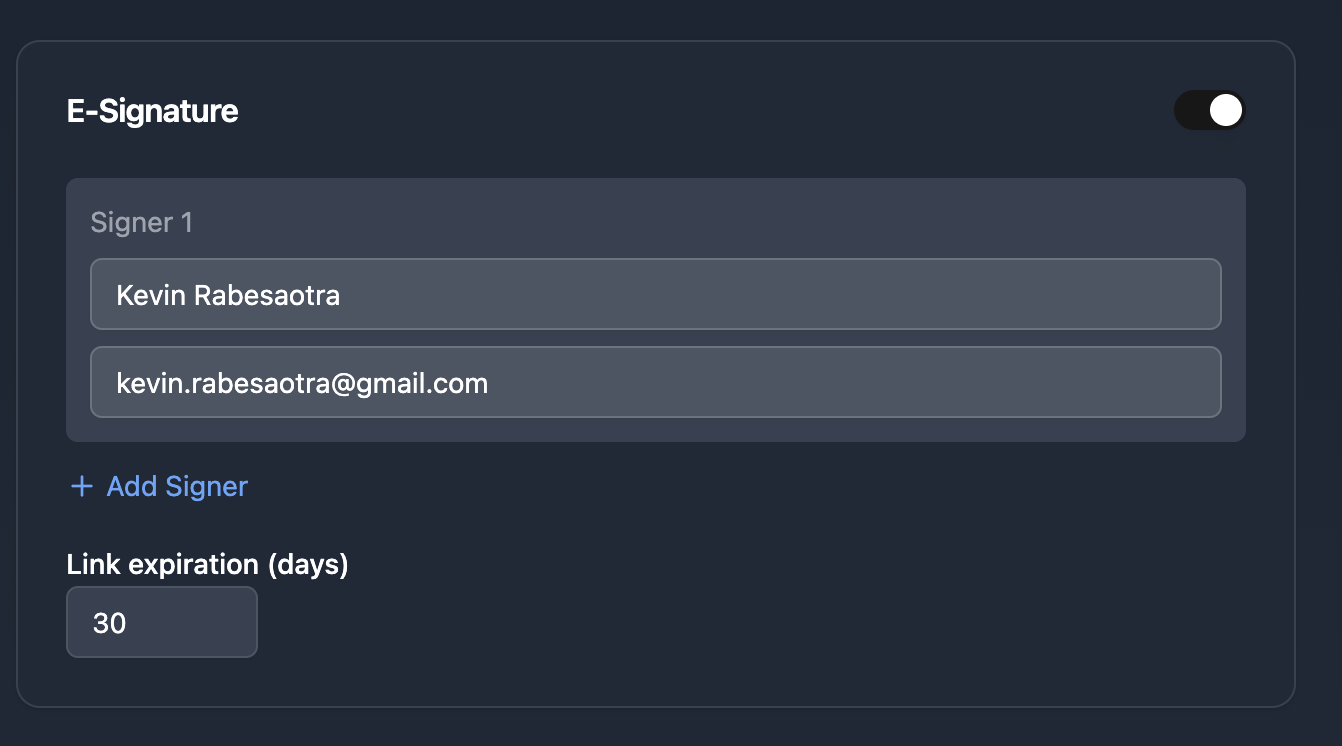
This is the feature no competitor offers. TypeFlow is the only Airtable view-to-PDF solution that also appends an e-signature approval page, sends it for signing, and stores the signed PDF - no separate e-sign platform like DocuSign needed.
Step 6. Customize the Template
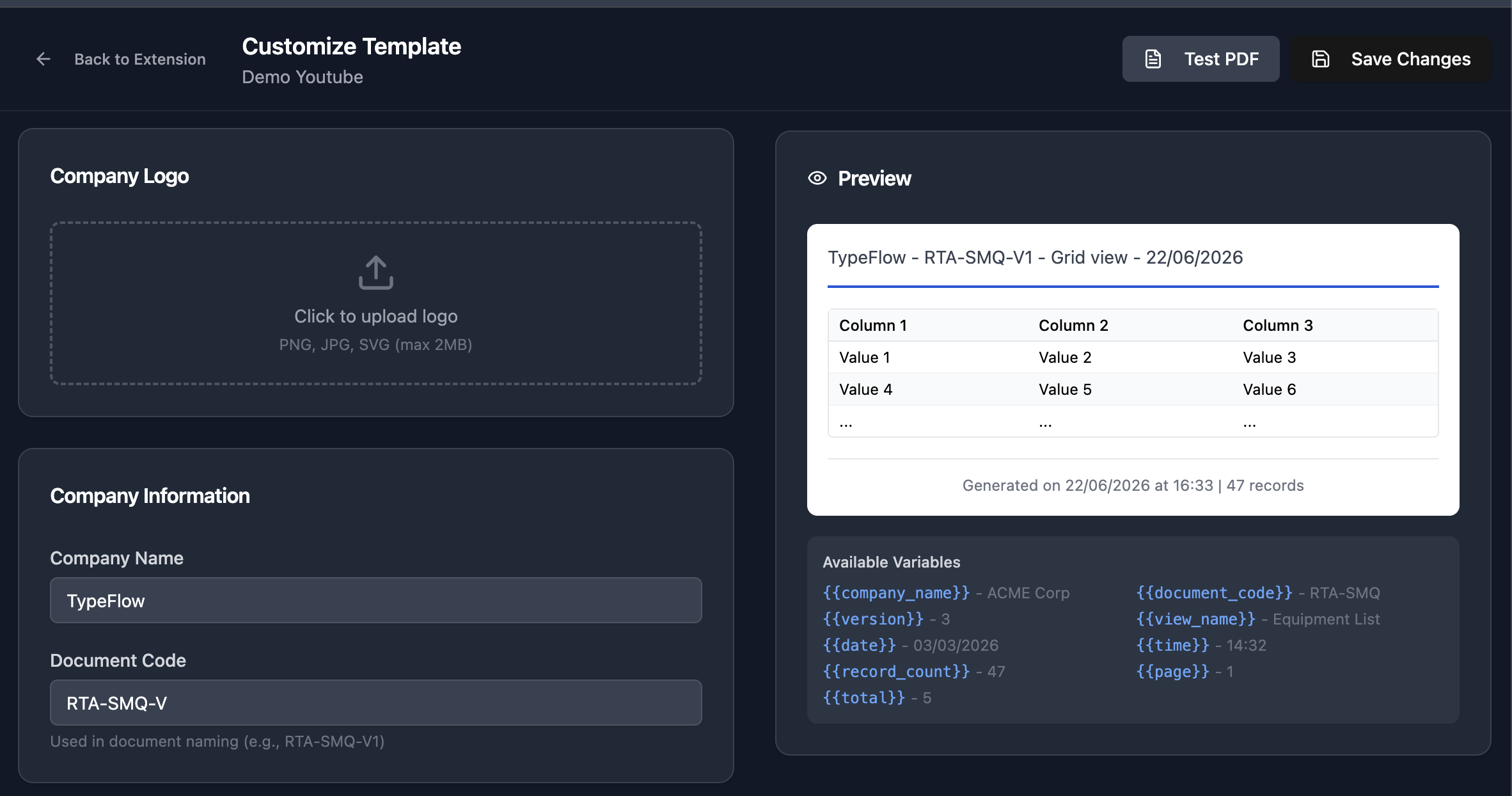
Click "Customize Template" to brand your report. This is where you configure the header and footer that appear on every page.
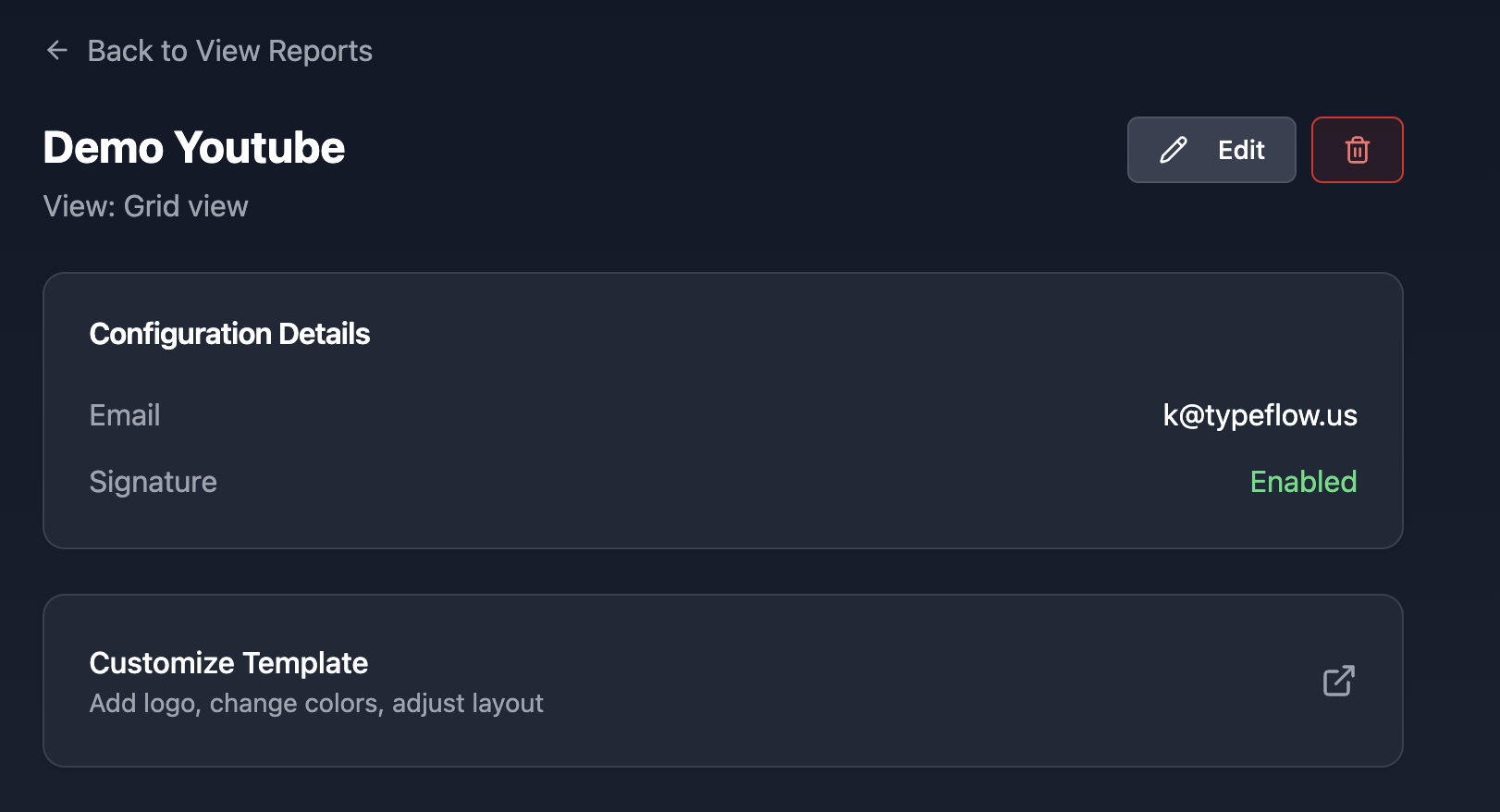
Company branding. Upload your logo, enter your company name, and set your primary color for the header border.
Header and footer variables. Write your header and footer text using variables that TypeFlow replaces automatically:
{{company_name}}- your company name{{document_code}}- custom identifier (e.g., RTA-SMQ){{version}}- auto-increments on each generation (V1, V2, V3){{view_name}}- which Airtable view was exported{{date}}and{{time}}- generation timestamp in your chosen format{{record_count}}- number of records in the export{{page}}/{{total}}- page numbers
Date and time formats. Choose between DD/MM/YYYY (European), MM/DD/YYYY (US), YYYY-MM-DD (ISO), and 12h or 24h time formats.
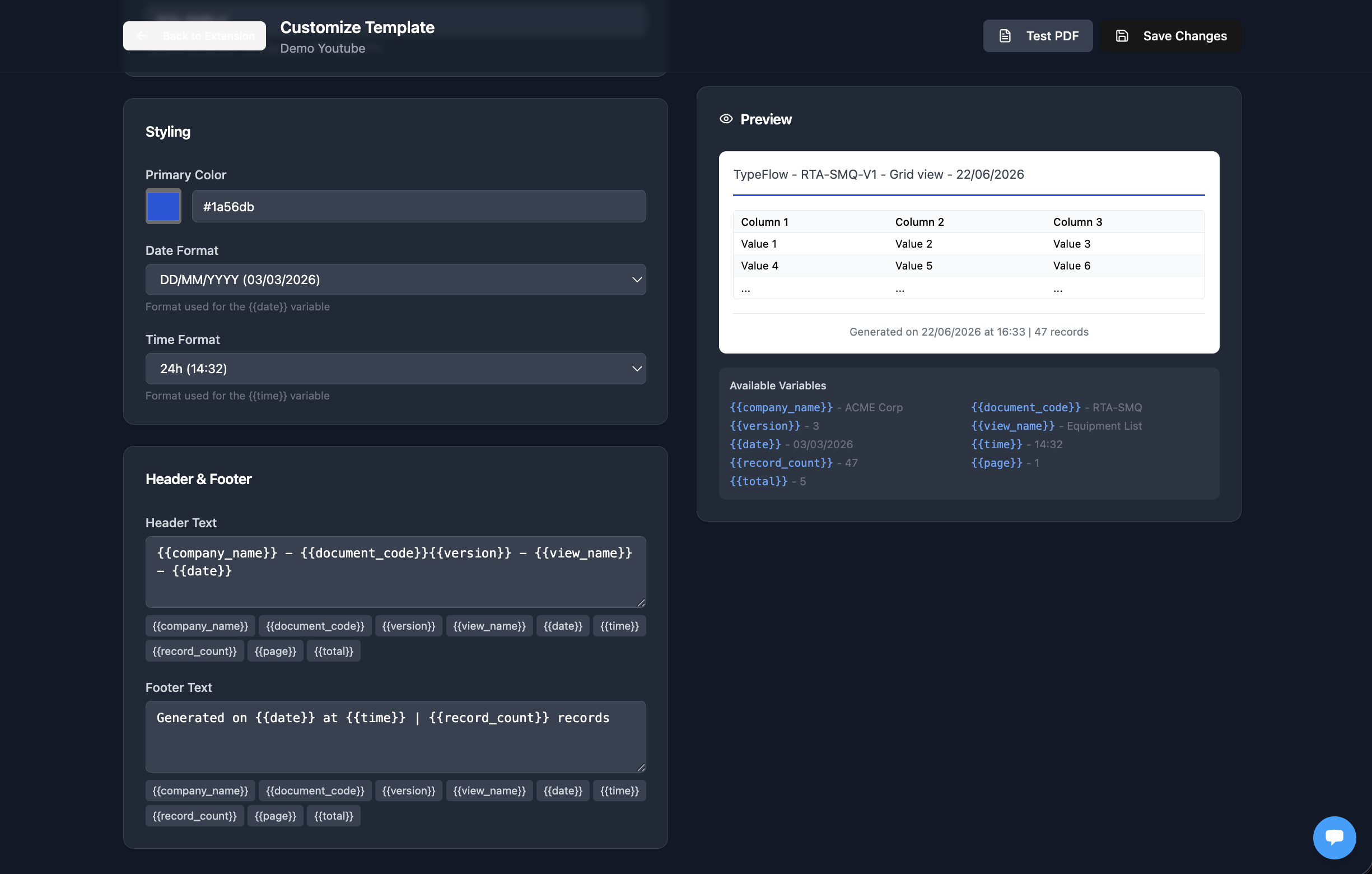
The live preview on the right shows exactly how your header and footer will look with sample data.
Step 7. Test and Generate
Click "Test PDF" to generate a watermarked preview with sample data. Check that branding, columns, and page layout look correct.
When you are ready, generate the report. TypeFlow creates the branded PDF, appends the signature page, and sends signing invitations to your configured signers.
Step 8. Set Up Automation
For recurring reports, set up automated generation. TypeFlow provides two options:
Interface button URL. Copy the URL into an Airtable Interface button (using "Go to external URL"). One click generates and sends the report.
Automation script. Copy the script into an Airtable Automation (using "Run a script" action). Schedule it weekly, monthly, or trigger on a field change.
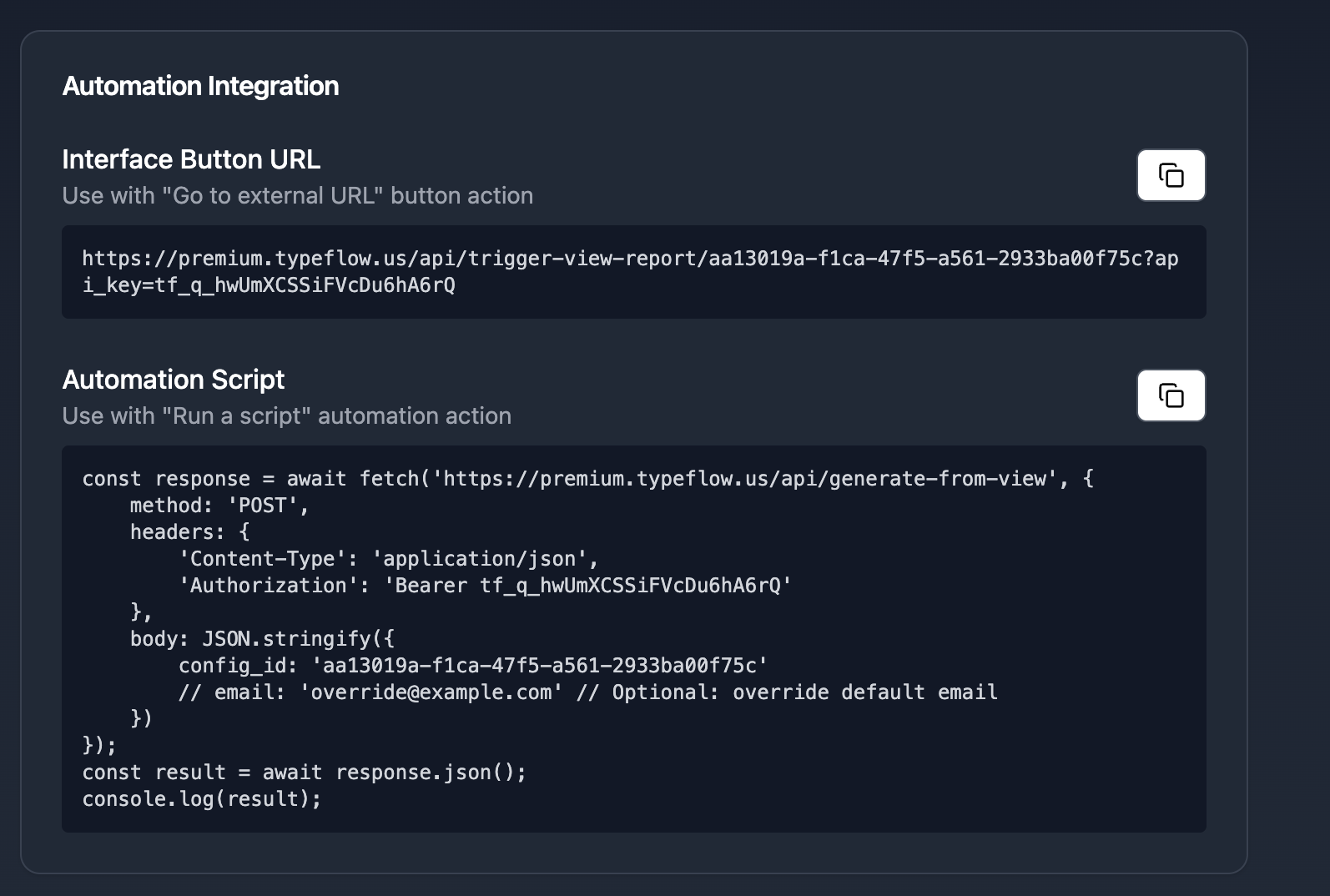
Many compliance teams schedule monthly exports: every first Monday, TypeFlow generates the latest view snapshot, sends it for signature, and archives the signed PDF. For email delivery of per-record documents, see our guide on generating and emailing PDFs from Airtable.
What the Signed Report Looks Like
The signer receives an email with a link to review the report. They see the full table data with the branded header, then scroll to the signature page.
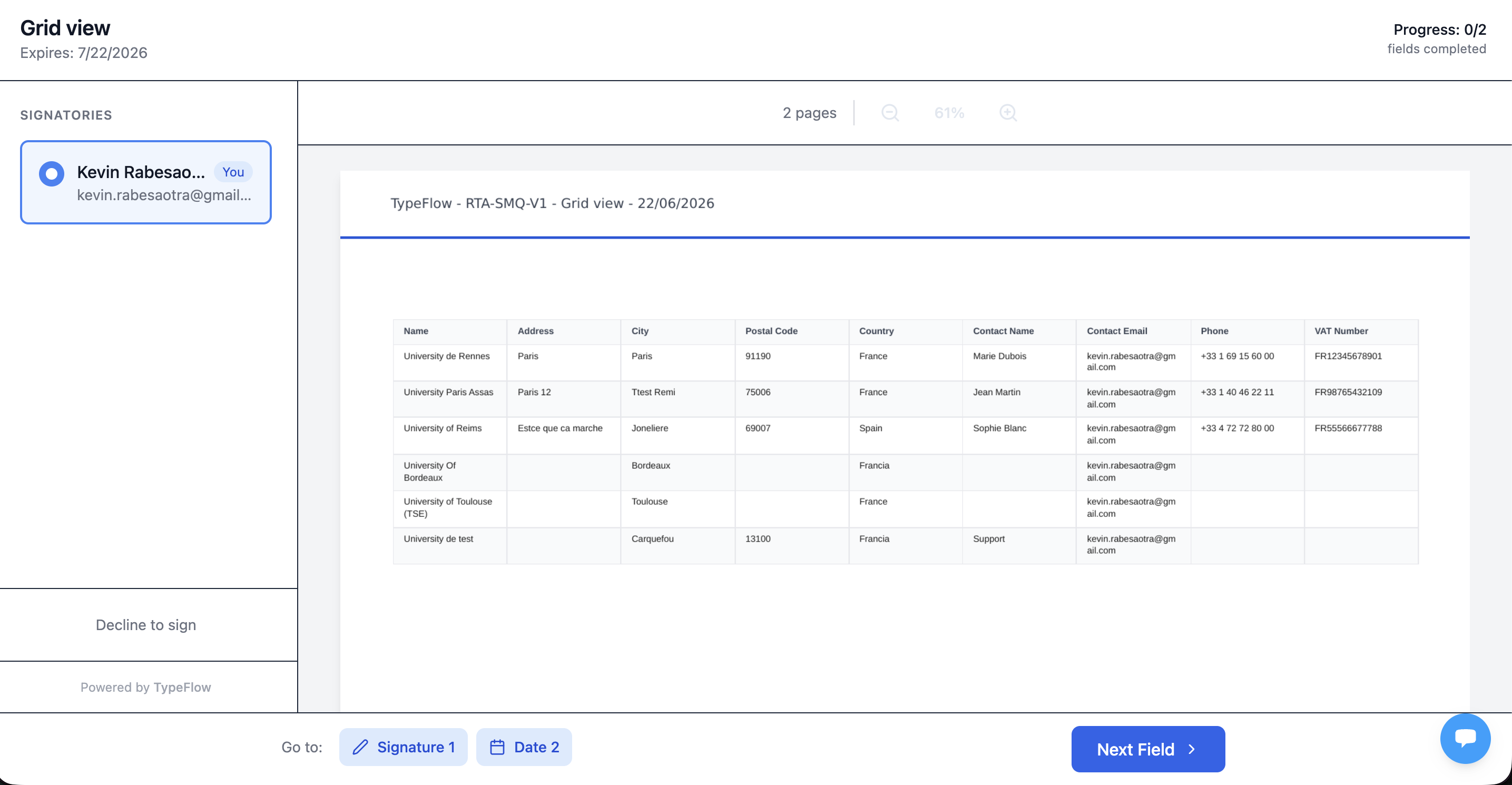
After signing, the signature and date appear on the approval page.
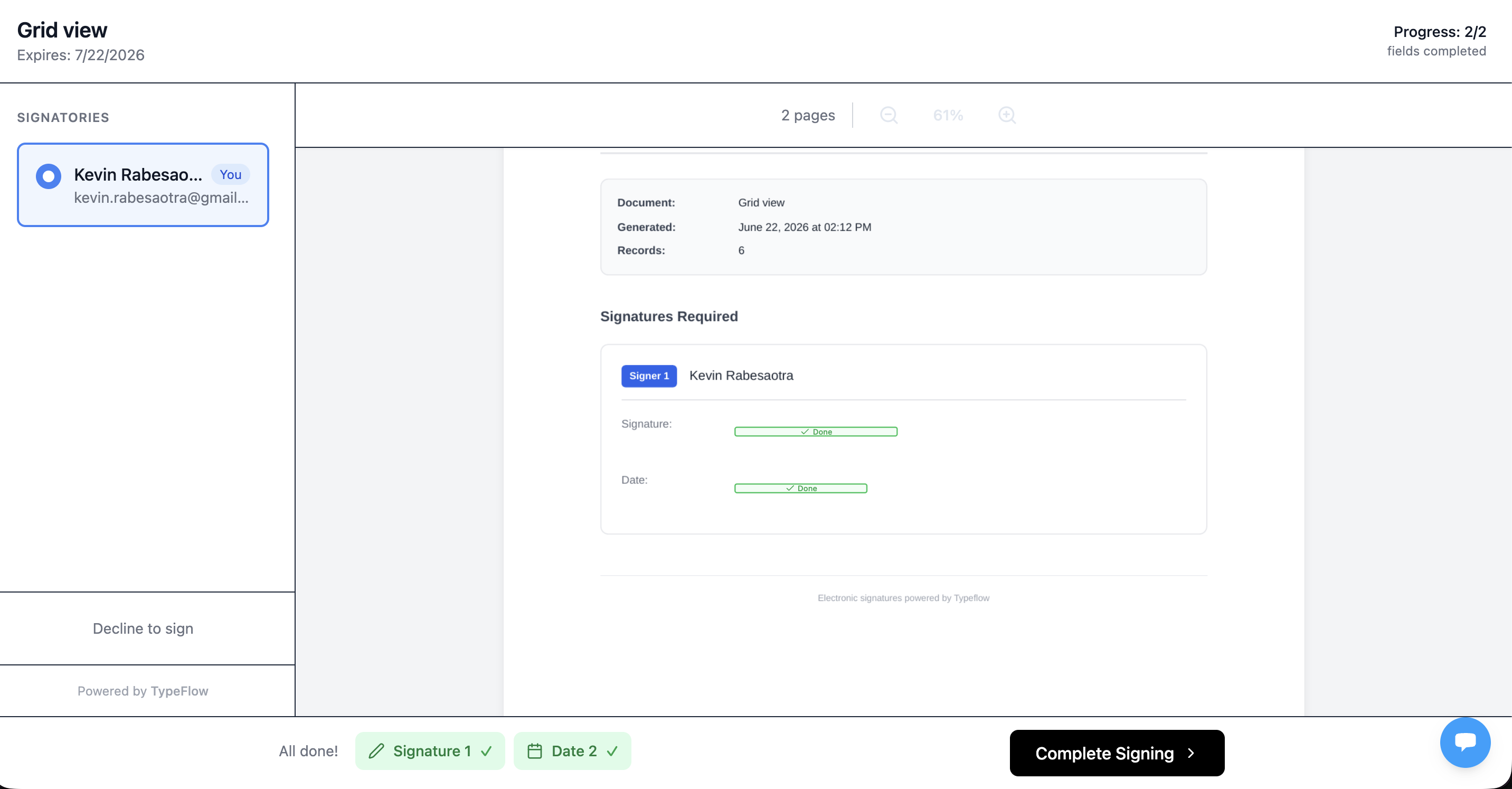
Here is the final signed PDF - page 1 is the branded table data, page 2 is the signed approval page, and page 3 is the certificate of completion with SHA-256 hash, IP address, location, browser, and timestamp:
Signed View Report with Certificate of Completion
The certificate of completion proves document integrity - any modification after signing would change the SHA-256 hash. TypeFlow e-signatures comply with the EU eIDAS Regulation and the US ESIGN Act. See our legal validity guide for details.
Per-Record Audit Documents
View Reports export entire tables. For individual documents - QC reports, inspection forms, certificates, deviation reports - TypeFlow generates one PDF per Airtable record using Google Docs templates or the HTML/CSS builder.
The setup is the same as for any TypeFlow document: connect your base, create a Google Docs template with merge variables, map fields, and set a trigger. You can also use line items for repeating sections. See our dedicated guides for each use case:
- QC and inspection reports
- Certificates of conformity
- Training certificates
- Traceability documents
- Spec sheets
- Manufacturing documents
- Contracts
- Invoices
- Quotes
For the complete setup, see our e-signature guide.
How to Track Changes with Audit Trail
TypeFlow Audit Trail monitors every change across your Airtable tables and logs who modified what and when. Combined with View Report snapshots, it gives auditors both the current state and the full change history. Audit Trail is currently available by request only - contact us to get access.
View Report Snapshots vs Continuous Audit Trail
These are two complementary tools:
- View Report answers: "What did the data look like on June 15th?" It is a frozen snapshot at a point in time.
- Audit Trail answers: "What changed between June 1st and June 15th, and who made those changes?" It is continuous monitoring.
Auditors typically need both. The snapshot proves the current state. The audit trail proves nothing was tampered with between snapshots.
How TypeFlow Audit Trail Works
TypeFlow's Audit Trail monitors every change across your Airtable tables:
- Auto-created table. When you activate Audit Trail, TypeFlow creates a dedicated "Audit Trail" table in your Airtable base automatically.
- Who changed what, when. Every modification is logged with the user who made the change (resolved via the "Last Modified By" field), the field that changed, and the timestamp.
- Multi-table monitoring. Track changes across all tables in your base - not just one.
- Enterprise feature. Audit Trail is available on the TypeFlow Enterprise plan.
What to Track for Audit Readiness
Beyond field-level changes, keep track of:
- Version number. View Reports auto-increment the version on each generation (V1, V2, V3). Built into the
{{version}}variable. - Generation date and time. The
{{date}}and{{time}}variables capture exactly when the report was produced. - Attachment field. Store generated PDFs in a dedicated Airtable field for easy retrieval.
- E-signature certificate. Signed reports include a certificate of completion with timestamp, IP address, and signer identity.
Compliance Frameworks Supported by Airtable PDF Reports
TypeFlow supports key documentation practices required under ISO 9001, GxP, FDA 21 CFR Part 11, ISO 13485, HACCP, and ISO 17025 - through branded reports, version control, e-signature approvals, and audit trail monitoring. World Commerce & Contracting research shows that poor contract and document management costs organizations up to 9% of annual revenue.
Important: TypeFlow is a documentation and reporting tool, not a validated QMS platform. It supports key documentation practices required under these frameworks, but validation responsibilities remain with your organization.
ISO 9001 Quality Management
ISO 9001 requires documented quality processes, inspection records, corrective actions, and management reviews. TypeFlow supports this with:
- Branded PDF reports with document codes and version control.
- E-signature approvals for quality manager and director sign-off.
- Audit trail tracking who modified quality records.
- Automated generation when records reach "Approved" status.
GxP Documentation (GMP, GDP, GCP)
Good Manufacturing Practice and related GxP frameworks require traceable, documented evidence of manufacturing, distribution, and clinical processes. Batch records, temperature logs, distribution records, and internal audits all benefit from frozen PDF snapshots with timestamps and approval signatures.
FDA 21 CFR Part 11
FDA 21 CFR Part 11 governs electronic records and signatures. Key requirements include secure, time-stamped audit trails and integrity of records. TypeFlow supports this with:
- PDFs frozen at generation time (non-editable after export).
- E-signatures with certificate of completion (timestamp, IP address).
- Audit trail logging field-level changes with user attribution.
ISO 13485 Medical Devices
ISO 13485 applies to medical device quality management systems. Similar to ISO 9001 but specific to medical devices, with stricter traceability requirements. Design history files, batch records, and CAPA documentation benefit from versioned, signed PDFs.
HACCP and ISO 22000 Food Safety
HACCP and ISO 22000 require documentation of CCP checks, temperature logs, cleaning schedules, and batch traceability. View Reports work well for periodic table exports - for example, a weekly temperature log snapshot signed by the quality manager.
ISO 17025 Testing Labs
ISO 17025 requires traceable, tamper-proof test reports and calibration records. Per-record document generation handles individual test reports, while View Reports export calibration log summaries.
Best Practices for Audit-Ready Reporting in Airtable
A few habits will keep your audit reporting reliable over time.
Lock Templates After Approval
Once a template is approved for use, protect it from unauthorized edits. This ensures consistency across all generated reports. In TypeFlow, the template lives in Google Docs or the HTML/CSS builder - use sharing permissions to restrict editing.
Include Record IDs and Timestamps in Every PDF
Every audit PDF benefits from a unique identifier and generation date. For View Reports, use {{document_code}}-V{{version}} in your header. For per-record docs, include {{Record_ID}} and {{Created_Time}} in your template.
Store PDFs in a Dedicated Attachment Field
Keep generated reports in a single dedicated Airtable field. A dedicated attachment field makes retrieval straightforward when auditors request documentation. TypeFlow saves PDFs to the attachment field automatically.
Restrict Edit Access on Source Records
Use Airtable permissions to prevent changes to finalized or approved data. Restricting edit access protects the integrity of your audit trail. Consider locking records once they reach "Approved" status.
Review Your Audit Workflow Quarterly
Requirements change. A quarterly review confirms your workflow still meets internal and external audit expectations. Check that templates are current, automation triggers are correct, and generated PDFs contain all required fields.
Start Generating Audit-Ready PDFs from Airtable
Building an audit-ready reporting system in Airtable is simpler than it might seem. With View Reports for table snapshots, per-record templates for individual documents, e-signature approvals, and continuous audit trail monitoring, TypeFlow gives you everything auditors expect - without manual work. Rated by quality and operations teams on G2.
For related guides, see how to export Airtable views to PDF, our manufacturing document automation guide, and the document generation overview.
Ready to make your Airtable reports audit-ready?
Branded View Reports, e-signature approvals, version control, and audit trail. Start in minutes.
Start free with 20 documentsFrequently Asked Questions About Audit-Ready PDF Reports from Airtable
Find answers to the most common questions about this feature.
Popular Questions
All Questions
Need more help?
Our team is here to help you solve all your problems and answer your questions.
Contact Us
Kevin from TypeFlow
•AuthorKevin Rabesaotra is a growth engineer and automation specialist with 8+ years of experience building no-code solutions. As Founder & CEO of TypeFlow, he has helped hundreds of businesses automate document generation and streamline workflows with Airtable integrations. Previously, Kevin was a Product Lead specializing in growth engineering, running experiments to drive revenue, retention, and lead generation.
More articles
How to Print Labels from Airtable with Quantity Control (Step by Step)
Print multiple labels per Airtable record based on a quantity field. Step-by-step guide for linked records mode and quantity repeat mode with barcodes and Avery sheets.
Read articleHow to Print Avery Mailing Labels from Airtable
Print Avery mailing labels (5160, 5161, 5162) from Airtable without Word mail merge. Step-by-step guide with print label mode, automation, and bulk generation.
Read articleHow to Create Inventory Labels with Barcodes in Airtable
Create inventory labels with Code 128, EAN-13, or QR barcodes from Airtable. Step-by-step guide for warehouse, retail, and asset tracking with thermal and Avery printers.
Read article