How to Generate Spec Sheet PDFs from Airtable (4 Easy Methods)
Product spec sheets are essential documents for manufacturing, wholesale, and e-commerce businesses. They communicate technical specifications, dimensions, materials, and product images to customers, vendors, and internal teams.
If your product data lives in Airtable, you need a reliable way to turn those records into professional PDF spec sheets. This guide covers four methods - from native Airtable options to dedicated tools - so you can choose the right approach for your workflow. Spec sheets are one of many manufacturing documents you can automate - see our complete guide to manufacturing document automation in Airtable for the full picture.
Key Takeaways
- Method 1 (Page Designer): Best for simple, single-record spec sheets without complex formatting needs.
- Method 2 (CSV Export): Works for basic data tables but loses images and requires manual formatting.
- Method 3 (Zapier/Make): Adds automation but introduces middleware complexity and extra costs.
- Method 4 (Dedicated tool): Best for professional spec sheets with images, bulk generation, and automation.
- Bottom line: Dedicated PDF tools offer the most reliable path for creating professional product spec sheets at scale.
Quick Answer
The fastest path to generate spec sheet PDFs from Airtable is by using a dedicated PDF generation tool. These tools connect directly to your base, pull product data (including images), and output professionally formatted PDFs based on a template you design.
While native Airtable options exist, they have significant limitations for spec sheets specifically. If you need professional, branded spec sheets-go directly to Method 4.
Why Airtable's Native Export Falls Short for Spec Sheets
Airtable is a powerful database tool, but it wasn't designed for document generation. Product spec sheets require specific formatting, embedded images, and consistent branding that Airtable's native export options don't support out of the box.
Limited Layout and Branding Control
Airtable's print or PDF export simply captures the grid or gallery view as-is. This means you get a raw data dump with no ability to add custom headers, footers, company logos, or the professional formatting expected on a customer-facing spec sheet.
No Image Support in Standard Exports
Product spec sheets rely on product photos, diagrams, or technical drawings. Standard CSV exports strip attachment fields entirely, leaving you with only text data. While printing a view might show thumbnails, it doesn't allow for properly sized and placed images within a document layout.
One Record at a Time with No Bulk Option
The built-in Page Designer extension requires you to manually open and export each record one by one. This is impractical for product catalogs with hundreds or thousands of SKUs that each need an individual spec sheet.
Method 1: Use Airtable Page Designer for Single Spec Sheets
Page Designer is a native Airtable extension that allows you to create simple, single-page document layouts from your record data. You can drag and drop fields onto a canvas to design a basic layout for printing or saving as a PDF.
When to Use Page Designer
This method is best for:
- Creating one-off spec sheets for occasional requests
- Managing very small product lines (under 20 products)
- Generating quick internal documents where professional polish isn't critical
- Testing a basic layout before committing to a more robust solution
Page Designer Limitations for Spec Sheets
| Limitation | Impact |
|---|---|
| Single-page only | Cannot create multi-page spec sheets for products with extensive specifications |
| Manual export | Each spec sheet must be printed or saved to PDF individually |
| Limited image control | Attachment fields can be displayed, but you have only basic sizing and placement options |
| No automation | Cannot trigger spec sheet generation automatically when product data changes |
| No bulk generation | Generating 100 spec sheets means 100 manual exports |
Method 2: Export Airtable to CSV and Format in Google Sheets
This workflow involves exporting an Airtable view to a CSV file, opening it in a spreadsheet program like Google Sheets or Excel, manually formatting the data into a spec sheet layout, and then exporting the final result as a PDF.
When to Use CSV Export
This method is best for:
- Data-only spec sheets (technical parameter tables)
- Situations where images are not required
- Infrequent generation (once a quarter or less)
- Users comfortable with manual spreadsheet formatting
CSV Export Limitations for Spec Sheets
| Limitation | Impact |
|---|---|
| No images | Attachment fields are exported as URLs, not embedded images |
| Manual formatting every time | Your formatting doesn't persist-each new export requires re-styling |
| No linked record data | Information from linked records must be flattened using lookups or exported separately |
| Not scalable | Highly manual process, impractical for large product catalogs |
Method 3: Use Zapier or Make with a PDF Generation Tool
This middleware approach involves using an automation platform like Zapier or Make to connect Airtable to a separate PDF generation service (like PDFMonkey or Formstack Documents).
When to Use Automation Platforms
This method is best if:
- You already use Zapier or Make heavily in your tech stack
- You require some level of automation (generate a PDF when a record is updated)
- You're comfortable managing multi-step workflows across different tools
- Budget isn't a primary concern
Automation Platform Limitations for Spec Sheets
| Limitation | Impact |
|---|---|
| Added complexity | Must configure triggers in Airtable, map data in Zapier/Make, and set up the template in the PDF tool |
| Multiple subscriptions | Paying for Airtable + automation platform + PDF generation service |
| Brittle workflows | Renaming a field in Airtable can silently break the automation |
| Debugging difficulty | When generation fails, the problem could be in any of three connected tools |
Method 4: Generate Spec Sheet PDFs with a Dedicated Airtable Tool
Dedicated PDF generation tools are designed to connect directly to Airtable without needing middleware. Tools like TypeFlow integrate with Airtable and use Template Builder (a visual HTML editor) or Google Docs for template creation.
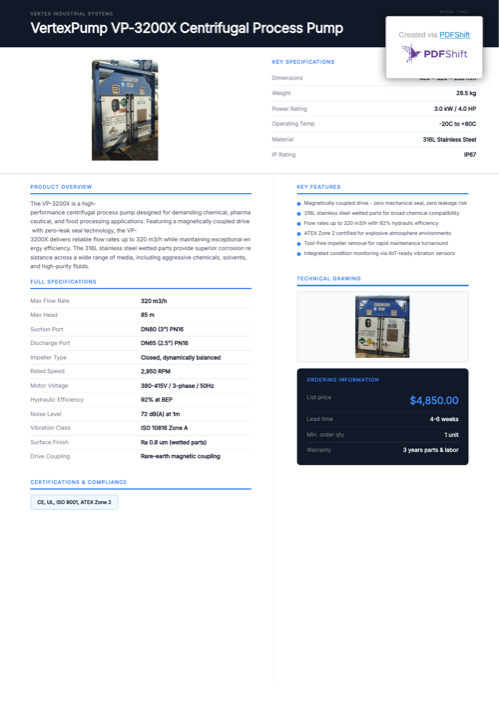
This is the recommended approach for creating professional, repeatable spec sheets efficiently. Here's an example spec sheet generated from Airtable data - click the preview to open the full PDF, or duplicate the demo base to try it yourself:
Ready-to-use template
Product Spec Sheet
Duplicate the Airtable base, paste the template in Typeflow, then generate your first PDF in minutes.
Free tier available • No credit card required
Step 1: Structure Your Airtable Product Base
The schema below matches the demo base you can duplicate. It uses three tables: Products (main), Specifications (linked via loop), and Features (linked via loop). Each record in Products generates one spec sheet PDF.
Products Table (main):
| Field Name | Field Type | Purpose |
|---|---|---|
| Product Name | Single line text | Main product identifier |
| SKU | Single line text | Model / part number |
| Manufacturer | Single line text | Company name shown in header |
| Category | Single line text | Product classification |
| Description | Long text (rich text ON) | Product overview paragraph |
| Dimensions | Single line text | Physical size (e.g. "480 x 320 x 285 mm") |
| Weight | Single line text | e.g. "28.5 kg" |
| Power Rating | Single line text | e.g. "3.0 kW / 4.0 HP" |
| Operating Temp | Single line text | e.g. "-20C to +80C" |
| Material | Single line text | e.g. "316L Stainless Steel" |
| IP Rating | Single line text | e.g. "IP67" |
| Certifications | Single line text | e.g. "CE, UL, ISO 9001, ATEX Zone 2" |
| Product Photo | Attachment | Main product image |
| Technical Drawing | Attachment | CAD drawing or dimensional diagram |
| Price | Single line text | Formatted price (e.g. "$4,850.00") |
| Lead Time | Single line text | e.g. "4-6 weeks" |
| MOQ | Single line text | Minimum order quantity |
| Warranty | Single line text | e.g. "3 years parts & labor" |
Specifications Table (linked, feeds the Full Specifications section):
| Field Name | Field Type | Purpose |
|---|---|---|
| Spec Name | Single line text | Parameter name (e.g. "Max Flow Rate") |
| Spec Value | Single line text | Value (e.g. "320 m3/h") |
| Product | Link to Products | Links back to the product |
Features Table (linked, feeds the Key Features section):
| Field Name | Field Type | Purpose |
|---|---|---|
| Feature | Single line text | Feature description |
| Product | Link to Products | Links back to the product |
In the template, specs and features are rendered dynamically via linked-record loops. Add as many rows as needed per product - the spec sheet expands automatically.
Pro Tip: Consistent Data Structure
Keep field formats consistent across records. Use single select for fixed options (categories, certifications) and consistent units for measurements. This ensures your spec sheets look uniform across your entire catalog.
Step 2: Connect TypeFlow to Your Airtable Base
Install TypeFlow from the Airtable Marketplace and authorize access to your product base.
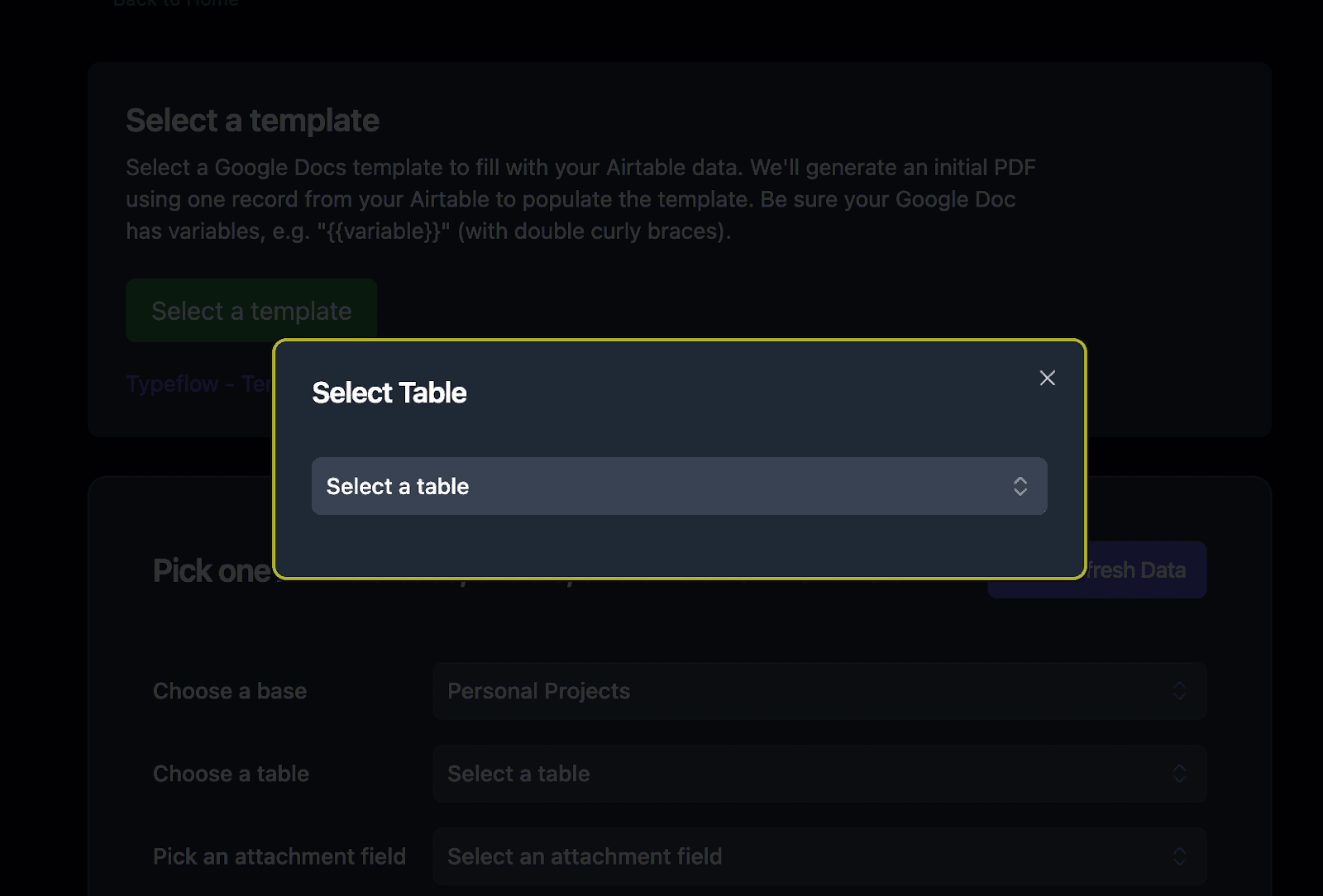
The connection process takes about two minutes. Once connected, TypeFlow can access all tables and fields in your base.
Step 3: Create Your Spec Sheet Template in Google Docs
Design your spec sheet in Google Docs using placeholder variables where product data should appear.
Example template structure:
[Company Logo]

PRODUCT SPECIFICATION SHEET

Product: {{Product Name}}
SKU: {{SKU}}
Category: {{Category}}

---

DESCRIPTION
{{Description}}

---

PHYSICAL SPECIFICATIONS
Dimensions: {{Dimensions}}
Weight: {{Weight}} kg
Materials: {{Materials}}
Available Colors: {{Color Options}}

---

TECHNICAL SPECIFICATIONS
Operating Temperature: {{Operating Temp}}
Certifications: {{Certifications}}

---

{{Product Image}}

---

Lead Time: {{Lead Time}}
List Price: {{Price}}

Document generated from Airtable on {{Current Date}}
Pro Tip: Template Design
Use Google Docs' full formatting capabilities-tables for organized specs, headers for section breaks, and your brand fonts. The template is your master design, so invest time making it professional.
Step 4: Map Airtable Fields to Template Variables
In TypeFlow's interface, connect each placeholder to its corresponding Airtable field.
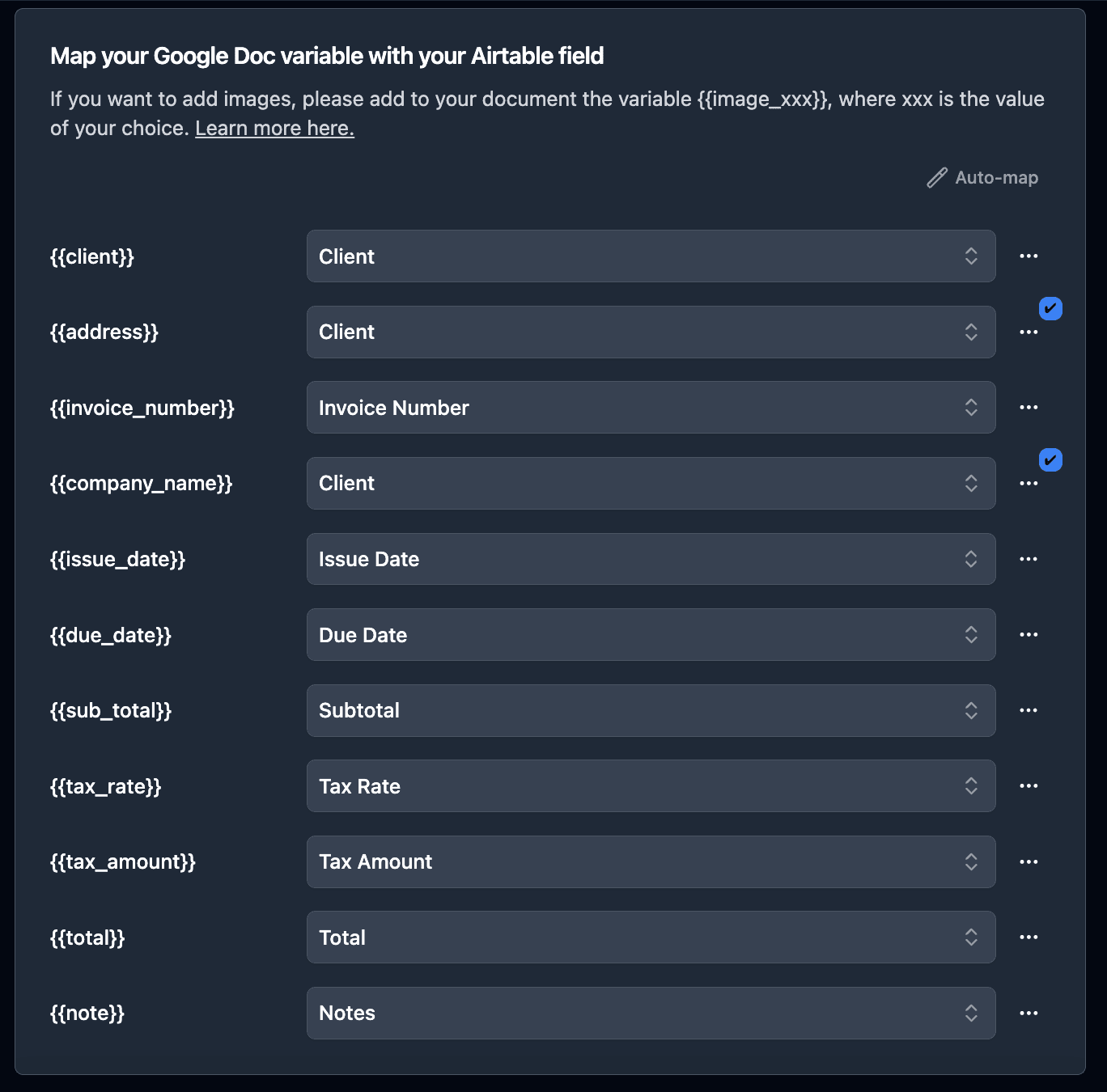
Key mapping considerations:
- Text fields: Map directly to text placeholders
- Number fields: Apply formatting (decimal places, currency symbols)
- Multiple select fields: Choose separator (comma, bullet list)
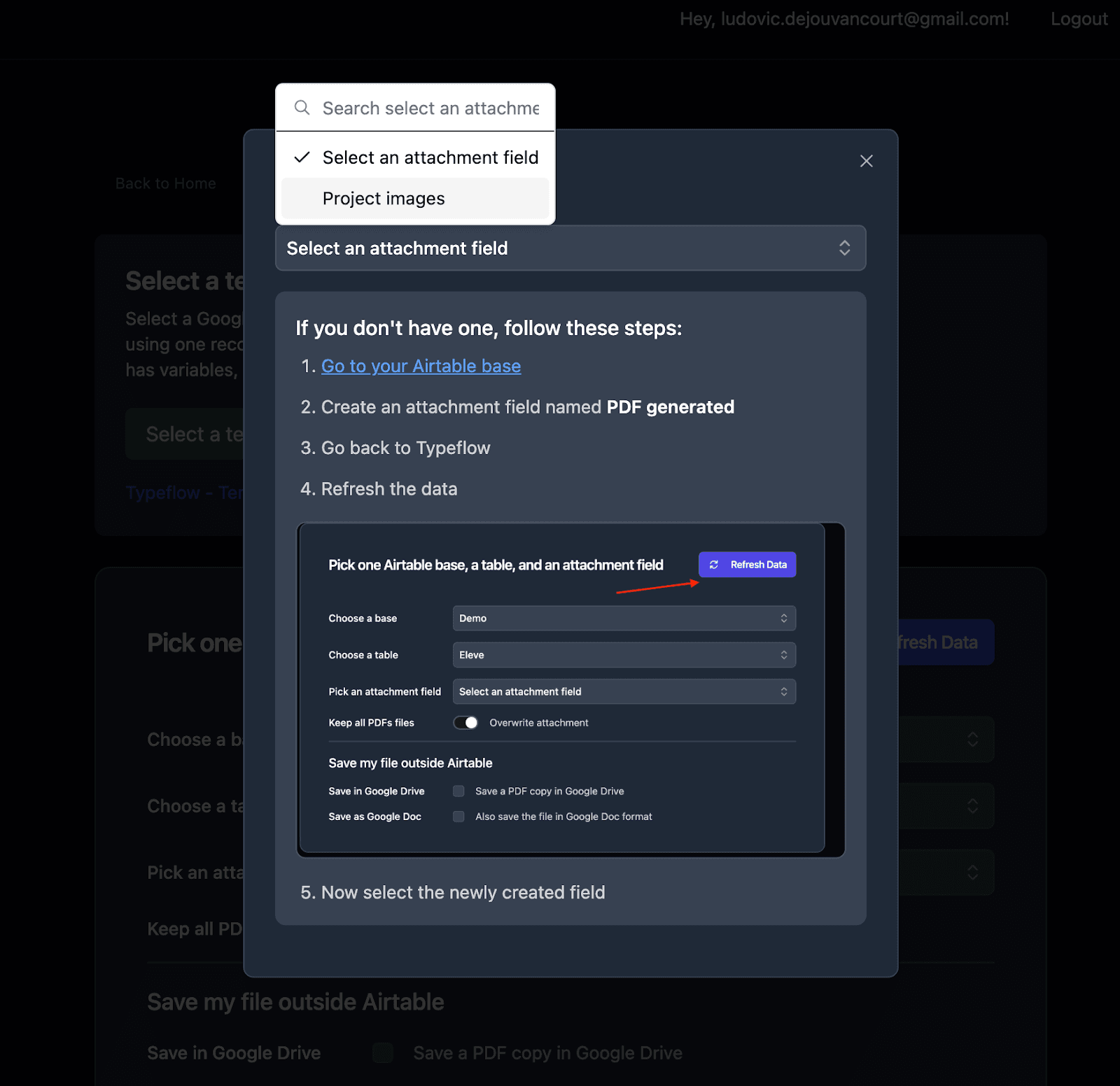
- Attachment fields: Specify image dimensions and positioning
Step 5: Configure Products with Variants or Components
If your products have variants (sizes, colors) or linked components, you can include these in your spec sheet using linked record fields.
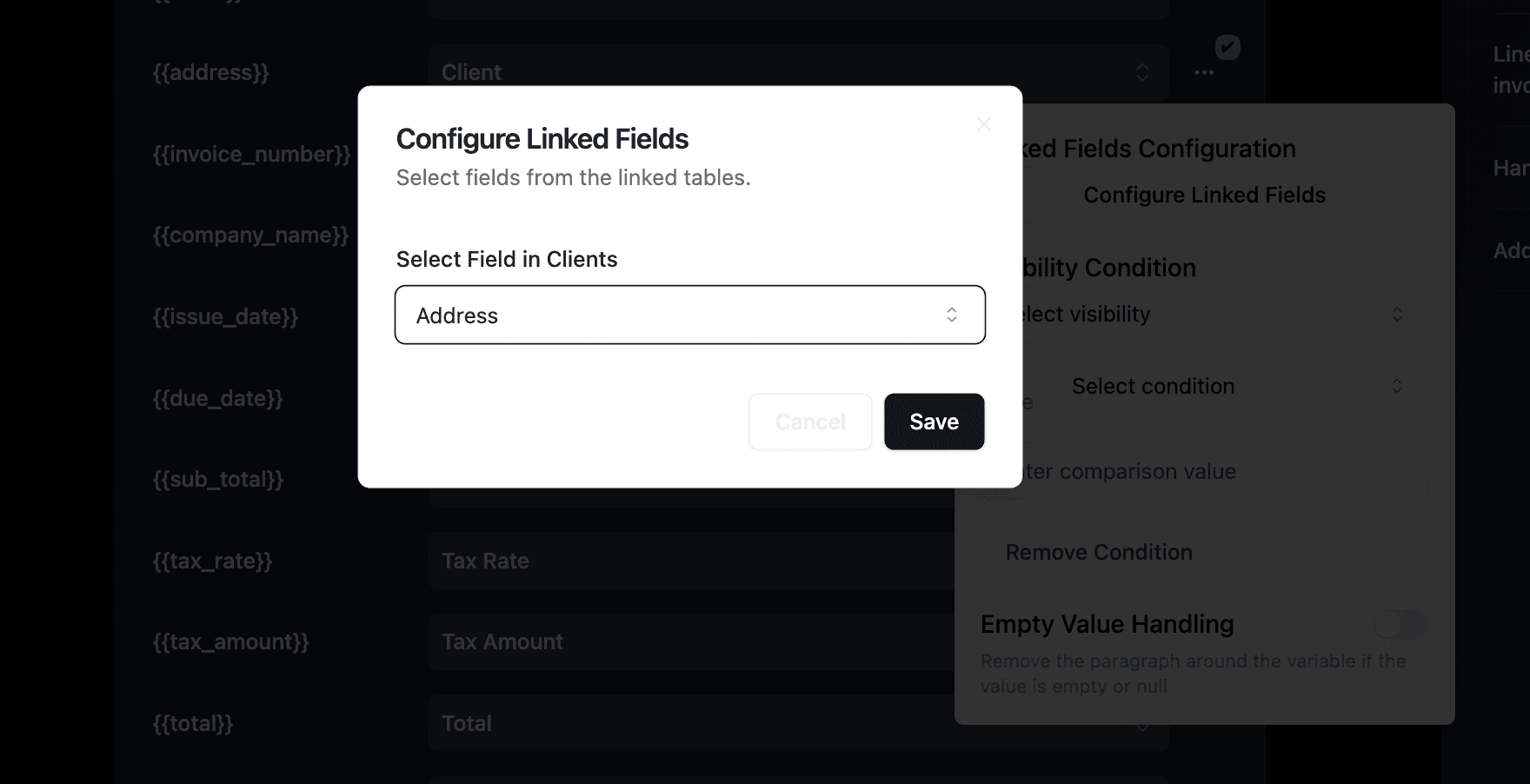
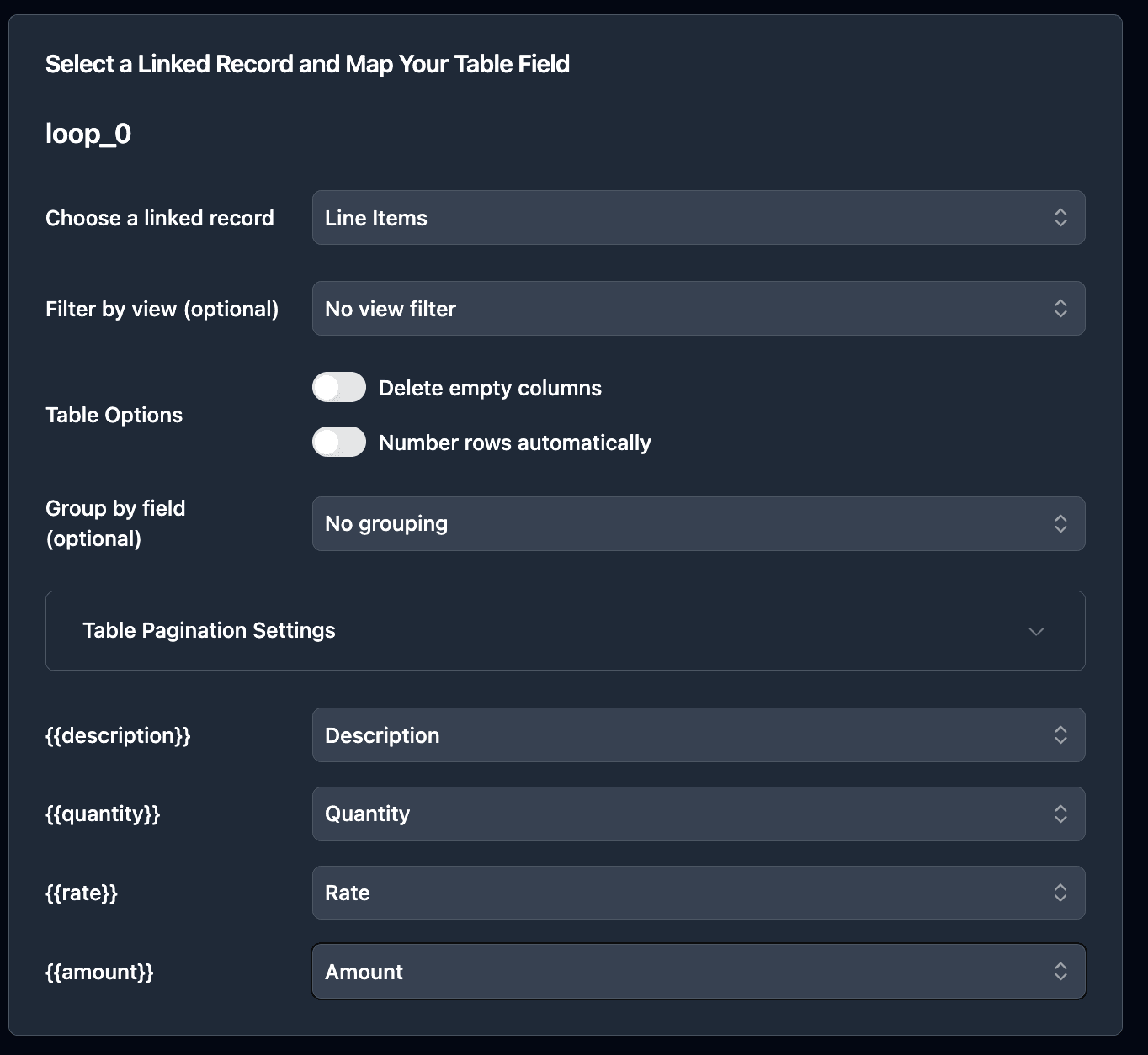
For products with a bill of materials or accessories list, use loops to dynamically include all linked items. This same approach powers production order BOM tables and QC report defect lists:
INCLUDED COMPONENTS:
{{loop_0}}
- {{Component Name}}: {{Component Description}}
Step 6: Apply Data Formatting
Use TypeFlow's formatting options to ensure your spec sheet data appears professionally.
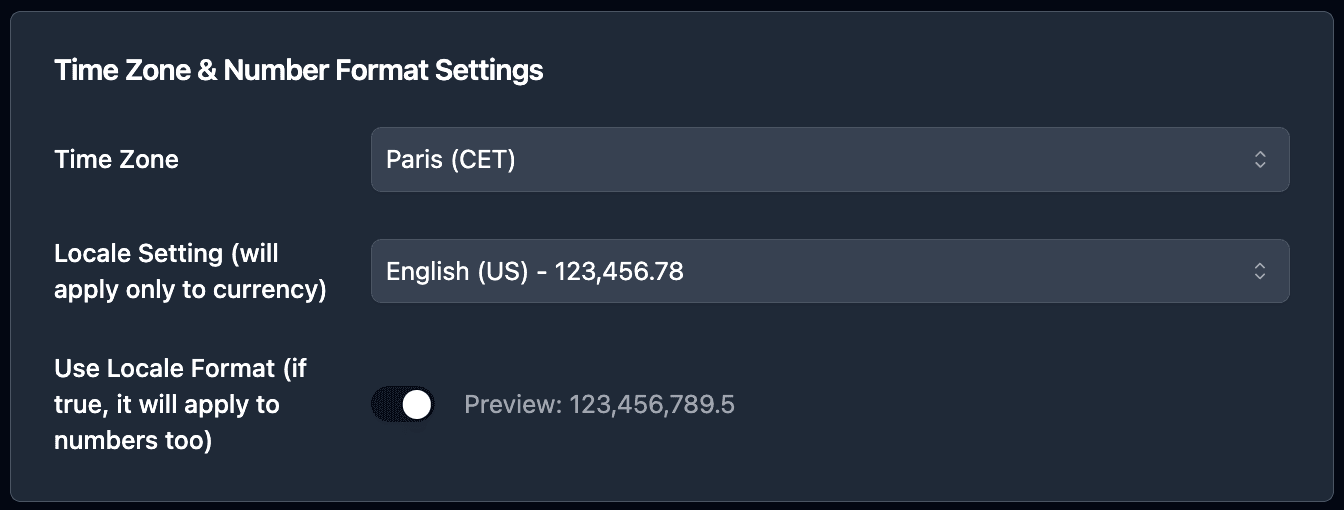
Common formatting needs:
| Data Type | Format Example |
|---|---|
| Dimensions | 12" x 8" x 4" (add unit suffix) |
| Weight | 2.5 kg (decimal + unit) |
| Price | $149.00 (currency + 2 decimals) |
| Date | March 30, 2026 (readable format) |
| Certifications | CE, UL, ISO 9001 (comma-separated) |
Generate Spec Sheet PDFs: 3 Options
You can generate spec sheet PDFs three ways: a button field for on-demand single records, bulk generation for entire catalogs, or Airtable Automations for hands-free generation when data changes. Choose based on your workflow needs.
Option 1: Button Field (On-Demand Generation)
Add a button field to your Products table for one-click spec sheet generation.
Workflow:
- Open a product record
- Click "Generate Spec Sheet"
- PDF appears in the attachment field within seconds
Best for: Sales teams generating spec sheets during customer calls, or product managers creating documents for specific requests. You can also configure the automation to email the PDF automatically to customers or vendors.
Option 2: Bulk Generation (Entire Catalog)
Generate spec sheets for multiple products at once using TypeFlow's bulk feature.
Workflow:
- Filter your view to show products needing spec sheets
- Select records (or select all)
- Click "Generate PDFs"
- All spec sheets generate in parallel
Best for: Initial catalog setup, quarterly refreshes, or generating spec sheets for an entire product line launch. The same bulk workflow also works for printing labels and generating barcodes across your catalog.
Option 3: Airtable Automations (Automatic Generation)
Set up Airtable Automations to generate spec sheets automatically when:
- A new product is added
- Product specifications change
- A record is marked "Ready for Publication"
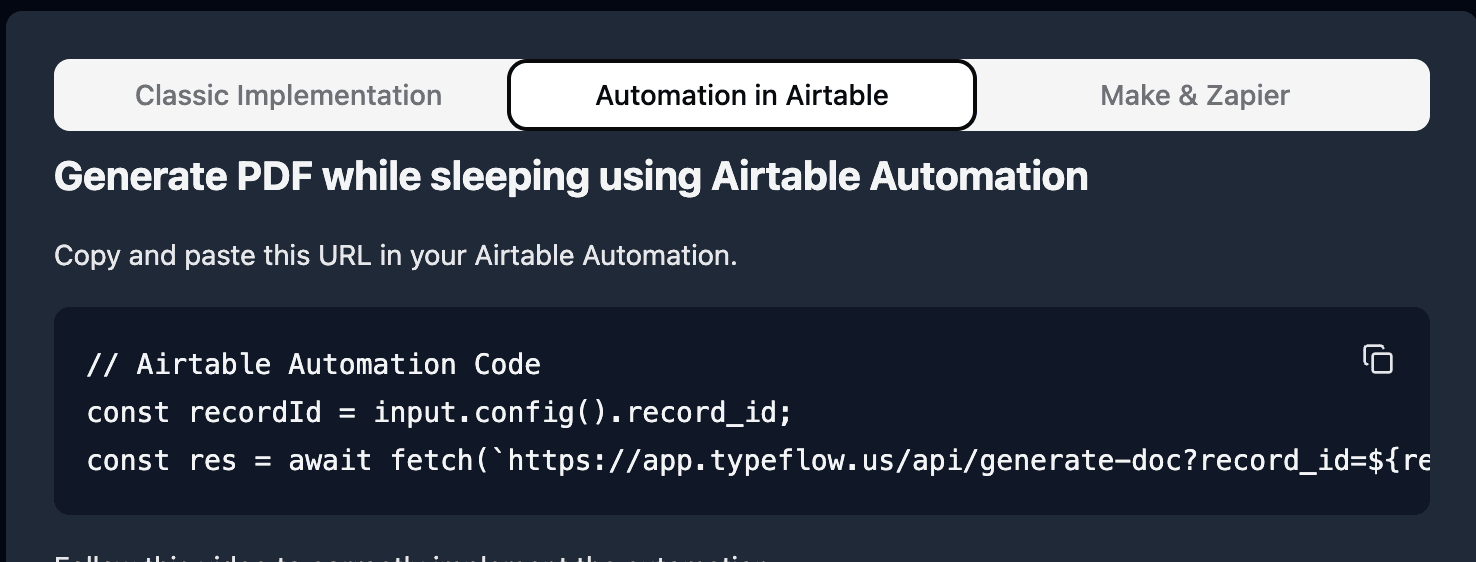
Setup steps:
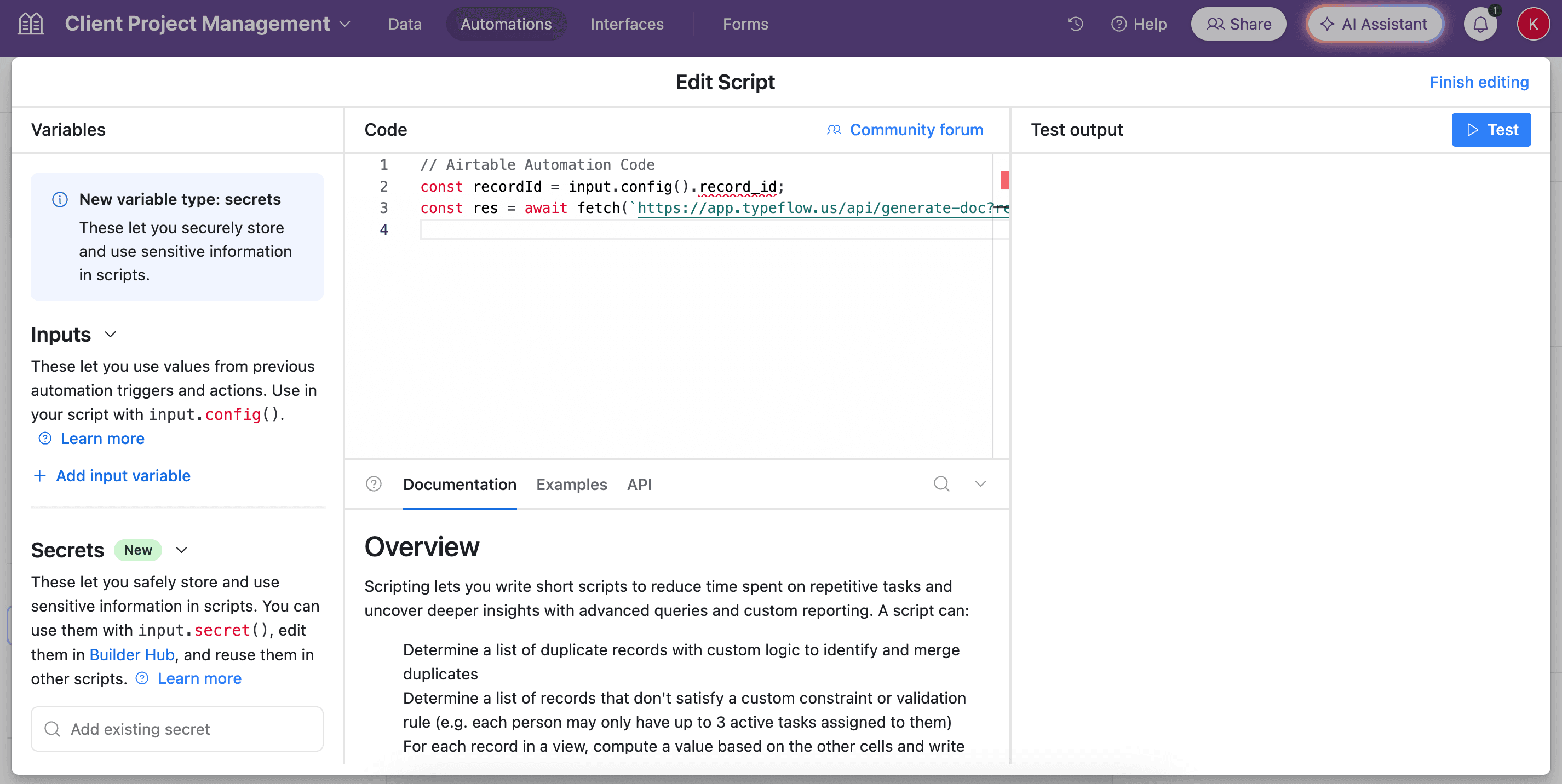
- Create a new Automation in Airtable
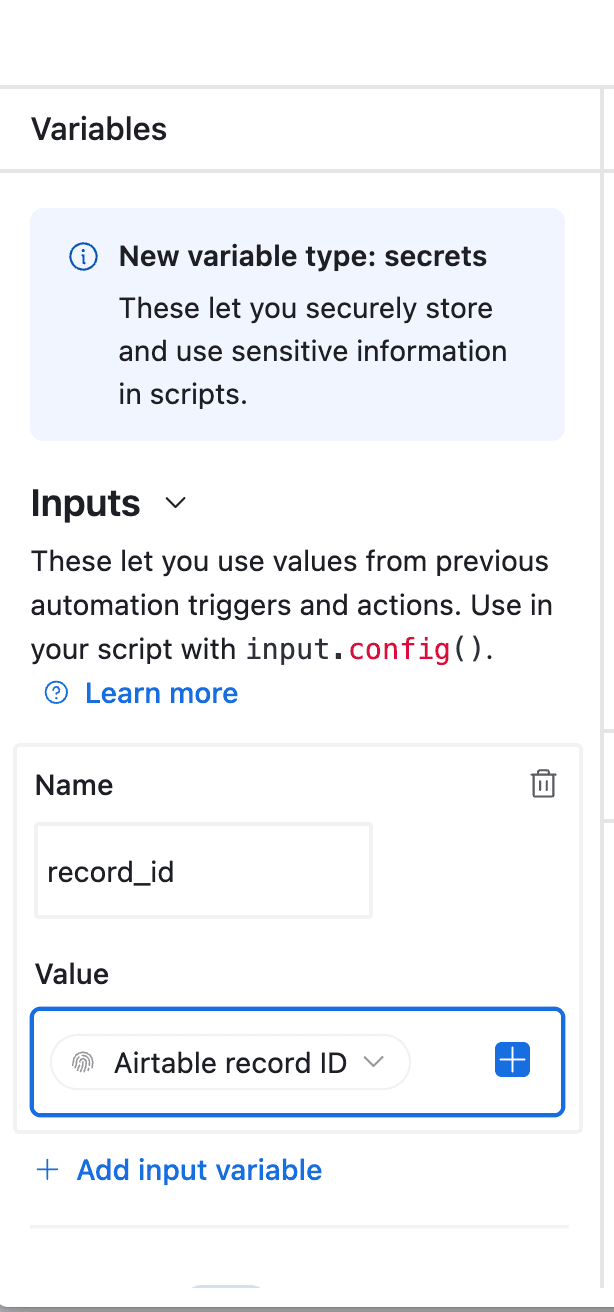
- Set your trigger (e.g., "When record matches conditions")
- Add a "Run script" action
- Paste the TypeFlow script
Pro Tip: Status-Based Triggers
Add a "Spec Sheet Status" single select field with options like "Draft," "Ready," and "Published." Trigger generation when status changes to "Ready"-this gives you control over when documents are created rather than generating on every edit.
Automate your document generation
Start with 20 free documents. Built for businesses using Airtable.
Comparing Spec Sheet PDF Methods
| Method | Best For | Image Support | Bulk Generation | Automation | Complexity | Cost |
|---|---|---|---|---|---|---|
| Page Designer | Quick internal docs | Basic | No | No | Low | Free |
| CSV + Sheets | Data-only tables | No | Manual | No | Medium | Free |
| Zapier/Make + PDF | Existing automation users | Varies | Yes | Yes | High | $$$ |
| TypeFlow | Professional spec sheets | Full | Yes | Yes | Low | $ |
For teams that need reliable, professional, and scalable spec sheet generation, Method 4 offers the best balance of power and simplicity. A dedicated tool removes the manual work and technical complexity required by other methods.
Common Spec Sheet Scenarios
The most frequent spec sheet use cases are multi-configuration products, items with technical drawings, and compliance-heavy products that require certification details. Here is how to handle each one.
Multi-Configuration Products
For products with multiple configurations (e.g., different sizes, power options), create a spec sheet template with a variants section:
AVAILABLE CONFIGURATIONS:

{{loop_0}}
Model: {{Configuration Name}}
Specifications: {{Config Specs}}
Price: {{Config Price}}
Products with Technical Drawings
Include both product photos and technical drawings:
PRODUCT IMAGE
{{Product Image}}

TECHNICAL DRAWING
{{Technical Drawing}}

DIMENSIONS DIAGRAM
{{Dimensions Diagram}}
Each attachment field can have different sizing rules in your mapping configuration.
Compliance-Heavy Products
For products requiring certification documentation, you can pair spec sheets with automated certificates of conformity to cover both product details and compliance sign-off. If your compliance workflow requires signed documents, consider adding an electronic signature or integrating with DocuSign for e-signed document generation:
CERTIFICATIONS & COMPLIANCE

{{Certifications}}

Certification Documents: {{Cert Attachments}}

This product complies with all applicable regulations for {{Compliance Regions}}.
Related Manufacturing Documents
- How to Generate Production Orders in Airtable - Automate production order PDFs with BOM line items
- How to Create Traceability Document PDFs from Airtable - Generate audit-ready traceability PDFs from batch data
- How to Build Quality Control Reports in Airtable - Automate QC reports with defect tables and photos
- How to Create Certificates of Conformity in Airtable - Automate CoC PDFs with test results and e-signatures
Generate Professional Spec Sheets from Airtable in Minutes
For exporting full spec sheet tables as audit-ready PDFs, see our audit-ready reports guide.
With TypeFlow, you can set up your template once and generate branded, accurate spec sheets on demand or automatically. No developer is needed, and you can get started in minutes with real-time support. Rated by Airtable users on G2.
Automate your document generation
Start with 20 free documents. Built for businesses using Airtable.
Frequently Asked Questions
Find answers to the most common questions about this feature.
Popular Questions
All Questions
Need more help?
Our team is here to help you solve all your problems and answer your questions.
Contact Us
Kevin from TypeFlow
•AuthorKevin Rabesaotra is a growth engineer and automation specialist with 8+ years of experience building no-code solutions. As Founder & CEO of TypeFlow, he has helped hundreds of businesses automate document generation and streamline workflows with Airtable integrations. Previously, Kevin was a Product Lead specializing in growth engineering, running experiments to drive revenue, retention, and lead generation.
More articles
How to Print Labels from Airtable with Quantity Control (Step by Step)
Print multiple labels per Airtable record based on a quantity field. Step-by-step guide for linked records mode and quantity repeat mode with barcodes and Avery sheets.
Read articleHow to Print Avery Mailing Labels from Airtable
Print Avery mailing labels (5160, 5161, 5162) from Airtable without Word mail merge. Step-by-step guide with print label mode, automation, and bulk generation.
Read articleHow to Create Inventory Labels with Barcodes in Airtable
Create inventory labels with Code 128, EAN-13, or QR barcodes from Airtable. Step-by-step guide for warehouse, retail, and asset tracking with thermal and Avery printers.
Read article