How to Create Inventory Labels with Barcodes in Airtable
You can create inventory labels with scannable barcodes directly from your Airtable data. Airtable's barcode field stores scanned values as text but cannot print barcode images. TypeFlow fills that gap - it generates printable Code 128, EAN-13, or QR barcodes on labels from any text or number field.
For all label types, see our complete label printing guide. For product labels specifically, see product labels with barcodes. For shipping labels, see the thermal printer guide.
Print Inventory Labels with QR Codes from Airtable
What You Need Before Starting
Airtable's barcode field turns your phone camera into a scanner. You can log inventory with a quick scan. But the field stores values as text - it does not generate printable images. To create labels with scannable barcodes, you connect your Airtable data to a template through TypeFlow.
- An Airtable base with inventory data - products, assets, or any items you want to label.
- A label template - use TypeFlow's HTML/CSS template builder for pixel-perfect layouts, or Google Docs for simpler designs.
- TypeFlow connected to your Airtable account via OAuth.
- A printer - standard office printer with Avery sheets or a thermal printer like DYMO or Zebra.
How the Airtable Barcode Field Works
The barcode field in Airtable stores scanned or typed barcode values as plain text. Tap the field in the mobile app, your phone camera activates and reads the code, and the value saves to the record.
What it does not do is create a printable image. It holds the number or string - like a SKU or UPC - but not the visual barcode itself. Airtable handles the scanning side. TypeFlow handles the printing side by generating barcode graphics from those stored values.
Barcode Types for Inventory Labels
The barcode type you choose depends on what you are labeling and how you plan to use it. For a deeper look at each format, see our barcode generation guide.
| Barcode Type | Best For | Character Limit |
|---|---|---|
| UPC / EAN-13 | Retail products | 12-13 digits only |
| Code 128 | Internal SKUs, assets | Up to 48 characters |
| QR Code | URLs, rich data | Up to 4,296 characters |
UPC and EAN-13 for Retail Products
Standard barcodes on consumer goods. EAN-13 is common in Europe, UPC in North America. Both require numeric-only values. If you sell through major retailers, you need official registration from GS1.
Code 128 for Internal Inventory
More flexible than retail barcodes. Supports letters, numbers, and special characters. If you create your own SKU system for warehouse tracking or asset management, Code 128 is the best choice. No registration fees, no restrictions on values.
QR Codes for Links and Rich Data
QR codes store more information than linear barcodes. You can encode a URL linking to the full Airtable record, or include product details that warehouse staff view after scanning. Useful when you want more context than a simple ID number.
How to Set Up Your Airtable Base for Inventory Labels
Your base structure determines what appears on each label. According to Zebra Technologies, warehouses that use barcode scanning for inventory tracking see up to 25% improvement in order accuracy.
Core Fields to Add
- Product Name - display name on your label
- SKU or Barcode Value - the code that becomes your scannable barcode
- Location - where the item is stored in your warehouse or stockroom
- Quantity - optional, useful for printing multiple labels per item
- Category - helps filter which records to include in a batch print
Linked Records vs Single Table
A single table works for small inventories. All product info in one place, setup takes minutes.
For larger operations with multiple storage zones, linked records make more sense. A Products table linked to a Locations table. When a product moves, update the link rather than retyping the location. This scales better as inventory grows.
How to Choose Your Inventory Label Size
Label size depends on your printer and how much information you need to fit. Avery and thermal label manufacturers publish exact dimensions for each format.
Avery Sheet Labels
Avery templates like 5160 (address size) and 5163 (shipping size) work with standard office printers. Print a full sheet, peel and stick. For Avery multi-label sheets, use TypeFlow's print label mode to arrange multiple labels per page. For details on Avery setup, see our mailing labels guide (coming soon).
Thermal Printer Labels
Thermal printers use rolls with specific dimensions. Common sizes: 2"x1" for small product tags, 4"x6" for larger warehouse labels. They are also common for return labels. In TypeFlow, select "Label 100 x 150 mm" for 4x6 or set custom dimensions. For thermal printer setup details, see our shipping label thermal printer guide.
How to Design Your Inventory Label Template
TypeFlow's HTML/CSS template builder gives you pixel-perfect control over label dimensions, fonts, and barcode placement. Google Docs also works for simpler layouts.
Step 1: Set the Page Size to Match Your Label
In the template builder, set page format to match your label. For thermal labels, select the pre-configured size (e.g., "Label 100 x 150 mm") or enter custom dimensions. For Avery sheets, use letter size and configure the print label mode grid (e.g., 3 columns x 10 rows for 5160).
Step 2: Add Variables and Barcode Placeholder
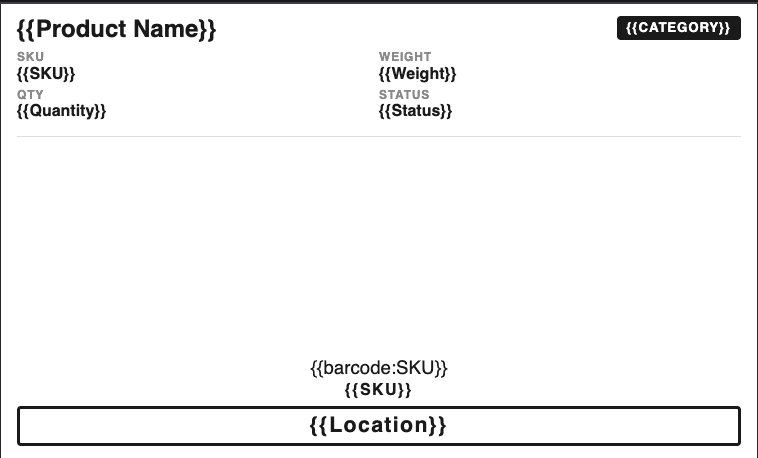
Use double curly braces for data fields: {{Product Name}}, {{SKU}}, {{Location}}. For the barcode graphic, use {{barcode:SKU}} where SKU is your Airtable field name. The barcode type (Code 128, QR, etc.) is selected in the mapping interface, not in the template.
A typical inventory label includes:
- Product Name
- SKU as a barcode
- Location
- Quantity (if relevant)
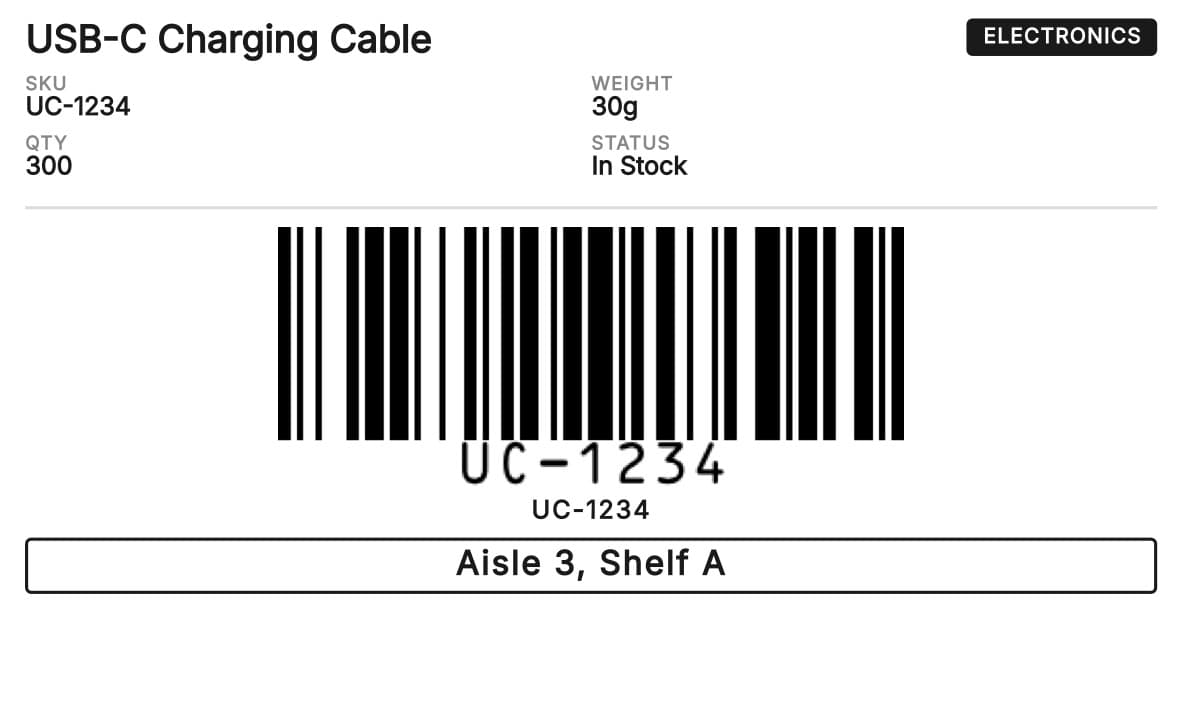
Here is what the generated label looks like with real Airtable data:
Step 3: Configure the Label Layout
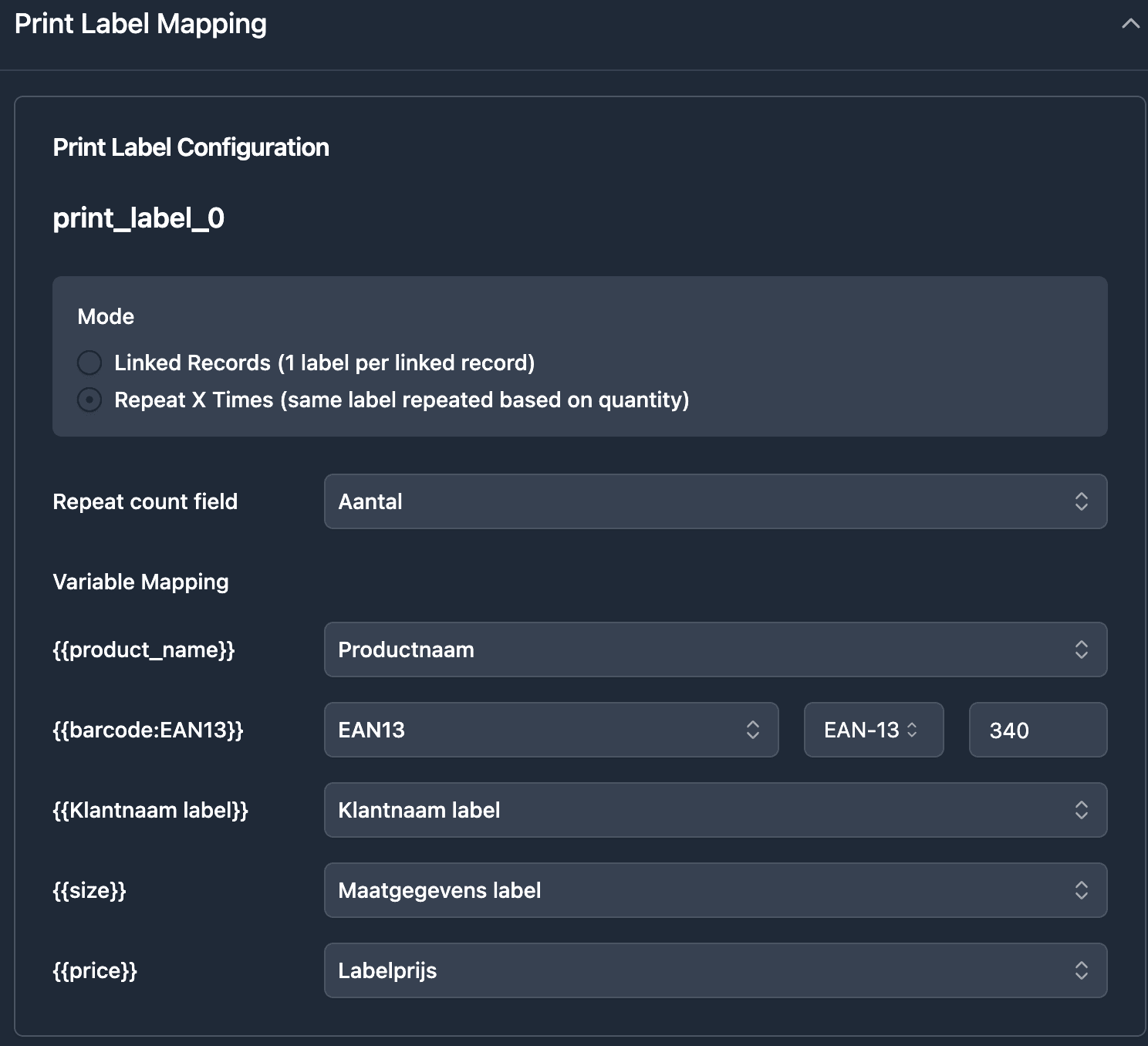
For single labels (thermal printers), the template is one label per page - no extra configuration needed.
For multi-label sheets (Avery), use TypeFlow's print label mode: set rows and columns per page to match your Avery format. TypeFlow repeats your single label design across the entire sheet automatically.
How to Map Airtable Fields to Your Label Template
Step 1: Connect Your Airtable Base
Sign up at app.typeflow.us and connect your Airtable account via OAuth. Select your base and inventory table.
Step 2: Map Each Variable to an Airtable Field
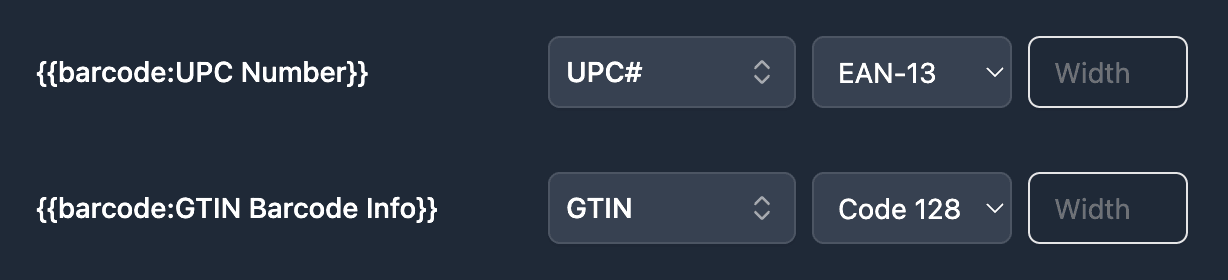
TypeFlow shows each {{variable}} from your template. Match it to the corresponding Airtable field using the dropdown. {{Product Name}} maps to your Product Name field, {{barcode:SKU}} maps to your SKU field. If a variable does not match any field, TypeFlow flags it.
How to Generate Inventory Labels from Airtable
Three ways to trigger label generation.
Button Field for On-Demand Printing
Add a button field to your Airtable table that triggers TypeFlow. Click the button on any record and that label generates. Works well for one-off prints when you receive a new item or replace a damaged label.
Airtable Automation for Hands-Off Printing
Set up an Airtable automation: trigger when a record is created or when a checkbox is marked. TypeFlow generates the label without manual action. When you log a new item, the label is ready to print automatically. Deloitte estimates that document automation reduces processing time by up to 80%.
Bulk Generation for Batch Printing
Select multiple records in Airtable grid view and use TypeFlow's bulk generation to create all labels in one PDF. Print the entire batch at once. Filter your view first to include only the records you need - this avoids wasting labels on items that already have them.
Scanning Barcodes Back Into Airtable
Printing labels is half the workflow. Scanning closes the loop and keeps your inventory data accurate.
Open Airtable on iOS or Android, tap the barcode field, point your phone camera at the label, and the value populates the field. Use Airtable's search or filter to find records by scanned value for inventory counts, check-ins, and location updates.
Common Issues and Solutions
Barcode Not Generating
Check syntax: {{barcode:FieldName}} with the exact field name. Verify the field contains valid characters for the barcode type - Code 128 accepts letters, EAN-13 only accepts numbers.
Wrong Number of Labels Printed
Check the print label mode configuration if using Avery sheets. For quantity-based repeats, confirm the quantity field has correct values. Empty or zero values skip that record.
Labels Misaligned on Avery Sheets
Verify the print label mode grid matches your Avery template exactly. In printer settings, disable scaling and select "Actual Size."
Scanner Not Reading the Code
Ensure good contrast - black on white works best. Check that the barcode is large enough for your scanner. If problems continue, try a different barcode type.
Start Creating Inventory Labels with TypeFlow
TypeFlow connects your Airtable inventory data to printable labels with barcodes. Design your template once, map your fields, and generate labels on demand or in bulk. See what users say about TypeFlow on G2.
Start for Free and create your first batch of inventory labels in minutes.
Automate your document generation
Start with 20 free documents. Built for businesses using Airtable.
Frequently Asked Questions
Find answers to the most common questions about this feature.
Popular Questions
All Questions
Need more help?
Our team is here to help you solve all your problems and answer your questions.
Contact UsFor more guides, see How to Print Labels from Airtable, Best Label Printing Tools for Airtable in 2026, Product Labels with Barcodes, Return Labels, Shipping Labels on Thermal Printers, and Page Designer vs TypeFlow.

Kevin from TypeFlow
•AuthorKevin Rabesaotra is a growth engineer and automation specialist with 8+ years of experience building no-code solutions. As Founder & CEO of TypeFlow, he has helped hundreds of businesses automate document generation and streamline workflows with Airtable integrations. Previously, Kevin was a Product Lead specializing in growth engineering, running experiments to drive revenue, retention, and lead generation.
More articles
How to Print Labels from Airtable with Quantity Control (Step by Step)
Print multiple labels per Airtable record based on a quantity field. Step-by-step guide for linked records mode and quantity repeat mode with barcodes and Avery sheets.
Read articleHow to Print Avery Mailing Labels from Airtable
Print Avery mailing labels (5160, 5161, 5162) from Airtable without Word mail merge. Step-by-step guide with print label mode, automation, and bulk generation.
Read articleHow to Create Inventory Labels with Barcodes in Airtable
Create inventory labels with Code 128, EAN-13, or QR barcodes from Airtable. Step-by-step guide for warehouse, retail, and asset tracking with thermal and Avery printers.
Read article