Airtable Page Designer vs TypeFlow for Printing Labels
Airtable's Page Designer prints one record per page. TypeFlow's print label mode prints multiple records on a single page. This guide compares both tools for label printing and shows how to set up multi-label sheets from Airtable data. Explore our label printing solution for the full feature set.
For a full overview of all label types, see our complete label printing guide. For barcode formats, see the barcode generation guide.
Key takeaways:
- Page Designer prints one record per page. TypeFlow prints multiple labels per page.
- TypeFlow supports barcodes (Code 128, EAN-13, QR), automation, and bulk generation. Page Designer does not.
- Use Page Designer for quick single-record prints. Use TypeFlow for Avery sheets, thermal printers, or 100+ labels.
- Setup takes about 10 minutes with TypeFlow's HTML/CSS builder or Google Docs templates.
What Is Airtable Page Designer
Airtable Page Designer is a built-in extension for printing one Airtable record per page. It works well for single-record documents, but it is not designed for multi-label sheets.
Page Designer handles straightforward tasks like:
- Product sheets: One product per page with images and specs.
- Contact cards: A single record formatted for printing.
- Simple certificates: Basic layouts for individual recipients.
Important limitation: Page Designer prints one record per page, so it can't create a 30-up Avery sheet or a batch of shipping labels in a grid.
Types of Labels You Can Print from Airtable
Product Labels
SKU, price, and a barcode for retail items.
Shipping Labels
Recipient address plus a scannable barcode for fulfillment workflows.
Inventory and Asset Tags
Asset IDs, location codes, or QR codes for warehouse tracking.
Mailing Labels (Avery Sheets)
Address labels arranged in grids like 30-per-page (Avery 5160) or 10-per-page (Avery 5163).
Where Page Designer Falls Short for Labels
Page Designer works well for single-record documents. For label-specific workflows, it has limitations worth understanding.
One Record per Page
Page Designer prints one record per page. If you have 100 shipping labels, you get 100 pages.
A standard Avery 5160 sheet holds 30 labels. According to Avery, their label sheets are designed for multi-label printing - one record per page defeats the purpose.
No Automation
Every PDF from Page Designer requires manual clicks. Open the extension, select a record, export. Repeat for each record.
There is no way to connect Page Designer to Airtable automations. You cannot trigger a PDF when a new order comes in or when a record status changes.
Limited Template Control
The Page Designer editor is drag-and-drop with basic customization. Matching specific brand guidelines or creating precise label layouts means fighting the tool's constraints.
No Bulk Export
Want to generate labels for 500 records? That means 500 manual clicks. Page Designer has no batch export feature. Deloitte estimates that document automation can reduce processing time by up to 80% - manual label generation is exactly the kind of repetitive task that benefits most.
How TypeFlow Solves Multi-Label Printing
TypeFlow's print label mode arranges multiple Airtable records on a single page. Instead of one record per page, records are arranged in a grid - exactly what you need for label sheets, name badges, or product tags.
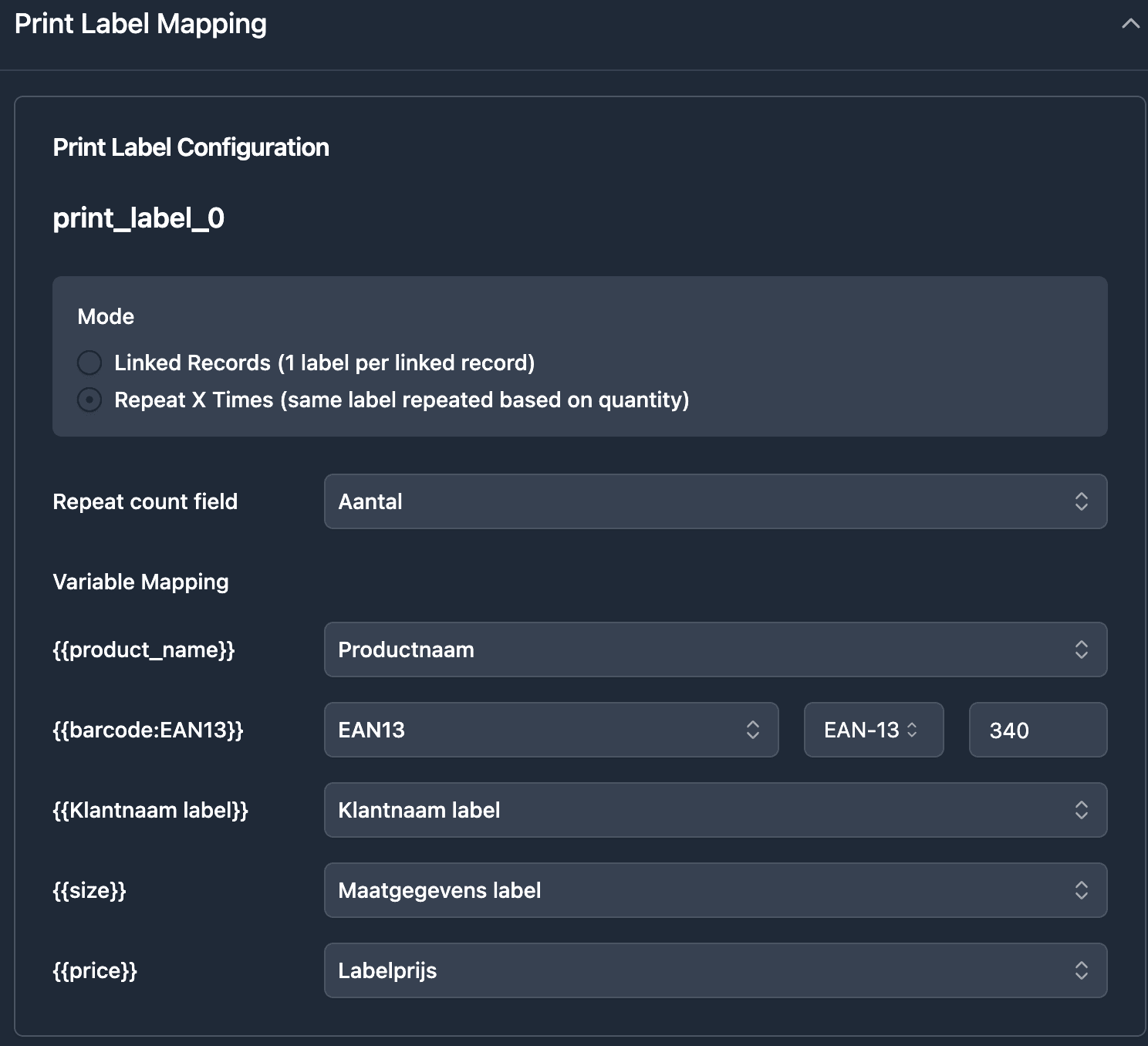
Multiple Records per Page
You define the grid layout - 3 columns x 10 rows for Avery 5160, 2 columns x 7 rows for Avery 5163, or any custom configuration. Instead of 100 pages for 100 labels, you get 4 pages.
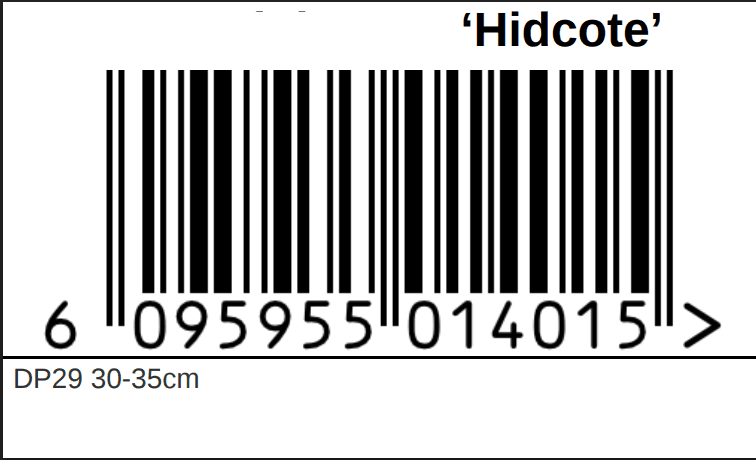
Barcode Generation
TypeFlow generates barcodes directly from Airtable field values using the {{barcode:FieldName}} syntax. Supported formats follow GS1 specifications:
- Code 128: General-purpose barcode for SKUs, serial numbers, and internal IDs. Compact and widely supported by handheld scanners.
- EAN-13: Standard retail barcode (13 digits) used on product packaging worldwide.
- QR codes: Two-dimensional codes that store URLs, asset IDs, or tracking numbers. Scannable with any smartphone camera.
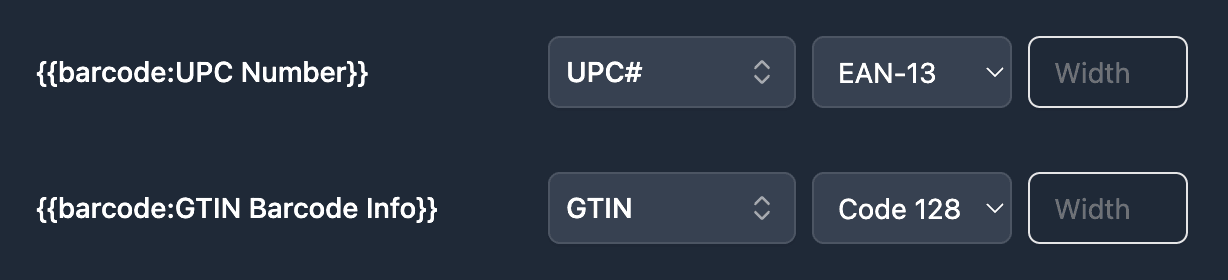
Select the barcode type in the field mapping UI and TypeFlow renders the barcode on your label automatically.
Automation Support
TypeFlow integrates with Airtable automations. When a new order comes in, shipping labels generate automatically. When a certificate gets approved, the PDF creates and emails without anyone clicking a button. McKinsey reports that warehouse automation - including label and document generation - can reduce operational costs by 20-30%.
Bulk Generation
Select records, click generate, done. TypeFlow processes hundreds of labels in one action. No clicking through records one by one.
Thermal Printer Support
TypeFlow creates PDFs sized for thermal printers like Zebra, DYMO, and Rollo. Set your template to 4x6 inches for shipping labels, 2x1 inches for product tags, or any custom size your printer supports.
Feature Comparison: Page Designer vs TypeFlow
| Feature | Page Designer | TypeFlow |
|---|---|---|
| Multiple records per page | No | Yes |
| Template editor | Drag-and-drop | HTML/CSS builder + Google Docs |
| Barcode generation | No | Code 128, EAN-13, QR |
| Airtable automations | No | Yes (button, automation, bulk) |
| Bulk generation | No | Yes (500+ at once) |
| Custom label sizes | Limited | Any size (Avery, thermal, custom) |
| E-signatures | No | Yes (all plans) |
| Price | Free (paid Airtable plan required) | From $22/mo |
Both tools have a free entry point. The difference is in what they can do beyond basic single-record printing. The Airtable Marketplace lists several document generation extensions, but most share Page Designer's one-record-per-page limitation.
How to Print Labels from Airtable with TypeFlow
The setup takes about 10 minutes.
Step 1: Design Your Label Template
- Open TypeFlow's HTML/CSS template builder.
- Set the page format to custom and enter your label dimensions (for Avery 5160, that means 1" x 2.625" per label).
- Configure print label mode: 3 columns x 10 rows.
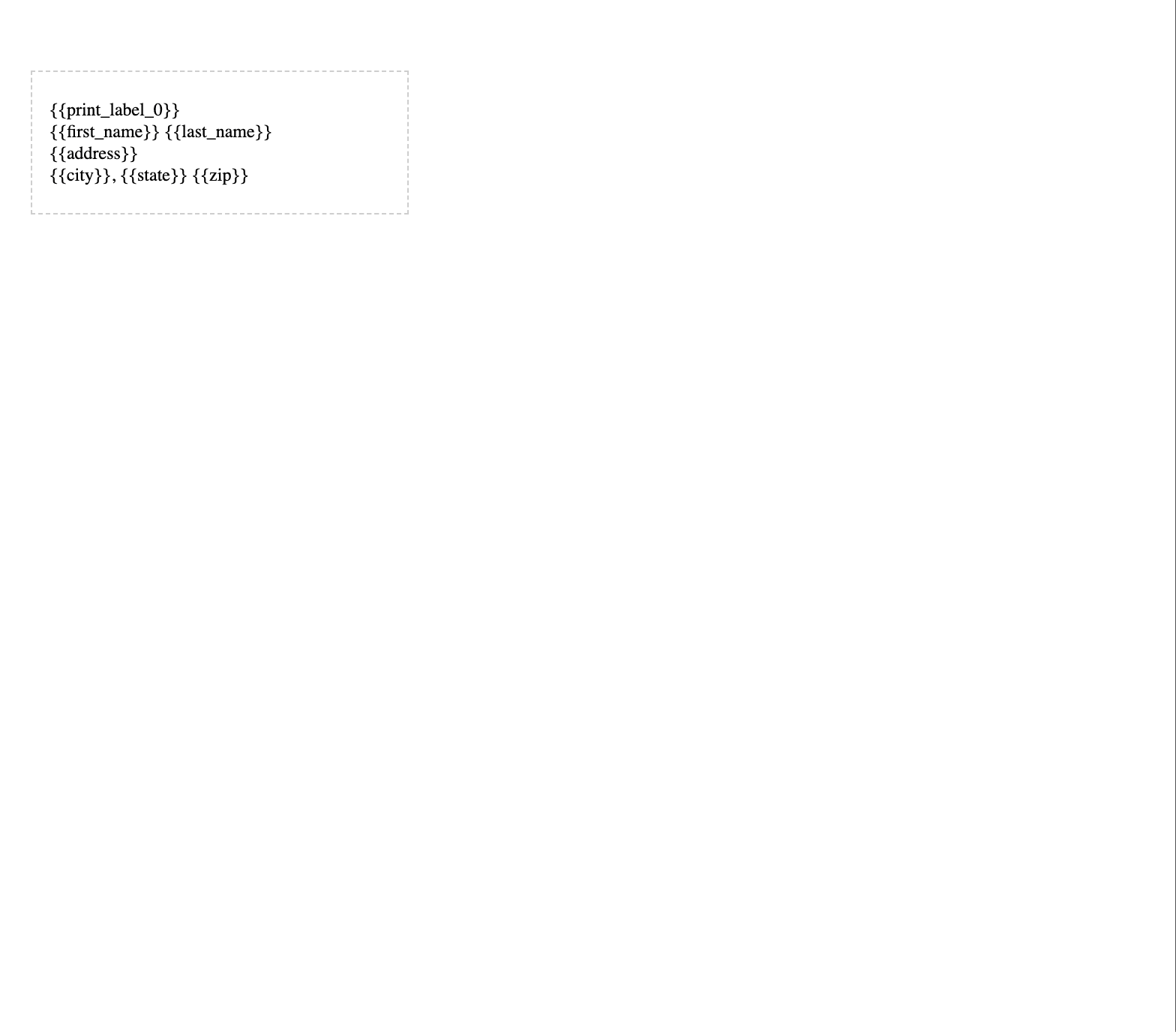
- Add the
{{print_label_0}}marker to define your label block. - Add variables where you want Airtable data to appear:
{{first_name}},{{last_name}},{{address}},{{city}},{{state}},{{zip}}.
Step 2: Connect Your Airtable Base
- Sign up at app.typeflow.us and connect your Airtable account via OAuth.
- Select your base and the table containing your label data.
Step 3: Map Fields and Configure the Grid
- Match each template variable to the corresponding Airtable field (
{{Name}}connects to your Name field,{{Address}}connects to your Address field). - Set the print label mode grid to match your label sheet.
- TypeFlow arranges the labels automatically.
Step 4: Generate and Print
- Click generate. TypeFlow creates a PDF with all labels arranged on standard sheets, ready to print.
- Test with a few records first to check alignment before printing a full batch.

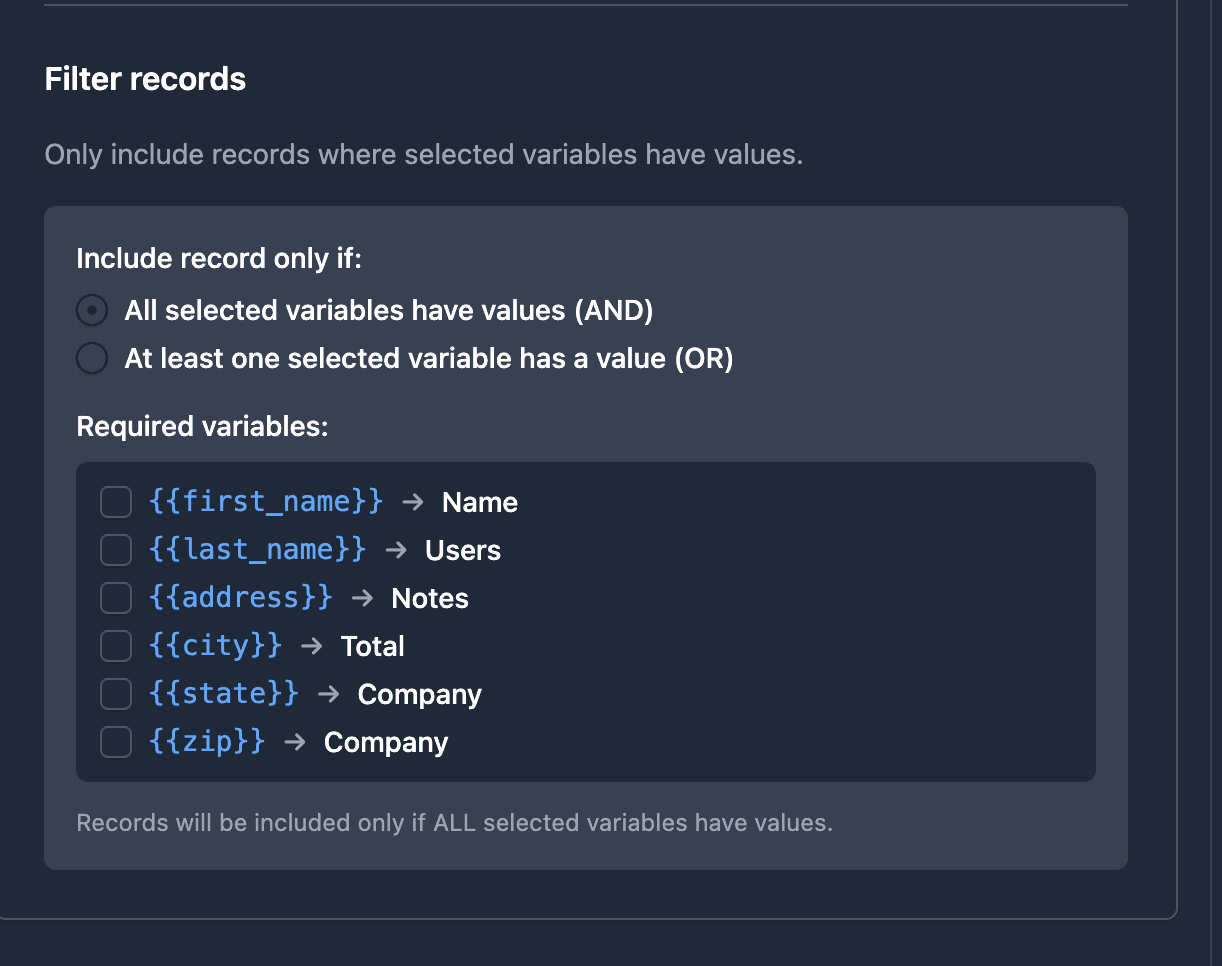
You can also filter which records get labels using display conditions. Only include records where selected variables have values - this prevents blank labels from printing.
Common Issues When Printing Labels from Airtable
Labels Misaligned on Avery Sheets
Make sure the grid matches your sheet (for example, 3x10 for 5160). Print at 100% scale with "fit to page" turned off.
Barcode Not Showing Up
Confirm the syntax is {{barcode:FieldName}} and the field is not empty. Then select the barcode type in the mapping UI.
Wrong Number of Labels Generated
If you are using quantity mode, confirm the quantity field is a Number field in Airtable. If you are using linked records, confirm the links are actually populated.
Other Tools for Airtable Label Printing
TypeFlow is not the only alternative to Page Designer. For a full breakdown of every option available, see Best Label Printing Tools for Airtable in 2026. Most of these tools are designed for per-record document generation (one PDF per record), not multi-label sheets.
- Documint: Web-based drag-and-drop template editor. Good for complex single-record documents. No multi-label-per-page mode. See our full Documint comparison.
- Plumsail Documents: Microsoft Word templates with Power Automate integration. Per-record generation, not designed for label sheets.
- Docupilot: Multiple template formats. Targets enterprise users with comprehensive document generation features.
When to Use Page Designer vs TypeFlow
| Use Case | Best Choice |
|---|---|
| Quick one-off print of a single record | Page Designer |
| Simple single-page document | Page Designer |
| Avery sheet labels (many records per page) | TypeFlow |
| Thermal printer labels (4x6, Zebra/DYMO) | TypeFlow |
| Labels with barcodes | TypeFlow |
| Automated label generation (triggers) | TypeFlow |
| Bulk generation (100+ labels at once) | TypeFlow |
Start Printing Labels from Airtable
Page Designer is great for quick single-record prints. If you need label sheets, barcodes, thermal sizes, or automation, TypeFlow is the better fit.
Start for free with 20 documents and print your first labels in minutes.
Automate your document generation
Start with 20 free documents. Built for businesses using Airtable.
Frequently Asked Questions
Find answers to the most common questions about this feature.
Popular Questions
All Questions
Need more help?
Our team is here to help you solve all your problems and answer your questions.
Contact UsFor more label guides, see How to Print Labels from Airtable, Product Labels with Barcodes, and Return Shipping Labels.

Kevin from TypeFlow
•AuthorKevin Rabesaotra is a growth engineer and automation specialist with 8+ years of experience building no-code solutions. As Founder & CEO of TypeFlow, he has helped hundreds of businesses automate document generation and streamline workflows with Airtable integrations. Previously, Kevin was a Product Lead specializing in growth engineering, running experiments to drive revenue, retention, and lead generation.
More articles
How to Print Labels from Airtable with Quantity Control (Step by Step)
Print multiple labels per Airtable record based on a quantity field. Step-by-step guide for linked records mode and quantity repeat mode with barcodes and Avery sheets.
Read articleHow to Print Avery Mailing Labels from Airtable
Print Avery mailing labels (5160, 5161, 5162) from Airtable without Word mail merge. Step-by-step guide with print label mode, automation, and bulk generation.
Read articleHow to Create Inventory Labels with Barcodes in Airtable
Create inventory labels with Code 128, EAN-13, or QR barcodes from Airtable. Step-by-step guide for warehouse, retail, and asset tracking with thermal and Avery printers.
Read article