How to Generate Barcodes from Airtable Data (No External Tools)
You can generate scannable barcodes - EAN-13, Code 128, QR codes, GS1-128 - directly from your Airtable fields and render them in PDFs. Add a {{barcode:FieldName}} placeholder to your template, map it to an Airtable text field, and the barcode generates automatically at PDF creation time. No Bartender, no external barcode software, no copy-paste. Explore our label printing solution for the full feature set including multi-label sheets and thermal printer support.
Airtable's Barcode field can scan barcodes into records, but it can't generate printable barcode images. TypeFlow fills that gap - on labels, QC spec sheets, invoices, shipping documents, or any template.
For label-specific workflows, see our complete guide to printing labels from Airtable.
Key Takeaways
- Built-in barcode generation: EAN-13, Code 128, QR codes, and GS1-128 from any Airtable text or number field.
- No external tools: Barcodes render at PDF generation time. No Bartender, NiceLabel, or barcode software needed.
- Any document type: Works on labels, QC spec sheets, invoices, shipping docs, certificates - not limited to labels.
- 2-click setup: Map an Airtable field to a barcode placeholder and select the type.
Airtable Can Scan Barcodes but Can't Generate Them
Airtable's Barcode field type lets you scan barcodes with your phone camera. It stores the scanned value as text. That's useful for inventory check-in.
But it can't do the reverse. You have a product UPC like 6990580506648 in a field. You need it printed as a scannable barcode on a label or document. Airtable has no way to turn that text value into a barcode image.
Current workarounds people use:
- bwip-js URL formula - Create a formula field like
"http://bwipjs-api.metafloor.com/?bcid=code128&text="&{SKU}. Generates an image URL. Fragile. Breaks if the API changes. No control over size or format. - miniExtensions Barcode Generator - Generates barcode images as Airtable attachments. Good for viewing barcodes in Airtable, but you still need another tool to put them in a document or label.
- External barcode software - Tools like Bartender or NiceLabel cost $500+/year. They don't integrate with Airtable. You export data, generate barcodes separately, paste into documents manually.
TypeFlow skips all of this. Add a barcode placeholder to your template, map the field, generate. The barcode renders in the PDF.
Barcode Types You Can Generate from Airtable
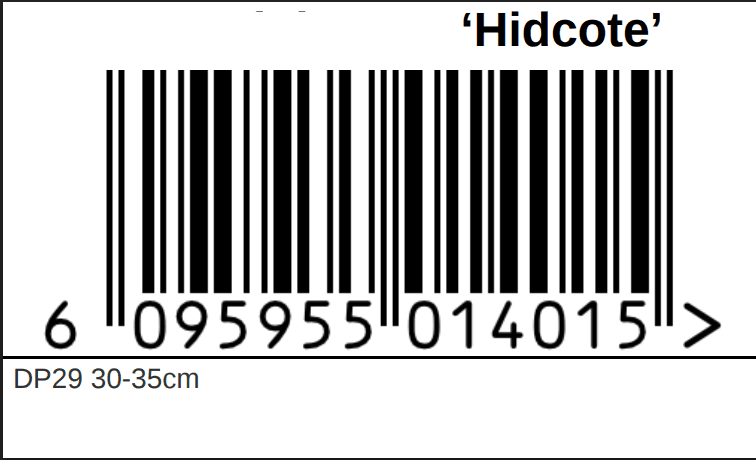
EAN-13 - Retail Products
The standard 13-digit barcode on retail products. Every item on a store shelf has one. Scannable at point of sale.
- Used on: Product labels, price tags, retail packaging.
- Field requirement: 13-digit number (or 12 digits - the check digit calculates automatically).
- Example:
6990580506648on a produce bag.
EAN-13 is governed by GS1. If you sell through retail, your products need one.
Code 128 - Logistics and Internal Tracking
Variable-length barcode that handles any text or number. The most flexible type.
- Used on: Shipping labels, SKU tags, work orders, asset labels, tracking numbers.
- Field requirement: Any text field. Letters, numbers, or both.
- Example:
SKU-2026-0142on a warehouse label. Also used for return shipping labels.
Code 128 is the default choice when EAN-13 is too restrictive. If your data isn't a 13-digit number, use Code 128.
QR Code - Mobile Scanning and URLs
Two-dimensional code that holds more data. Any smartphone camera can scan it.
- Used on: Asset tags, inventory tracking, equipment labels, URLs linking to records.
- Field requirement: Any text. URLs, serial numbers, JSON data.
- Example:
https://app.example.com/asset/12345on an equipment tag.
QR codes are defined by ISO 18004. They hold up to 4,296 characters - far more than any 1D barcode.
GS1-128 - Food Traceability and Supply Chain
An extension of Code 128 with standardized data elements called Application Identifiers (AIs). Required on food product cases and pharmaceutical packaging.
- Used on: Food cases, produce boxes, pharma packaging, supply chain documents.
- Encodes: GTIN (01), pack date (13), lot number (10), expiry date (17), serial number (21).
- Example:
(01)10699058983976(13)250123(10)MU01123456
GS1-128 is critical for FDA FSMA Traceability Rule compliance. More on this below.
Which Barcode Type Should You Use?
| Your Use Case | Barcode Type | Why |
|---|---|---|
| Retail products for store shelves | EAN-13 | Industry standard for POS scanning. |
| Shipping labels and tracking | Code 128 | Handles any alphanumeric data. |
| Asset tags and inventory | QR Code | Scannable with any smartphone. |
| Food cases and pharma | GS1-128 | FDA FSMA regulatory compliance. |
| Internal SKU labels | Code 128 | Flexible, compact, widely supported. |
How to Add a Barcode to Your Airtable Document
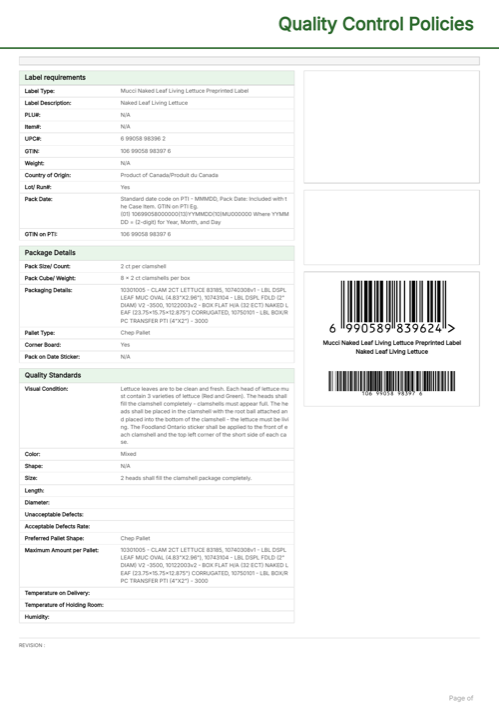
Here's an example QC spec sheet with EAN-13 and GS1-128 barcodes generated from Airtable data. Click to open the full PDF, or duplicate the demo base:
Ready-to-use template
QC Policy with Barcodes
Duplicate the Airtable base, paste the template in Typeflow, then generate your first PDF in minutes.
Free tier available • No credit card required
Step 1 - Add a Barcode Placeholder to Your Template
In the TypeFlow template editor, add a barcode placeholder where you want the barcode to appear:
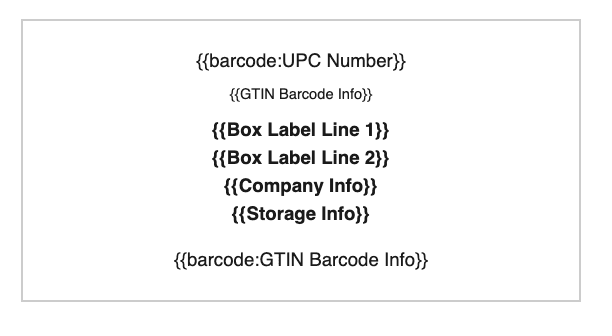
{{barcode:FieldName}}
Replace FieldName with the name of your Airtable field. This works in any template type - labels, spec sheets, invoices, reports, certificates.
Example: A product label template with a barcode:
<div class="label">
  <div class="product-name">{{Product Name}}</div>
  <div class="barcode-area">{{barcode:UPC}}</div>
  <div class="sku">{{SKU}}</div>
</div>
Step 2 - Map the Barcode Field
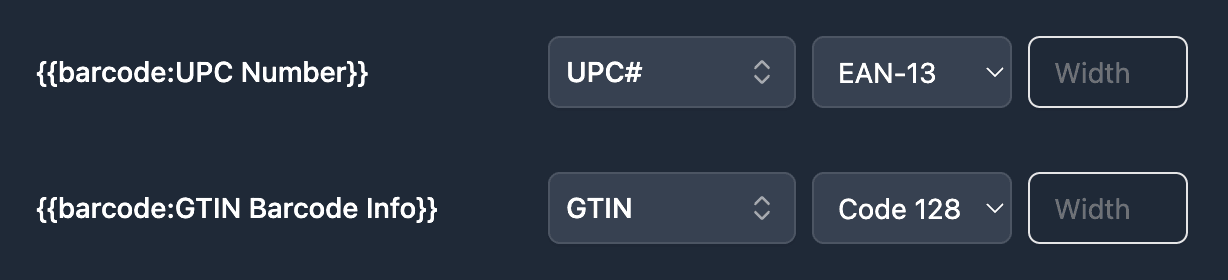
In the mapping interface:
- Select the Airtable field that contains the barcode value (e.g., your UPC field).
- Choose the barcode type from the dropdown: EAN-13, Code 128, or QR Code.
- Done. No other configuration needed.
Step 3 - Generate Your Barcoded Documents
Once your workflow is configured, you have two ways to generate documents with barcodes. Choose the method that best fits your need for manual control versus full automation.
Method 1: Button-Triggered Generation
Use this method for manual control over when a barcoded document is generated.
-
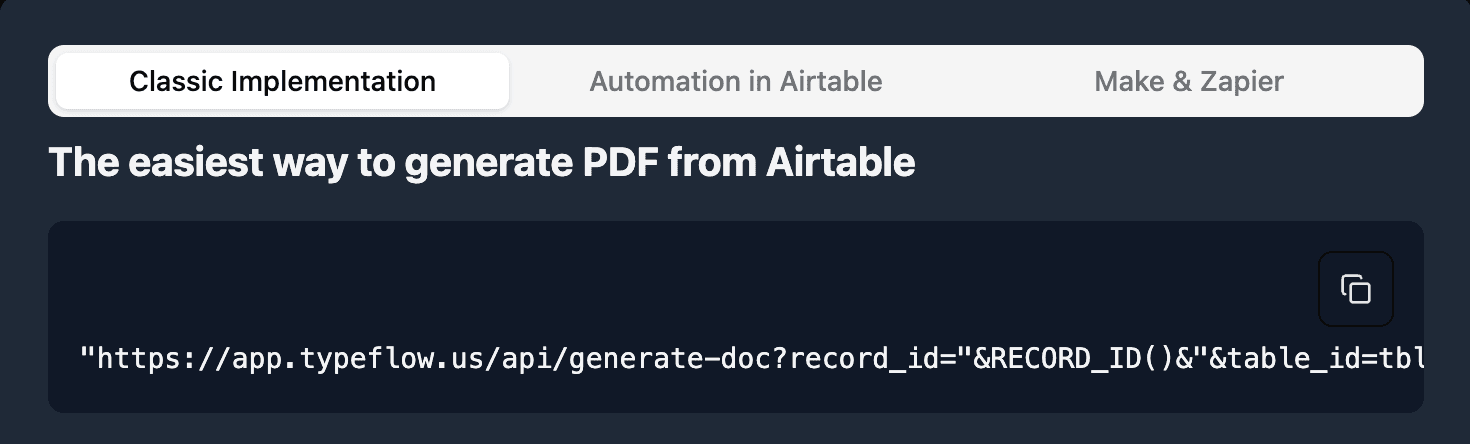
In TypeFlow, scroll to the bottom of the page and click on "Classic Implementation"
-
Copy the URL, it should look like this:
"https://app.typeflow.us/api/generate-doc?record_id="&RECORD_ID()&"&table_id=xxx&flow_id=xxx"
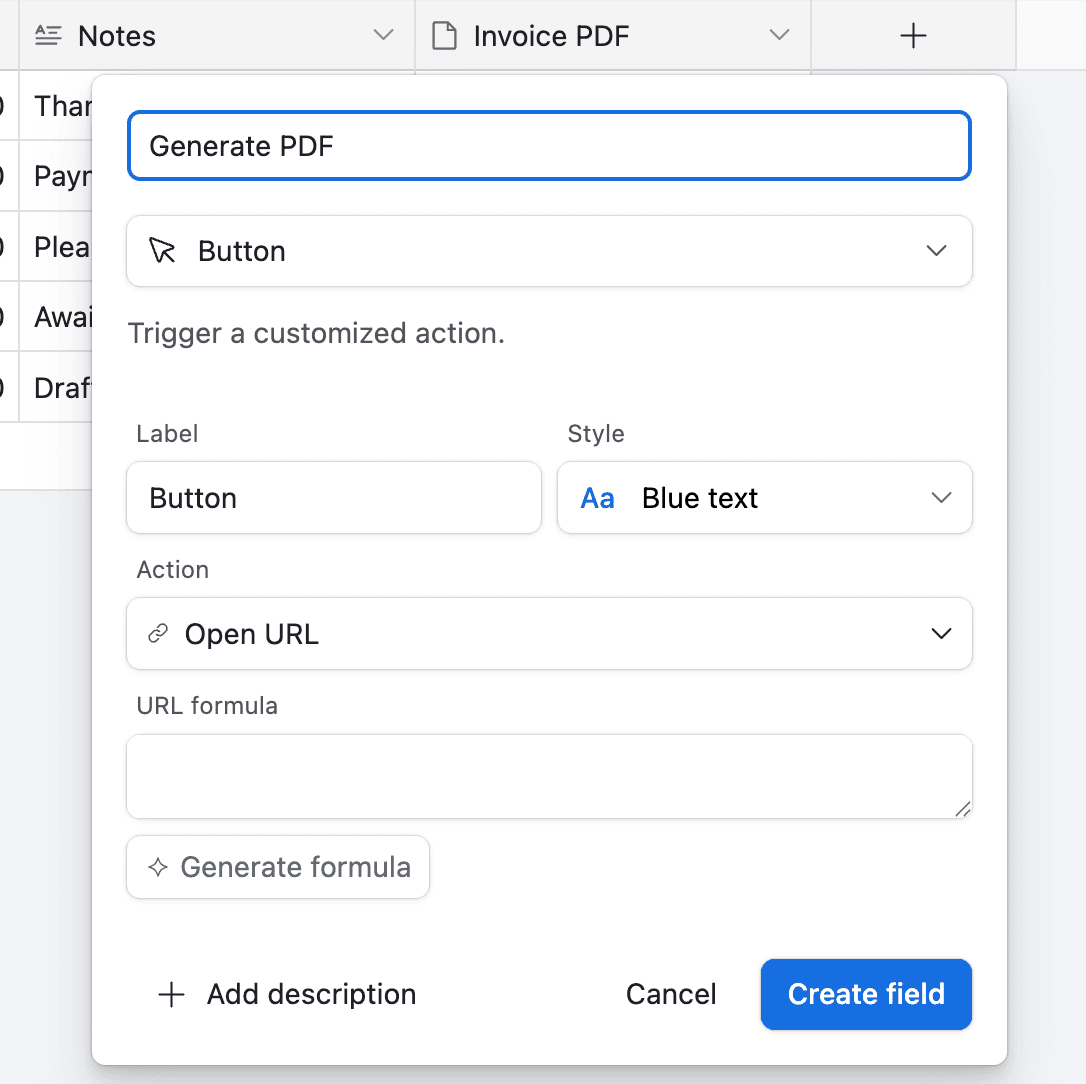
- Go to your Airtable table and add a new button field
- Paste the URL from TypeFlow to the URL Formula
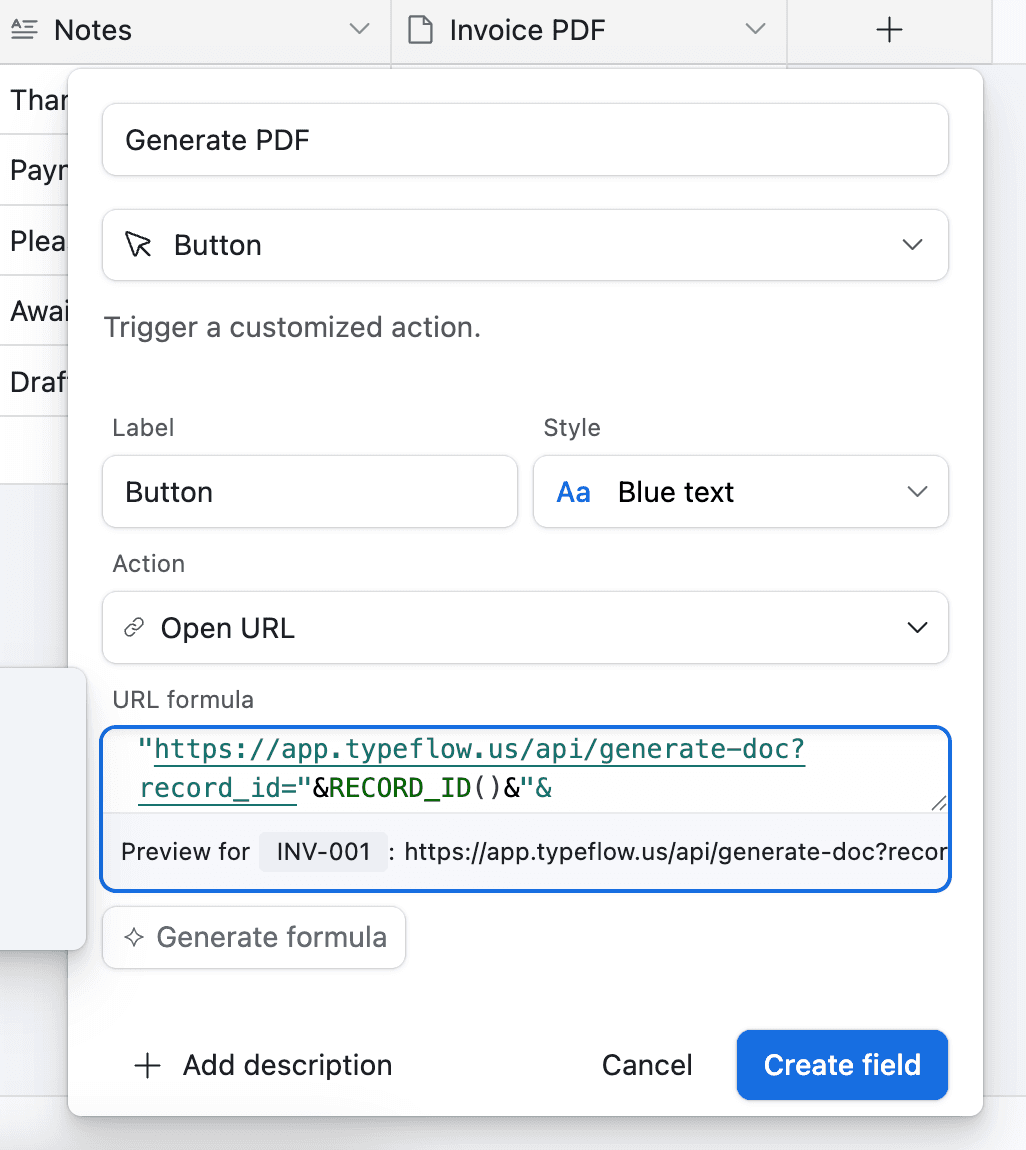
Now whenever you want to generate a document with barcodes, click the button in Airtable and it will generate the PDF for you.
Method 2: Fully Automated Generation
This method removes all manual work, generating barcoded documents automatically based on conditions you set. It requires a paid Airtable plan for Airtable Automations.
-
Go to Automation in Airtable
-
Click on "Add a trigger" and choose When a Record matches a condition
-
Select the table and field you want to trigger the automation on (e.g., when Status changes to "Ready")
-
Click on Add an advanced logic or action
-
Pick Run Script. A new popup appears.
-
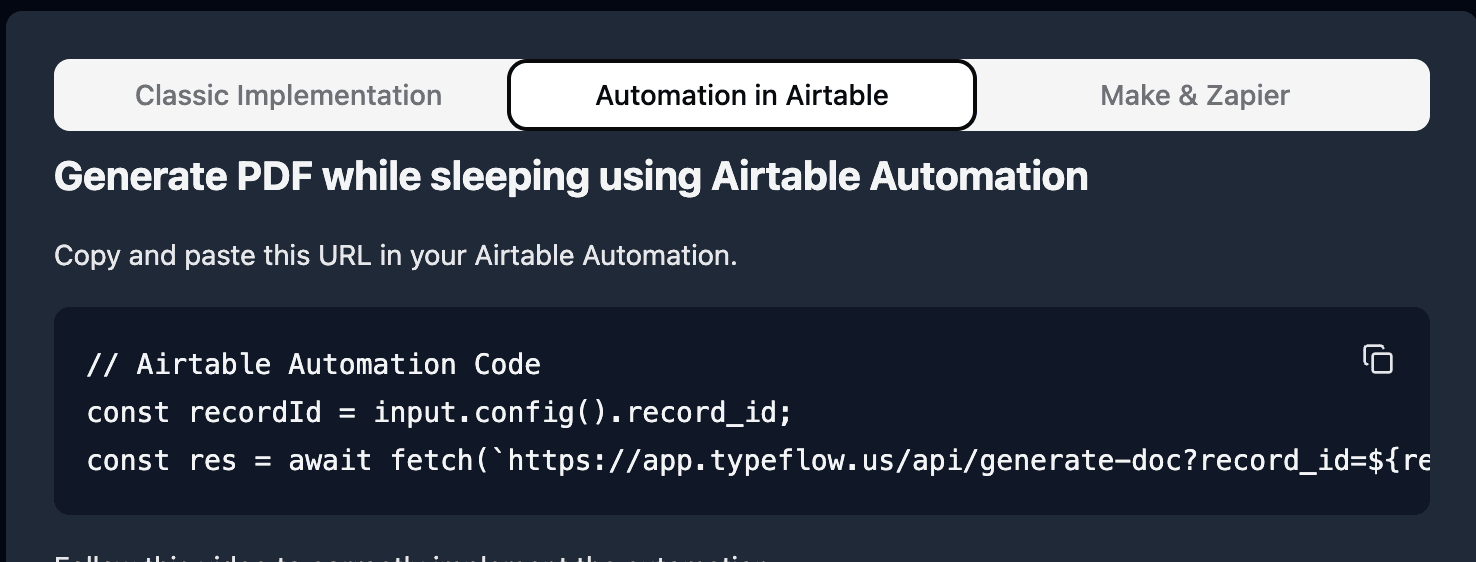
Go back to TypeFlow and select Automation in Airtable. Copy the script.
-
Paste the script in the popup.
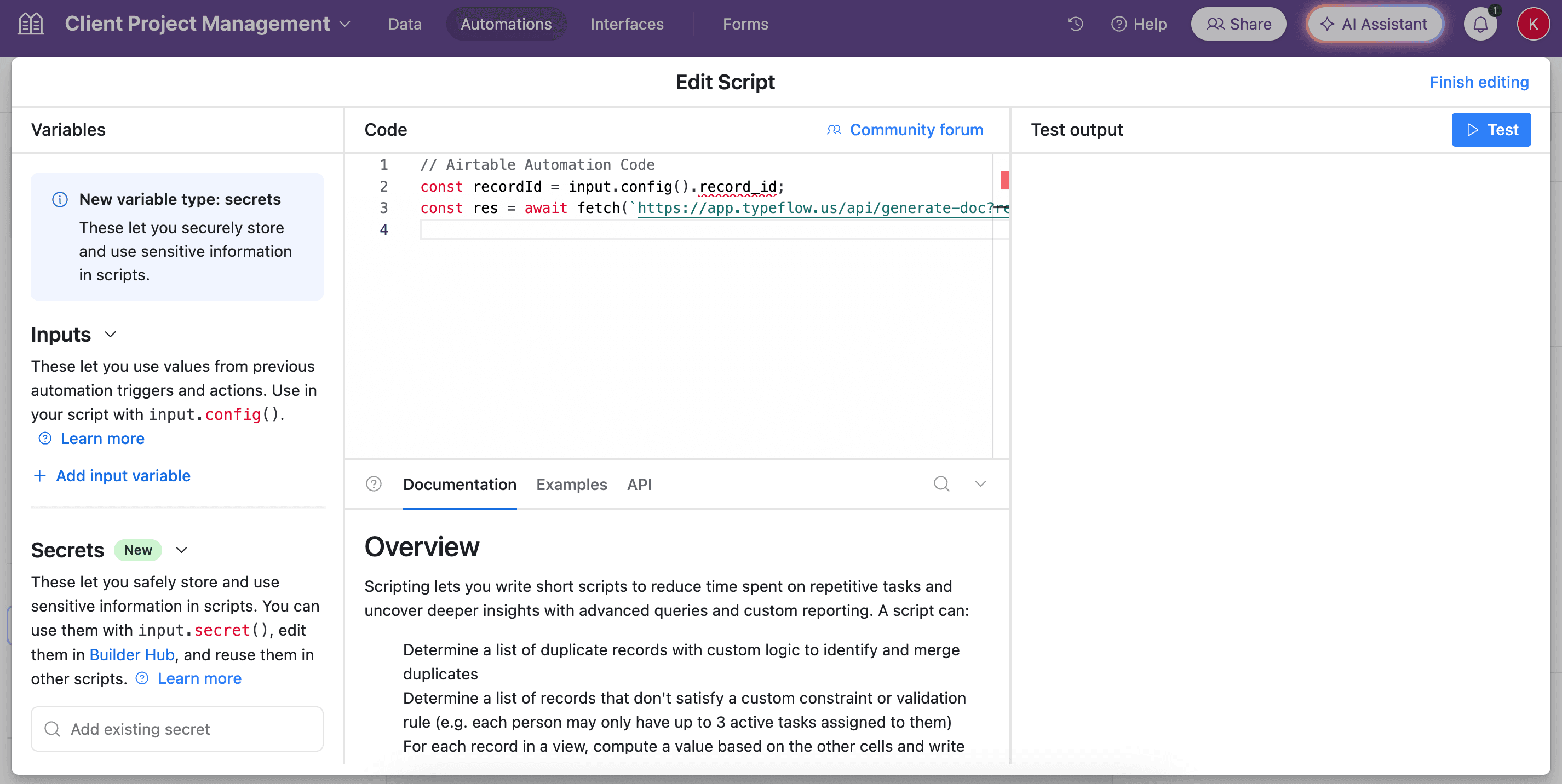
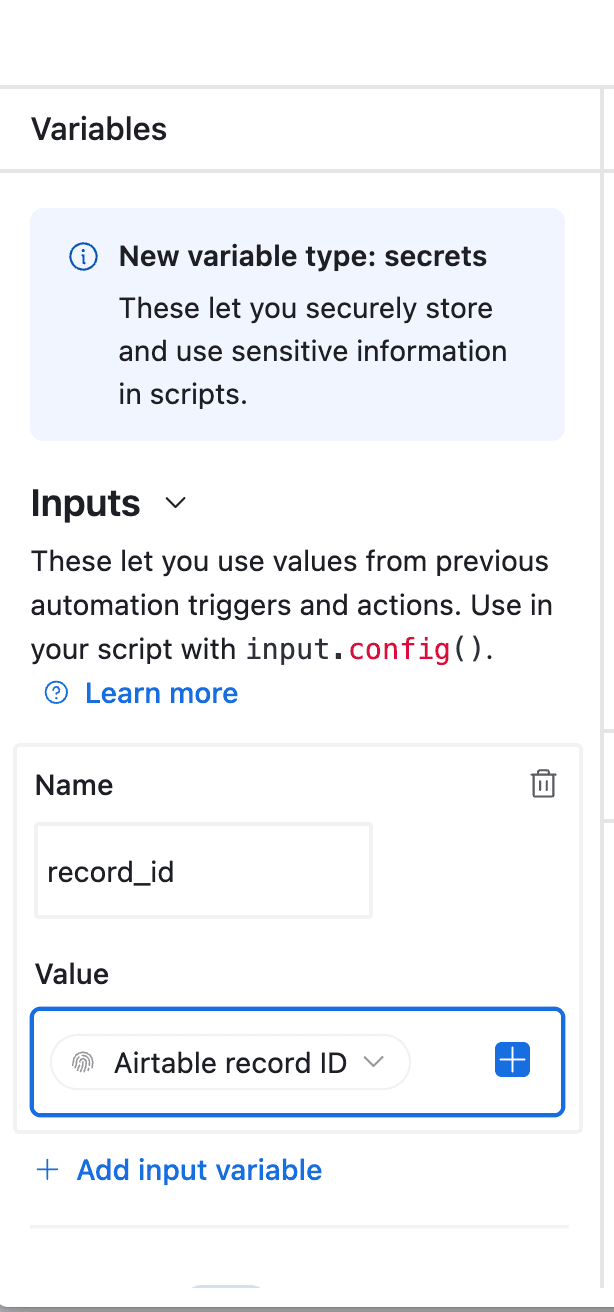
- In the left-side of the popup, do not forget to configure the variable input, record_id. You need to select Airtable Record ID from the dropdown.
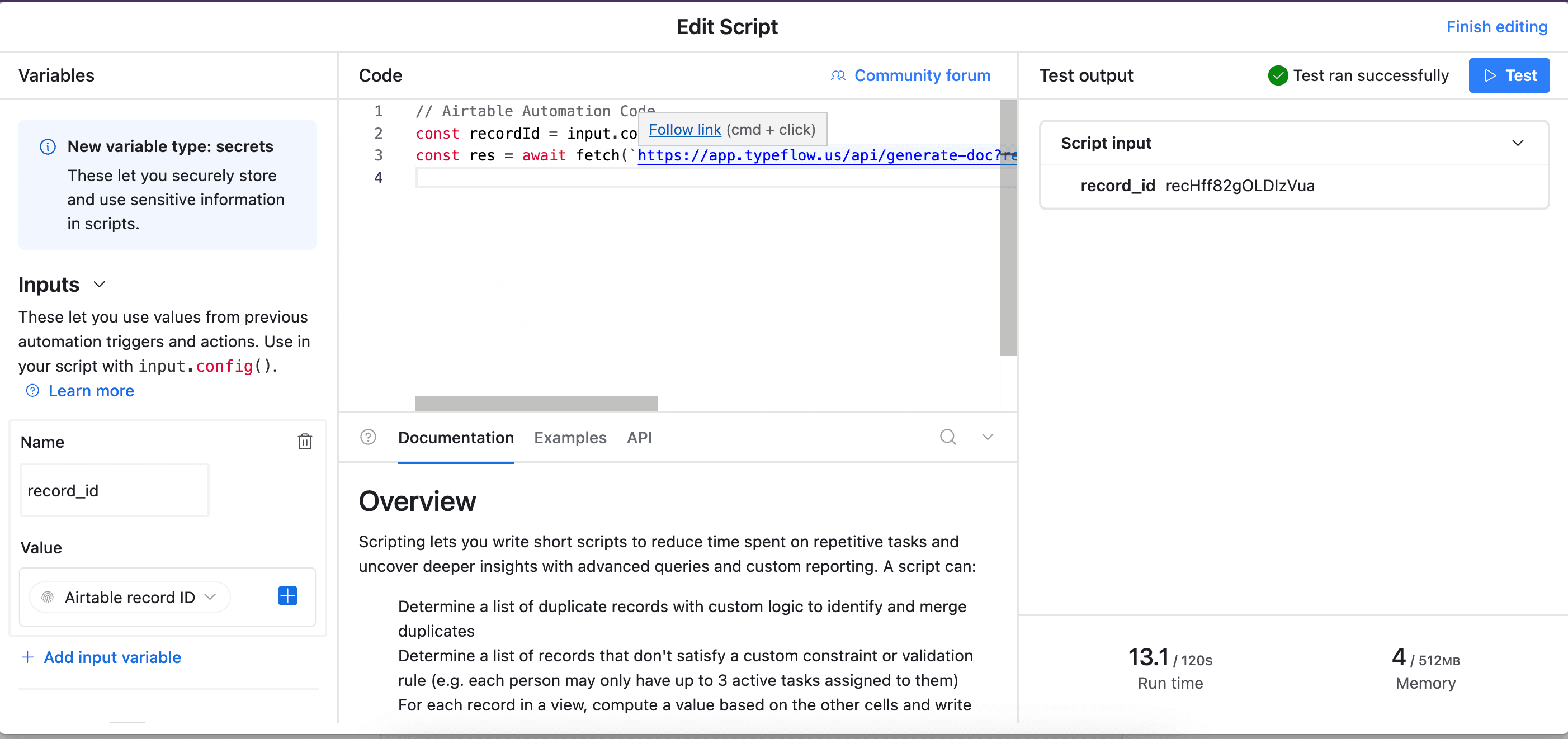
- Test your script, and see if it works. Adjust if needed (most of the time the error comes from the record_id variable - see step 8).
Now your automation is ready. Documents with barcodes generate automatically whenever a record matches your trigger conditions.
Bulk Generation
You can also generate barcoded documents for multiple records at once using the TypeFlow Airtable extension. Open the extension, select your flow, select records in your view, and click "Generate."
Best for: Batch printing barcode labels for inventory counts, restocking, or preparing all orders for a shift.
Barcodes on Documents - Not Just Labels
Most people think of barcodes on labels. But barcodes belong on many document types.
QC Spec Sheets with Product Barcodes
Food companies generate Quality Control policy documents with UPC barcodes and GS1-128 traceability codes. One of our customers generates QC spec sheets for each product SKU - with an EAN-13 for the retail barcode and a GS1-128 for the PTI (Produce Traceability Initiative) code. Both barcodes are generated from Airtable fields in one PDF.
Certificates of Conformity with Batch Barcodes
Manufacturing companies include lot and batch barcodes on certificates. A Code 128 barcode with the batch number lets inspectors scan the certificate and pull up the production record. See our Certificate of Conformity guide.
Shipping Documents with Tracking Barcodes
Logistics teams add Code 128 tracking barcodes to bills of lading and packing lists. The carrier scans the barcode at each checkpoint. See our shipping document guide and packing list guide.
Invoices with Order Barcodes
Order number barcodes on invoices speed up warehouse processing. The receiving team scans the barcode to match the invoice to the shipment. No manual lookup.
Product Labels with EAN-13
Retail product labels with scannable UPC barcodes. Print from Avery sheets or thermal printers (Zebra, DYMO). See our product label guide with barcodes for a complete walkthrough, or our label printing guide for all label types.
Automate your document generation
Start with 20 free documents. Built for businesses using Airtable.
GS1-128 for Food Traceability
This section is for food manufacturers, distributors, and produce companies that need GS1-128 barcodes for regulatory compliance.
What Is GS1-128 and Why Food Companies Need It
GS1-128 is Code 128 with structured data. It uses Application Identifiers (AIs) to encode product identity, dates, and lot information in a single barcode.
The FDA FSMA Traceability Rule requires food companies to include traceability data on cases of listed foods. GS1-128 barcodes are the standard way to encode this data.
Common Application Identifiers:
| AI | Meaning | Format | Example |
|---|---|---|---|
| (01) | GTIN (product identifier) | 14 digits | 10699058983976 |
| (13) | Pack date | YYMMDD | 250123 |
| (10) | Lot/batch number | Up to 20 chars | MU01123456 |
| (17) | Expiry date | YYMMDD | 260630 |
| (21) | Serial number | Up to 20 chars | SN00001234 |
How to Structure GS1-128 Data in Airtable
Create a formula field that concatenates the AIs with your data fields:
"(01)" & {GTIN} & "(13)" & DATETIME_FORMAT({Pack Date}, "YYMMDD") & "(10)" & {Lot Number}
This produces: (01)10699058983976(13)250123(10)MU01123456
Store this in a field called something like GS1-128 Barcode Data.
Generating the GS1-128 Barcode
In your template, add:
{{barcode:GS1-128 Barcode Data}}
In the mapping, select the formula field and choose Code 128 as the barcode type. GS1-128 uses Code 128 symbology.
PTI Compliance for Produce
The Produce Traceability Initiative requires specific GTIN formats on produce cases. The PTI barcode must include:
- (01) - Case GTIN (14 digits, starts with indicator digit)
- (13) - Pack date (YYMMDD)
- (10) - Lot number (must match the lot on the physical label)
If you pack produce at the grower level, the lot format is typically: MU + Grower Code + Julian Date. If packed at a facility, it's: MU + Location ID + Run Number.
Common Issues and Solutions
Barcode Not Rendering
The field name in {{barcode:FieldName}} must match your Airtable field name exactly. It's case-sensitive. Double-check the spelling in your mapping.
Also verify the field has data. An empty field produces no barcode.
EAN-13 Wrong Number of Digits
EAN-13 needs exactly 13 digits. If you have 12 digits (UPC-A format), add a leading 0. The check digit at the end calculates automatically if you provide 12 digits.
If your field has spaces or dashes (like 699 058 05066 4), remove them. The barcode generator needs a clean number string.
Barcode Too Large or Too Small
Adjust the container size in your template CSS. The barcode scales to fit its container:
.barcode-area {
  width: 200px;
  text-align: center;
}
GS1-128 Parentheses in the Barcode
The parentheses around AIs - (01), (13), (10) - are for human reading only. They appear in the text below the barcode but are not encoded in the barcode data itself. The barcode uses FNC1 characters to separate data elements.
If your barcode scanner reads the data without parentheses, that's correct behavior.
Start Generating Barcodes from Airtable
Create a free TypeFlow account, connect your Airtable base, and generate your first barcode in under 5 minutes. No barcode software to install. No middleware to configure. See what users say about TypeFlow on G2.
Automate your document generation
Start with 20 free documents. Built for businesses using Airtable.
Related Guides
- How to Print Labels from Airtable - Product, shipping, and inventory labels with barcodes.
- Airtable Shipping Document Generation - Bills of lading, packing lists with tracking barcodes.
- Airtable Certificate of Conformity - COC documents with batch barcodes.
- Airtable QC Report - Quality control reports with inspection barcodes.
Frequently Asked Questions
Find answers to the most common questions about this feature.
Popular Questions
All Questions
Need more help?
Our team is here to help you solve all your problems and answer your questions.
Contact Us
Kevin from TypeFlow
•AuthorKevin Rabesaotra is a growth engineer and automation specialist with 8+ years of experience building no-code solutions. As Founder & CEO of TypeFlow, he has helped hundreds of businesses automate document generation and streamline workflows with Airtable integrations. Previously, Kevin was a Product Lead specializing in growth engineering, running experiments to drive revenue, retention, and lead generation.
More articles
How to Print Labels from Airtable with Quantity Control (Step by Step)
Print multiple labels per Airtable record based on a quantity field. Step-by-step guide for linked records mode and quantity repeat mode with barcodes and Avery sheets.
Read articleHow to Print Avery Mailing Labels from Airtable
Print Avery mailing labels (5160, 5161, 5162) from Airtable without Word mail merge. Step-by-step guide with print label mode, automation, and bulk generation.
Read articleHow to Create Inventory Labels with Barcodes in Airtable
Create inventory labels with Code 128, EAN-13, or QR barcodes from Airtable. Step-by-step guide for warehouse, retail, and asset tracking with thermal and Avery printers.
Read article