How to Generate Packing Lists from Airtable Automatically
You can generate packing list PDFs directly from your Airtable order data - item names, quantities, and shipping details pulled automatically from linked records. Connect TypeFlow, create a Google Docs or HTML/CSS template, and produce packing lists on demand or in bulk with no manual copy-paste.
Packing lists are one of several shipping documents you can automate - see our complete guide to shipping and fulfillment document automation in Airtable.
By the end of this guide, you'll have a packing list system that:
- Generates print-ready PDFs from Airtable in seconds.
- Pulls order and product details automatically (no copy/paste).
- Supports one-click, bulk, or fully automated generation.
What Is a Packing List?
A packing list is the document that accompanies a shipment, listing all items included in the package. It typically includes product names, SKUs, quantities, and ship-to details. Warehouse teams use packing lists to verify orders before shipping, and customers use them to confirm delivery contents. The U.S. Customs and Border Protection requires packing lists for international shipments.
To generate packing lists from Airtable automatically, you map your order and line-item fields to a Google Docs template and let TypeFlow create a PDF for each order.
Why Automate Packing List Generation in Airtable
If you're building packing lists by copying from Airtable into Word or Excel, you're doing extra work and inviting mistakes. Automation generates a consistent, print-ready PDF straight from your Airtable record.
- Tedious data copying: Transcribing order details into Word or Excel wastes time.
- Inconsistent formatting: Each packing list looks different depending on who creates it.
- Human error: Wrong quantities, missing items, or incorrect addresses delay shipments.
- No audit trail: Hard to track which orders have packing lists generated.
According to McKinsey, warehouse errors from manual documentation cost companies 1-3% of total revenue. Automated generation solves these issues by pulling order data directly from Airtable and generating a PDF instantly. When an order hits "Ready to Pack," you can create (or auto-create) the packing list in seconds.
What You Need Before Starting
Before you begin, make sure you have:
- Airtable base: Orders + Products tables with linked records between them.
- Google account: To build the packing list template in Google Docs.
- TypeFlow account: To map fields and generate PDFs from your template.
Step 1: Set Up Your Airtable Base for Packing Lists
Your Airtable base needs two core tables connected by linked records.
- Orders: Who it's going to, where it's shipping, and the fulfillment status.
- Products: What you're shipping (SKU, name, location, and optional image).
Create an Orders Table
| Field Name | Field Type | Purpose |
|---|---|---|
| Order ID | Auto-number or Formula | Unique identifier for each order |
| Customer Name | Single line text | Person receiving the shipment |
| Shipping Address | Long text | Full delivery address |
| Order Date | Date | When the order was placed |
| Status | Single select | Track fulfillment stage (e.g., "Ready to Pack") |
| Products | Linked record | Connection to Products table |
| Packing List PDF | Attachment | Where generated documents are saved |
Create a Products Table
| Field Name | Field Type | Purpose |
|---|---|---|
| Product Name | Single line text | Item description for packing list |
| SKU | Single line text | Stock keeping unit for warehouse picking |
| Quantity | Number | Number of units to pack |
| Weight | Number | Unit weight for shipping calculations |
| Location | Single line text | Warehouse bin/shelf location |
| Product Image | Attachment | Optional visual reference |
Link Products to Orders
Create a linked record field in your Orders table pointing to the Products table. This allows each order to contain multiple products that will appear as line items on your packing list.
Use a Junction Table for Order Line Items
If you need per-order quantities, create an "Order Line Items" table that links to both Orders and Products. This keeps quantity on the line item (not the product), so the same product can be packed in different amounts per order.
This approach is common in inventory management with Airtable and gives you more flexibility as your operations scale.
Step 2: Create Your Packing List Template in Google Docs
Design your packing list template with placeholders that TypeFlow will replace with actual data.
Add Company Branding
Start with your company logo at the top, followed by company name and contact information. Keep the design clean and readable for warehouse staff.
Insert Placeholders for Order Details
Use double curly braces for placeholders:
PACKING LIST

Order #: {{Order ID}}
Date: {{Order Date}}

SHIP TO:
{{Customer Name}}
{{Shipping Address}}

---
Format the Line Items Section
Create a table for products. Use the loop syntax to repeat rows for each linked product:
ITEMS TO PACK:

| SKU | Product | Qty | Location |
|-----|---------|-----|----------|
{{loop_0}}
| {{SKU}} | {{Product Name}} | {{Quantity}} | {{Location}} |
Pro Tip: Include Warehouse Location
Adding a "Location" field to your Products table (e.g., "Aisle 3, Shelf B") speeds up picking. Your warehouse team can follow an efficient route instead of searching randomly.
Add Footer Elements
Include space for picker signature and completion checkboxes:
---

Total Items: {{Total Items}}

Packed by: ________________  Date: ________________

[ ] All items verified
[ ] Package sealed
[ ] Label attached
Need to print labels for these packages too? Check out our guide on how to print labels from Airtable.
Step 3: Connect Your Template to Airtable
Install TypeFlow from the Airtable Marketplace and connect it to your base.
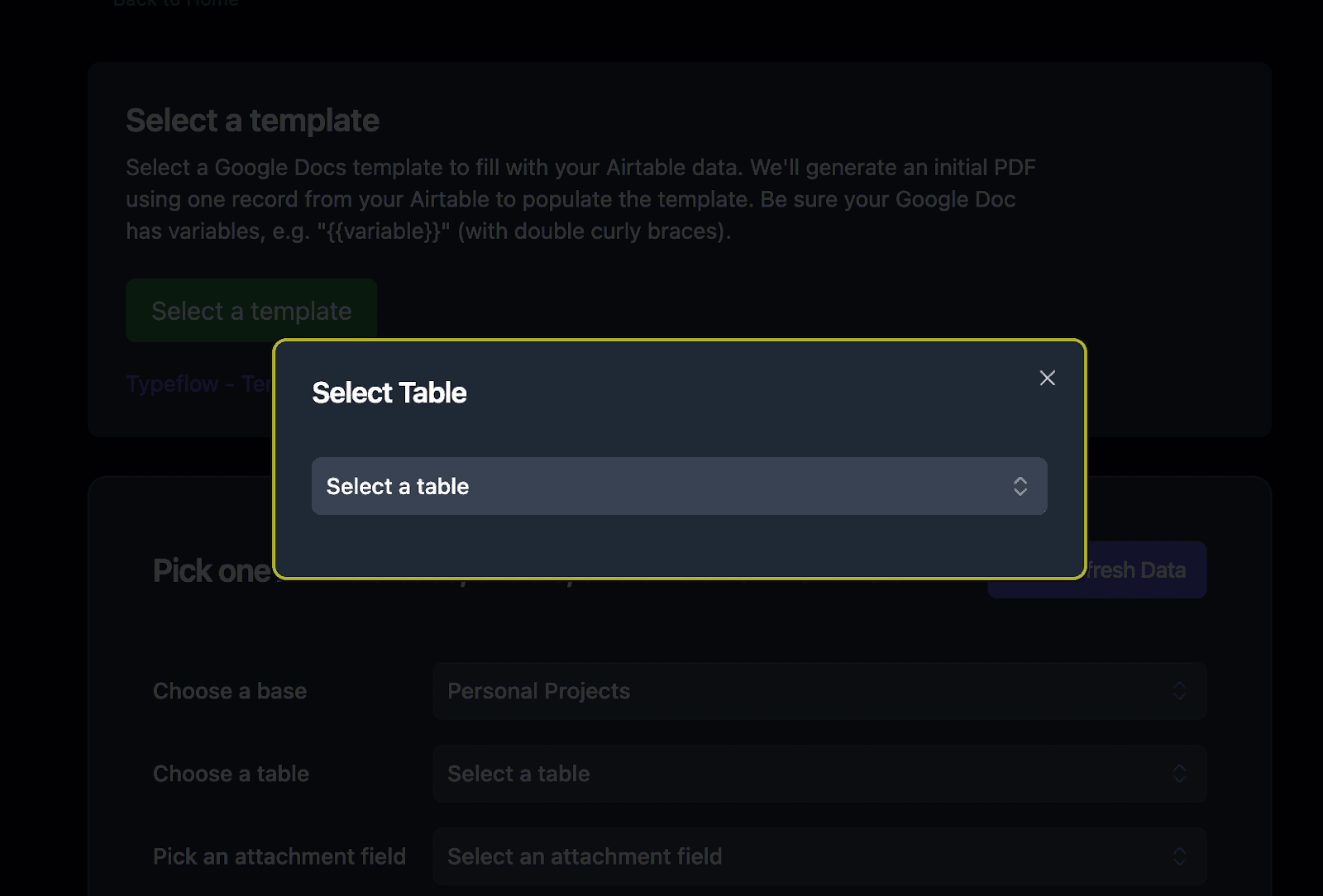
- Install: Add TypeFlow from the Airtable Marketplace.
- Connect: Authorize Airtable + Google Docs access.
- Select: Choose the base and Orders table to generate packing lists from.
Select Your Template
Choose the Google Docs packing list template you created. TypeFlow will detect all the placeholders automatically.
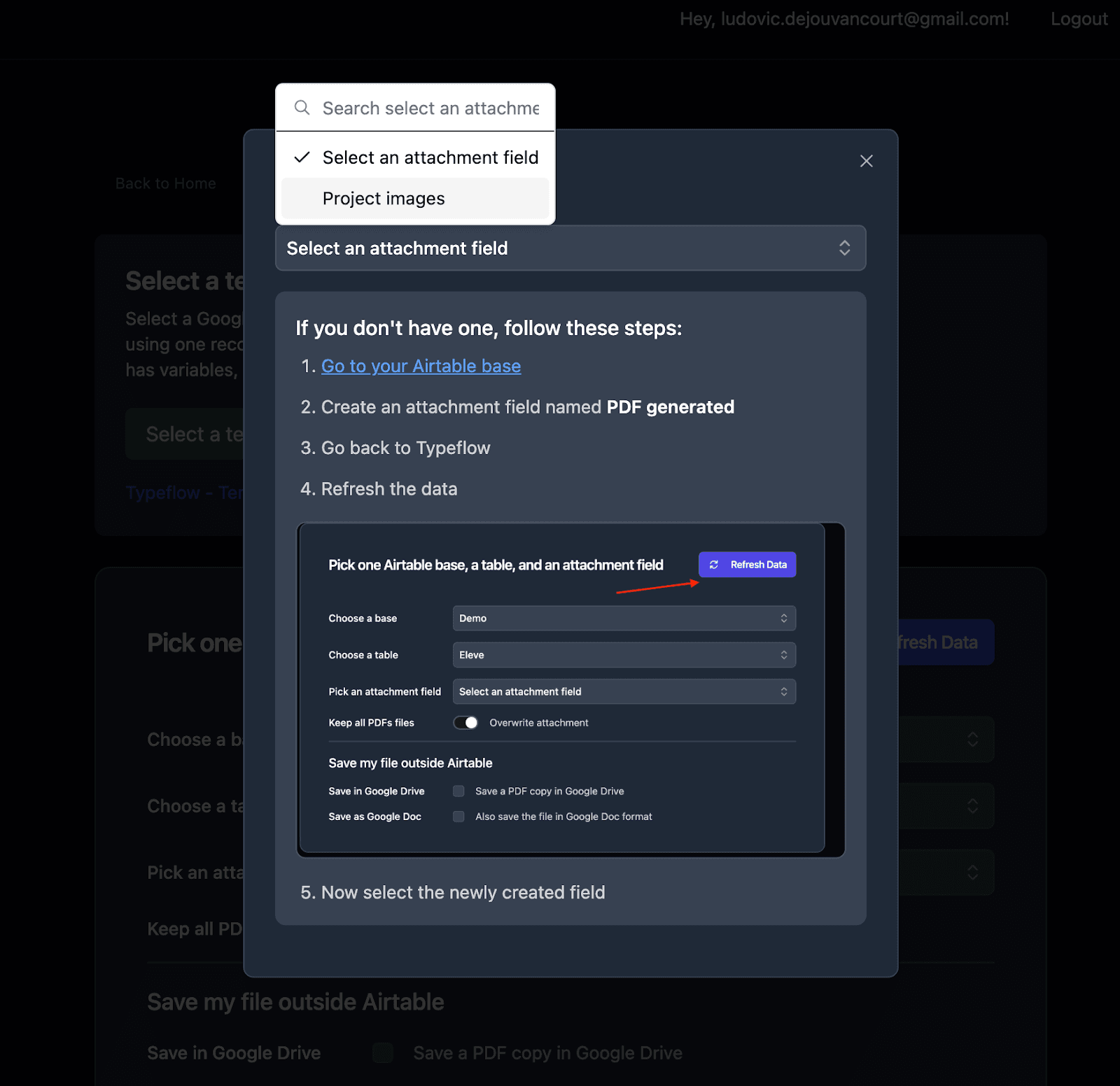
Configure the Output Location
Select the attachment field where generated packing lists should be saved (e.g., "Packing List PDF" field in your Orders table).
Step 4: Map Your Airtable Fields to the Template
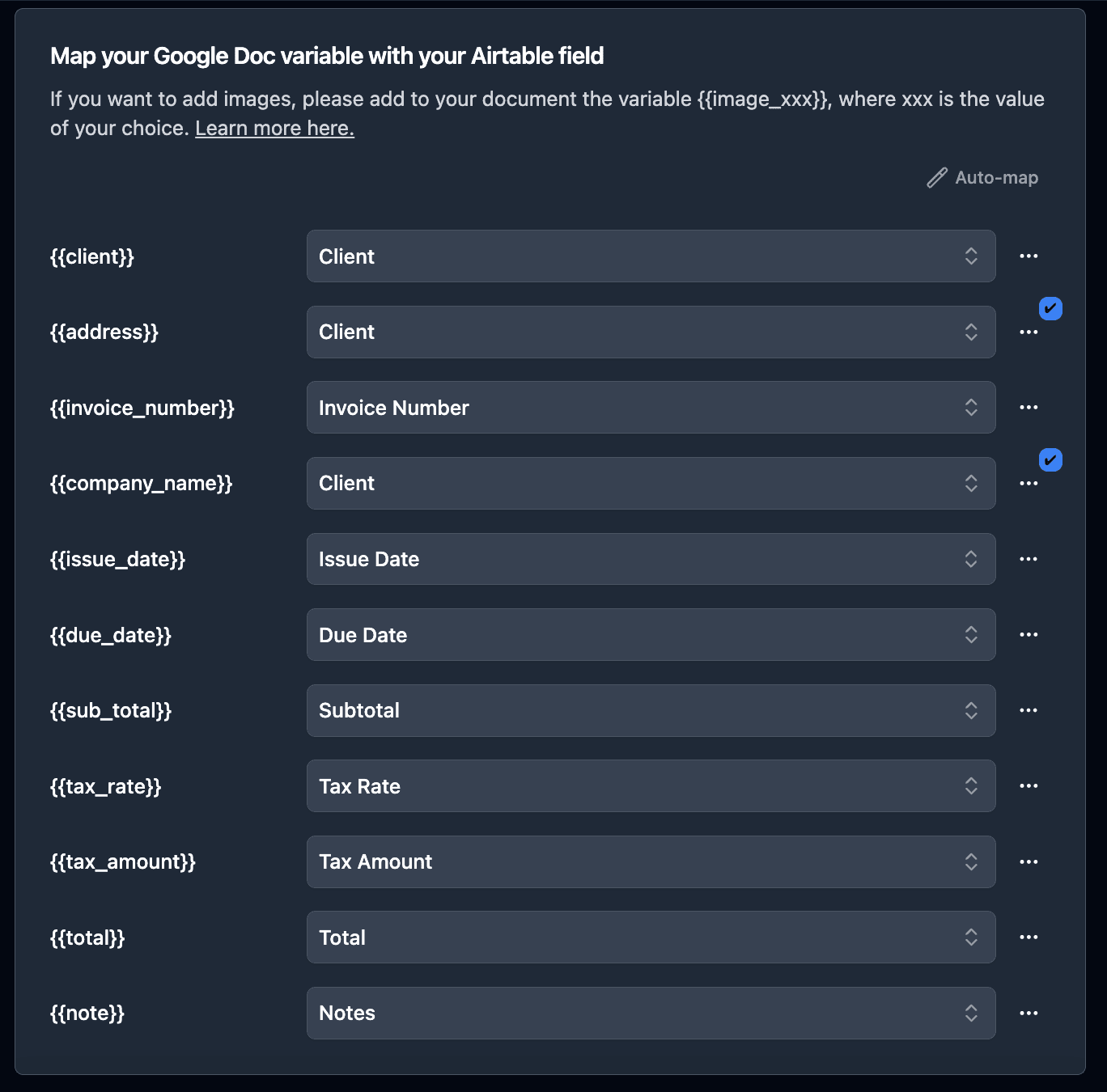
Connect each placeholder in your template to the corresponding Airtable field.
Map Single Fields
Direct one-to-one mapping for order details:
{{Order ID}}→ Order ID field{{Customer Name}}→ Customer Name field{{Shipping Address}}→ Shipping Address field{{Order Date}}→ Order Date field
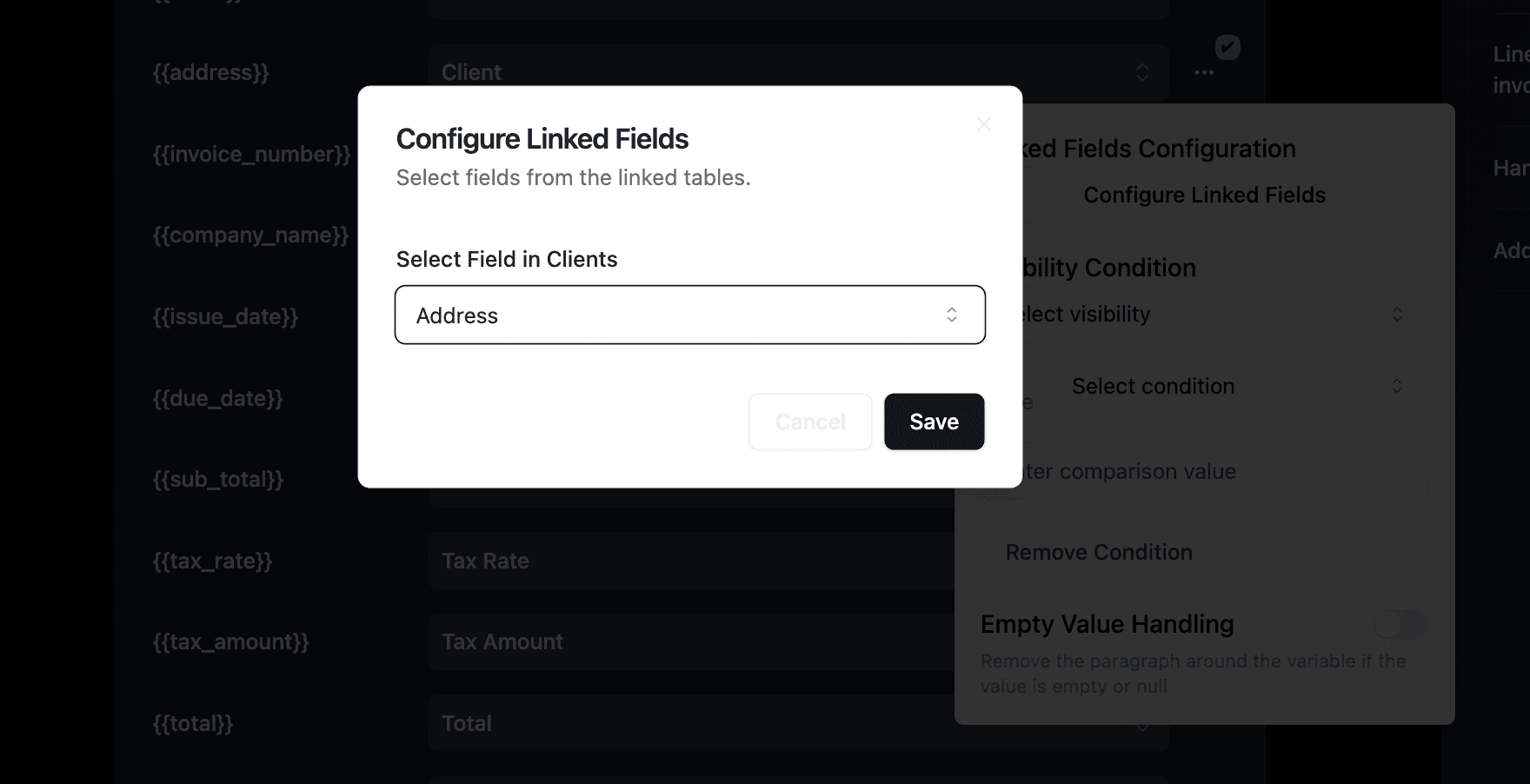
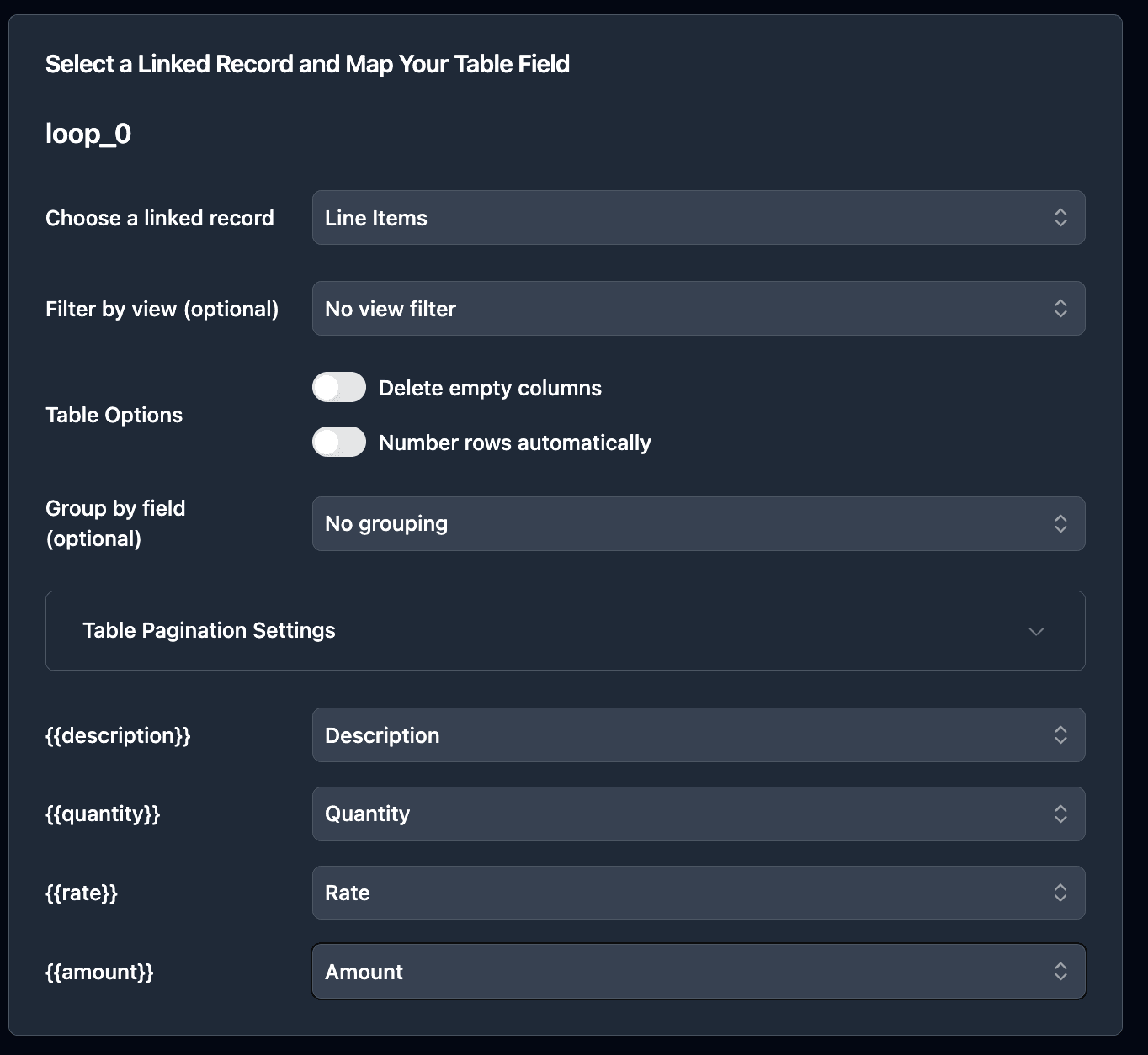
Map Linked Records for Line Items
For the products loop, map the linked record field to pull data from each connected product.
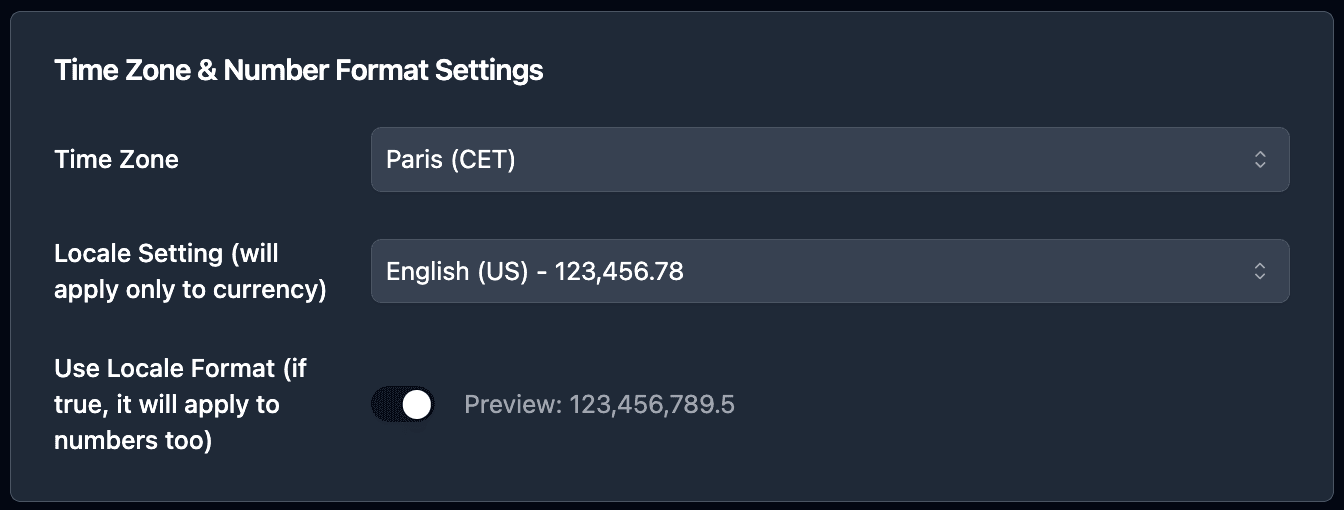
Apply Data Formatting
Use TypeFlow's formatting options to ensure dates and numbers display correctly.
How to Generate Packing Lists: 3 Methods
Once configured, you can generate packing lists in three ways depending on your workflow.
| Method | Best for | How it triggers |
|---|---|---|
| Button | One-off orders | Click "Generate Packing List" in Airtable |
| Bulk | Daily batches | Select multiple records and generate PDFs together |
| Automation | Hands-off fulfillment | Runs when Status becomes "Ready to Pack" |
Option 1: Button Field (On-Demand Generation)
Add a button field to your Orders table for one-click generation.
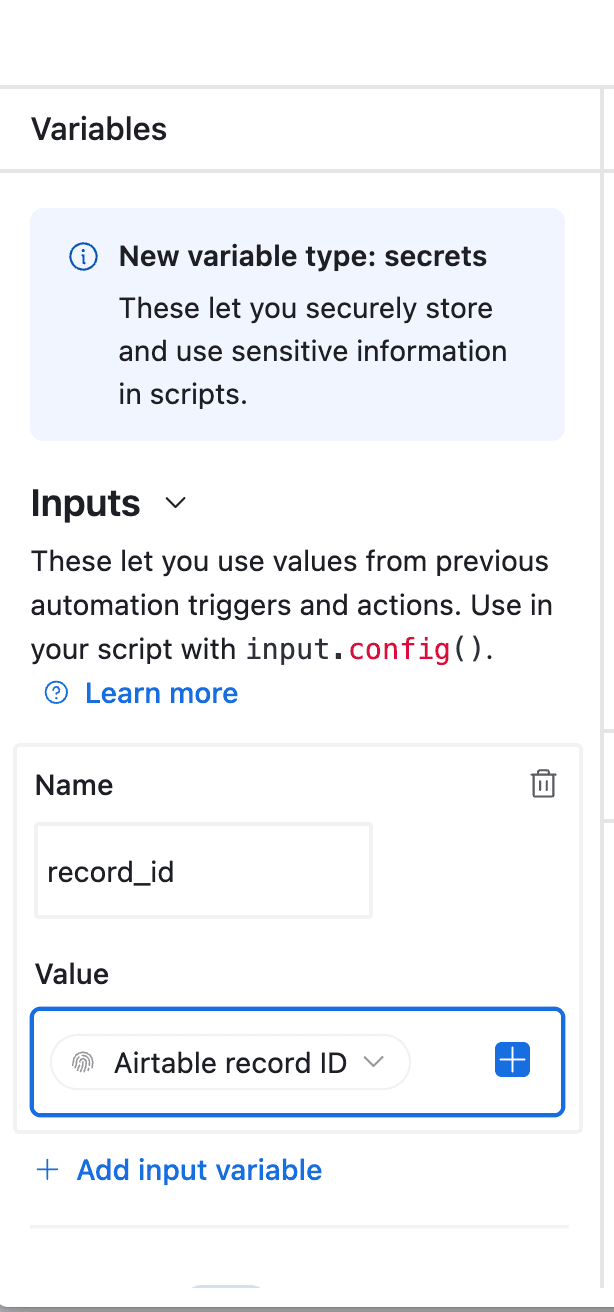
Workflow:
- Open an order record.
- Click "Generate Packing List."
- PDF appears in the attachment field within seconds.
- Print and hand to warehouse team.
Best for: Small operations where orders are processed individually.
Option 2: Bulk Generation (Batch Processing)
Generate packing lists for multiple orders at once.
Workflow:
- Filter your view to show orders with Status = "Ready to Pack."
- Select all records.
- Click "Generate PDFs."
- All packing lists generate in parallel.
Best for: Daily batch processing where you generate all packing lists at once (e.g., morning pick lists). Deloitte estimates that batch document automation reduces processing time by up to 80%.
Option 3: Airtable Automations (Automatic Generation)
Set up Airtable Automations to generate packing lists when orders reach a specific status.
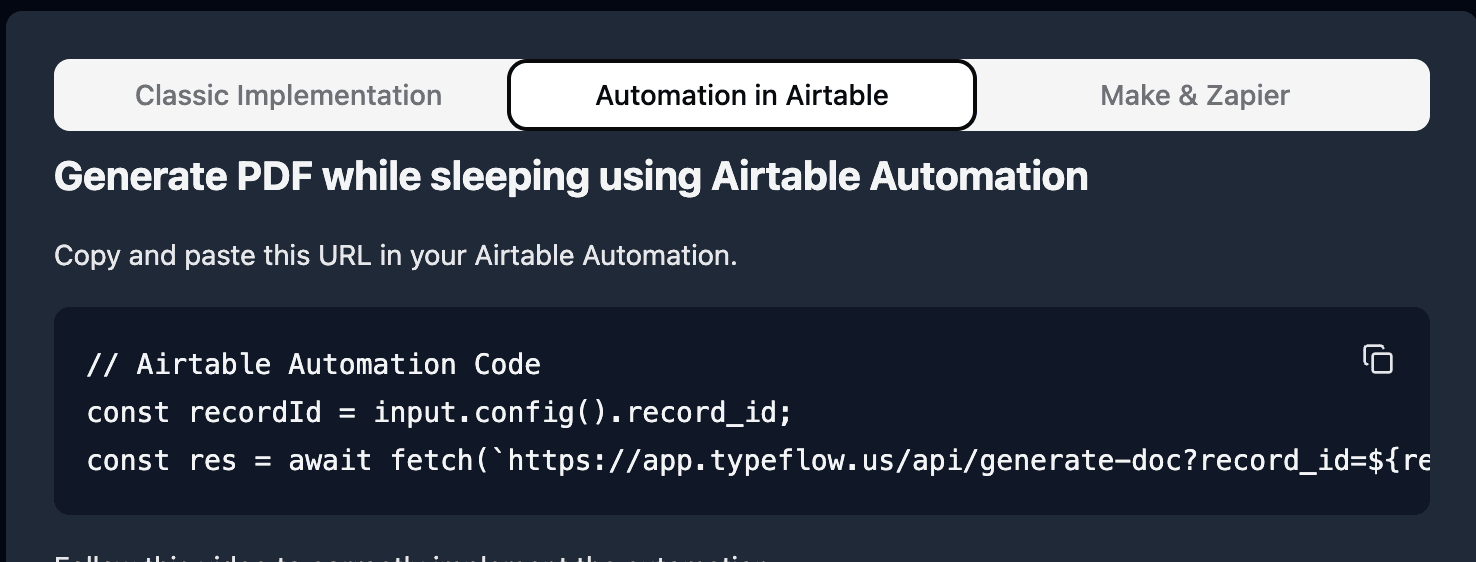
Setup steps:
- Create a new Automation in Airtable.
- Set trigger: "When record matches conditions" (Status = "Ready to Pack").
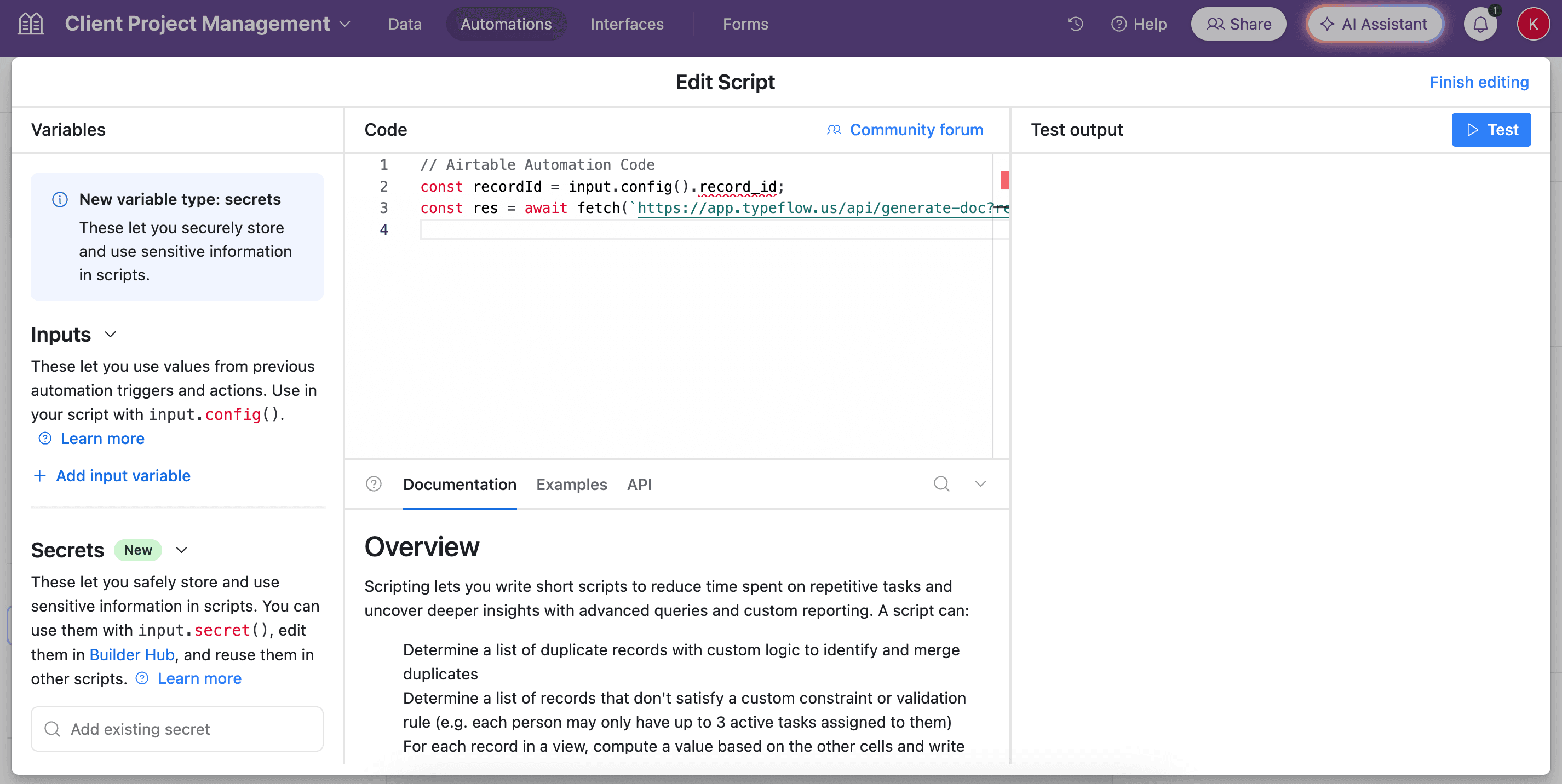
- Add action: "Run script."
- Paste the TypeFlow script.
Pro Tip: Chain Automations
Add a second automation step to email the packing list to your warehouse team or update the order status to "Packing List Sent" after generation completes.
Also generating shipping documents like bills of lading or proof of delivery? The same automation approach works for those too.
Automate your document generation
Start with 20 free documents. Built for businesses using Airtable.
Best Practices for Packing List Workflows
Include All Essential Fields
According to the International Chamber of Commerce, a complete packing list should contain:
- Order number for easy reference and tracking.
- Full shipping address to prevent delivery errors.
- Product SKUs for accurate warehouse picking.
- Quantities for each item.
- Special handling instructions if applicable.
Use Consistent Naming Conventions
- Match names exactly: Your Airtable field name must match the placeholder you map to.
- Keep names simple: Avoid special characters when possible.
- Use underscores:
Order_IDis safer thanOrder ID.
Set Up Print-Ready Formatting
Configure your Google Docs template with:
- Standard letter or A4 page size.
- Adequate margins for printing.
- Large, readable fonts (12pt minimum for item details).
- High-contrast colors (black text on white background).
Common Issues and Solutions
Linked Records Not Showing
Problem: Products don't appear on the generated packing list.
Solution:
- Verify the linked record field is included in your TypeFlow mapping.
- Check that products are actually linked to the order in Airtable.
- Ensure the loop syntax is correct in your template.
Quantities Displaying Incorrectly
Problem: Wrong quantities or missing quantity data.
Solution:
- If using a junction table, map quantity from the line items table, not the products table.
- Check that the Quantity field contains numbers, not text.
- Apply number formatting in TypeFlow if needed.
Automation Not Triggering
Problem: Packing lists aren't generating automatically.
Solution:
- Verify the record meets all trigger conditions.
- Check that the automation is turned on in Airtable Automations.
- Review the automation run history for error messages.
- Ensure TypeFlow has permission to access your base.
Start Generating Packing Lists from Airtable Today
With TypeFlow, automating packing list generation from Airtable takes minutes to set up and runs reliably without code. Rated by Airtable users on G2.
- Fast setup: Connect Airtable + Google Docs and map fields once.
- Consistent output: Every packing list follows the same template.
- Fewer errors: Gartner reports that automated documentation reduces shipping errors by 25-50%.
Create your free TypeFlow account, connect your Airtable base, and generate your first packing list in under 10 minutes.
Automate your document generation
Start with 20 free documents. Built for businesses using Airtable.
Related Shipping & Fulfillment Documents
- Generate Shipping Documents from Airtable - Bills of lading, packing slips, and commercial invoices
- Print Labels from Airtable - Product, shipping, and inventory labels with barcodes
- Generate Proof of Delivery from Airtable - POD documents with recipient signatures
Frequently Asked Questions
Find answers to the most common questions about this feature.
Popular Questions
All Questions
Need more help?
Our team is here to help you solve all your problems and answer your questions.
Contact UsFor more document automation guides, see how to generate invoices from Airtable, shipping document generation, and how to print labels from Airtable. For official Airtable documentation, see Linked Records and Airtable Automations.

Kevin from TypeFlow
•AuthorKevin Rabesaotra is a growth engineer and automation specialist with 8+ years of experience building no-code solutions. As Founder & CEO of TypeFlow, he has helped hundreds of businesses automate document generation and streamline workflows with Airtable integrations. Previously, Kevin was a Product Lead specializing in growth engineering, running experiments to drive revenue, retention, and lead generation.
More articles
How to Print Labels from Airtable with Quantity Control (Step by Step)
Print multiple labels per Airtable record based on a quantity field. Step-by-step guide for linked records mode and quantity repeat mode with barcodes and Avery sheets.
Read articleHow to Print Avery Mailing Labels from Airtable
Print Avery mailing labels (5160, 5161, 5162) from Airtable without Word mail merge. Step-by-step guide with print label mode, automation, and bulk generation.
Read articleHow to Create Inventory Labels with Barcodes in Airtable
Create inventory labels with Code 128, EAN-13, or QR barcodes from Airtable. Step-by-step guide for warehouse, retail, and asset tracking with thermal and Avery printers.
Read article