How to Create Airtable Product Labels with Barcodes
You can create product labels with scannable barcodes - EAN-13, Code 128, or QR - directly from your Airtable product records using TypeFlow's HTML/CSS template builder. Map your product fields (name, SKU, price) to a label template, select the barcode type, and generate labels for Avery sheets or thermal printers (Zebra, DYMO). No external barcode software. No CSV exports. Explore our label printing solution for the full feature set.
Airtable's barcode field can scan a code into a record, but it can't generate a printable barcode image for your label. TypeFlow renders the barcode graphic directly from your Airtable field data when it builds the label PDF, so you get a scannable barcode you can actually print.
For all label types including shipping and inventory, see our complete label printing guide. For a barcode deep dive including GS1-128 for food traceability, see our barcode generation guide.
Create Product Labels with Barcodes from Airtable
What You Need Before Starting
To create product labels with barcodes in Airtable, you set up your product data, connect it to a template, and generate labels using a document tool like TypeFlow. The whole process takes about 15 minutes once your data is ready.
Here's what you'll want to have in place:
| Tool | Purpose | Notes |
|---|---|---|
| Airtable account | Store product data (name, SKU, price, barcode value) | Your base should be ready with your data. |
| TypeFlow account | Connect Airtable to the template builder and generate barcodes | A free account is enough to start. |
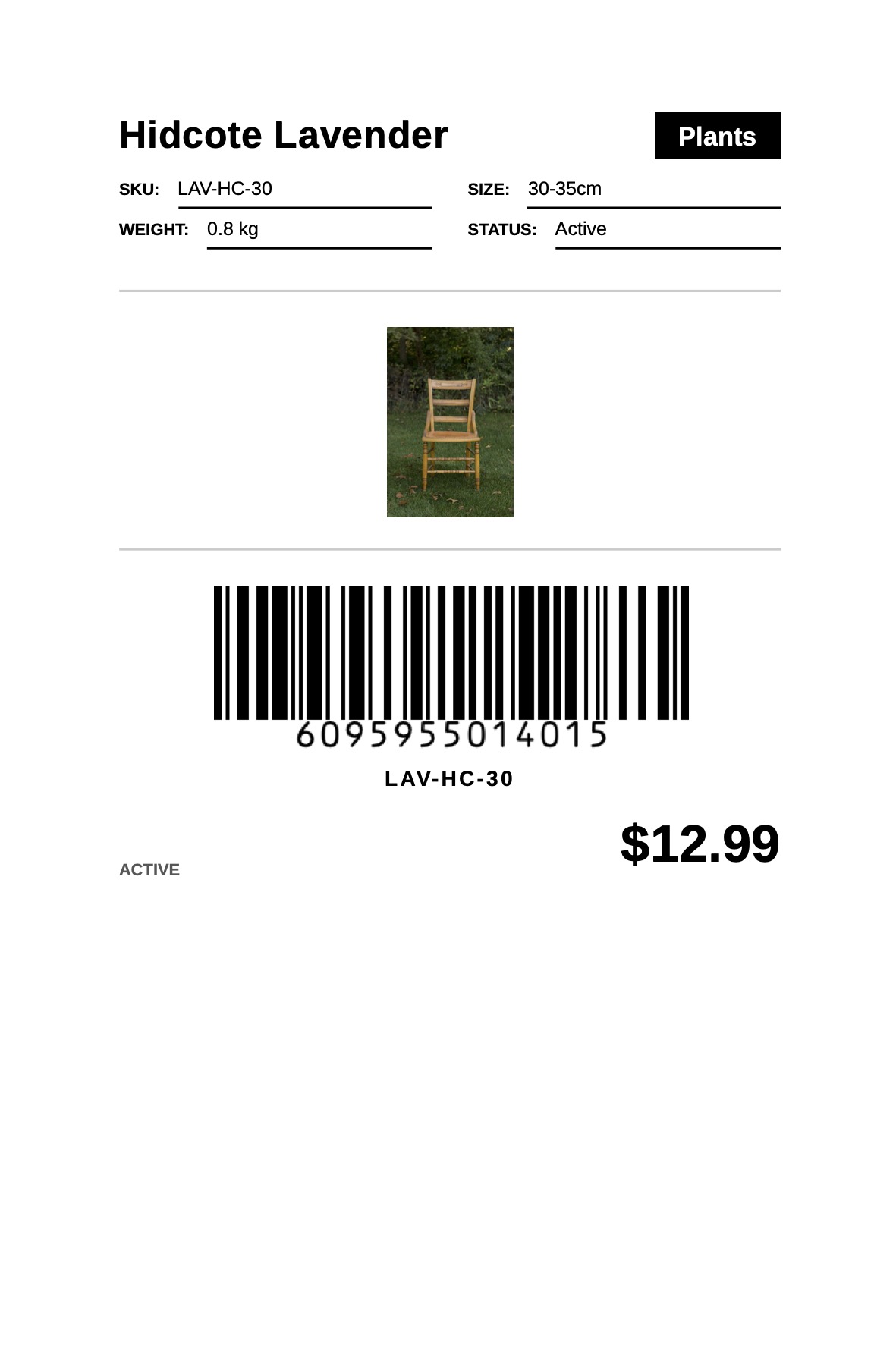
Here's an example product label with an EAN-13 barcode generated from Airtable. Click to open the full PDF, or duplicate the demo base:
Ready-to-use template
Product Label with Barcode
Duplicate the Airtable base, paste the template in Typeflow, then generate your first PDF in minutes.
Free tier available • No credit card required
Barcode Formats Supported for Airtable Product Labels
Not all barcodes work the same way. The format you pick depends on where and how you plan to use your labels, so let's look at the three most common options.
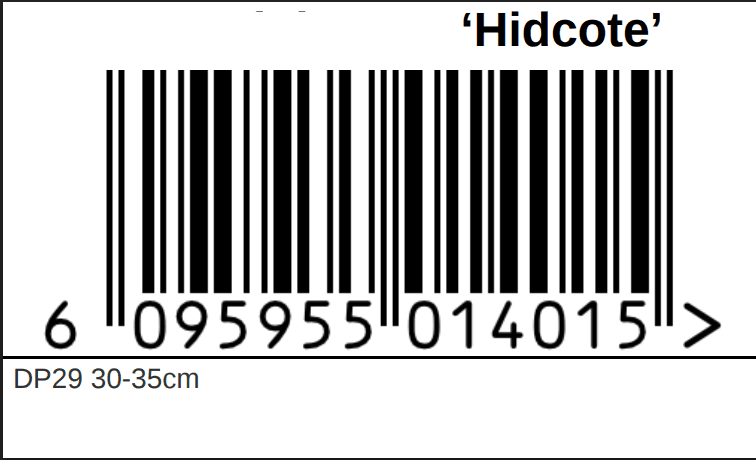
EAN-13 and UPC for Retail Products
If you sell products in stores, EAN-13 or UPC barcodes are the standard choice. Point-of-sale systems recognize them, and customers expect to see them on retail packaging. One thing to know: EAN-13 and UPC codes require a registered number from GS1, which is the organization that manages barcode standards worldwide. Example: a retail product with GS1 number 012345678905 prints as a scannable EAN-13 directly on your product label.
Code 128 for Internal SKUs
For internal inventory tracking, Code 128 is more practical. You can generate Code 128 barcodes from your own SKU numbers without any registration or fees. Warehouses, stockrooms, and fulfillment centers often use Code 128 because it's flexible and works with any alphanumeric value. Example: an internal SKU like WH-2044-A encodes directly as Code 128 with no registration step.
QR Codes for Links and Extra Data
QR codes store more information than linear barcodes. You can encode a URL, product details, or tracking information in a single square code. Most phones scan QR codes without an extra app, which makes them useful when customers or team members want quick access to product pages or documentation. QR codes are defined by ISO 18004 and hold up to 4,296 characters. Example: a QR code linking straight to a product's spec sheet or care instructions page.
| Barcode Type | Best For | Registration Required |
|---|---|---|
| EAN-13/UPC | Retail sales | Yes (GS1) |
| Code 128 | Internal inventory | No |
| QR Code | Links and extended data | No |
How to Structure Your Airtable Base for Product Labels
The way you organize your Airtable base determines how your labels get generated. A few minutes of planning here saves time later, so let's walk through two common approaches.
Single Product Table with a Quantity Field
The simplest setup uses one table with all your product information. Each row represents one product, and each column holds a piece of data like name, SKU, or price.
If you want to print multiple labels for the same product, add a quantity field. For example, when you have 10 units of a product in stock, the quantity field tells the system to generate 10 labels for that single product.
Linked Records for Variants and Orders
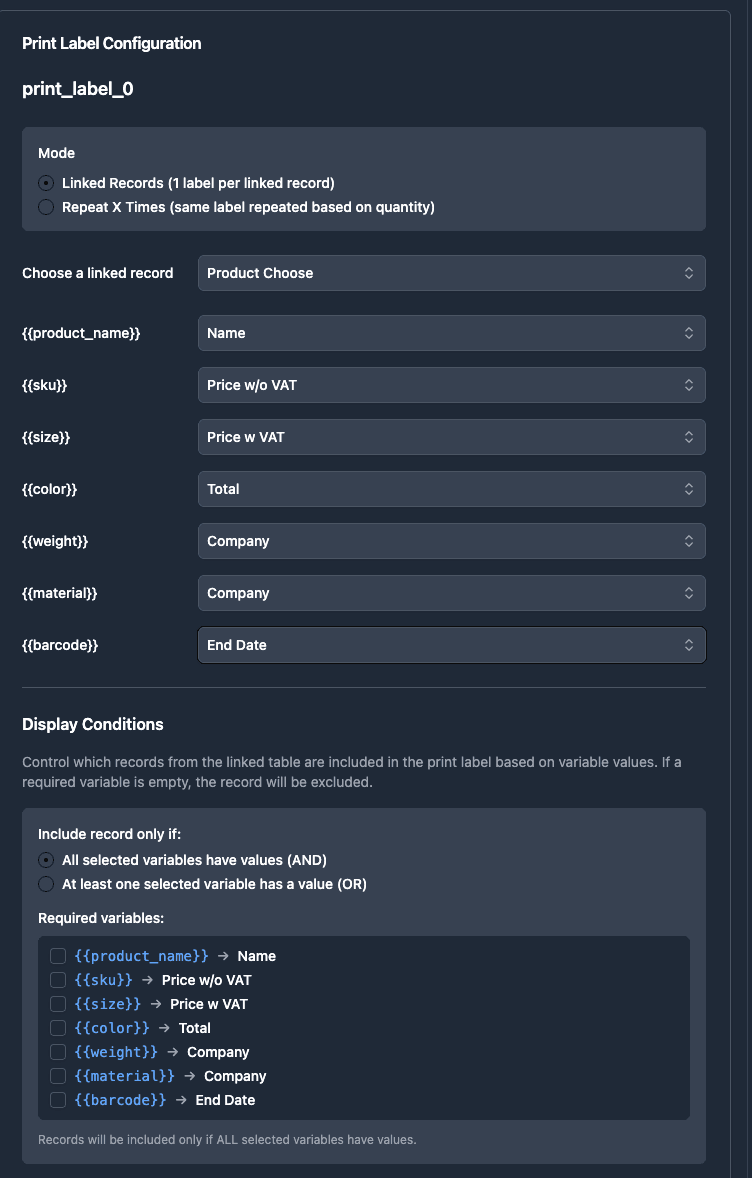
When products have variants like size or color, linked records offer more flexibility. You might have a Products table linked to a Variants table, where each variant has its own SKU and barcode value.
This approach is more complex to set up, yet it handles real-world inventory situations better. If your labels relate to specific orders rather than just products, linked records let you pull order information onto the label too.
- Single table: Works well when each product is straightforward and one record contains everything for the label.
- Linked records: Works better when products have variants or when labels relate to specific orders.
Label Sizes and Templates for Product Labels
Your template dimensions have to match your physical labels. A mismatch causes alignment problems that waste label sheets, so let's cover the two main label types.
Avery Sheet Labels
Avery labels are the most common choice for standard printers. Sizes like 5160 (1" x 2.625") and 5163 (2" x 4") work with inkjet and laser printers you already have.
The exact dimensions are printed on the Avery packaging, and you can also find them on the Avery website by searching for your label number.
Thermal Printer Labels
Thermal printers use label rolls instead of sheets. Common sizes include 2" x 1" for small product labels and 4" x 6" for shipping labels. Printers like Zebra or DYMO are popular choices.
Thermal printing is faster for high-volume work, though it requires a separate hardware investment. If you're printing hundreds of labels per day, thermal makes sense. For occasional printing, Avery sheets work fine.
| Label Type | Common Sizes | Printer Type |
|---|---|---|
| Avery 5160 | 1" x 2.625" | Inkjet/Laser |
| Avery 5163 | 2" x 4" | Inkjet/Laser |
| Thermal roll | 2" x 1" | Thermal |
| Thermal roll | 4" x 6" | Thermal |
How to Design a Product Label Template
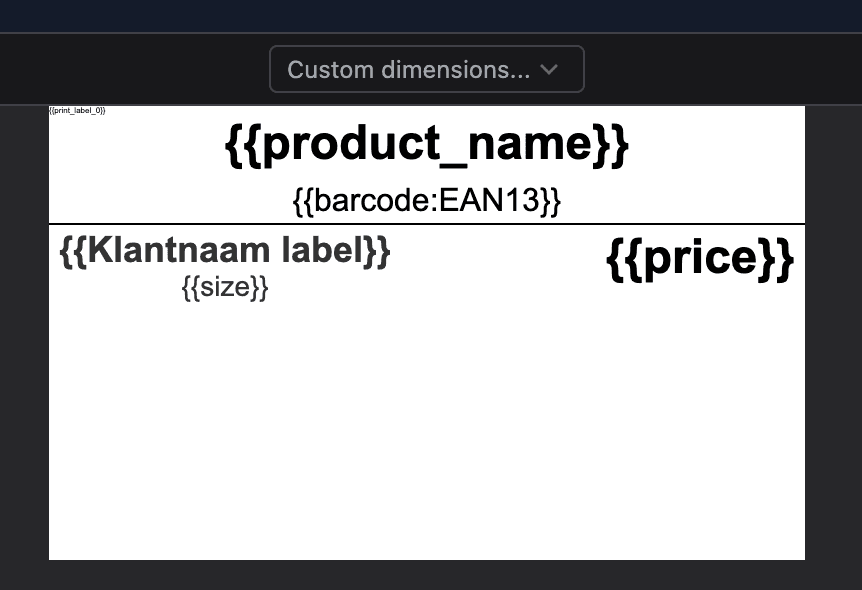
TypeFlow's HTML/CSS template builder handles the label design. You'll add variables that pull data from Airtable and a special barcode variable that generates the barcode image. Let me walk you through each step.
Step 1: Set the Page Size to Match Your Label
In TypeFlow's template builder, set the page dimensions to match your label stock. If you're using 2" x 1" thermal labels, set the page to 2 inches wide and 1 inch tall.
This step is easy to overlook, yet it's the most common cause of printing problems. When the page size doesn't match the label size, everything prints off-center or gets cut off.
Step 2: Add Product Fields and the Barcode Variable
Type your variables using double curly brackets. The variable name matches the field name in your Airtable base. For barcodes, use the format {{barcode:field_name}} where field_name is the Airtable field containing your barcode value.
Here are the most common variables for product labels:
{{product_name}}- Pulls the product name from Airtable.{{sku}}- Pulls the SKU number.{{barcode:sku}}- Generates a barcode image from the SKU field.{{price}}- Pulls the price.
Step 3: Insert the Print Label Marker
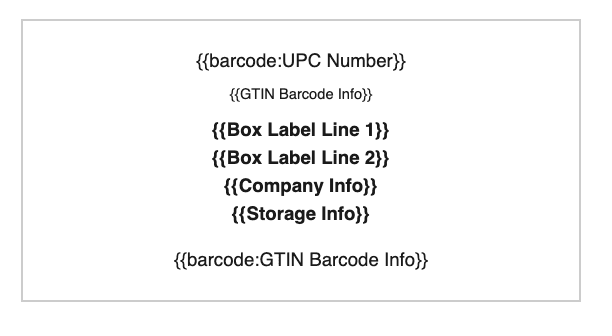
When printing multiple labels on a sheet, you add a marker that tells the system where each label starts. In TypeFlow, this marker ensures labels repeat in the correct positions on Avery sheets. Without it, all your data would print on a single label.
Ready to create product labels with barcodes?
Connect your Airtable base, pick a template, and generate your first barcode label in minutes.
Start free with 20 documents →How to Map Airtable Fields to Your Product Label
Once your template is ready, you connect it to your Airtable data. This mapping tells the system which Airtable field goes into which template variable.
Step 1: Connect Your Airtable Base
Authorize the connection between TypeFlow and your Airtable account. Then select the base and table containing your product data. The whole process takes about 30 seconds.
Step 2: Match Variables to Product Fields
The interface shows each variable from your template alongside a dropdown of available Airtable fields. Match {{product_name}} to your Product Name field, {{sku}} to your SKU field, and so on.
If a variable doesn't have a matching field, you'll see an error before generating labels. This catches mistakes early.
Step 3: Pick the Barcode Format
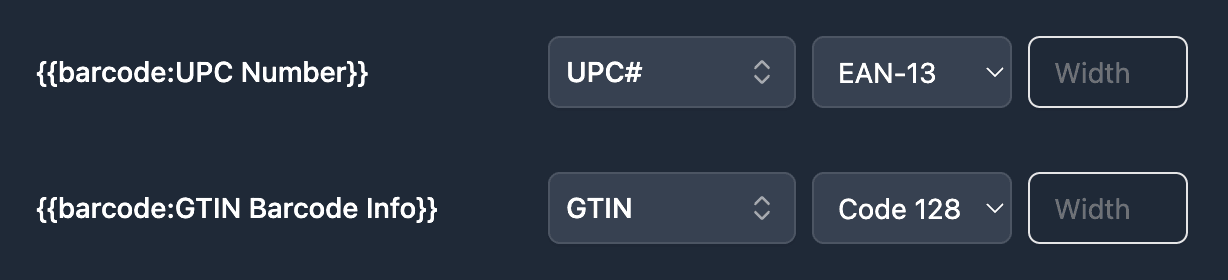
For barcode variables, you'll see an additional option to select the barcode type. Choose EAN-13 for retail, Code 128 for internal use, or QR for links. The system generates the barcode image from your field value during label creation.
Pro Tip
Test with one or two records first. This catches any mapping errors before you print a full batch of labels.
How to Print One or Multiple Labels per Product
You might want one label per product, or you might want 50 labels for a product with 50 units in stock. Both scenarios are straightforward to handle.
One Label per Record
By default, each Airtable record produces one label. If you have 100 products in your table, you get 100 labels. This works well when each product is unique or when you're labeling individual items.
Repeat X Times Based on a Quantity Field
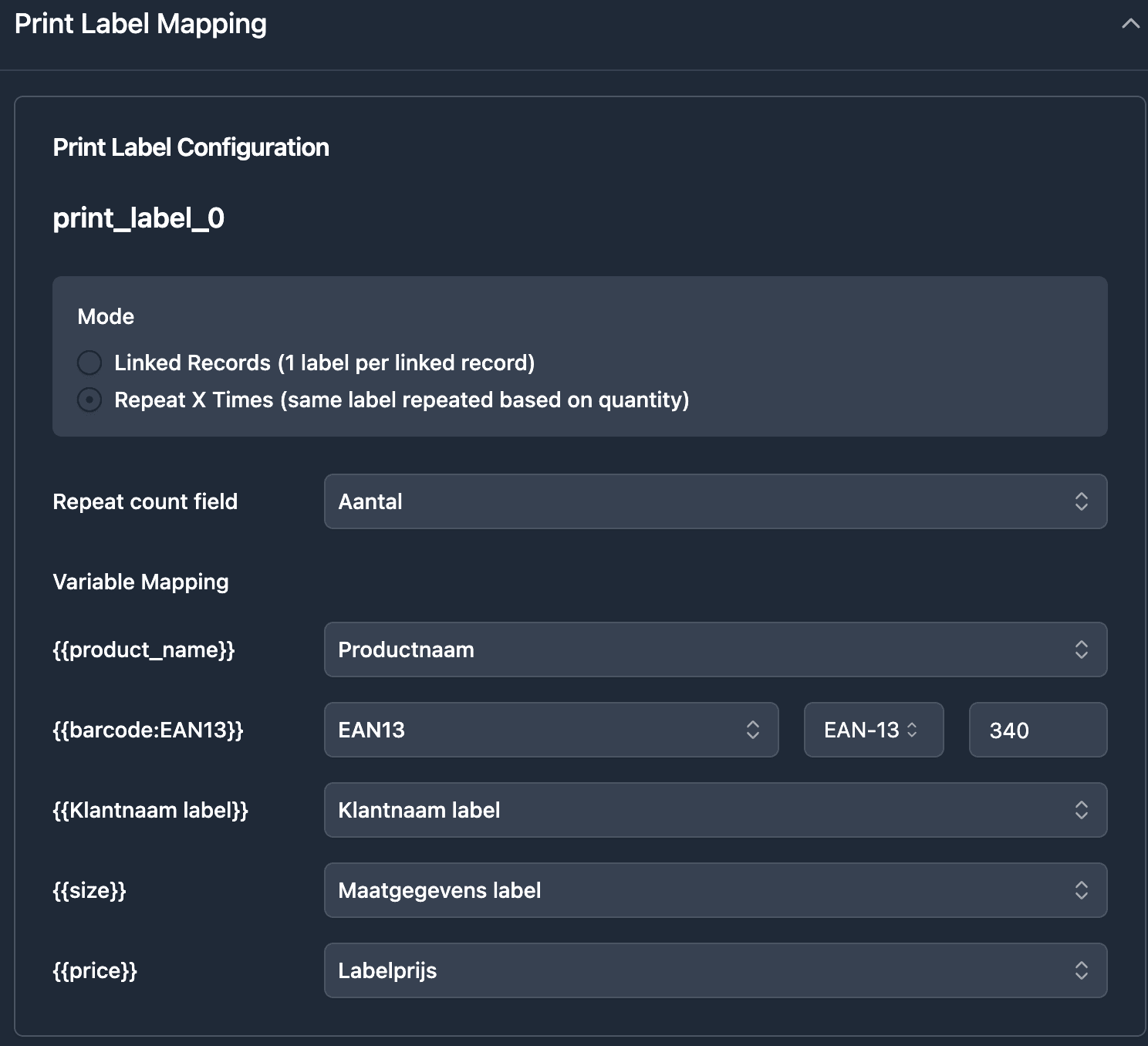
To print multiple labels for the same product, add a quantity field to your Airtable base. When you set up the label generation, point to this field. A product with a quantity of 5 generates 5 identical labels.
This approach is useful for inventory receiving. When a shipment arrives with 20 units of one product, you update the quantity field and generate all 20 labels at once.
How to Generate Product Labels from Airtable
You have three ways to trigger label generation, depending on your workflow. Let's look at when each option makes sense.
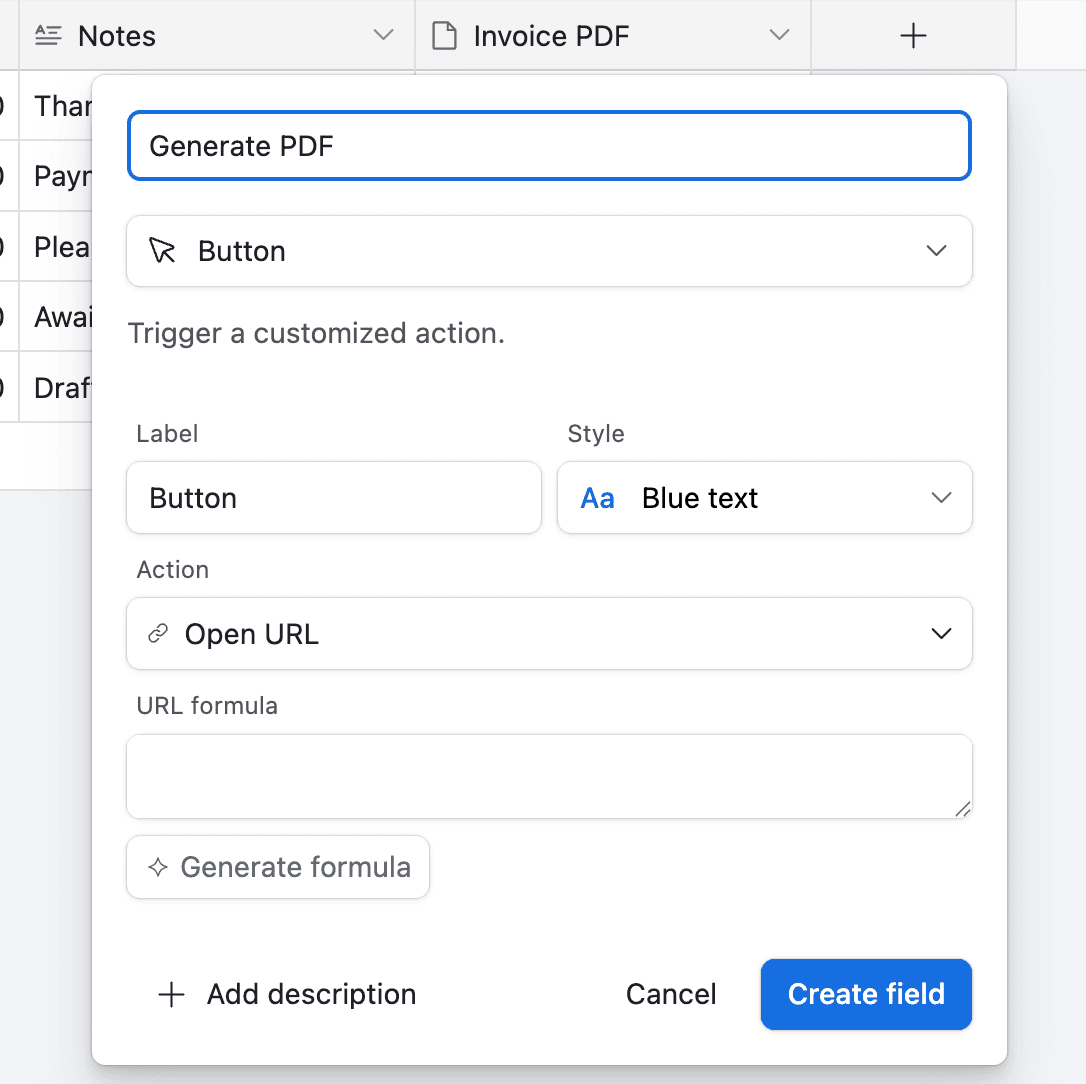
Option 1: Airtable Button Field
Add a button field to your table that triggers label generation when clicked. This works well for on-demand printing when you want control over which products get labels.
-
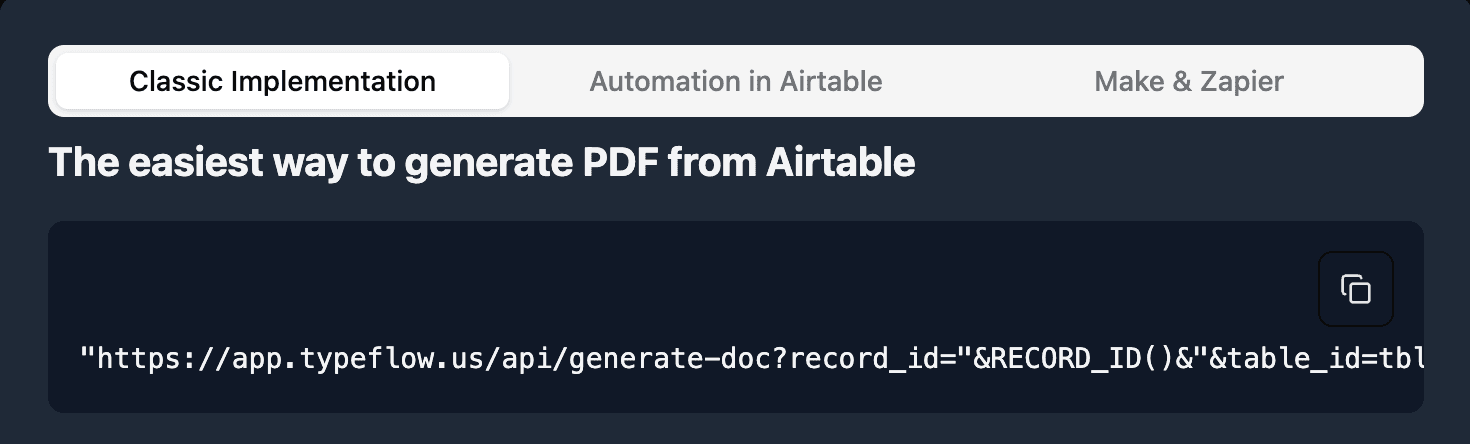
In TypeFlow, scroll to the bottom of the page and click on "Classic Implementation"
-
Copy the URL, it should look like this:
"https://app.typeflow.us/api/generate-doc?record_id="&RECORD_ID()&"&table_id=xxx&flow_id=xxx"
- Go to your Airtable product table and add a new button field
- Paste the URL from TypeFlow to the URL Formula
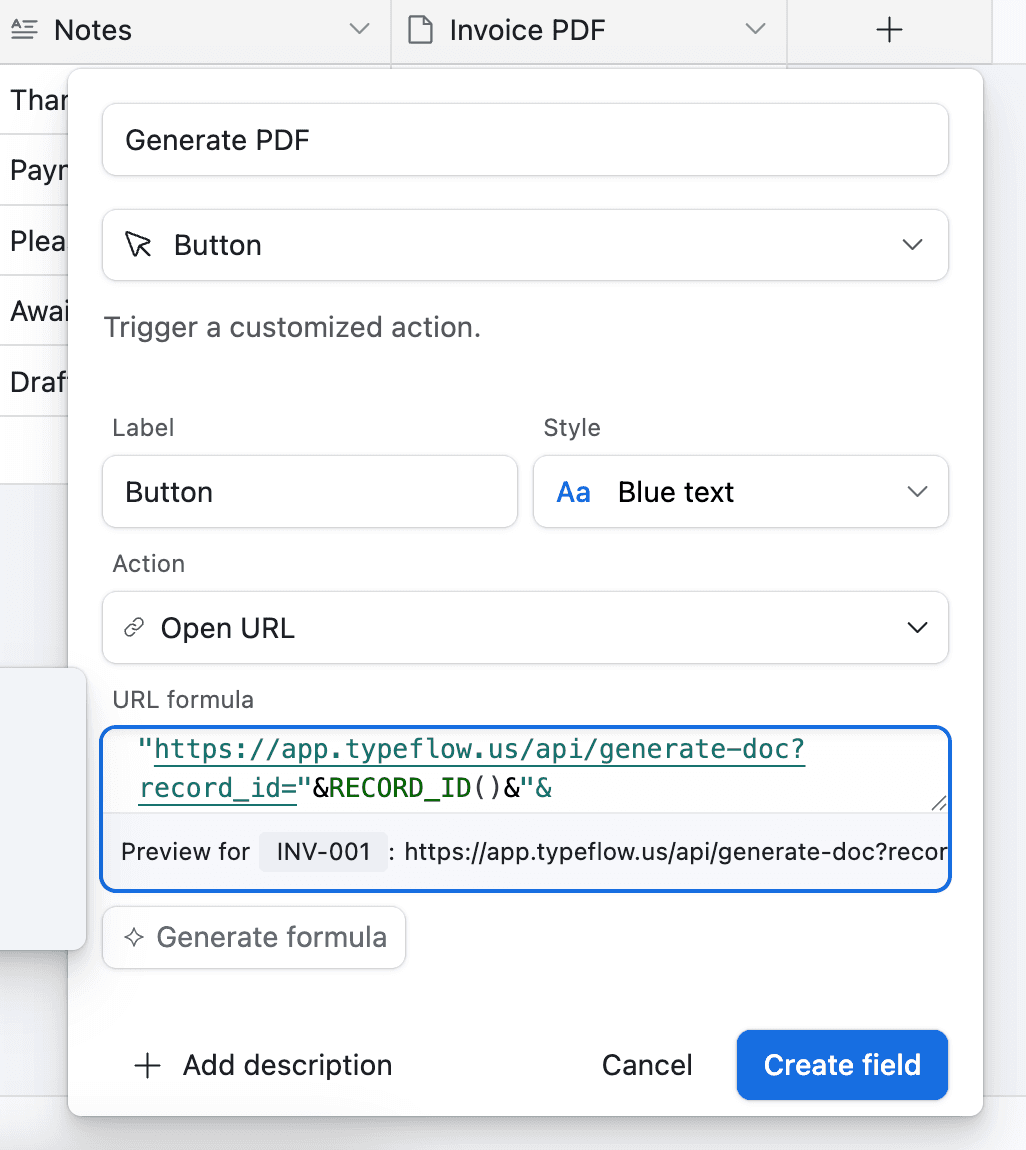
You see a product, you click the button, you get a label.
Option 2: Airtable Automation
Set up an Airtable Automation that generates labels when a condition is met. For example, generate a label when a new product is added or when a status field changes to "Ready to Label."
-
Go to Automation in Airtable
-
Click on "Add a trigger" and choose When a Record matches a condition
-
Select the table and field you want to trigger the automation on
-
Click on Add an advanced logic or action
-
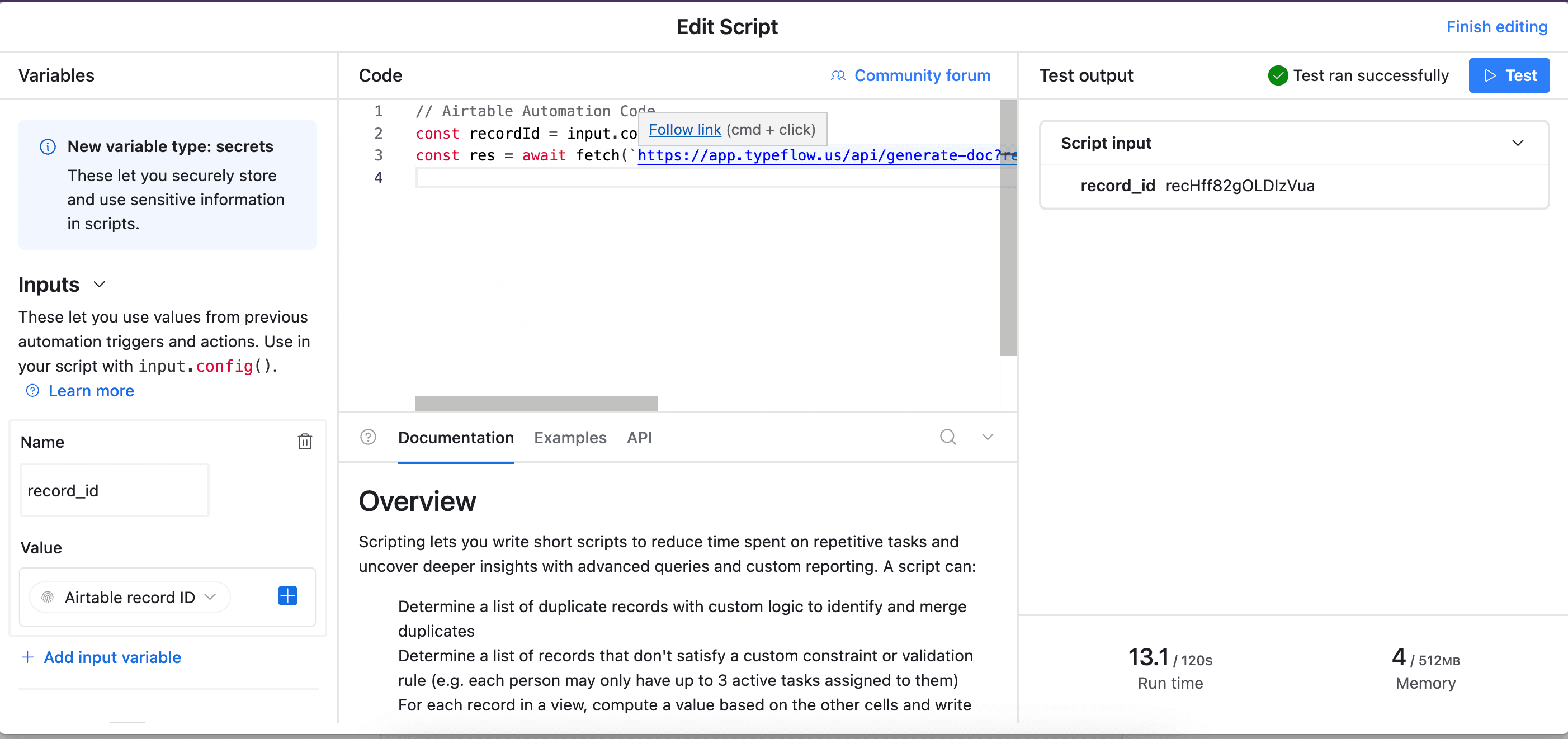
Pick Run Script. A new popup appears.
-
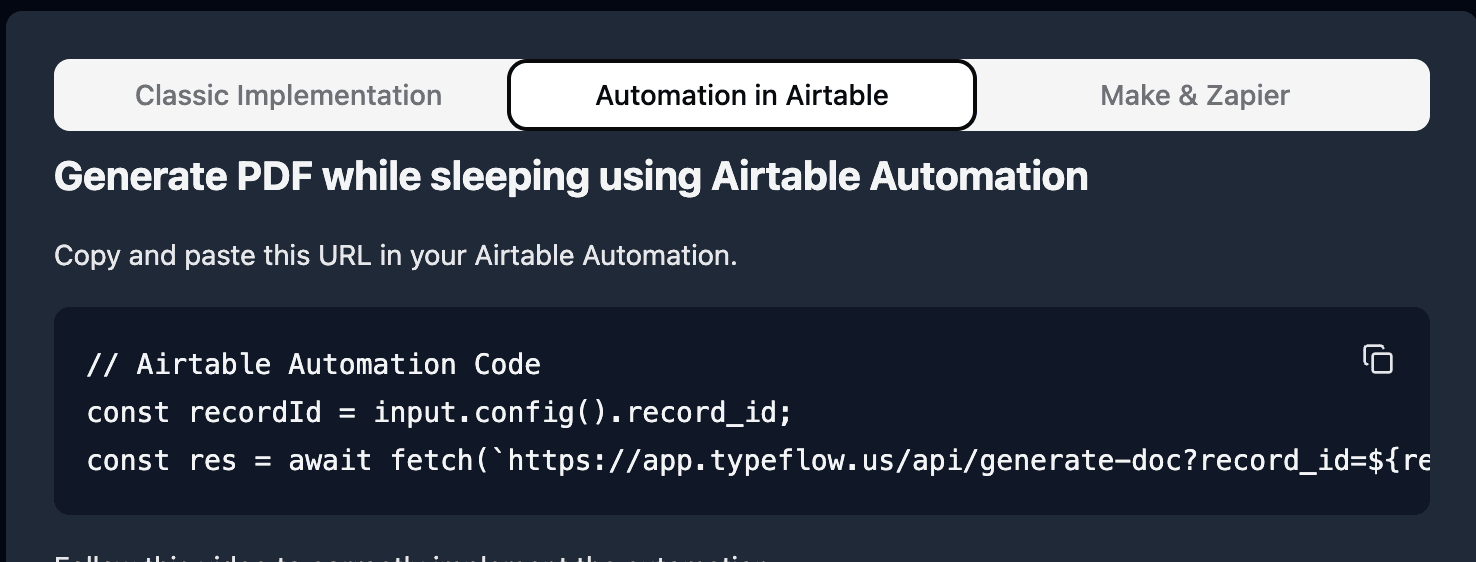
Go back to TypeFlow and select Automation in Airtable. Copy the script.
-
Paste the script in the popup.
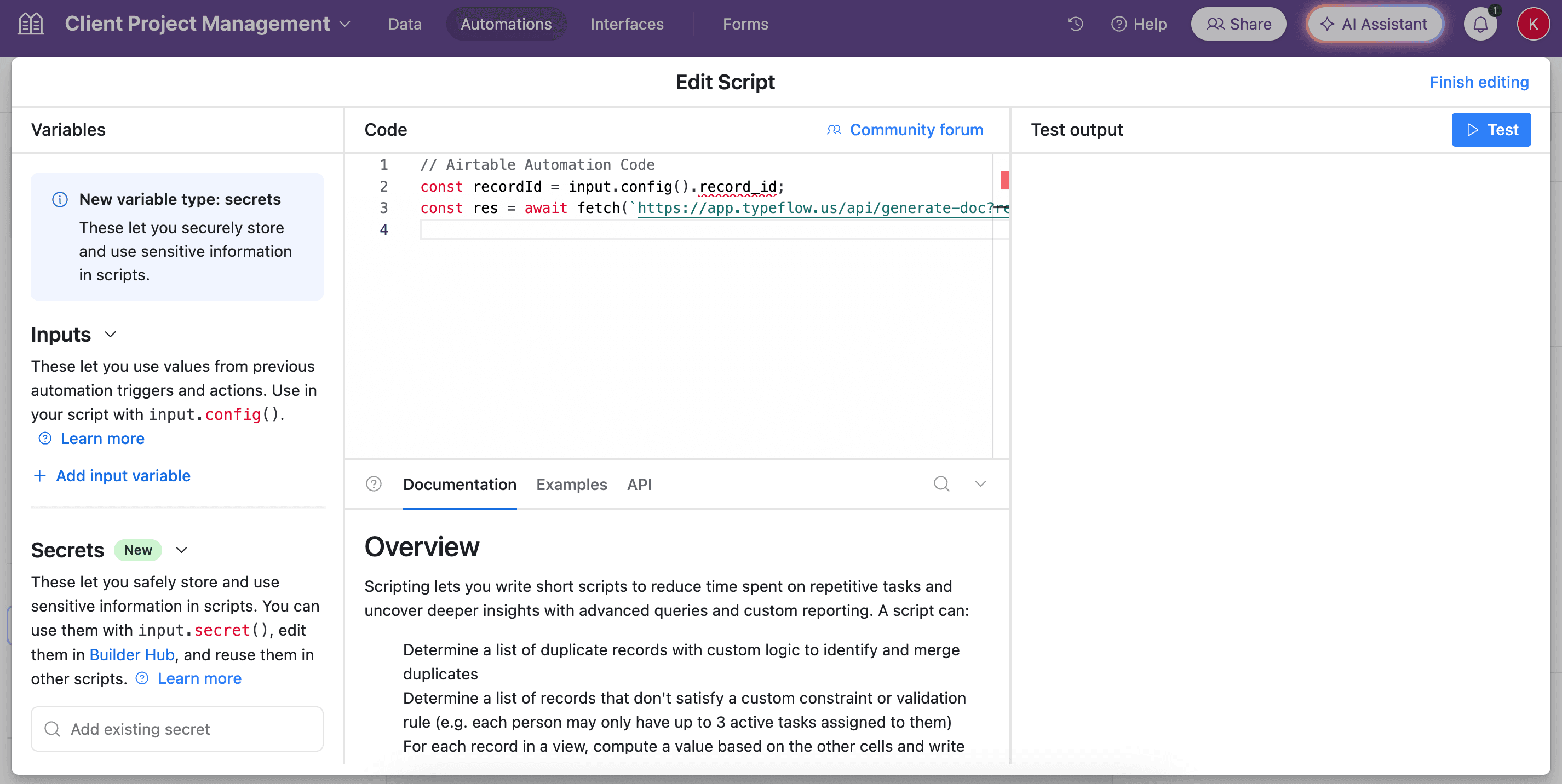
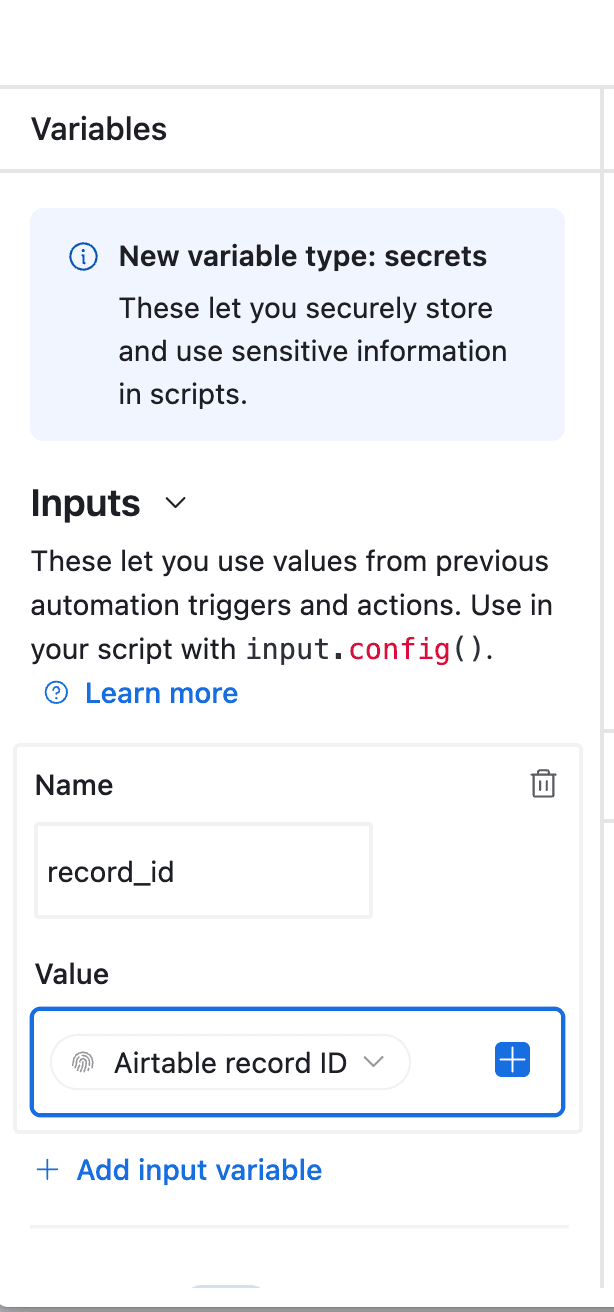
- In the left-side of the popup, do not forget to configure the variable input, record_id. You need to select Airtable Record ID from the dropdown.
- Test your script, and see if it works. Adjust if needed (most of the time the error comes from the record_id variable - see step 8).
Automations remove manual steps from your workflow. Once configured, labels appear without anyone clicking a button.
Option 3: Bulk Generation
Select multiple records in Airtable and generate labels for all of them at once using the TypeFlow Airtable extension. This is the fastest approach for batch printing, like when you receive new inventory or prepare products for a trade show.
| Trigger Method | Best For | Manual Steps |
|---|---|---|
| Button field | Specific products on demand | Click per record |
| Automation | Hands-off label generation | Zero after setup |
| Bulk generation | Printing many labels at once | Select records, click once |
Set up product label printing in 15 minutes
Barcode generation, field mapping, and PDF creation from your Airtable data. No coding required.
Start free with 20 documents →Common Issues with Airtable Barcode Labels and How to Fix Them
Even with a good setup, you might run into a few problems. Here are the most common ones and how to solve them.
Barcode Not Showing on the Label
Check your variable syntax first. The barcode variable format is {{barcode:field_name}}, not {{barcode}}. Also verify that the Airtable field contains a value. Empty fields produce empty barcodes, which look like missing images on your label.
Wrong Number of Labels Printed
This usually happens when the quantity field is misconfigured or missing. Double-check that you've mapped the quantity field in your label generation settings. If the field exists but isn't mapped, the system defaults to one label per record.
Labels Misaligned on Avery Sheets
The template dimensions don't match the physical label sheet. Go back to HTML/CSS template builder and verify the page size matches your Avery label dimensions exactly. Also check that margins are set to zero, since even small margins throw off the alignment.
Start Printing Product Labels from Airtable with TypeFlow
Creating product labels with barcodes from Airtable doesn't require coding or complex software. With TypeFlow's HTML/CSS template builder, you can generate professional labels in minutes.
TypeFlow handles the barcode generation, field mapping, and PDF creation. You focus on your products while the system handles the documents. Rated by Airtable users on G2. You can find more workflow tips in the Airtable community and r/Airtable on Reddit.
Automate your document generation
Start with 20 free documents. Built for businesses using Airtable.
Related Guides
- Best Label Printing Tools for Airtable in 2026 - Compare TypeFlow, Page Designer, Sheets to Labels, Documint, Plumsail, and PrintNode.
- How to Print Labels from Airtable - All label types: product, shipping, inventory, and cart labels.
- Page Designer vs TypeFlow for Labels - Side-by-side comparison for label printing.
- How to Generate Return Labels from Airtable - Return shipping labels with RMA numbers and barcodes.
- How to Generate Barcodes from Airtable - EAN-13, Code 128, QR, and GS1-128 barcode deep dive.
- Airtable Document Generation - Complete guide to generating any document from Airtable.
- Airtable Certificate of Conformity - COC documents with batch barcodes.
- Airtable Manufacturing Document Automation - Production orders, QC reports, and spec sheets.
- How to Create Inventory Labels with Barcodes in Airtable - Code 128, EAN-13, and QR barcodes for warehouse, retail, and asset tracking.
- How to Print 4x6 Shipping Labels from Airtable on a Thermal Printer - Rollo, Zebra, DYMO, and Munbyn thermal printer setup with Code 128 tracking barcodes.
Frequently Asked Questions
Find answers to the most common questions about this feature.
Popular Questions
All Questions
Need more help?
Our team is here to help you solve all your problems and answer your questions.
Contact Us
Kevin from TypeFlow
•AuthorKevin Rabesaotra is a growth engineer and automation specialist with 8+ years of experience building no-code solutions. As Founder & CEO of TypeFlow, he has helped hundreds of businesses automate document generation and streamline workflows with Airtable integrations. Previously, Kevin was a Product Lead specializing in growth engineering, running experiments to drive revenue, retention, and lead generation.
More articles
How to Print Labels from Airtable with Quantity Control (Step by Step)
Print multiple labels per Airtable record based on a quantity field. Step-by-step guide for linked records mode and quantity repeat mode with barcodes and Avery sheets.
Read articleHow to Print Avery Mailing Labels from Airtable
Print Avery mailing labels (5160, 5161, 5162) from Airtable without Word mail merge. Step-by-step guide with print label mode, automation, and bulk generation.
Read articleHow to Create Inventory Labels with Barcodes in Airtable
Create inventory labels with Code 128, EAN-13, or QR barcodes from Airtable. Step-by-step guide for warehouse, retail, and asset tracking with thermal and Avery printers.
Read article