How to Print Labels from Airtable with Quantity Control (Step by Step)
You can print multiple labels per Airtable record based on a quantity field. If a product has "Print Qty" set to 5, TypeFlow generates 5 identical labels - not 1. This works with both linked records (one label per linked record) and quantity fields (repeat X times). Explore our label printing solution for the full feature set.
Airtable's Page Designer prints one label per record and cannot read a quantity field. For all label types, see our complete label printing guide. For thermal printer setup, see the shipping label guide.
Here is what quantity-based label printing looks like. The record with Print Qty = 5 generates 5 identical labels. The record with Print Qty = 1 generates 1 label. Scroll through the PDFs to see every page:
Print Qty = 5 (5 labels generated):
Print Qty = 1 (1 label generated):
Here is the demo Airtable base - notice the Print Qty field that controls how many labels each record generates:
Why Airtable Can't Print Labels by Quantity on Its Own
Airtable does not support printing multiple copies of a label from one record. A product with quantity 5 still generates one label. Page Designer creates one output per record and cannot read a number field to repeat. For a full comparison, see Page Designer vs TypeFlow.
Types of Labels You Can Print from Airtable
The quantity control process is the same for all label types - the difference is in your template design and fields.
- Product labels: SKU, price, barcode for retail items.
- Shipping labels: Address, tracking info, carrier details.
- Inventory and asset tags: Location codes, asset IDs for warehouse tracking.
- Picking and packing labels: Order items for fulfillment workflows.
How to Structure Your Airtable Data for Quantity-Based Labels
Your data structure determines how TypeFlow generates multiple labels. Two approaches.
Linked Records Setup
Linked records work when each label comes from a separate record in a related table. An Orders table linked to a Line Items table - each line item is its own record, each record becomes one label.
If an order has 3 line items, TypeFlow generates 3 labels. The number of linked records controls the output, no quantity field needed.
Single Table with a Quantity Field
A single table with a number field that controls repetition. Your Products table has "Print Qty" set to 5. TypeFlow reads that number and prints 5 identical labels.
This works for inventory restocking or batch printing. Update the quantity, run generation, get the exact number.
| Data Structure | Best For | How Quantity Works |
|---|---|---|
| Linked Records | Orders with different line items | One label per linked record |
| Quantity Field | Inventory restocking, batch printing | Repeat label X times based on number |
Two Ways to Control Label Quantity
Choosing the right mode is the key step.
Linked Records Mode
Select this when labels come from a related table. During setup, choose which linked field to use. TypeFlow generates one label for each linked record.
4 linked Line Items = 4 labels. The quantity is determined by how many records are linked.
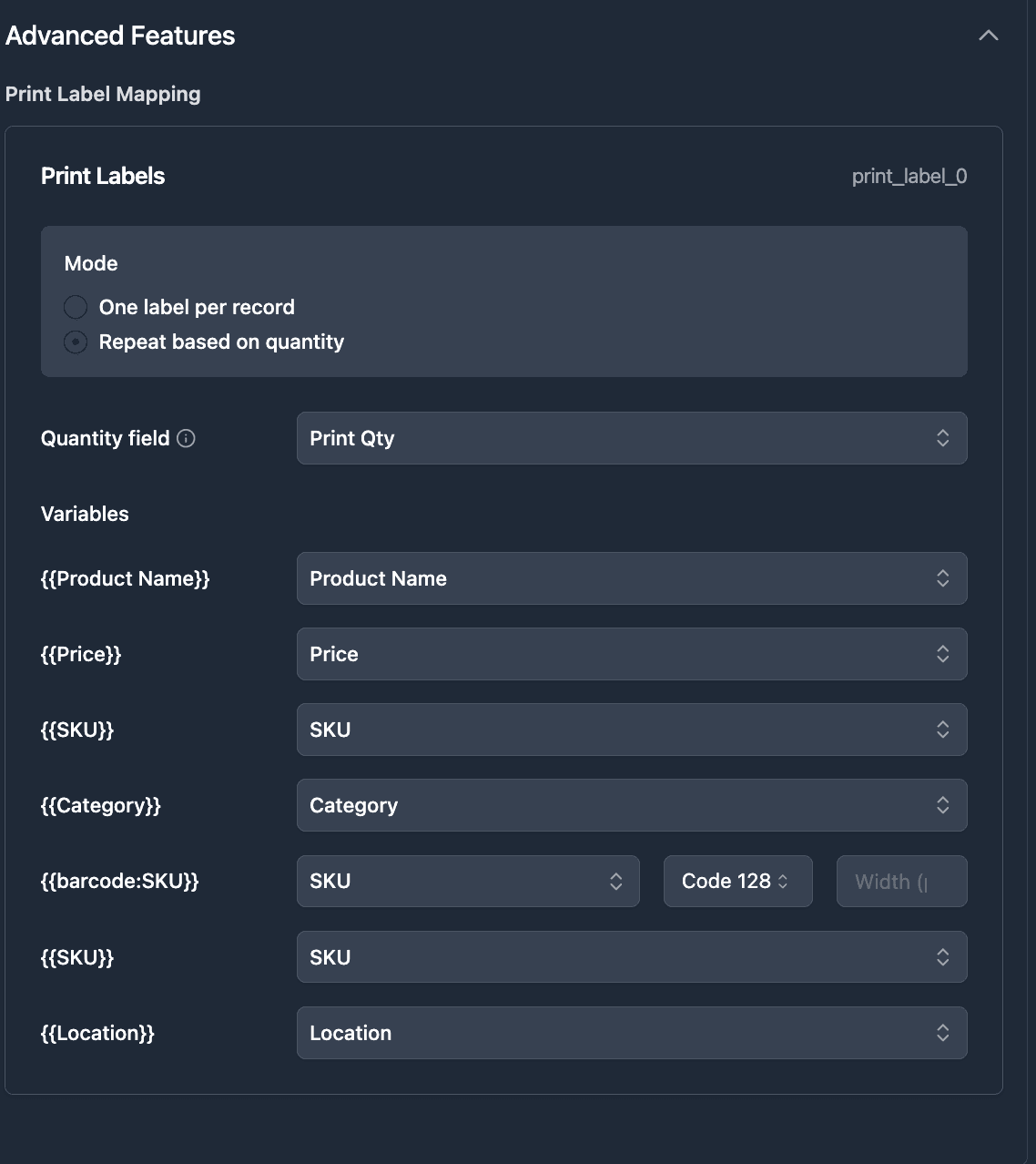
Repeat Based on Quantity
Select this when you have a quantity field. TypeFlow reads the number and repeats the label that many times.
"Print Qty" set to 10 = 10 identical labels in one generation. Ideal for inventory labels where you need multiple copies.
How to Create a Label Template
TypeFlow's HTML/CSS template builder with print label mode handles multi-label sheets.
Step 1: Pick Your Label Size
For Avery sheets:
For thermal printers (Zebra, DYMO), select "Label 100 x 150 mm" or set custom dimensions. For more Avery details, see our mailing labels guide.
Step 2: Design the Label Layout
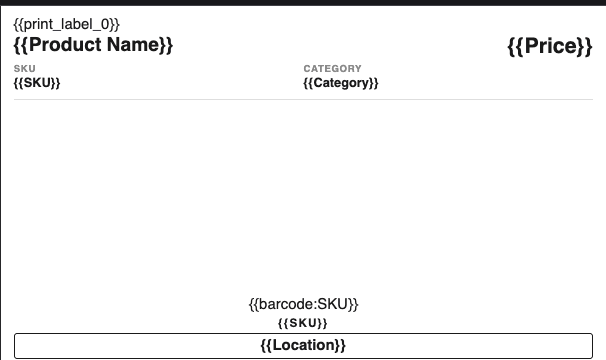
Add variables using double curly brackets: {{Product Name}}, {{SKU}}, {{Location}}. For barcodes, add {{barcode:SKU}}. The barcode type (Code 128, QR, etc.) is selected in the mapping interface.
Keep the design simple - labels have limited space.
Step 3: Configure the Print Label Mode
For Avery multi-label sheets, set the grid: 3 columns x 10 rows for 5160, 2 columns x 7 rows for 5162. TypeFlow repeats your single label design across the page and fills each slot with data (or repeated data for quantity mode).
For single thermal labels, no extra configuration needed.
How to Map Airtable Fields to Your Label Template
Sign up at app.typeflow.us and connect your Airtable account via OAuth.
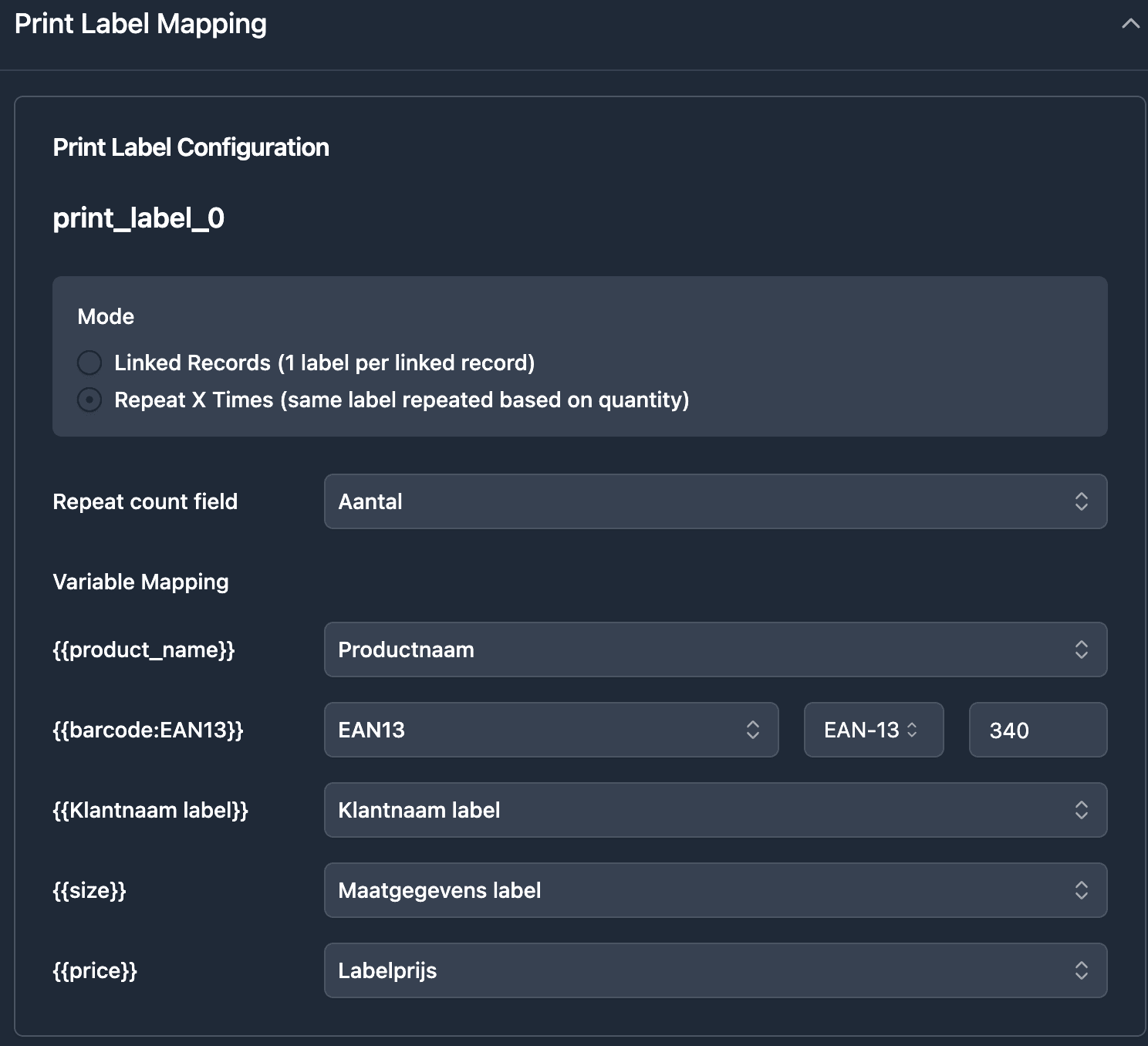
- Select your base and table
- Choose linked records mode or quantity-based repeat mode
- Map each variable to the correct Airtable field
TypeFlow auto-detects variables from your template.
How to Add Barcodes to Your Labels
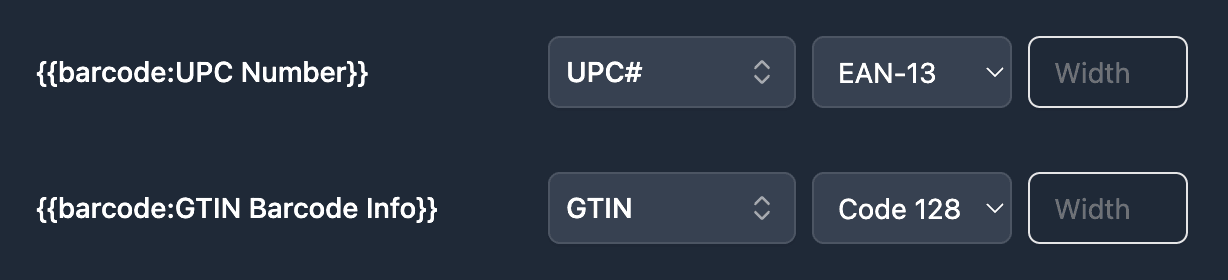
TypeFlow generates barcodes from any text or number field. Add {{barcode:FieldName}} in your template. Supported types:
- Code 128: General purpose, most applications. Follows GS1 standards.
- Code 39: Common for inventory management.
- QR codes: URLs, product pages, detailed information.
- EAN-13 and UPC: Retail products (requires GS1 registration).
The barcode type is selected in the mapping interface, not in the template variable.
How to Generate Labels from Airtable
Three ways to trigger generation. Each respects your quantity mode - linked records or repeat X times.
From an Airtable Button Field
Add a button that triggers TypeFlow. Click on a record, labels generate (including quantity repeats for that record).
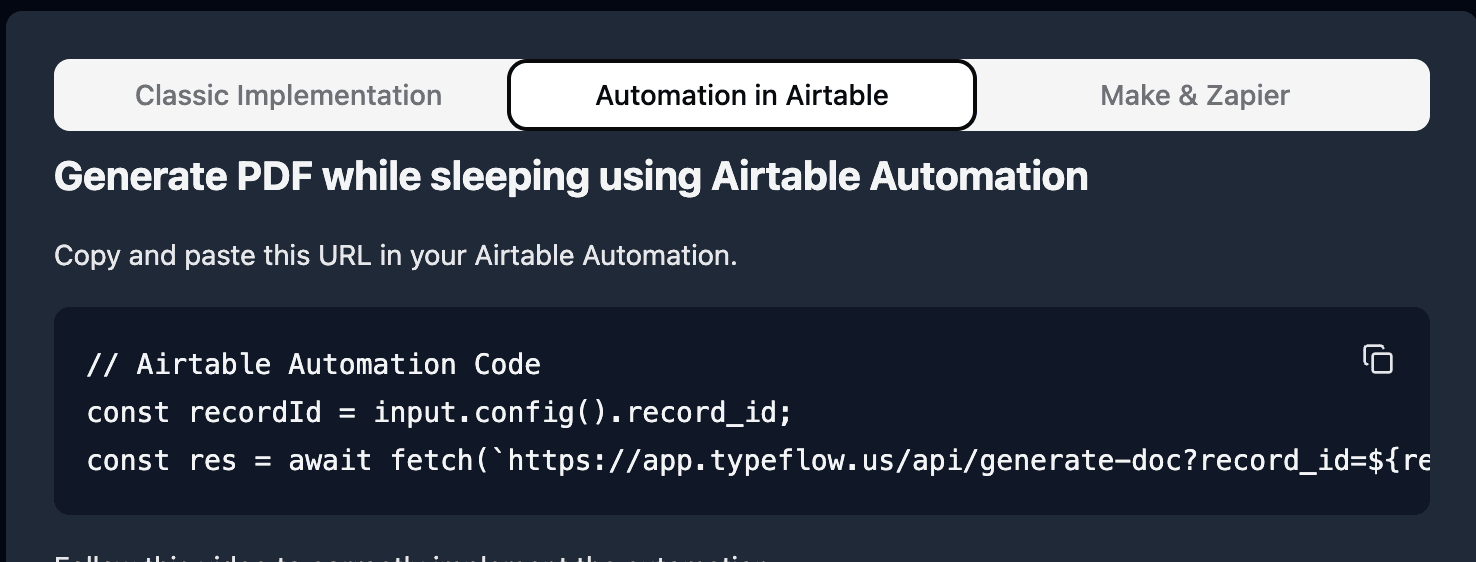
From an Airtable Automation
Set up an Airtable automation: trigger on record creation or checkbox change. Labels generate without manual work. Deloitte estimates document automation reduces processing time by up to 80%.
In Bulk from an Airtable View
Select a view, generate labels for all records at once. Each record produces the number of labels specified by its quantity field or linked records count.
How to Print Multi-Item Labels for Orders
Sometimes you want one label per order listing all items - a cart label or packing slip. This is different from quantity repeat - it groups items on a single label.
TypeFlow pulls data from linked records and lists them together on one label. For details on cart label setup, see our label printing guide.
Common Issues with Quantity-Based Label Printing
Wrong Number of Labels Printed
Check that the quantity field is a Number field type in Airtable, not text. Text fields containing numbers look the same but do not work with quantity repeat mode.
Also verify you selected the correct mode. Linked records mode with a quantity field (or vice versa) produces wrong output.
Barcode Not Showing Up
Confirm syntax: {{barcode:FieldName}}. Check the field value is not empty. Select the barcode type in the mapping interface.
Labels Misaligned on Avery Sheets
Verify the print label mode grid matches your Avery format (3x10 for 5160, 2x7 for 5162). Print at 100% scale, disable "fit to page."
Records with Zero or Empty Quantity
TypeFlow skips records with empty or zero quantity values. No blank labels generated.
Start Printing Labels from Airtable with TypeFlow
Quantity-based label printing comes down to two things: structuring your data correctly (linked records or quantity field) and choosing the right mode in TypeFlow. See what users say about TypeFlow on G2.
Start for Free and print your first batch of quantity-controlled labels in minutes.
Automate your document generation
Start with 20 free documents. Built for businesses using Airtable.
Frequently Asked Questions
Find answers to the most common questions about this feature.
Popular Questions
All Questions
Need more help?
Our team is here to help you solve all your problems and answer your questions.
Contact UsFor more label guides, see How to Print Labels from Airtable, Best Label Printing Tools for Airtable in 2026, Product Labels with Barcodes, Inventory Labels, Mailing Labels (Avery), Shipping Labels, and Page Designer vs TypeFlow.

Kevin from TypeFlow
•AuthorKevin Rabesaotra is a growth engineer and automation specialist with 8+ years of experience building no-code solutions. As Founder & CEO of TypeFlow, he has helped hundreds of businesses automate document generation and streamline workflows with Airtable integrations. Previously, Kevin was a Product Lead specializing in growth engineering, running experiments to drive revenue, retention, and lead generation.
More articles
How to Print Labels from Airtable with Quantity Control (Step by Step)
Print multiple labels per Airtable record based on a quantity field. Step-by-step guide for linked records mode and quantity repeat mode with barcodes and Avery sheets.
Read articleHow to Print Avery Mailing Labels from Airtable
Print Avery mailing labels (5160, 5161, 5162) from Airtable without Word mail merge. Step-by-step guide with print label mode, automation, and bulk generation.
Read articleHow to Create Inventory Labels with Barcodes in Airtable
Create inventory labels with Code 128, EAN-13, or QR barcodes from Airtable. Step-by-step guide for warehouse, retail, and asset tracking with thermal and Avery printers.
Read article