How to Generate and Email PDFs from Airtable Automatically
Generate PDFs from Airtable and email them automatically using TypeFlow. Set up a template in Google Docs or the HTML/CSS builder, connect your Airtable base, and configure TypeFlow Automation with Email Post Generation. One trigger generates the PDF and sends it - no manual export, no copy-paste. See our complete invoice and quote solution for the full invoicing workflow with automatic email delivery. This guide walks through the full setup step by step.
Generate and email PDFs from Airtable in minutes
Use Google Docs or the HTML/CSS builder. TypeFlow handles generation and email delivery automatically.
Start free with 20 documentsWhat You Need Before Starting
- An Airtable base with records containing the data you want in your PDFs (Pro or higher for automations).
- A Google account for your template, or use TypeFlow's built-in HTML/CSS template builder.
- A TypeFlow account to connect Airtable to your template and automate delivery. Free tier includes 20 documents.
No coding skills required. The entire setup uses no-code tools.
Why Automate PDF Generation and Email From Airtable
Automating PDF generation and email from Airtable eliminates manual document creation, reduces errors, and sends documents instantly when a trigger fires. According to Deloitte, 73% of teams still spend significant time on manual document creation. For Airtable users, that means copying data into a template, exporting as PDF, opening email, attaching the file, and hitting send.
Automation removes the repetitive work:
- Save time. No more copy-pasting data into documents.
- Reduce errors. The system pulls data directly from Airtable fields.
- Send documents faster. PDFs go out the moment a trigger fires.
- Keep branding consistent. Every document uses the same template.
Airtable Native PDF and Email Limits
McKinsey found that digital document workflows reduce cycle times by 50%. Yet Airtable has a Page Designer extension that creates single-record PDFs. It works for basic use cases, but you cannot trigger it from an automation, and you cannot email the PDF as an attachment without manual steps.
| Feature | Airtable Native | With TypeFlow |
|---|---|---|
| Generate PDF from record | Limited (Page Designer) | Yes |
| Custom template | No | Google Docs + HTML/CSS builder |
| Automated trigger on record change | No | Yes (TypeFlow Automation) |
| Email PDF as attachment | No | Yes (Email Post Generation) |
| E-signatures | No | Yes (built-in) |
For the full comparison, see our guide on multi-page PDFs without Page Designer.
Tools to Generate and Email PDFs From Airtable
TypeFlow With Google Docs or HTML/CSS Templates
TypeFlow connects your Airtable base to a template. You design your document once, map the fields, and TypeFlow generates a PDF for each record. Email Post Generation sends the PDF to your recipient automatically - generation and delivery in one config.
Zapier or Make With a PDF Service
You can chain Zapier or Make with a PDF service. This works if you already use these platforms, but involves multiple apps and gets complex to maintain.
Airtable Scripting and Page Designer
Page Designer creates manual, one-off PDFs. Scripting requires coding. Neither automates the email step without additional work.
How to Generate and Email PDFs From Airtable Step by Step
Set up your Airtable base, design a template, connect TypeFlow, and configure automation with email delivery. The full setup takes about 15 minutes.
Step 1: Prepare Your Airtable Base
Each piece of information you want in your PDF needs to exist as a separate field in your table. If data is buried in a long text field, break it out into individual fields first.
Add these fields to your table:
- Email (email field) - stores the recipient's address. TypeFlow reads this field to know where to send the PDF.
- Status (single select) - options like Draft, Ready to Send, Sent. This field triggers the automation.
- PDF Attachment (attachment field) - TypeFlow saves the generated PDF here automatically.
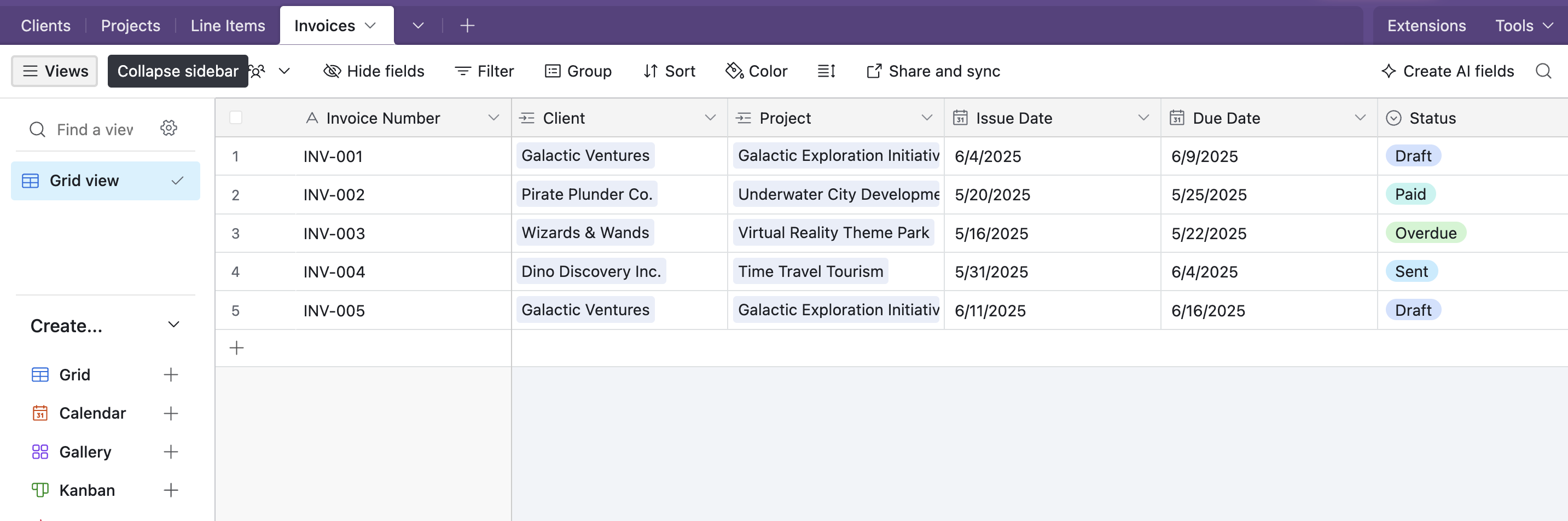
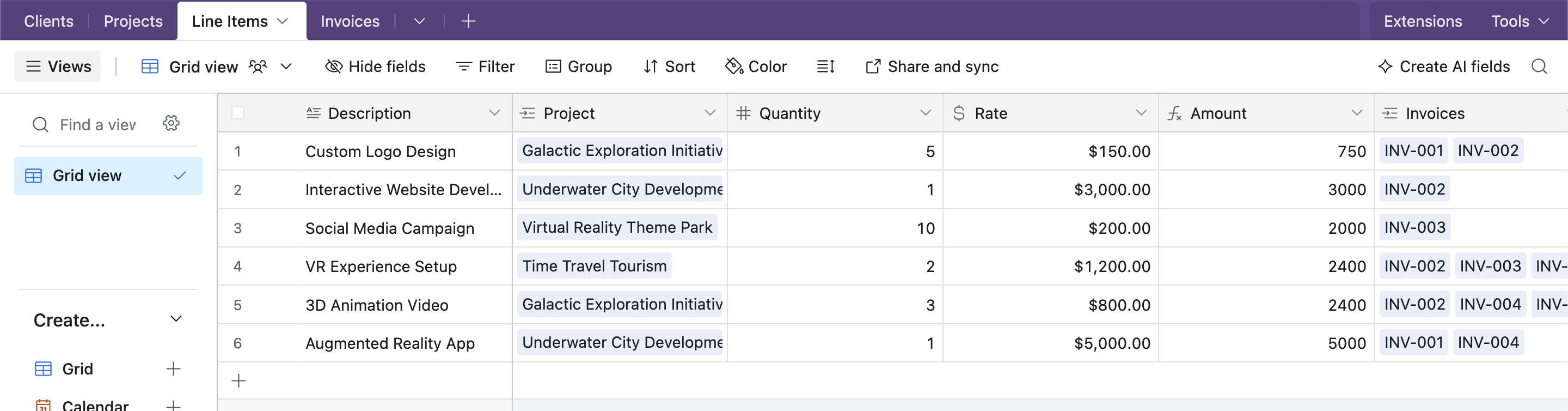
If your documents include line items (like invoice products or report sections), create a separate linked records table. One record per line item, linked back to the parent record.
Here is what a typical invoicing base looks like in Airtable. You can copy this base and use it as a starting point:
Pro Tip
Add a "Sent Date" field (date type) to your table. You can update it automatically when the PDF is sent. This helps with tracking and follow-ups later.
Step 2: Design Your Template
Two options:
Google Docs. Create your document and add merge variables where Airtable data should appear. Placeholders use double curly braces: {{Client Name}}, {{Invoice Total}}, {{Due Date}}.
Here is what a template looks like with merge variables:
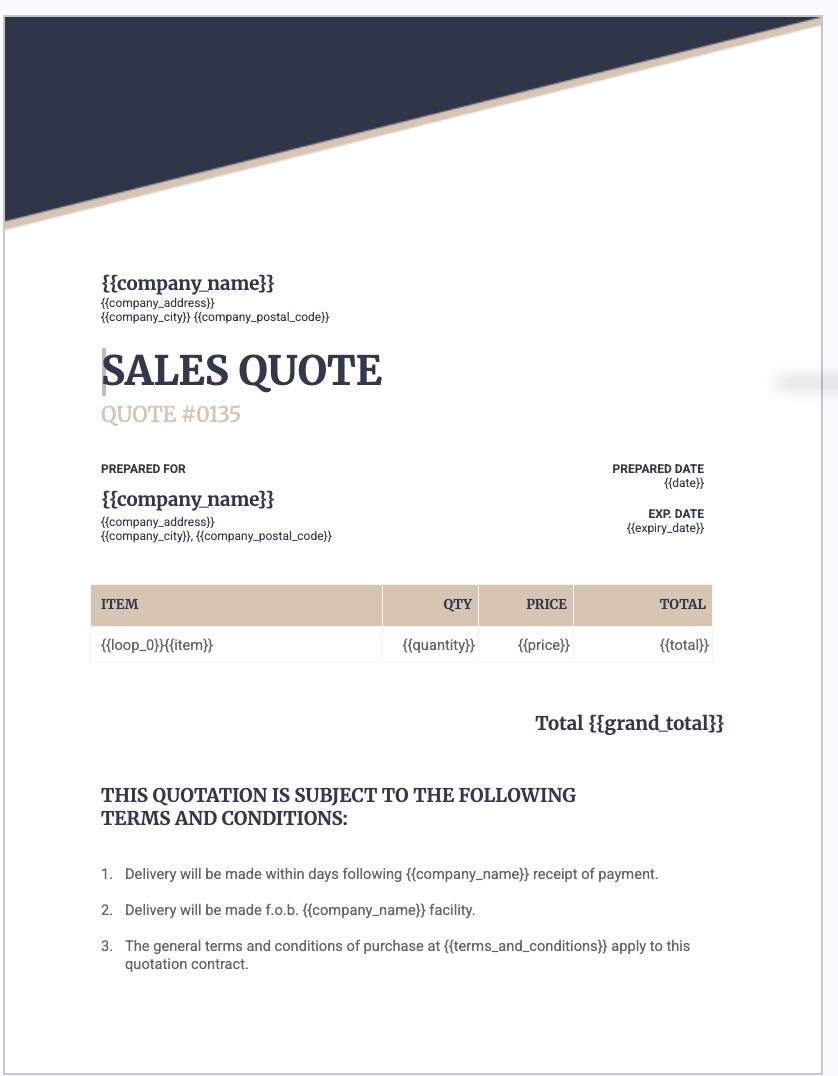
Your placeholders go where Airtable data should appear: {{client_name}} for the client, {{invoice_number}} for the invoice number, {{loop_0}} inside a table row to repeat line items. TypeFlow replaces every placeholder with the actual value from your record.
TypeFlow HTML/CSS builder. If you do not use Google Docs, design directly in TypeFlow with drag-and-drop. You can also import your own HTML/CSS code for full layout control.
Pro Tip
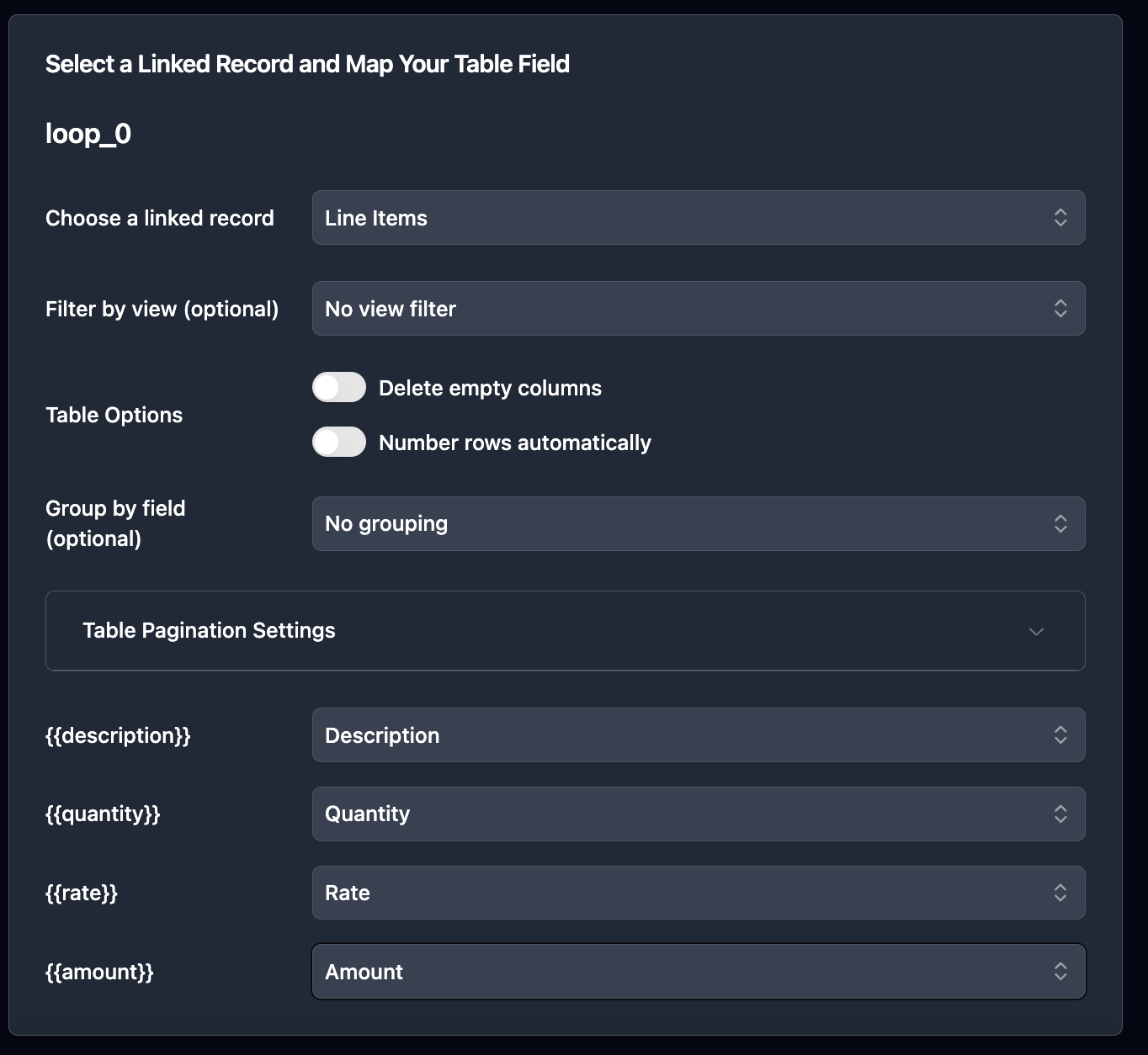
Use the special loop_0 variable inside a table row to repeat that row for each linked line item. You design the row once - TypeFlow duplicates it for every line item in the record.
Step 3: Connect TypeFlow and Configure Your Flow
Once connected, configure your flow in TypeFlow:
-
Sign in to your TypeFlow account
-
Click "Start a new automation workflow"
-
Select "Google Docs" (or "HTML/CSS" if using the template builder)
-
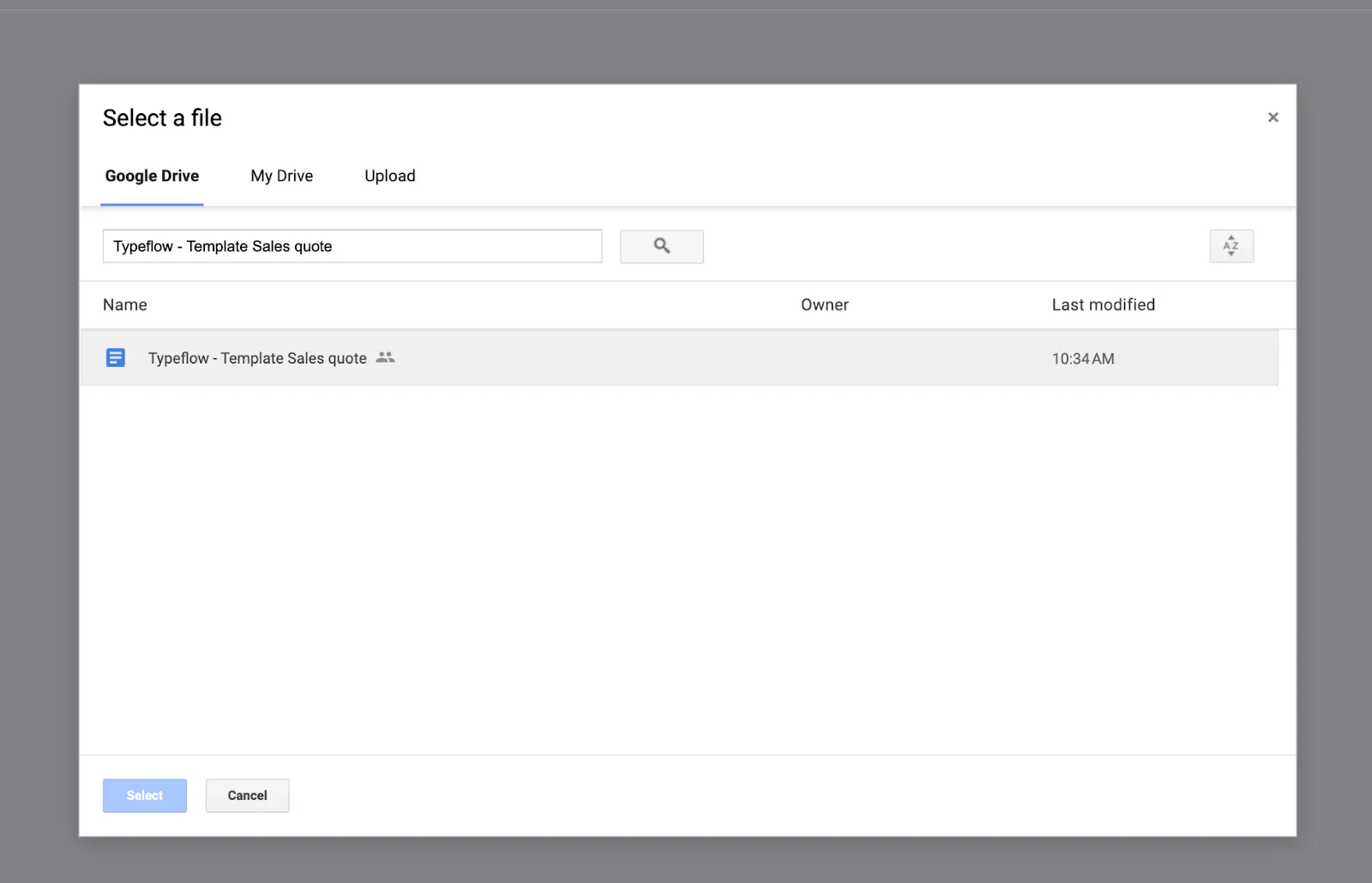
Pick your template
Now connect TypeFlow to your Airtable base:
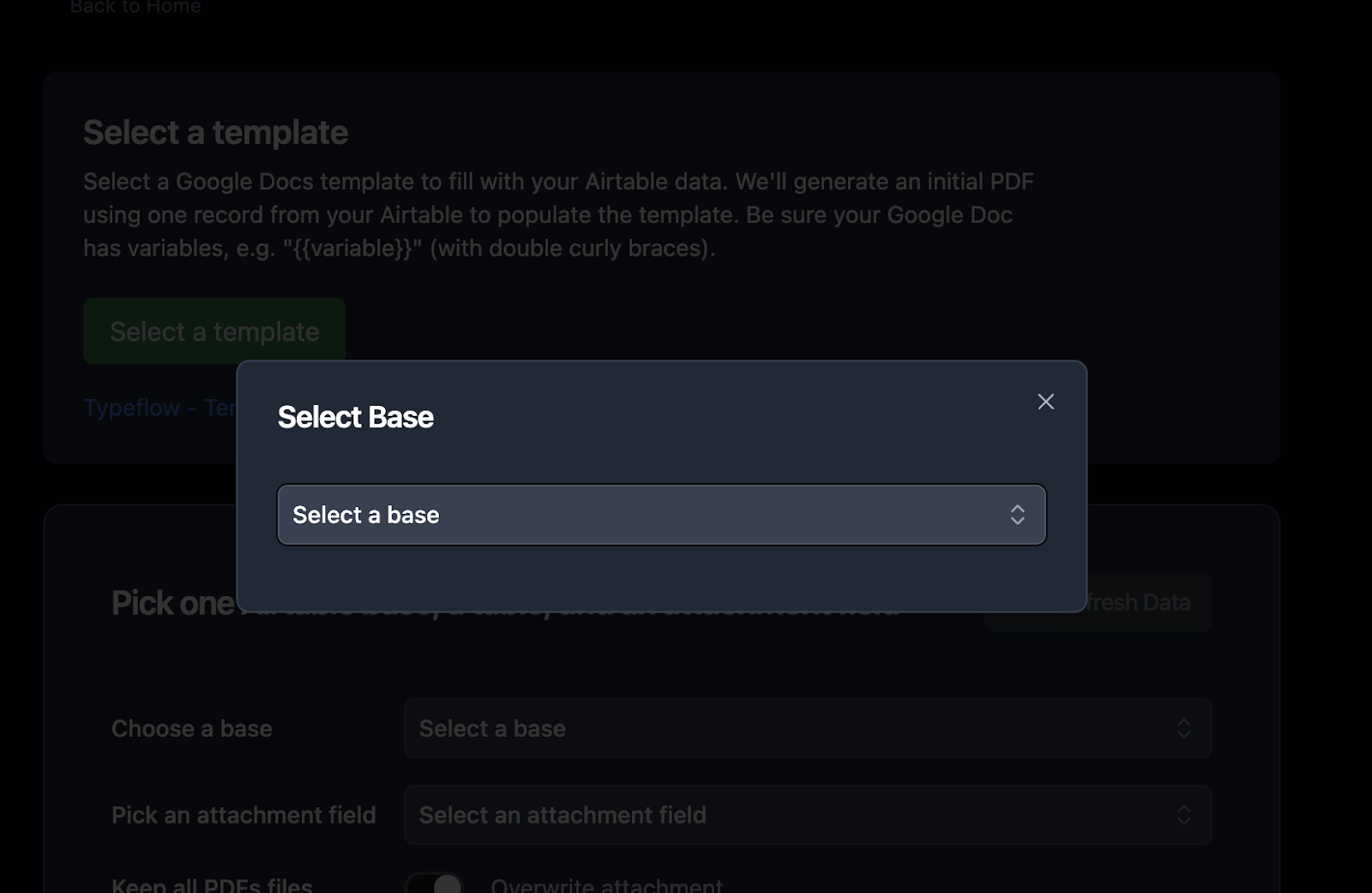
- Select your Airtable base from the dropdown
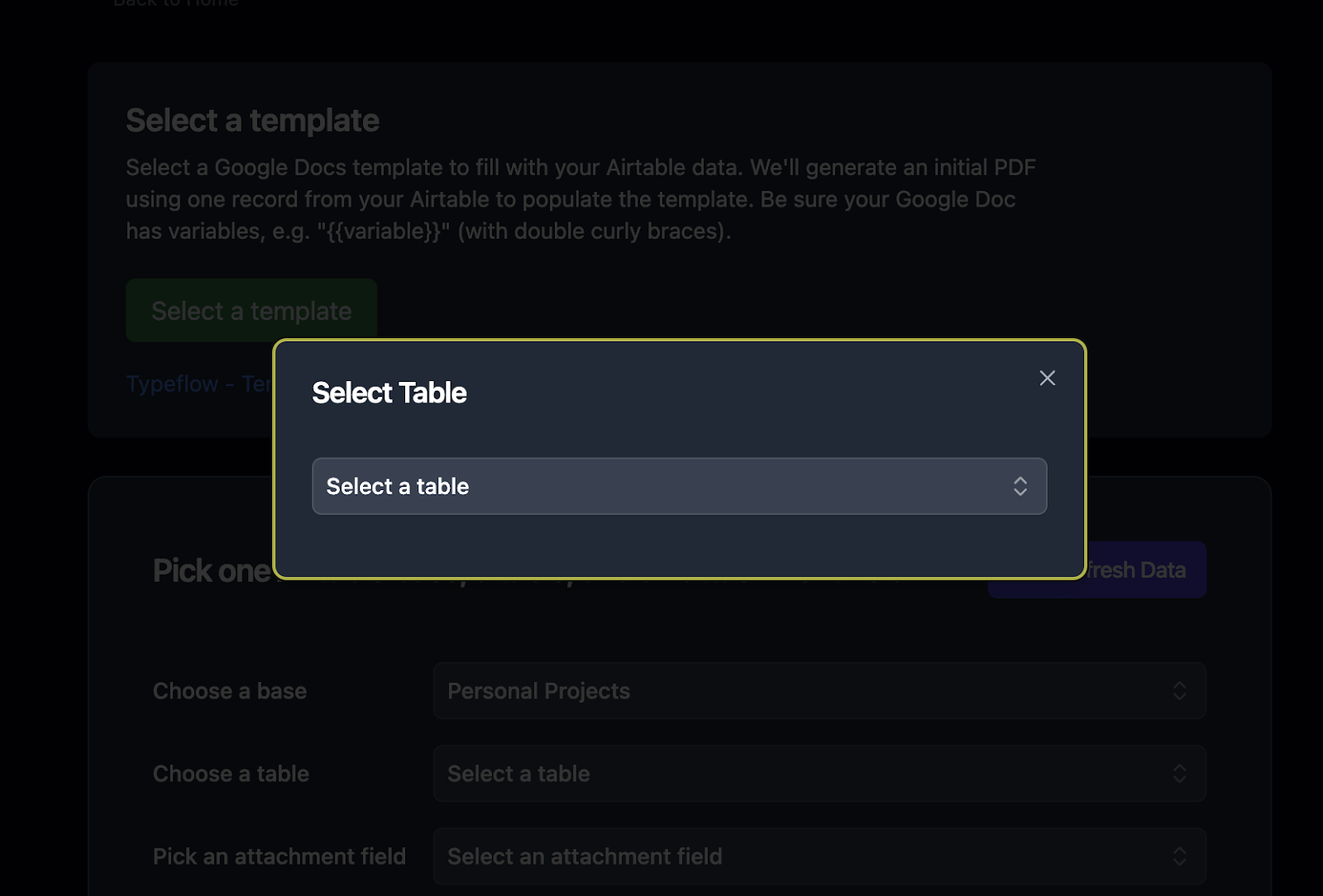
- Choose the table that contains your records
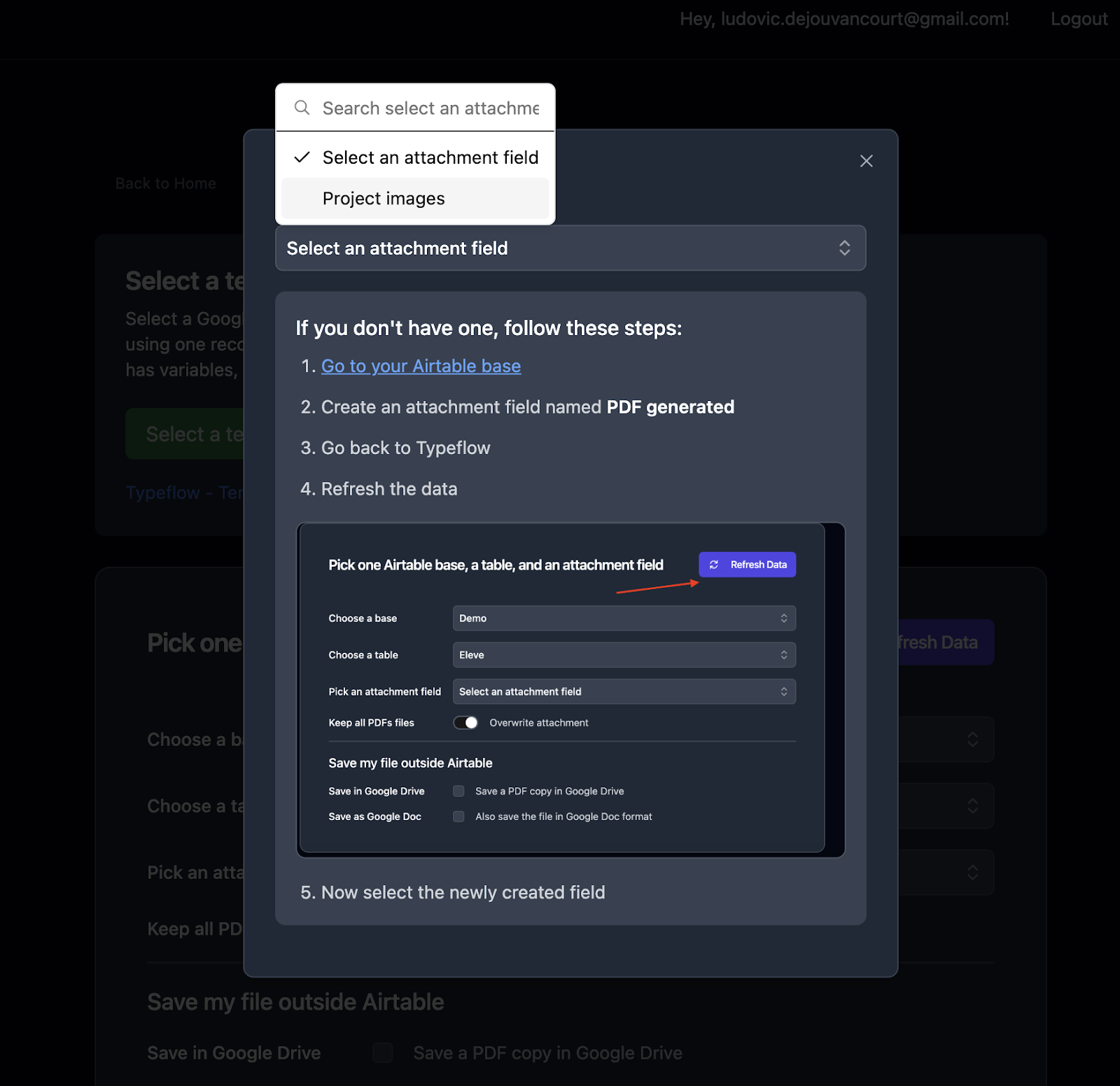
- Set the attachment field where generated PDFs will be saved
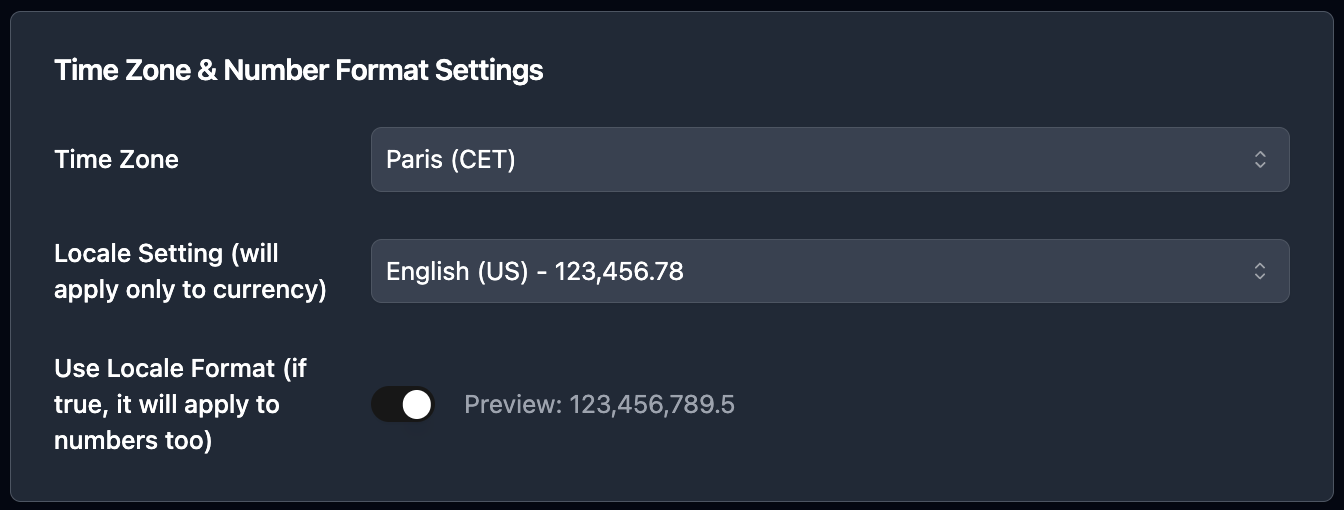
Pro Tip
If you want to adjust the date or currency formatting, check your locale settings in TypeFlow. It returns the formatting that matches your region.
Step 4: Map Airtable Fields to Template Variables
- Map each template placeholder to the corresponding Airtable field
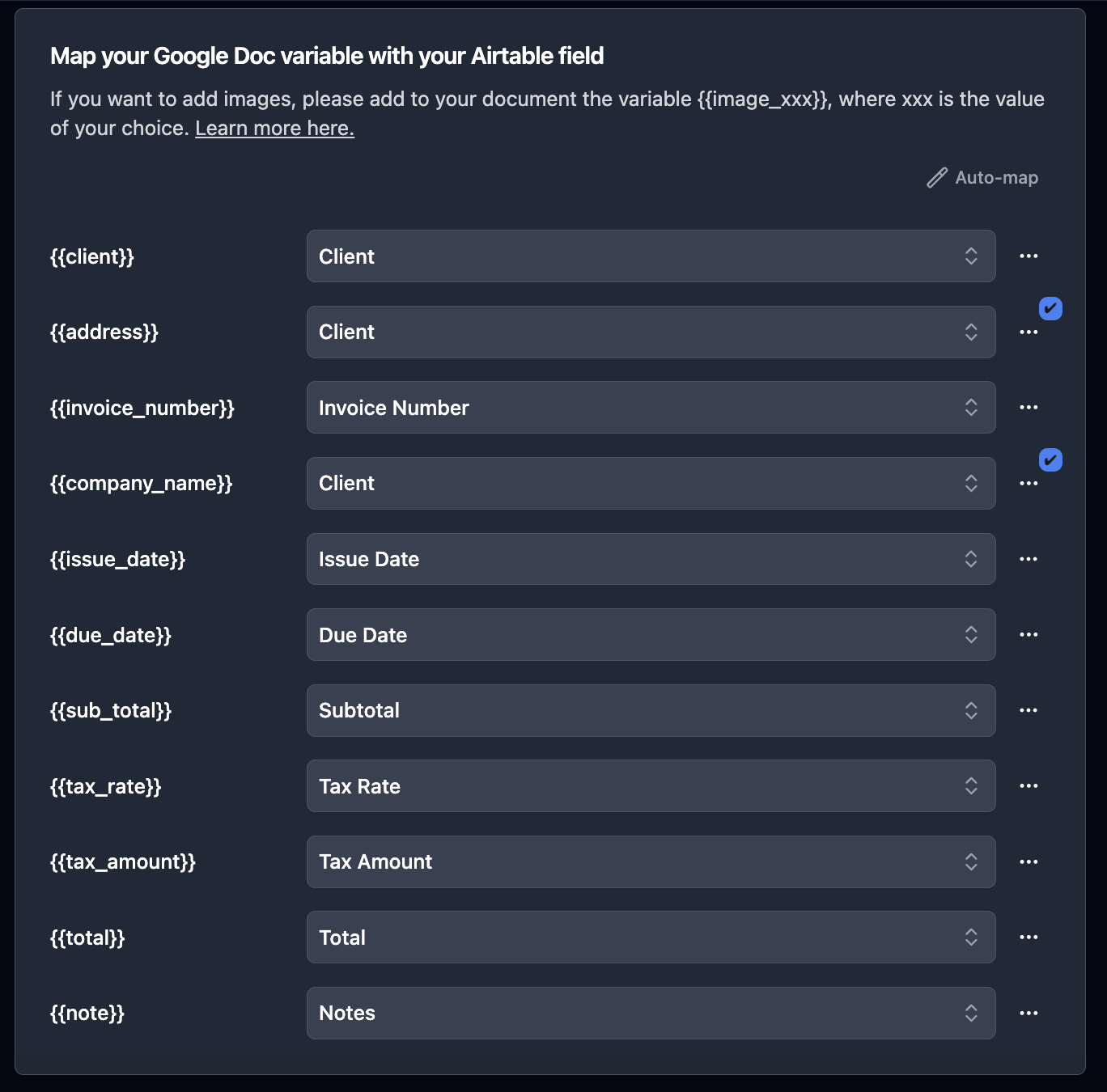
Pro Tip
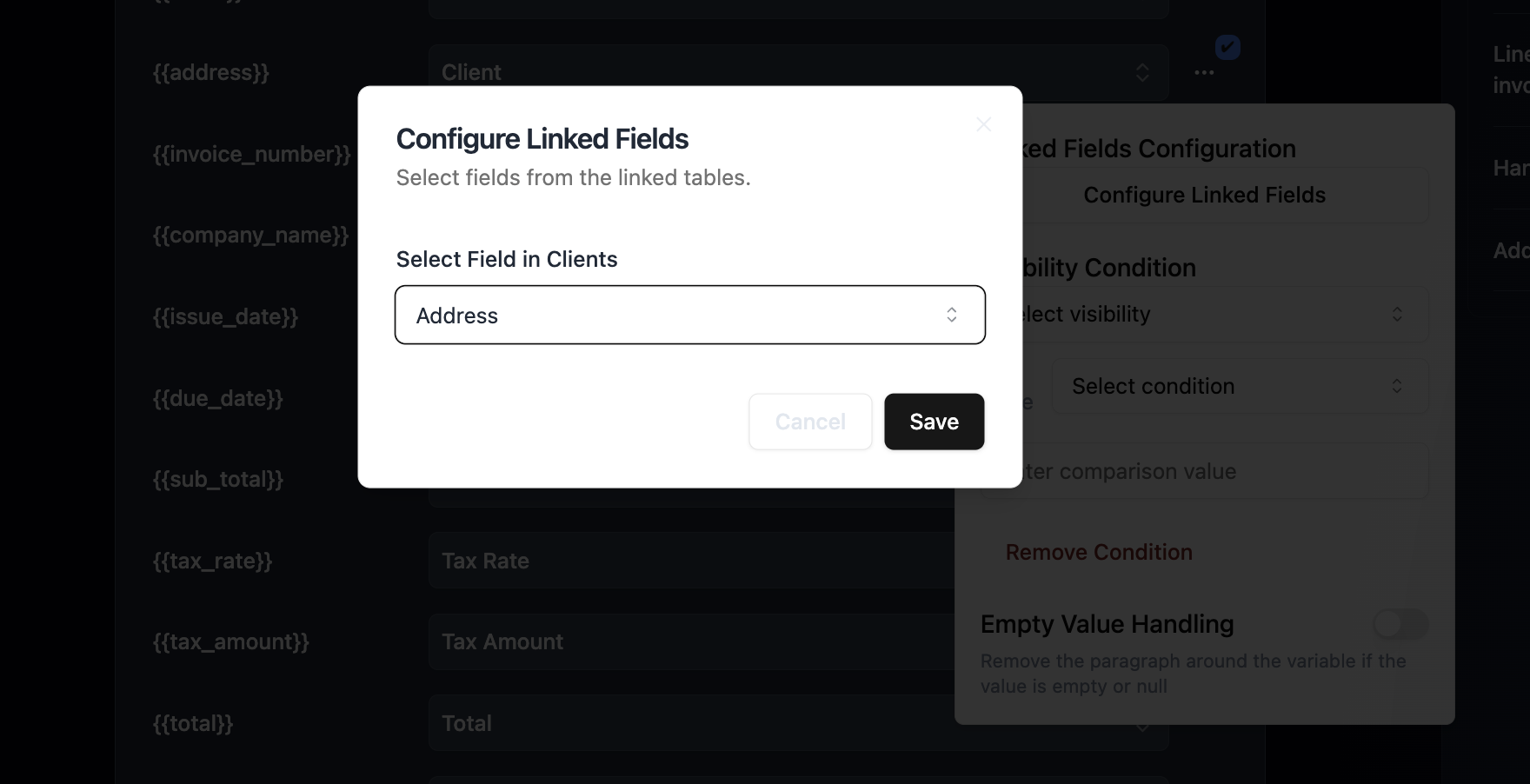
No need to add rollup fields to access fields from another table. Pick the linked record field, click the three dots, and select "Configure Linked Fields." TypeFlow traverses linked records up to 3 levels deep without creating lookup fields. See our linked records PDF guide for the full walkthrough.
- For line items, select your linked table and map each column. TypeFlow handles the repetition automatically - five line items means five rows in the PDF.
- Optionally set a custom filename format like
Invoice-{{invoice_number}}-{{client_name}}.pdf
Double-check the spelling. A mismatch between the placeholder and the field name leaves that spot blank in the final PDF.
Step 5: Set Up TypeFlow Automation and Email Post Generation
This is where everything comes together. TypeFlow Automation + Email Post Generation handles generation and delivery in one config - no separate Airtable automation needed for the email step.
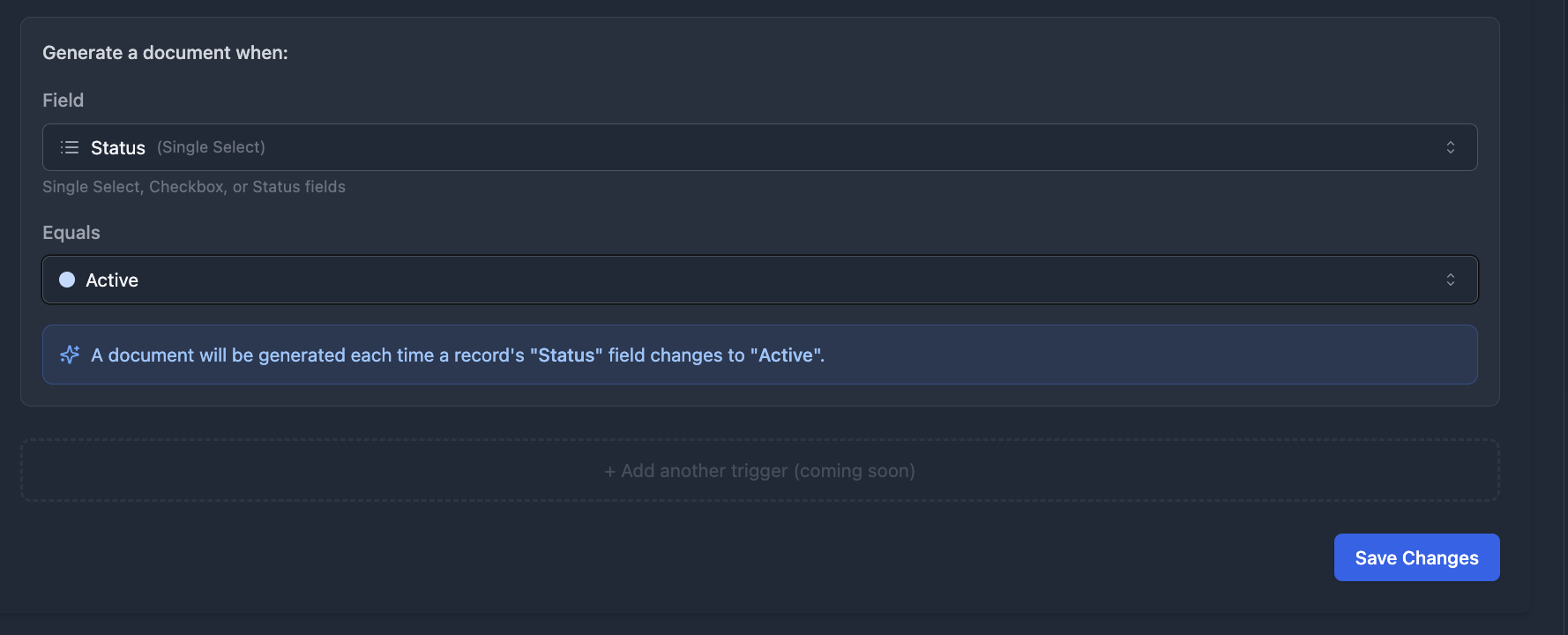
1. Set the trigger.
Choose a field value change. For example, when Status changes to "Ready to Send."
2. Enable Email Post Generation.
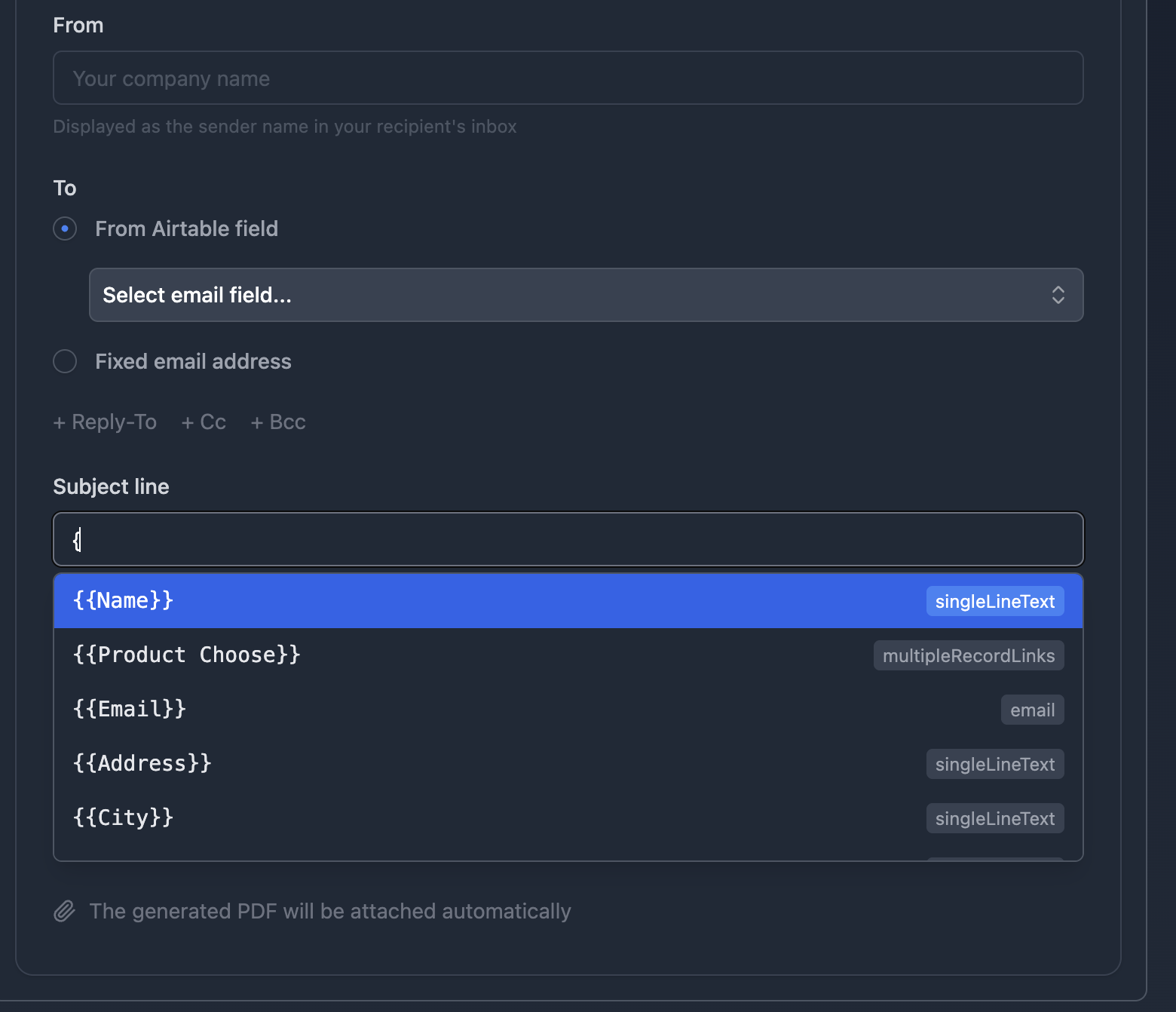
Configure the email delivery. TypeFlow pulls recipient info directly from your Airtable fields:
- To: Select the email field from your Airtable record, or enter a fixed address.
- Reply-To, CC, BCC: Add dynamic recipients from Airtable fields - useful for copying your accounting team or the project manager.
- Subject line: Use Airtable fields to personalize - for example, "Your invoice for
{{project_name}}." - Body: Write your message and insert Airtable field values.
Type { in the subject or body field to open the list of available Airtable variables. The generated PDF attaches automatically - no extra step needed.
3. Test with a sample record.
Change the Status field on a test record to "Ready to Send." TypeFlow generates the PDF, saves it to the attachment field, and emails it to the recipient. Check that:
- The PDF looks correct (all fields populated, formatting clean).
- The email arrives with the attachment.
- The subject line and body use the right field values.
If something looks off, adjust the template or field mapping and test again.
Pro Tip
Test with a record that has multiple line items and a long client name. This catches formatting issues before real documents go out.
That is it. One trigger, one config. Every record that meets your conditions gets a professional PDF delivered to the right inbox automatically.
Alternative Trigger Methods
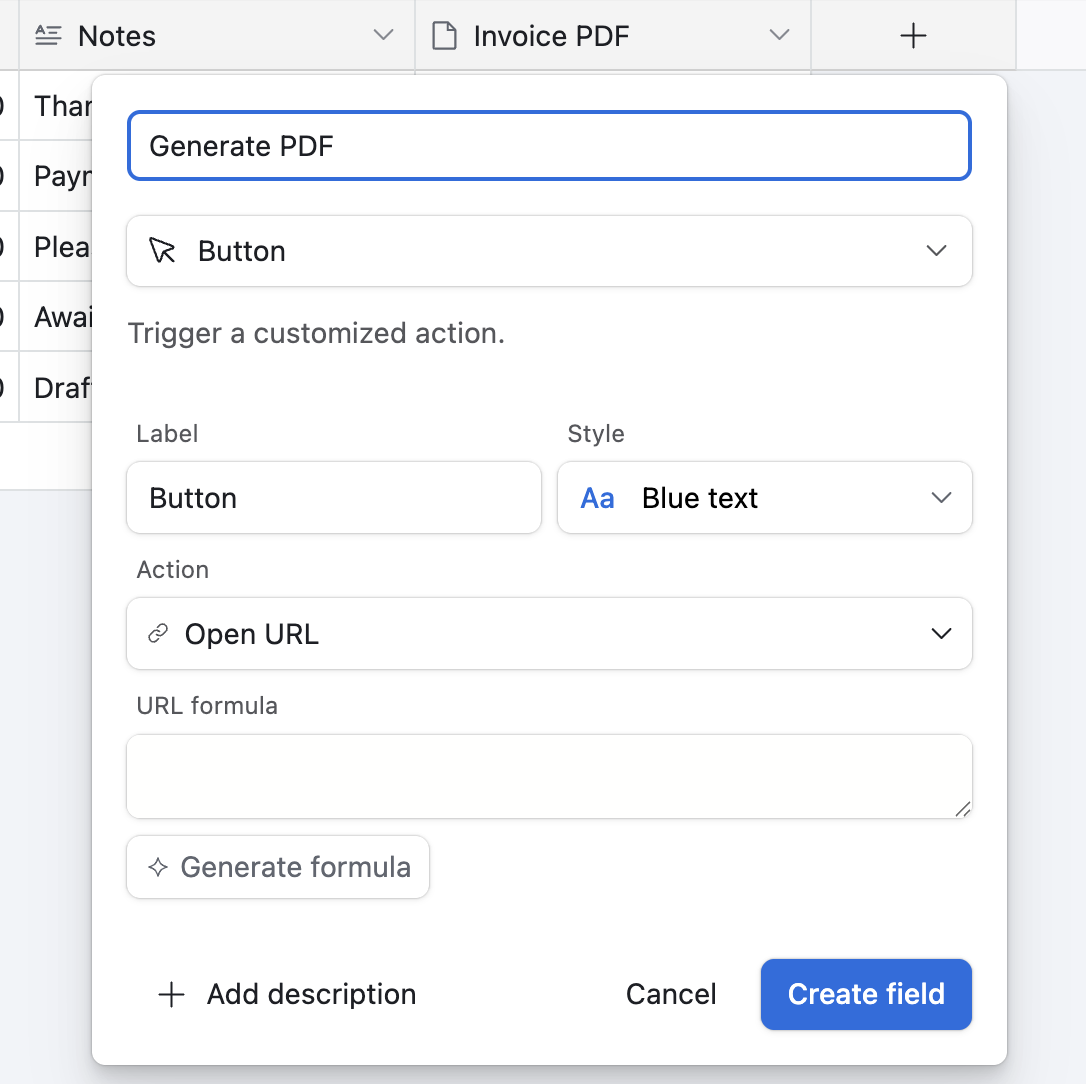
Button field. Add a button to your table for manual, one-click generation and delivery. This is useful for reviewing documents before sending.
Airtable Automations. Trigger on form submission, record creation, or schedule. Use this if you want to chain additional actions (like updating a status field after sending).
Make or Zapier. Connect TypeFlow as part of a larger multi-app workflow.
Add E-Signatures to Your PDF Email Workflow
TypeFlow includes built-in e-signatures at no extra cost. Instead of just emailing a PDF, you can send it for signature. Here is how it works:
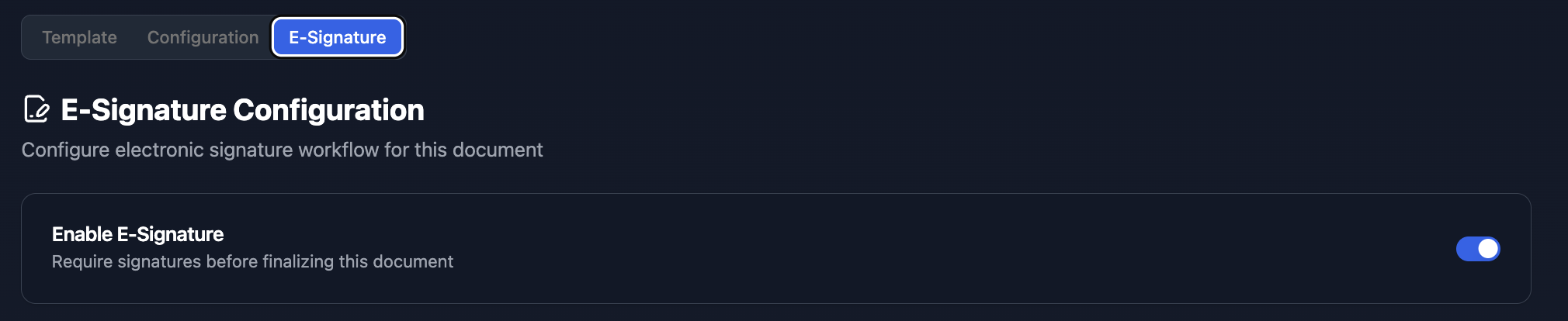
- Enable e-signatures on your flow. Toggle the e-signature option in TypeFlow.
-
Configure your signers. Set the signer's email to pull from your Airtable record. Set the signing order if multiple people need to sign.
-
Generate and send. When the automation triggers, TypeFlow generates the PDF and sends the signing link to the client by email.
-
Client signs. They review the document and sign directly from the link.
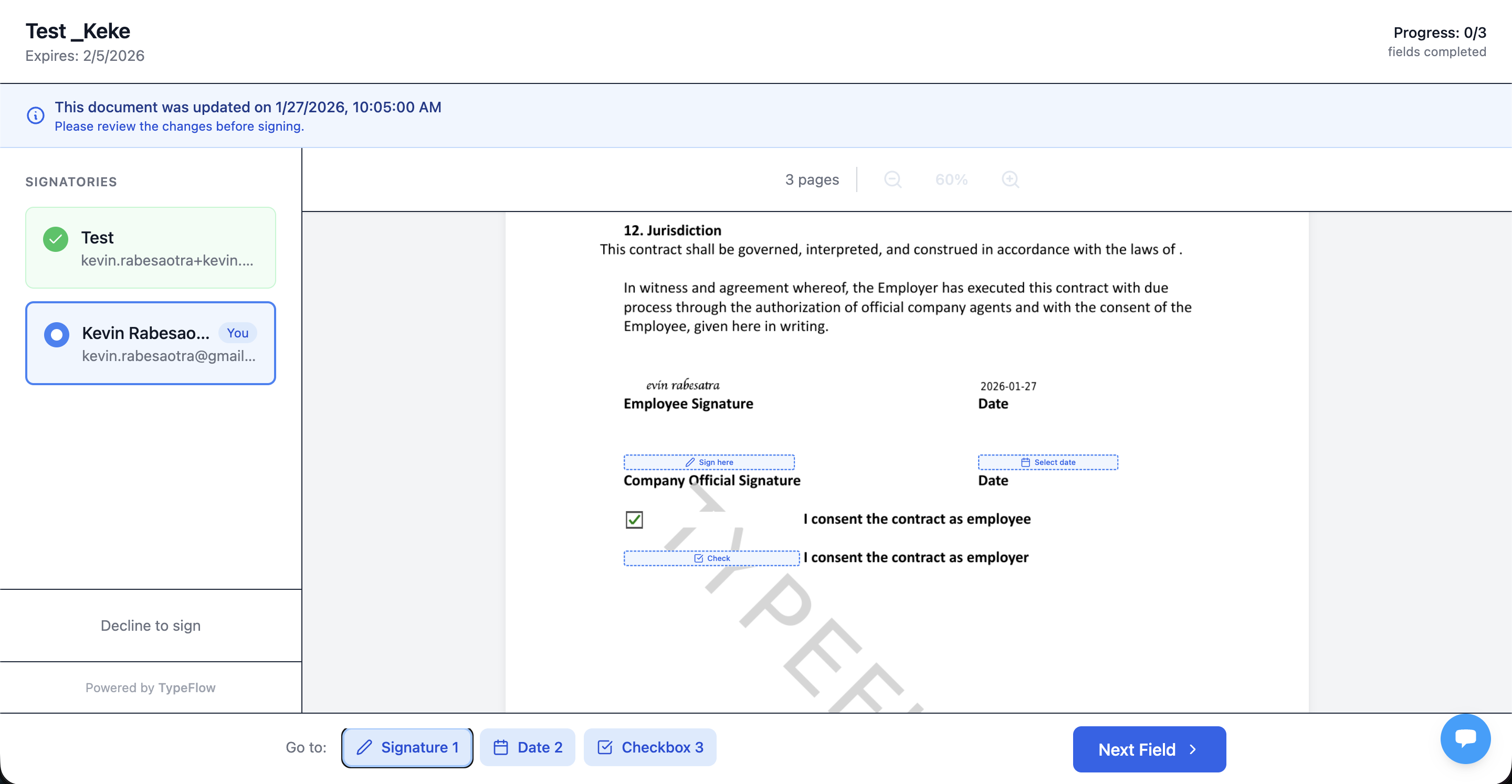
- Signed PDF returns to Airtable. The completed document with all signatures gets attached to your record automatically.
This works well for contracts, quotes, invoices, and any document that needs client approval. TypeFlow e-signatures comply with eIDAS and ESIGN regulations.
For contracts that need negotiation, TypeFlow includes redlining on the Scale plan - clients suggest changes directly on the document, you accept or reject with one click, and the document regenerates before final signature.
After signing, TypeFlow can update a field in your Airtable record (e.g. Status = "Signed"). This update can trigger another automation - for example, generating an invoice automatically after a contract is signed. See our quote-to-invoice workflow for the full chain.
For the complete e-signature setup, see our e-signature guide.
Common Documents You Can Generate and Email From Airtable
Invoices and Receipts
Pull line items, totals, and client info from Airtable into a polished invoice. Freelancers and small businesses save hours on billing. See our invoice generation guide and invoice automation guide.
Contracts and Agreements
Insert client name, project details, and dates into a contract template automatically. Agencies and consultants send similar documents repeatedly. See our contract lifecycle guide.
Certificates and Diplomas
Generate certificates for course completions or event attendance. Send personalized certificates to hundreds of participants at once. See our certificate automation guide.
Quotes and Proposals
Pull project data or pricing into a formatted quote. Sales teams and project managers get consistent, fast document delivery. See our quote generation guide and quote-to-invoice workflow.
Reports and Inspection Documents
Multi-page reports with data from linked records. See our guide on multi-page PDFs from Airtable.
Best Practices for Airtable PDF Email Automation
Keep Your Template Simple and Branded
Use a clean layout with your logo, brand colors, and consistent fonts. Avoid complex nested tables - they can break in the final PDF. A simple template produces more reliable results.
Test With a Sample Record First
Run a test with one record before going live. Check both the PDF output and the email delivery. Testing catches issues before they reach your clients.
Use Clear Field Names in Airtable
Labels like "Client Email" make mapping easier than generic names like "Field 1." Descriptive names prevent mapping errors.
Add a Status Field to Avoid Duplicate Sends
Use a checkbox or dropdown to mark records as "Sent." This ensures the automation does not fire twice for the same record.
Troubleshooting Airtable PDF Email Automation
PDF Is Missing Fields or Data
A placeholder in the template does not match the Airtable field name. Check spelling and capitalization in both places. {{Client Name}} and {{client name}} are different.
Email Is Not Sending
The Email field in Airtable is empty or formatted incorrectly. Verify it contains a valid email address before the automation runs.
Formatting Looks Off in the Final PDF
Complex Google Docs formatting - nested tables, unusual margins - may not render well. Simplify the template layout. Most formatting issues come from trying to do too much in the template.
Start Sending Airtable PDFs on Autopilot With TypeFlow
Airtable holds your data. TypeFlow generates the PDF and emails it. One trigger, one config, zero manual work. Rated by Airtable users on G2.
For related guides, see how to export Airtable data to PDF, our document generation overview, and Airtable quote generator comparison.
Ready to automate your PDF workflow?
Connect your Airtable base, design your template, and start sending PDFs automatically.
Start free with 20 documentsFrequently Asked Questions About Airtable PDF Email Automation
Find answers to the most common questions about this feature.
Popular Questions
All Questions
Need more help?
Our team is here to help you solve all your problems and answer your questions.
Contact Us
Kevin from TypeFlow
•AuthorKevin Rabesaotra is a growth engineer and automation specialist with 8+ years of experience building no-code solutions. As Founder & CEO of TypeFlow, he has helped hundreds of businesses automate document generation and streamline workflows with Airtable integrations. Previously, Kevin was a Product Lead specializing in growth engineering, running experiments to drive revenue, retention, and lead generation.
More articles
How to Print Labels from Airtable with Quantity Control (Step by Step)
Print multiple labels per Airtable record based on a quantity field. Step-by-step guide for linked records mode and quantity repeat mode with barcodes and Avery sheets.
Read articleHow to Print Avery Mailing Labels from Airtable
Print Avery mailing labels (5160, 5161, 5162) from Airtable without Word mail merge. Step-by-step guide with print label mode, automation, and bulk generation.
Read articleHow to Create Inventory Labels with Barcodes in Airtable
Create inventory labels with Code 128, EAN-13, or QR barcodes from Airtable. Step-by-step guide for warehouse, retail, and asset tracking with thermal and Avery printers.
Read article