How to Turn Airtable Quotes into Invoices Automatically
To turn an Airtable quote into an invoice, generate the quote PDF, send it for e-signature, and let TypeFlow create the invoice automatically when the client signs. One Airtable base, one set of line items, two templates. No retyping, no copy-paste. See our complete invoice and quote solution for the full workflow.
What this workflow does
- You create a quote in Airtable with line items and client details
- TypeFlow generates a quote PDF and sends it by email for e-signature
- When the client signs, the quote status updates in Airtable
- An automation creates an invoice from the same data
- TypeFlow generates the invoice PDF and emails it automatically
Key takeaways:
- One Airtable base, one set of line items, two templates - quotes convert to invoices without retyping
- Automation triggers on quote acceptance: invoice record created, PDF generated, email sent automatically
- E-signatures included at no extra cost - client signs quote, invoice generates within seconds
- Total setup time: under 30 minutes for most teams
What Is an Airtable Quote to Invoice Workflow
An Airtable quote-to-invoice workflow is a system that turns an approved quote into a ready-to-send invoice automatically. It keeps client details, line items, and pricing synced so you do not have to retype anything.
According to World Commerce & Contracting, businesses that automate document workflows reduce processing time by 30-50%. The quote-to-invoice handoff is where most of that time gets lost.
The system relies on linked records and automation triggers. A quote enters at one end, your client accepts it, and an invoice comes out the other end - formatted, numbered, and ready to send.
- Single source of truth: Quotes and invoices pull from the same client + line item data.
- Trigger-based conversion: A status change (like "Accepted") creates the invoice record for you.
- Document generation: TypeFlow turns the Airtable record into a formatted PDF you can send immediately.
Quote vs Invoice: What's the Difference?
A quote is a proposal you send before work begins. An invoice is a payment request you send after the client agrees (or after delivery).
- Quote: Sets expectations (scope, price, terms) so the client can approve.
- Invoice: Documents the transaction and asks for payment with a due date.
| Quote | Invoice | |
|---|---|---|
| Purpose | Proposal before work begins | Request for payment after acceptance |
| Binding | Not binding | Legally binding |
| When sent | Before agreement | After agreement or delivery |
The workflow converts the first into the second without retyping anything.
Why Automate Your Quote to Invoice Workflow in Airtable
Automating quote-to-invoice in Airtable eliminates duplicate data entry, catches errors before they reach clients, and cuts billing turnaround from days to seconds. Manual conversion is where errors slip in - missed line items, wrong totals, outdated pricing. Deloitte reports that 73% of finance teams still spend significant time on manual document creation.
Automation removes that friction:
- Single source of truth. Client and pricing data lives in one Airtable base.
- No duplicate entry. Quote data carries into the invoice record automatically.
- Faster billing. Generate the invoice the moment the quote is accepted.
- Fewer payment delays: Shorter turnaround means you invoice sooner and get paid sooner.
Real-World Examples of Quote to Invoice Automation
Freelancers, agencies, construction teams, and wholesalers all use this workflow to convert accepted quotes into invoices automatically from the same Airtable base.
- Freelance consultants: Send a quote after the discovery call, client signs, invoice generates the same day.
- Agencies with retainers: Agencies use Airtable quote-to-invoice workflows to handle retainers and project fees from the same base - quotes are approved and signed, then converted into invoices with the same line items and client records. Monthly quote for scope, auto-converts to invoice on approval.
- Construction and trades: Itemized material + labor quote, converts to progress invoice at milestones. See our construction quote guide for a detailed example.
- E-commerce wholesalers: Bulk order quote with tiered pricing, invoice generates on PO confirmation.
What You Need to Build This Workflow
You need three things: an Airtable Pro account (for automations), a template tool (Google Docs or the HTML/CSS template builder), and TypeFlow for PDF generation and e-signatures.
- Airtable: Pro plan or higher if you want Airtable Automations.
- Template tool: Google Docs for easy editing, or TypeFlow's HTML/CSS template builder for full design control without a Google account.
- TypeFlow: Generates PDFs from Airtable fields (free tier includes 20 documents).
Step 1. Set Up Your Airtable Base for Quotes and Invoices
You need five linked tables: Clients, Products/Services, Quotes, Invoices, and Line Items. Those links are what make automation possible.
- Clients: Who you bill.
- Products/Services: What you sell (and at what price).
- Quotes: What you propose.
- Invoices: What you charge.
- Line Items: The itemized breakdown shared by both.
Clients Table
One record per client. Fields: Client Name, Email, Address, Phone. Links to both Quotes and Invoices tables. You enter client details once and reference them everywhere.
Products and Services Table
Your catalog. Fields: Name, Description, Unit Price. When building a quote, you pull items from this table instead of typing prices from memory.
Quotes Table
Each record is one quote. Fields: Quote Number, Client (linked), Date, Expiration Date, Status (Draft, Sent, Accepted, Declined), Total. The Status field drives your automation triggers.
Invoices Table
Mirrors the Quotes table. Fields: Invoice Number, Client (linked), Quote (linked), Date, Due Date, Status (Unpaid, Paid), Total. The Quote link connects each invoice back to its source.
Line Items Table
One row per item on the quote or invoice. Fields: Product (linked), Quantity, Unit Price, Line Total (formula), Quote (linked), Invoice (linked).
A separate table handles the one-to-many relationship cleanly - one quote can have many line items.
Step 2. Build Your Quote and Invoice Templates
TypeFlow uses placeholders to pull data from Airtable into your documents. You have two template options:
- Google Docs. Add merge variables like
{{Client Name}}and{{Quote Number}}. Full control over layout in a tool you already know. - TypeFlow HTML/CSS template builder. Design directly in TypeFlow for complex layouts or if you do not use Google Docs.
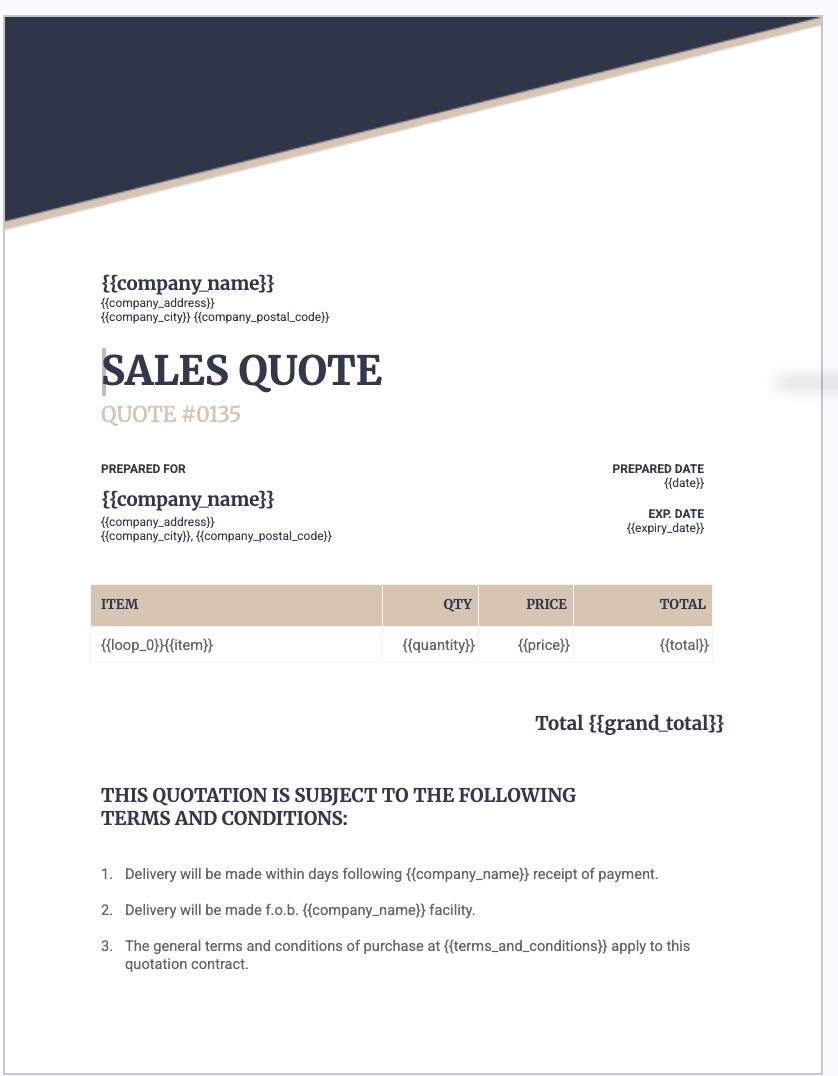
Quote Template
Include placeholders for: company logo, quote number, date, client name and address, line items table (description, quantity, unit price, line total), subtotal, taxes, total, terms, and expiration date.
Invoice Template
Similar layout to your quote. Swap the title, add a due date, and include payment instructions at the bottom. You can reuse most of the quote design.
Step 3. Connect TypeFlow to Your Airtable Base
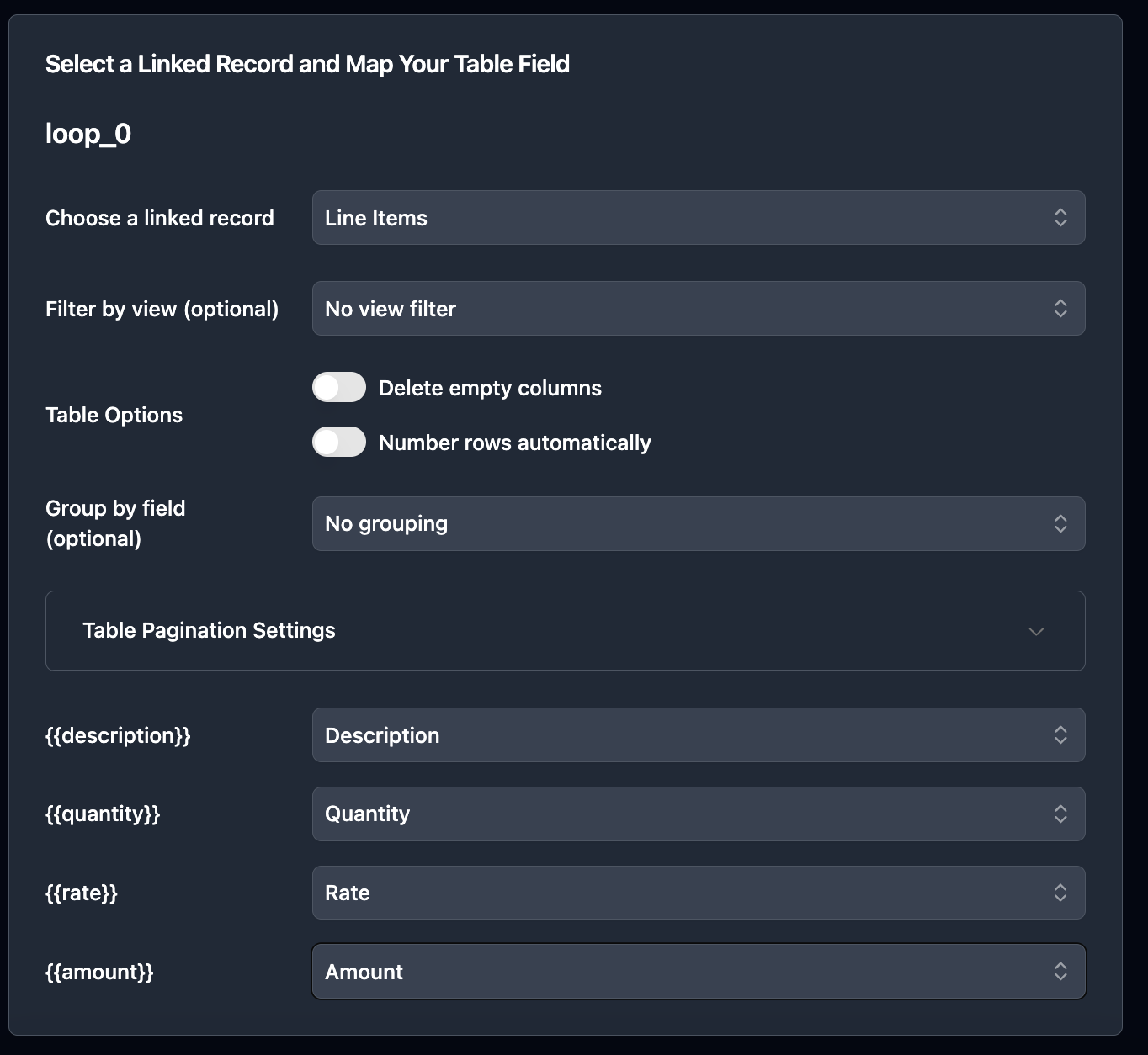
You need two separate TypeFlow flows - one for quote generation (connected to the Quotes table) and one for invoice generation (connected to the Invoices table). Each flow has its own template, its own field mapping, and its own automation trigger.
Start with the Quotes flow. Sign in to TypeFlow, select your Airtable base, and choose the Quotes table.
- Map standard fields: Connect placeholders like
{{Client Name}}and{{Quote Number}}to Airtable fields.

- Map line items: Link the Line Items table and map each column to a repeating row in your template.
Step 4. Generate Quote PDFs from Airtable
Three ways to trigger quote generation:
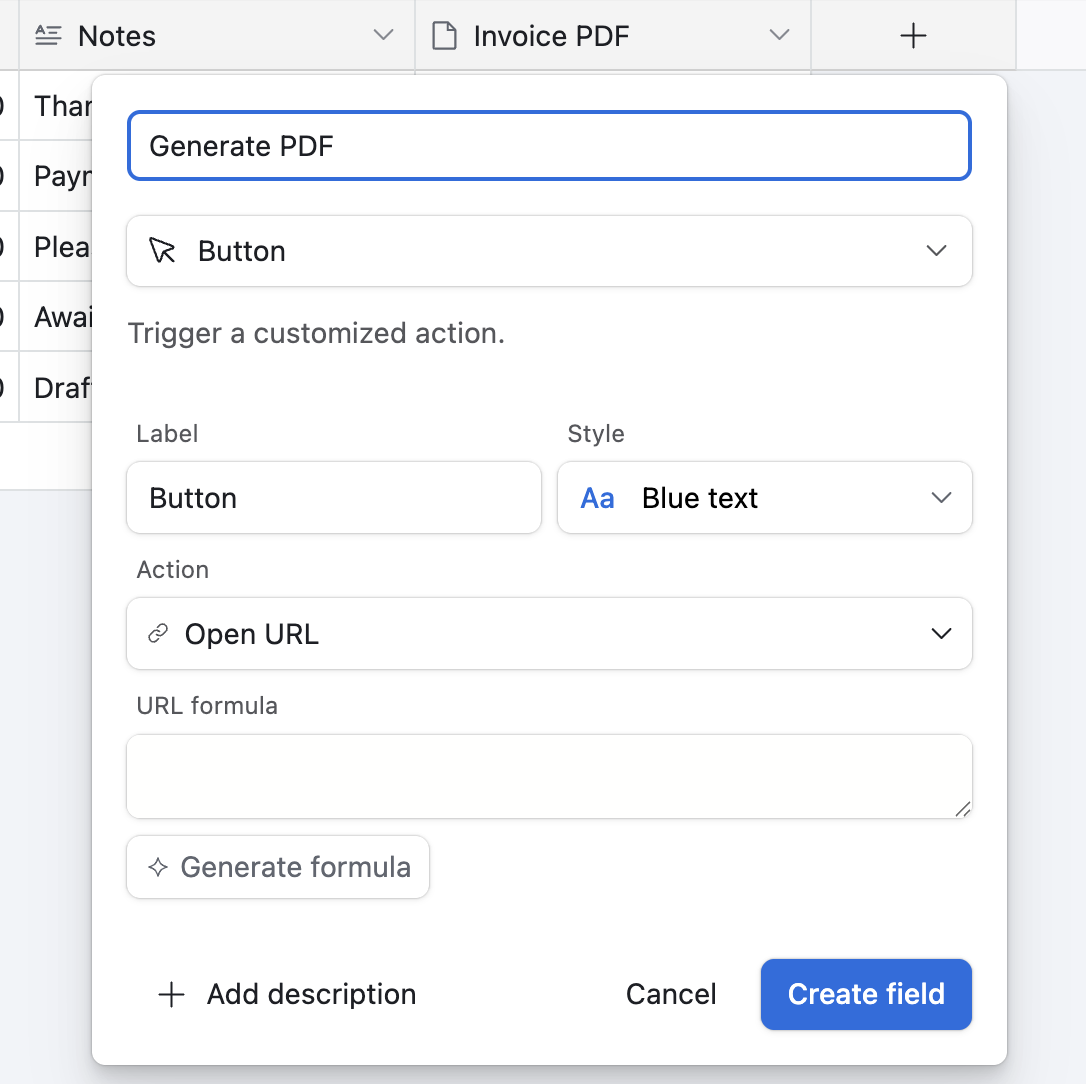
Button field. Add a button to your Quotes table. Click to generate the PDF for that record. Best for testing and manual control.
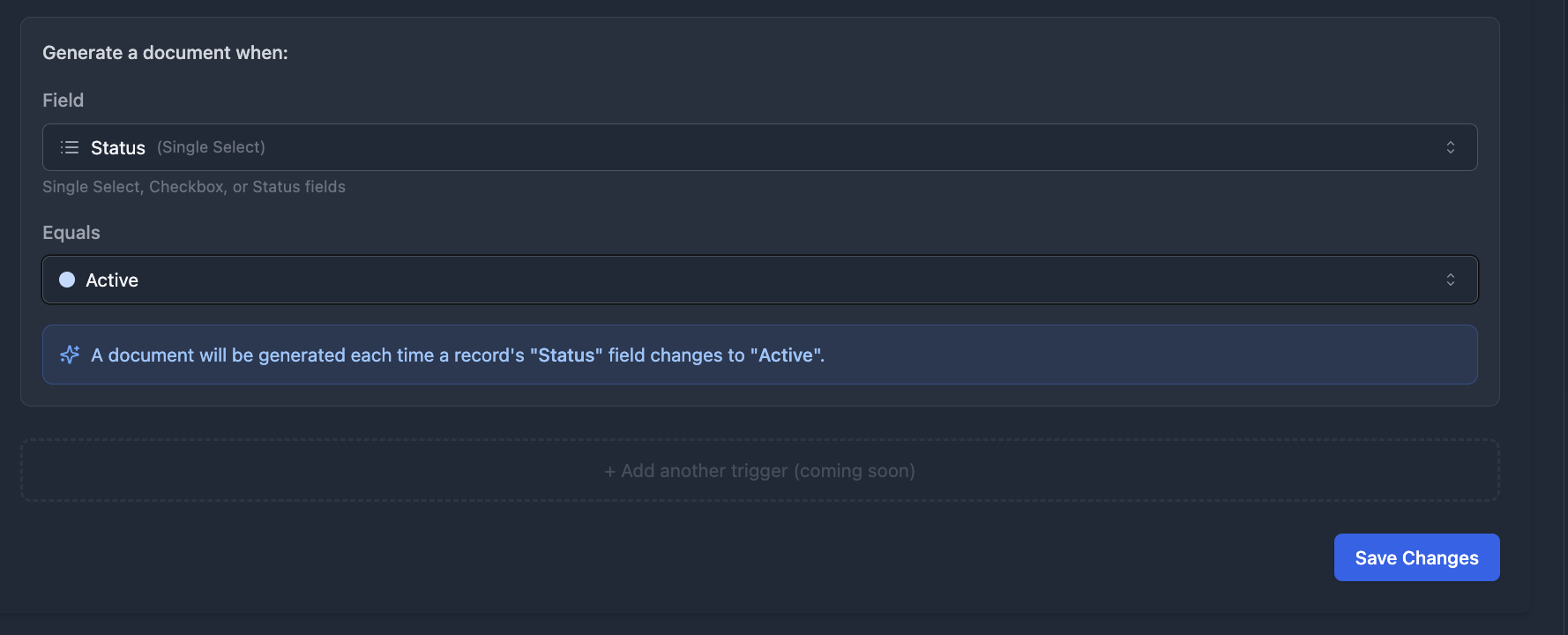
TypeFlow Automation. Set a trigger on a field value change - when Status changes to "Send," the quote PDF generates and TypeFlow emails it to the client via Email Post Generation. One config, fully hands-off.
Airtable Automations. Trigger on form submission, record creation, or schedule.
Step 5. Convert Accepted Quotes Into Invoices
Convert an accepted quote into an invoice by duplicating the record manually or triggering an automation on acceptance. Two options:
Option 1. Duplicate the Quote Record
Manual method: when a client accepts a quote, copy the record into the Invoices table, update the status, and generate a new PDF. Simple and gives you full control. The downside is you have to remember to do it every time.
Option 2. Convert with an Automation on Acceptance
The better method: when Quote Status changes to "Accepted," an Airtable automation creates a linked Invoice record and copies the line items. No manual steps, no forgotten invoices.
This is the approach we build in the next section.
Step 6. Automate the Full Quote to Invoice Workflow
Here is the complete automation chain. Each step triggers the next.
1. Send the Quote with E-Signature
Set up a TypeFlow Automation that triggers when Quote Status changes to "Send." TypeFlow generates the quote PDF, enables built-in e-signatures (included at no extra cost), and sends the signing link to the client via Email Post Generation.
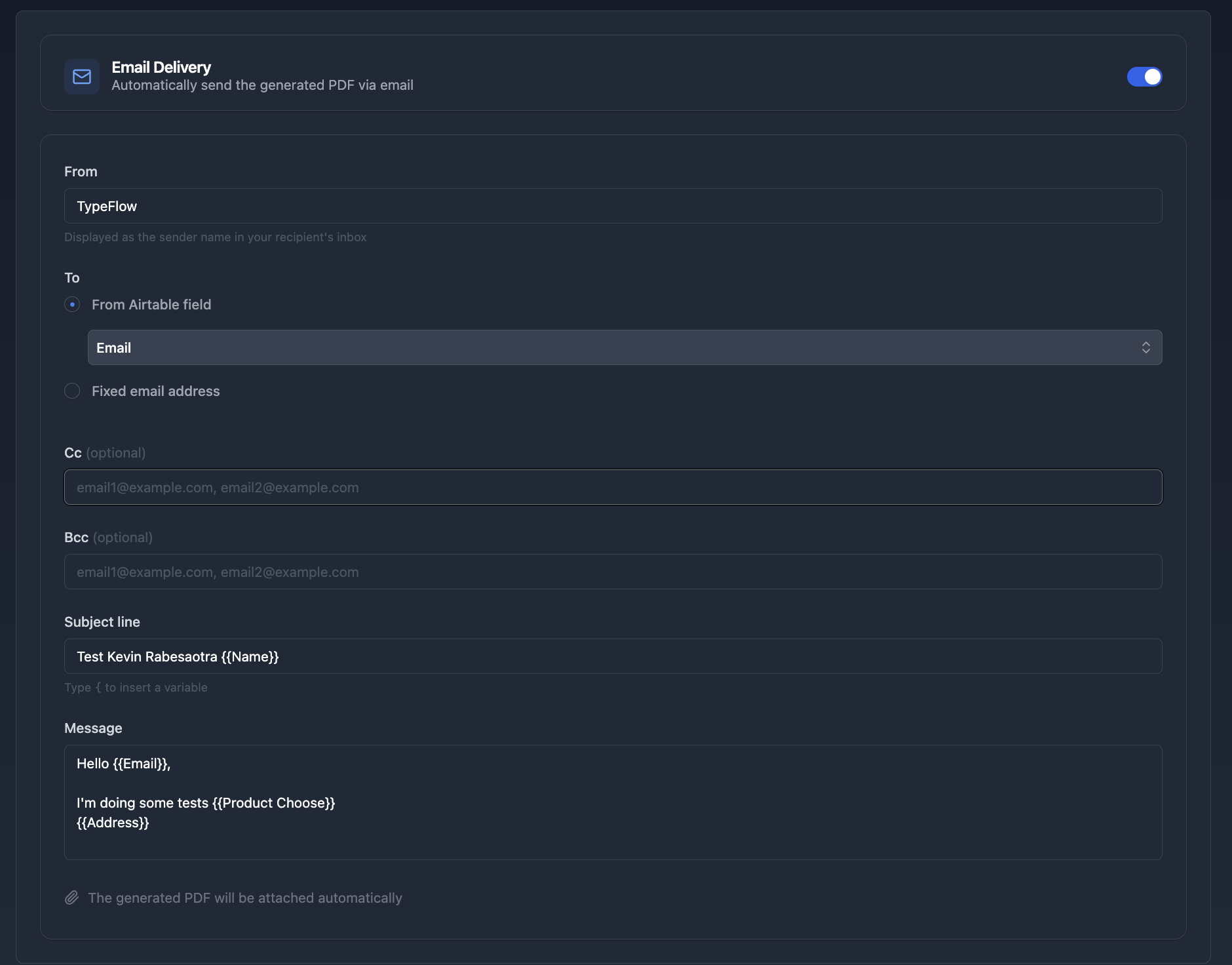
The client receives the quote, reviews it, and signs directly. If the client wants to negotiate, TypeFlow includes redlining on the Scale plan - clients suggest changes directly on the document.
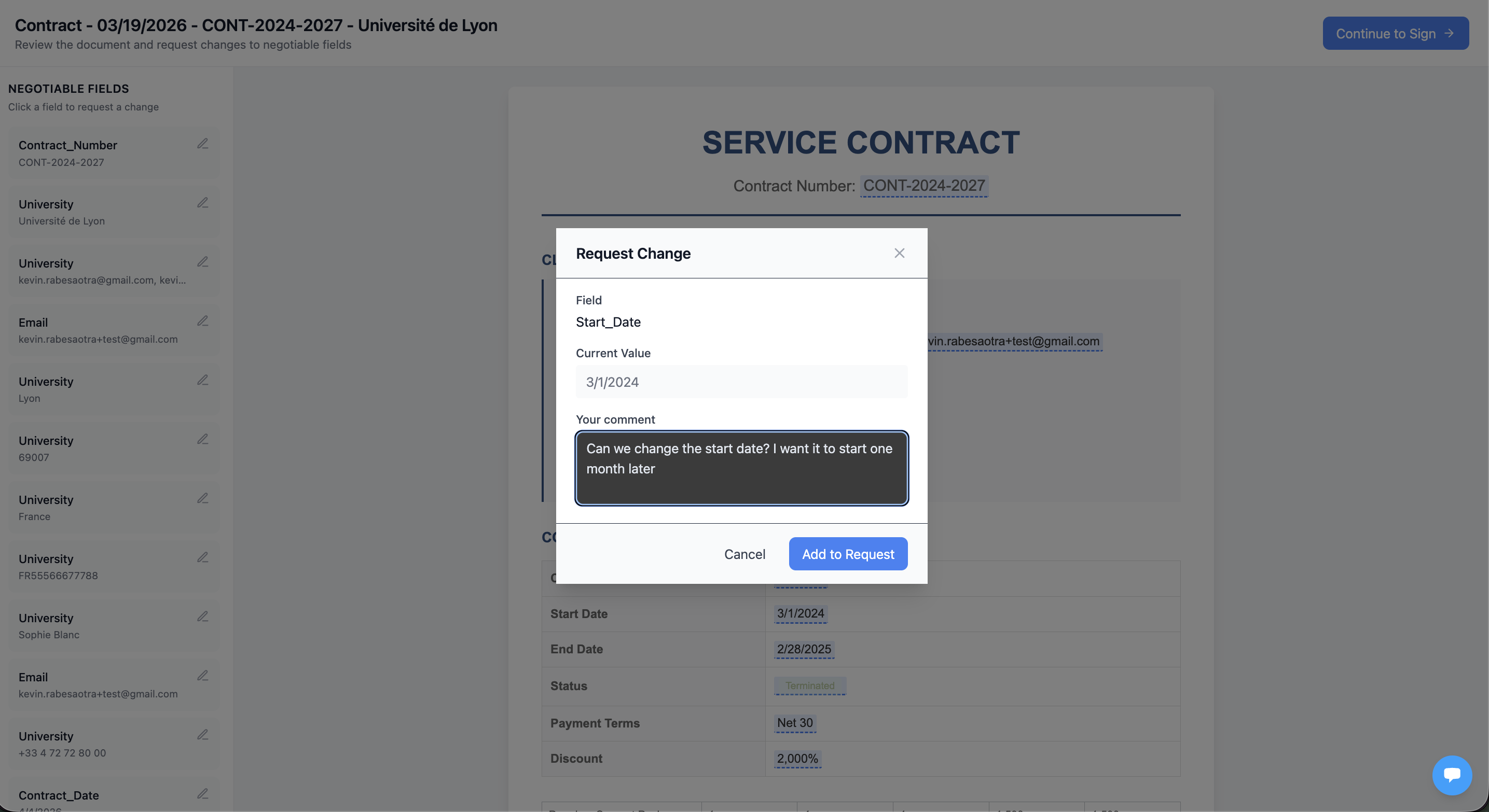
You review and accept or reject each change with one click.
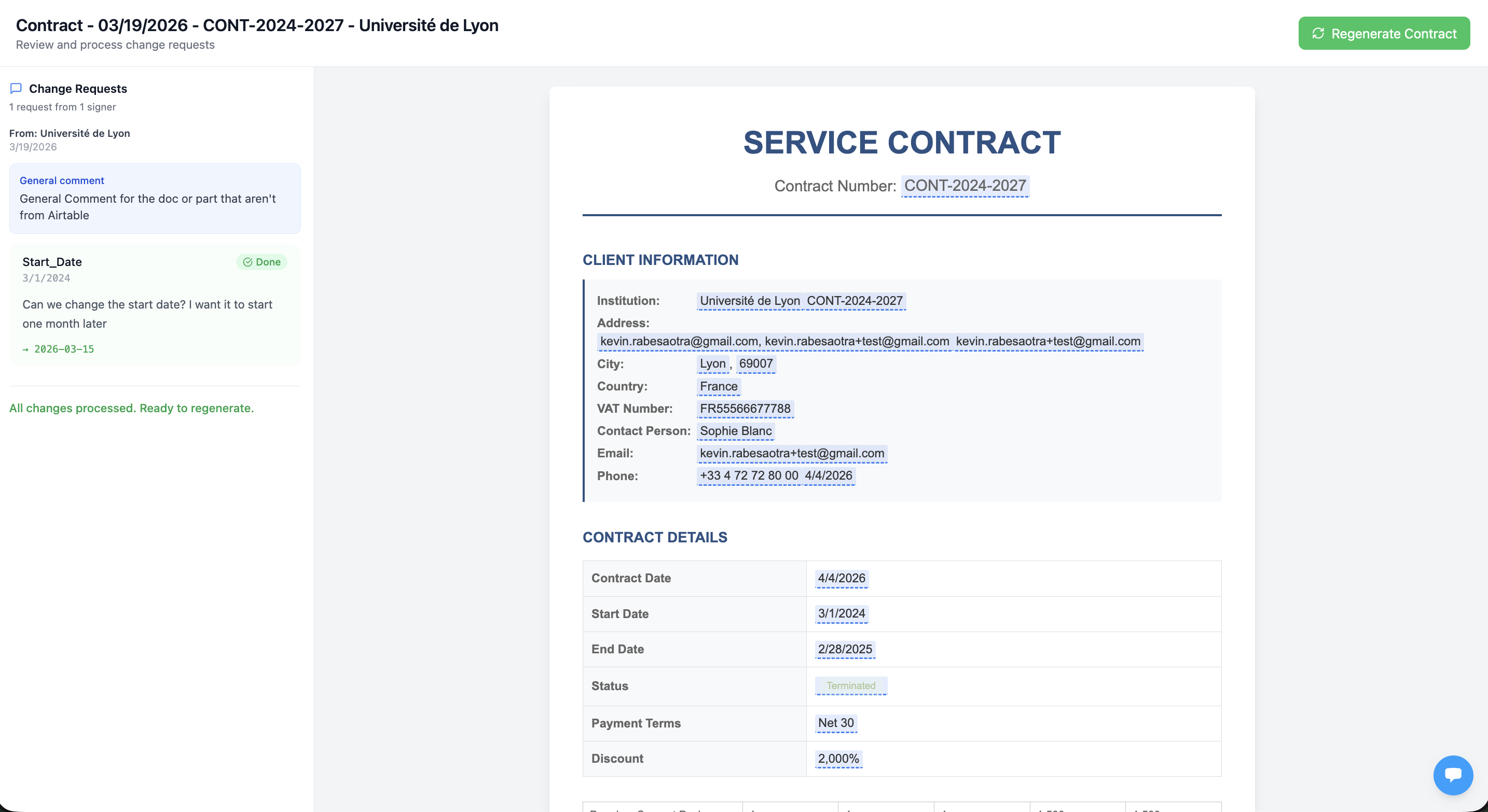
The quote regenerates with the agreed terms, and only then does the client sign. No back-and-forth emails with marked-up PDFs.
2. Client Signs and Quote Converts to Invoice
This is where the automation connects the two workflows. In TypeFlow's e-signature settings, enable "Update field when all signers complete" and select "Linked record". Choose your Invoices linked field, then set the Status field to "Accepted."
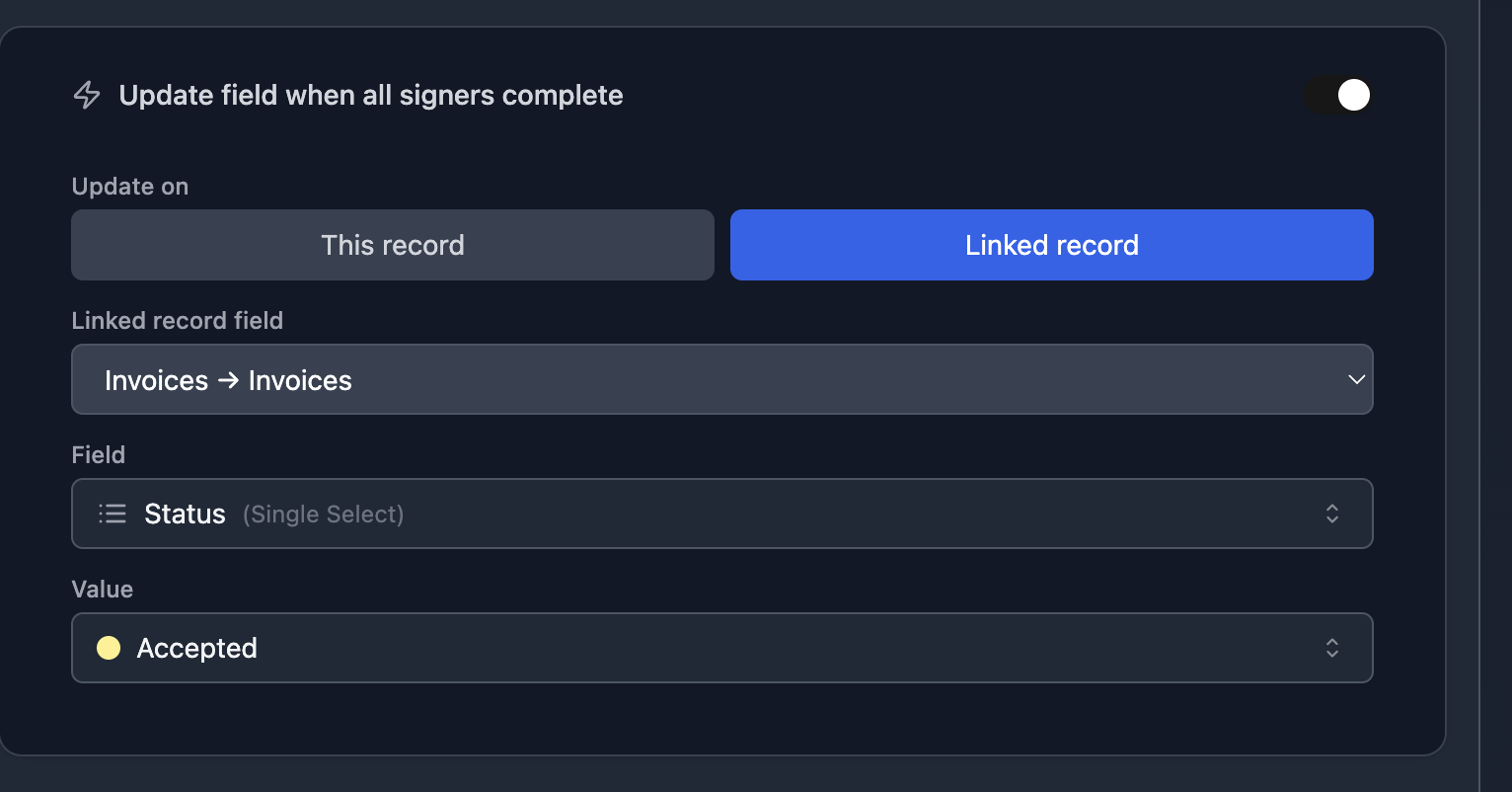
When the client signs the quote, TypeFlow automatically updates the Status field on the linked Invoice record to "Accepted." This status change triggers the invoice TypeFlow Automation, which generates and sends the invoice PDF - no manual step, no Airtable automation needed for the handoff.
The invoice record is created with the client, line items, and pricing carried over from the quote.
3. Generate and Send the Invoice
A second TypeFlow Automation monitors the Invoices table. When the Status changes to "Accepted," it generates the invoice PDF using your invoice template and sends it to the client via Email Post Generation. The client receives a professional invoice within seconds of signing the quote.
Zero manual work after the initial quote creation.
The full chain: Change Status to "Send" → quote PDF generated and emailed with e-signature → client signs → Invoice Status updated to "Accepted" automatically → invoice PDF generated and emailed. One trigger starts the entire pipeline.
Add E-Signatures to Speed Up Quote Acceptance
TypeFlow includes built-in e-signatures at no extra cost on every plan - clients sign quotes directly from a link and the signed PDF triggers invoice generation automatically. You send a quote the client can sign immediately - no printing or email back-and-forth.
- Faster approvals: Clients sign in minutes, not days.
- Cleaner handoff: The signature can trigger your quote-to-invoice conversion automatically.
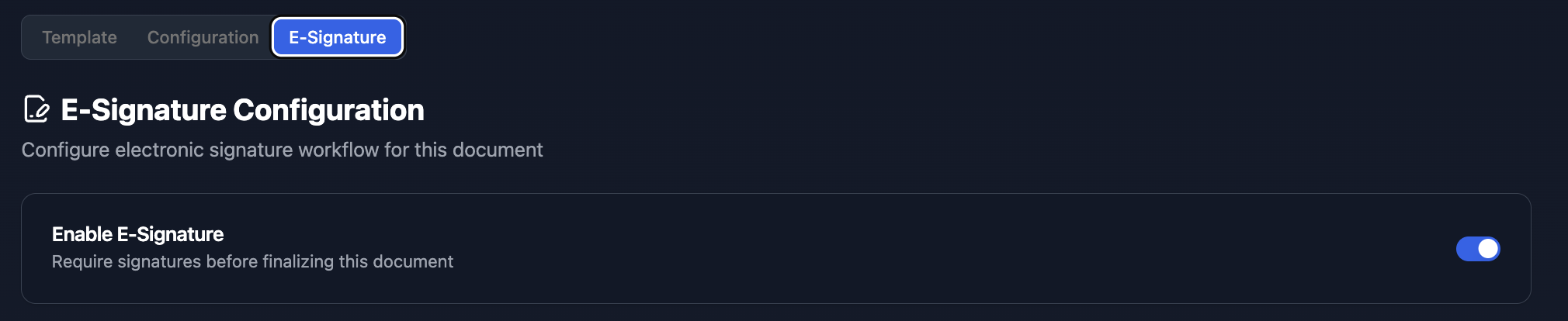
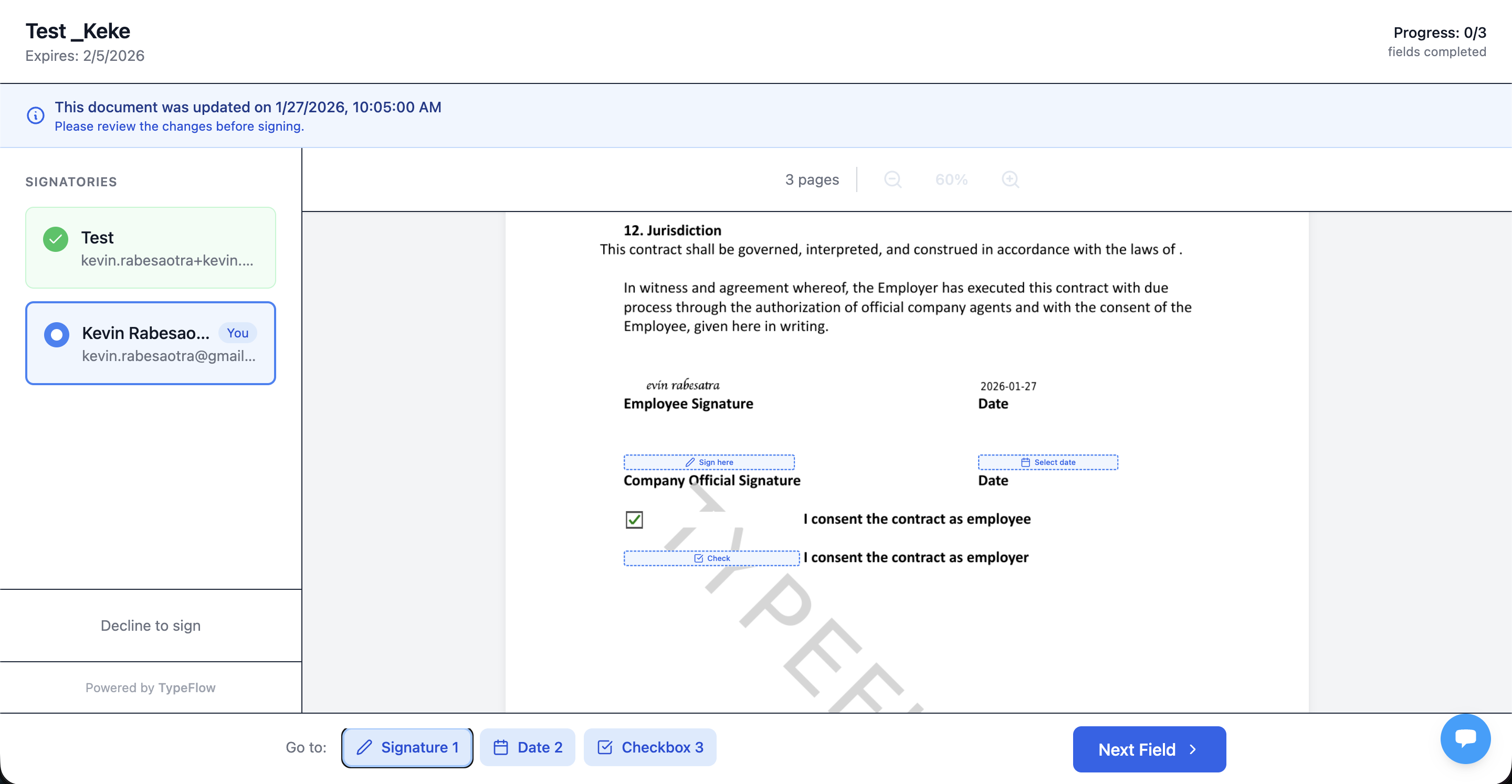
TypeFlow e-signatures comply with eIDAS and ESIGN regulations.
Cost Comparison: Airtable Quote to Invoice Tools
TypeFlow is the only tool that automates the full quote-to-invoice pipeline natively from Airtable - including e-signatures - at a flat monthly rate with no per-signature fees.
| Tool | Monthly Cost | Airtable Integration | Quote to Invoice | E-Signatures |
|---|---|---|---|---|
| TypeFlow | From $29/mo | Native | Automated | Included |
| QuickBooks | $30+/mo | Via Zapier | Manual | Extra cost |
| FreshBooks | $19+/mo | Via Zapier | Manual | Extra cost |
| PandaDoc | From $19/mo per seat | Via Zapier | Manual | Included |
When TypeFlow makes sense: Your data lives in Airtable and you want the quote-to-invoice conversion to be automatic. When accounting software makes sense: You need expense tracking, payment processing, and financial reporting beyond document generation. For a full comparison of invoicing tools that work with Airtable, see our Best Invoicing Tools for Airtable in 2026 guide.
Best Practices for Quote and Invoice Management in Airtable
Use separate numbering (Q- for quotes, INV- for invoices), set expiration dates on quotes, lock line items after acceptance, and track status with a single-select field.
Use Separate Numbering for Quotes and Invoices
Quotes and invoices serve different purposes. Use Airtable formulas like "Q-" & RECORD_ID() for quotes and "INV-" & RECORD_ID() for invoices. Clear numbering makes referencing documents easier.
Set Expiration Dates on Quotes
Stale quotes cause problems. A client accepts a quote from six months ago and your pricing has changed. Add an expiration date field and a formula that checks validity before allowing conversion.
Lock Line Items After Acceptance
Once a quote is accepted, the line items become part of a binding agreement. Use a locked view or checkbox to prevent edits. This protects invoice accuracy.
Track Status with a Single Field
Use a Single Select field for status rather than multiple checkboxes. One field, one source of truth. Easier to automate and filter.
Common Issues and How to Fix Them
The most common problems are missing line items on the PDF (check linked table mapping), totals not matching (line items edited after acceptance), and automations running twice (add a "Invoice Created" checkbox guard).
Line Items Are Missing on the PDF
The line items table is not linked correctly, or the TypeFlow flow is not configured for nested records. Check the linked field in Airtable and re-map line items in TypeFlow.
Totals Do Not Match Between Quote and Invoice
Line items were edited after the quote was accepted. Lock records after acceptance or use rollup fields that always calculate from line items.
Automation Runs Twice on the Same Record
The status field was toggled multiple times. Add a checkbox called "Invoice Created" and include it in the automation conditions. The automation only runs if the checkbox is unchecked, then checks the box when it finishes.
Start Automating Your Quote to Invoice Workflow With TypeFlow
If you already manage quotes in Airtable, you can recreate this quote → e-sign → invoice workflow in your own base with TypeFlow. Connect your base, map your templates, and let the system handle the PDFs and emails. If your quotes often turn into contracts, the same workflow extends naturally - TypeFlow can generate and sign full contracts from Airtable records, not just invoices. See our contracts with e-signatures solution and quotes and invoices solution. TypeFlow connects your Airtable data to your templates so you focus on your business instead of your paperwork. Rated by Airtable users on G2.
For more on quote generation, see our quote generator comparison. For invoice-specific setup, check our invoice generation guide and invoice automation guide. If you are evaluating whether to use Airtable or QuickBooks for invoicing, see our comparison. If you also need contracts with e-signatures, see our best contract generation tools, DocuSign alternative, and PandaDoc alternative for Airtable.
Recreate this workflow in your Airtable
Connect your Airtable base, set up two templates, and let TypeFlow Automation handle the rest. 20 free documents included.
Get started →Quote → E-Sign → Invoice from Airtable: Create a quote, send it for e-signature, update the status when signed, and generate/send the invoice automatically - all from the same Airtable base.
Frequently Asked Questions About Airtable Quote to Invoice Workflows
Find answers to the most common questions about this feature.
Popular Questions
All Questions
Need more help?
Our team is here to help you solve all your problems and answer your questions.
Contact Us
Kevin from TypeFlow
•AuthorKevin Rabesaotra is a growth engineer and automation specialist with 8+ years of experience building no-code solutions. As Founder & CEO of TypeFlow, he has helped hundreds of businesses automate document generation and streamline workflows with Airtable integrations. Previously, Kevin was a Product Lead specializing in growth engineering, running experiments to drive revenue, retention, and lead generation.
More articles
How to Print Labels from Airtable with Quantity Control (Step by Step)
Print multiple labels per Airtable record based on a quantity field. Step-by-step guide for linked records mode and quantity repeat mode with barcodes and Avery sheets.
Read articleHow to Print Avery Mailing Labels from Airtable
Print Avery mailing labels (5160, 5161, 5162) from Airtable without Word mail merge. Step-by-step guide with print label mode, automation, and bulk generation.
Read articleHow to Create Inventory Labels with Barcodes in Airtable
Create inventory labels with Code 128, EAN-13, or QR barcodes from Airtable. Step-by-step guide for warehouse, retail, and asset tracking with thermal and Avery printers.
Read article