Template Builder
Design pixel-perfect PDF templates with a visual drag-and-drop editor. No Google account required.
Overview
Template Builder is a visual HTML editor for creating document templates directly in TypeFlow.
Why use Template Builder?
| Benefit | Description |
|---|---|
| No Google account | Design and generate PDFs without Google Docs |
| Pixel-perfect control | CSS-level precision for layouts |
| Pre-built blocks | 20+ ready-to-use components |
| Dynamic tables | Tables that grow with your linked records |
| Nested data | Line items within line items |
| E-signature ready | Built-in signature field support |
Getting Started
Step 1: Create a New Flow
- Click New Flow in your dashboard
- Connect your data source (Airtable or Softr)
- Select your base and table
Step 2: Choose Template Builder
When asked to select a template type, choose Template Builder instead of Google Docs.
Step 3: Start Designing
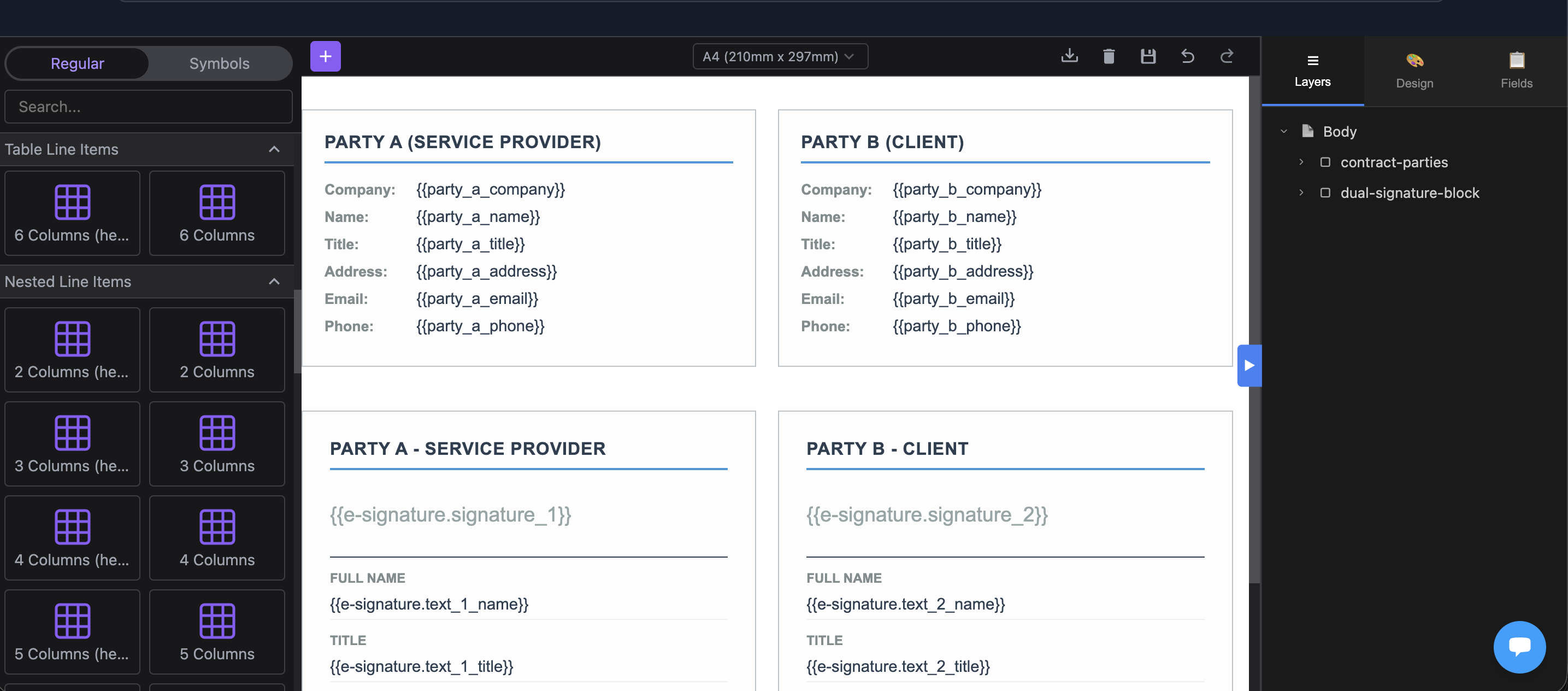
You'll see the visual editor with:
- A blank canvas (or starter template)
- Left sidebar with blocks
- Right sidebar with fields, layers, and design options
The Editor Interface
Left Sidebar - Blocks
Drag and drop pre-built components onto your canvas:
- Basic: Text, Image, Table, Divider
- Invoice: Header, Totals, Payment Details
- Contracts: Parties, Signature Blocks, Terms
- Certificates: Classic, Modern, Training, Award
- Reports: Metrics Cards, Executive Summary
- Utilities: Letterhead, Footer, Callout Box
Right Sidebar - Panels
| Panel | Purpose |
|---|---|
| Fields | See all your Airtable fields, click to copy variable syntax |
| Layers | View element hierarchy, drag to reorder |
| Design | Style the selected element (colors, spacing, fonts) |
Top Toolbar
- Undo/Redo - Go back or forward
- Preview - See how your PDF will look
- Code - View/edit raw HTML and CSS
- Save - Save your template
Pre-built Blocks
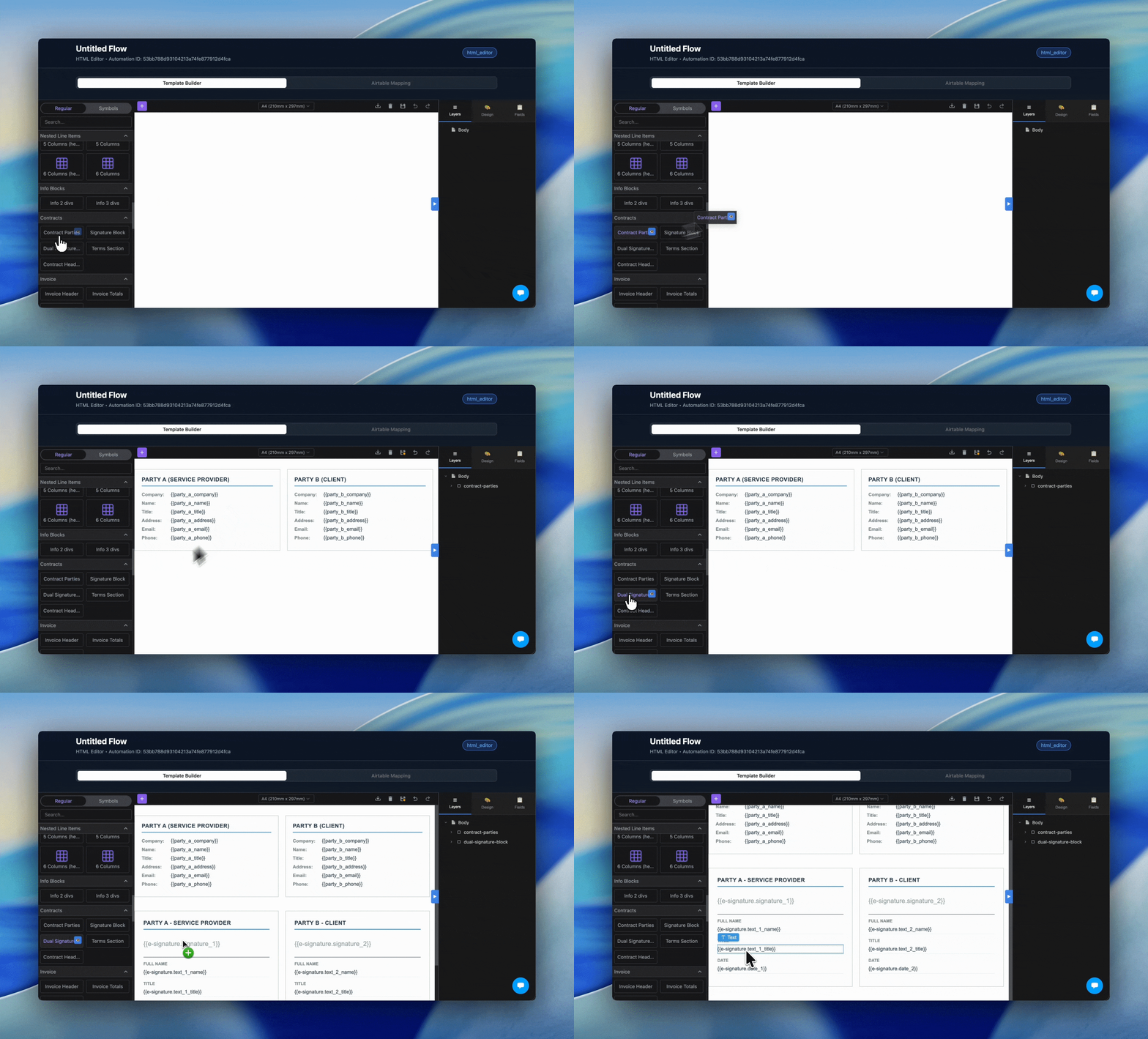
How to Add a Block
- Open the Blocks panel (left sidebar)
- Browse categories or search
- Click the preview icon to see full-size preview
- Drag the block onto your canvas
Available Block Categories
| Category | Blocks | Use Case |
|---|---|---|
| Invoice | Header, Totals, Payment Details | Billing documents |
| Contracts | Header, Parties, Signature, Dual Signature, Terms | Legal agreements |
| Certificates | Classic, Modern, Training, Award, Participation | Achievements, completions |
| Reports | Header, Executive Summary, Metrics Cards, Comparison Table | Business reports |
| Documents | Quote Header, Delivery Note | Sales documents |
| Utilities | Letterhead, Footer, Callout Box, Checklist | Reusable components |
Customizing Blocks
After adding a block:
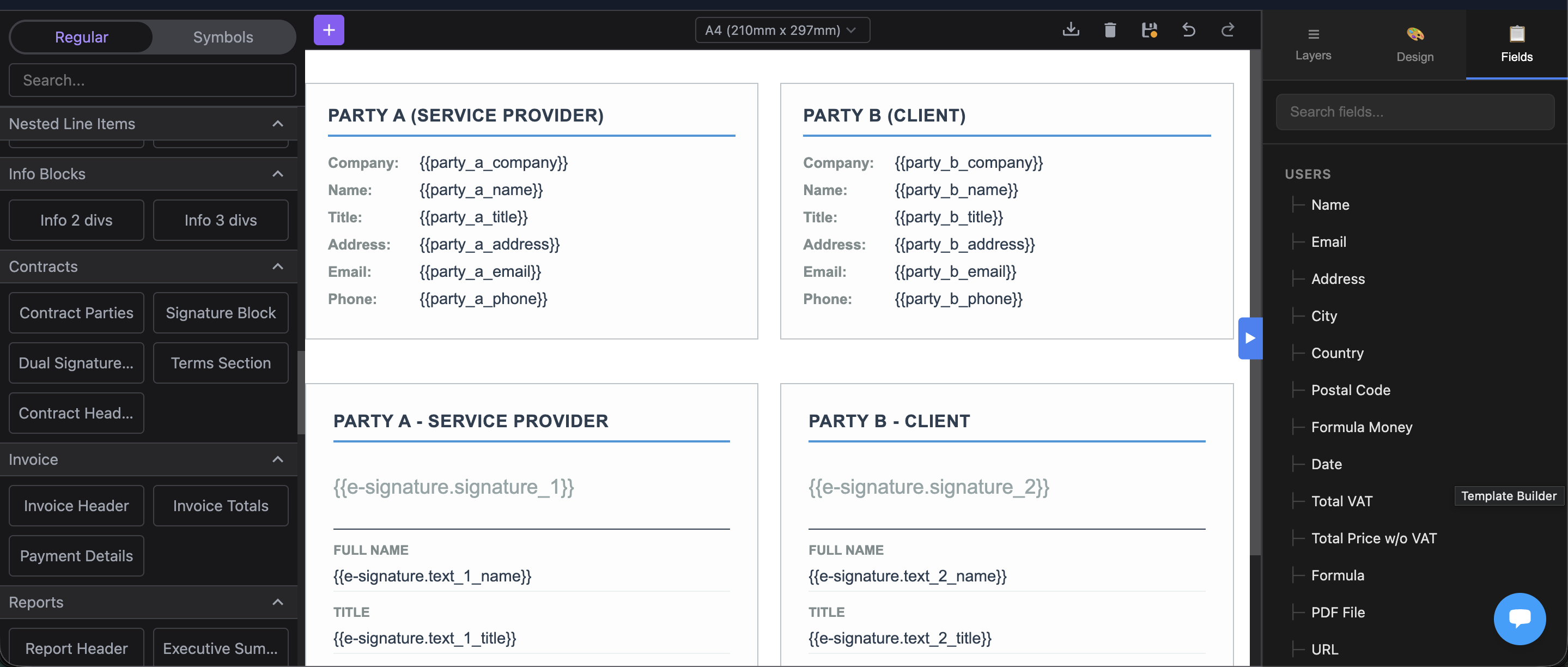
- Click any element to select it
- Use the Design panel to change colors, fonts, spacing
- Double-click text to edit content
- Replace placeholder variables with your Airtable fields
Adding Variables
Variables are placeholders that get replaced with your Airtable data when the document is generated.
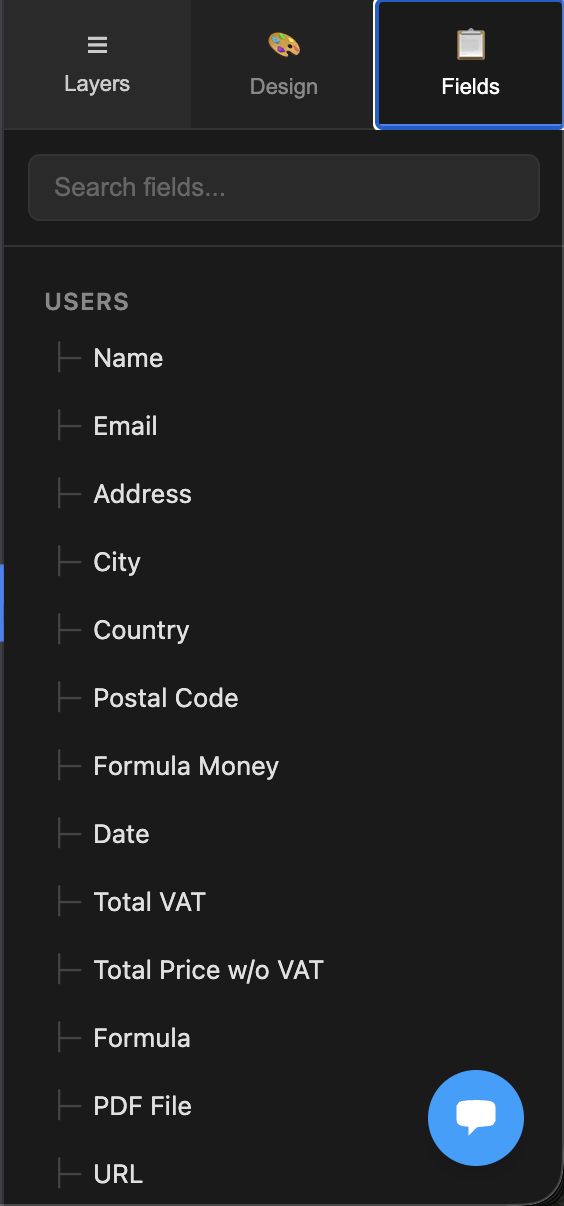
Using the Fields Panel
- Open the Fields panel (right sidebar)
- Find your field
- Click to copy the variable syntax
- Paste into your template
Variable Syntax
| Type | Syntax | Example |
|---|---|---|
| Regular field | {{field_name}} | {{company_name}} |
| Linked record (comma-joined) | {{LinkedTable.field}} | {{Clients.email}} |
| Linked record (for loops) | {{LinkedTable:field}} | {{Items:description}} |
| Nested linked record | {{Table>SubTable:field}} | {{Orders>Items:price}} |
Linked Records
When you click a linked record field, a menu appears with syntax options:
- Single:
{{Clients.name}}- Returns comma-joined values - Loop:
{{Clients:name}}- Use inside a{{loop_0}}block to repeat for each record - Nested:
{{Clients>Orders:total}}- Access fields through multiple link levels
Dynamic Tables
Create tables that automatically grow based on your linked records.
Basic Table Loop
- Add a table to your template
- Add
{{loop_0}}to the first cell of the row you want to repeat - Add variables from your linked table in each column
Example:
| Item | Quantity | Price |
|---|---|---|
{{loop_0}} {{Items:name}} | {{Items:qty}} | {{Items:price}} |
When generated, this creates one row per linked record.
Template

Generated PDF
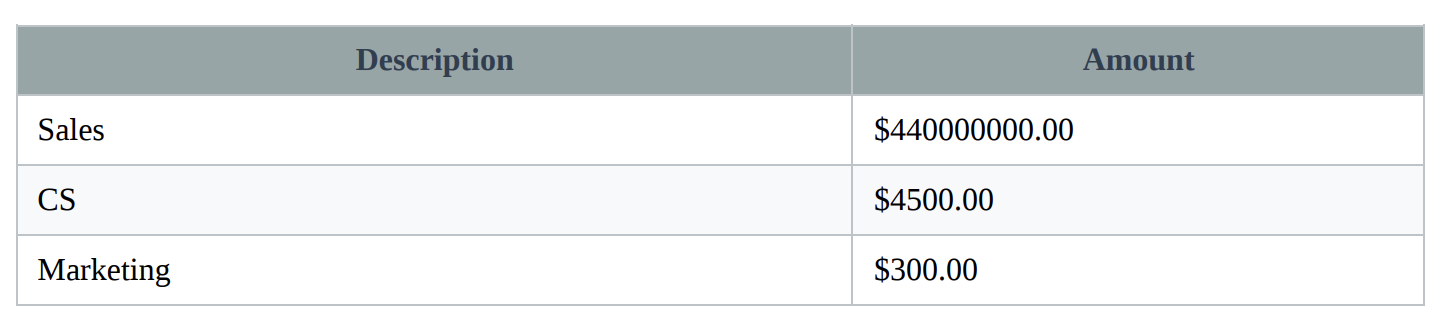
Table Loop Markers
| Marker | Purpose |
|---|---|
{{loop_0}} | Repeat this row for each linked record |
{{loop_1}} | Repeat for second linked table |
Related: Line Items
Nested Line Items
For complex documents with sub-items (e.g., orders containing products).
Setup
- Create a table with
{{loop_0}}for the main items - Add a nested row with
{{nested_items_0}}for sub-items
Example: Invoice with Order > Line Items
| Order | Product | Amount |
|---|---|---|
{{loop_0}} {{Orders:name}} | ||
{{nested_items_0}} {{Orders>LineItems:product}} | {{Orders>LineItems:amount}} |
Related: Nested Line Items
Page Settings
Setting Page Size
- Click outside any element (select the page)
- In Design panel, find Page Settings
- Choose from presets or enter custom dimensions
| Preset | Size |
|---|---|
| A4 | 210mm x 297mm |
| Letter | 8.5" x 11" |
| Legal | 8.5" x 14" |
Page Margins
Set margins in the Page Settings section. For full-bleed designs, set margins to 0.
Multi-page Documents
Content that exceeds the page height automatically flows to the next page. Add page breaks using the Page Break block.
E-Signature
Template Builder fully supports TypeFlow's e-signature feature.
Adding Signature Fields
Use the signature blocks from the Contracts category, or add variables manually:
| Variable | Description |
|---|---|
{{e-signature.signature_1}} | Signature drawing area |
{{e-signature.text_1}} | Signer's typed name |
{{e-signature.date_1}} | Signing date |
{{e-signature.checkbox_1}} | Confirmation checkbox |
The number (1, 2, etc.) corresponds to the signer order.
Pre-built Signature Blocks
- Signature Block - Single signer
- Dual Signature Block - Two signers side by side
Related: E-Signature Guide
FAQ
Do I need coding skills to use Template Builder?
No. The editor is visual - drag and drop blocks, click to edit. You can view the code if you want, but it's not required.
Can I import my existing HTML template?
Yes. Click the Code button in the toolbar, then paste your HTML. You can also import CSS.
What's the difference between Template Builder and Google Docs templates?
Google Docs is familiar and quick for simple documents. Template Builder gives you pixel-perfect control, advanced dynamic tables, and works without a Google account.
Can I use custom fonts?
Yes. The editor includes Google Fonts. Select any element and change the font in the Design panel.
Are Template Builder documents compatible with e-signature?
Yes. E-signature works identically for both Google Docs and Template Builder templates.
Troubleshooting
| Issue | Solution |
|---|---|
| Variables not replaced | Check syntax - use {{field_name}} with double curly braces |
| Table not repeating | Add {{loop_0}} to the first cell of the row |
| Layout looks different in PDF | Use Preview to check. Avoid browser-specific CSS |
| Page breaks in wrong place | Add explicit Page Break blocks where needed |
| Fonts look different | Ensure you're using web-safe or Google Fonts |
Related Articles
- Variables & Field Mapping - Map your database fields
- Line Items - Dynamic table rows
- Nested Line Items - Multi-level data
- E-Signature Guide - Send documents for signature
Need More Help?
- Email: support@typeflow.us
- Chat: Click the chat icon in the app