E-Signature Audit Trail
Track every e-signature event automatically in Airtable. See who viewed, signed, and when - with IP address, location, and browser details.
Overview
The E-Signature Audit Trail gives you full traceability for every signature session. Every time a signer views, signs, or declines a document, TypeFlow logs it - and syncs it to a dedicated Airtable table in real-time.
This is useful for:
- Compliance - prove when documents were viewed and signed
- Back-office visibility - see signature status directly in Airtable or Softr
- Evidence that outlives the document - the trail lives in your own Airtable base, so it survives a document retention policy deleting TypeFlow's copy of the signed file
- Client follow-up - know who hasn't signed yet without opening TypeFlow
How It Works
- Enable the audit trail toggle in your flow's E-Signature settings
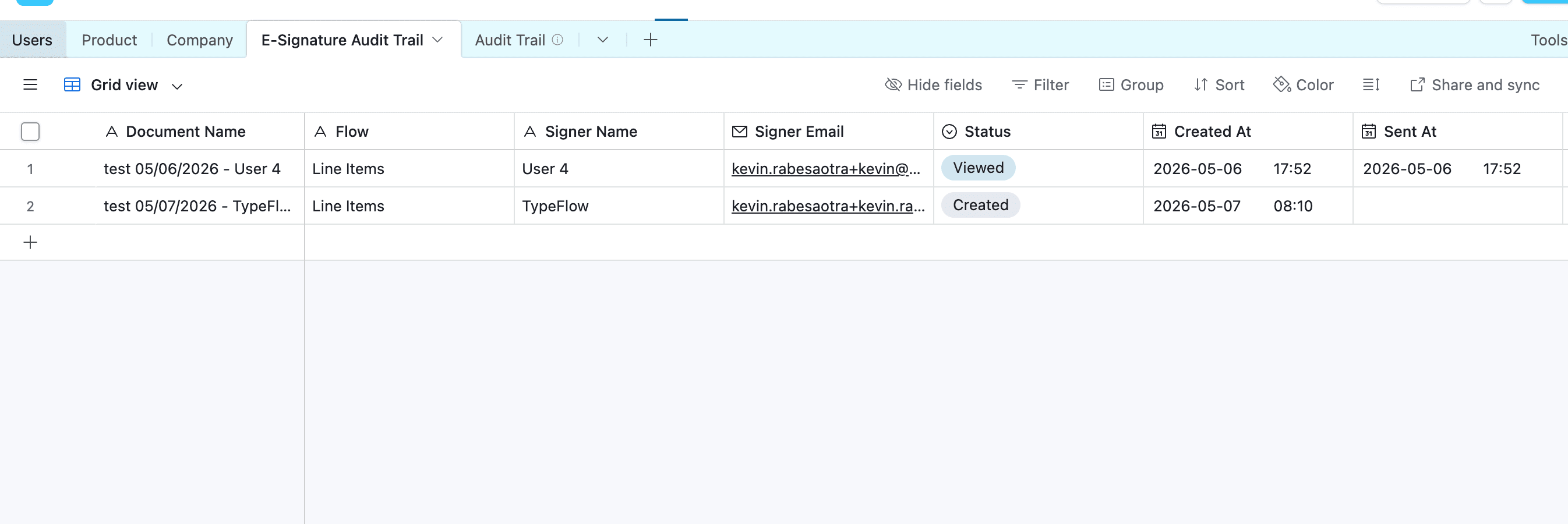
- TypeFlow creates an "E-Signature Audit Trail" table in your Airtable base automatically
- Every signature event creates or updates a record in that table - one record per signer per document
- Linked records connect each audit entry back to the original source record
Everything happens in the background. No manual work required.
Events Tracked
| Event | What happens |
|---|---|
| Created | Signature session initiated - record created with document name, signer info, original PDF |
| Sent | Invitation email sent to signer |
| Viewed | Signer opened the document - captures IP, location, browser |
| Consent Given | Signer accepted the e-signature consent |
| Signed | Signer completed their signature - captures IP, location, duration |
| Declined | Signer declined to sign |
| Expired | Session expired (configurable, default 30 days) |
| Completed | All signers have signed - signed PDF attached |
Airtable Table Fields
TypeFlow creates the following fields in your audit trail table:
| Field | Updated at |
|---|---|
| Document Name | Created |
| Flow | Created |
| Signer Name | Created |
| Signer Email | Created |
| Status | Every event |
| Created At | Created |
| Sent At | Invitation sent |
| Viewed At | Document viewed |
| Consent At | Consent given |
| Signed At | Signed |
| Viewed IP | Document viewed |
| Viewed Location | Document viewed |
| Signed IP | Signed |
| Signed Location | Signed |
| Browser | Document viewed |
| Duration | Signed |
| Original PDF | Created |
| Original PDF Hash | Created |
| Signed PDF | Completed |
| Signed PDF Hash | Completed |
| Source Record | Created (linked to your source table) |
Setup
- Open your flow in the Flow Builder
- Go to the E-Signature configuration panel
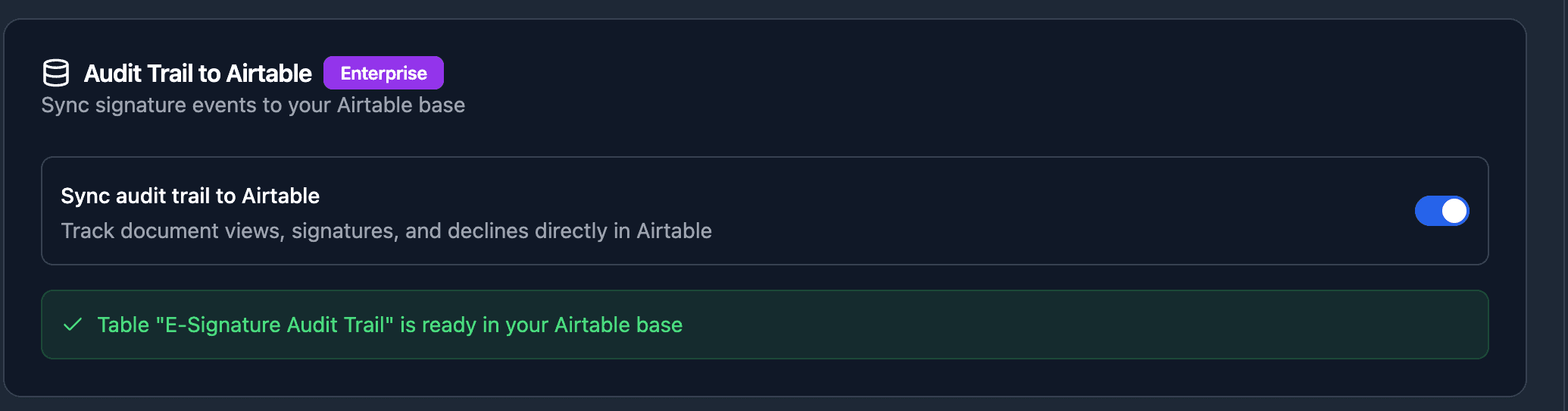
- Enable "Sync audit trail to Airtable"
- TypeFlow creates the table automatically in your base
- Generate a document with e-signature - the audit trail starts populating
If you have multiple flows using e-signature, they all share the same audit trail table. Each flow gets its own linked record field (e.g., "Source Record - Clients", "Source Record - Contracts").
Available on the Enterprise plan. Contact us to upgrade.
FAQ
Which events are tracked in the audit trail?
Created, Sent, Viewed, Consent Given, Signed, Declined, Expired, and Completed. Each event updates the corresponding Airtable record with timestamps and metadata.
Is the audit trail available on all plans?
The Airtable sync is available on the Enterprise plan. All plans have access to the audit trail within the TypeFlow app.
Can multiple flows share the same audit trail table?
Yes. When you enable audit trail on a second flow, TypeFlow reuses the existing table and adds a linked record field for the new source table.
What data is captured when a signer views or signs?
IP address, geographic location, browser/device info, and timestamp. When signing, the total time spent on the document is also recorded.
Does the audit trail work with Softr?
Yes. Since the audit trail syncs to Airtable, it's automatically visible in Softr if your Softr app is connected to the same base.
Related Articles
- E-Signature - Set up e-signatures on your documents
- Legal Validity - ESIGN Act and eIDAS compliance
Need More Help?
- Email: support@typeflow.us
- Chat: Click the chat icon in the app