How to Automatically Delete Signed Documents After a Retention Period
A retention policy tells TypeFlow to permanently delete its own copy of your signed documents once they reach a certain age. You pick the period, TypeFlow does the deleting, and every deletion leaves a dated record you can show an auditor. Copies in your Airtable are never touched.
Overview
If your organisation has a data retention obligation - GDPR, a charity commission requirement, an internal policy - you probably should not be holding signed contracts indefinitely. A retention policy automates that.
| Who can set it | Workspace owner only |
| Plan | Enterprise |
| Periods available | 30 days, 90 days, 6 months, 1 year, 2 years, 7 years |
| Runs | Nightly, automatically |
| Reversible | No. Deletion is permanent |
The setting lives in Team settings, under Document retention. If you do not see it, you are either not the workspace owner or not on the Enterprise plan.
What Gets Deleted, What Does Not
This is the most important thing to understand before switching anything on.
Deleted: TypeFlow's stored copy of the signed document, along with its Certificate of Completion and signature images.
Never touched:
- The signed PDF written back to your Airtable attachment field
- Anything saved to your Google Drive
- Documents under a legal hold
- Documents still awaiting signature. Only completed ones are eligible
So if your flow writes the signed PDF back to Airtable - most do - you keep your copy. What goes away is TypeFlow holding a second one.
If you sync your E-Signature Audit Trail to Airtable, that table is yours and survives the policy. The signing events stay on record in your own base even once the document itself is gone.
How to Set Up
-
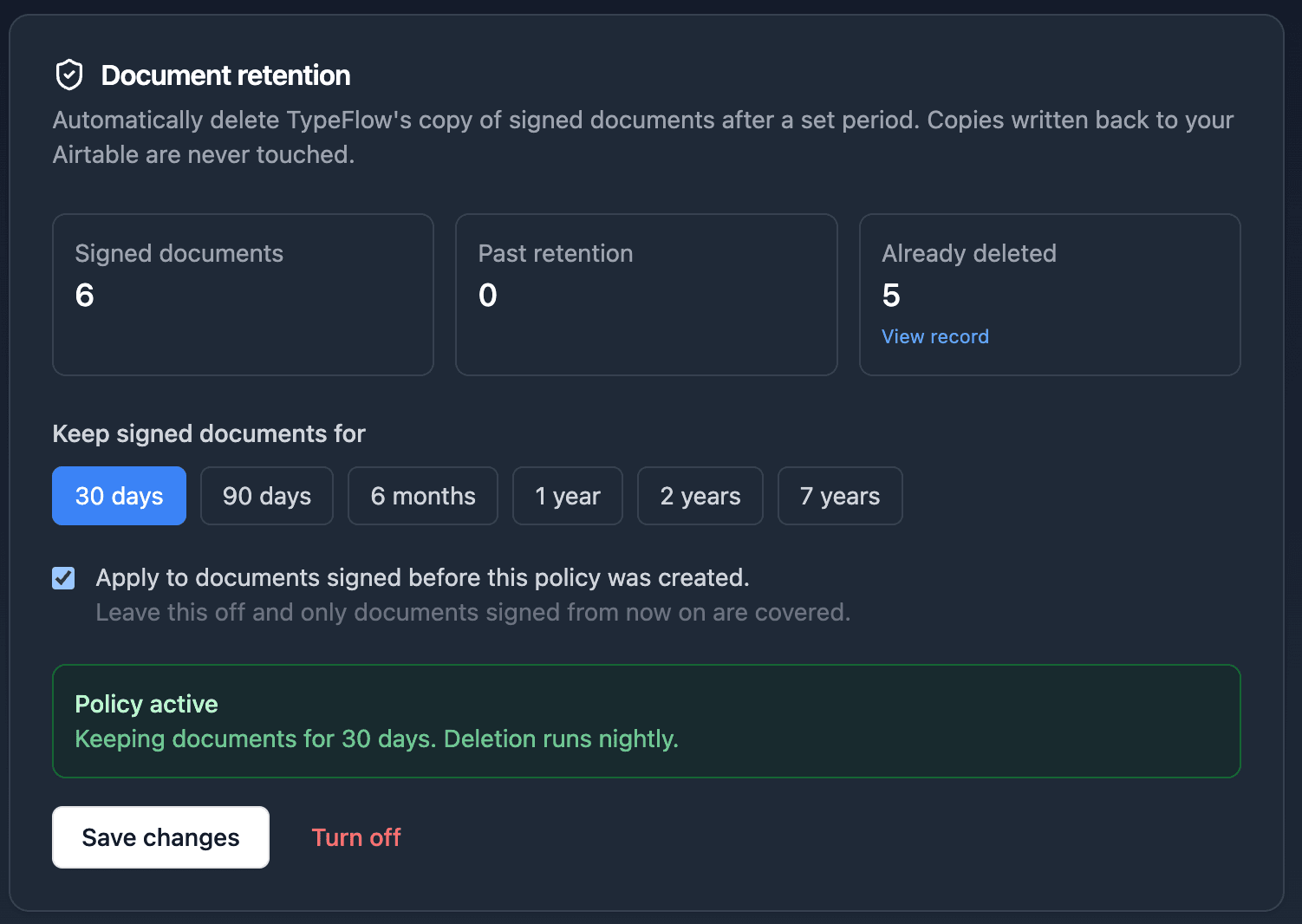
Go to Team settings and find the Document retention card.
-
Read the three counters at the top before doing anything:
- Signed documents - how many completed documents your workspace holds
- Past retention - how many the period you are currently looking at would eventually delete
- Already deleted - how many have been removed under your policy so far
-
Pick a retention period. The "Past retention" counter updates as you change it, so you can see the consequence of each option before committing. A period showing "would remove 40 documents" is a very different decision from one showing 0.
-
Decide on Apply to documents signed before this policy was created:
- Unticked - only documents signed from now on are covered
- Ticked - documents already older than your period are included too
Leaving it unticked is the cautious choice. Ticking it is what makes the "Past retention" number act.
-
Tick the acknowledgement box. Enabling a policy schedules permanent destruction, so TypeFlow asks you to confirm you understand that. You are only asked once, on first activation - changing the period later does not ask again.
-
Click Save changes.
Once live, the card shows a Policy active banner stating the period and that deletion runs nightly. Turn off stops future deletions.
The 30-Day Grace Period
Nothing is deleted for the first 30 days after you enable a policy.
This is deliberate and cannot be shortened. If you pick the wrong period by mistake - 30 days when you meant 30 months - you have a full month to notice and change it before a single document is destroyed.
The card shows the date your policy becomes effective while you are inside the grace period. After that date, the nightly job starts acting on it.
Keep a Document Forever: Legal Hold
Some documents must survive the policy: a contract under dispute, one covered by an audit, anything a lawyer has asked you to preserve.
To protect one:
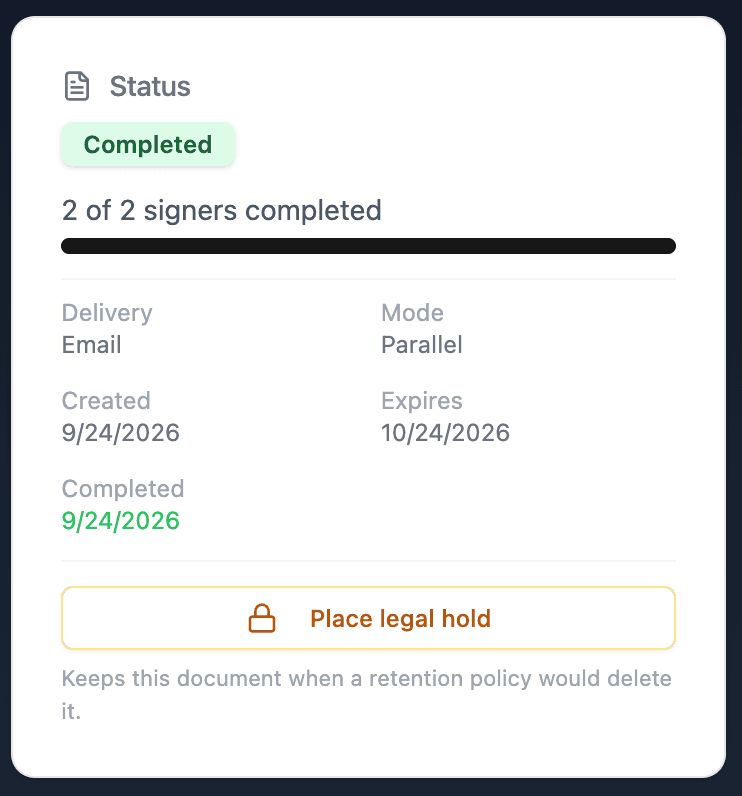
1. Open the signature request in your History. The Status card carries a Place legal hold button.
Not sure which document you need? The audit trail identifies each signature session and who signed it.
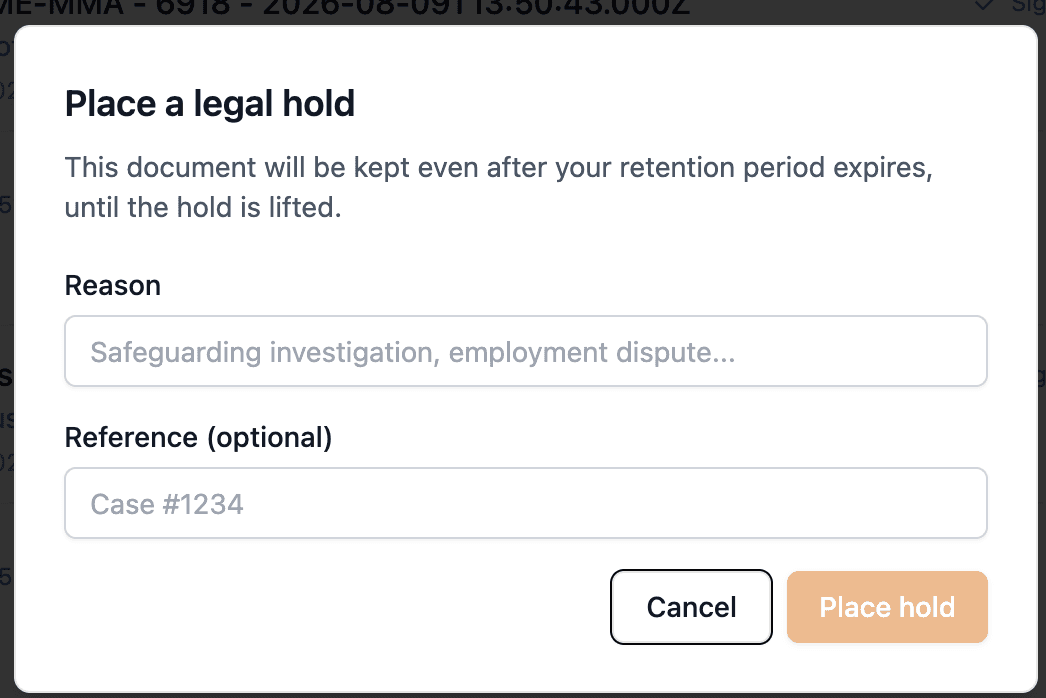
2. Give a reason - a safeguarding investigation, an employment dispute, whatever applies. Add a reference if you have a case number. The reason is stored with the hold, so anyone reviewing later can see why the document was kept.
3. The document is now protected. The Status card shows an On legal hold banner, and Lift hold is how you remove it.
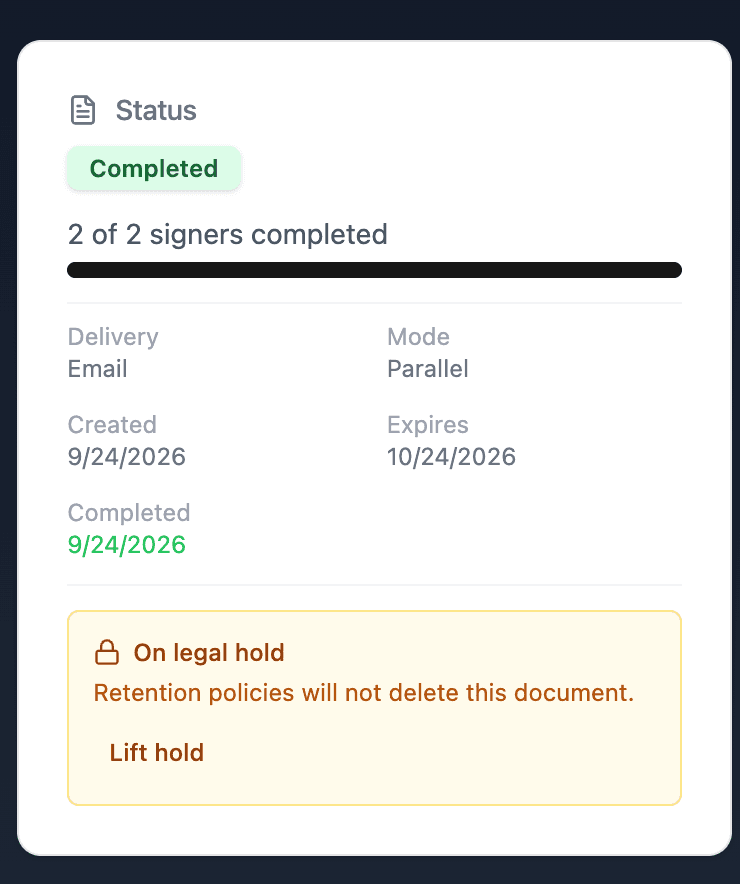
A document on hold is skipped whatever its age. The hold is re-checked in the moment before any deletion, not just when the job is queued, so placing a hold on a document already scheduled for removal still saves it.
Lift the hold and the document becomes eligible again at the next nightly run.
Your Disposal Record
Deleting documents to satisfy a retention obligation is only half the job. You also have to be able to show it happened.
Every deletion writes one row to your disposal record: when the document was signed, when it was deleted, how long it was kept, and which policy version applied. The document itself is gone, so each entry is identified by a one-way hash - nothing in the record can reconstruct a document or reveal its contents.
Open it from the Already deleted counter on the retention card.
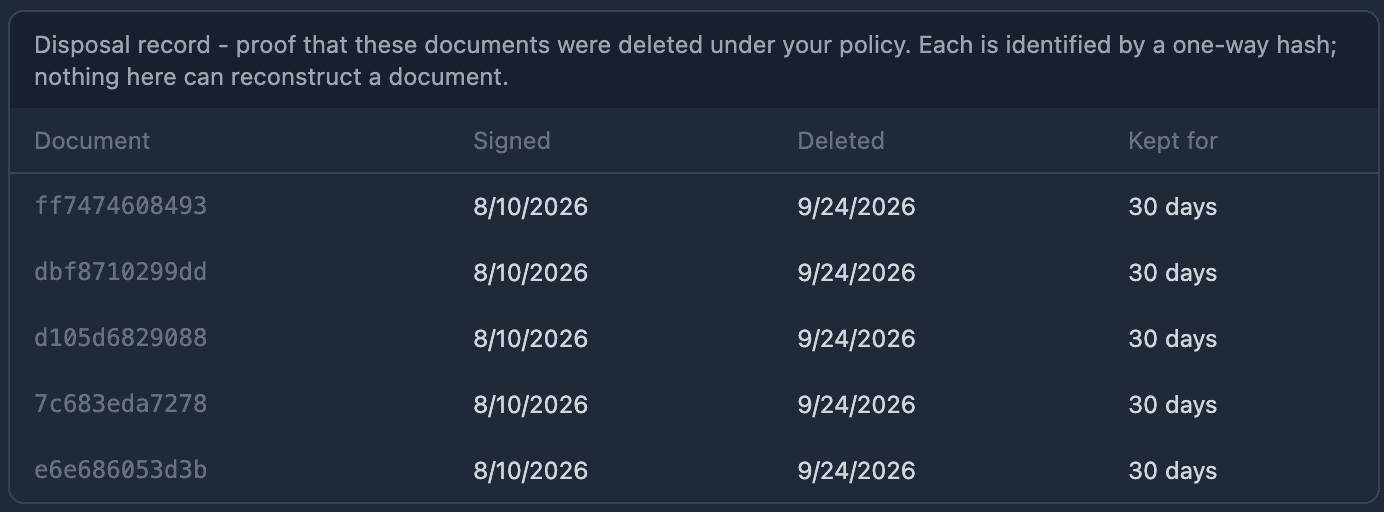
The record outlives the documents. If you are ever asked to evidence your disposal practice, this is the page to show.
For the compliance side of the signatures themselves - ESIGN, UETA and eIDAS - see E-Signature Legal Validity.