E-Signature: Complete Guide
Send documents for electronic signature directly from TypeFlow. Your signers receive an email with a secure link to sign, and you get back a legally compliant signed PDF.
Overview
TypeFlow's e-signature feature allows you to:
- Send documents for signature via email or shareable link
- Support multiple signers with sequential or parallel signing
- Collect different field types: signature, text, date, checkbox
- Track signing progress in real-time
- Receive legally compliant PDFs with a Certificate of Completion
Setting Up E-Signature
Step 1: Open E-Signature Settings
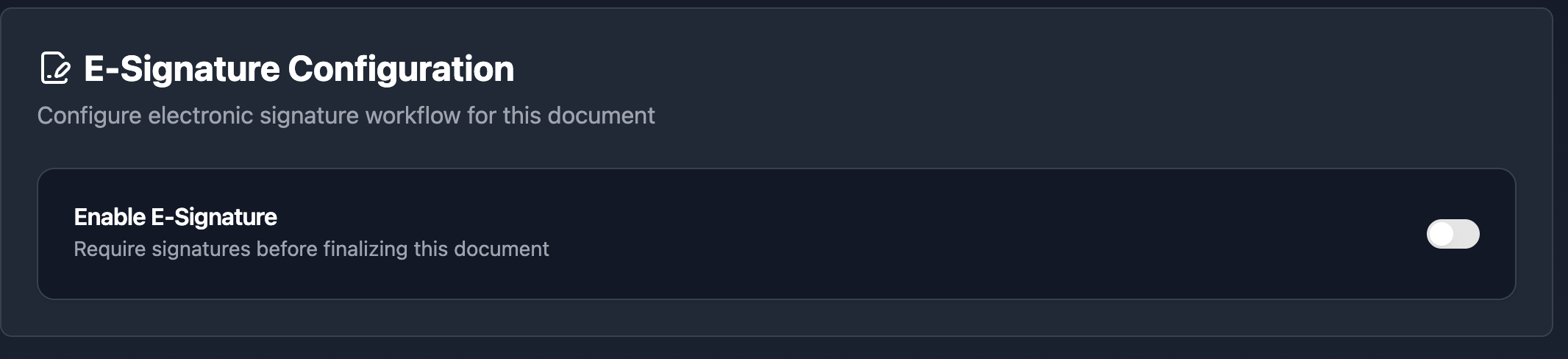
- Open your flow in TypeFlow
- Click the E-Signature tab in the left sidebar
- Toggle Enable E-Signature to ON
Step 2: Configure Basic Settings
| Setting | Description | Options |
|---|---|---|
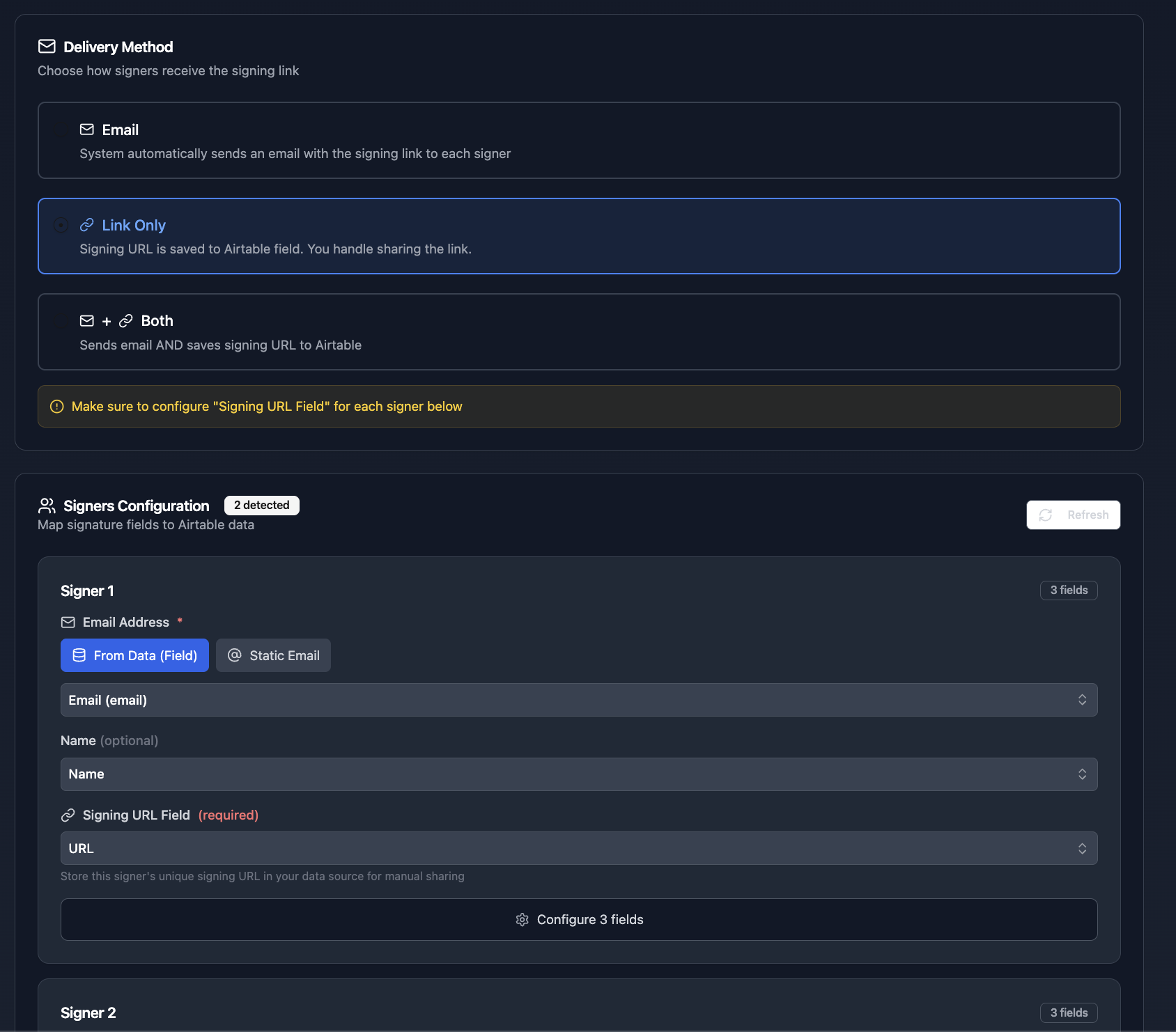
| Signing Mode | How signers receive and complete the document | Parallel: All signers can sign at the same time / Sequential: Signers must sign in order |
| Expiration | How long signing links remain valid | 1-90 days (default: 30 days) |
| Delivery Method | How signers receive their signing link | Email: Automatic email sent / Link only: URL saved to your database / Both: Email + URL saved |
Adding Signature Fields to Your Template
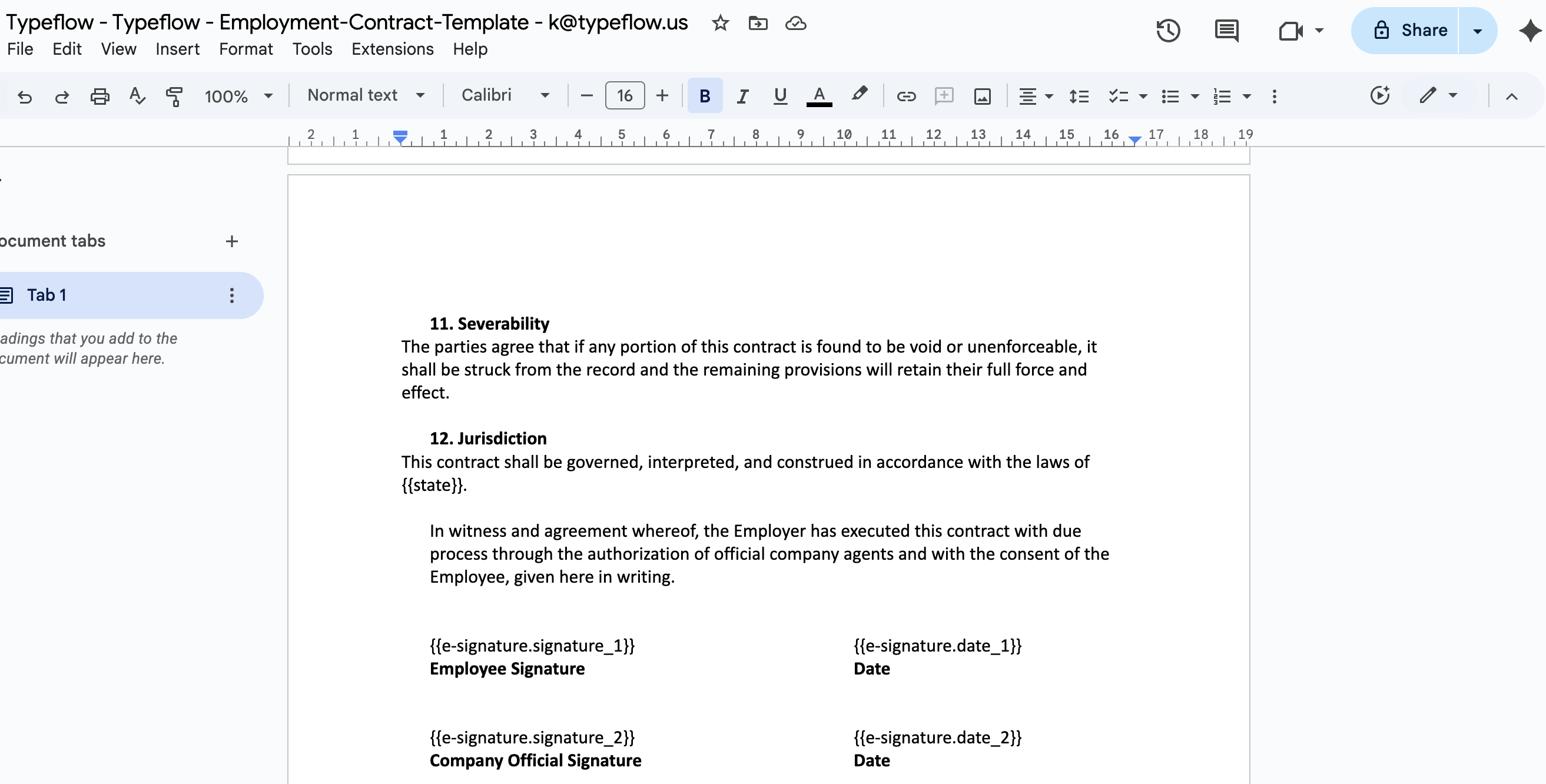
In your document template (Google Doc or HTML), add placeholders where you want signature fields to appear.
Placeholder Format
{{e-signature.TYPE_SIGNERNUMBER_OPTIONALNAME}}
Available Field Types
| Type | Placeholder Example | What the Signer Sees |
|---|---|---|
| Signature | {{e-signature.signature_1}} | Draw or type their signature |
| Text | {{e-signature.text_1}} | Text input field |
| Date | {{e-signature.date_1}} | Date picker (or auto-filled - see below) |
| Checkbox | {{e-signature.checkbox_1}} | Checkbox to confirm |
Example: Contract with 2 Signers
CLIENT SIGNATURE

Signature: {{e-signature.signature_1}}
Full Name: {{e-signature.text_1}}
Date: {{e-signature.date_1}}

---

COMPANY SIGNATURE

Signature: {{e-signature.signature_2}}
Authorized By: {{e-signature.text_2}}
Date: {{e-signature.date_2}}
Tips for Placing Fields
- Place each placeholder on its own line
- Avoid putting placeholders inside tables (can cause positioning issues)
- Use descriptive names:
{{e-signature.text_1}}is clearer than{{e-signature.text_1}}
Auto-Fill Date Fields
You can configure date fields to auto-fill with the signing date instead of showing a date picker popup - no click needed, no wrong date possible.
For the complete guide, see Auto-Fill Date on Signature.
Named Text Fields (Pro Plan)
By default, each signer gets one text field ({{e-signature.text_1}}). Named text fields let you add multiple distinct text inputs per signer - like Print Name, Title, and Company - each with its own label and value.
Pro Plan Feature
Named text fields are available on Pro, Enterprise, and Unlimited plans. Basic fields (signature, text, date, checkbox) remain free for all plans.
Syntax
Add a name after the signer number, separated by an underscore:
{{e-signature.text_SIGNERNUMBER_FIELDNAME}}
Example: Full Signature Block
Signature: {{e-signature.signature_1}}
Print Name: {{e-signature.text_1}}
Title: {{e-signature.text_1_title}}
Company: {{e-signature.text_1_company}}
Date: {{e-signature.date_1}}

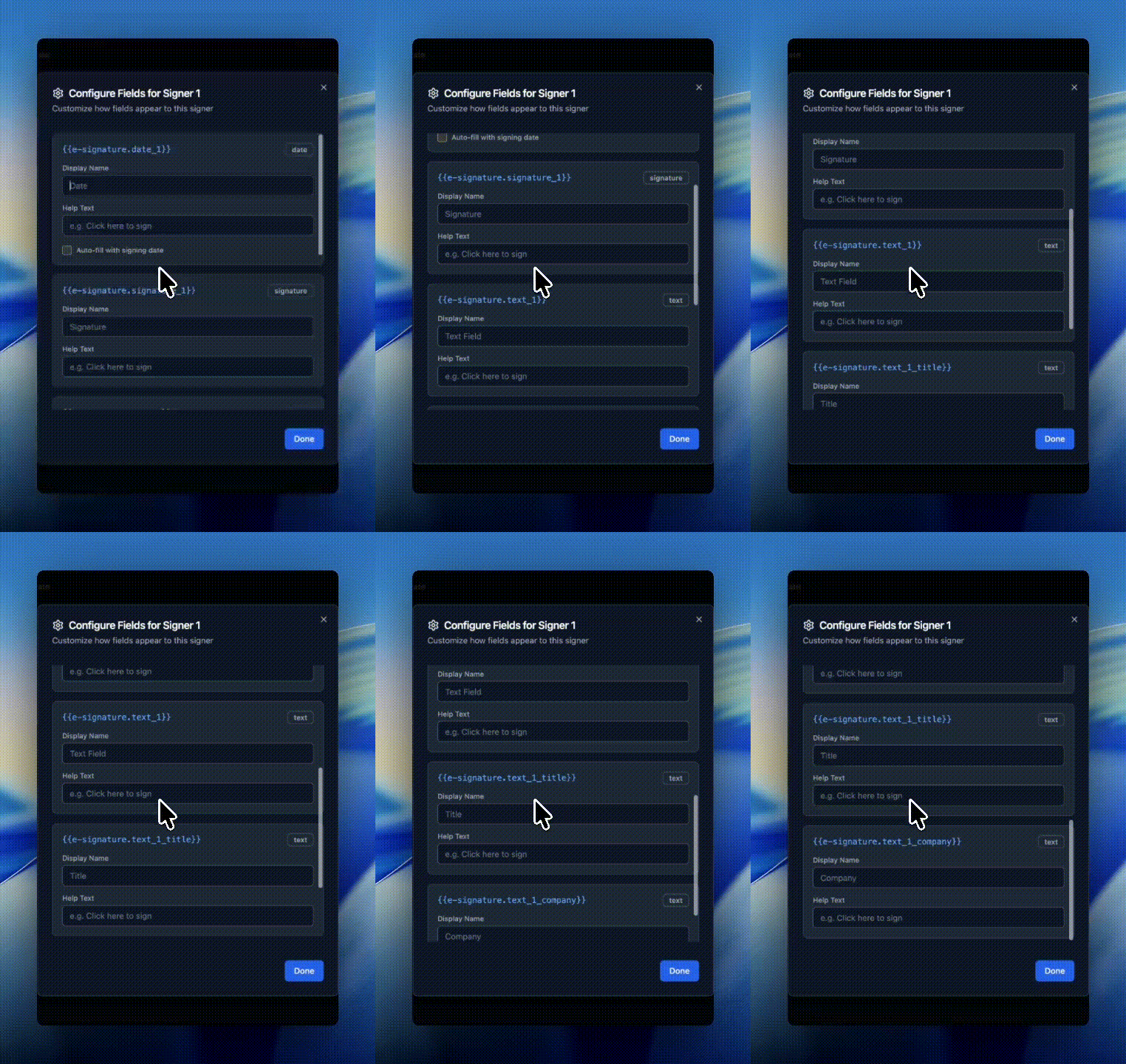
Each named field appears separately on the signing page with an auto-generated label. For example, text_1_title shows as "Title" and text_1_company shows as "Company". You can customize these labels in the field configuration.
Customizing Display Names
- Go to E-Signature settings in your flow
- Click Configure Fields for the signer
- Each named field has a Display Name input - override the auto-generated label if needed
What Non-Pro Users See
If your template contains named text fields but your plan doesn't support them, you'll see a banner in the E-Signature settings. Basic fields still work normally.
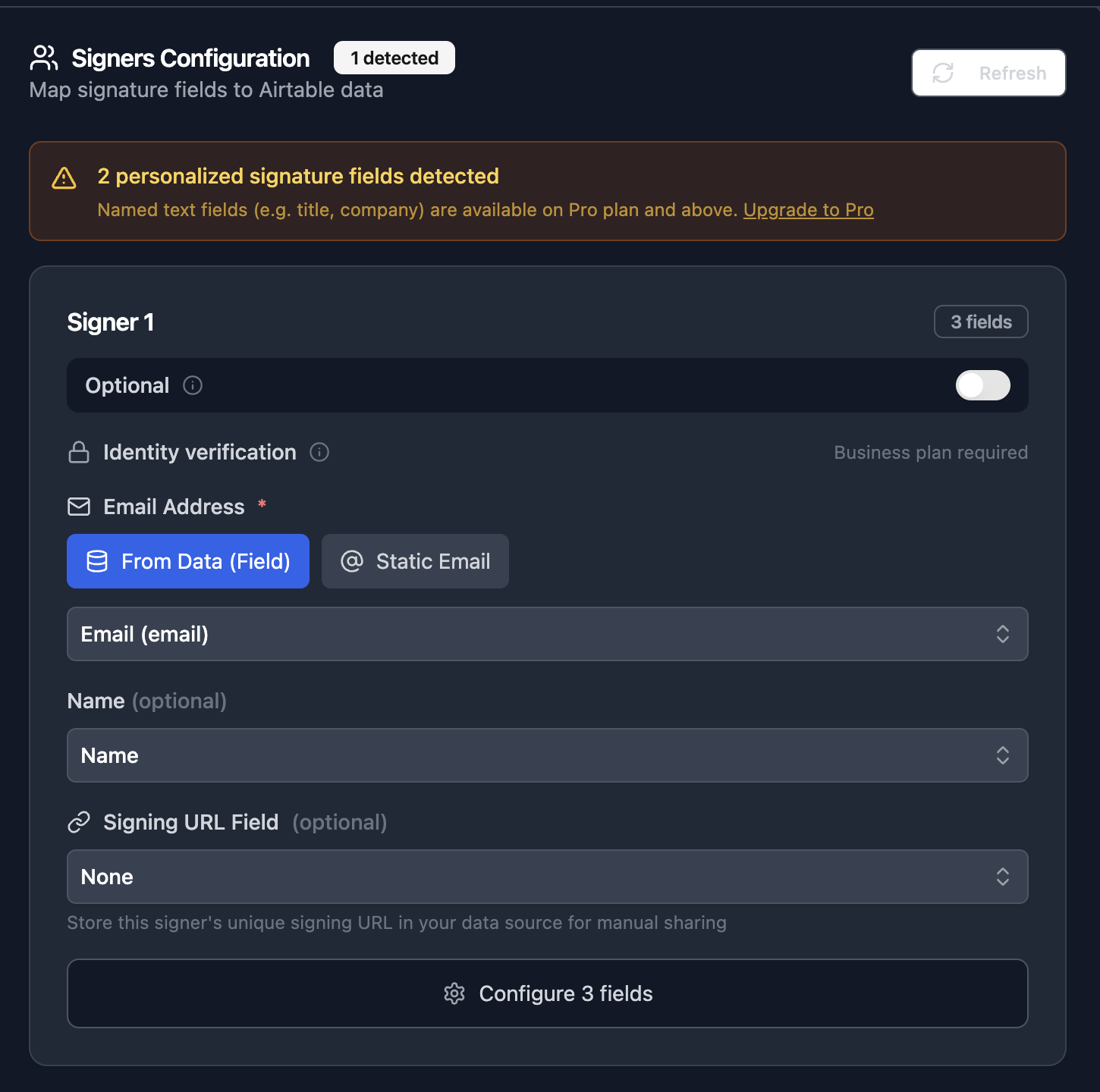
Configuring Signers
In the E-Signature tab, add one or more signers.
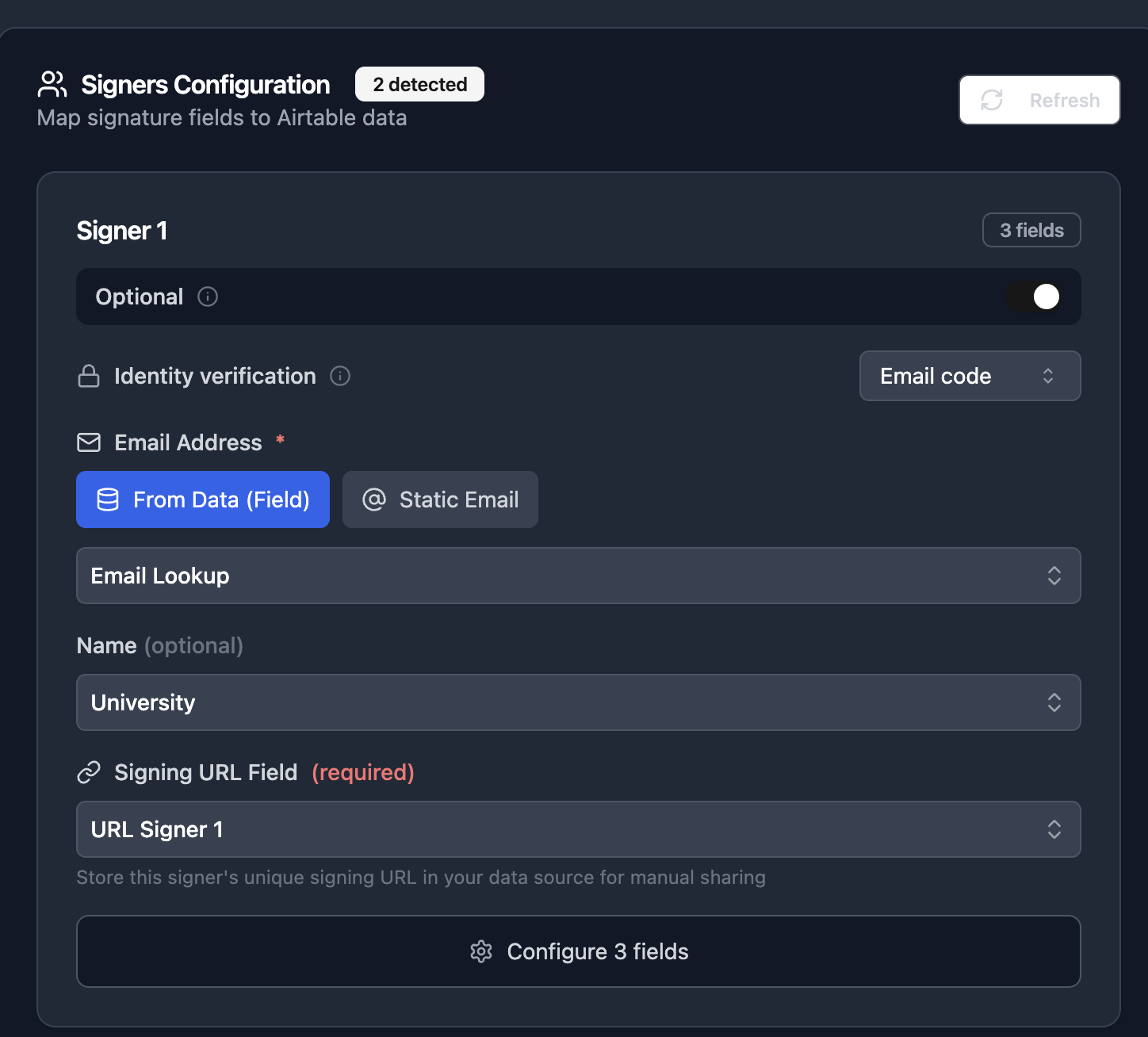
Signer Email Options
| Option | Use When |
|---|---|
| Static Email | The signer is always the same person (e.g., your company representative) |
| From Database Field | The signer varies per record (e.g., customer email from Airtable/Softr) |
Signer Settings
| Setting | Description |
|---|---|
| Name | Display name shown in emails and on the signing page |
| Order | Signing order (only matters for Sequential mode) |
| Signing URL Field | (Optional) Database field to store the signing URL |
Identity Verification (Email Code)
Add an extra layer of security by requiring signers to verify their identity with a 6-digit email code before accessing the document. This prevents unauthorized access even if a signing link is shared or forwarded.
For the complete setup guide, security details, and signer experience, see our dedicated Identity Verification (Email OTP) guide.
Cancel a Signature Request
You can cancel (void) any pending signature request before all signers have completed. This revokes all signing links, voids partial signatures, and lets you regenerate the document with corrected data.
For the full guide, see How to Cancel (Void) a Pending Signature Request.
Reassign a Signer
If a signer receives a document but is not the right person, they can reassign the signing responsibility to someone else directly from the signing page. The new signer receives an invitation with a fresh signing link, and the original link is invalidated.
For the full guide, see How to Reassign a Signing Request to Another Person.
Storing Signing URLs
If you configure a Signing URL Field, TypeFlow will save each signer's unique URL to your database. This is useful for:
- Manually sharing the link if the email doesn't arrive
- Tracking which documents are pending signature
- Building custom dashboards
Signer Experience
Here's what your signers see when they click their signing link.
1. Document View
The signer sees the full PDF with highlighted fields to complete.
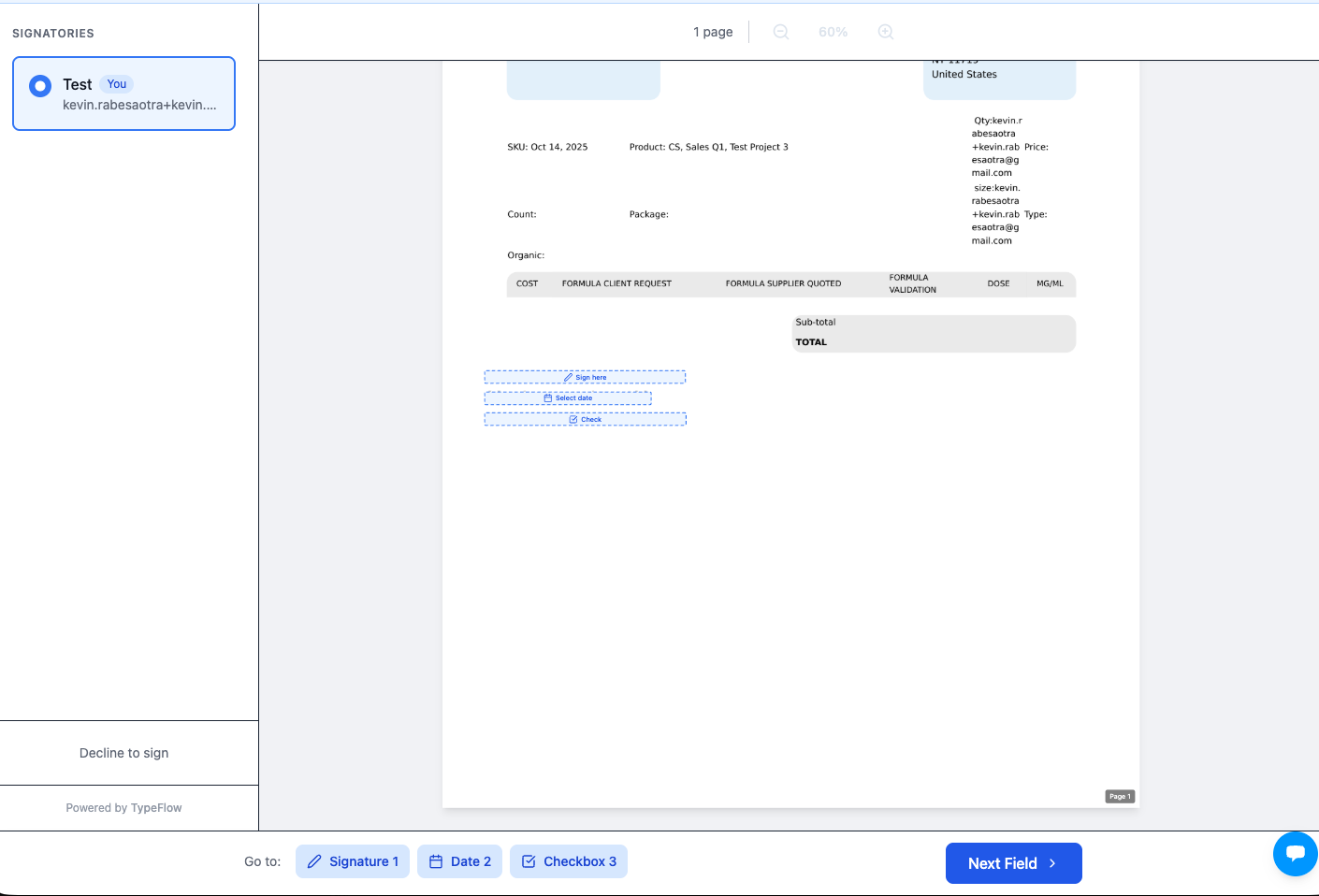
2. Completing Fields
Click any highlighted field to open a modal:
| Field Type | Signer Action |
|---|---|
| Signature | Draw with mouse/finger OR type their name |
| Text | Enter text in input field |
| Date | Select from date picker, or auto-filled if configured |
| Checkbox | Check the confirmation box |
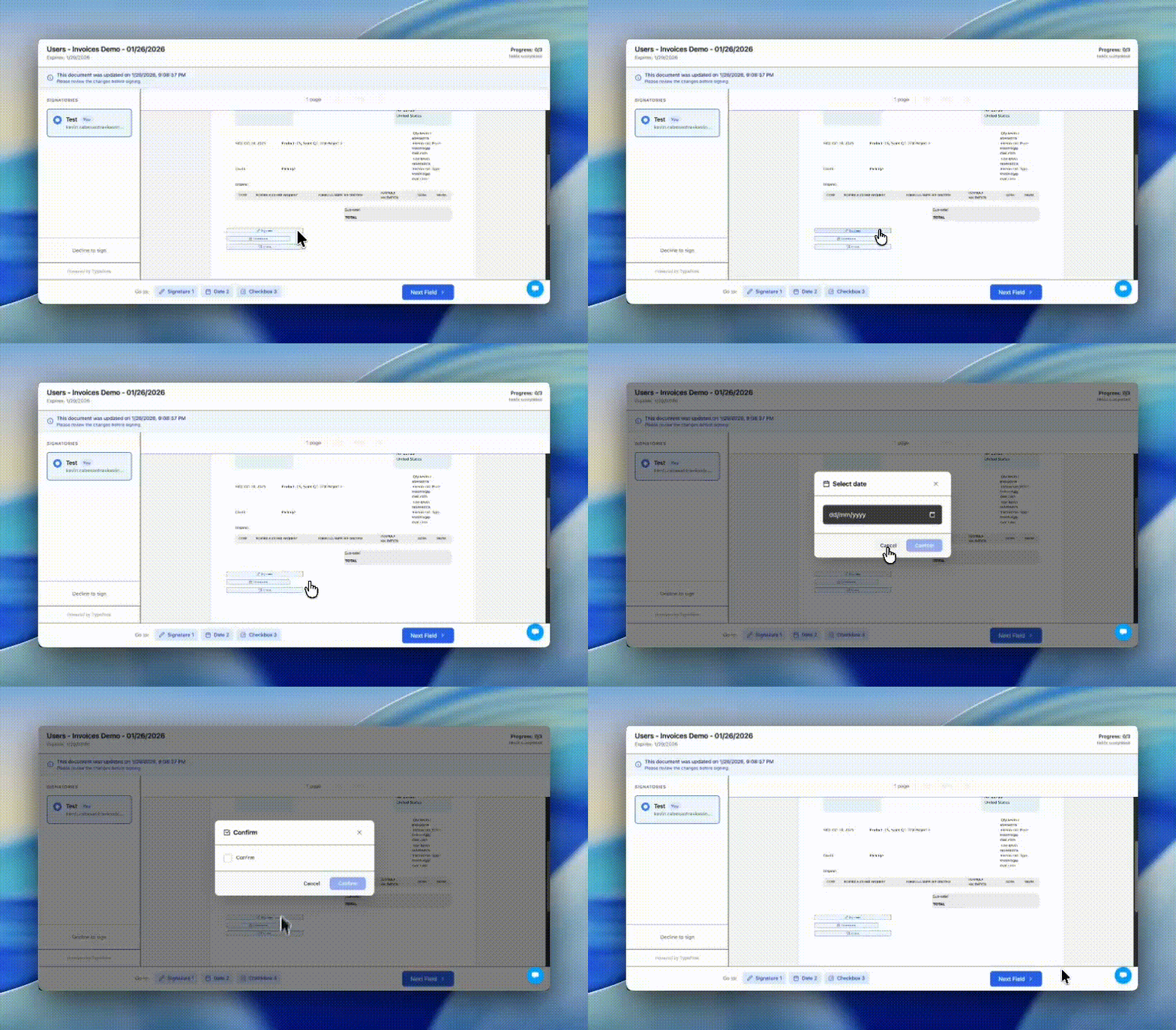
3. Progress Tracking
A sidebar shows:
- Fields already completed (green checkmark)
- Fields still pending
- Overall progress
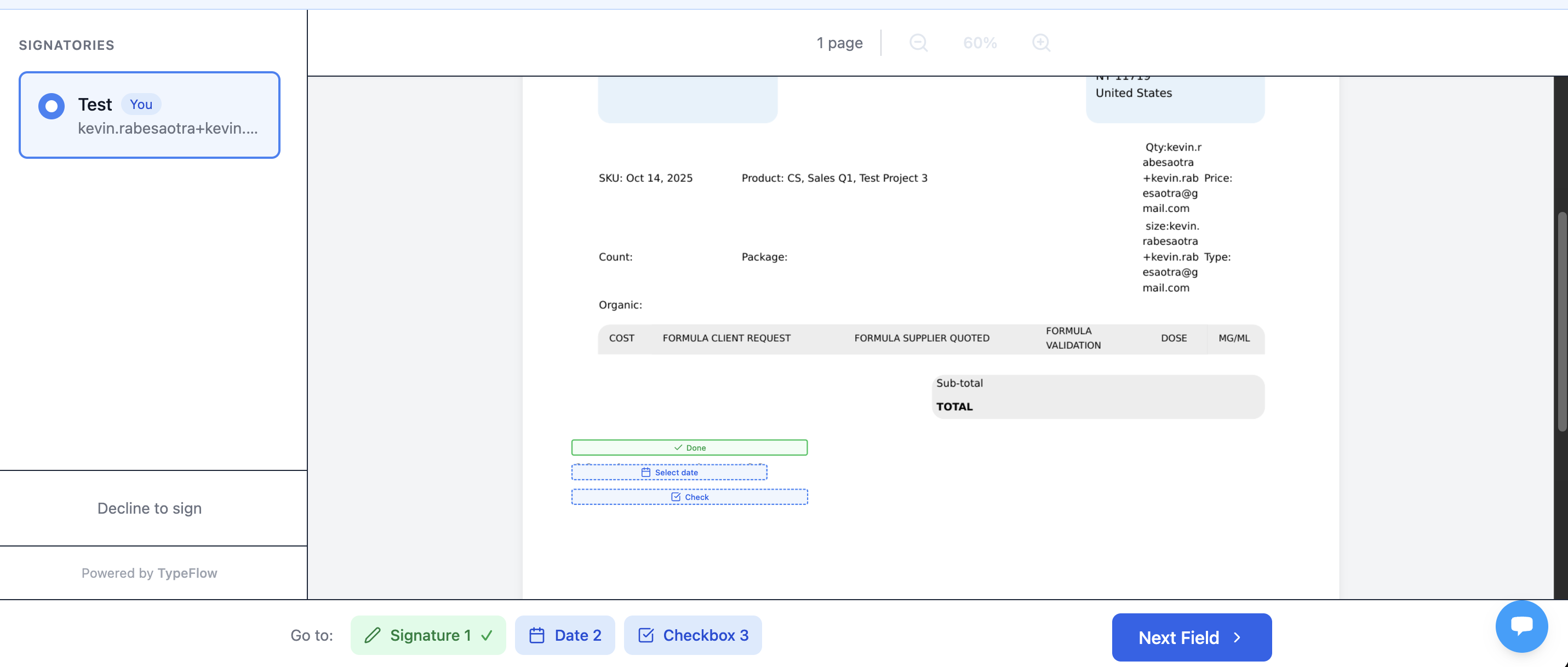
4. Complete Signing
Once all fields are filled:
- Click "Complete Signing"
- See confirmation screen
- Option to download the document
Mobile Support
The signing page is fully responsive. Signers can:
- View documents on any device
- Draw signatures with their finger on mobile/tablet
- Pinch to zoom on the PDF
Required Documents (Pro Plan)
Require signers to upload supporting documents - Photo ID, insurance certificates, licenses - before they can complete signing. Files are saved to your database automatically.
Pro Plan Feature
Required Documents is available on Pro, Scale, and Enterprise plans.
How It Works
- In E-Signature settings, add document requirements (label, instructions, signer, destination field)
- When the signer completes all signature fields, the bottom bar prompts them to upload
- After upload, the "Complete Signing" button appears
- On completion, files are written back to your database
For the full setup guide, signer experience on mobile, and plan limits, see Required Documents: Collect Files from Signers.
Contract Redlining
When a signer doesn't agree with the contract terms, they can suggest changes directly on the document instead of sending emails back and forth.
Scale Plan Feature
Contract Redlining is available on Scale, Enterprise, and Unlimited plans.
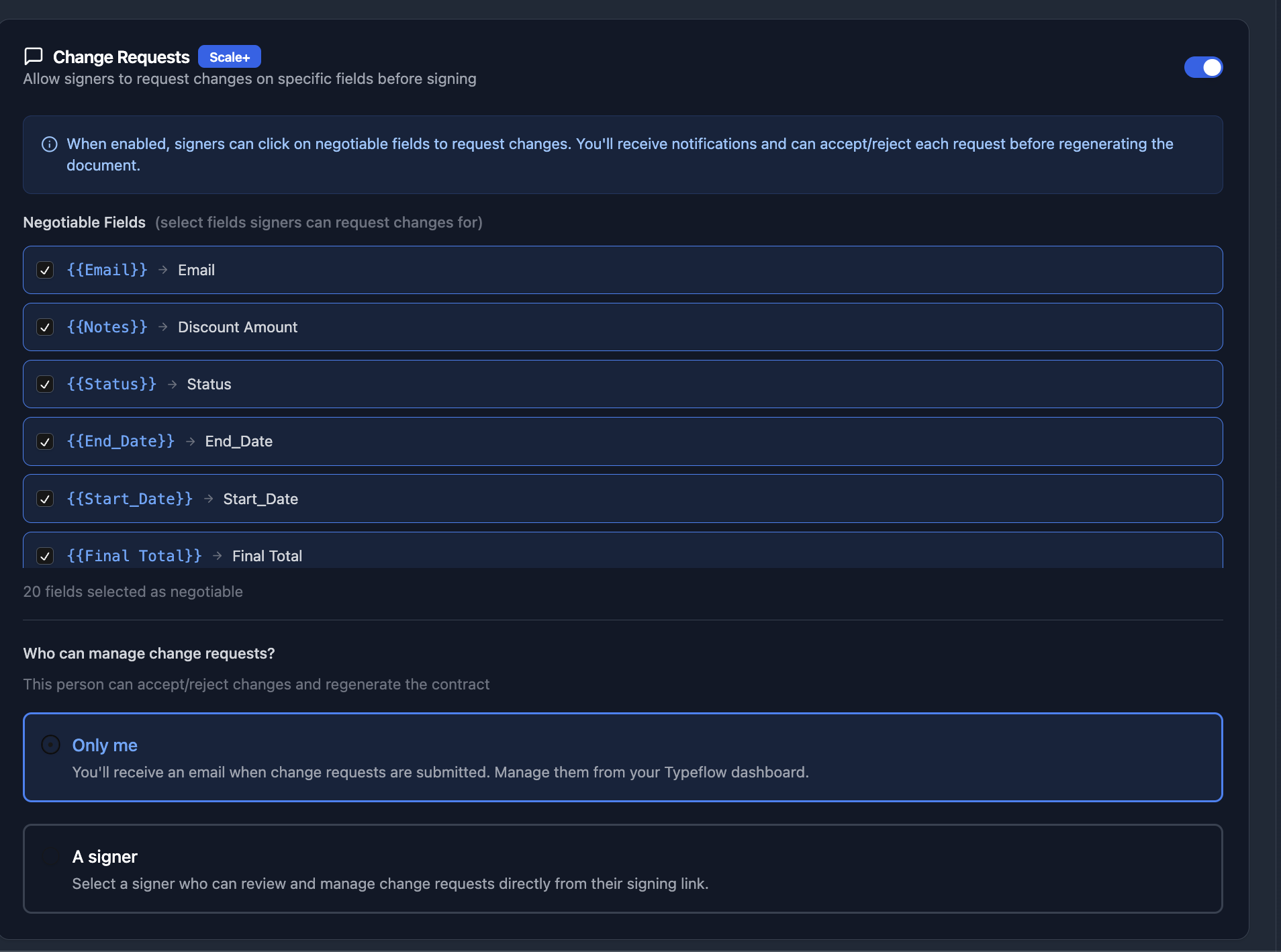
Enabling Contract Redlining
- Open your flow's E-Signature settings
- Toggle "Allow recipients to request changes"
- Select which fields are negotiable (signers can only request changes on these fields)
- Choose who manages change requests: you or a specific signer
Signer Experience
When a signer wants to suggest changes:
- Click "Suggest Edit" on the signing page
- See the document with negotiable fields highlighted in blue
- Click on any highlighted field to add a comment
- Submit the change request
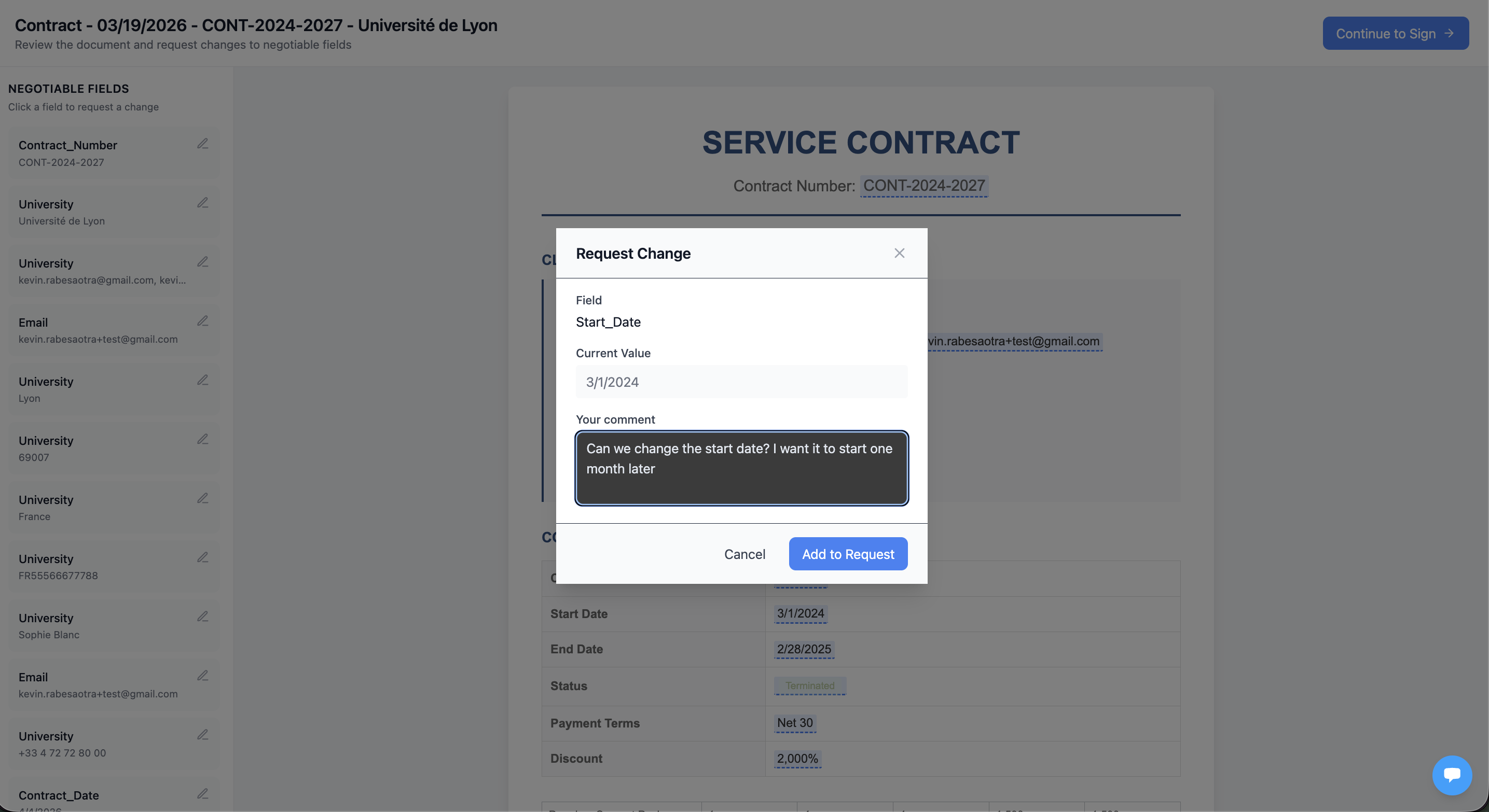
The signer writes a comment explaining what they want (e.g., "We need Net 45 instead of Net 30"). They don't edit the value directly.
Managing Change Requests
When a signer submits changes, the change manager receives an email notification.
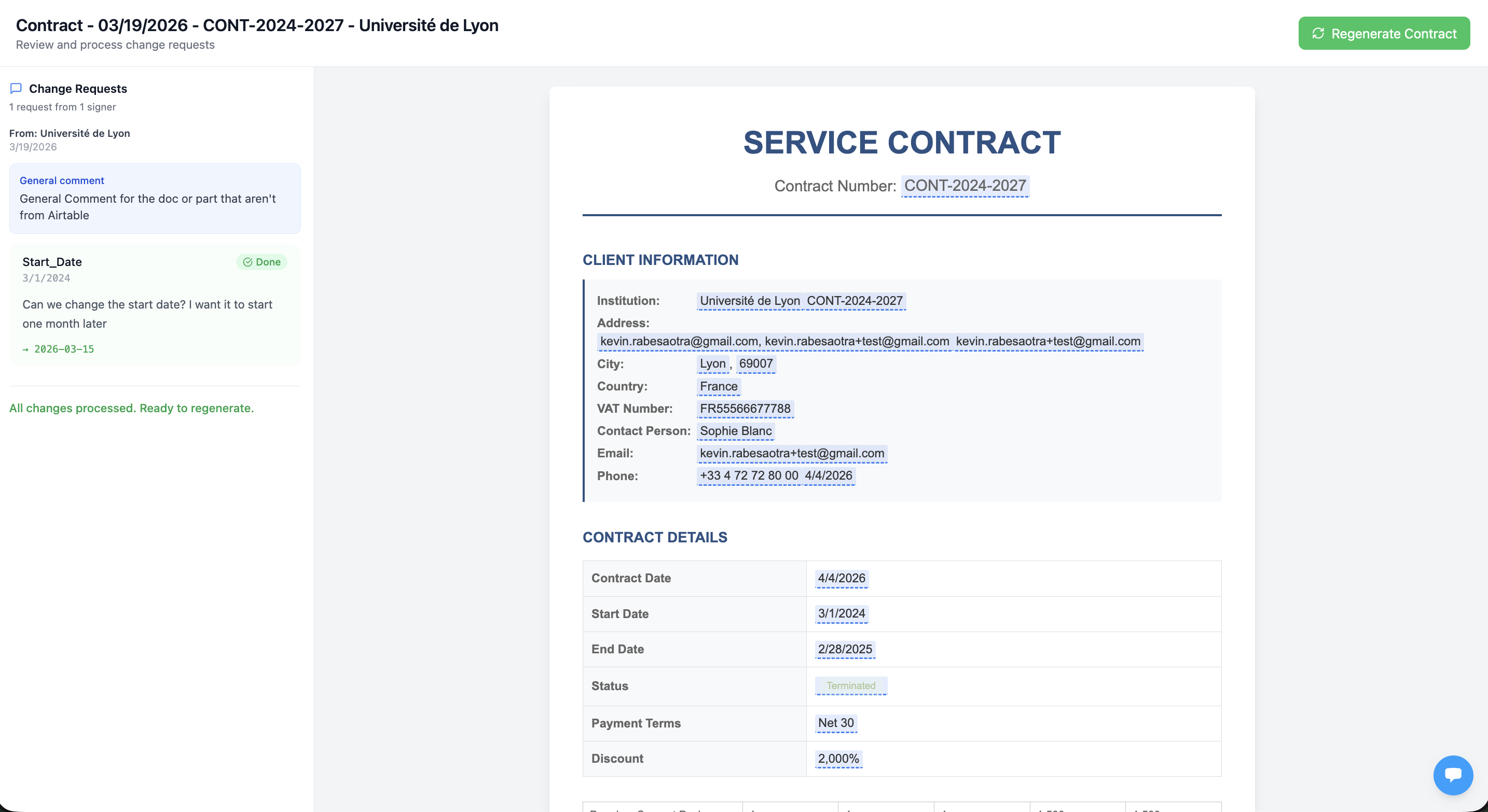
For each change request:
| Action | What Happens |
|---|---|
| Accept | Enter the new value → Airtable updates automatically |
| Reject | Add an optional note explaining why |
Regenerating the Contract
Once all changes are processed:
- Click "Regenerate Contract"
- The contract is regenerated with updated values from Airtable
- All signers receive a notification to review the updated document
- Signers can now sign (or suggest more changes if needed)
Field Types
The change manager sees appropriate input based on field type:
| Field Type | Input |
|---|---|
| Single Line Text | Text input |
| Number / Currency | Number input |
| Single Select | Dropdown with options from Airtable |
| Date | Date picker |
| Linked Record | Search field |
| Formula / Rollup | Read-only (must edit in Airtable) |
Update Field on Completion
You can automatically update an Airtable field when all signers complete a document. This is useful for changing a status to "Signed", triggering the next step in your workflow, or updating a field on a linked record (e.g., setting an Invoice status to "Accepted" when a Quote is signed).
For the full setup guide with examples, see Update Airtable Field When All Signers Complete.
Custom Email Body
Customize the signing invitation email with your own text and Airtable variables. Write your message, and TypeFlow includes the document card and signing button automatically.
For the full setup guide with examples, see How to Customize the E-Signature Invitation Email.
Multi-Account Gmail
Connect multiple Gmail accounts and send signing emails from the right address per record. Pick a fixed account or let TypeFlow choose the sender dynamically from an Airtable field.
For the full setup guide, see How to Send E-Signature Emails from Multiple Gmail Accounts.
Signing Language
Display the signing page, consent text, and all emails in your signer's language. TypeFlow supports English, French, and German.
For the full setup guide, see How to Send E-Signature Emails in French, German, or English.
After Signing is Complete
When all signers have signed:
1. Final PDF Generated
- All signatures and field values embedded in the PDF
- Certificate of Completion page added
- SHA-256 hash calculated for document integrity
2. Database Updated
- Signed PDF uploaded to your specified attachment field
- Field values (text, date, checkbox) mapped to your database fields
3. Notifications Sent
- All signers receive a completion email with the signed PDF attached
4. Webhooks Triggered
If configured, a webhook fires with:
- Document name and URL
- Signer details
- All field values
Signature ID Badge
Every signature on the signed PDF includes a visible identification badge directly below it, similar to DocuSign. This badge provides instant traceability without needing to scroll to the Certificate of Completion.
What the Badge Shows
Each signature displays three lines of metadata:
| Line | Content | Example |
|---|---|---|
| Label | "Signed by:" in blue-gray | Signed by: |
| Signer name | Full name of the signer | Alexander Andersen |
| Signature ID | First 16 characters of the unique signature field ID | BDB0032A2002486E... |
[screenshot: signed PDF showing signature with ID badge below it]
How the Signature ID Works
The Signature ID is a unique identifier tied to this specific signature on this specific document. It links the visible signature to the full signing event in TypeFlow's database, including:
- When the document was viewed and signed
- The signer's IP address, location, and browser
- The document's SHA-256 integrity hash
This means anyone viewing the PDF can verify a signature by referencing its ID - without needing access to TypeFlow.
Badge on Preview PDFs
When multiple signers are involved (sequential signing), subsequent signers see previous signatures with their badges already in place. This builds confidence that earlier signers have completed their part.
Certificate of Completion
Every signed document includes a Certificate of Completion page with:
| Information | Description |
|---|---|
| Document Info | Name, ID, creation and completion dates |
| Signer Details | For each signer: signature image, name, email, timestamp |
| Audit Trail | IP address, location, browser, time spent viewing |
| Legal Statement | Compliance with ESIGN Act, UETA, eIDAS |
| Document Hash | SHA-256 hash for integrity verification |
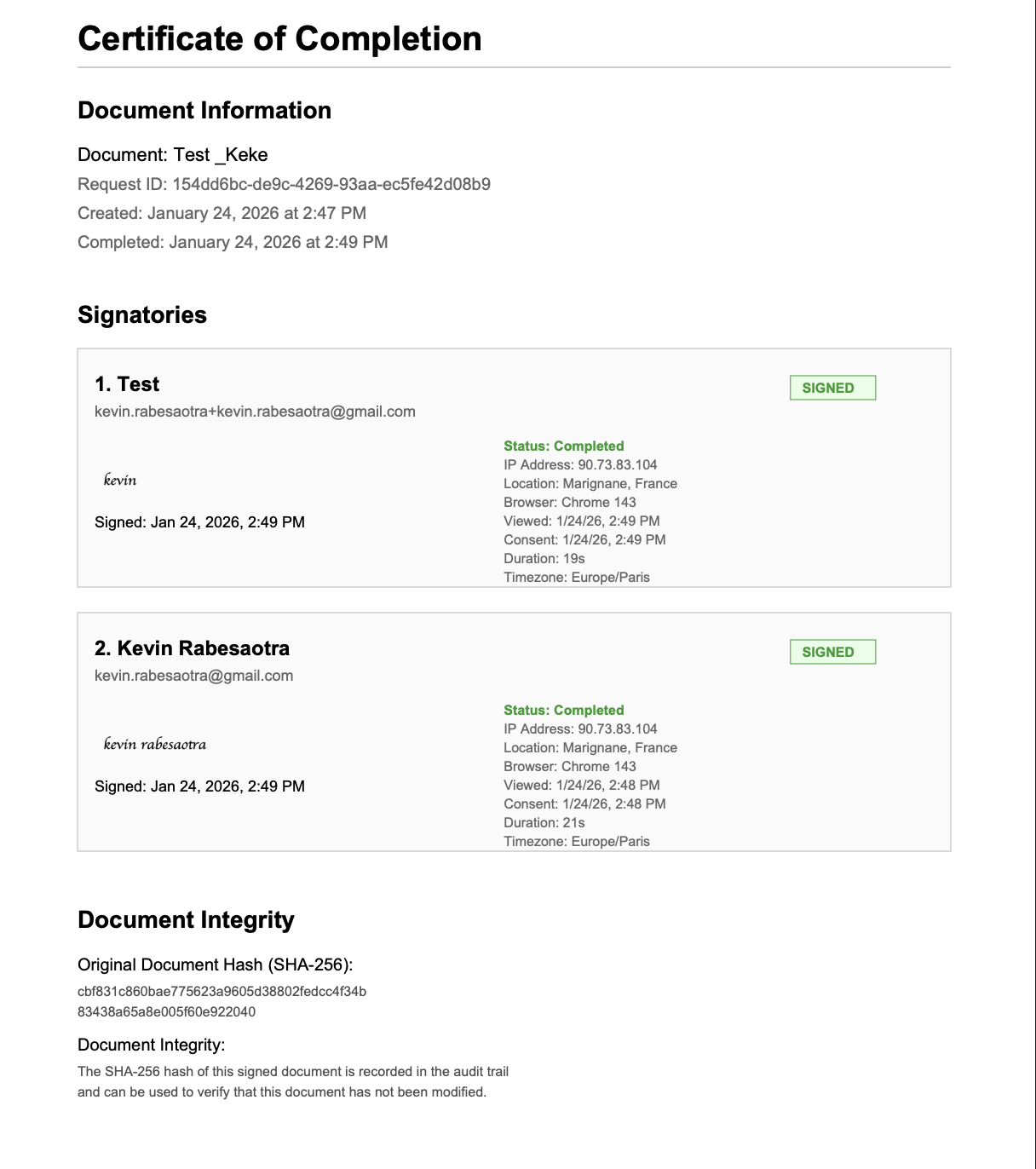
This certificate provides legal evidence that the document was signed electronically.
On the Pro plan, the certificate is translated to your flow's signing language (French or German). You can also deliver it as a separate file instead of embedding it in the signed PDF. See How to Deliver the Certificate as a Separate File.
Test Mode
Before going live, test your e-signature flow.
How to Use Test Mode
- Click "Test" in the flow builder (instead of triggering a real automation)
- A test document is generated
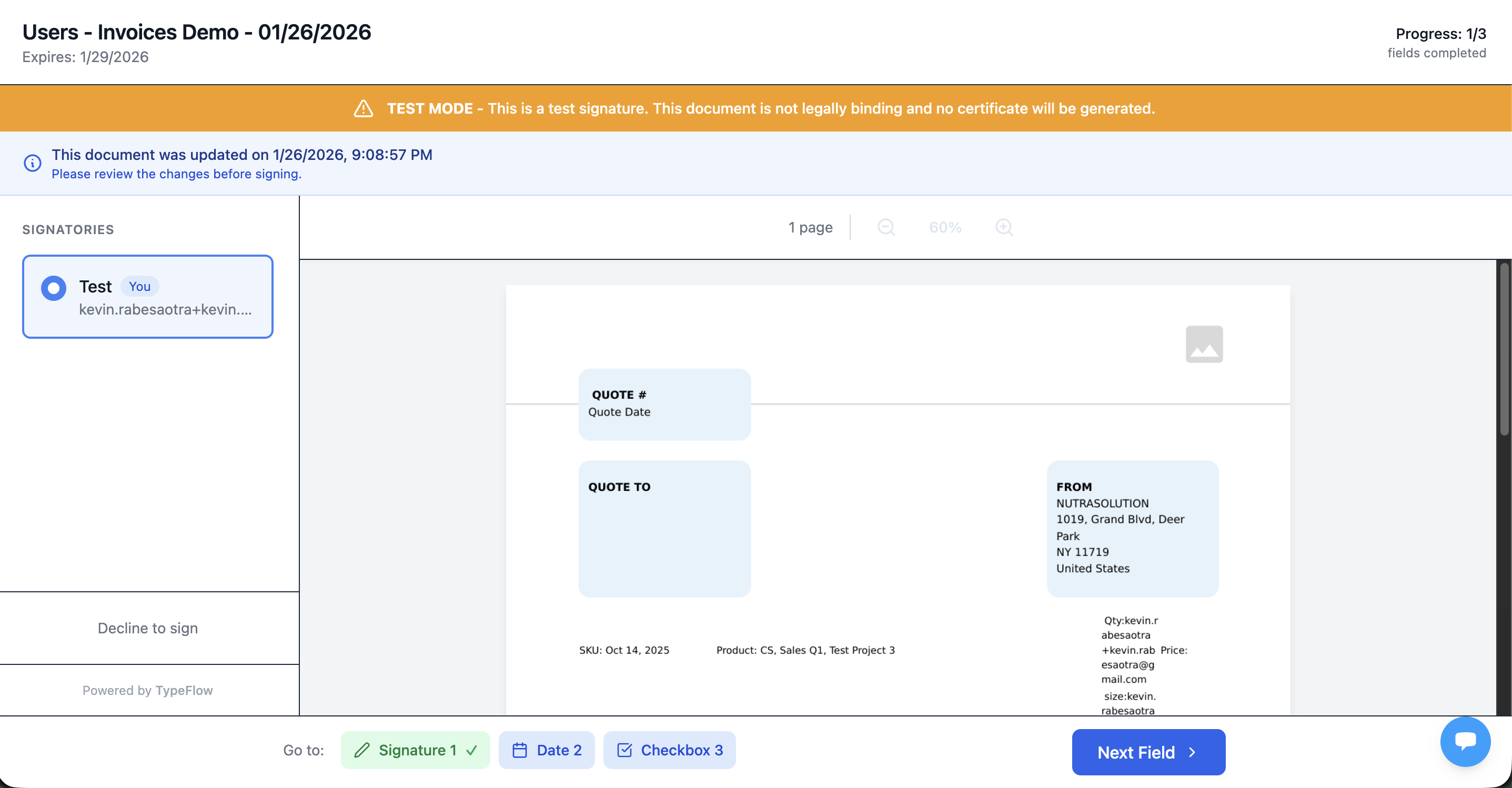
- Signing works normally, but:
- An orange "TEST MODE" banner appears
- No Certificate of Completion is generated
- The document is not legally binding
Test to Production
If you test a document, then regenerate it in production mode (same record):
- The same signing URL remains valid
- Test mode banner disappears
- Certificate will be generated upon completion
FAQ
Can signers sign on mobile?
Yes! The signing page is fully responsive. Signers can draw signatures with their finger on any mobile device or tablet.
What if a signer doesn't receive the email?
Check the spam folder. You can also copy the signing URL from your database (if configured) and send it manually.
Can I update the document after sending?
Yes. Regenerate the document for the same record. Signers keep their same URL but will see the updated document and need to re-sign.
What happens if a signer declines?
The entire session is marked as declined. All signers are notified, and no one can sign further.
How long are signing links valid?
Default is 30 days. Configure this in E-Signature settings (1-90 days).
Is this legally binding?
Yes. TypeFlow e-signatures comply with:
- US: ESIGN Act, UETA
- EU: eIDAS Regulation (Simple Electronic Signature)
What are named text fields in e-signatures?
Named text fields let you add multiple distinct text inputs per signer - like Print Name, Title, and Company. Use the format {{e-signature.text_1_title}} where "title" is the field name. Available on Pro plan and above.
Can I have multiple signature flows for the same record?
Yes. Each flow creates a separate signature session. For example, you can have a "Sales Contract" flow and an "NDA" flow for the same client.
Troubleshooting
| Issue | Solution |
|---|---|
| "Link expired" | Regenerate the document or increase expiration days in settings |
| "Not your turn" | Previous signer must complete first (Sequential mode only) |
| Signature not appearing in final PDF | Ensure placeholder is on its own line, not inside a table |
| Email not received | Check spam folder, verify email address is correct |
| Wrong date/time in certificate | This is captured from the signer's browser timezone - it's correct for them |
Related Articles
Update Airtable Field When All Signers Complete
Automatically update a status, check a box, or trigger the next workflow step when signing is complete.
Separate Certificate: Keep Signed Contracts Clean
Deliver the Certificate of Completion as a separate PDF in a dedicated Airtable field.
Signing Language: French, German, or English
Set the signing page, emails, and consent text in your signer's language.
Multi-Account Gmail: Send from the Right Address per Record
Connect multiple Gmail accounts and choose the sender dynamically from an Airtable field.
Saved Signatures: Reuse Your Signature Across Documents
Save your signature once and apply it to future documents with one click.
Email Preferences: Control Which Emails Signers Receive
Configure email notifications per signer or let signers manage their own preferences.
E-Signature Legal Validity
Learn about ESIGN Act, UETA, eIDAS compliance and why TypeFlow e-signatures are legally binding.
Required Documents: Collect Files from Signers
Require Photo ID, insurance, or license uploads during e-signature. Files saved to your database automatically.
Linked Fields: Fill Once, Copy to All Occurrences
Control whether repeated e-signature fields are filled once and copied everywhere, or completed separately at each location.
Need More Help?
- Email: support@typeflow.us
- Chat: Click the chat icon in the app
Not using TypeFlow yet? Learn more about E-Signature →