How to Create Construction Quotes Directly from Airtable
Generate construction quotes from Airtable by connecting your project data to a template and producing a branded PDF in seconds. Structure your base with Clients, Materials/Labor, Quotes, and Line Items tables, then use TypeFlow to map fields to a Google Docs template or the built-in HTML/CSS template builder. This guide covers the complete setup - from base structure to automated generation with e-signatures.
Generate construction quotes from Airtable in minutes
Use Google Docs templates or the HTML/CSS builder, add line items, include e-signatures. No coding required.
Start free with 20 documentsWhat Is an Airtable Construction Quote
An Airtable construction quote is a PDF document generated from project data stored in linked tables. You structure your base with tables for Clients, Projects, Line Items (materials and labor), and Quotes. TypeFlow connects your data to a template and produces the finished PDF.
Construction quotes differ from standard sales quotes. They include materials, labor rates, project scope, and often markup or contingency percentages. According to McKinsey, construction productivity has been flat for decades partly because of manual administrative processes like quoting. Airtable handles this complexity with linked records and formula fields.
You have two template options:
- Google Docs. Add merge variables to a document you already know. Best if your team uses Google Workspace.
- TypeFlow HTML/CSS template builder. Design quotes with full layout control. Better for complex multi-section quotes or teams that do not use Google Docs.
Why Automate Construction Quotes With Airtable
According to FMI's construction productivity research, construction professionals spend 35% of their time on non-productive activities including document creation. Manual quote creation costs construction teams 5-10 hours per week. You copy client details from one place, paste line items from another, and hope nothing was missed. Errors slip through. Formatting breaks. Every quote looks different.
- Reduce errors. Data pulls directly from Airtable fields - no more typos from copy-paste.
- Save time. Generate quotes in seconds instead of hours.
- Keep branding consistent. Use the same template for every quote.
- Track quote status. See which quotes are sent, pending, or accepted right in Airtable.
What You Will Need Before Starting
- An Airtable account with a base for your construction projects (Pro or Team plan for automations).
- A Google account to create your quote template, or use TypeFlow's HTML/CSS builder.
- A TypeFlow account to connect Airtable to your template.
Step 1: Set Up Your Airtable Base for Construction Quotes
Four linked tables form the foundation. If your data is organized well, quote generation is straightforward.
Clients Table
One record per client. Include client name, company, email, phone, billing address, and site address. Link each client to their projects and quotes so you see the full history in one place.
Materials and Labor Table
Your catalog of services and supplies. Each record represents something you quote from. Include item name, description, unit (hours, square feet, each), unit price, and category (material or labor).
Quotes Table
Each record is one quote. Include quote number, quote date, expiration date, client (linked to Clients table), status (Draft, Sent, Accepted, Declined, Expired), total, and notes.
Quote Line Items Table
Each row is one line on the quote. Link to both the Materials and Labor table and the Quotes table. Add quantity and a formula field for line total (quantity x unit price).
| Field Name | Field Type | Example |
|---|---|---|
| Item | Link to Materials and Labor | Framing - Labor |
| Quantity | Number | 40 |
| Unit Price | Lookup | $75.00 |
| Line Total | Formula | $3,000.00 |
| Quote | Link to Quotes | CQ-2024-015 |
Step 2: Build Your Construction Quote Template
Design your quote layout once. TypeFlow fills in the details from each record.
If using Google Docs, add merge variables wrapped in double curly brackets: {{client_name}}, {{quote_number}}, {{site_address}}.
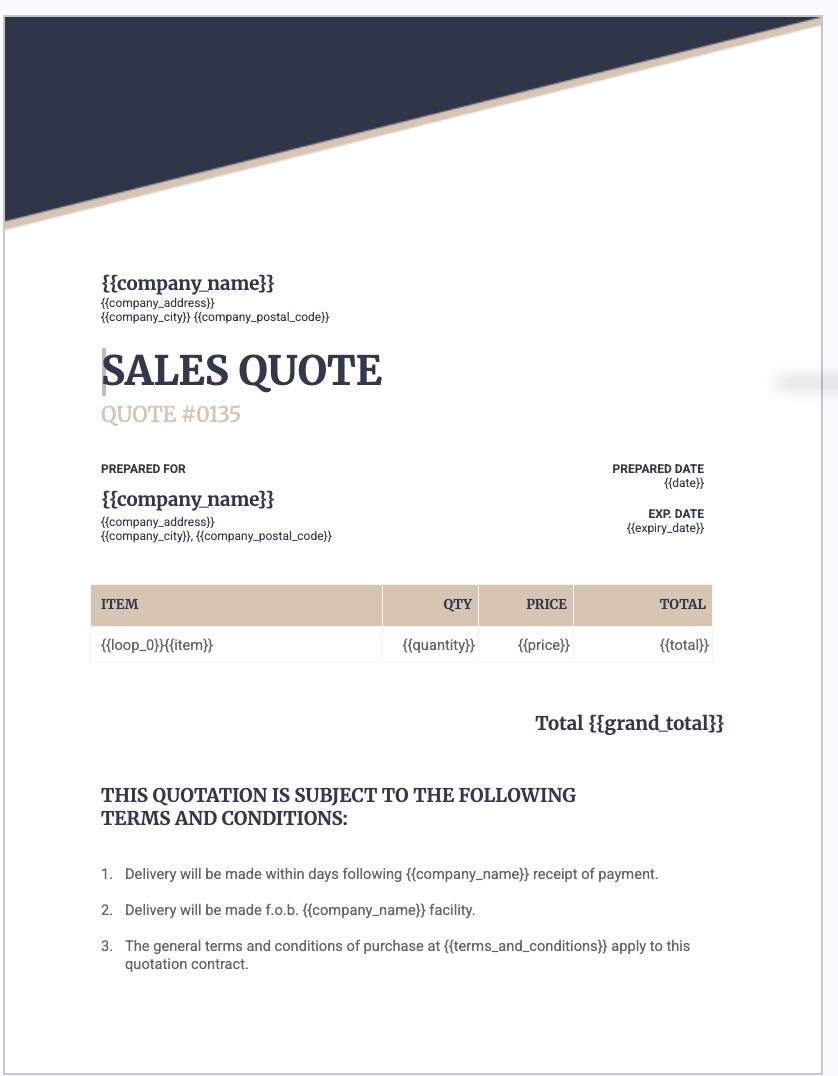
A construction quote typically includes:
- Company logo and contact information at the top.
- Client details and site address.
- Project scope description.
- Itemized line items in a table format (Description, Quantity, Unit Price, Line Total).
- Subtotal, markup, and total.
- Terms and conditions at the bottom.
TypeFlow repeats the line item row for each record in your Quote Line Items table. You design the row once.
Step 3: Connect TypeFlow to Your Airtable Base
Sign in to TypeFlow and select your Airtable base. Authorize access so TypeFlow can read your tables and fields. The setup takes about two minutes.
Step 4: Configure Your Quote Generation Flow
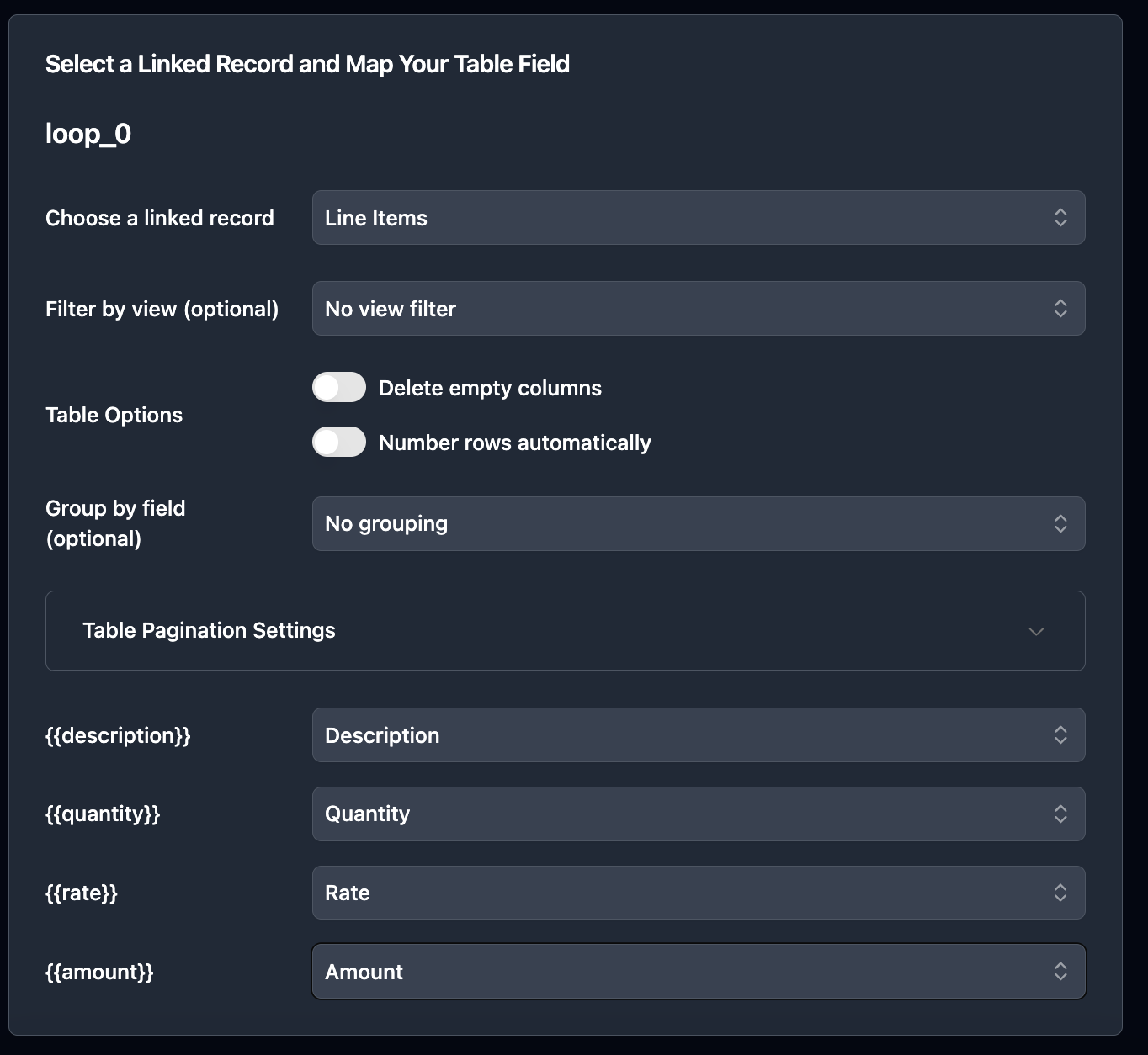
Match each placeholder in your template to the correct Airtable field. {{client_name}} maps to the Client Name field, {{quote_number}} maps to Quote Number.
For line items, select the Quote Line Items table and map each column to the template table row. TypeFlow handles repetition automatically - five line items means five rows in the PDF.

Optional settings:
- Custom filename. Use
Quote-{{quote_number}}-{{client_name}}.pdffor clear file names. - Output folder. Choose a Google Drive folder to store generated quotes.
Step 5: Generate and Automate Your Quotes
Three ways to trigger quote generation:
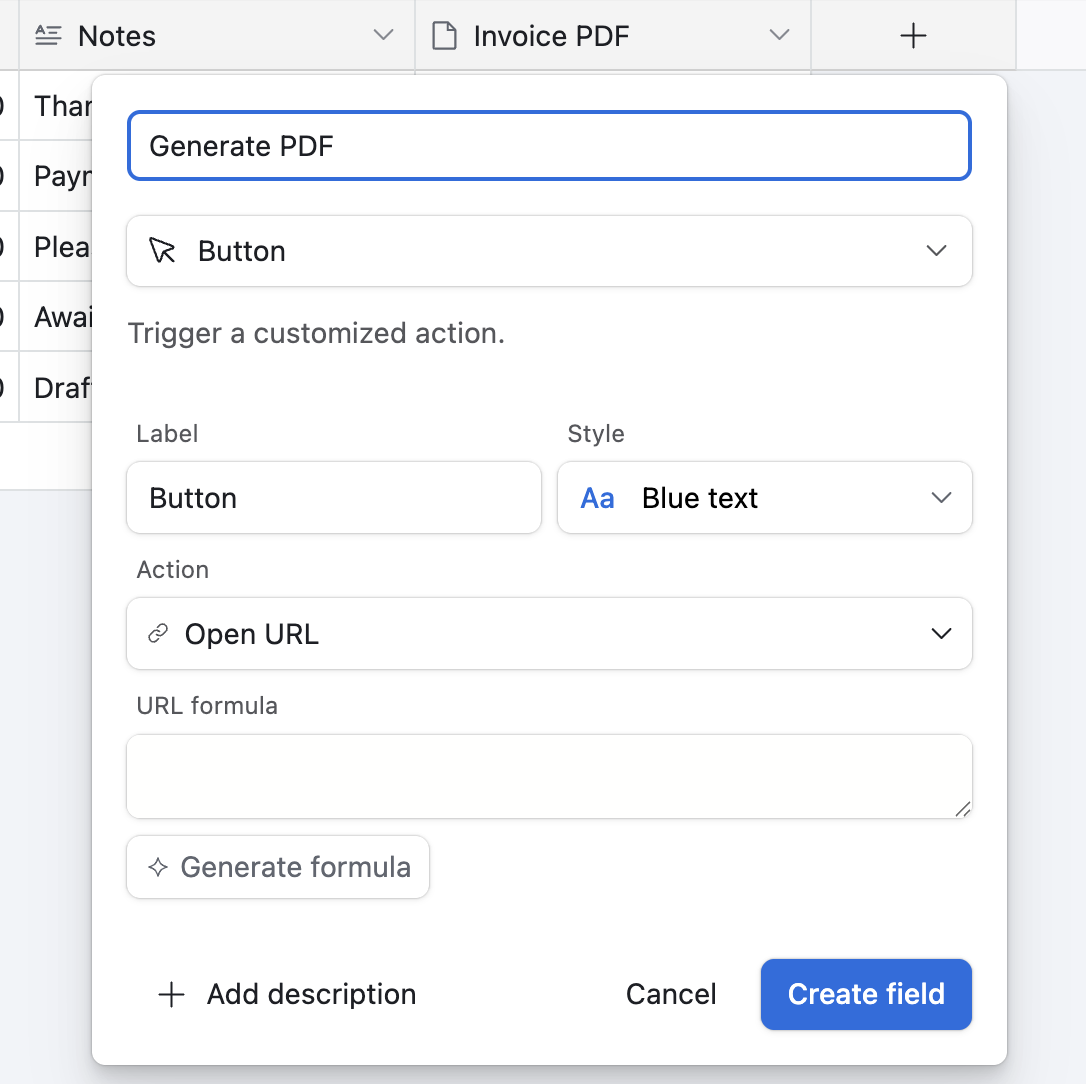
Button field in Airtable. Add a button field to your Quotes table. Each click generates the PDF for that record. This is the simplest method - your team clicks the button when the quote is ready.
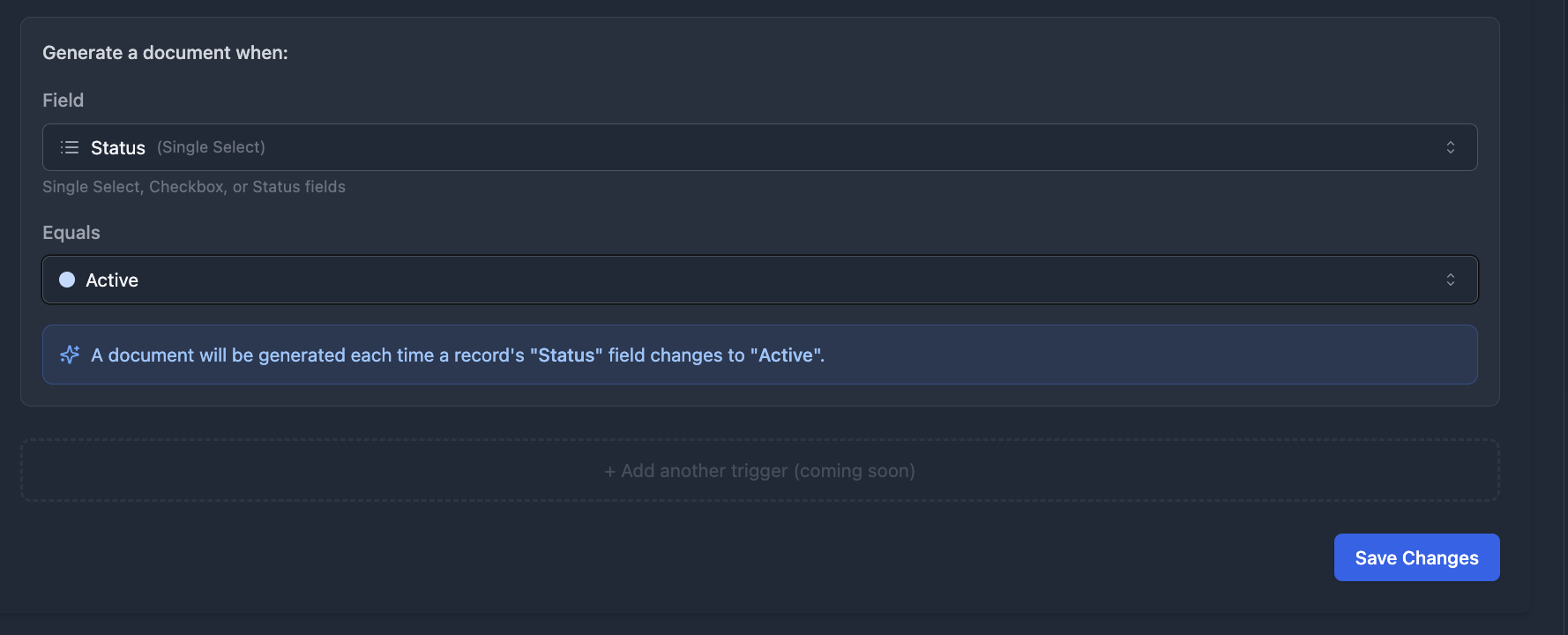
TypeFlow Automation. Watches for field changes and triggers generation automatically. Set the trigger to fire when the Status field changes to "Ready to Send" - the PDF generates without anyone clicking a button.
Airtable Automations. Trigger generation on form submission, record creation, or when conditions are met.
The generated PDF attaches directly to the Airtable record or sends via email to the client.
How to Add E-Signatures to Your Construction Quotes
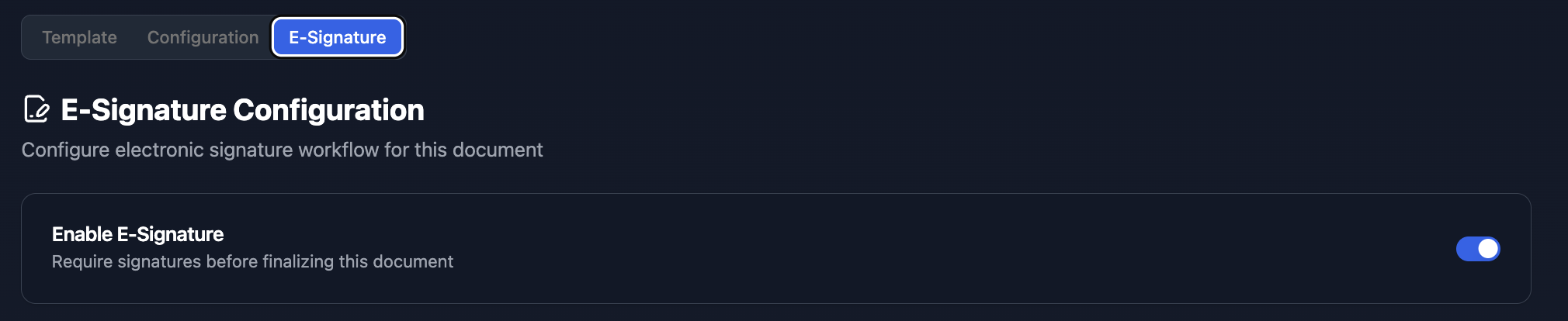
TypeFlow includes built-in e-signatures at no extra cost. Enable e-signature in your flow and set the signer email field to pull from your Clients table.
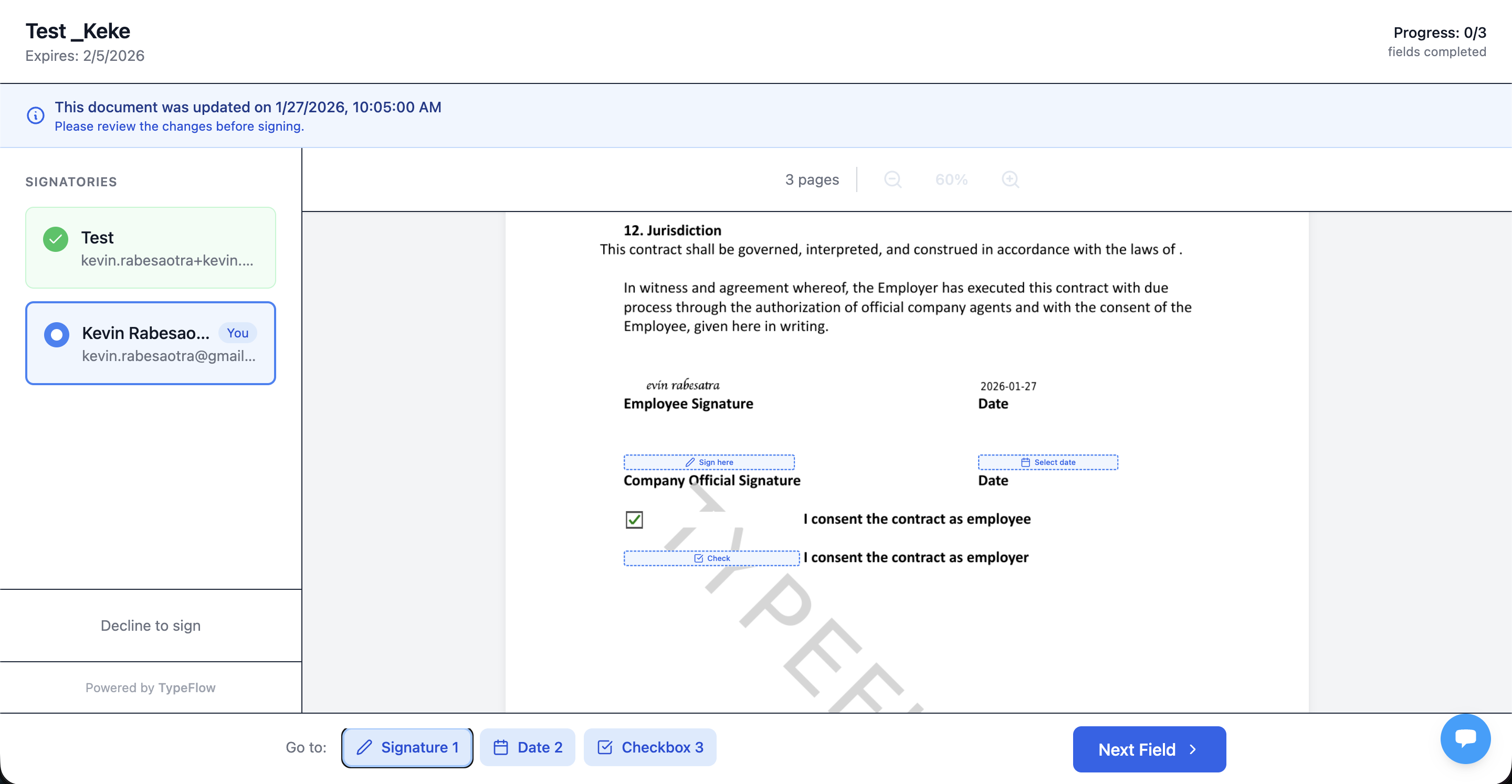
When you generate the quote, the client receives an email with the document. They review it, sign it, and the signed PDF returns to your Airtable record. The quote status updates automatically.
For quotes that require negotiation, TypeFlow includes contract redlining on the Scale plan. Clients can suggest changes directly on the document, and you accept or reject with one click.
TypeFlow e-signatures comply with eIDAS and ESIGN regulations.
How to Turn an Accepted Construction Quote Into an Invoice
Two methods work well:
Manual. Duplicate the quote record and move the data to an Invoices table. Fine for a few quotes per week.
Automated. Set up an Airtable automation that triggers when quote status changes to "Accepted." The automation creates a linked invoice record with all the relevant data. Then use a separate TypeFlow flow to generate the invoice PDF from your Invoices table.
For the full workflow, see our guide on building a quote-to-invoice pipeline in Airtable.
Best Practices for Construction Quote Management
Use a Clear Quote Numbering System
A format like CQ-2024-001 keeps quotes organized. Use an Airtable formula to auto-generate numbers from the record ID or a counter field. This prevents duplicates and makes searching easier.
Set Expiration Dates on Every Quote
Material prices fluctuate - Deloitte's construction outlook notes supply chain volatility continues to drive cost uncertainty. Setting quotes to expire in 30 days or less protects you from price changes. A formula field calculates the expiration date from the quote date automatically.
Track Quote Status From Sent to Accepted
Use a single-select field: Draft, Sent, Viewed, Accepted, Declined, Expired. Filter your Quotes table by status to see which quotes require attention.
Add Markup and Contingency Lines
Construction quotes often include overhead, profit margin, and contingency. Add markup as separate line items or formula fields rather than hiding it in unit prices. Transparency builds trust with clients.
Common Issues and Solutions
- Line items not appearing. Check that the linked field between Quotes and Quote Line Items is correct. The link direction matters.
- Placeholders showing raw text. Verify that field names in Google Docs match Airtable field names exactly, including capitalization and spaces.
- PDF not attaching to record. Confirm the attachment field exists in your Quotes table and is mapped in TypeFlow.
- Totals incorrect. Review formula fields in Airtable for calculation errors. A missing lookup or wrong field reference can throw off the math.
Start Generating Construction Quotes From Airtable
With the right base structure and a well-designed template, you generate professional construction quotes in seconds. The setup takes an afternoon. The time savings add up fast. Rated by Airtable users on G2.
If you are comparing quote generation tools, see our Airtable quote generator comparison. For other construction documents, check our guide on construction document automation.
Ready to automate your construction quotes?
Connect your Airtable base, map your template, and send your first quote in minutes.
Start free with 20 documentsFrequently Asked Questions About Airtable Construction Quotes
Find answers to the most common questions about this feature.
Popular Questions
All Questions
Need more help?
Our team is here to help you solve all your problems and answer your questions.
Contact Us
Kevin from TypeFlow
•AuthorKevin Rabesaotra is a growth engineer and automation specialist with 8+ years of experience building no-code solutions. As Founder & CEO of TypeFlow, he has helped hundreds of businesses automate document generation and streamline workflows with Airtable integrations. Previously, Kevin was a Product Lead specializing in growth engineering, running experiments to drive revenue, retention, and lead generation.
More articles
How to Print Labels from Airtable with Quantity Control (Step by Step)
Print multiple labels per Airtable record based on a quantity field. Step-by-step guide for linked records mode and quantity repeat mode with barcodes and Avery sheets.
Read articleHow to Print Avery Mailing Labels from Airtable
Print Avery mailing labels (5160, 5161, 5162) from Airtable without Word mail merge. Step-by-step guide with print label mode, automation, and bulk generation.
Read articleHow to Create Inventory Labels with Barcodes in Airtable
Create inventory labels with Code 128, EAN-13, or QR barcodes from Airtable. Step-by-step guide for warehouse, retail, and asset tracking with thermal and Avery printers.
Read article