Airtable Construction Document Automation: Complete Guide
Key Takeaways:
- Construction professionals spend 14+ hours per week on non-optimal document tasks like searching for files, fixing formatting, and reconciling outdated documents (FMI Corporation).
- Airtable + TypeFlow automates work orders, safety inspections, project reports, and change orders at a fraction of the cost of construction software like Procore or Buildertrend.
- Mobile e-signature lets superintendents and clients approve documents on the job site - no printing, scanning, or going back to the office.
- Setup takes hours, not weeks. If your project data is already in Airtable, you can generate your first construction document today.
Last reviewed May 2026.
You can automate work orders, safety inspections, project reports, and change orders directly from your Airtable project data. TypeFlow handles the document piece that tools like Procore or Buildertrend don't cover well - Google Docs or HTML/CSS templates, line items from your Airtable records, and mobile e-signature for field approval.
McKinsey research found that construction productivity has grown just 0.4% annually over the past two decades, and that firms adopting digital tools can improve productivity by up to 15%. This guide covers every document type, the Airtable base structure you need, and how to set up automation with field-ready e-signatures.
Automate your construction documents
Generate work orders, inspections, and reports from Airtable. Built-in e-signature for field approval.
Start free with 20 documents →Why Construction Teams Need Document Automation
Poor communication, rework, and bad data management cost the U.S. construction industry $177 billion annually, according to FMI Corporation research. 22% of all rework is caused by inaccurate or inaccessible information - exactly the kind of problem that manual document creation produces.
Think about how your team creates documents today:
- Open an Airtable record, find the project details
- Open a Word template, copy-paste the data
- Format the document, check for errors
- Export to PDF, save to a folder
- Email to the site team or client
- Wait for a signed copy to come back
At 15-30 minutes per document and 20+ work orders per week, that's 5-10 hours of admin work that could be eliminated.
With automation, the process becomes:
- Click a button in Airtable (or it triggers automatically)
- PDF generates with all data populated
- Signing link sent to the superintendent's phone
- Signed PDF saves back to Airtable
5-10 seconds instead of 15-30 minutes.
Construction Documents You Can Automate
Here are the document types that construction teams generate from Airtable, organized by frequency and complexity.
High Frequency (daily/weekly)
Work Orders
The core of field operations. Each work order includes the job site address, scope of work, crew assignments, materials list, and deadlines. When a job is scheduled in Airtable, the work order should generate automatically and land on the superintendent's phone before they arrive on-site.
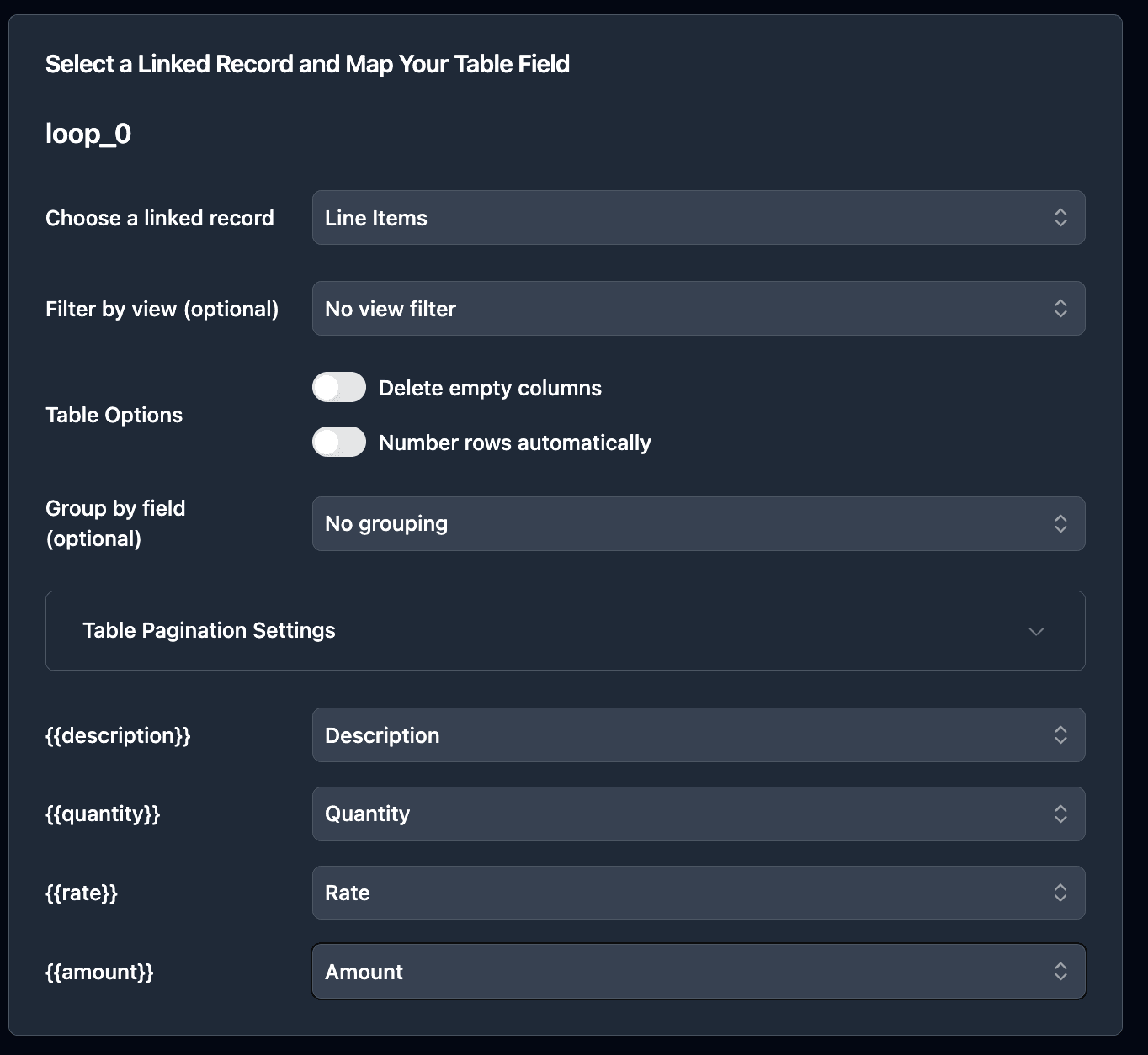
Materials and equipment lists map perfectly to Airtable linked records - use {{loop_0}} to pull dynamic line items that adjust based on the specific job.
Step-by-step guide: How to Generate Work Order PDFs from Airtable →
Safety Inspections
Daily or weekly site inspections with checklists, pass/fail indicators, corrective actions, and photo documentation. Inspection reports need to be generated quickly on-site and signed by the inspector before leaving.
The key requirement: photos from Airtable attachment fields embedded directly in the PDF, not as separate files.
Step-by-step guide: Automate Safety Inspection Reports →
Daily Logs
Weather conditions, crew count, equipment on-site, work performed, and incidents. Daily logs are the legal record of what happened on the job site each day. Automating them from Airtable ensures consistency and saves the superintendent 20-30 minutes of writing time at the end of each day.
Medium Frequency (weekly/monthly)
Project Reports
Progress updates for clients, stakeholders, or internal management. Include budget tracking, milestone status, photos, and schedule updates. Typically generated weekly or monthly from a filtered Airtable view.
Project reports often pull data from multiple linked tables - the report record links to tasks, expenses, and photos from across the project.
Step-by-step guide: Automate Construction Project Reports →
Change Orders
Scope modifications with cost impact, schedule impact, and approval signatures. AIA research shows that a typical construction project produces change orders worth up to 7% of the contract value. Each change order requires documentation, approval, and filing - perfect for automation.
Change orders are high-stakes documents that need e-signature from both the contractor and the client before work proceeds. For quoting construction jobs directly from Airtable, see our guide on creating construction quotes from Airtable. If you also manage vendor and supplier agreements, see our vendor contract management guide.
As-Needed
RFIs (Requests for Information)
Formal questions from the field to the architect or engineer, with responses tracked and filed. RFIs need a sequential numbering system, timestamps, and linked references to drawings or specifications.
Punch Lists
End-of-project deficiency lists with responsible party, due date, and completion status. Generated from a filtered view of outstanding items, with photos of each deficiency.
Submittals
Product data sheets, shop drawings, and material samples submitted for architect approval. Track submittal status, review comments, and revision history in Airtable.
Document Frequency Summary
| Document | Frequency | Complexity | E-Signature | Guide Available |
|---|---|---|---|---|
| Work Orders | Daily | Medium (line items) | ✅ Superintendent | Yes |
| Safety Inspections | Daily/Weekly | Medium (photos) | ✅ Inspector | Yes |
| Daily Logs | Daily | Low | Optional | Coming soon |
| Project Reports | Weekly/Monthly | High (multi-table) | Optional | Yes |
| Change Orders | As needed | Medium | ✅ Both parties | Coming soon |
| RFIs | As needed | Low | Optional | Coming soon |
| Punch Lists | End of project | Medium (photos) | Optional | Coming soon |
How to Structure Your Airtable Base for Construction
A well-structured base makes document generation reliable. Here's the table architecture that works for construction teams.
We've built a ready-to-use construction base you can copy and start with:
Copy the Construction Document Automation base →
Core Tables
Projects The hub of your base. Every other table links back here.
- Project name, address, client, contract value
- Status (Bidding, Active, Punch List, Complete)
- Superintendent, project manager
- Start date, target completion
Work Orders Linked to Projects. One project has many work orders.
- Work order number (auto-number)
- Scope of work, special instructions
- Scheduled date, deadline
- Status (Draft, Scheduled, In Progress, Complete)
- Linked to: Crew, Materials
Materials Linked to Work Orders. Line items for each job.
- Material name, quantity, unit cost
- Supplier, delivery status
- These become
{{loop_0}}line items in your work order template
Crew Linked to Work Orders. Who's assigned to each job.
- Name, role, certification
- Phone, email (for e-signature delivery)
Inspections Linked to Projects. Safety and quality inspections.
- Inspection type, date, inspector
- Checklist items (linked table or long text)
- Findings, corrective actions
- Photos (attachment field)
- Pass/Fail status
Change Orders Linked to Projects. Scope and cost modifications.
- Change order number
- Description of change
- Cost impact, schedule impact
- Status (Proposed, Approved, Rejected)
- Client signature field
Key Relationships
Projects
  ├── Work Orders
  │     ├── Materials (line items)
  │     └── Crew (assignments)
  ├── Inspections
  │     └── Checklist Items
  ├── Change Orders
  └── Daily Logs
Views for Document Generation
Create filtered views that power your automations:
- "Ready to Generate" - Work orders with status = "Scheduled" and no PDF attached
- "This Week's Inspections" - Inspections from the current week for batch reporting
- "Pending Change Orders" - Change orders awaiting approval
- "Active Projects" - For monthly project report generation
Setting Up Your First Construction Document
The process is the same regardless of document type. Here's the quick version - each deep-dive article linked above covers the full setup for its specific document.
1. Create Your Template
Start from one of our pre-built construction templates or create your own in Google Docs. Each template uses {{variable}} placeholders where Airtable data should appear - like {{Project Name}}, {{Site Address}}, or {{Superintendent}}.
For materials and equipment lists, use {{loop_0}} to create dynamic line items that adjust based on the job. For inspection reports with photos, use {{image_Photo}} to embed images from Airtable attachment fields.
For more design control (headers, footers, logos, precise layouts), use the HTML Template Builder. This is recommended for inspection reports and project reports where formatting matters.
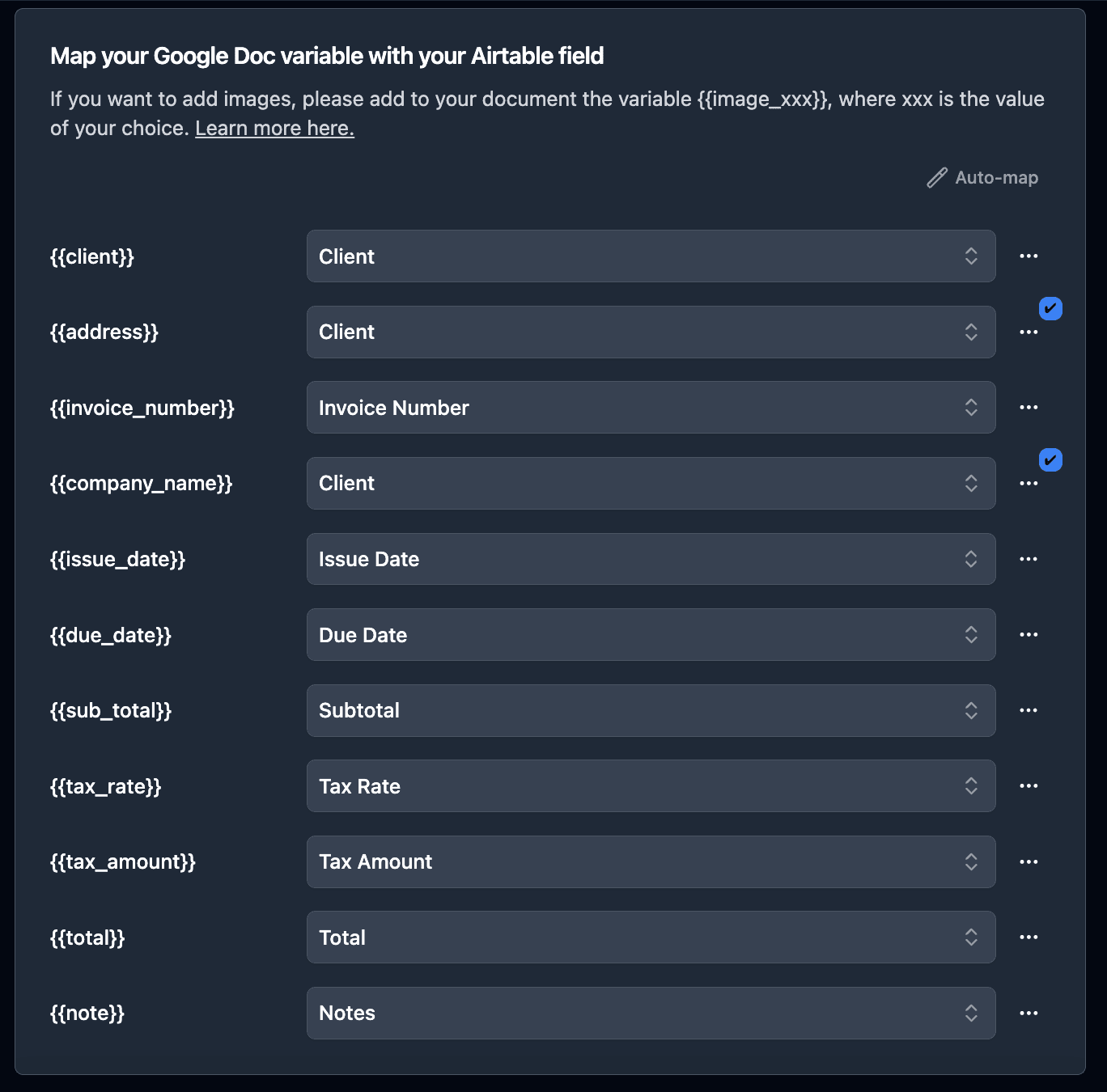
2. Connect and Map
In TypeFlow:
- Select your Airtable base and table
- Choose your template
- Map each
{{variable}}to its Airtable field - For line items (materials, crew), select the linked record field and map sub-fields
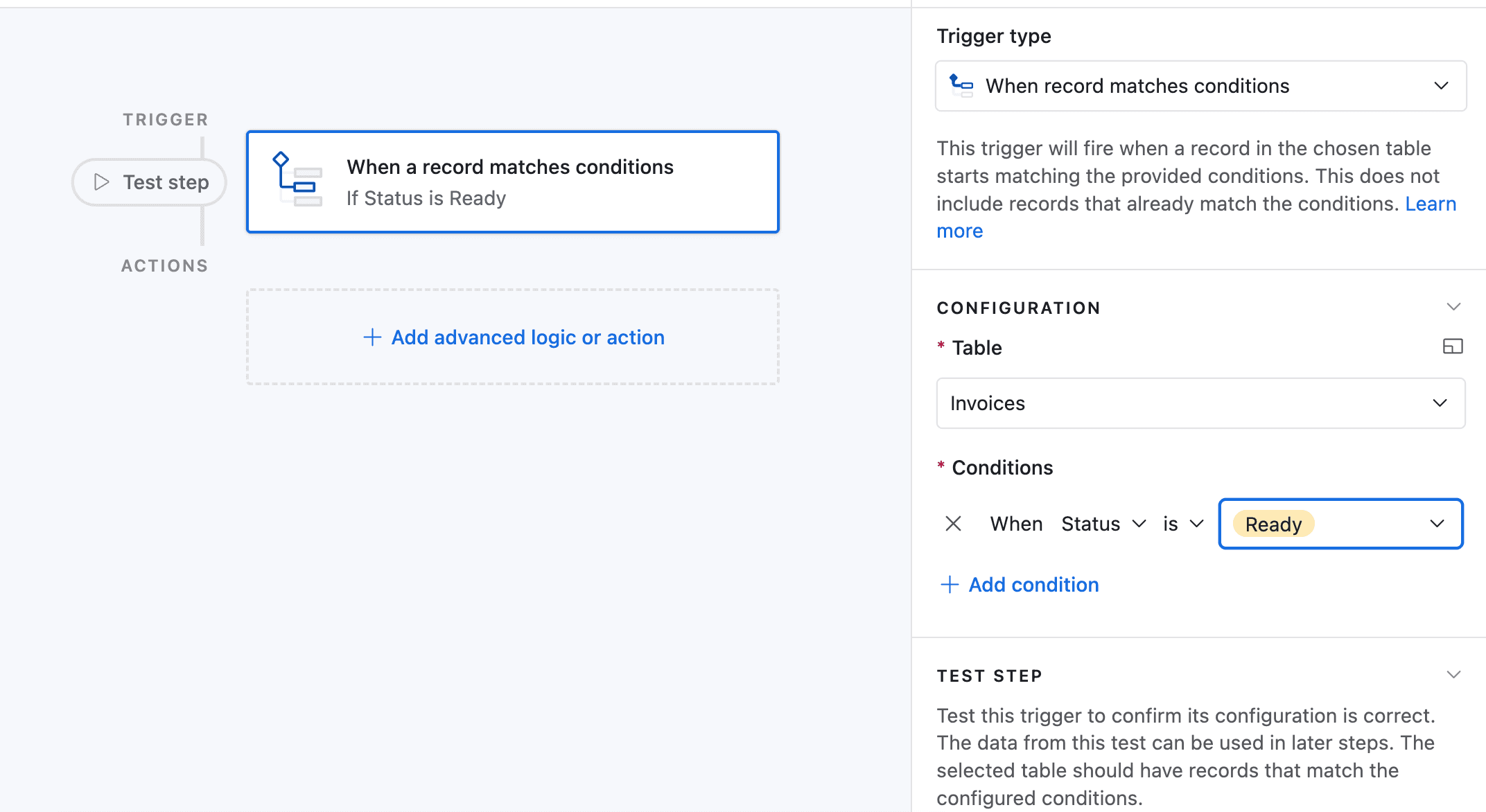
3. Set Up Your Trigger
Button field - Add a button to your Airtable table. One click generates the PDF.
Airtable Automation - Generate automatically when a record meets conditions. Example: when Work Order status changes to "Scheduled", generate PDF and email to superintendent.
Bulk generation - End-of-week: select all work orders for next week and generate all PDFs at once from the TypeFlow bulk generate page.
4. Test and Refine
Generate a test document with real data. Check:
- All fields populated correctly
- Line items (materials, crew) display properly
- Photos render at the right size
- Layout looks professional on mobile and print
E-Signature for Field Approval
This is where construction document automation gets powerful. Instead of printing documents, getting wet signatures, and scanning them back, your team signs on their phone at the job site.
How It Works
- Document generates from Airtable (manually or automatically)
- Signer receives an email or link
- They open it on their phone, review the document
- Sign with their finger on the touchscreen
- Signed PDF saves back to the Airtable record automatically
Construction Use Cases for E-Signature
Superintendent approves work order before crew starts. The signed work order with scope, materials, and safety notes is filed automatically.
Client signs change order on a tablet during a site visit. No back-and-forth emails, no delays. The change order is approved and filed before they leave the site.
Inspector signs safety inspection after completing the walkthrough. The signed inspection report with photos and findings is attached to the project record immediately.
Subcontractor signs scope agreement before mobilizing. Use contract redlining (Enterprise) to let them suggest changes directly on the document.
Compliance and Audit Trail
Every signature captures:
- IP address and geographic location
- Browser and device information
- Timestamp for viewing, consenting, and signing
- Time spent reviewing the document
This data is included in a Certificate of Completion attached to every signed PDF. Compliant with the ESIGN Act (US) and eIDAS (EU).
For teams that need full traceability in Airtable, the E-Signature Audit Trail syncs every event (viewed, signed, declined) to a dedicated Airtable table automatically.
Learn more: E-Signature for Airtable →
Airtable + TypeFlow vs Construction Software
Should you use Airtable with TypeFlow, or invest in dedicated construction management software? Here's an honest comparison.
| Feature | Airtable + TypeFlow | Procore | Buildertrend | CoConstruct |
|---|---|---|---|---|
| Monthly cost | ~$50 | $375+ | $199+ | $99+ |
| Setup time | Hours | Weeks to months | Weeks | Days |
| Custom document templates | ✅ Google Docs + HTML Builder, full design control | Built-in forms only | Built-in forms only | Limited |
| E-signatures | ✅ Built-in, included | Via DocuSign (extra cost) | Via DocuSign (extra cost) | Limited |
| Line items (materials) | ✅ Linked records | ✅ | ✅ | Limited |
| Photo documentation | ✅ Airtable attachments | ✅ | ✅ | ✅ |
| Mobile access | ✅ | ✅ | ✅ | ✅ |
| Scheduling | Basic (Airtable views) | Advanced (Gantt) | Advanced | Advanced |
| Accounting integration | Via Zapier | Native | Native | Native |
| Best for | Teams already on Airtable who need docs + e-sign | Large GCs needing all-in-one | Residential builders | Custom home builders |
When Airtable + TypeFlow is the right choice:
- Your project data already lives in Airtable (or you're setting up from scratch)
- You want full control over your data structure and document templates
- You need custom-branded documents, not generic forms
- You want e-signatures included without per-signature fees
- You're a small to mid-size team that doesn't need enterprise overhead
When Procore or Buildertrend is worth it:
- You need advanced Gantt scheduling with resource leveling
- You need native accounting integration (QuickBooks, Xero)
- You need subcontractor portals and bid management
- Your team is 50+ people with strict role-based access requirements
Real-World Examples
Multi-family framing company generates work orders for each framing job. The work order includes the unit list, materials needed, crew assignments, and safety requirements. When a job moves to "Scheduled" in Airtable, the PDF generates automatically and the superintendent receives it on their phone. They sign to confirm they've reviewed the scope before the crew mobilizes.
General contractor sends monthly project reports to building owners. Each report pulls budget data, milestone progress, and site photos from linked Airtable tables. Reports generate in bulk on the first of each month and email directly to each client.
Safety-focused subcontractor completes daily inspection checklists on-site. The inspector fills in the Airtable record (including photos of any findings), clicks a button, and the signed inspection report attaches to the project record. No paperwork leaves the job site.
Best Practices
Start with one document type
Don't try to automate everything at once. Pick the document your team creates most frequently (usually work orders) and get that workflow solid before moving to the next type.
Standardize your naming conventions
Use consistent field names across your Airtable base: "Project Name" not sometimes "Project" and sometimes "Job Name". Template variables are case-sensitive - {{Project Name}} and {{project name}} are different.
Use views to control what gets generated
Create filtered views like "Ready to Generate" so you never accidentally generate a document for an incomplete record. Add a checkbox field "PDF Generated" that updates automatically when TypeFlow creates the document.
Keep templates simple at first
Start with the essential fields and add complexity later. A clean work order with the right information beats a beautiful one that takes three weeks to design.
Back up your templates
Keep your Google Docs templates in a dedicated folder. Make a copy before making changes so you can roll back if something breaks.
Start Automating Construction Documents Today
If your construction data lives in Airtable, you're already halfway there. Connect TypeFlow, create a template, and generate your first work order in under 30 minutes. See what users say about TypeFlow on G2.
Your crew's time is too valuable for copy-paste work. Let automation handle the documents so your team can focus on building.
Start for Free - 20 documents included, no credit card required.
Automate your document generation
Start with 20 free documents. Built for businesses using Airtable.
Frequently Asked Questions
Find answers to the most common questions about this feature.
Popular Questions
All Questions
Need more help?
Our team is here to help you solve all your problems and answer your questions.
Contact UsThis guide is based on real-world workflows from construction teams using Airtable and TypeFlow. For official Airtable documentation, see Airtable Automations and Linked Records. For construction industry research, see FMI Corporation, McKinsey Construction, and AIA Contract Documents. Last reviewed May 2026.

Kevin from TypeFlow
•AuthorKevin Rabesaotra is a growth engineer and automation specialist with 8+ years of experience building no-code solutions. As Founder & CEO of TypeFlow, he has helped hundreds of businesses automate document generation and streamline workflows with Airtable integrations. Previously, Kevin was a Product Lead specializing in growth engineering, running experiments to drive revenue, retention, and lead generation.
More articles
How to Print Labels from Airtable with Quantity Control (Step by Step)
Print multiple labels per Airtable record based on a quantity field. Step-by-step guide for linked records mode and quantity repeat mode with barcodes and Avery sheets.
Read articleHow to Print Avery Mailing Labels from Airtable
Print Avery mailing labels (5160, 5161, 5162) from Airtable without Word mail merge. Step-by-step guide with print label mode, automation, and bulk generation.
Read articleHow to Create Inventory Labels with Barcodes in Airtable
Create inventory labels with Code 128, EAN-13, or QR barcodes from Airtable. Step-by-step guide for warehouse, retail, and asset tracking with thermal and Avery printers.
Read article