How to Automate Construction Project Reports from Airtable to PDF
Construction teams using Airtable to track projects often spend hours copying data into Word or Excel to create client reports. Progress reports, daily logs, and inspection documents all require manual formatting - every single time.
This guide shows you five methods for automating construction report generation from Airtable, with a focus on the approach that works best for professional, branded reports at scale. For a broader look at all construction documents you can automate, see our complete guide to construction document automation in Airtable.
Quick Answer: Five Ways to Automate Construction Reports from Airtable
- Print View to PDF: Browser print function on an Airtable view - free but no formatting control
- Page Designer: Airtable's built-in extension for single-record layouts - limited to one page
- CSV Export: Export to Excel/Sheets, format manually, save as PDF - no automation
- Zapier/Make: Middleware connecting Airtable to PDF services - adds complexity
- Dedicated PDF Tools: Purpose-built solutions like TypeFlow with native Airtable integration - recommended for branded, multi-page reports
For construction teams generating progress reports, inspection documents, or daily logs at volume, dedicated PDF automation tools provide the reliability and professional output you need.
Why Automate Construction Project Reports from Airtable
Manual report creation from Airtable data causes several problems:
- Time spent on formatting: Copy-pasting project data into Word templates for every weekly report
- Inconsistent branding: Reports look different each time depending on who creates them
- Delayed delivery: Manual processes slow down client and stakeholder communication
Automation turns Airtable records into ready-to-send PDFs without manual intervention - saving hours every week.
Types of Construction Reports You Can Automate
Airtable serves as a system of record for construction data. Different report types can all be automated from this data.
Progress Reports
Periodic summaries of project milestones, completion status, and upcoming work. Often sent weekly or monthly to clients and stakeholders as branded PDF reports.
Daily Logs
Day-by-day records of work completed, crew activity, weather conditions, and site notes. Used for compliance and project tracking.
Inspection Reports
Formal documentation of site inspections, safety checks, or quality reviews. Often require sign-off or e-signature. See our dedicated guide on automating safety inspection reports for a detailed walkthrough.
Change Order Summaries
Documents tracking scope changes, cost adjustments, and approval status. Critical for contract management.
Budget and Cost Reports
Financial summaries pulling line items, material costs, and labor expenses from linked Airtable records.
Airtable Limitations for Construction Report PDF Generation
While Airtable is excellent for organizing construction data, it has built-in constraints for generating polished PDFs.
Single Record Per Page in Page Designer
Page Designer outputs one record at a time, making multi-record reports (like weekly summaries across tasks) difficult to produce natively.
No Built-In Automation Triggers
Airtable cannot automatically generate PDFs when a record updates or status changes without third-party tools.
Limited Multi-Page and Attachment Support
Handling long reports with many line items or embedding multiple site photos requires workarounds or external tools.
Method 1: Print View to PDF
The simplest approach - use the browser's print function on an Airtable view.
When to Use Print View
Best for quick, informal exports when formatting and branding don't matter. Useful for internal reference copies.
Limitations for Construction Reports
- No custom branding
- No automation
- Output reflects grid view layout rather than a designed report format
Method 2: Page Designer Extension
Airtable's built-in extension for creating single-record layouts with drag-and-drop design.
When to Use Page Designer
Best for simple, single-record documents like individual inspection forms or certificates where one record equals one page.
Limitations for Construction Reports
- Manual export required
- One record at a time
- Limited support for linked records and dynamic line items
- No automation triggers
Method 3: CSV Export via Spreadsheet Apps
Export Airtable data to CSV, open in Excel or Google Sheets, format, and save as PDF.
When to Use CSV Export
Best for bulk data dumps where you need raw data in a spreadsheet format for further analysis or ad-hoc reporting.
Limitations for Branded Construction Reports
- Requires manual formatting each time
- No template reuse
- Not suitable for client-facing documents that need consistent branding
Method 4: Automation Platforms Like Zapier or Make
Middleware tools that connect Airtable to PDF generation services through automated workflows. A "Zap" (Zapier) or "Scenario" (Make) defines the trigger and actions.
When to Use Middleware Automation
Best when you already use Zapier or Make and need basic automation connecting Airtable to a separate PDF service.
Limitations for Construction Workflows
- Adds complexity with multiple tools
- Potential points of failure
- May require per-document fees
- Harder to troubleshoot when automations break
Method 5: Dedicated Airtable PDF Automation Tools
Purpose-built tools designed specifically for generating PDFs from Airtable. These offer native integration, template-based generation, and true automation.
When to Use Dedicated PDF Tools
Best for teams generating branded, multi-page construction reports at volume - progress reports, inspection documents, change orders - who need reliability and minimal maintenance.
What to Look for in a Construction Report Tool
- Native Airtable integration: No middleware required
- Google Docs templates: Familiar editing, no proprietary software
- Linked record support: Pull data from related tables
- Attachment handling: Embed site photos directly
- Automation triggers: Generate PDFs on record update or status change
- Built-in e-signature: For inspection sign-offs
Comparing Methods for Construction Report Automation
| Method | Best For | Branding | Automation | Linked Records | Setup |
|---|---|---|---|---|---|
| Print View | Quick internal exports | None | No | No | Minimal |
| Page Designer | Single-record documents | Basic | No | Limited | Low |
| CSV Export | Raw data analysis | None | No | No | Low |
| Zapier/Make | Basic integrations | Varies | Yes | Limited | Medium |
| Dedicated Tools | Production reports at scale | Full | Yes | Yes | Low-Medium |
For construction teams generating client-facing reports, dedicated PDF tools provide the best balance of reliability, branding control, and automation.
Automate your document generation
Start with 20 free documents. Built for businesses using Airtable.
How to Set Up a Construction Report Template in Google Docs
Google Docs serves as the template editor - no new software to learn.
Step 1: Create the Template Structure
Lay out your report with sections for project name, date, summary, line items, and images. Use headers, tables, and placeholder text.
[Company Logo]
[Company Name]
[Address | Phone | Email]

---

CONSTRUCTION PROGRESS REPORT

Project: {{Project Name}}
Report Date: {{Report Date}}
Project Manager: {{Project Manager}}
Status: {{Status}}

---

PROJECT SUMMARY

{{Project Summary}}

Start Date: {{Start Date}}
Target Completion: {{Target Completion}}
Percent Complete: {{Percent Complete}}%
Step 2: Add Variables for Airtable Fields
Variables use double curly braces (e.g., {{Project_Name}}) as placeholders that get replaced with Airtable data.
TASKS COMPLETED THIS PERIOD

| Task | Status | Completion % |
|------|--------|--------------|
{{loop_0}}
| {{Task Name}} | {{Task Status}} | {{Completion Percent}}% |

---

UPCOMING WORK

{{Upcoming Work}}
Step 3: Map Fields and Test Your Report
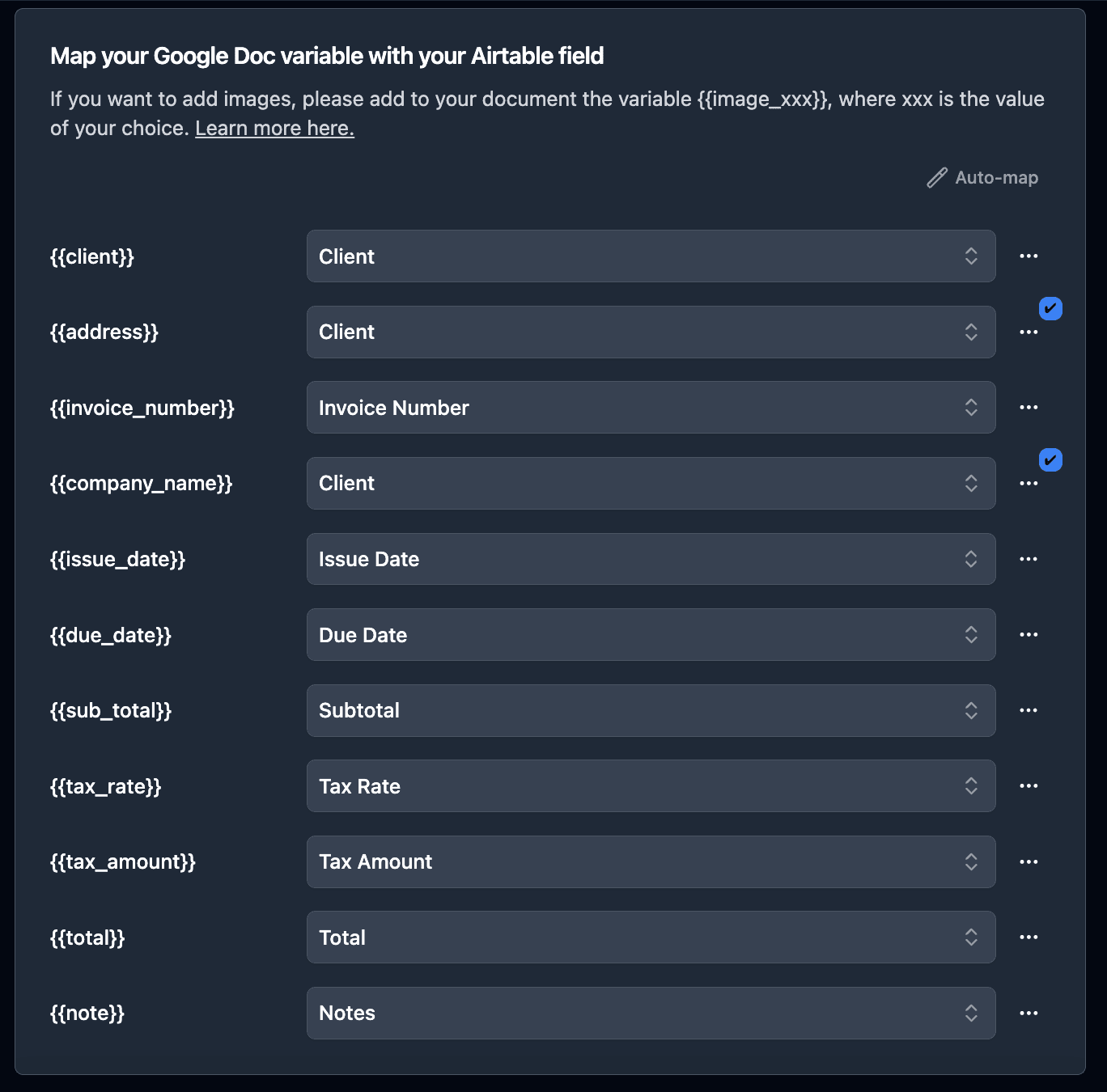
Connect the template to Airtable, map each variable to the corresponding field, and generate a test PDF to verify data pulls correctly.
How to Include Linked Records in Construction Reports
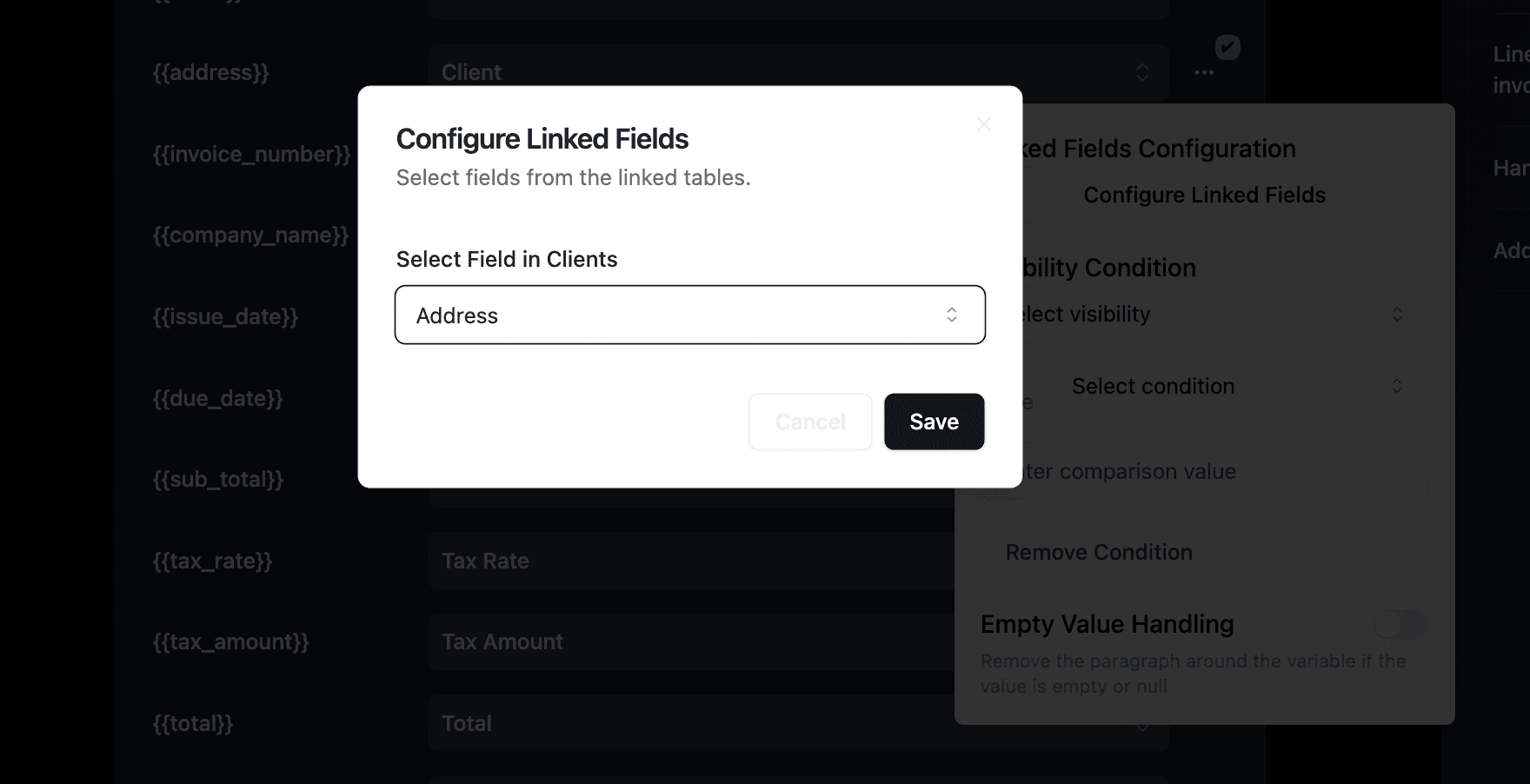
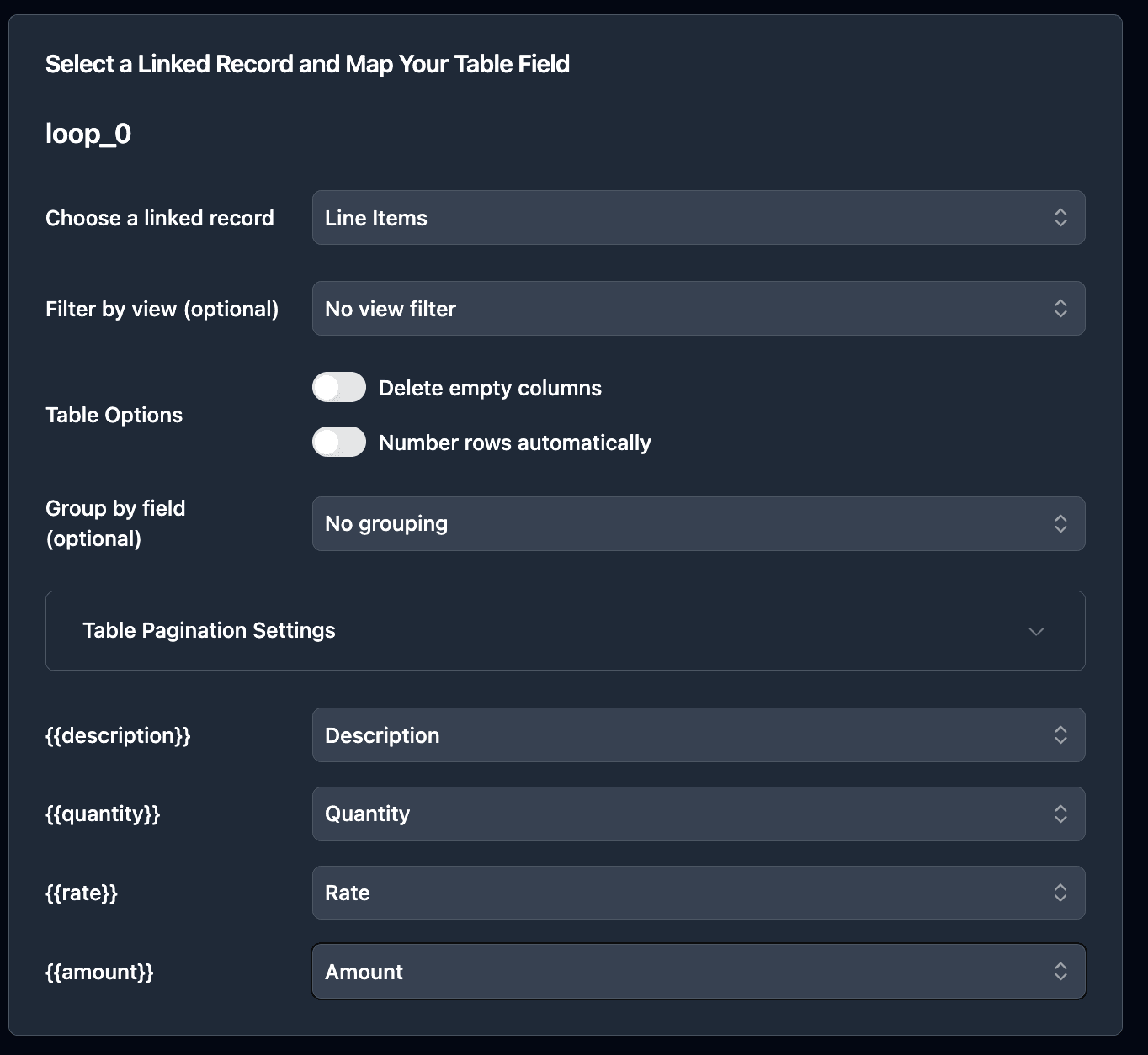
Construction data often spans multiple tables (projects, tasks, materials, subcontractors). Linked records let you pull related data into a single report.
Tasks and Milestones
Pull task lists, completion percentages, and milestone dates from a linked Tasks table into progress reports.
Materials and Equipment
Include itemized materials, quantities, and costs from a linked inventory or materials table. If you also need to generate work orders with materials lists, the same linked records structure applies.
MATERIALS USED

| Material | Quantity | Unit Cost | Total |
|----------|----------|-----------|-------|
{{loop_1}}
| {{Material Name}} | {{Quantity}} | {{Unit Cost}} | {{Line Total}} |

---

Total Materials Cost: {{Total Materials}}
Subcontractor and Labor Data
Pull subcontractor names, hours worked, or labor costs from related records into budget or daily log reports.
Pro Tip: Use Multiple Loops for Different Linked Tables
TypeFlow supports multiple loop sections in one template. Use separate loops for tasks, materials, and labor - each pulling from different linked tables in your Airtable base.
How to Include Progress Photos and Site Images in PDFs
Construction reports often need embedded photos from Airtable attachment fields. Dedicated tools handle image embedding directly - native Airtable exports cannot.
SITE PHOTOS

{{Site Photos}}

---
Pro Tip: Control Image Sizing
Configure image dimensions in TypeFlow to ensure site photos fit your report layout. Set consistent sizing so reports with many photos maintain professional formatting.
How to Trigger Construction Reports Automatically
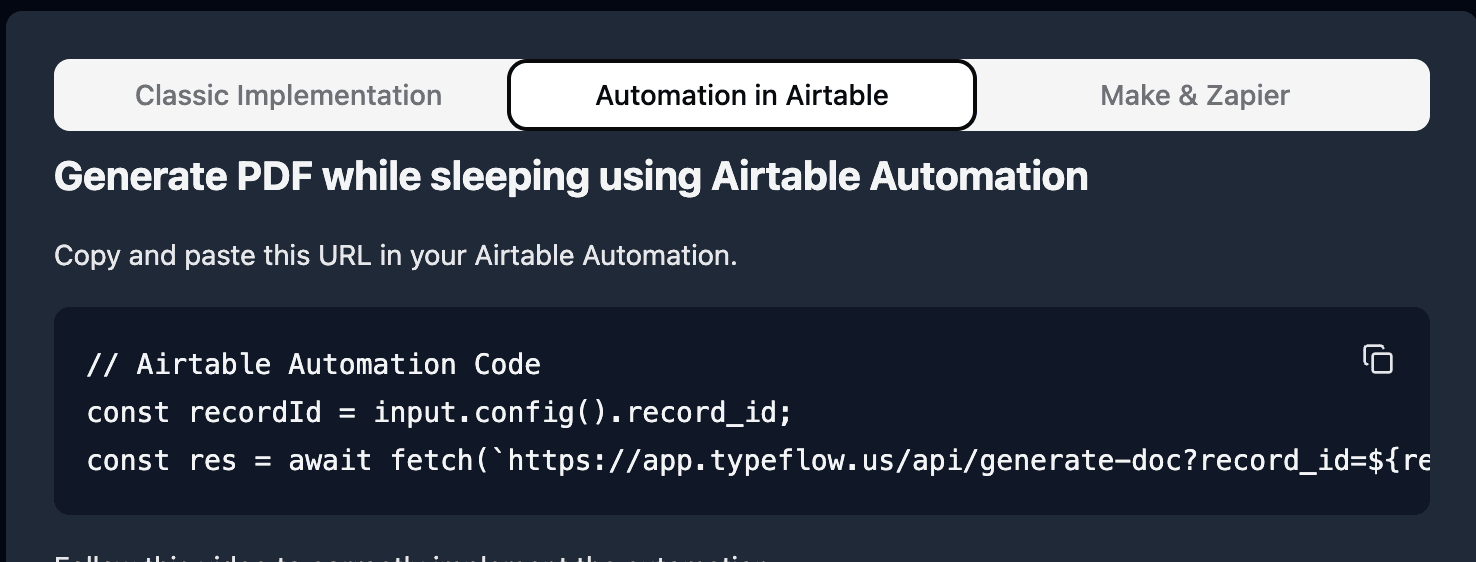
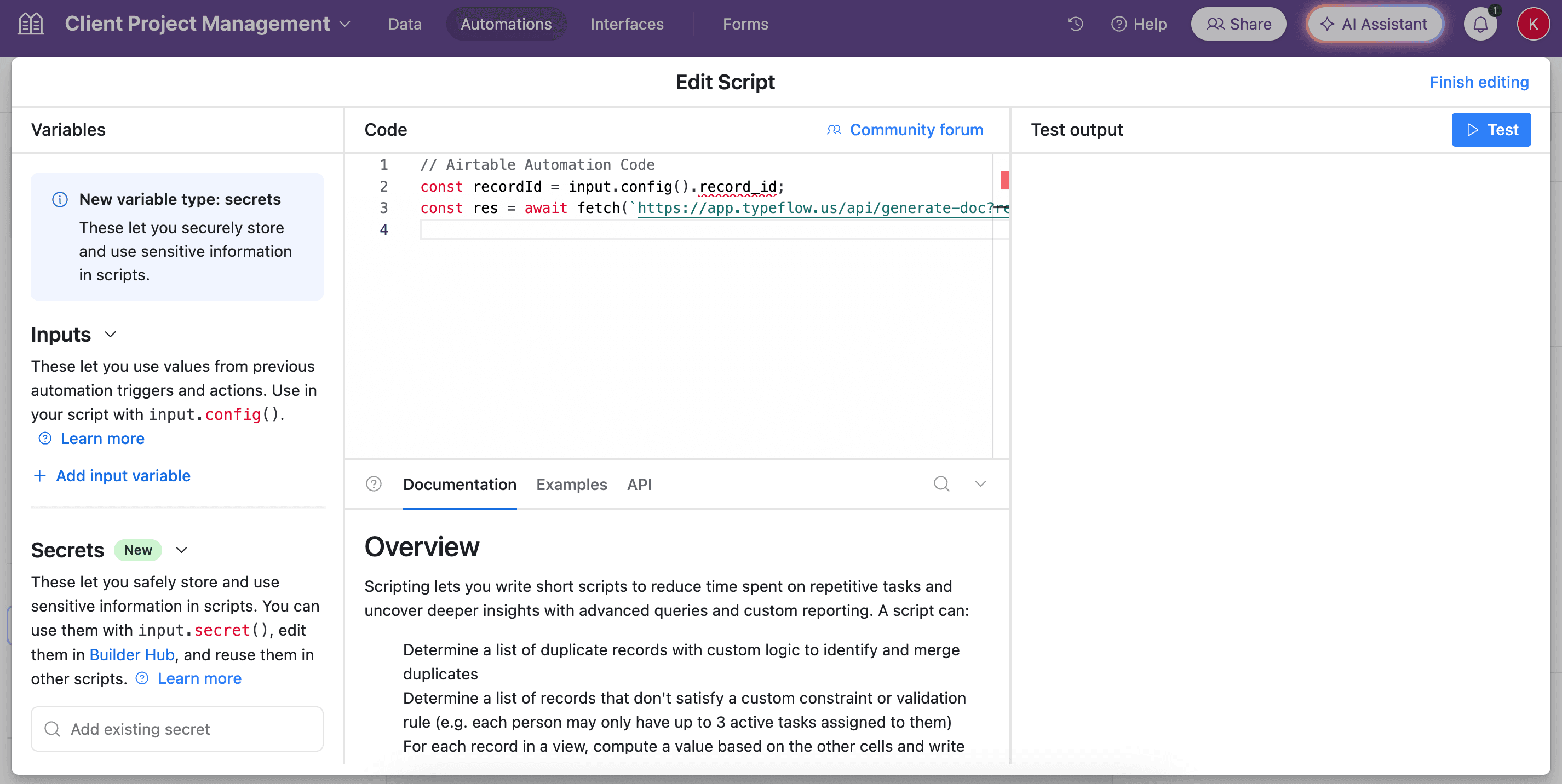
Automation eliminates manual generation by creating PDFs whenever specified conditions are met.
Trigger on Record Update
Generate a new PDF whenever any field in a record changes - useful for keeping reports current.
Trigger on Status Change
Generate a PDF when a project or task moves to a specific status (e.g., "Ready for Review" or "Completed"). Common for inspection reports and approvals.
Trigger on a Schedule
Generate reports at set intervals (daily, weekly, monthly) regardless of record changes. Useful for recurring progress reports.
Pro Tip: Auto-Email Reports to Clients
Add an email step to your automation to send generated PDFs directly to clients. Use an Email field in Airtable to specify recipients for each project.
How to Add E-Signatures to Inspection Reports and Change Orders
Inspection reports and change orders often require formal sign-off. Built-in e-signature lets you generate a document from Airtable, send it for signature, and automatically save the signed PDF back to Airtable.
TypeFlow's e-signature is compliant with eIDAS and ESIGN Act.
Workflow:
- PDF generates from Airtable data
- Signature request sent to recipient
- Signer receives link and signs electronically
- Signed PDF saves back to Airtable record
Troubleshooting Construction Report PDF Issues
Missing Data or Fields
Usually results from unmapped variables or empty Airtable fields. Check field mappings and ensure required fields are populated.
Images Not Displaying
Attachment fields may not render if the tool doesn't support image embedding or if image URLs have expired. Verify attachment field type and tool capabilities.
Formatting Looks Different Than Expected
Template formatting may shift during PDF conversion. Use simple layouts, test with real data, and adjust template spacing.
Best Practices for Construction Report Automation
Use Consistent Field Naming in Airtable
Clear, descriptive field names make template mapping easier and reduce errors when fields change.
Group Data by Project Phase or Subcontractor
Use views or linked records to organize data logically before generating reports - makes output more readable.
Test Templates with Real Data Before Rollout
Generate test PDFs with actual project data to catch formatting issues, missing fields, or unexpected line breaks.
Set Up Auto-Upload and Auto-Email
Configure automation to save generated PDFs back to Airtable attachments and optionally email them directly to clients or stakeholders.
Start Automating Construction Reports in Under an Hour
With TypeFlow, construction teams can go from Airtable data to branded, automated PDFs quickly - without developers or complex setup. Create templates in Google Docs, pull data from linked records, embed site photos, and trigger generation automatically. Rated by Airtable users on G2.
Related Construction Documents
- How to Generate Work Order PDFs from Airtable - Automate work orders with materials and crew assignments
- How to Automate Safety Inspection PDF Reports with Airtable - Create inspection reports with photos and e-signatures
Automate your document generation
Start with 20 free documents. Built for businesses using Airtable.
Frequently Asked Questions
Find answers to the most common questions about this feature.
Popular Questions
All Questions
Need more help?
Our team is here to help you solve all your problems and answer your questions.
Contact Us
Kevin from TypeFlow
•AuthorKevin Rabesaotra is a growth engineer and automation specialist with 8+ years of experience building no-code solutions. As Founder & CEO of TypeFlow, he has helped hundreds of businesses automate document generation and streamline workflows with Airtable integrations. Previously, Kevin was a Product Lead specializing in growth engineering, running experiments to drive revenue, retention, and lead generation.
More articles
How to Print Labels from Airtable with Quantity Control (Step by Step)
Print multiple labels per Airtable record based on a quantity field. Step-by-step guide for linked records mode and quantity repeat mode with barcodes and Avery sheets.
Read articleHow to Print Avery Mailing Labels from Airtable
Print Avery mailing labels (5160, 5161, 5162) from Airtable without Word mail merge. Step-by-step guide with print label mode, automation, and bulk generation.
Read articleHow to Create Inventory Labels with Barcodes in Airtable
Create inventory labels with Code 128, EAN-13, or QR barcodes from Airtable. Step-by-step guide for warehouse, retail, and asset tracking with thermal and Avery printers.
Read article