How to Automate Safety Inspection PDF Reports with Airtable
Safety inspection reports are critical for compliance, liability protection, and maintaining safe work environments. But creating these reports manually - copying data from Airtable into Word templates, adding photos, and chasing signatures - eats hours every week. Teams already generating work orders from Airtable can use the same approach for inspections.
This guide shows you how to automatically generate professional safety inspection PDFs from your Airtable data, complete with photos, checklist findings, and e-signatures. This is part of our complete guide to construction document automation in Airtable.
Key Takeaways
- Tools Needed: An Airtable base, a Google Docs account for your template, and TypeFlow for document automation.
- No Coding Required: The entire process is point-and-click, connecting your data to a template without writing code.
- Template-Based Approach: Create a reusable template in Google Docs with that get replaced with your Airtable data.
- Automation Triggers: PDFs can generate automatically when a record's status changes, a button is clicked, or on a schedule.
- E-Signature Ready: Add legally binding e-signatures directly into your automated workflow for inspector and supervisor sign-off.
Quick Answer
To automate safety inspection PDF reports, connect your Airtable base to a document automation tool like TypeFlow. Create a report template in Google Docs using as placeholders for your inspection data. Map your Airtable fields to these variables, then trigger PDF generation automatically whenever an inspection is completed.
What You Need Before You Start
Before you begin, you need three components:
- Airtable base with inspection records - A table containing inspector info, site details, checklist findings, photos, and status fields
- Google Docs account - For building your report template using familiar editing tools
- TypeFlow account - The bridge that connects your Airtable data to your template and generates PDFs
How to Set Up Automated Safety Inspection PDF Reports
1. Structure Your Airtable Base for Inspections
Your Airtable base needs specific fields to generate complete inspection reports.
Inspections Table:
| Field Name | Field Type | Purpose |
|---|---|---|
| Report ID | Auto-number | Unique identifier for tracking |
| Inspection Date | Date | When inspection was conducted |
| Inspector Name | Single line text | Who performed the inspection |
| Site Location | Single line text | Facility or job site name |
| Site Address | Long text | Full address |
| Department/Area | Single select | Specific area inspected |
| Status | Single select | In Progress, Complete, Review Required |
| Findings Summary | Long text | Overall inspection summary |
| Corrective Actions | Long text | Required remediation steps |
| Photos | Attachment | Evidence images from inspection |
| Signature | Attachment | Inspector signature image |
| Report PDF | Attachment | Where generated reports are saved |
Checklist Findings Table (linked to Inspections):
| Field Name | Field Type | Purpose |
|---|---|---|
| Item | Single line text | Checklist item description |
| Status | Single select | Pass, Fail, N/A |
| Observation | Long text | Detailed notes |
| Priority | Single select | Low, Medium, High, Critical |
| Photo | Attachment | Item-specific evidence |
| Inspection | Linked record | Link to parent inspection |
Pro Tip: Add Timestamps for Compliance
Include Airtable's "Created time" and "Last modified time" fields in your reports. These automatic timestamps provide audit trails for regulatory traceability and prove when inspections were conducted and documented.
2. Connect TypeFlow to Your Airtable Base
Install TypeFlow from the Airtable Marketplace and authorize access to your inspection base.
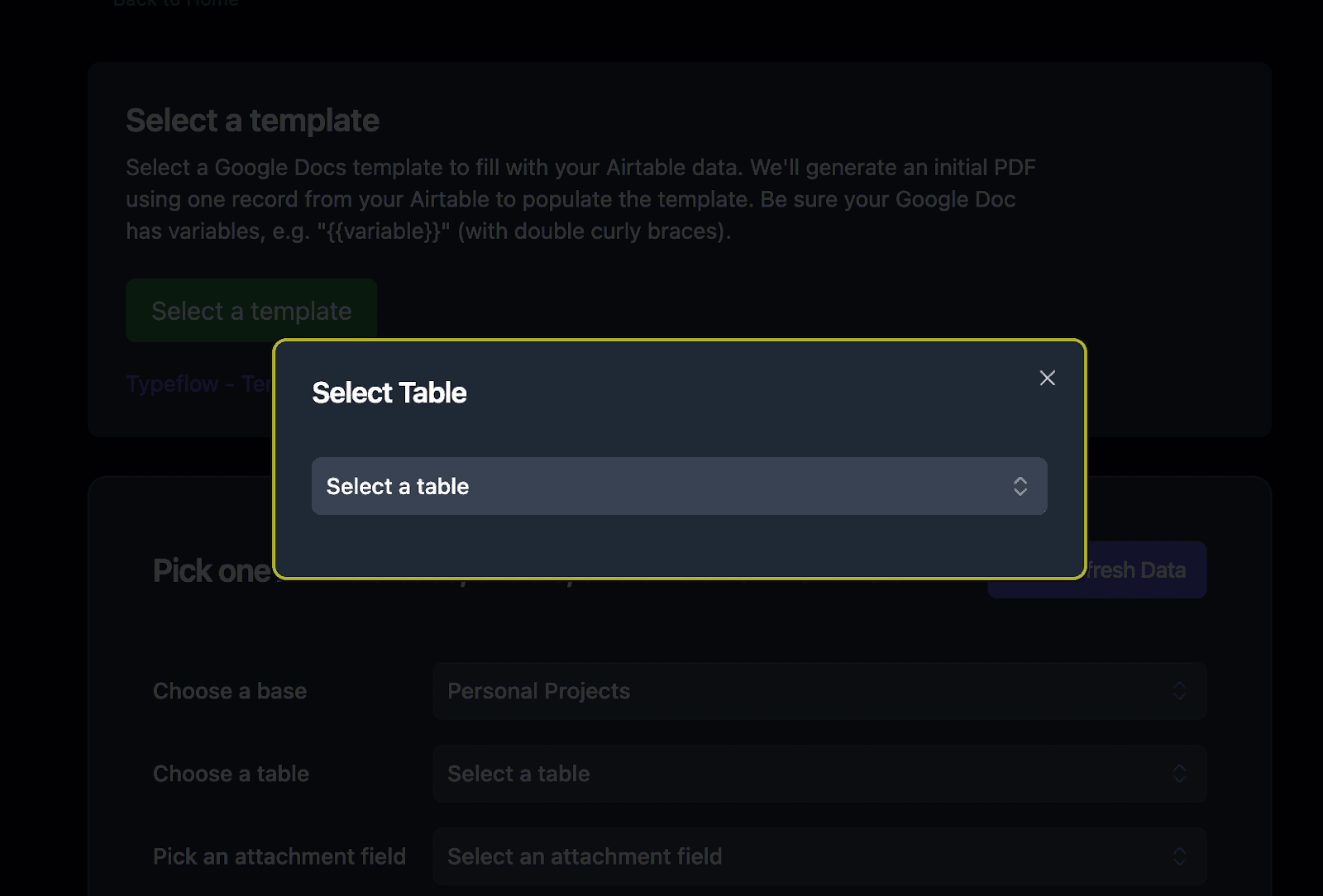
Select the table containing your inspection records. TypeFlow will pull all available fields for mapping.
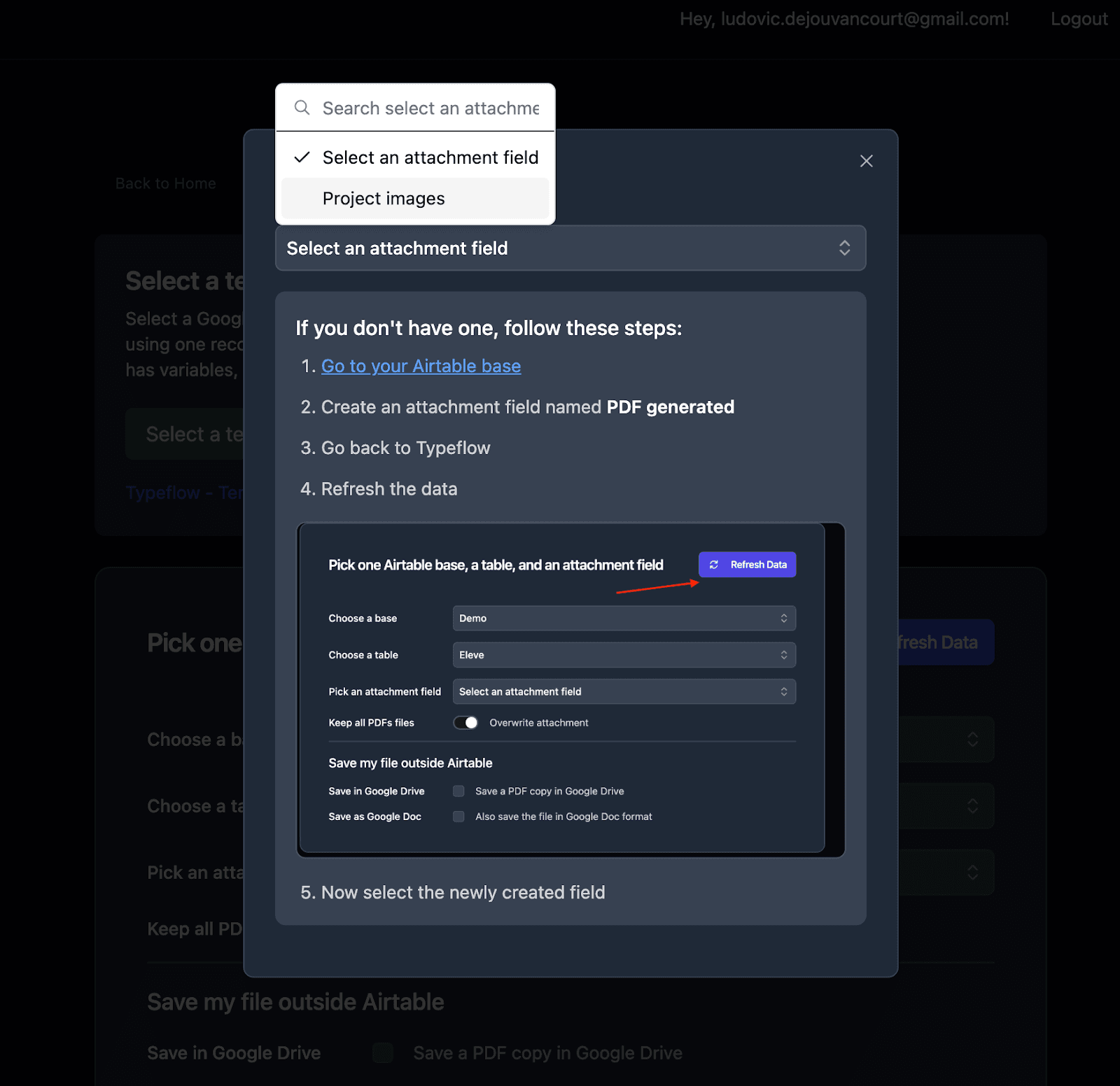
3. Configure Output Settings
Choose where generated reports should be saved.
What to Include in a Safety Inspection Report Template
A well-structured template ensures every report is consistent, professional, and contains all required information.
Company Branding and Report Header
[Company Logo]
[Company Name]
[Address | Phone | Email]

---

SAFETY INSPECTION REPORT

Report #: {{Report ID}}
Date: {{Inspection Date}}
Status: {{Status}}
Inspector and Site Information
INSPECTION DETAILS

Inspector: {{Inspector Name}}
Site: {{Site Location}}
Address: {{Site Address}}
Department/Area: {{Department Area}}
Checklist Findings Section
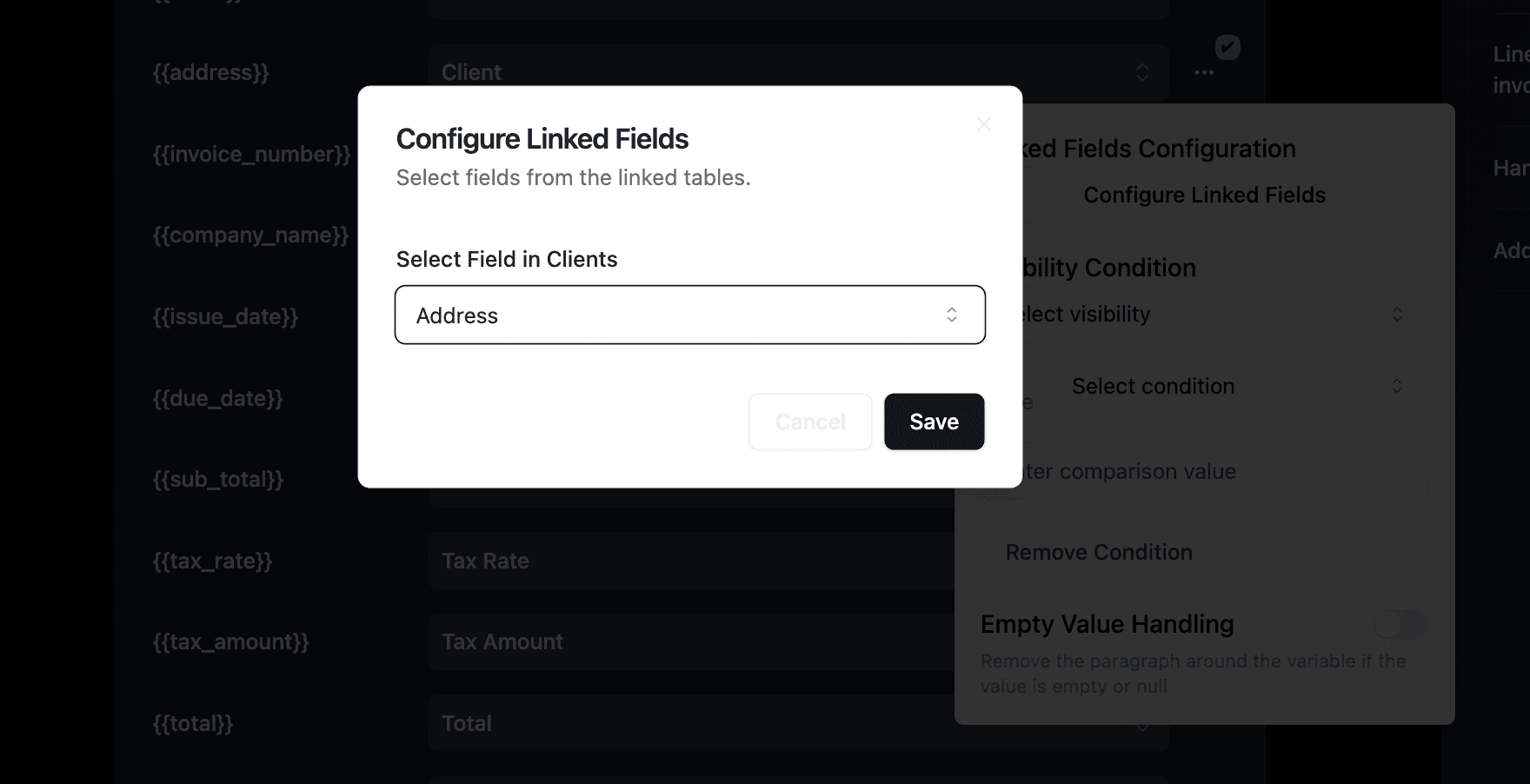
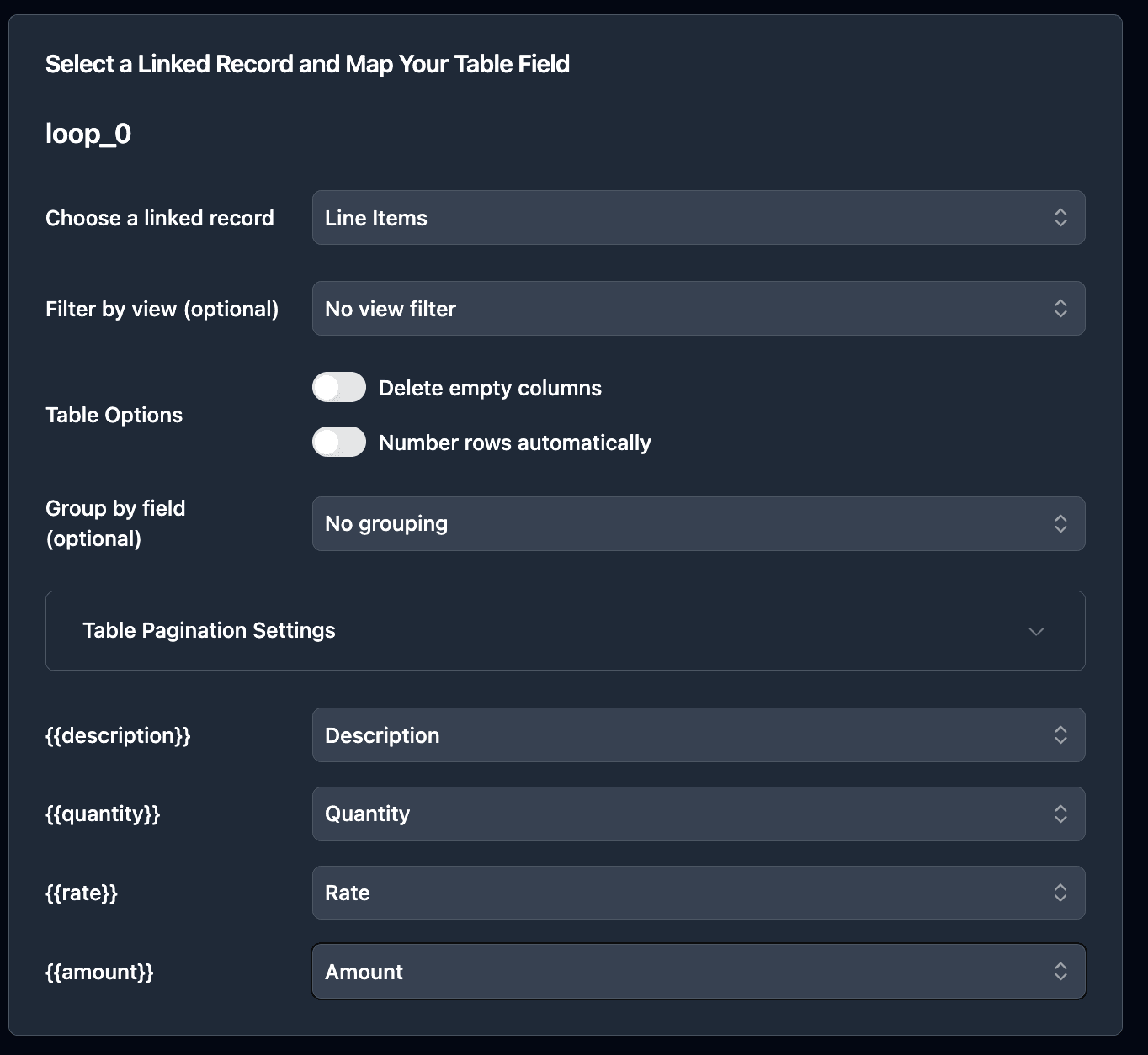
Use loop syntax to include all findings from linked records:
INSPECTION FINDINGS

| Item | Status | Priority | Observation |
|------|--------|----------|-------------|
{{loop_0}}
| {{Item}} | {{Status}} | {{Priority}} | {{Observation}} |

---

SUMMARY
{{Findings Summary}}

CORRECTIVE ACTIONS REQUIRED
{{Corrective Actions}}
Photos and Evidence Section
PHOTOGRAPHIC EVIDENCE

{{Photos}}

---
Pro Tip: Multiple Photos Per Inspection
TypeFlow handles multiple images from Airtable attachment fields. All photos in the field are embedded in your report. Configure sizing in TypeFlow to ensure images fit properly without breaking your layout.
Signature and Certification
CERTIFICATION

I certify that this inspection was conducted in accordance with
applicable safety standards and regulations.

Inspector Signature:
{{Signature}}

Inspector Name: {{Inspector Name}}
Date: {{Inspection Date}}

---

Report generated: {{Current Date}}
Document ID: {{Report ID}}
Map Airtable Fields to Your Template
Connect each placeholder in your template to the corresponding Airtable field.
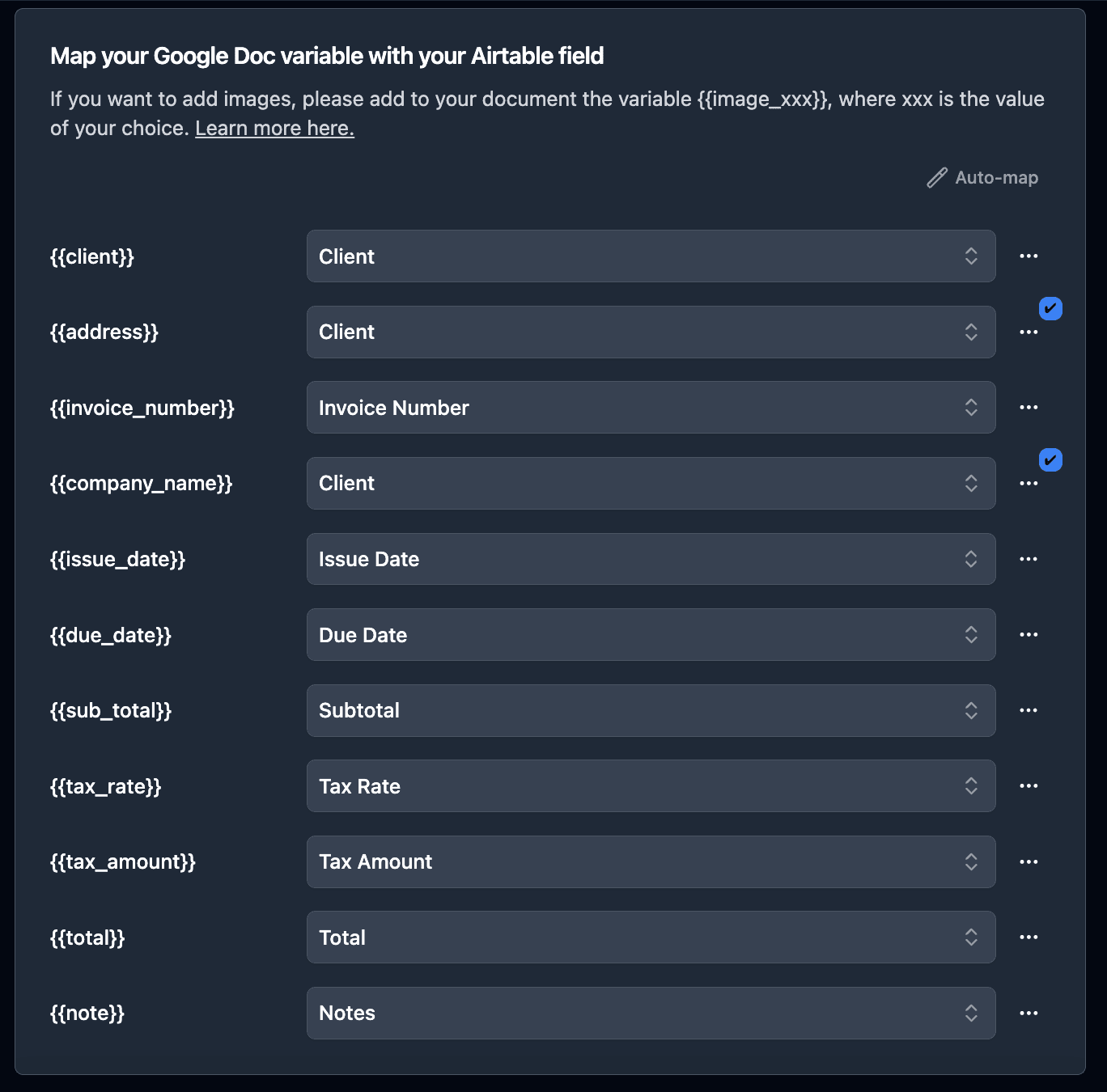
Key mappings:
{{Report ID}}→ Report ID field{{Inspection Date}}→ Inspection Date field{{Inspector Name}}→ Inspector Name field{{Site Location}}→ Site Location field{{Findings Summary}}→ Findings Summary field{{Photos}}→ Photos attachment field{{Signature}}→ Signature attachment field
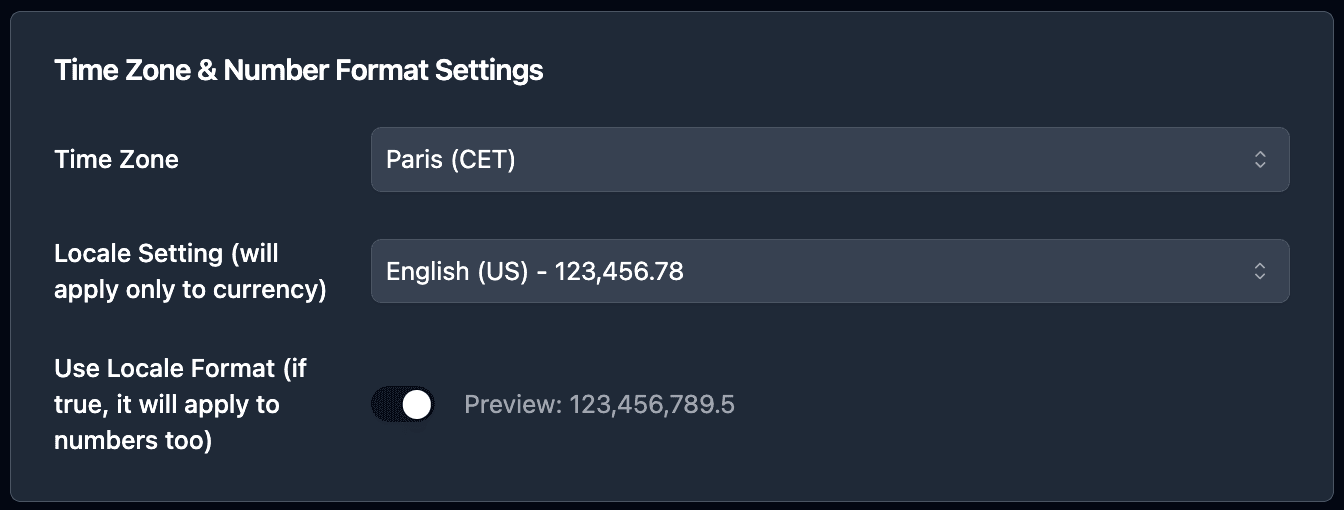
How to Trigger PDF Generation Automatically
Once configured, set up triggers to generate reports without manual clicks.
Option 1: Status Change Trigger
The most common trigger for inspection workflows - generate PDFs when status changes to "Complete."
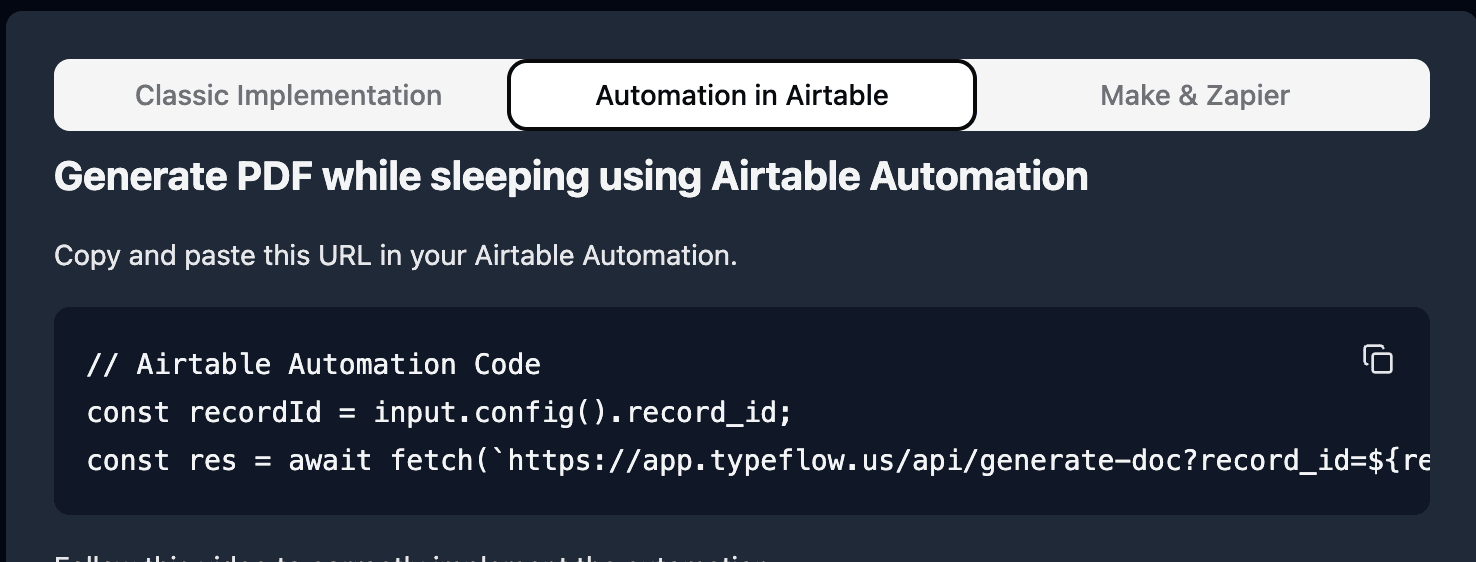
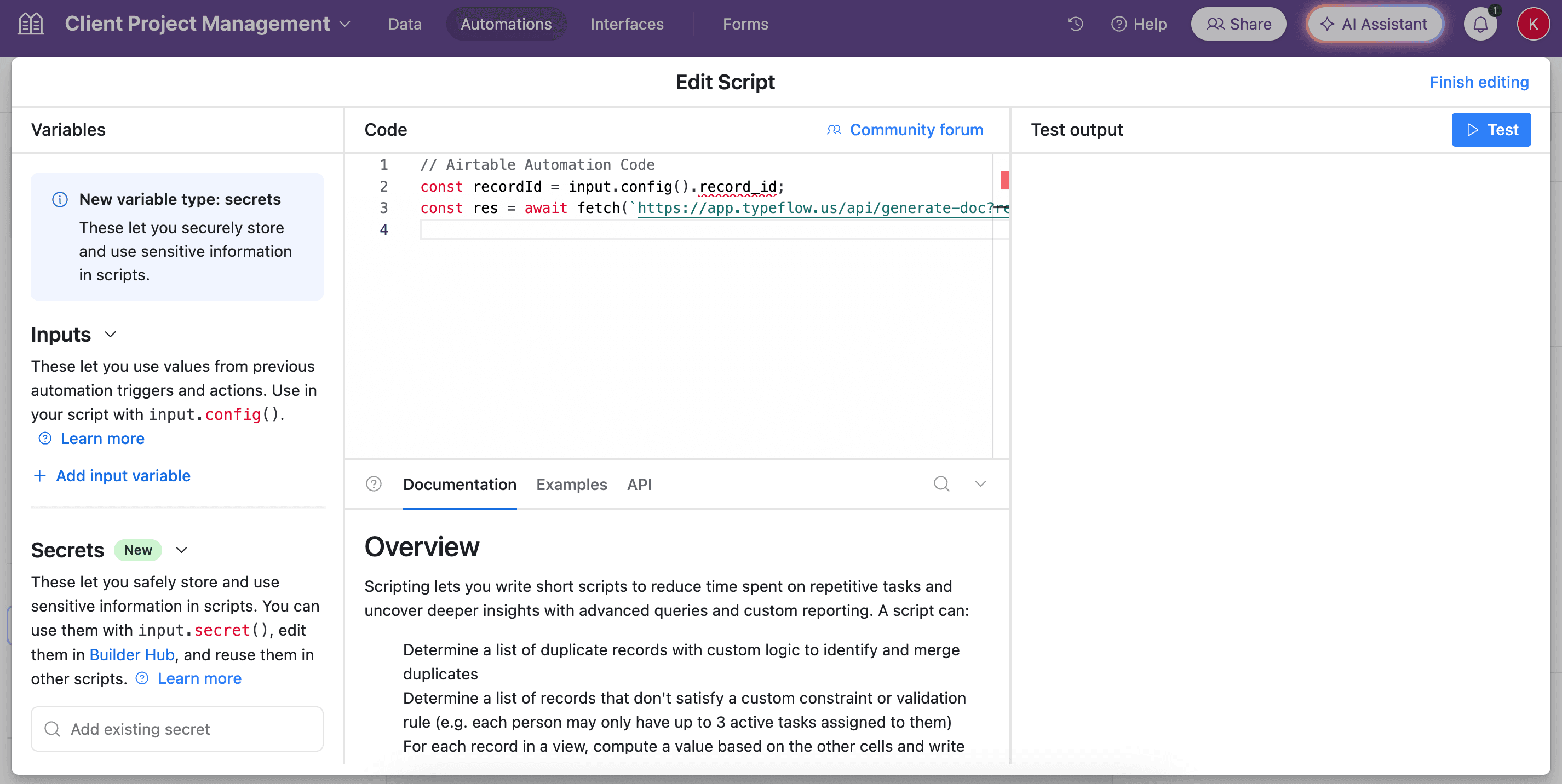
Setup:
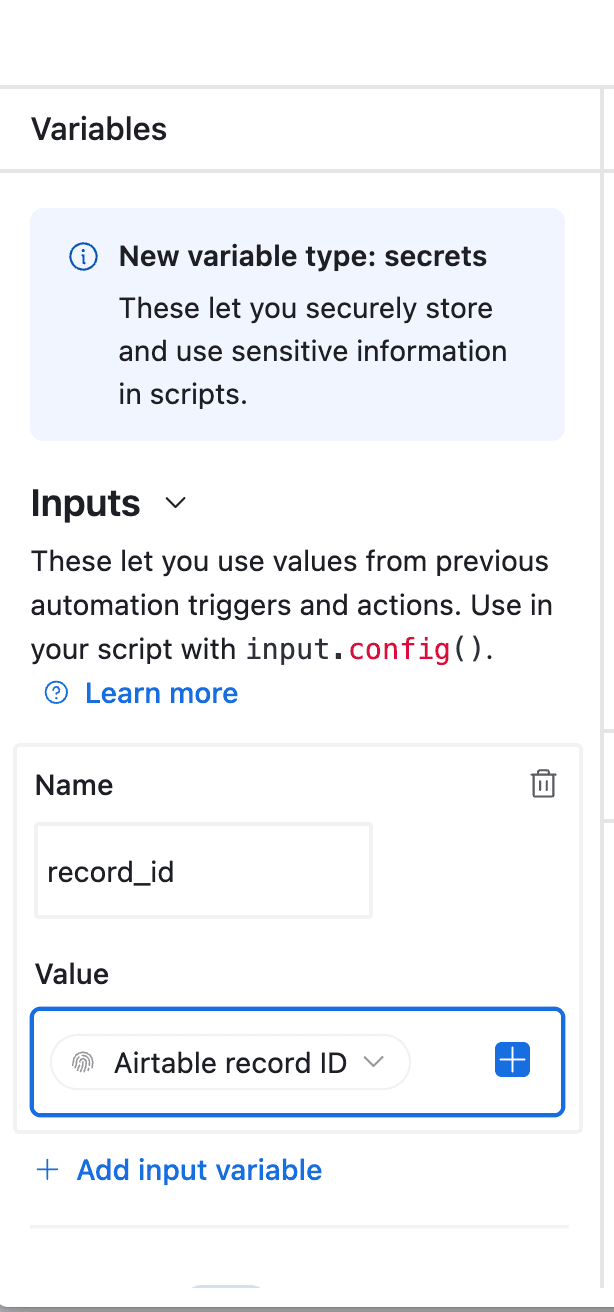
- Create new Automation in Airtable
- Trigger: "When record matches conditions" (Status = "Complete")
- Action: "Run script"
- Paste TypeFlow script
Option 2: Button Field (On-Demand)
Add a button field for manual control when inspectors need to generate reports on demand.
Workflow:
- Inspector completes inspection in Airtable
- Clicks "Generate Report" button
- PDF generates with all data and photos
- Report saves to attachment field
Option 3: Bulk Generation
Generate reports for multiple inspections at once - useful for weekly compliance summaries.
Workflow:
- Filter view to show completed inspections needing reports
- Select all records
- Click "Generate PDFs"
- All reports generate in parallel
Automate your document generation
Start with 20 free documents. Built for businesses using Airtable.
How to Add E-Signatures to Inspection Reports
Signatures are critical for inspection compliance. E-signatures provide legally binding verification with audit trails.
Configure Signature Fields
TypeFlow includes built-in e-signature that is legally compliant under eIDAS and ESIGN Act.
Single signer workflow:
- PDF generates from Airtable data
- Sent to inspector for signature
- Inspector signs electronically
- Signed PDF saves back to Airtable
Sequential signing (inspector → supervisor):
- PDF generates
- Inspector signs first
- Automatically routed to supervisor
- Supervisor signs
- Fully executed PDF saves to record
Track Signature Status
Signature status syncs back to Airtable fields:
- "Pending Signature"
- "Partially Signed"
- "Fully Executed"
Comparing Methods for Generating Inspection PDFs
| Method | Best For | Limitations |
|---|---|---|
| Airtable Page Designer | Simple single-page reports | No multi-page, no automation, limited formatting |
| Zapier + PDF Tools | Teams already using Zapier | Multiple subscriptions, complex setup, brittle workflows |
| TypeFlow | Production inspection workflows | Requires TypeFlow subscription |
Why Dedicated Tools Beat Page Designer
Page Designer is free but severely limited for inspection reports:
- Cannot create multi-page documents
- Cannot handle dynamic checklist items from linked records
- No automation triggers
- No e-signature support
- No bulk generation
Why Native Integration Beats Zapier
Zapier workflows require managing three services (Airtable + Zapier + PDF tool). When something breaks, troubleshooting is difficult. Native tools like TypeFlow provide:
- Direct Airtable connection
- Single point of failure
- Simpler setup
- Built-in e-signatures
Best Practices for Inspection Report Workflows
Use Consistent Field Names
Clear, consistent naming makes field mapping easier:
Inspector_Namenotinsp_nInspection_Datenotdate1
Test with Edge Cases
Before going live, test your template with:
- Records with many checklist items (10+)
- Records with multiple photos
- Records with blank fields
- Records with very long text
Monitor Automation Runs
Check Airtable automation history regularly to catch failures early. Common issues:
- Missing required fields
- Template placeholder mismatches
- Permission errors
Archive Completed Reports
All generated PDFs save to Airtable attachment fields, creating a searchable archive. For long-term storage, consider syncing to Google Drive or your document management system. The same archiving approach works for construction project reports and other recurring documents.
Common Issues and Solutions
Photos Not Appearing in Reports
Problem: Inspection photos don't show in generated PDF.
Solution:
- Verify the Photos field contains image files (PNG, JPG)
- Check attachment field mapping in TypeFlow
- Ensure images aren't corrupted or too large
Checklist Items Missing
Problem: Linked findings don't appear in report.
Solution:
- Verify findings are linked to the inspection record
- Check loop syntax in template
- Confirm linked record field is mapped correctly
Reports Not Generating on Status Change
Problem: Automation doesn't trigger.
Solution:
- Verify automation is turned on
- Check trigger conditions match exactly
- Review automation run history for errors
Start Generating Safety Inspection PDFs from Airtable
With TypeFlow, your team can go from manual report creation to fully automated, professional PDFs in under an hour. Stop copying data into Word templates and start generating compliant inspection reports automatically. See what users say about TypeFlow on G2.
Related Construction Documents
- How to Generate Work Order PDFs from Airtable - Automate work orders with materials and crew assignments
- How to Automate Construction Project Reports from Airtable - Generate progress reports, daily logs, and budget summaries
Automate your document generation
Start with 20 free documents. Built for businesses using Airtable.
Frequently Asked Questions
Find answers to the most common questions about this feature.
Popular Questions
All Questions
Need more help?
Our team is here to help you solve all your problems and answer your questions.
Contact Us
Kevin from TypeFlow
•AuthorKevin Rabesaotra is a growth engineer and automation specialist with 8+ years of experience building no-code solutions. As Founder & CEO of TypeFlow, he has helped hundreds of businesses automate document generation and streamline workflows with Airtable integrations. Previously, Kevin was a Product Lead specializing in growth engineering, running experiments to drive revenue, retention, and lead generation.
More articles
How to Print Labels from Airtable with Quantity Control (Step by Step)
Print multiple labels per Airtable record based on a quantity field. Step-by-step guide for linked records mode and quantity repeat mode with barcodes and Avery sheets.
Read articleHow to Print Avery Mailing Labels from Airtable
Print Avery mailing labels (5160, 5161, 5162) from Airtable without Word mail merge. Step-by-step guide with print label mode, automation, and bulk generation.
Read articleHow to Create Inventory Labels with Barcodes in Airtable
Create inventory labels with Code 128, EAN-13, or QR barcodes from Airtable. Step-by-step guide for warehouse, retail, and asset tracking with thermal and Avery printers.
Read article