How to Generate Work Order PDFs from Airtable for Construction
Construction teams spend hours copying data from Airtable into Word or Excel to create work orders. According to FMI Corporation research, construction professionals spend more than 14 hours per week on non-optimal tasks like searching for files, resolving formatting issues, and reconciling outdated documents. Manual document creation for every job slows operations, introduces errors, and creates inconsistent documentation.
This guide shows you how to generate professional work order PDFs directly from your Airtable construction data - with materials, crew assignments, and e-signatures included. If you also need to produce quotes alongside work orders, see our guide on generating construction quotes from Airtable. For a complete overview of construction document automation, see our complete guide to construction document automation in Airtable. You can also learn how to export Airtable data to PDF for a broader look at PDF generation options.
Key Takeaways
- Get the right tools: You need an Airtable base for your data, a document automation tool like TypeFlow, and a Google Doc to serve as your template.
- Structure your data: Organize your Airtable base with a main "Work Orders" table and link to separate tables for "Materials" and "Crew" to create dynamic line items.
- Design your template: Create a Google Doc and use to mark where Airtable data should go.
- Map your fields: Connect your Airtable base to the automation tool and visually match your Airtable fields to the template placeholders.
- Automate generation: Set up triggers like a button click or a status change in Airtable to generate PDFs automatically.
Quick Answer
You can generate construction work order PDFs directly from Airtable by connecting your base to a document automation tool like TypeFlow. Create a template in Google Docs with placeholder variables (e.g., {{Job Name}}), map your Airtable fields to those variables, and generate professional PDFs with a single click or through full automation.
What to Include in a Construction Work Order
A construction work order should include job and site information, scope of work, materials lists with quantities, crew assignments, scheduled dates, and signature fields for field approval. Research from FMI Corporation shows that poor communication, rework, and bad data management cost the U.S. construction industry $177 billion annually - with 22% of rework caused by inaccurate or inaccessible information. Here are the essential construction-specific fields.
Job and Site Information
Include the official job name, full project address, and site access instructions. List permit numbers and primary client contact information so crews have all necessary details on-site.
Scope of Work and Task Details
Provide clear task descriptions, technical specifications, and firm deadlines. Add special instructions or safety notes to prevent misunderstandings.
Materials and Equipment Lists
List all itemized materials with quantities and equipment needed on-site. This maps perfectly to linked records in Airtable for dynamic, accurate lists.
Labor and Crew Assignments
State assigned workers, subcontractors, and hours allocated. Define role responsibilities for accountability and coordination.
Signature and Approval Fields
Include spaces for supervisor approval, client sign-off, and field completion signatures. These fields adapt easily to digital workflows with e-signatures.
| Field Category | Example Fields | Why It Matters |
|---|---|---|
| Job Info | Address, permit #, client | Identifies the job on-site |
| Scope | Tasks, specs, deadlines | Guides crew work |
| Materials | Items, quantities | Ensures correct supplies |
| Labor | Crew names, hours | Assigns accountability |
| Signatures | Approvals, sign-offs | Documents completion |
How to Structure Your Airtable Base for Work Orders
A well-structured Airtable base is the foundation for generating accurate PDFs. McKinsey research found that construction productivity has grown only 0.4% annually over the past two decades - compared to 2% for the total economy - and that firms adopting digital tools can improve productivity by up to 15%. The table structure determines exactly what data you can pull into your documents.
Work Orders Table
This is the main table where each record represents a single work order.
| Field Name | Field Type | Purpose |
|---|---|---|
| Work Order Number | Auto-number | Unique identifier |
| Job Name | Single line text | Project/job title |
| Site Address | Long text | Full job site address |
| Start Date | Date | When work begins |
| End Date | Date | Target completion |
| Status | Single select | Pending, Approved, Complete |
| Scope of Work | Long text | Task descriptions |
| Special Instructions | Long text | Safety notes, access info |
| Client | Linked record | Link to Clients table |
| Materials | Linked record | Link to Materials table |
| Crew | Linked record | Link to Crew table |
| Work Order PDF | Attachment | Where generated PDF saves |
Linked Tables for Materials and Equipment
Create a separate table for materials to allow detailed line items.
| Field Name | Field Type | Purpose |
|---|---|---|
| Item Name | Single line text | Material description |
| Quantity | Number | Amount needed |
| Unit | Single select | Each, Box, Roll, etc. |
| Category | Single select | Lumber, Hardware, Fasteners |
| Work Order | Linked record | Link back to Work Orders |
Linked Tables for Crew and Labor
Use a separate Crew or Contacts table and link members to work orders.
| Field Name | Field Type | Purpose |
|---|---|---|
| Name | Single line text | Worker name |
| Role | Single select | Foreman, Electrician, Laborer |
| Phone | Phone number | Contact number |
| Hours Allocated | Number | Hours for this job |
| Work Order | Linked record | Link back to Work Orders |
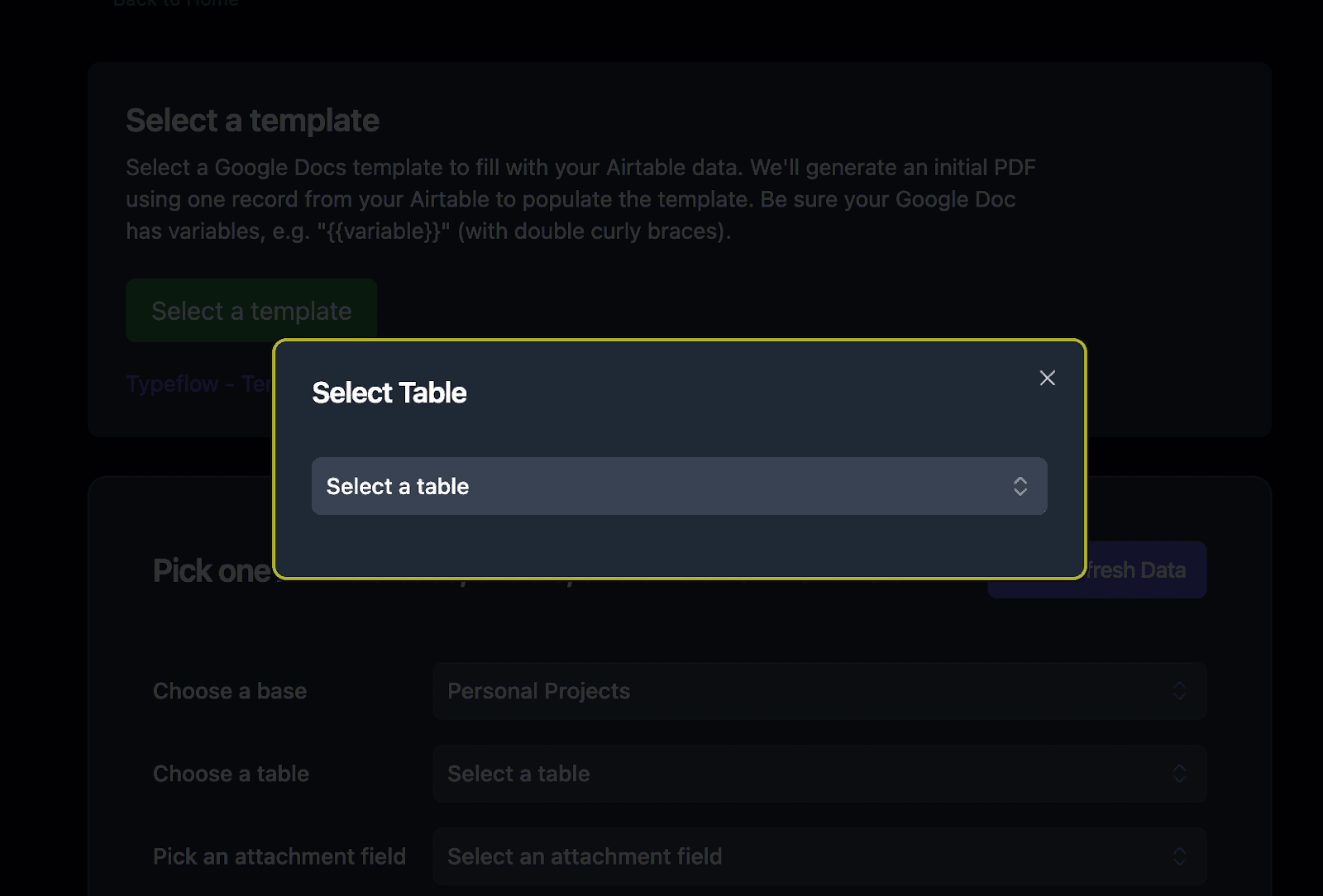
How to Design a Work Order Template in Google Docs
Create a new Google Doc and insert placeholder variables like , , and wherever you want Airtable data to appear. Google Docs serves as a familiar template editor - no proprietary software to learn. If you need templates that span multiple pages, see how to create multi-page PDFs from Airtable without Page Designer.
1. Create a New Google Doc or Copy a Template
Start with a blank document or use a ready-made construction work order template. TypeFlow offers pre-built templates to accelerate setup.
2. Add Placeholder Variables with Double Brackets
Use double curly brackets to create placeholders for Airtable data:
[Company Logo]
[Company Name]
[Address | Phone | Email]

---

WORK ORDER

Work Order #: {{Work Order Number}}
Date Issued: {{Current Date}}
Status: {{Status}}

---

JOB INFORMATION

Job Name: {{Job Name}}
Site Address: {{Site Address}}
Start Date: {{Start Date}}
End Date: {{End Date}}
Client: {{Client Name}}

---

SCOPE OF WORK

{{Scope of Work}}

Special Instructions:
{{Special Instructions}}
3. Format for Field Use and Printing
Design for both digital and physical use. Use readable fonts, organize information with clear section headers, and leave adequate white space for handwritten notes if needed.
Pro Tip: Design for Mobile Readability
Field crews often view work orders on phones or tablets. Use a single-column layout with large fonts (12pt minimum) so documents are readable without zooming.
How to Map Airtable Fields to Your Work Order Template
Install TypeFlow, authorize your Airtable base, then use the visual mapping interface to match each template placeholder to the corresponding Airtable field. No coding required.
1. Connect Your Airtable Base
Install TypeFlow and authorize access to your Airtable base. This is a one-time setup step.
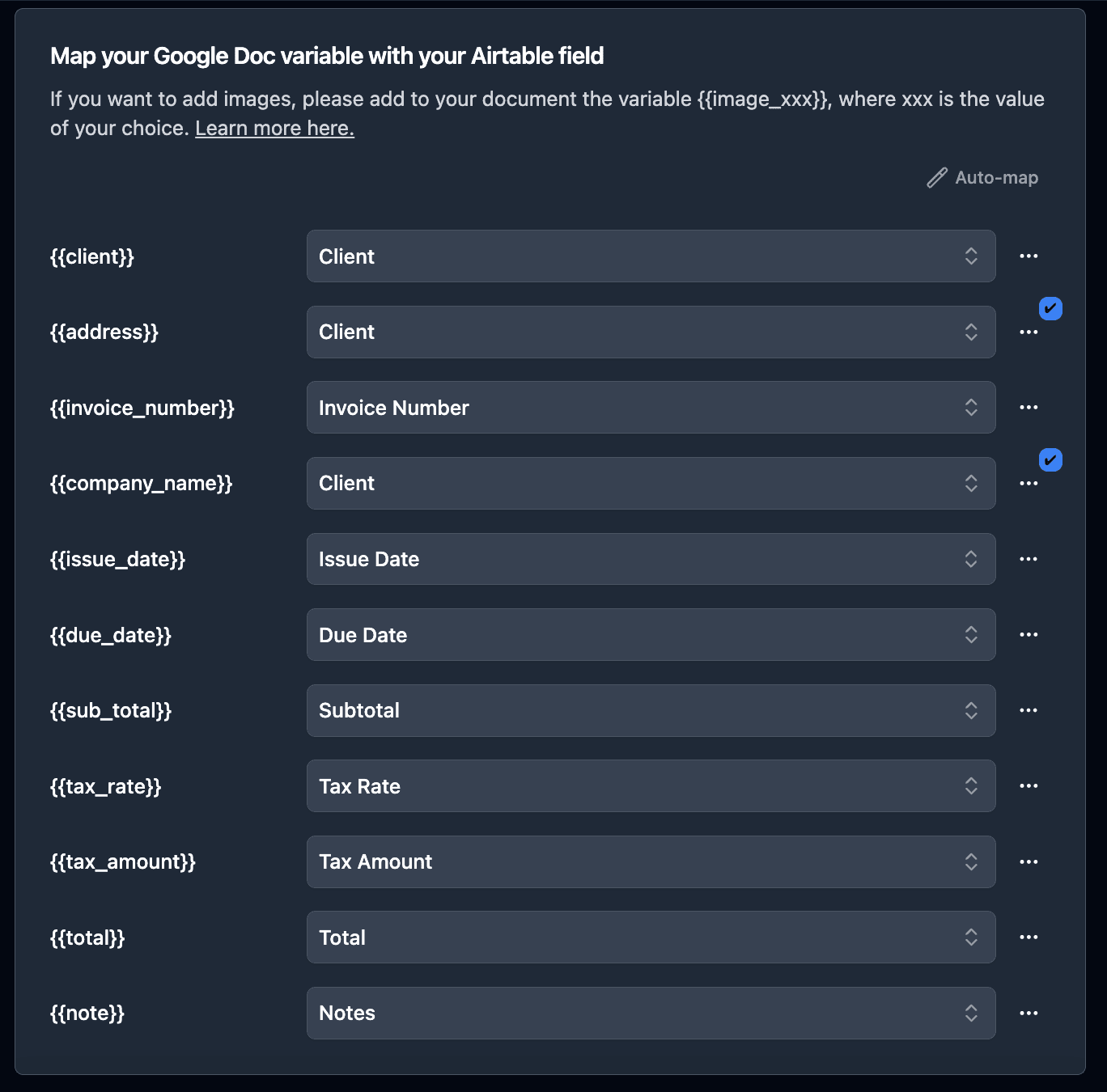
2. Select Fields Using the Mapping Interface
In the mapping interface, you'll see your template variables listed. Use dropdown menus to select the corresponding Airtable field for each placeholder.
3. Preview and Test with Real Data
Generate a test PDF using data from an actual work order record. Verify all fields populate correctly and formatting looks professional.
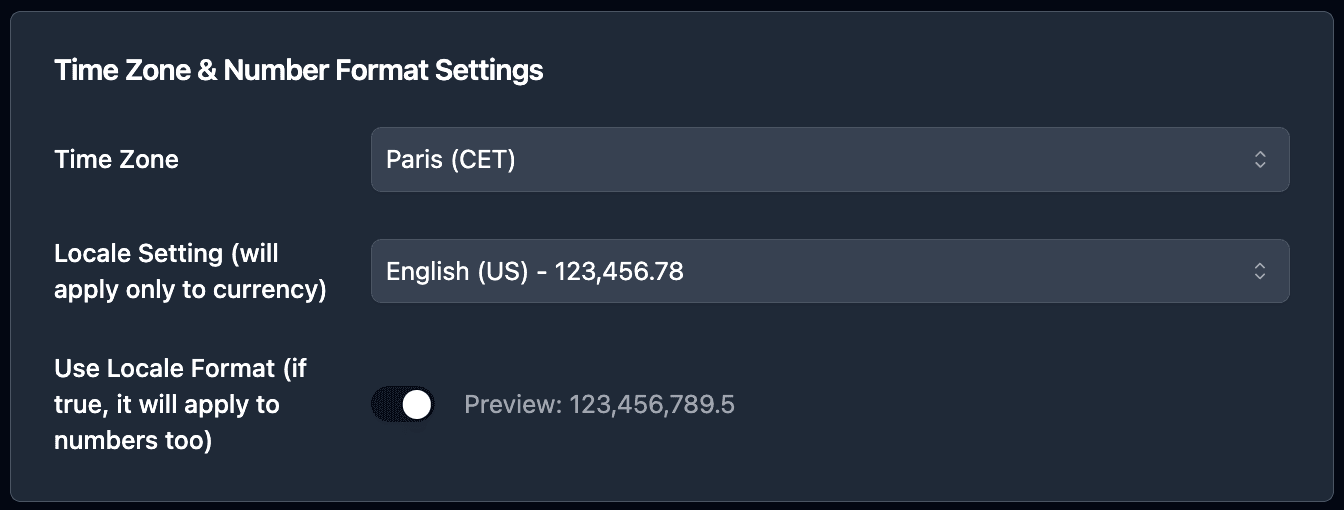
How to Add Materials and Equipment Line Items
Link a Materials table to your Work Orders table in Airtable, then add a loop section in your template using to generate a repeating row for each material or equipment item. For a deeper look at how linked records work in document generation, see our guide on Airtable linked records and PDF generation.
1. Link Your Materials Table to Work Orders
Ensure you have a linked record field in your Work Orders table pointing to your Materials table. Multiple material records can be linked to a single work order.
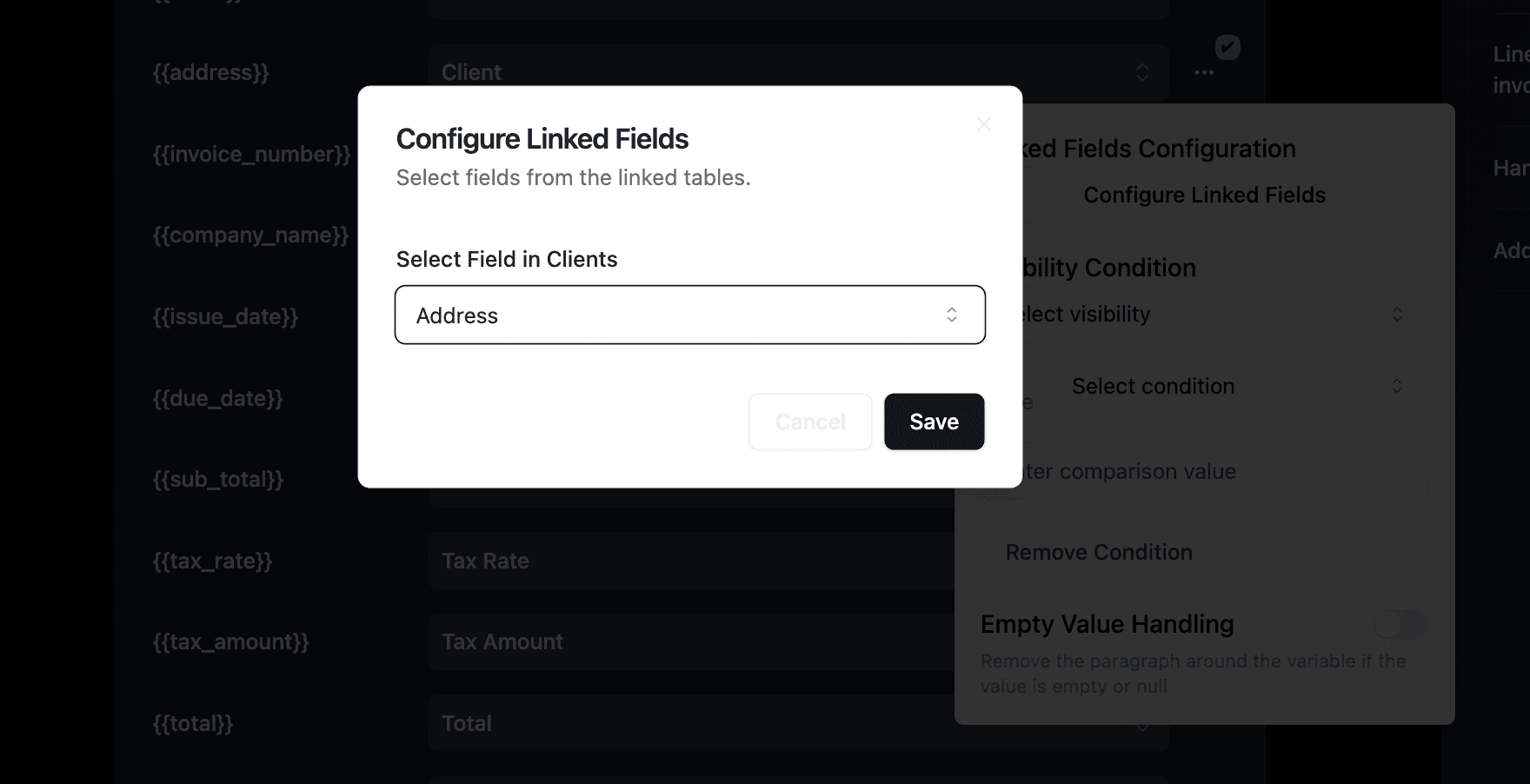
2. Add Line Item Variables to Your Template
Define a repeating section for materials:
MATERIALS REQUIRED

| Item | Quantity | Unit |
|------|----------|------|
{{loop_0}}
| {{Item Name}} | {{Quantity}} | {{Unit}} |

---
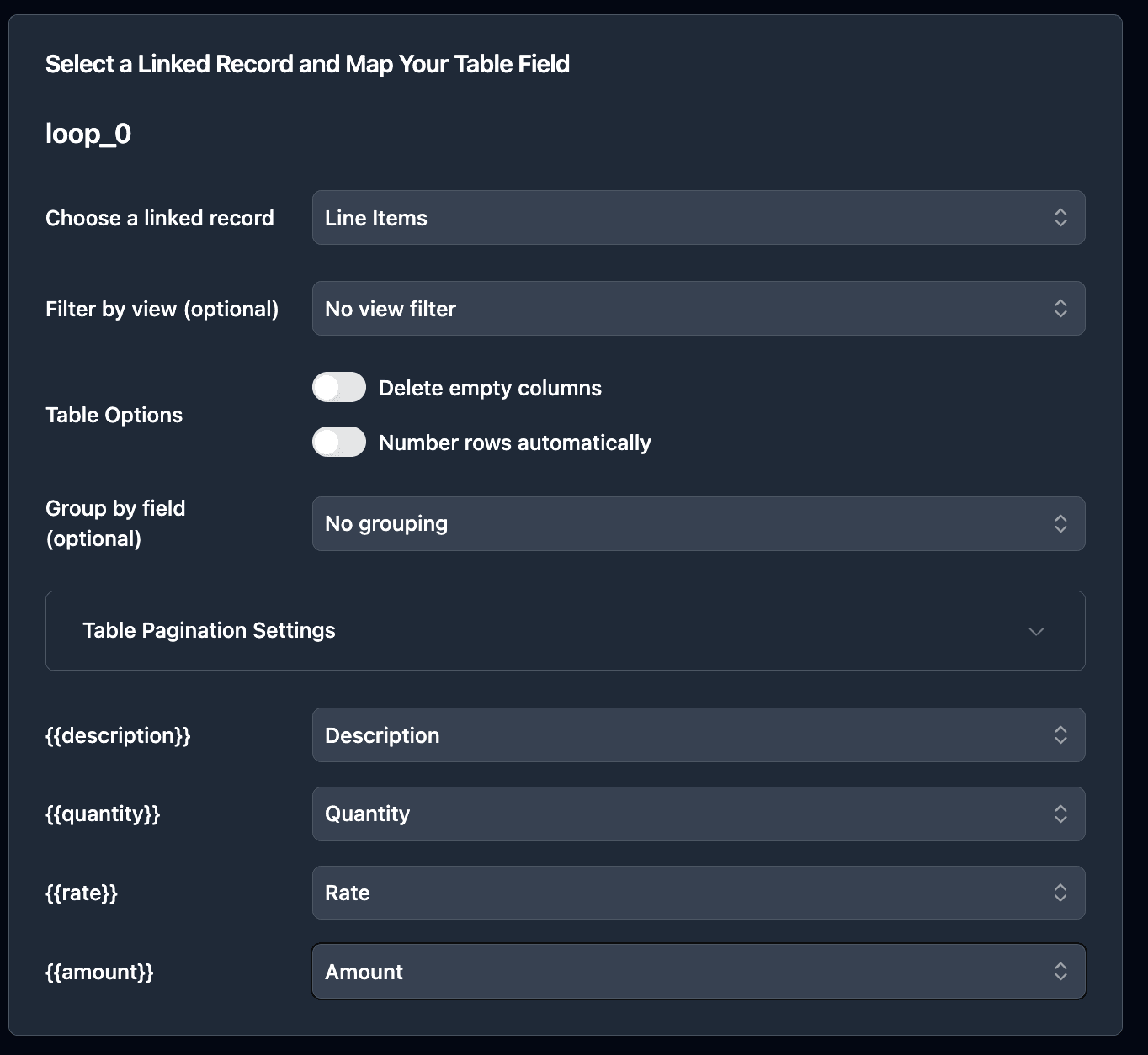
3. Configure Sorting and Grouping
Sort materials alphabetically or by category to make the list easier for crews to use.
Pro Tip: Add Multiple Loops for Different Tables
Use separate loop sections for materials and crew assignments. Each loop pulls from a different linked table, keeping your work order organized with distinct sections.
How to Automate Work Order PDF Generation
Automation removes manual PDF creation, ensuring documents generate consistently.
Option 1: Button Field (On-Demand)
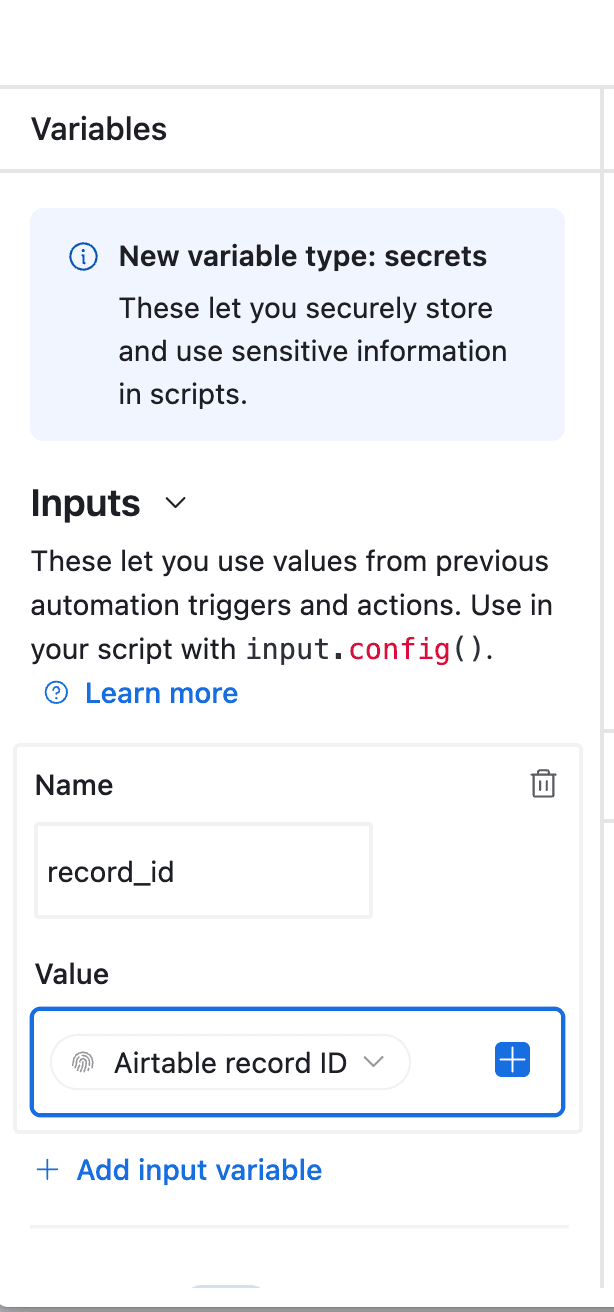
Add a button field to your Work Orders table. A single click generates the PDF and saves it to the record.
Best for: Finalizing individual work orders after review.
Option 2: Airtable Automation (Automatic)
Configure an automation that triggers PDF generation when a record changes - for example, when Status changes to "Approved."
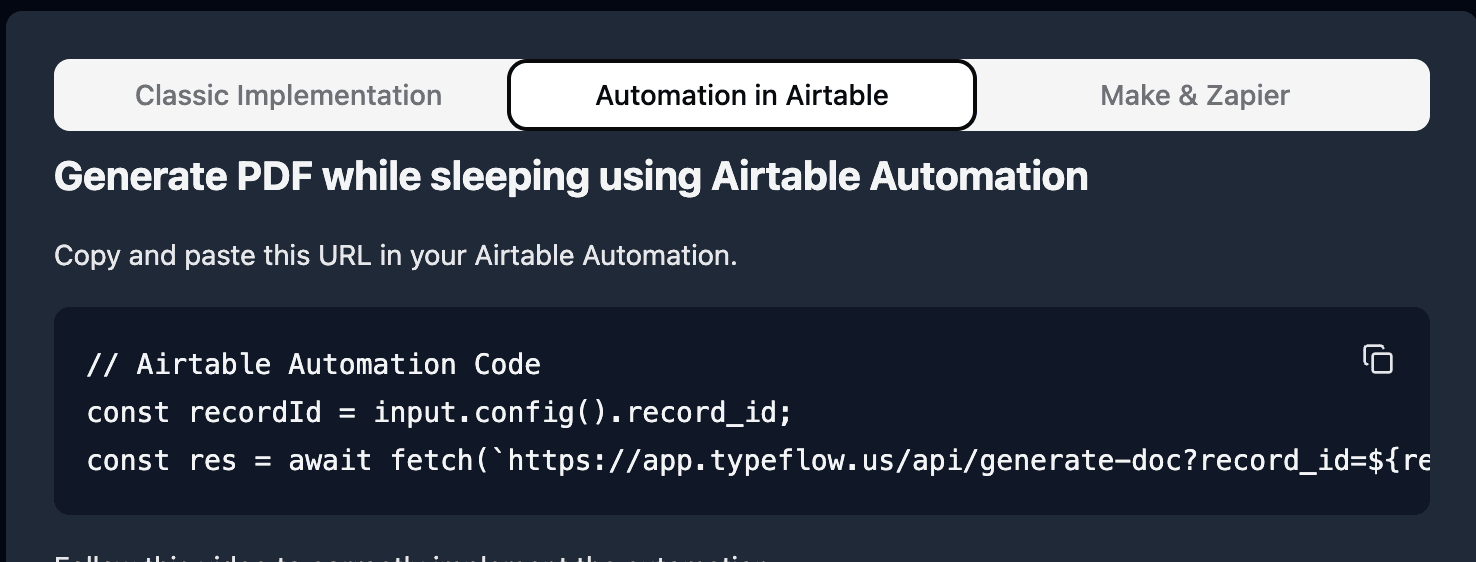
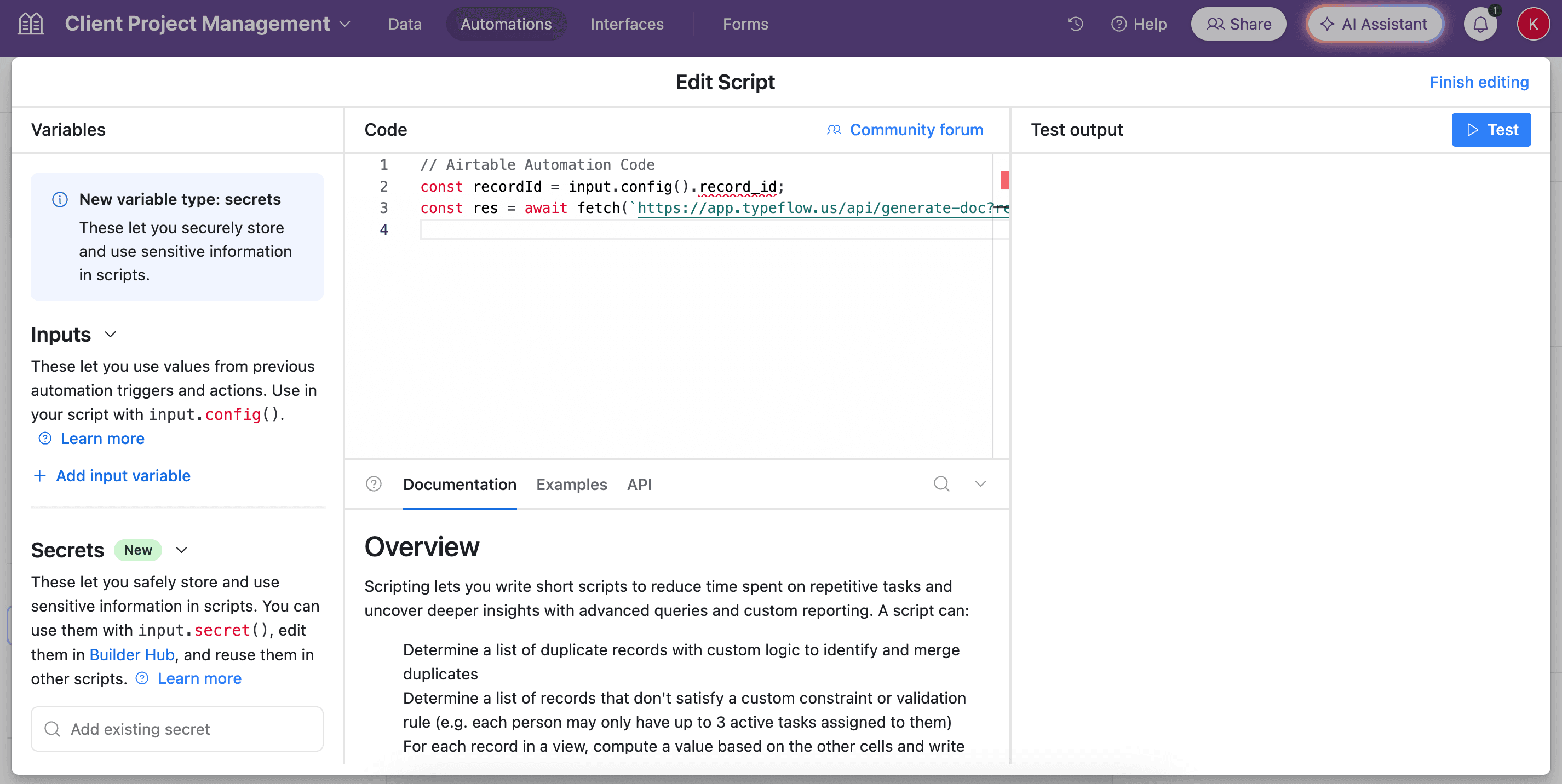
Best for: Hands-off generation for high-volume operations. You can also email the generated PDF automatically as part of the same automation. This same approach works for automated project reports and other recurring documents.
Option 3: Bulk Generation (Batch Processing)
Select multiple work order records in an Airtable view and generate all PDFs at once.
Best for: Preparing all jobs for the week or batch processing.
| Trigger Method | Best For | Manual Steps |
|---|---|---|
| Button | Individual work orders | Click per record |
| Automation | High-volume operations | Zero |
| Bulk | Weekly preparation | Select and click once |
Automate your document generation
Start with 20 free documents. Built for businesses using Airtable.
How to Add E-Signatures for Field Approval
Enable e-signature in TypeFlow, add signature placeholders to your template, configure signers and signing order, then send for signature directly after PDF generation. For background on electronic signatures in Airtable, see our dedicated guide. You can also learn how to generate documents with e-signature from Airtable for a step-by-step walkthrough, or compare options like the DocuSign Airtable integration.
1. Add Signature Placeholders to Your Template
Insert signature fields and date fields where signers will provide input:
APPROVALS

Supervisor Signature:
{{Supervisor Signature}}

Date: {{Supervisor Sign Date}}

---

Client Acknowledgment:
{{Client Signature}}

Date: {{Client Sign Date}}
2. Configure Signers and Signing Order
Set up who needs to sign - single person or multiple. Define signing order for sequential approvals (foreman → project manager → client).
3. Send for Signature and Track Status
One click sends signature requests via email. Status syncs back to Airtable:
- Sent
- Viewed
- Signed
Once complete, the signed PDF saves to the Airtable record.
Pro Tip: Mobile-Friendly Signatures
E-signature links work on any device with a web browser. Subcontractors can sign work orders directly from their phones on-site - no app download required.
How to Update Work Order Templates as Projects Change
Construction projects evolve constantly. A key advantage of Google Docs templates is that updates don't require rebuilding automations.
- Operations teams can make changes directly in Google Docs
- No IT or developer help needed
- Edits are reflected immediately in the next generated document
Add new fields, change branding, or adjust legal requirements - all without technical expertise.
Common Issues and Solutions
The most common problems when generating work order PDFs are missing field data, materials not appearing, and formatting issues on mobile. Here are fixes for each.
Missing Data in Generated PDFs
Problem: Some fields show as blank.
Solution:
- Check that field names in template match Airtable exactly
- Verify the work order record has data in those fields
- Review field mapping in TypeFlow
Materials List Not Appearing
Problem: Linked materials don't show in the work order.
Solution:
- Verify materials are linked to the work order record
- Check loop syntax in template
- Confirm linked record field is mapped correctly
PDF Formatting Issues
Problem: Layout looks different than template.
Solution:
- Use simple formatting in Google Docs
- Avoid complex tables or unusual fonts
- Test with real data before production use
Generate Professional Work Orders Without Manual Work
By connecting Airtable to a document automation tool, you can produce professional, field-ready work order PDFs consistently. AIA research shows that a typical project produces change orders worth up to 7% of the contract value, and IDC research found that businesses lose 21.3% of productivity to document-related challenges. Automation saves hours, improves accuracy, and ensures crews have the information they need.
TypeFlow lets construction teams eliminate manual document creation and implement a reliable system that sets up in hours, not weeks. See what users say about TypeFlow on G2.
Related Construction Documents
- How to Automate Construction Project Reports from Airtable - Generate progress reports, daily logs, and budget summaries
- How to Automate Safety Inspection PDF Reports with Airtable - Create inspection reports with photos and e-signatures
- Airtable Contract Lifecycle Management - Manage contracts from creation through renewal
- Airtable Audit-Ready PDF Reports - Generate compliant reports with full audit trails
- Airtable Manufacturing Document Automation - Automate production and quality documents
- How to Generate Spec Sheet PDFs from Airtable - Create product and material spec sheets automatically
Automate your document generation
Start with 20 free documents. Built for businesses using Airtable.
Frequently Asked Questions
Find answers to the most common questions about this feature.
Popular Questions
All Questions
Need more help?
Our team is here to help you solve all your problems and answer your questions.
Contact Us
Kevin from TypeFlow
•AuthorKevin Rabesaotra is a growth engineer and automation specialist with 8+ years of experience building no-code solutions. As Founder & CEO of TypeFlow, he has helped hundreds of businesses automate document generation and streamline workflows with Airtable integrations. Previously, Kevin was a Product Lead specializing in growth engineering, running experiments to drive revenue, retention, and lead generation.
More articles
How to Print Labels from Airtable with Quantity Control (Step by Step)
Print multiple labels per Airtable record based on a quantity field. Step-by-step guide for linked records mode and quantity repeat mode with barcodes and Avery sheets.
Read articleHow to Print Avery Mailing Labels from Airtable
Print Avery mailing labels (5160, 5161, 5162) from Airtable without Word mail merge. Step-by-step guide with print label mode, automation, and bulk generation.
Read articleHow to Create Inventory Labels with Barcodes in Airtable
Create inventory labels with Code 128, EAN-13, or QR barcodes from Airtable. Step-by-step guide for warehouse, retail, and asset tracking with thermal and Avery printers.
Read article