How to Generate PDFs from Airtable Linked Records Without Lookup Fields
Generate PDFs from Airtable linked records without creating lookup fields. TypeFlow handles linked records two ways: loop on linked records to repeat rows for each child record (invoices, quotes, reports), and direct field access to read any field from a linked table up to 3 levels deep. No lookups, no clutter. This guide covers both methods.
Generate PDFs from linked records - no lookup fields needed
Loop through line items, access fields across tables, automate generation and delivery.
Start free with 20 documentsWhat Are Airtable Linked Records in PDF Generation
Linked records let you pull related data from multiple Airtable tables into a single PDF - an invoice with its line items, a project with its tasks, or a quote with its products. A parent record connects to multiple child records through linked records. One invoice, five products. One project, twelve tasks.
For PDF generation, linked records matter because you want all related data in one document. An invoice pulls in line items. A project report pulls in tasks. A quote pulls in products. According to McKinsey, automating document workflows reduces cycle times by 50% - and linked records are the foundation of that automation.
Why Lookup Fields Fall Short for PDF Generation
Lookup fields break formatting, flatten data into comma-separated strings, and clutter your base with dozens of extra fields. Here is why they do not work for PDF generation.
Messy Array Outputs
According to Deloitte, 73% of teams still spend significant time on manual document creation - and lookup field workarounds make it worse. Lookup fields return comma-separated text, not structured data. Five line items become one string: "Widget A, Widget B, Widget C, Widget D, Widget E." That is not a professional invoice.
No Row Structure for Line Items
You cannot create a table with individual rows for each linked record using lookups. The data comes through as a single blob. Your invoice gets one cell with everything mashed together.
Limited Sorting and Filtering
No control over which linked records appear or their order. You get everything in whatever order Airtable decides.
Broken Date and Currency Formatting
Formatting gets lost through lookup fields. Dates become plain text. Currency symbols disappear. $1,250.00 becomes 1250.
The "20 Lookups" Workaround That Does Not Scale
Some users try to build dynamic tables using lookup fields. The approach goes like this: create 20 lookup fields in the parent table (one per potential row), then use conditional sections to show or hide each row based on whether the lookup has a value.
It works for small tables. But the moment you need a 21st row, you have to add a new lookup field in Airtable AND a new conditional section in your template. For every single row. The template becomes impossible to maintain, and your Airtable base fills up with dozens of lookup fields that exist only to feed the document.
With TypeFlow's linked record loops, you add rows in Airtable - the template adapts automatically. No new fields, no new conditional sections.
| Issue | Lookup Field Behavior | Direct Linked Record Access |
|---|---|---|
| Data format | Comma-separated text | Structured rows |
| Line item tables | Not possible (or 20+ lookup workaround) | Full support |
| Adding new rows | New lookup + new conditional section | Just add a linked record |
| Sorting | No control | Customizable |
| Formatting | Lost | Preserved |
Two Ways TypeFlow Handles Linked Records
TypeFlow eliminates lookup fields with two distinct features. Both work together or independently.
Method 1: Loop on Linked Records
Repeat rows or sections for each linked record. You design the row once in your template - TypeFlow duplicates it for every child record.
TypeFlow supports several loop types depending on your use case:
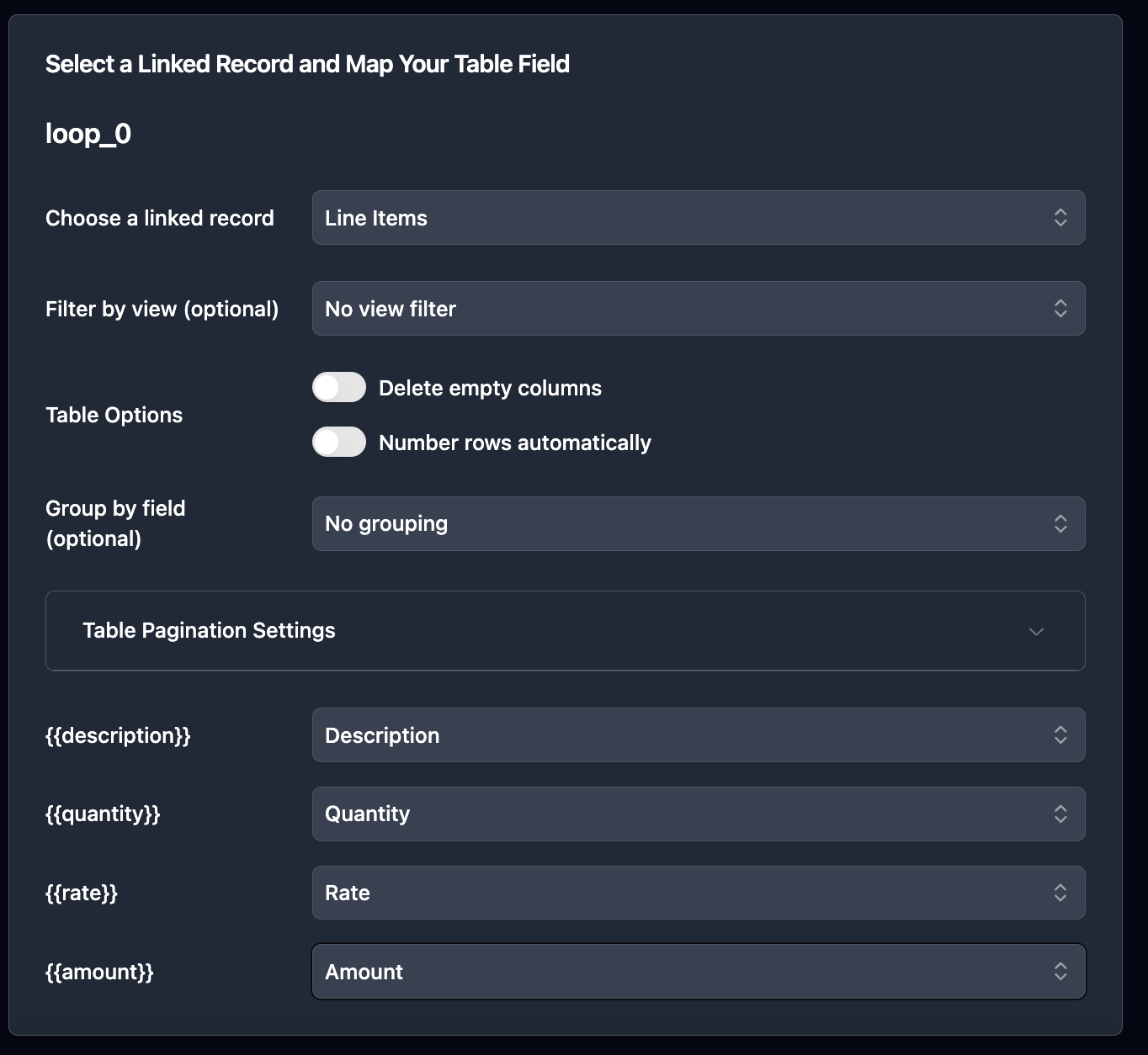
loop_0 - Repeat a Table Row
The most common loop. Place it inside a Google Docs table row and each linked record becomes one row in the PDF. Best for invoice line items, quote products, order items.
Five line items in Airtable means five rows in the final PDF. You design the row once.
Here is a purchase order template using loop_0:
table_loop_0 - Repeat an Entire Page or Section
Repeats a full page or section per linked record. Best for inspection reports (one page per site), project reports (one section per milestone), itineraries (one page per day).
Each linked record gets its own page with header, content, photos, and footer. Here is an inspection report template - each site is a linked record that becomes a full page:
nested_items_0 - A Loop Inside a Loop
For grouped data where each parent item has its own child items. Best for investor reports (sections with sub-entries), categorized invoices (categories with products under each), or project reports (phases with tasks).
Here is an investor report template with nested sections:
table_loop + nested_items With Dot Notation - Deep Nested Structures
For complex documents with 3-4 levels of depth. Best for master agreements with chapters and sub-sections, legal contracts with exhibits, or any document where linked records have their own linked records.
Real example: a 43-page Master Manufacturing Agreement built from an Airtable base with 4 levels of depth:
- Level 1: MMA Version (the contract)
- Level 2: Contract Chapters (39 chapters, each a linked record)
- Level 3: Sub-Level sections (paragraphs within each chapter)
- Level 4: Level 3 items (sub-paragraphs)
Plus a separate loop for Exhibits, each with its own chapters and sub-levels. For a full walkthrough of this pattern, see our guide on generating 100+ page agreements from Airtable.
TypeFlow handles this with dot notation: nested_items_1_chapters.sublevel.level3 traverses all 4 levels. The template uses two table_loop variables pointing to the same source - one for the main contract body, one for the exhibits section.
This is the most advanced use case TypeFlow supports. Most documents need 1-2 levels. But when you need 4, it works.
Method 2: Direct Field Access Across Tables (No Lookup)
Access any field from a linked record without creating a lookup field in Airtable. TypeFlow traverses linked records up to 3 levels deep.
The pain without this: Your Invoice table needs the client name, but it lives in the Clients table. Traditional approach: create a lookup field "Client Name (from Client)" in your Invoice table. Do this for address, email, phone, tax ID - and suddenly you have 15 extra lookup fields cluttering your base.
With TypeFlow: In the mapping interface, pick the linked record field (e.g. "Product Choose"), click the gear icon, and select the field you want from the linked table.
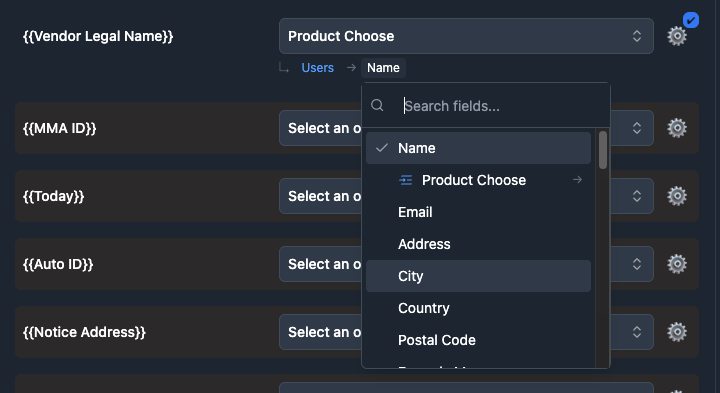
TypeFlow reads it directly through the link. No lookup needed. Here is the result - the linked field shows the traversal path below (Users → Name):

This works up to 3 levels deep:
- Level 1: Invoice → Client → Client Address
- Level 2: Invoice → Client → Company → Company Address
- Level 3: Quote → Project → Project Manager → Manager Email
No lookup fields at any level. Your base stays clean.
How to Structure Your Airtable Base for Linked Records
Set up a parent table (invoices, orders, projects) linked to a child table (line items, products, tasks). This takes a few minutes and makes PDF generation straightforward.
Parent Table Setup
Your main record - the invoice, order, project, or quote. Include fields for the document header: client name (or linked to Clients table), date, reference number, status. This table is where you trigger PDF generation from.
Child Table Setup
The related records that become rows in your PDF. Each child record - line item, product, task - appears as one row. Include all fields you want in the document: description, quantity, unit price, total.
Linking the Two Tables
Create a linked record field in your child table pointing to the parent table. Each line item links to its invoice. That is it.
Here is an example base you can copy:
How to Generate PDFs From Airtable Linked Records Step by Step
Step 1: Design Your Template
Two options:
Google Docs. Add merge variables for header fields and loop_0 inside a table row for linked records.
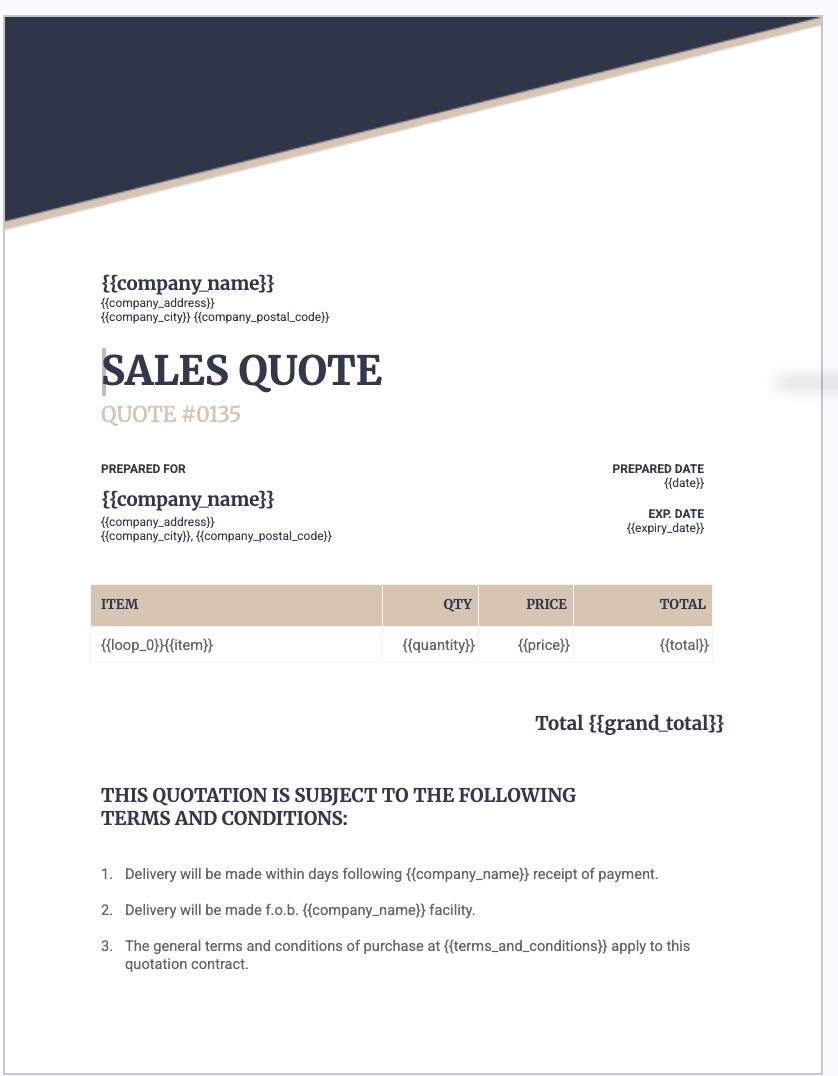
TypeFlow HTML/CSS builder. If you do not use Google Docs, design directly in TypeFlow with drag-and-drop. You can also import your own HTML/CSS code.
Step 2: Connect TypeFlow and Map Your Fields
In TypeFlow, connect your Airtable base and select your parent table.
For header fields (client name, date, etc.), map them directly or use "Configure Linked Fields" to access data from linked tables without lookups.
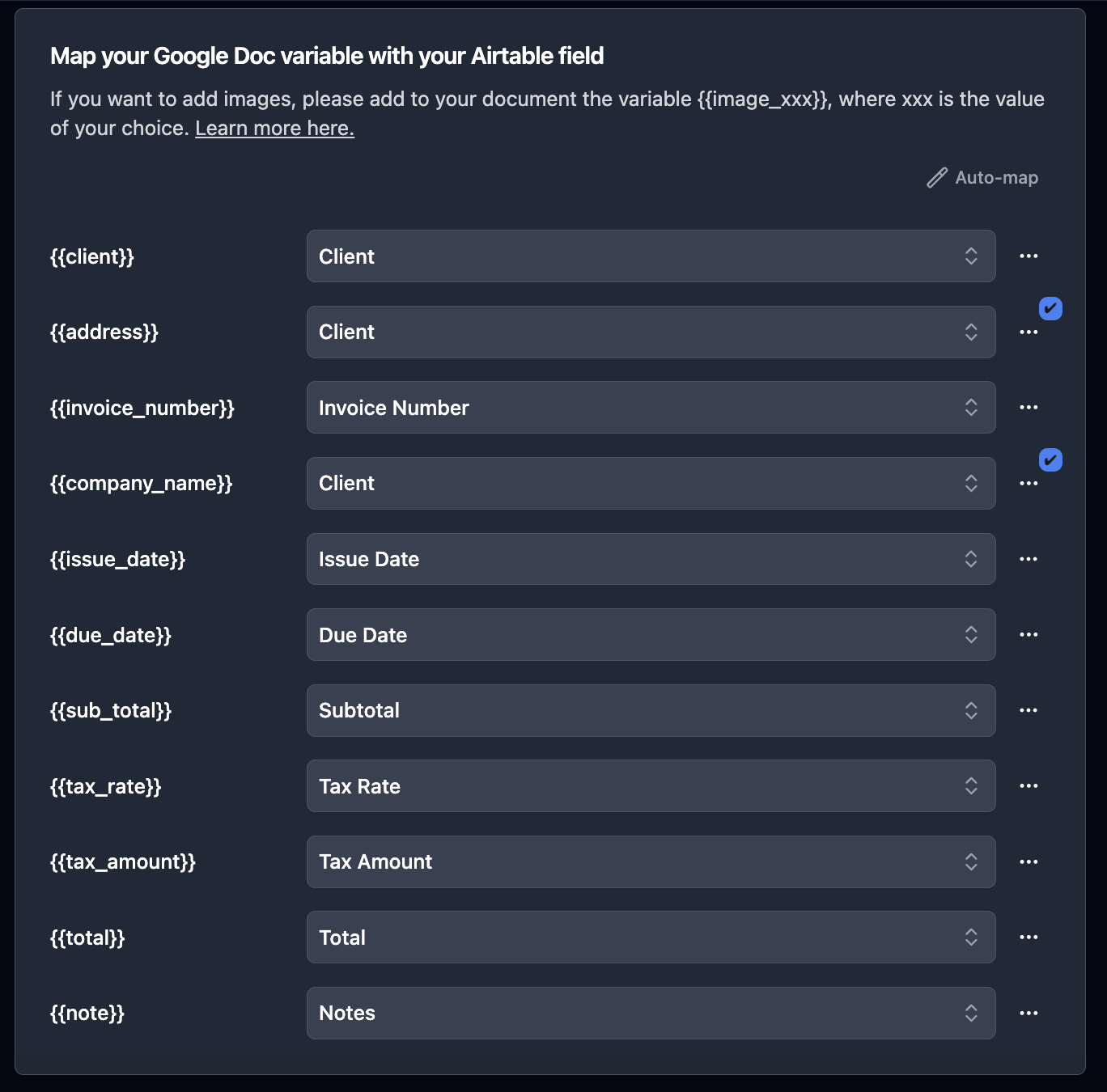
For line items (linked records that repeat), select the linked table and map each column.
Step 3: Generate and Test
Run a test with a record that has multiple linked records. Check that:
- Each linked record appears as a separate row
- Header fields from linked tables populate correctly
- Date and currency formatting is preserved
- Sorting and grouping look right
How to Automate PDF Generation From Airtable Linked Records
Three ways to trigger generation:
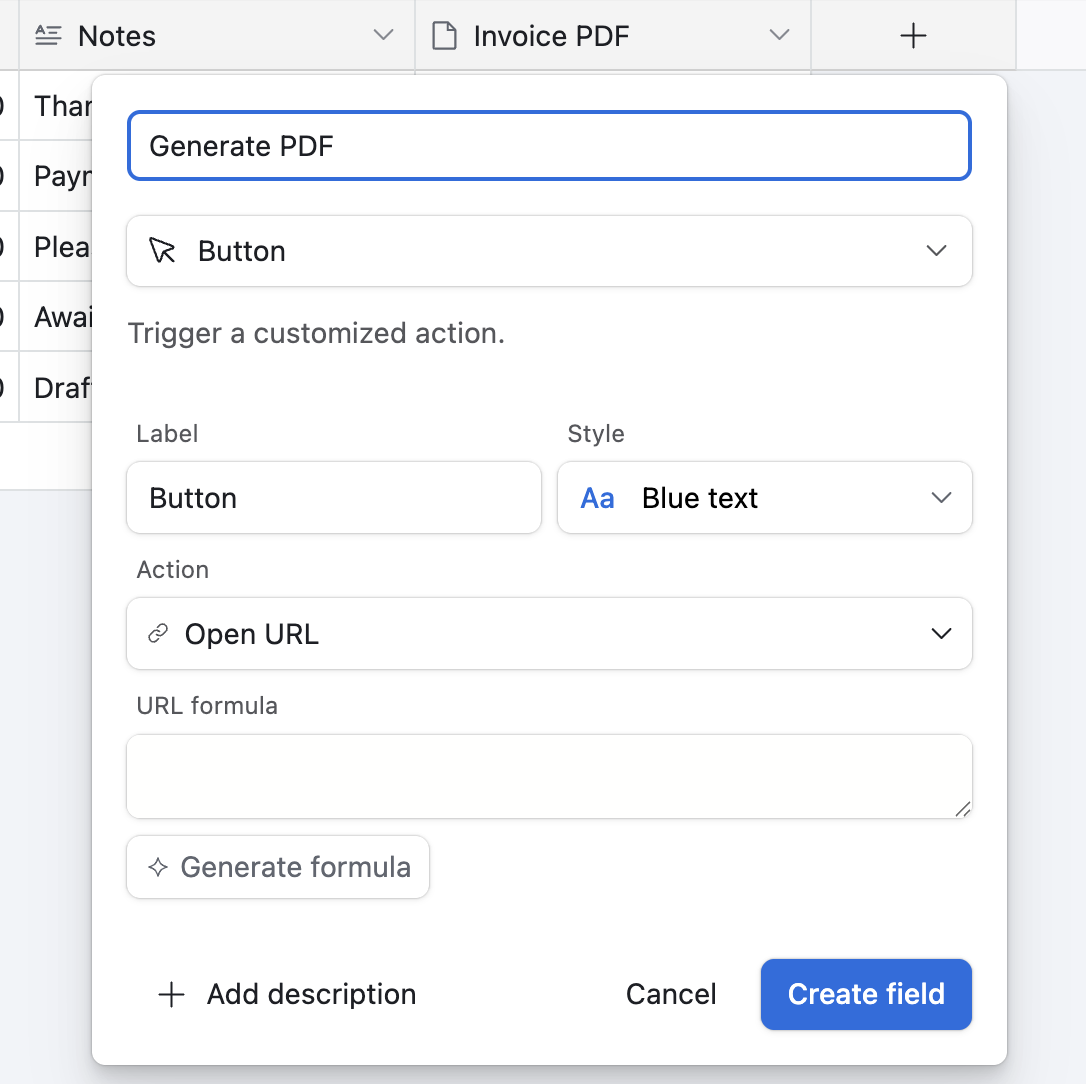
Button field. Add a button to your table. One click generates the PDF for that record.
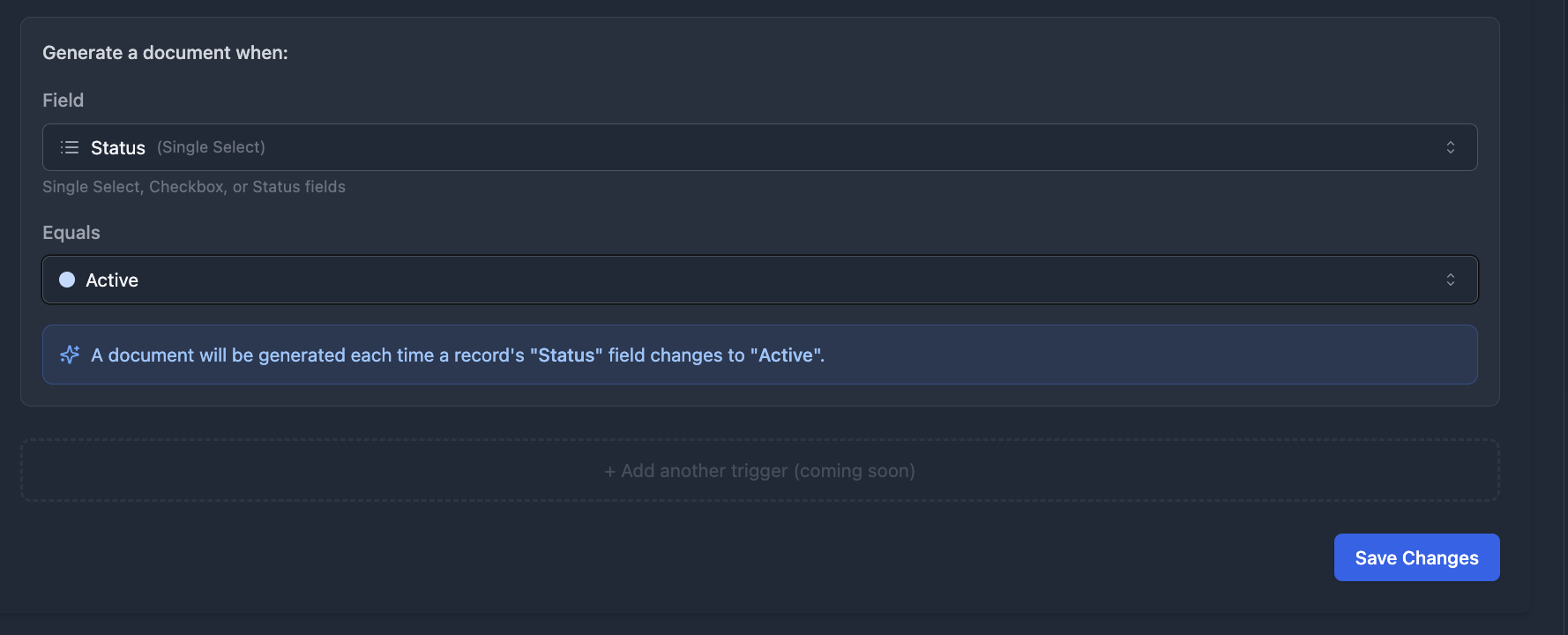
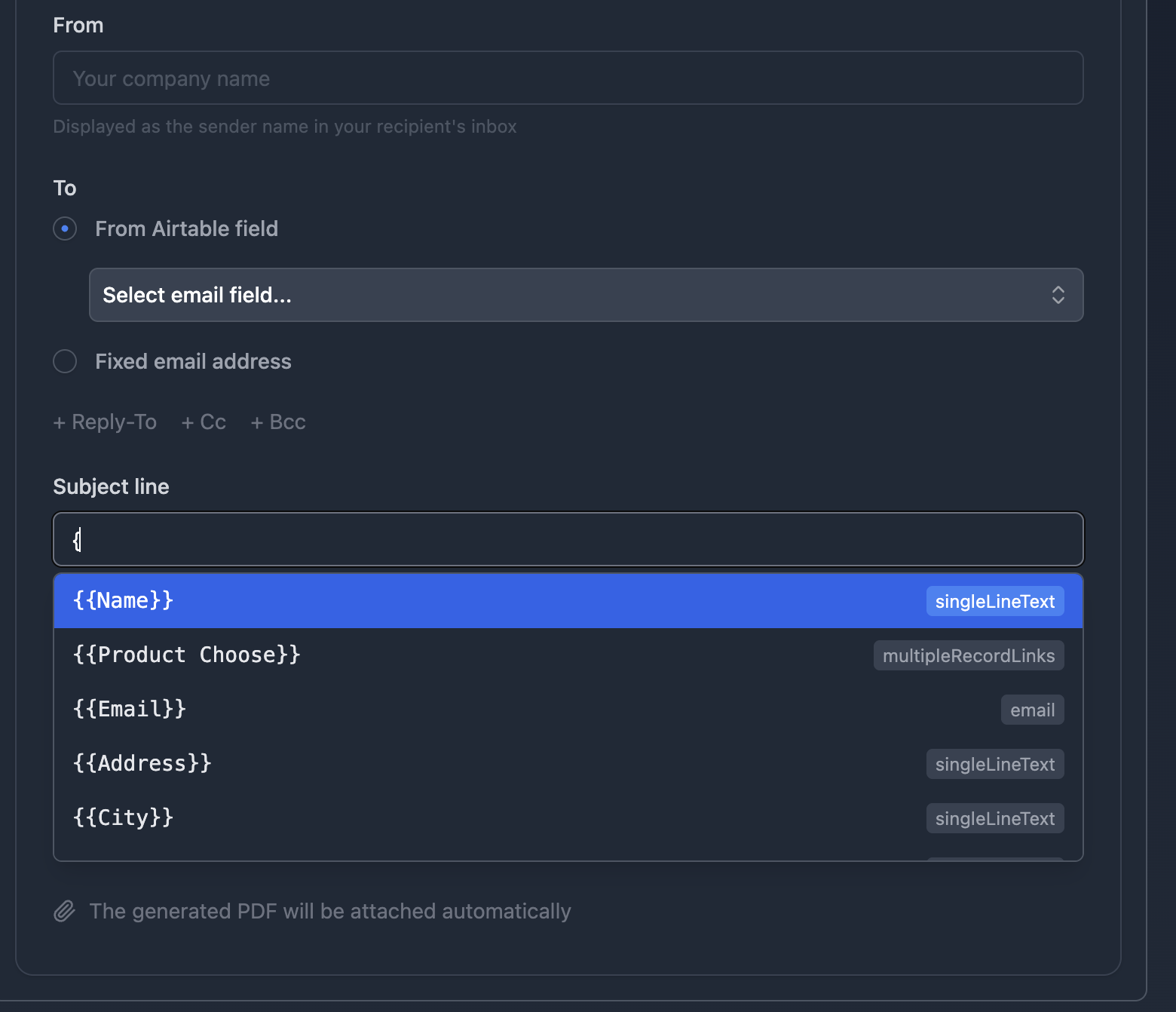
TypeFlow Automation. Set a trigger on a field value change - when Status changes to "Ready," the PDF generates automatically. Add Email Post Generation to send it to the client.
Airtable Automations. Trigger on form submission, record creation, or schedule.
For the complete email delivery setup, see our guide on how to generate and email PDFs from Airtable automatically.
Add E-Signatures to Documents With Linked Records
TypeFlow includes built-in e-signatures at no extra cost. Generate the invoice or contract from linked records, send it for signature, and the signed PDF returns to your Airtable record. TypeFlow e-signatures comply with eIDAS and ESIGN regulations.
For contracts that need negotiation, TypeFlow includes redlining on the Scale plan.
Common Use Cases for Linked Records PDF Generation
- Invoices with line items. Each product/service is a linked record. See our invoice generation guide.
- Quotes with products. Itemized pricing from linked records. See our quote generation guide.
- Inspection reports. One page per site using
table_loop_0. See our multi-page PDF guide. - Contracts. Client details pulled from linked Clients table without lookups. See our contract lifecycle guide.
- Construction quotes. Materials and labor as linked records. See our construction quote guide.
Start Generating PDFs From Your Airtable Linked Records
World Commerce & Contracting estimates that poor document management costs organizations 9% of annual revenue. Linked records are powerful for organizing relational data. With TypeFlow, they are just as powerful for document generation - no lookup fields, no comma-separated formatting, no clutter. Rated by Airtable users on G2.
For related guides, see how to export Airtable data to PDF, our document generation overview, and multi-page PDFs without Page Designer.
Ready to generate PDFs from linked records?
Connect your Airtable base, map your linked records, and generate your first document in minutes.
Start free with 20 documentsFrequently Asked Questions About Airtable Linked Records PDF Generation
Find answers to the most common questions about this feature.
Popular Questions
All Questions
Need more help?
Our team is here to help you solve all your problems and answer your questions.
Contact Us
Kevin from TypeFlow
•AuthorKevin Rabesaotra is a growth engineer and automation specialist with 8+ years of experience building no-code solutions. As Founder & CEO of TypeFlow, he has helped hundreds of businesses automate document generation and streamline workflows with Airtable integrations. Previously, Kevin was a Product Lead specializing in growth engineering, running experiments to drive revenue, retention, and lead generation.
More articles
How to Print Labels from Airtable with Quantity Control (Step by Step)
Print multiple labels per Airtable record based on a quantity field. Step-by-step guide for linked records mode and quantity repeat mode with barcodes and Avery sheets.
Read articleHow to Print Avery Mailing Labels from Airtable
Print Avery mailing labels (5160, 5161, 5162) from Airtable without Word mail merge. Step-by-step guide with print label mode, automation, and bulk generation.
Read articleHow to Create Inventory Labels with Barcodes in Airtable
Create inventory labels with Code 128, EAN-13, or QR barcodes from Airtable. Step-by-step guide for warehouse, retail, and asset tracking with thermal and Avery printers.
Read article