How to Create Professional Quotes from Airtable (Step-by-Step Guide)
You can generate professional PDF quotes directly from your Airtable client and product data. Connect TypeFlow, build a Google Docs or HTML/CSS template with line items from linked records, and send quotes with one click or automatically when a deal moves to a new stage. See our complete invoice and quote solution for the full workflow.
Quotes are a key part of the invoicing workflow - for the full picture, see our guide to Airtable invoice automation.
By the end of this guide, you'll have a quote generation system that:
- Creates professional-looking quotes with your branding
- Automatically pulls client and product data from your Airtable base
- Includes line items with quantities, prices, and totals
- Optionally collects e-signatures for quote acceptance
- Saves hours of manual work each week
Key Takeaways:
- Automation Tooling: Use TypeFlow to connect Airtable data to Google Docs or HTML templates for instant PDF generation.
- Database Design: Organize your Airtable base into four linked tables - Clients, Products, Quotes, and Line Items for maximum flexibility.
- Trigger Methods: Generate quotes manually via a Button field or automatically using Airtable Automations when a status changes.
- Integrated E-Signatures: Close deals faster by embedding signature placeholders directly into your quote templates.
- Workflow Continuity: Seamlessly convert accepted quotes into invoices by duplicating records or using automation scripts.
What Is Quote Generation from Airtable?
Connect a tool like TypeFlow to your Airtable base to automatically create professional PDF quotes from your client and product data. Airtable doesn't natively generate documents, so the tool pulls your records, merges them into a template, and outputs a branded PDF.
The process works in three simple steps:
- Data Pull: Information is pulled directly from your Airtable records - client details, products, quantities, prices.
- Template Merge: The data is merged into a pre-designed template (Google Docs or Template Builder).
- PDF Generation: A final, polished PDF quote is created and saved back to Airtable.
Why Airtable Can't Generate Quotes Natively
Airtable is great for managing quote data, but it is not a document generator. To produce branded PDFs with dynamic line items and signature links, you need an external tool.
- No native PDF generation: Airtable does not produce a polished, reusable quote PDF from records.
- No true template system: You can't build a branded multi-page quote template that auto-fills from fields.
- Line items are limited: Linked-record line items require looping and merge logic that Airtable doesn't support.
- No built-in e-signatures: Acceptance workflows require a separate signing tool or integration.
- Page Designer limits: Useful for simple single-page layouts, but not suitable for automation, dynamic tables, or multi-page documents.
Quotes vs. Invoices: What's the Difference?
Quotes are sent before work begins (proposal/estimate), invoices after work is done (payment request). The Airtable base structure is similar, but the fields and client actions differ:
| Aspect | Quote | Invoice |
|---|---|---|
| Timing | Before work begins | After work is done |
| Purpose | Proposal/estimate | Payment request |
| Key fields | Valid until date, revision number | Due date, payment terms |
| Client action | Accept or decline | Pay |
| E-signature need | Common (for acceptance) | Sometimes |
Many businesses use both: a quote converts to an invoice once accepted. We'll cover that workflow later in this guide.
For invoice automation, see our invoice generation guide.
Why Automate Quotes in Airtable?
Faster quote turnaround wins more deals, eliminates copy-paste errors, and scales from 10 to 1,000 quotes without extra effort. It's one of the most requested features in the Airtable community. Here's what automation gives you:
-
Win More Deals: Fast quote turnaround shows professionalism and keeps prospects engaged.
-
Eliminate Errors: Automation ensures pricing and client details transfer perfectly every time.
-
Save Time: Stop copy-pasting from Airtable to Word. Generate quotes in seconds.
-
Consistent Branding: Every quote uses the same professional template.
-
Track Quote Status: Know instantly which quotes are pending, accepted, or declined.
-
Scale Your Sales: The same workflow handles 10 or 1,000 quotes without extra effort.
Ready to automate your quotes?
Generate professional PDF quotes from Airtable. E-signatures included, no extra cost.
Start free with 20 documents →Real-World Use Cases for Airtable Quote Automation
- Freelancers and consultants: Turn a discovery call into a signed quote the same day. One Airtable record, one click, one PDF sent for signature.
- Agencies: Generate retainer and project quotes from one Airtable base. Reuse templates across clients with different line items.
- Construction and trades: Create material + labor quotes with clean line item tables. Link products to rooms or job phases for detailed breakdowns.
- Wholesale and B2B: Send bulk quotes with quantity-based pricing tiers. Automate generation when a sales rep changes status to "Ready to Send."
What You Need to Create Quotes from Airtable
An Airtable account (free plan works), a Google account for the template (optional - you can use the HTML/CSS template builder instead), and a TypeFlow account (20 docs free to test).
| Tool | Purpose | Notes |
|---|---|---|
| Airtable Account | To store client and product data | Free plan works |
| Google Account | To create the quote template | Optional - you can use Template Builder instead |
| TypeFlow Account | To connect Airtable and generate PDFs | 20 docs free |
Airtable Quote Base Structure: Tables and Fields You Need
Use four linked tables: Clients, Products/Services, Quotes, and Quote Line Items. The Quotes table is where you generate PDFs from, and Line Items link to each quote to create dynamic rows in your template.
Clients Table
- Client Name (Single line text)
- Contact Person (Single line text)
- Email (Email)
- Phone (Phone number)
- Address (Long text)
Products/Services Table
- Name (Single line text)
- Description (Long text)
- Unit Price (Currency)
- Category (Single select)
This table serves as your product catalog. You'll link to it when creating quote line items.
Quotes Table
- Quote Number (Auto-number or Formula)
- Client (Link to Clients table)
- Date (Date)
- Valid Until (Date)
- Status (Single select: Draft, Sent, Accepted, Declined, Expired)
- Notes (Long text)
- Line Items (Link to Quote Line Items table)
- Subtotal (Rollup: SUM of
{Line Items}→{Line Total}) - Discount % (Percent)
- Discount Amount (Formula:
{Subtotal} * {Discount %}) - Tax Rate (Percent)
- Tax Amount (Formula:
({Subtotal} - {Discount Amount}) * {Tax Rate}) - Total (Formula:
{Subtotal} - {Discount Amount} + {Tax Amount}) - Quote PDF (Attachment - this is where TypeFlow will store your generated quote)
Quote Line Items Table
- Quote (Link to Quotes table)
- Product/Service (Link to Products/Services table)
- Description (Lookup from Product/Service or Single line text for custom items)
- Quantity (Number)
- Unit Price (Lookup from Product/Service or Currency for custom pricing)
- Line Total (Formula:
{Quantity} * {Unit Price})
Pro Tip
Create a view in your Quotes table filtered by Status = "Draft" to quickly see which quotes need to be finalized and sent.
Create Your Quote Template
Create a Google Docs document with {{variable}} placeholders, or use TypeFlow's HTML/CSS template builder for full visual control without a Google account. Both options support line item loops and custom branding.
Option A: Google Docs Template
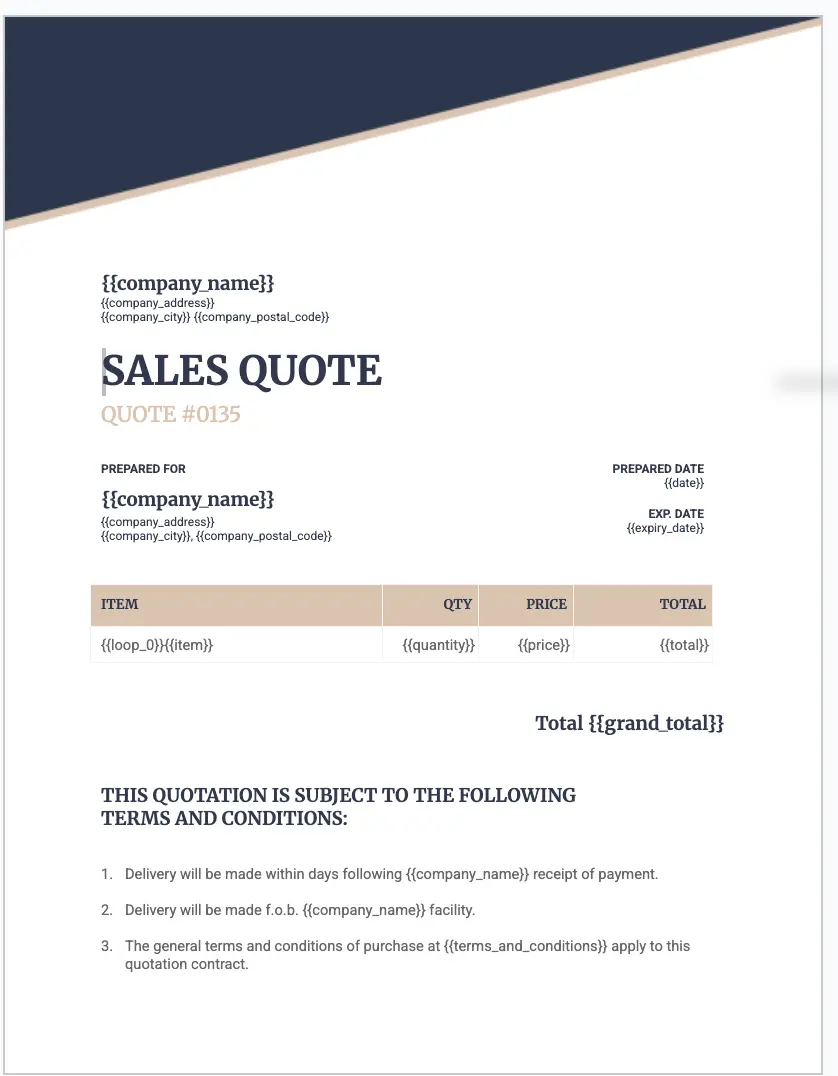
Create a new Google Doc and add {{variable}} placeholders for your data. The {{loop_0}} row in the line items table repeats for each linked record. Here's what a real quote template looks like:
Option B: Template Builder
If you prefer a visual approach or don't have a Google account, use TypeFlow's Template Builder:
- Go to TypeFlow and select "Template Builder"
- Drag and drop elements onto your canvas
- Use the Quote block for a pre-built quote layout
- Customize colors, fonts, and layout
- Map fields directly in the builder
The Template Builder is ideal for users who want quick results without designing in Google Docs.
How to Generate Quotes and Invoices From Airtable Data
Step 1: Connect TypeFlow to Your Airtable Base
Sign in to TypeFlow, authorize access to your Airtable account, and select your base and Quotes table. Here are the steps:
- Sign in to your TypeFlow account
- Visit Integrate Airtable with TypeFlow
- Click "Connect to Airtable"
- Authorize TypeFlow to access your Airtable account
- Select your base and the Quotes table
Step 2: Configure Your Quote Generation Workflow
Choose your template source (Google Docs or HTML/CSS template builder), select your Airtable base and Quotes table, set the attachment field for the PDF output, and map Airtable fields to template placeholders.
- Click "Start a new automation workflow"
- Choose "Google Docs" or "Template Builder"
- Select your template
- Choose your Airtable base
- Select the Quotes table
- Set the attachment field (Quote PDF) where generated PDFs will be saved
- Map Airtable fields to your template placeholders
Accessing Linked Fields
Need client details from the linked Clients table? No rollup fields required!
- Select the linked record field (Client)
- Click the three dots and select "Configure Linked Fields"
- Choose the fields you want (Client Name, Email, Address)
This works for any level of linked records - even accessing product details from your Products table through Line Items. For the full approach, see our linked records PDF guide.
Optional: Custom Filename
Set a custom filename like: Quote-{{Quote_Number}}-{{Client_Name}}
This makes it easy to identify quotes in your file system.
Step 3: Trigger Quote Generation
Use a Button field for on-demand quotes (one click per record) or an Airtable Automation for fully automated generation when Status changes to "Ready to Send."
Method 1: Button Click (Manual)
Use this when you want to review quotes before generating:
- In TypeFlow, scroll to "Classic Implementation"
- Copy the URL (it contains your flow_id and table_id)
- In Airtable, add a Button field to your Quotes table
- Paste the TypeFlow URL into the button formula
Now click the button on any quote record to generate the PDF instantly.
Method 2: Airtable Automation (Automatic)
Use this for hands-free quote generation. This requires a paid Airtable plan for Airtable Automations or a tool like Make.
- Go to Airtable Automations
- Create a new automation with trigger "When record matches conditions"
- Set condition: Status = "Ready to Send"
- Add action: Run Script
- Copy the script from TypeFlow's "Automation in Airtable" section
- Paste the script and configure the record_id variable
- Test and save
Now whenever you change a quote's status to "Ready to Send," the PDF generates automatically.
Automate your document generation
Start with 20 free documents. Built for businesses using Airtable.
Add E-Signatures to Your Quotes
Add {{e-signature.signature_1}} to your template, enable "Request Signature" in TypeFlow, and your client receives a signing link when the quote is generated. The signed PDF uploads to Airtable automatically - included at no extra cost on all plans.
How to Set Up E-Signatures
- Add a signature placeholder to your template:
{{e-signature.signature_1}} - In TypeFlow, enable "Request Signature"
- Add the signer's email field (Client Email)
- Generate the quote
When the quote is generated, TypeFlow sends a signature request to your client. Once signed:
- The signed PDF uploads to Airtable automatically
- You can update the quote status to "Accepted" via automation
This eliminates back-and-forth emails and gets deals closed faster.
Here is the complete guide to set up the e-signature feature: Add E-Signatures to Your Quotes
Quote to Invoice Workflow
Duplicate the accepted quote record to an Invoices table (manual button) or trigger an automation when Status changes to "Accepted" that creates the invoice record automatically. Both methods carry over client info and line items.
Option 1: Duplicate Record
- In Airtable, create a button that duplicates the quote record to an Invoices table
- The button copies all line items and client info
- Adjust the invoice-specific fields (due date, payment terms)
- Generate the invoice PDF
Option 2: Automation on Acceptance
- Create an automation triggered when Quote Status = "Accepted"
- Use a script to create a new Invoice record with the quote data
- Link the invoice back to the original quote for reference
This creates a seamless sales pipeline: Quote → Acceptance → Invoice → Payment. For the full end-to-end workflow, see our quote-to-invoice workflow guide.
Best Practices for Airtable Quote Management
Use auto-number for quote IDs, always set expiration dates (30 days is standard), add a revision number field for updated quotes, and create filtered views for follow-up tracking.
Quote Numbering
Use a clear numbering system:
- Auto-number: Simple but gaps appear if records are deleted
- Formula:
"Q-" & YEAR(Date) & "-" & REPT("0", 4 - LEN(RECORD_ID())) & RECORD_ID()
Expiration Dates
Always set a "Valid Until" date. A formula like DATEADD({Date}, 30, 'days') automatically sets quotes to expire in 30 days.
Version Control
For revised quotes, add a "Revision" number field. When you revise a quote:
- Duplicate the record
- Increment the revision number
- Mark the old version as "Superseded"
Follow-Up Tracking
Add a "Follow Up Date" field and create a view filtered for quotes needing follow-up. Use Airtable Automations to send reminder emails.
Common Integrations
TypeFlow handles PDF generation. Here's how it fits into a broader automation stack:
- Make or Zapier - multi-step workflows (Drive upload + email + CRM update)
- QuickBooks or Xero - sync accepted quotes into accounting
- Stripe - collect a deposit after acceptance
- Gmail or Outlook - send the quote PDF with a personalized message
You don't need all of these. Most teams start with Airtable + TypeFlow + Gmail and add other tools as the workflow grows. If you are comparing different tools for generating quotes, see our Airtable quote generator comparison. For construction-specific quoting, see how to create construction quotes directly from Airtable.
Optional: Add AI to Your Quote Workflow
Airtable supports AI actions inside automations. You can use these to speed up the quoting process without changing the core workflow:
- Clean up notes: Turn rough site notes into a professional scope description.
- Suggest services: Recommend items based on job type and auto-fill draft line items.
- Draft emails: Generate a personalized message to send with the quote PDF.
This is optional - the core workflow works without AI. But if you handle a high volume of quotes, automating the writing step can save meaningful time per estimate.
Troubleshooting Common Issues
Most quote issues come from field mapping, loop setup, or automation conditions. Use this checklist to diagnose the problem fast.
| Issue | Solution |
|---|---|
| Quote PDF shows wrong data | Verify that placeholder names match Airtable field names exactly (case-sensitive). |
| Line items not appearing | Check linked field configuration in TypeFlow and ensure correct loop syntax in the template. |
| Automation not triggering | Verify trigger conditions match the record and check Airtable's automation run history. |
| PDF not attaching | Ensure the target field in Airtable is an "Attachment" type and selected in TypeFlow settings. |
Pro Tip
Using Make for robust automation is a solid choice. While Airtable automation is powerful, Make offers more flexibility for complex workflows. Other alternatives include Zapier and n8n.
Comparing Airtable Quote Tools: Features and Cost
TypeFlow, DocsAutomator, Documint, PandaDoc, and Make + Google Docs all generate PDF quotes from Airtable. TypeFlow is the only one with Google Docs + HTML/CSS template builder templates, built-in e-signatures, and native Airtable integration at a flat rate.
| Tool | Template editor | Line items | Native Airtable | E-signature | Starting price |
|---|---|---|---|---|---|
| TypeFlow | Google Docs + HTML/CSS template builder | ✅ | ✅ | ✅ Included | $22/mo |
| DocsAutomator | Google Docs + Word | ✅ | ✅ | $0.50/sig | $29/mo |
| Documint | Drag-and-drop | ✅ | ✅ | 5/mo included | $49/mo |
| PandaDoc | Built-in editor | ✅ | Via Zapier | ✅ Included | $35/user/mo |
| Make + Google Docs | Google Docs | Requires setup | ✅ | Varies | ~$20-50/mo |
Which tool is right for you?
- Freelancers and solo consultants - TypeFlow or DocsAutomator. Low cost, fast setup, Google Docs templates you already know.
- Small agencies - TypeFlow. Flat-rate pricing, multi-user templates, and native Airtable automation without per-user fees.
- Sales teams that need proposals + e-sign tracking - PandaDoc, if you need CRM features. TypeFlow if you just need quotes with e-signatures at a lower cost.
- Budget-first / technical users - Make + Google Docs. Most flexible, lowest cost, but more moving parts to maintain.
For a full breakdown of every option, see our Airtable quote generator comparison.
TypeFlow Pricing for Quote Automation
Start free with 20 documents. Paid plans from $22/month based on document volume, all with unlimited e-signatures included:
- Free Plan: 20 documents lifetime
- Starter Plan: $22/month for 200 documents
- Pro Plan: $35/month for 500 documents
- Business Plan: $60/month for 1,000 documents
- Enterprise Plan: $199/month for unlimited documents
All plans include unlimited e-signatures at no extra cost. See what users say about TypeFlow on G2.
Automate your document generation
Start with 20 free documents. Built for businesses using Airtable.
Frequently Asked Questions
Find answers to the most common questions about this feature.
Popular Questions
All Questions
Need more help?
Our team is here to help you solve all your problems and answer your questions.
Contact Us
Kevin from TypeFlow
•AuthorKevin Rabesaotra is a growth engineer and automation specialist with 8+ years of experience building no-code solutions. As Founder & CEO of TypeFlow, he has helped hundreds of businesses automate document generation and streamline workflows with Airtable integrations. Previously, Kevin was a Product Lead specializing in growth engineering, running experiments to drive revenue, retention, and lead generation.
More articles
How to Print Labels from Airtable with Quantity Control (Step by Step)
Print multiple labels per Airtable record based on a quantity field. Step-by-step guide for linked records mode and quantity repeat mode with barcodes and Avery sheets.
Read articleHow to Print Avery Mailing Labels from Airtable
Print Avery mailing labels (5160, 5161, 5162) from Airtable without Word mail merge. Step-by-step guide with print label mode, automation, and bulk generation.
Read articleHow to Create Inventory Labels with Barcodes in Airtable
Create inventory labels with Code 128, EAN-13, or QR barcodes from Airtable. Step-by-step guide for warehouse, retail, and asset tracking with thermal and Avery printers.
Read article