Airtable Document Signing Workflow: Generate and Sign in One Step
TypeFlow generates PDFs from Airtable records and sends them for e-signature in one workflow - no DocuSign, no Zapier, no per-signature fees. Use this workflow to generate and sign contracts, proposals, NDAs, offers, and service agreements from Airtable. For a complete overview of contract generation with e-signatures, see our contracts solution page.
Key takeaways:
- Generate from Airtable: Turn records into contracts, proposals, NDAs, and agreements - then send for signature automatically
- No middleware needed: TypeFlow combines document generation and e-signing in one step - no Zapier, no DocuSign, no per-signature fees
- Template placeholders: Add tags like
{{e-signature.signature_1}}to Google Docs or HTML templates to collect signatures - Legal compliance: Each signed PDF includes a Certificate of Completion with audit trail (IP, timestamps, consent) compliant with ESIGN and eIDAS
- Automation: Trigger signing workflows via Airtable status changes, with parallel or sequential signing orders
- Save everything: Signed PDF and audit trail save back to your Airtable record automatically
In this step-by-step tutorial, we'll walk through the TypeFlow setup and cover common alternatives (like DocuSign + Zapier/Make) so you can choose the right approach.
How to Add Electronic Signatures to Documents from Airtable
Who Should Use This Guide
This guide is for teams using Airtable who send contracts, proposals, or agreements repeatedly - agencies, HR, sales, and operations teams. If you want a repeatable way to generate, send, and store signed documents without manual exports or multiple tools, you're in the right place.
Why Airtable Forms Don't Support Signature Fields
You cannot collect legally-auditable signatures directly in Airtable because it is a database tool, not a document signing platform. To sign documents "from Airtable," you need a third-party tool to generate a document, collect signatures, and store the signed file back on the record.
- No signature field type: Airtable forms can't capture a legally-auditable signature by default
- No document signing workflow: There's no built-in invitation, signer tracking, or completion state
- No audit trail engine: Compliance typically requires timestamps, consent, and proof of integrity
The good news is you can solve this cleanly with a workflow that combines document generation and e-signature.
Why Combine Document Generation and E-Signature
Running document generation and e-signature in one flow eliminates manual file handling and cuts setup from hours to minutes.
- Fewer tools: One template and one workflow instead of three platforms
- Fewer manual steps: No exporting, uploading, or file chasing
- Cleaner tracking: Signing status and the signed PDF live on the record
With TypeFlow, document generation and e-signature run in one flow. Generate from Airtable, send for signature automatically, and save the final signed PDF back to the record.
Common examples: contracts, proposals, NDAs, service agreements, and employment documents.
Adding Signature Fields to Airtable Forms
If your goal is to collect a simple signature during form submission, Airtable's native forms won't do that by themselves. In that case, you'll want a form builder that supports signature fields and can sync submissions into Airtable.
- Fillout: Signature field + Airtable sync (signature usually saved as an attachment/image)
- Jotform: Signature widget; often connected to Airtable via Zapier or Make
- Formstack: More enterprise-focused, with stronger compliance options
If you need signatures on a generated document (like a contract populated from Airtable data), use a document generation + e-signature workflow instead. For a full comparison of form builders with signature fields, see our Airtable Electronic Signature guide.
Document generation + e-signature in one tool
No Zapier, no DocuSign, no per-signature fees. TypeFlow handles both natively from your Airtable data.
Start free with 20 documents →What You Need Before Starting
Before you add e-signature, make sure your document generation flow is already working. Then you'll only be adding signature fields and signer settings.
- Airtable base: The records and fields you want to merge into documents
- TypeFlow account: Connected to your Airtable base (connect here)
- Template: Google Docs, HTML/CSS templates, or PDF form filling
- Signer emails: Stored in Airtable fields or entered as static emails
If you haven't set up basic document generation yet, start with our Airtable document generation guide first.
Optional: Structure Your Contracts Table
For smoother automation, add a few contract-specific fields in Airtable: Client Name, Signer Email, Contract Date, Status (Draft / Sent / Signed), and a Signed PDF attachment field. A Status field is particularly useful because it can trigger your signing workflow automatically.
For a full base layout with renewals and reminders, see our contract management guide.
How to Generate Documents with E-Signature from Airtable
The setup takes about 5 minutes if you already have document generation working. You'll enable e-signature, add placeholders to your template, configure signers, and generate.
You can also generate multi-page PDFs without Page Designer if your documents need complex layouts. For advanced contracts with nested chapters, configurable clauses, and exhibits, see how to build advanced contracts in Airtable.
Step 1: Enable E-Signature in Your Flow
Open your existing flow in TypeFlow (or create a new one). In the flow settings, toggle on E-Signature. This unlocks the e-signature configuration tab.
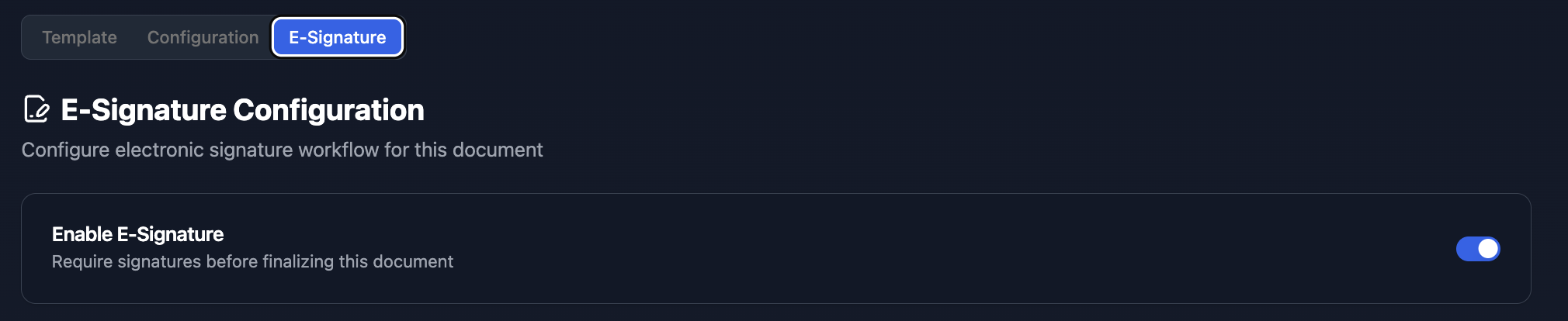
When e-signature is enabled, your flow changes behavior:
- Generate + send: Each generated document can be sent for signature automatically
- Unique signing links: Each signer gets their own secure link
- Save the final PDF: The signed PDF (with certificate) saves after all signers complete
Step 2: Add Signature Placeholders to Your Template
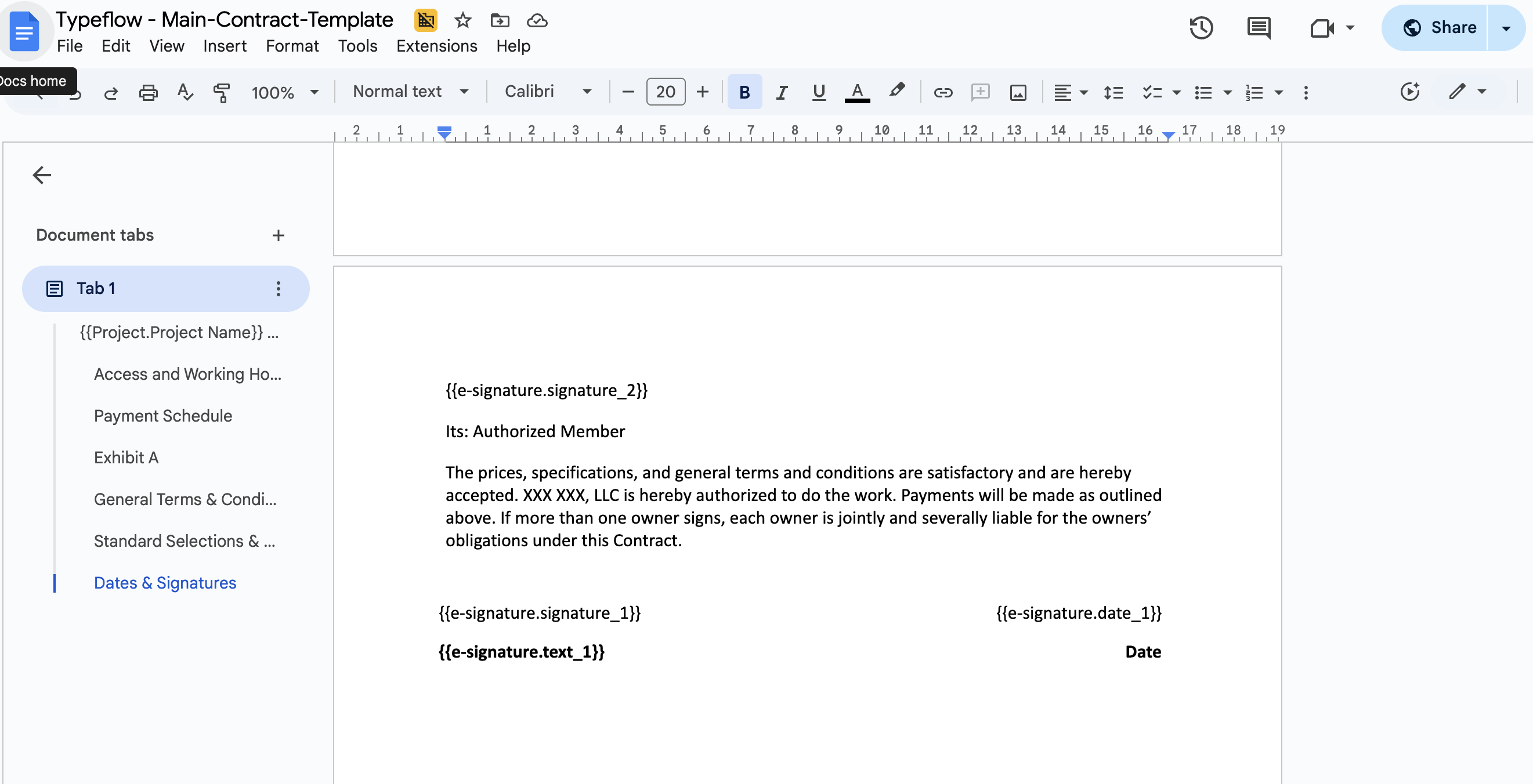
Open your template. Add e-signature placeholders where you want signers to complete fields. These use a specific syntax:
Signature fields:
{{e-signature.signature_1}}
{{e-signature.signature_2}}
Text input fields (for typed name, title, etc.):
{{e-signature.text_1}}
{{e-signature.text_1}}
{{e-signature.text_2}}
Date fields (auto-fills when signer signs):
{{e-signature.date_1}}
{{e-signature.date_2}}
The number in each placeholder (1, 2, 3) corresponds to the signer number you'll configure in the next step. Signer 1 completes all _1 fields, Signer 2 completes all _2 fields, and so on.
Example contract signature block:
CLIENT SIGNATURE

Signature: {{e-signature.signature_1}}
Name: {{e-signature.text_1}}
Title: {{e-signature.text_1_title}}
Date: {{e-signature.date_1}}


COMPANY SIGNATURE

Signature: {{e-signature.signature_2}}
Name: {{e-signature.text_2}}
Title: {{e-signature.text_2_title}}
Date: {{e-signature.date_2}}
You can mix regular Airtable data placeholders with e-signature placeholders in the same template. The Airtable data fills in when the document generates; the signature fields remain for signers to complete.
Step 3: Choose Delivery Method
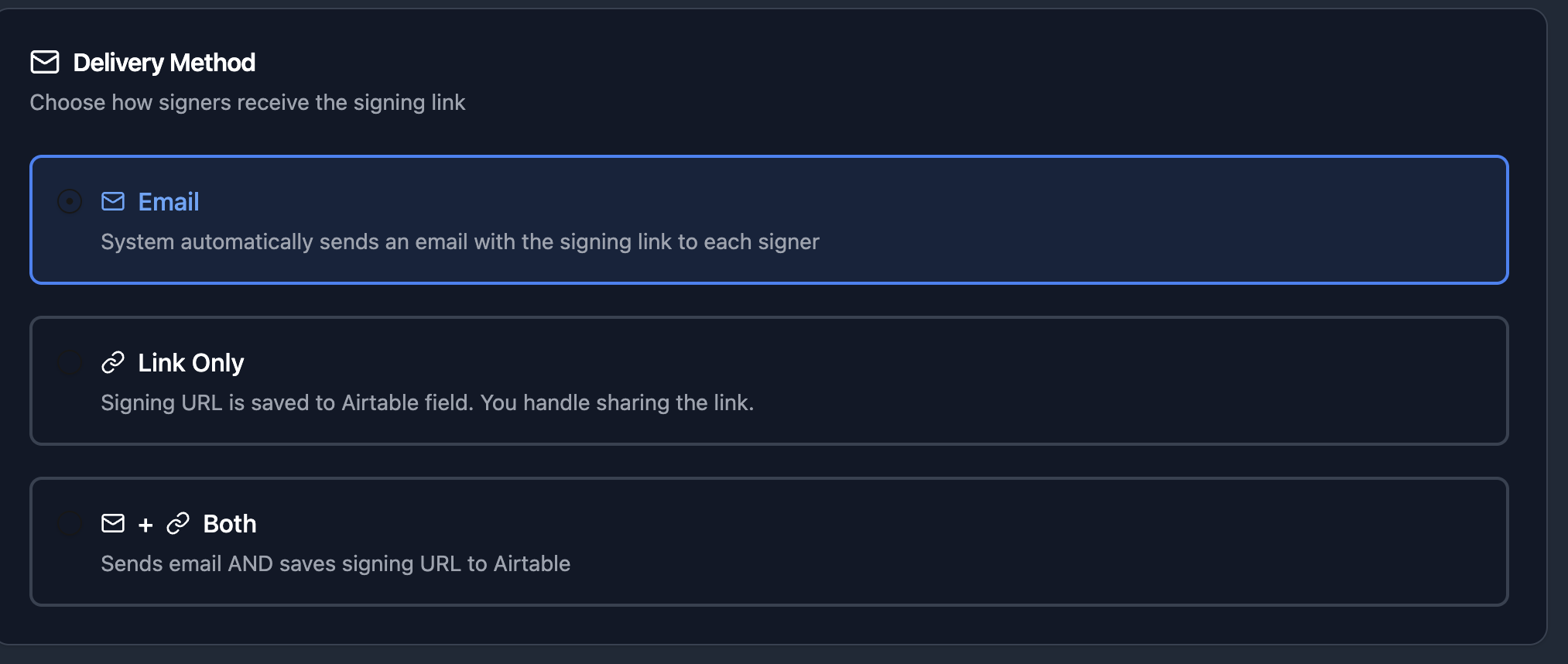
In the Delivery Method section, you can choose three ways to send the document to sign:
- Email: Send the document directly to the signer via email
- Link Only: Save the link to sign to an Airtable field, so it will be you who share the link to the signer
- Both: Send the document via email and save the link to an Airtable field
Step 4: Configure Your Signers
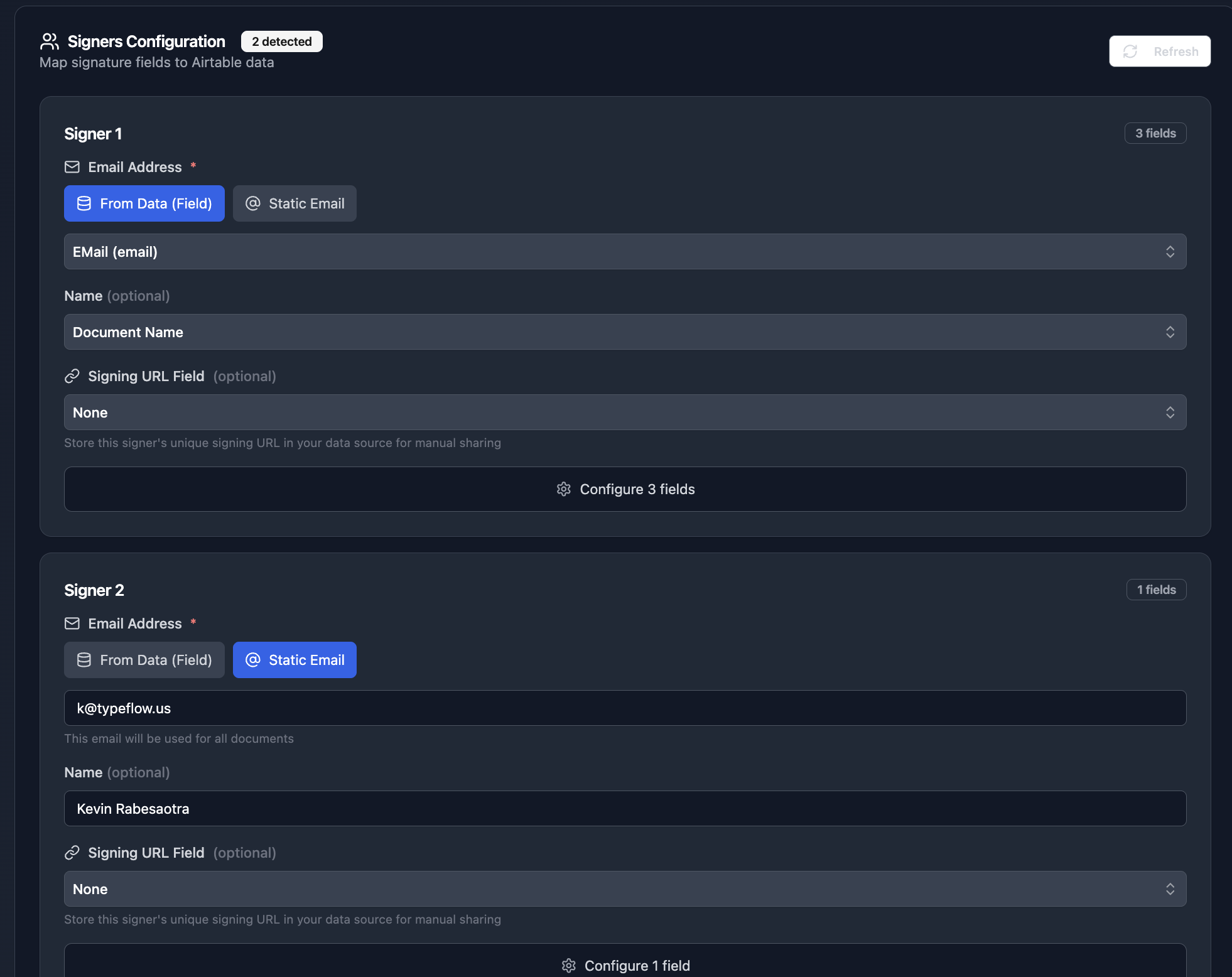
Back in TypeFlow, go to the E-Signature tab. Refresh your Signer configuration it will detect the number of signer you defined in your template.
For each signer, configure:
Email source:
- Static data: Enter a fixed email address. Use this when the same person always signs (e.g., your company's authorized signatory).
- From Airtable field: Select an email field from your table. Use this when the signer varies per record (e.g., client email, employee email).
Signing link storage (optional): Select an Airtable field to store each signer's unique signing URL. Useful if you want to share the link through other channels or track who hasn't signed.
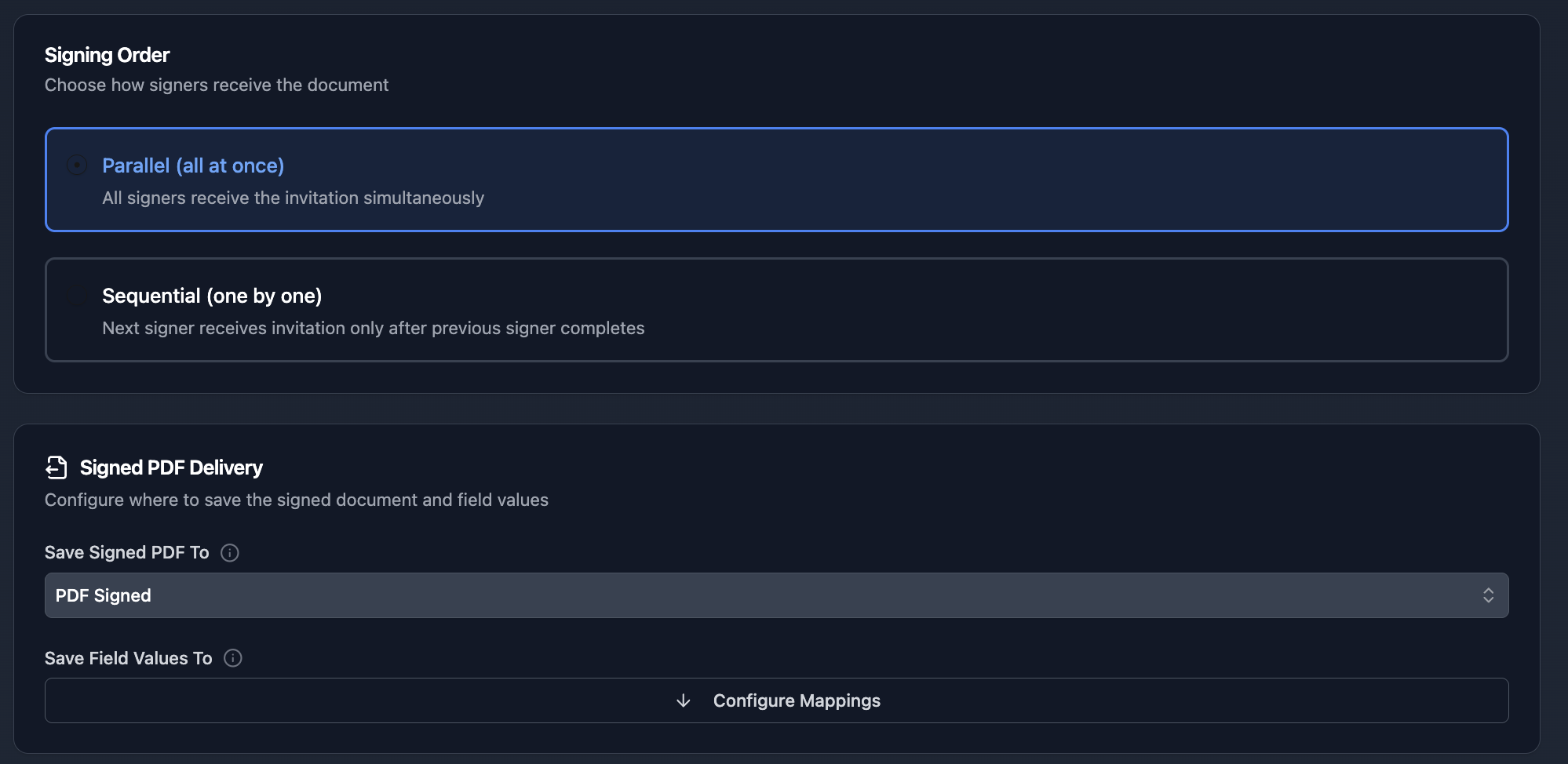
Choose signing mode:
- Parallel: All signers receive invitations simultaneously. Anyone can sign in any order. Best for documents where signing sequence doesn't matter.
- Sequential: Signer 1 must complete before Signer 2 receives their invitation. Best for approval workflows where the first signature authorizes the next.
Signed document storage: Select an Airtable attachment field where the final signed PDF will be saved.
Step 5: Choose Your Trigger Method
You have two ways to trigger document generation + signing:
- Manual (button click): Add a button field to your Airtable table or click "Generate" in TypeFlow. Best when you want to review the record before sending a contract.
- Automated (status change): Set up a TypeFlow Automation that triggers when a field value changes - for example, when Status becomes "Ready to Sign." Best for hands-off workflows where every approved record should get a contract automatically. See our document automation guide for setup steps.
Most teams start with manual triggers to test, then switch to automated once the template is confirmed.
Step 6: Generate and Send for Signature
With your template, signers, and trigger configured, you're ready to generate.
If using manual generation, click the generate button in TypeFlow or use the button field in Airtable. If using automated generation, change the trigger field value and TypeFlow handles the rest. See our document automation guide for detailed setup steps.
When generation runs:
- TypeFlow pulls data from your Airtable record
- The template populates with your data
- E-signature placeholders become signable fields
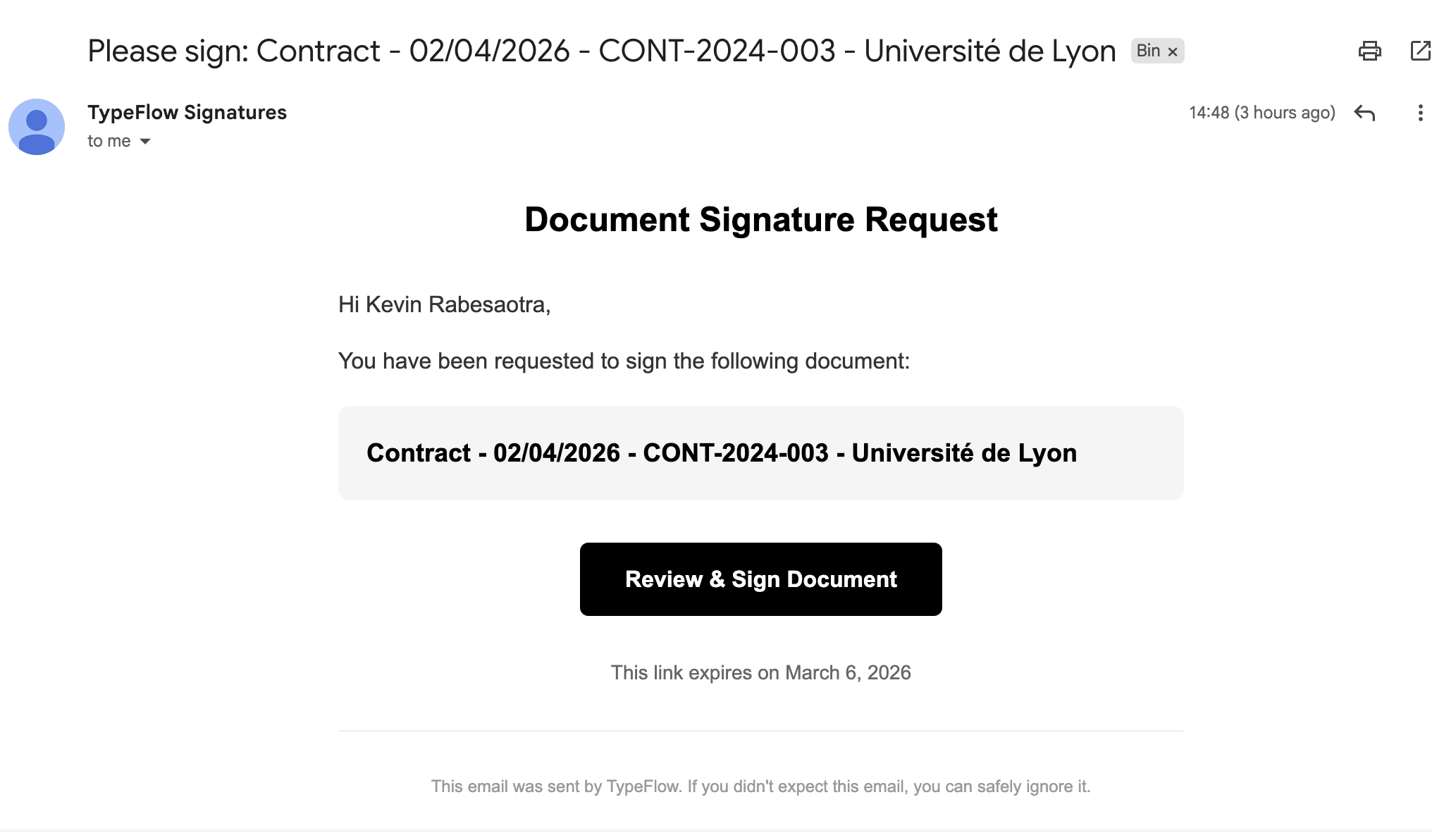
- Each signer receives an email with their unique signing link
- Signers review the document and complete their fields
- After all signatures, the final PDF saves to your Airtable attachment field
What Signers See
When a signer clicks their unique link, they land on a signing page that shows:
- Document preview: The full document with their signature fields highlighted
- Consent checkbox: Required before signing (legally necessary for audit trail)
- Signature pad: Draw signature with mouse, trackpad, or finger on mobile
- Text/date fields: Any additional fields assigned to them
- Complete button: Submits their signature
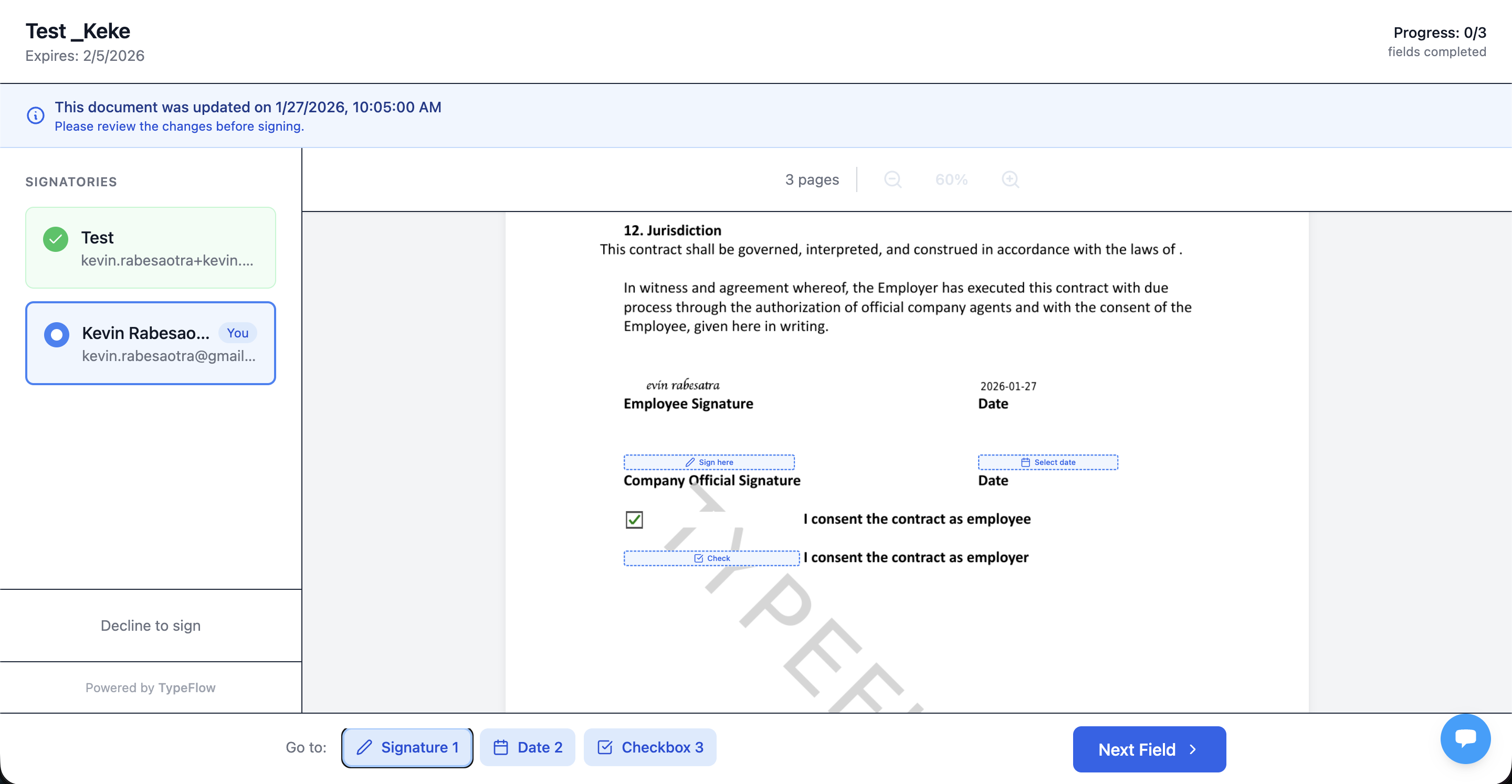
The page works on desktop and mobile. Signers don't need a TypeFlow account -they just click, review, sign, and submit.
After signing, they see a confirmation and can download a copy of the signed document.
Certificate of Completion and Legal Compliance
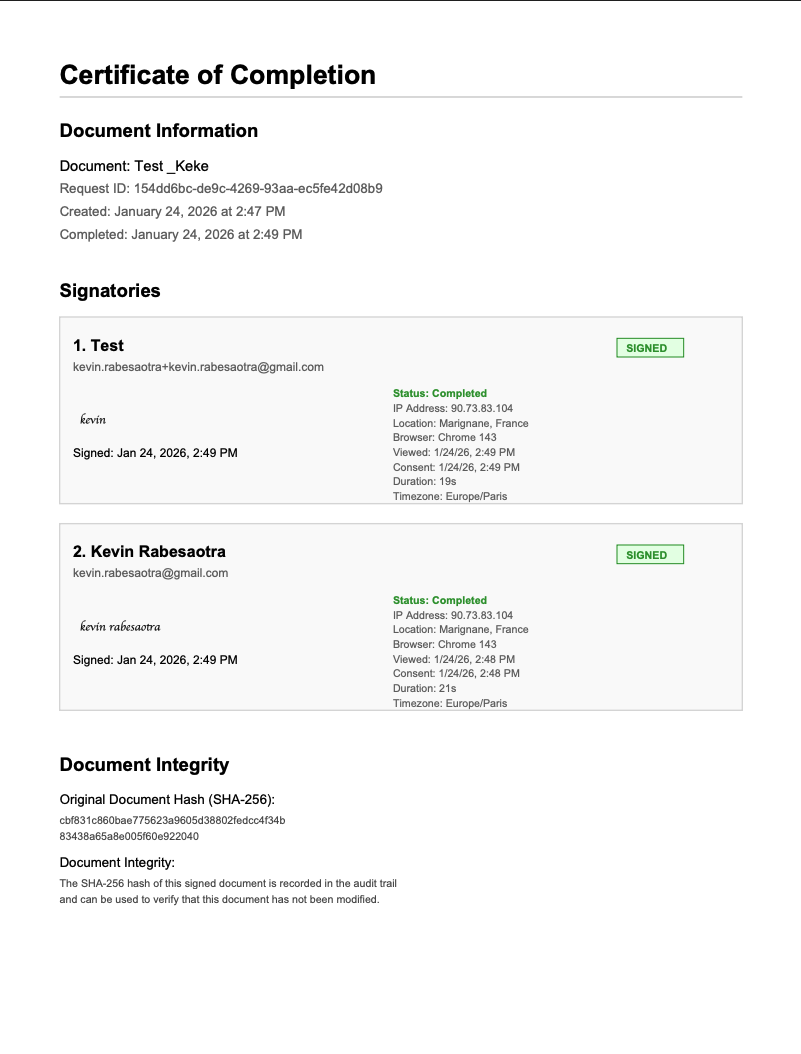
After the final signer completes, TypeFlow embeds a Certificate of Completion in the signed PDF. This certificate is your audit trail for proving who signed, when they signed, and what was signed.
- Document details: Filename and timestamps
- Signer details: Email, name (if provided), signature image
- Audit trail: View/consent/sign timestamps, IP address, location, browser/device
- Integrity proof: SHA-256 hash of the document
This supports legal enforceability under the US ESIGN Act, UETA, and EU eIDAS for most standard business agreements. In most cases, a Simple Electronic Signature (SES) plus a strong audit trail is enough.
Audit Trail: Sync Signature Events to Airtable
For teams that need full visibility without leaving Airtable, TypeFlow can sync every signature event directly to a dedicated Airtable table. One record per signer per document, updated in real-time.
Every event is tracked: when the document was sent, when the signer viewed it, when they signed (or declined), along with IP address, location, and browser details. The audit trail table links back to the original source record so you can see everything in context.
This is especially useful if you use Softr or another portal on top of Airtable - signature status is visible without opening TypeFlow.

Available on Unlimited plans. Learn more about E-Signature Audit Trail →
How to Integrate DocuSign with Airtable (Alternative)
Yes, you can use DocuSign with Airtable, but it usually requires middleware. In most setups, Zapier or Make connects Airtable to DocuSign and moves files back and forth.
The DocuSign + Airtable Workflow:
- Trigger: Airtable record updates (e.g., "Ready to Sign")
- Generate: A separate tool creates the PDF from Airtable data
- Send: DocuSign emails signing invitations and tracks completion
- Return: The signed PDF is pushed back to Airtable via automation
Tradeoff: More tools means more cost and more points of failure. For the full setup guide, see our DocuSign Airtable integration article.
Choosing Between Native and External E-Signature Solutions
For most teams, TypeFlow's native e-signature is the fastest path - one tool, no middleware, no per-signature fees. Choose DocuSign only if you need advanced ID verification or qualified electronic signatures.
- Choose TypeFlow: Standard business contracts, quick setup, fewer subscriptions
- Choose DocuSign: Enterprise mandates, advanced ID verification, or specialized signature requirements
| Factor | TypeFlow Native | DocuSign + Middleware |
|---|---|---|
| Tools | Airtable + TypeFlow | Airtable + Doc Gen + Zapier/Make + DocuSign |
| Setup | Minutes | Hours+ |
| Best for | Most SMB workflows | Enterprise + complex compliance |
For the full decision matrix (10 factors compared), see our Airtable Electronic Signature guide.
When You Need a Dedicated CLM Instead
If you need complex redlining, clause-level negotiation, or compliance review across a large volume of contracts, consider dedicated CLM software like Ironclad or Juro. For most teams signing standard contracts with predictable terms, Airtable + TypeFlow covers the workflow at a fraction of the cost and setup time.
Common Use Cases
Client Contracts
Template includes: Project scope, deliverables, timeline, payment terms from Airtable. Signature blocks for client and your company.
Workflow: When deal status changes to "Ready for Contract," automation generates the contract and sends to client. After client signs, your team gets notified to countersign. Signed contract saves to the deal record.
Employment Offers
Template includes: Position, salary, start date, benefits from Airtable. Signature blocks for candidate and HR.
Workflow: HR updates candidate status to "Offer Approved." Automation generates offer letter, sends to candidate. Sequential signing: candidate signs first, HR countersigns. Signed offer saves to candidate record.
Vendor Agreements
Template includes: Vendor name, service terms, pricing from Airtable. Signature blocks for vendor and procurement.
Workflow: Procurement marks vendor as "Approved." Automation generates agreement, sends for signature. Parallel signing since order doesn't matter. Signed agreement saves to vendor record.
Project Sign-Offs
Template includes: Project name, deliverables completed, client feedback from Airtable. Signature block for client approval.
Workflow: Project manager marks project "Ready for Sign-Off." Automation generates completion certificate, sends to client. Single signer flow. Signed document saves to project record.
Troubleshooting Common Issues
- Signature placeholders not appearing: Check that your placeholder syntax is correct (e.g.,
{{e-signature.signature_1}}). Common mistakes include missing the hyphen or using the wrong brackets. - Signer not receiving email: Verify the email address is correct and check spam folders. Ensure the Airtable field contains a valid email format, not a name.
- Wrong signer assigned to fields: Match signer numbers in your configuration to placeholder numbers in your template (Signer 1 completes _1 placeholders).
- Expired signing links: Links expire after 30 days. If expired, you must regenerate the document to create a new session.
- Signed PDF not saving: Ensure an attachment field is selected for output. The PDF only saves once all signers have completed the document.
Best Practices for Airtable E-Signature Workflows
- Test with your own email first: Walk through the signing experience yourself before sending live contracts to clients.
- Use sequential signing for approvals: Enable sequential mode when one signature must authorize the next (e.g., Employee → Manager).
- Store signing links in Airtable: Map the unique URL to a text field so you can resend links manually via Slack or email if needed.
- Keep templates simple: Complex formatting can shift during PDF conversion - always verify your layout.
- Use descriptive signer names: Label signers as "Client" or "HR Manager" in TypeFlow settings instead of "Signer 1" for better clarity.
Build Your Complete E-Signature Workflow
You now have everything you need to generate documents from Airtable and collect signatures without manual exports. Once it's set up, the process runs automatically for every record. See what users say about TypeFlow on G2.
- Generate: Create a document from your Airtable data
- Send: Invite signers by email or share a signing link
- Store: Save the final signed PDF back to Airtable
If you want, you can extend this further with Airtable Automations for approvals, reminders, and status updates. To manage the full contract lifecycle with e-signatures at every stage, see our contract lifecycle management guide. If you need to connect quote acceptance to invoice generation, see our quote-to-invoice workflow guide.
For the complete guide on electronic signatures in Airtable (including form-based signatures, DocuSign integration, and choosing between solutions), see our Airtable Electronic Signature Setup Guide.
Automate your document generation
Start with 20 free documents. Built for businesses using Airtable.
Frequently Asked Questions
Find answers to the most common questions about this feature.
Popular Questions
All Questions
Need more help?
Our team is here to help you solve all your problems and answer your questions.
Contact Us
Kevin from TypeFlow
•AuthorKevin Rabesaotra is a growth engineer and automation specialist with 8+ years of experience building no-code solutions. As Founder & CEO of TypeFlow, he has helped hundreds of businesses automate document generation and streamline workflows with Airtable integrations. Previously, Kevin was a Product Lead specializing in growth engineering, running experiments to drive revenue, retention, and lead generation.
More articles
How to Print Labels from Airtable with Quantity Control (Step by Step)
Print multiple labels per Airtable record based on a quantity field. Step-by-step guide for linked records mode and quantity repeat mode with barcodes and Avery sheets.
Read articleHow to Print Avery Mailing Labels from Airtable
Print Avery mailing labels (5160, 5161, 5162) from Airtable without Word mail merge. Step-by-step guide with print label mode, automation, and bulk generation.
Read articleHow to Create Inventory Labels with Barcodes in Airtable
Create inventory labels with Code 128, EAN-13, or QR barcodes from Airtable. Step-by-step guide for warehouse, retail, and asset tracking with thermal and Avery printers.
Read article