Airtable Contract Management: Complete Setup Guide
Airtable can handle contract management for teams that don't need a full CLM platform like Juro or Ironclad. Use linked tables to track contracts, clients, and renewals, then connect TypeFlow to generate PDFs and collect e-signatures directly from your records.
For most SMBs, Airtable + TypeFlow covers 80% of what a CLM does at a fraction of the cost. 71% of companies cannot find 10% or more of their contracts, and dedicated platforms like ContractWorks start at $500+/month - overkill for small teams. For a complete overview of contract workflows with e-signatures, see our contracts solution page. To compare all the tools, see our best contract generation tools for Airtable guide. This guide shows how to turn Airtable into a contract hub: set up your base, generate contract PDFs, send them for e-signature, and track renewals - all without leaving Airtable.
Video walkthrough
Watch the full 5-step setup - from building your relational base to generating and signing a contract from a record:
Key Takeaways
- Airtable contract management centralizes storage, tracking, and automation in one system using linked tables for contracts, clients, and contacts with filtered views for expiration alerts.
- TypeFlow connects your Airtable base to Google Docs templates to generate contract PDFs automatically when records are created or status changes, eliminating manual document creation.
- Built-in e-signature workflows let clients sign contracts directly from a link without separate DocuSign fees, with signed PDFs saved back to Airtable automatically.
- Contract Redlining lets signers suggest changes directly on the document - accept with one click, Airtable updates automatically, and the contract regenerates instantly.
- The three-table structure (Contracts, Companies, Contacts) with linked records prevents data duplication and ensures every contract shows full client context in one view.
Generate contracts from Airtable in minutes
Use Google Docs templates, add e-signatures, and automate the entire workflow. No coding required.
Start free with 20 documents →What Is Airtable Contract Management
Most teams can manage contracts in Airtable instead of buying a full CLM, because contract data already lives in Airtable records and automations handle the workflows. Airtable contract management is the practice of using Airtable's database features to store, track, and organize contracts in one place. You get the familiar grid layout, but with the ability to link records, filter views, and automate tasks. If you're already using Airtable for client or project management, adding contracts to the mix feels like a natural extension.
What makes Airtable work well for contracts is how it handles relationships between data. A single contract can connect to a client record, link to a project, and display its status all in one view. You're not copying information between spreadsheets or hunting through email threads.
Here's what becomes possible once you set things up:
- Store contract details: Keep parties, terms, values, and dates in one central location.
- Track deadlines: See expiration dates and renewal windows without digging through folders.
- Link related records: Connect contracts to clients, vendors, and projects for full context.
- Generate documents: Create contract PDFs from your data using tools like TypeFlow.
Benefits of Using Airtable for Contract Management
Moving from spreadsheets or file folders to Airtable brings immediate advantages. You get real-time visibility into contract status without opening individual files. When someone asks "Do we have a contract with XYZ Company?" you can answer in seconds, not minutes.
The linked records feature means you never lose context. Click on a contract and see the associated client, project details, and contact information in one view. This connection becomes valuable when contracts need amendments or when you're preparing for renewals.
Automation takes care of the routine tasks that usually slip through the cracks. Set up reminders for expiration dates, trigger document generation when status changes, or send contracts for signature without manual intervention. Your system works even when you're focused on other priorities.
What You Need Before Starting
You need four things to manage contracts in Airtable: an Airtable account (Pro or Team for automations), a template tool (Google Docs or the HTML/CSS template builder), a list of your contract types, and a document generation tool like TypeFlow.
Airtable account with Pro or Team plan
The free Airtable plan handles basic tracking, but automations live behind the Pro or Team paywall. If you want automatic reminders or triggered document generation, one of the paid plans opens those doors.
Google Docs or HTML/CSS template builder for contract templates
Use Google Docs templates for familiar editing or the HTML/CSS template builder for full design control. You'll design your contract layout there and add placeholder variables that get swapped out with real data later.
List of contract types you manage
Take five minutes to jot down the contract types you deal with: vendor agreements, NDAs, service contracts, employment agreements. This list shapes your Airtable structure and tells you which fields you'll want to create.
Document generation tool like TypeFlow
TypeFlow connects your Airtable data to your document templates. It pulls information from your records and produces polished contract PDFs. Setup takes minutes, and there's no code involved - just point, click, and map your fields. Alternatives include Plumsail Documents, Documint, and DocsAutomator.
How to Set Up Your Airtable Base for Contracts
A basic Airtable contract base needs three tables - Contracts, Companies, and Contacts - linked together so every agreement stays connected to its clients and suppliers. Start with this structure and add fields for tracking status, dates, and values.
Step 1: Create your contracts table
Start with a new table called "Contracts." Each row represents one contract, and each column holds a piece of information about that contract. Simple enough, but this table becomes the heart of your system.
Step 2: Add essential fields for contract tracking
The fields you create determine what you can track, filter, and report on. Here's what I recommend starting with:
- Contract name: Single line text for quick identification.
- Contract type: Single select dropdown (NDA, service agreement, vendor contract).
- Status: Single select (draft, active, expired, renewed).
- Start date: Date field for when the contract begins.
- End date: Date field for expiration tracking.
- Contract value: Currency field if you're tracking financial terms.
- Attachment: Attachment field to store signed PDF copies.
You can always add more fields later, but starting with a focused set keeps things manageable.
Step 3: Build linked tables for parties and contacts
Now create separate tables for "Companies" and "Contacts," then link them to your Contracts table. Linked records are Airtable's way of connecting information across tables without duplicating it. When you open a contract, you see the associated company and contact person right there.
This approach means updating a company's address happens in one place, and every linked contract reflects the change.
Step 4: Create views for status and renewals
Views are filtered snapshots of your table. I like to create three to start: one showing only active contracts, another for contracts expiring in the next 30 days, and a third grouped by contract type. Views help you focus on what matters without scrolling through everything.
Step 5: Configure deadline alerts
Airtable automations can send email reminders before contract expiration dates. Set a trigger based on the end date field - something like "When end date is 30 days from now, send email to the assigned team member." This small automation prevents contracts from slipping through unnoticed.
Types of Contracts You Can Manage in Airtable
Airtable handles service agreements, vendor contracts, NDAs, employment contracts, leases, and purchase orders - any contract type where the data lives in structured fields. Here's how different industries use Airtable for contracts:
Service Agreements and MSAs
Master Service Agreements, consulting contracts, and ongoing service relationships. Track renewal dates, scope changes, and billing terms. Common fields: service type, monthly rate, auto-renewal flag. If you run an agency, see our guide on how agencies use Airtable to manage service contracts. For MSAs that run 50-100+ pages with chapter-based structure, see how to generate long documents from Airtable.
Vendor and Supplier Contracts
Airtable works well as a supplier contract hub - it tracks vendors, agreement terms, renewal dates, and lets you generate and sign contracts from those records. Link to a Products table for item-specific terms. Track payment terms and delivery schedules. With TypeFlow, each supplier record can generate a standard contract PDF and send it for signature, so renewals and new agreements follow the same Airtable workflow. For a detailed walkthrough, see our guide on managing vendor contracts in Airtable.
Employment Contracts and NDAs
Offer letters, employment agreements, contractor NDAs, non-competes. Link to an Employees table. Track start dates, salary information, confidentiality terms.
Sales Contracts and Purchase Orders
Customer agreements, POs, sales contracts. Link to Clients and Products tables. Calculate totals with Rollup fields from line items.
Rental and Lease Agreements
Equipment rental, property leases, vehicle agreements. Track deposit amounts, return dates, condition assessments. This workflow works well for businesses like appliance rental companies that need on-site signing. For a step-by-step walkthrough, see our guide on generating lease agreement PDFs from Airtable.
By Industry
- Construction: Subcontractor agreements, change orders
- Healthcare: Provider agreements, BAAs, patient consent
- Real estate: Listing agreements, purchase contracts
- Legal: Retainer agreements, engagement letters
- Education: Enrollment agreements, permission forms
Setting Up Contract Fields by Type
Different contract types need specific fields to track what matters. Here's how to configure your Airtable base for each:
Service Agreements: Add fields for hourly rate, scope of work (long text), project timeline (date range), and auto-renewal flag (checkbox). Link to a Projects table if you manage multiple engagements per client.
Vendor Contracts: Include payment terms (single select: Net 30, Net 60), delivery terms, minimum order quantity (number), and preferred vendor flag (checkbox). Link to a Products table for item-specific pricing.
Employment Agreements: Track salary (currency), start date, department (linked to Departments table), benefits eligibility date, and review date. Add a checkbox for background check completion.
NDAs: Keep it simple with effective date, expiration date (or "perpetual" checkbox), mutual/unilateral type (single select), and governing law (single select for common jurisdictions).
How to Create Contract Templates
You create a contract template by writing your standard contract text in Google Docs (or the HTML/CSS template builder) and adding placeholder variables like {{Client Name}} where Airtable data should appear. The template is the document that gets filled with Airtable data.
Step 1: Draft your base contract document
Write your standard contract text in Google Docs first. Include all the clauses and sections that appear in every contract of that type. This document becomes your master template, so take time to get the language right.
Step 2: Add merge variables for Airtable fields
Merge variables are placeholders that get replaced with actual data during generation. They look like this: {{Client Name}} or {{Contract Value}}. Place them wherever you want Airtable data to appear in the final document.
Common variables to include:
{{Contract Name}}{{Client Name}}{{Start Date}}{{End Date}}{{Contract Value}}
The variable names can be whatever you want, as long as they match what you set up in TypeFlow later.
Step 3: Format your template for PDF output
Formatting matters more than you might think. Use consistent fonts throughout, add page breaks where sections belong on new pages, and include signature lines at the end. What you see in Google Docs is close to what your PDF will look like, so polish it now.
How to Generate Contract PDFs from Airtable
Connect TypeFlow to your Airtable base, map fields to template variables, and generate contract PDFs in minutes.
Step 1: Connect TypeFlow to your Airtable base
Authorize TypeFlow to access your Airtable base and select your Contracts table. The connection takes about two minutes - just follow the prompts and grant the permissions.
Step 2: Map fields to template variables
Mapping connects each Airtable field to its corresponding Google Docs variable. When TypeFlow sees {{Client Name}} in your template, it knows to pull the value from your Client Name field. The interface makes this visual, so you can see exactly what goes where.
Step 3: Test your contract generation flow
Run a test with sample data before going live. Check that all fields populate correctly, dates format as expected, and the PDF looks professional. Catching small issues now saves frustration later.
Step 4: Set up automated PDF delivery
Configure where your generated PDFs go. You can attach them back to the Airtable record, send them via email, or save them to Google Drive. Most teams I've seen attach to Airtable for easy access and send a copy by email at the same time.
Tip: Start for Free with TypeFlow to test your contract generation workflow before committing to a paid plan.
How to Automate Contract Workflows in Airtable
You can automate the whole contract pipeline in Airtable by triggering contract generation, e-signature requests, and renewal reminders when records hit specific statuses. Automations take the manual work out of contract management. You can use Airtable Automations, Zapier, or Make to build these workflows. TypeFlow connects to Airtable automations so contracts generate, send, and write back signed PDFs automatically.
Trigger contract generation on new records
Set up an automation that generates a contract PDF when a record meets certain conditions. For example, when the status field changes to "Ready to send," TypeFlow creates the PDF and attaches it to the record. No clicking required on your end.
Send renewal reminders automatically
Create an automation that emails stakeholders a set number of days before contract expiration - critical when missed renewals can cost companies up to $4.5 million annually. You pick the timing - 30 days, 60 days, whatever fits your renewal process. The reminder goes out whether you remember or not.
Contract Renewal Automation Setup
Here's how to build a renewal reminder system that actually works:
Step 1: Create a formula field called "Days Until Expiration" with this formula: DATETIME_DIFF({End Date}, TODAY(), 'days'). This calculates how many days remain on each contract.
Step 2: Set up the automation trigger to run daily and find records where "Days Until Expiration" equals your warning period (30, 60, or 90 days). Add a condition to only trigger when Status = "Active".
Step 3: Configure the reminder email to include contract name, client name, expiration date, and any renewal instructions. Send to the account manager and copy relevant stakeholders.
Step 4: Add a second automation for 7-day urgent reminders with a different email template and escalation to management if needed.
Update status when contracts are signed
When signatures come back, the contract status can update on its own. This works through integrations with e-signature tools or through manual triggers you define. Either way, your Airtable base stays current without extra data entry.
How to Add E-Signatures to Airtable Contracts
TypeFlow includes built-in e-signatures at no extra cost - generate a contract from Airtable and send it for signature in the same workflow. Alternatively, connect DocuSign via Zapier if you need advanced authentication. Here are your options:
Option 1: Built-in TypeFlow E-Signatures (No Extra Fees)
TypeFlow includes legally binding e-signatures at no additional cost:
- Add
{{e-signature.signature_1}}placeholders to your Google Docs template - Configure signers in TypeFlow (use an Airtable email field like
{{client_email}}) - Generate document - signing links are sent automatically
- Signed PDF with certificate attaches back to the Airtable record
Benefits:
- No per-signature fees (included in your plan)
- Complete audit trail with IP address, timestamp, and explicit consent
- ESIGN Act, UETA, and eIDAS compliant
- Certificate of completion for legal validity
Contract Redlining: Handle Negotiations Without Leaving Airtable
What happens when a signer doesn't agree with the terms? With most e-signature tools, you're stuck downloading Word files, making Track Changes edits, and manually updating your database.
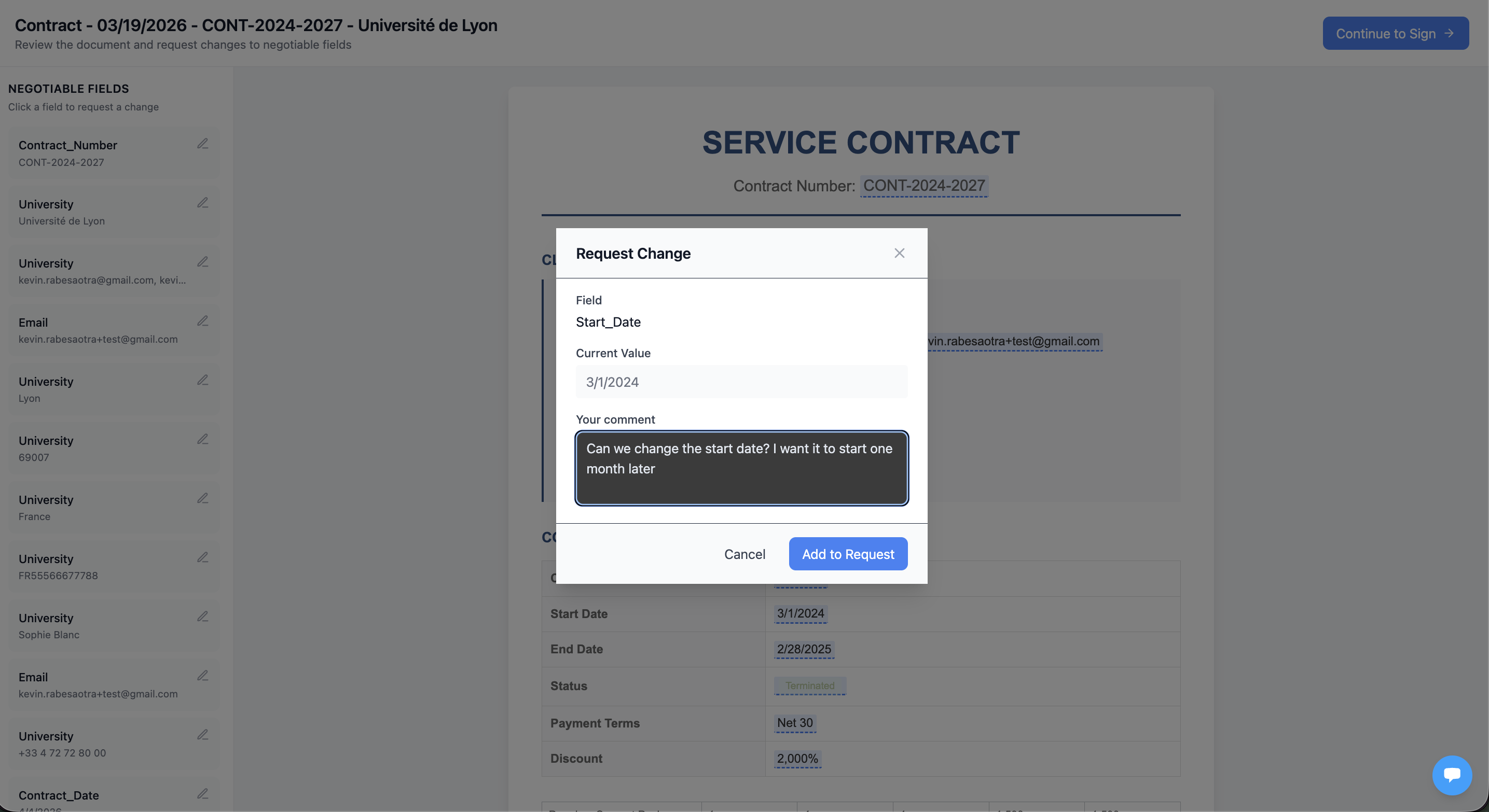
TypeFlow's Contract Redlining (available on Scale plans and above) keeps everything connected:
For signers:
- Click "Suggest Edit" on the signing page
- Click on highlighted fields to request changes
- Submit and wait for the updated contract
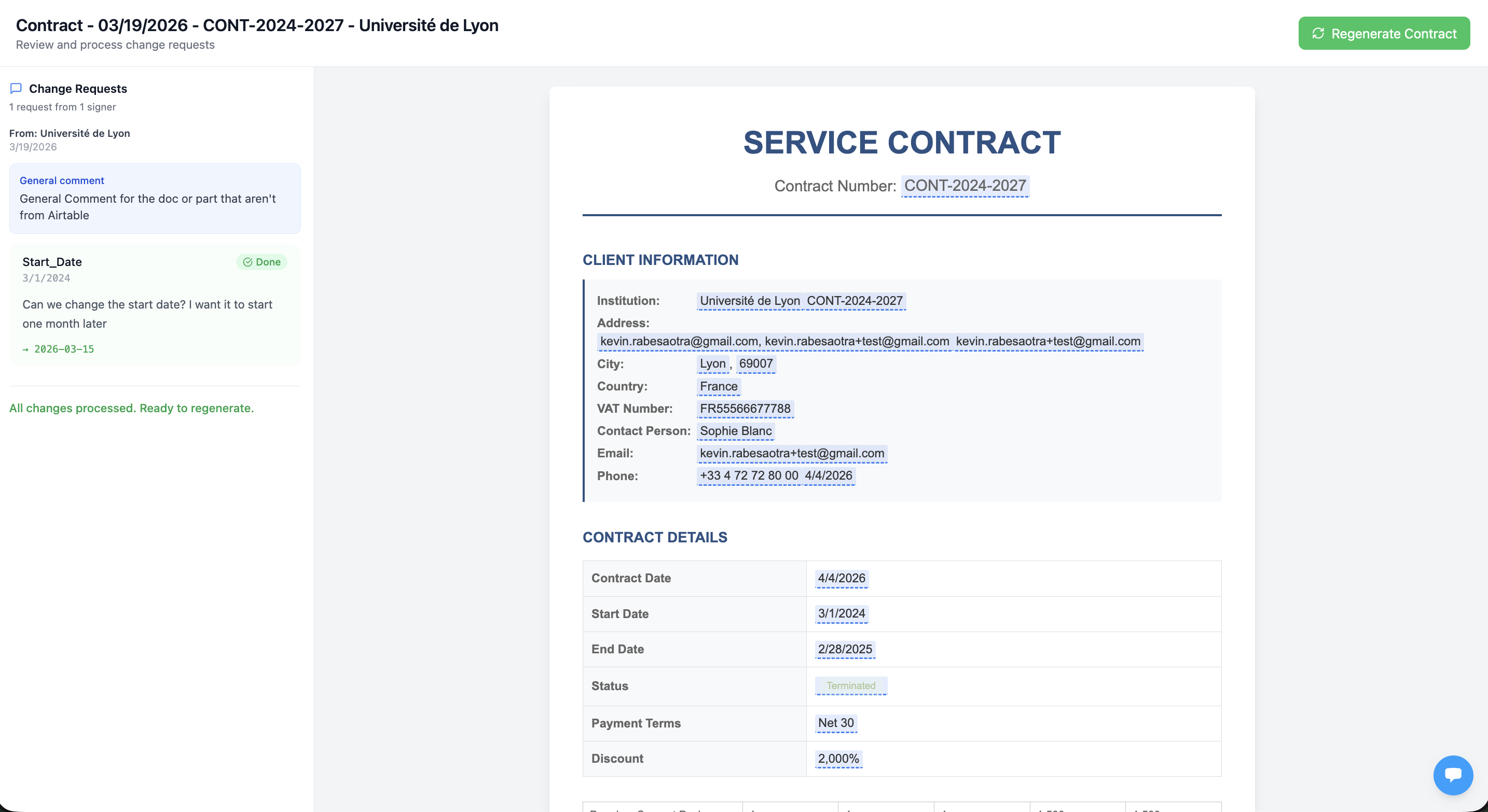
For you:
- See all change requests in one place
- Accept → Airtable updates automatically
- Reject → add a note explaining why
- Click "Regenerate" → new contract ready to sign
No Word files. No manual updates. No version confusion. Your contract stays connected to your Airtable data throughout the entire negotiation.
Option 2: DocuSign or HelloSign Integration
For a detailed setup tutorial, see our DocuSign Airtable integration guide.
Connect Airtable to external e-signature tools like DocuSign or HelloSign (now Dropbox Sign) via Zapier or Make:
- Generate contract PDF with TypeFlow
- Zapier sends PDF to DocuSign
- DocuSign returns signed PDF
- Automation saves signed PDF back to Airtable
When to use: If you already have a DocuSign enterprise license or need advanced authentication (ID verification, notarization).
Comparison: Native vs External E-Signature Tools
| Feature | TypeFlow (Native) | DocuSign (via Zapier) |
|---|---|---|
| Cost | Included in plan | $10-60/envelope |
| Setup | Direct integration | Multi-step automation |
| Legal compliance | ESIGN/UETA/eIDAS | ESIGN/UETA/eIDAS (+ QES) |
| Audit trail | Yes | Yes |
| Certificate of completion | Yes | Yes |
| Advanced authentication | No | Yes (premium) |
For a complete walkthrough, see our Airtable electronic signature guide.
Airtable Contract Management vs Alternatives
For most SMBs, Airtable + TypeFlow replaces dedicated CLM software at a fraction of the cost - $109/month for a 3-person team vs $500+/month for Juro or Ironclad.
Airtable + TypeFlow vs Dedicated CLM Software (Juro, Ironclad)
Dedicated CLM (Juro, Ironclad, ContractWorks):
- Starting at $500-2000/month
- Complex implementation (weeks to months)
- Advanced features: browser-native editing, clause libraries, negotiation redlining, approval workflows
- Best for: Legal teams with 1000+ contracts, enterprise compliance requirements
Airtable + TypeFlow:
- $20-50/month combined
- Setup in hours, not weeks
- Core features: storage, tracking, generation, e-signatures, audit trails
- Best for: Teams already using Airtable, any contract volume
Key insight: Juro and similar CLM tools require Zapier ($20-50/month extra) to connect with Airtable. TypeFlow connects natively - no middleware needed. For a deeper comparison, see Airtable contract management vs CLM software. If you want to manage the full contract lifecycle in Airtable, see our contract lifecycle management guide. You can also compare DocuSign alternatives for Airtable and PandaDoc alternatives for Airtable.
Cost Breakdown: Airtable vs Traditional CLM
Here's what you'll actually pay for different contract management approaches:
Airtable + TypeFlow (Small Team - 3 Users):
- Airtable Pro: $20/user x 3 = $60/month
- TypeFlow Pro: $49/month
- Total: $109/month, $1,308/year
Juro CLM (Small Team):
- Juro Starter: $500/month minimum
- Zapier (for Airtable connection): $30/month
- Total: $530/month, $6,360/year
DocuSign + Manual Process:
- DocuSign Business Pro: $40/user x 3 = $120/month
- 20 contracts/month x $0.50/envelope = $10/month
- Total: $130/month, $1,560/year
- Note: No automated generation, requires manual data entry
The TypeFlow approach costs 5x less than Juro while handling the same contract volumes. You save $5,000+ annually compared to enterprise CLM, with faster setup and no learning curve for teams already using Airtable.
Airtable + TypeFlow vs Airtable + Juro
| Feature | TypeFlow (Native) | Juro (via Zapier) |
|---|---|---|
| Airtable connection | Native extension | Requires Zapier |
| Monthly cost | From $29/month | From $500/month + Zapier |
| E-signatures | Built-in, included | Included in Juro |
| Document generation | Yes (Google Docs templates) | Yes (Juro templates) |
| Contract redlining | Yes (Scale plan+) | Yes (browser-based) |
| Clause library | No | Yes |
| Setup complexity | 5-15 minutes | Multi-step Zapier setup |
| Best for | SMBs to enterprises, high-volume operations | Legal teams, complex negotiations |
When to Use Each Approach
Choose Airtable + TypeFlow if:
- You're already using Airtable for CRM, projects, or operations
- You need generation + signatures without per-document fees
- You want a simple setup that scales with your volume
Choose dedicated CLM if:
- Legal team needs browser-native contract editing
- You negotiate contracts with external parties frequently
- Clause libraries and playbooks are required
- Budget allows $500+/month for contract management
When to upgrade to CLM: If you need AI contract analysis, automated risk scoring, or clause libraries with playbooks.
Security and Compliance for Airtable Contracts
Airtable provides enterprise-grade encryption (TLS 1.2+, at-rest encryption), role-based access controls, and activity logs. TypeFlow's e-signatures comply with ESIGN Act, UETA, and eIDAS for legal validity.
Airtable Security Features
Airtable provides enterprise-grade security for contract storage. Data encryption covers files both in transit and at rest, with TLS 1.2+ for all connections. Two-factor authentication adds an extra security layer for user accounts.
Access controls let you define who can view, edit, or delete contract records. Set up team permissions so sales can create contracts but only legal can approve final terms. The activity log tracks every change with timestamps and user attribution.
GDPR and Data Protection
If you handle European client contracts, GDPR compliance requires careful data handling. Store personal information only when necessary for contract performance. Use Airtable's data processing agreement (DPA) and configure retention policies to automatically archive old records.
For sensitive contracts, consider field-level encryption for personally identifiable information. The REST API lets you build custom masking for contract previews while keeping full data accessible to authorized users.
E-Signature Legal Validity
TypeFlow's e-signatures meet legal requirements under the US ESIGN Act, UETA, and EU eIDAS regulation. Each signature captures the signer's email, IP address, timestamp, and explicit consent to the contract terms.
The certificate of completion provides court-admissible proof of the signing process. For contracts requiring notarization or advanced authentication, integrate with DocuSign or similar platforms that offer these premium features.
Best Practices for Airtable Contract Management
Use consistent naming conventions, standardize templates per contract type, back up regularly, and audit your base structure quarterly. These habits keep your system organized as contract volume grows.
Use consistent naming conventions
A naming format like "ClientName_ContractType_Date" makes searching and sorting straightforward. When you have hundreds of contracts, consistency becomes your friend.
Standardize your contract templates
Create template versions for each contract type - a service agreement template, an NDA template, a vendor contract template. You can browse professional contract templates to get started quickly.
Back up contract data regularly
Export your Airtable data periodically and keep signed PDFs in a secondary location like Google Drive. Redundancy protects against accidental deletion or account issues.
Audit and update fields quarterly
Review your base structure every few months. Add new fields as your process evolves, archive outdated ones, and clean up views you no longer use.
Common Issues and Solutions
The most common problems are merge fields not populating (check variable name spelling), automation triggers failing (check conditions and plan limits), and linked records displaying incorrectly (fix the primary field in the linked table).
Merge fields not populating correctly
This usually happens when variable names in Google Docs don't match Airtable field names exactly. Check spelling, spacing, and capitalization. {{Client Name}} and {{ClientName}} are different variables.
Automation triggers failing
Common causes include incorrect trigger conditions, permission issues, or hitting automation limits on your plan. The automation history logs in Airtable show you exactly where things went wrong.
Linked records displaying incorrectly
This occurs when the primary field in the linked table isn't set up right. Update the primary field to show the correct identifier - usually the company name or contact name rather than a record ID.
Start Managing Contracts in Airtable Today
Airtable contract management gives teams flexibility and visibility that spreadsheets and file folders can't match. You can track every contract, automate reminders, and generate professional documents from one system.
Pairing Airtable with TypeFlow handles the document generation piece. Your contract data flows into polished PDFs without manual copying or formatting work. TypeFlow is rated by quality and operations teams on G2. For more workflow tips, check the Airtable community and r/Airtable on Reddit.
Start for Free and build your first contract workflow today.
Automate your document generation
Start with 20 free documents. Built for businesses using Airtable.
FAQs about Airtable Contract Management
Find answers to the most common questions about this feature.
Popular Questions
All Questions
Need more help?
Our team is here to help you solve all your problems and answer your questions.
Contact Us
Kevin from TypeFlow
•AuthorKevin Rabesaotra is a growth engineer and automation specialist with 8+ years of experience building no-code solutions. As Founder & CEO of TypeFlow, he has helped hundreds of businesses automate document generation and streamline workflows with Airtable integrations. Previously, Kevin was a Product Lead specializing in growth engineering, running experiments to drive revenue, retention, and lead generation.
More articles
How to Print Labels from Airtable with Quantity Control (Step by Step)
Print multiple labels per Airtable record based on a quantity field. Step-by-step guide for linked records mode and quantity repeat mode with barcodes and Avery sheets.
Read articleHow to Print Avery Mailing Labels from Airtable
Print Avery mailing labels (5160, 5161, 5162) from Airtable without Word mail merge. Step-by-step guide with print label mode, automation, and bulk generation.
Read articleHow to Create Inventory Labels with Barcodes in Airtable
Create inventory labels with Code 128, EAN-13, or QR barcodes from Airtable. Step-by-step guide for warehouse, retail, and asset tracking with thermal and Avery printers.
Read article