How to Generate Contracts from Airtable Data (Step-by-Step)
Generating contracts from Airtable is simple: connect TypeFlow, map your Airtable fields to a template, and generate a PDF in seconds. You can trigger creation with a button or an Airtable automation, then send the same document for e-signature - without per-signature fees. This guide is for Airtable users who generate contracts repeatedly - agencies, HR teams, or operations teams managing vendor agreements. Other tools like Plumsail Documents, Documint, and DocsAutomator can also generate documents from Airtable. For a broader overview, see our guide on exporting Airtable data to PDF. For comparing all tools, see our best contract generation tools for Airtable.
Video walkthrough
See the full contract generation and e-signature flow in action - from Airtable record to signed PDF in under 2 minutes:
Key Takeaways
- TypeFlow generates contracts directly from Airtable records using Google Docs templates or the HTML/CSS template builder - no coding or middleware like Zapier required.
- Setup takes about 15 minutes: connect Airtable, create a template with
{{field_name}}placeholders, map fields, and generate your first contract. - Built-in e-signatures let you send contracts for signing directly from Airtable - no extra integrations needed. If you do need DocuSign, see our DocuSign Airtable integration guide.
- One master template can handle multiple contract variations using conditional sections that show/hide clauses based on Airtable data.
What Is Contract Generation from Airtable Data
Contract generation from Airtable is the process of turning Airtable records into ready-to-send contracts automatically. You use a template with placeholders, and TypeFlow fills it with real data to create a finished PDF contract.
- Input: Airtable fields (client, pricing, dates, clauses)
- Template: Google Docs or HTML/CSS with placeholders
- Output: PDF contract (optionally sent for e-signature)
Why Generate Contracts from Airtable
- Single source of truth: Your contract data stays tied to the same records your team already uses.
- Fewer mistakes: Automation eliminates copy-paste errors and missing fields.
- Faster turnaround: Generate and send in minutes when a record hits "Approved."
What You Need Before Starting
Generating contracts from Airtable involves connecting your Airtable base to a tool like TypeFlow, creating a contract template in Google Docs or the HTML/CSS template builder with placeholder variables, and then mapping your Airtable fields to those variables. This process, similar to a mail merge, automatically populates your template with data to create a finished PDF contract.
To make it work, you need:
- An Airtable account with a base: This is where your contract data lives
- A Google account (if using Google Docs templates) or use TypeFlow's built-in HTML/CSS template builder if you don't use the Google ecosystem.
- A basic idea of your contract layout: Know which fields from Airtable will appear in your contract and roughly where they belong.
- A TypeFlow account: to automate your contract generation
The whole setup takes about 15 minutes once you have these three pieces in place (based on 2000+ TypeFlow customer implementations, 2024-2025).
Ready to generate contracts from Airtable?
Connect your base, pick a Google Docs template or use the HTML/CSS template builder, and generate your first contract in minutes.
Start free with 20 documents →How Long Does Setup Take?
Most people get their first automated contract working in about 15 minutes. Here's the typical timeline:
- 5 minutes: Connect TypeFlow to Airtable and choose your template method (Google Docs or HTML/CSS template builder)
- 5-8 minutes: Create your contract template with placeholder variables
- 2-3 minutes: Map Airtable fields to template variables
- 1 minute: Generate your first test contract
Complex templates with conditional sections or multiple contract types might take 30-45 minutes initially, but you'll save hours every week once automation is running.
How to Set Up Your Airtable Base for Contracts
Create a Clients table and a Contracts table with fields for contract type, start date, end date, and status. Link them so each contract points to a client record.
For our example, we will generate contracts for new collaborators. The way you organize this data determines how smooth everything runs later.
Required fields for contract data
Every contract pulls from specific data points in your base. You'll want to create fields that match the information your contracts actually need.
For most contracts, you'll need these core fields in your Airtable base:
- Collaborator Name: The full legal name of the person or company.
- Contract Date: The date the agreement takes effect.
- Terms and Conditions: The specific legal clauses for the agreement. You can use Linked Records to select different terms based on the role.
- Salary: The compensation offered to the collaborator.
- Contract Type: The employment status, such as Full-Time, Part-Time, or Contractor.
- Role: The collaborator's job title or position.
Organizing records for contract workflows
Airtable views let you filter which records are ready for contract generation. I create a view called "Ready to Generate" that only shows records where a status field equals "Approved."
This approach prevents you from generating contracts for incomplete or unapproved deals. You can also add a checkbox field called "Contract Generated" to track which records already have documents. When you check that box, the record disappears from your "Ready to Generate" view.
How to Create Your Contract Template
TypeFlow supports two template methods: Google Docs templates and the built-in HTML/CSS template builder. Google Docs is the fastest way to get started - use a document you already have. The HTML/CSS template builder gives you pixel-perfect control over layout, fonts, and styling - ideal for branded contracts or teams that don't use the Google ecosystem.
Adding placeholder variables to your template
Placeholder variables tell the system where to insert data from Airtable. You write these using double curly braces with the field name inside, like this: {{field_name}}. This syntax works the same way in both Google Docs and the HTML/CSS builder.
The text between the braces corresponds to your Airtable field names:
{{client_name}}pulls the client's name from your base.{{contract_date}}inserts the date from the corresponding field.{{total_amount}}adds pricing information to the document.
Keep variable names simple and match them to your Airtable field names as closely as possible. If your Airtable field is called "Client Email," use {{client_email}} instead of something vague like {{email}}. This makes the mapping step easier later.
Formatting your contract for PDF output
For Google Docs templates, the formatting carries over to the final PDF. Use standard fonts like Arial or Times New Roman because they render the same way across different systems. For the HTML/CSS template builder, you have full CSS control over fonts, spacing, colors, and layout.
Set your margins to at least 1 inch on all sides. This prevents text from getting cut off when the document converts to PDF. Use page breaks to control where new sections start, which matters for multi-page contracts.
Bold your important headings and use tables for pricing breakdowns or itemized lists. The cleaner your template looks, the more professional your final contracts appear.
Conditional sections for your contract
Conditional sections let you create one master template that adapts based on Airtable data. Show or hide entire clauses based on field values - no need to maintain separate templates for each contract type.
Syntax: Wrap content with {{section_name}} and {{/section_name}} tags:
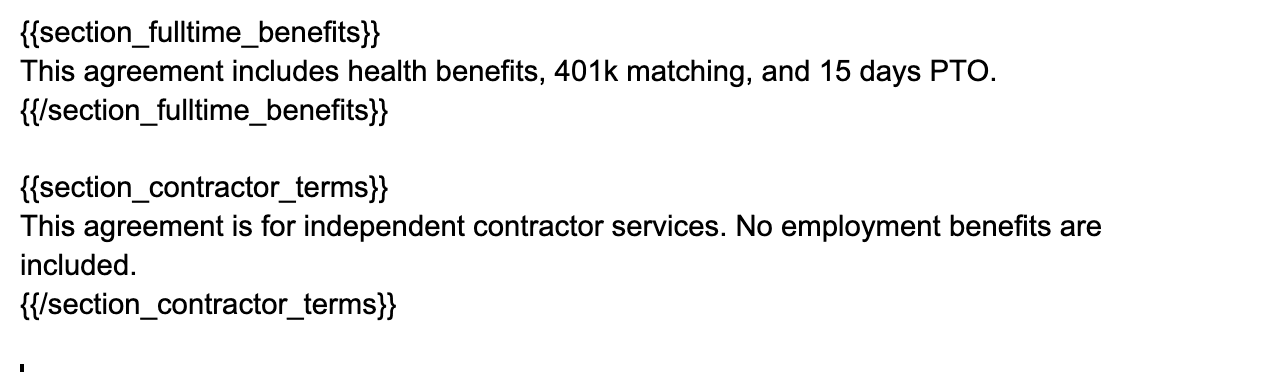
In your template, wrap content with section tags:
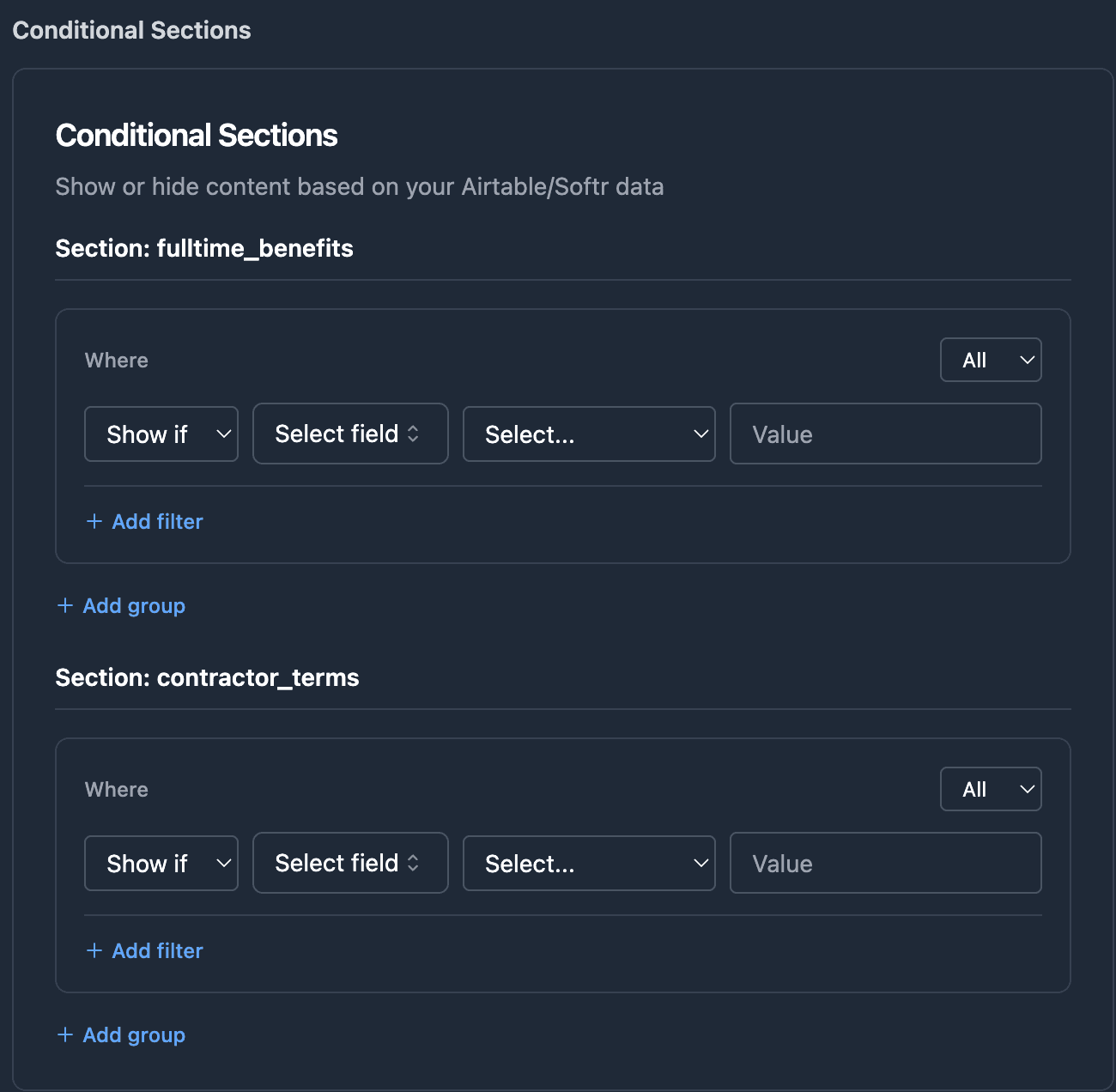
Conditions are configured in the TypeFlow UI, not in the template itself.
How to Connect TypeFlow to Airtable
Step 1: Connect Airtable to TypeFlow
Connecting TypeFlow to your Airtable base takes just a few minutes. The process links your data source to your document template so contracts can be generated with one click. For that, you just need to connect Airtable with TypeFlow here.
Step 2: Choose your template method
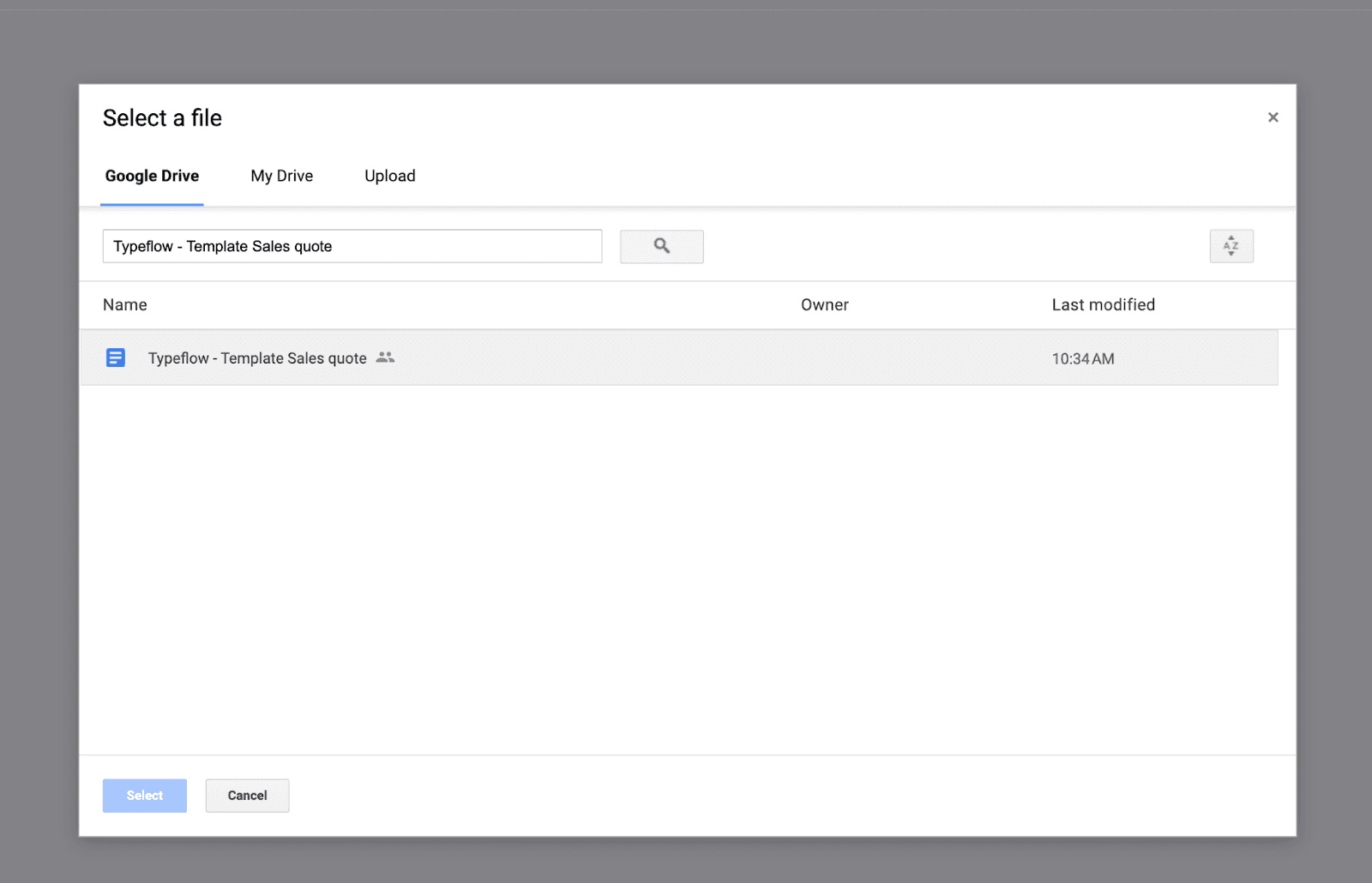
Google Docs: Connect your Google account via OAuth. TypeFlow can only access files you explicitly select. Navigate to your contract template in Drive and select it.
HTML/CSS template builder: No Google account needed. Build your contract template directly in TypeFlow's visual editor with full CSS control over layout, fonts, and styling. You can also import existing HTML/CSS.
Step 3: Select your contract template
Your template now links to your Airtable base and is ready for field mapping.
How to Map Airtable Fields to Your Contract Template
Mapping connects each Airtable field to its corresponding placeholder variable in your template. TypeFlow shows your available fields on the left and detected template variables on the right.
Click on an Airtable field, then click the matching template variable to create the connection:
- Airtable field "Company Name" → Template variable
{{company_name}} - Airtable field "Start Date" → Template variable
{{contract_start}} - Airtable field "Total Price" → Template variable
{{total_amount}}
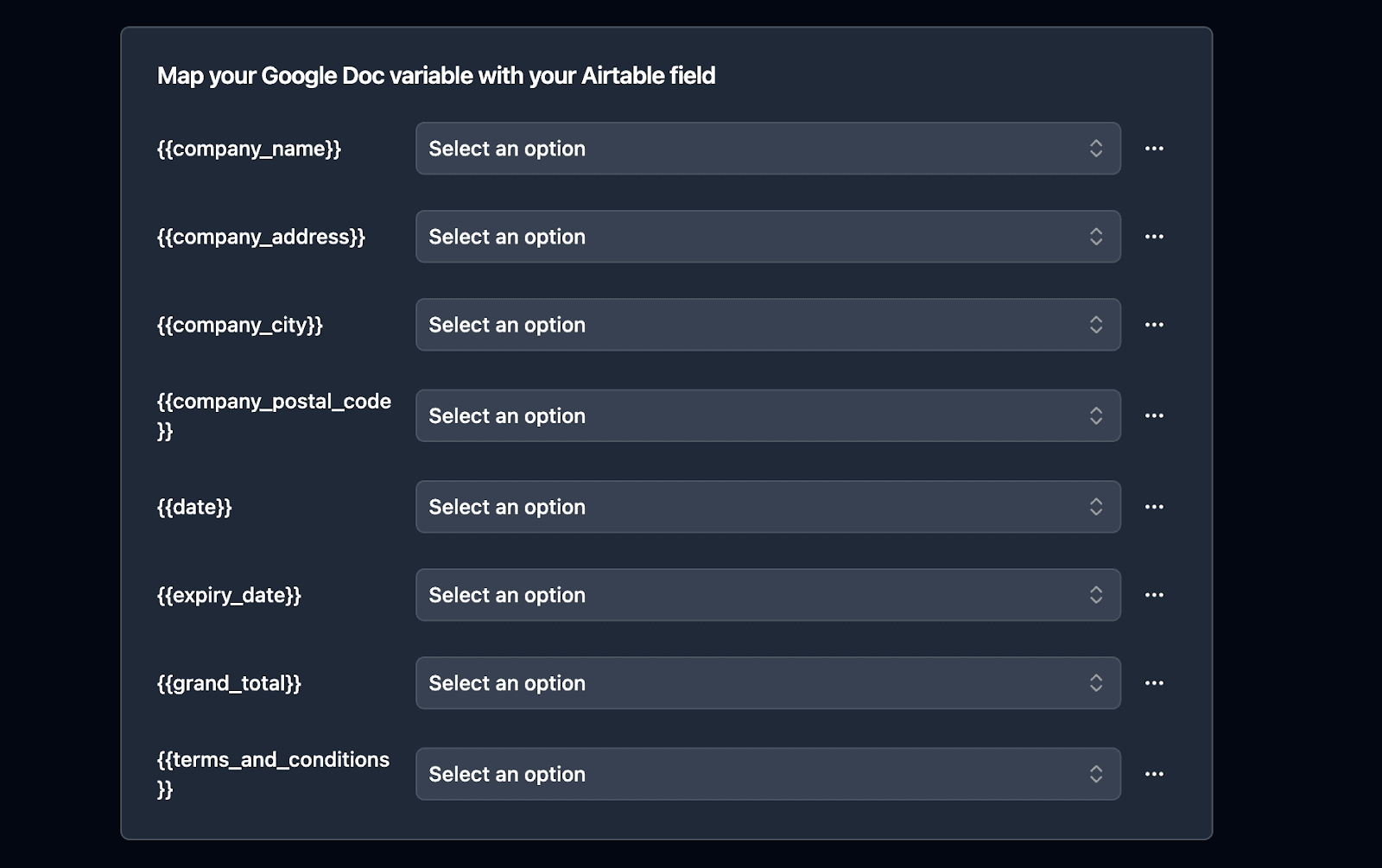
Once each field is mapped, save the flow and generate a test contract from an Airtable record.
Common Contract Types You Can Generate from Airtable
The most common contracts generated from Airtable are employment agreements, service contracts, vendor agreements, NDAs, and sales order forms. Here are the details on each type our customers generate from their Airtable bases.
- Employment contracts: Full-time, part-time, contractor, intern agreements with salary, benefits, and terms
- Service agreements: Client contracts, SOWs, retainer agreements with pricing and deliverables
- Vendor contracts: Purchase orders, supplier agreements, NDAs with payment terms
- Sales contracts: Order forms, terms of sale, product agreements with line items
Each type uses the same setup process but with different template fields and conditional logic. For a complete guide on organizing contracts in Airtable, see Airtable Contract Management. To manage the full contract lifecycle from creation to renewal, see our contract lifecycle management guide. If you are evaluating whether Airtable is enough or you need dedicated CLM software, see our Airtable contract management vs CLM comparison.
Which Industries Use Contract Automation Most?
Based on our customer data, these industries see the biggest impact from automated contract generation:
- Professional services: Law firms, consulting agencies, marketing firms generating client agreements
- HR and recruitment: Companies hiring contractors, freelancers, or full-time employees
- Real estate: Property managers, agents, and developers creating lease agreements and purchase contracts
- Education: Schools and training organizations issuing certificates and enrollment contracts
- SaaS companies: Businesses with custom enterprise contracts or partnership agreements
Any business that creates more than 5-10 contracts per month typically sees significant time savings from automation.
How to Automate Contract Generation in Airtable
You have three ways to generate contracts from Airtable. Pick the method that fits your workflow: manual control with buttons, automatic generation with Airtable automations, or signature-triggered regeneration with forms. Most teams start with buttons, then add automation once they've tested their templates.
Method 1: The Classic Implementation
The classic method gives you full control over when to generate a contract. Indeed, you need to click on a button to trigger the contract generation.
you can add a button directly in your Airtable base:
-
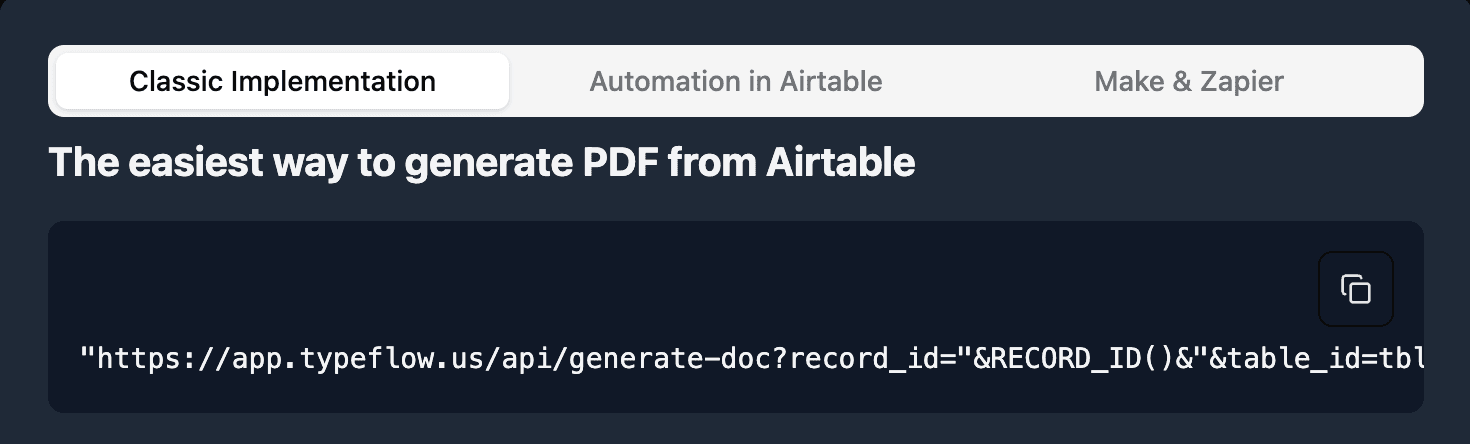
In TypeFlow scroll to the bottom of the page and click on " Classic Implementation"
-
Copy the URL, it should look like this:
"https://app.TypeFlow.us/api/generate-doc?record_id="&RECORD_ID()&"&table_id=xxx&flow_id=xxx"
- Go to your Airtable table and add a new button field
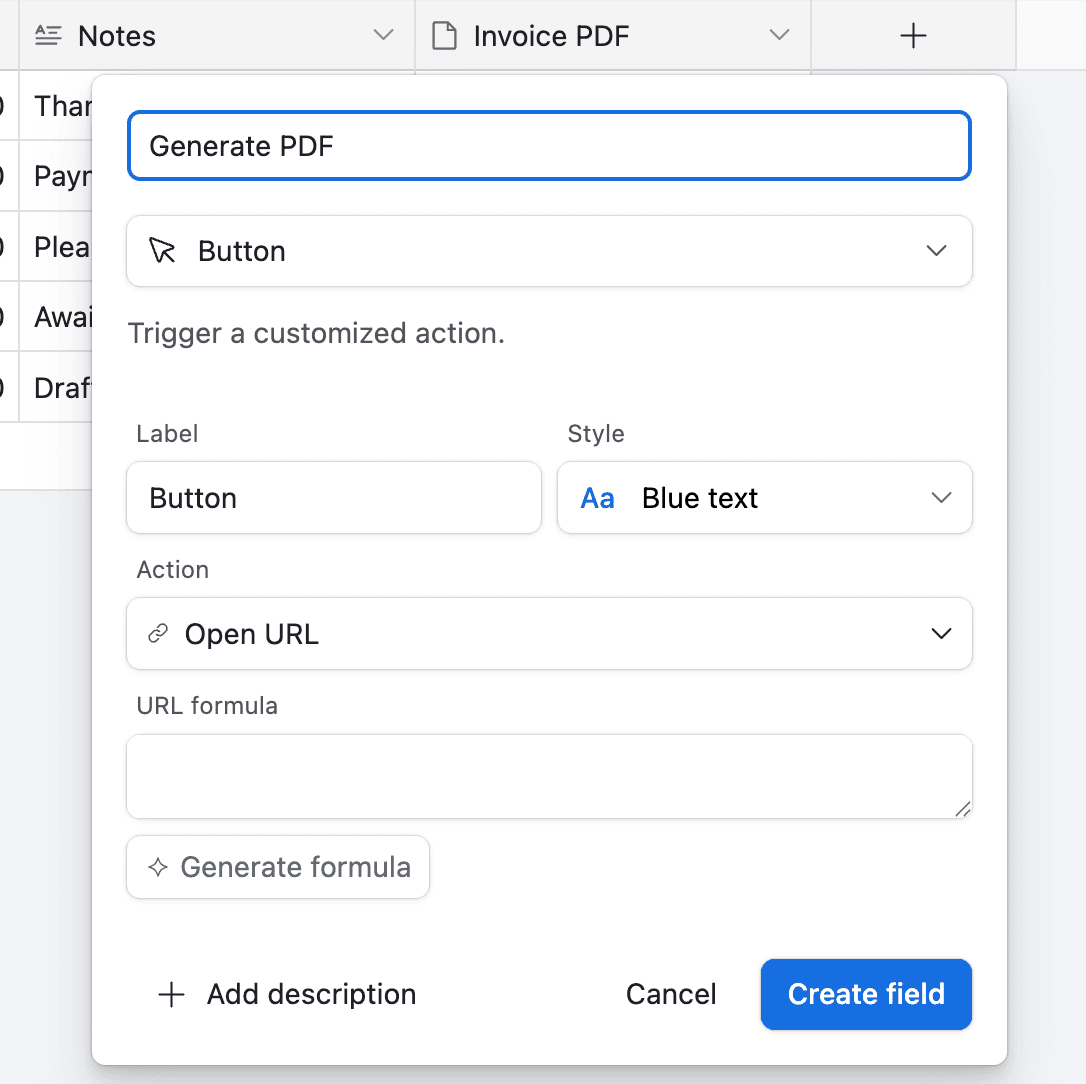
- Paste the URL from TypeFlow to the URL Formula
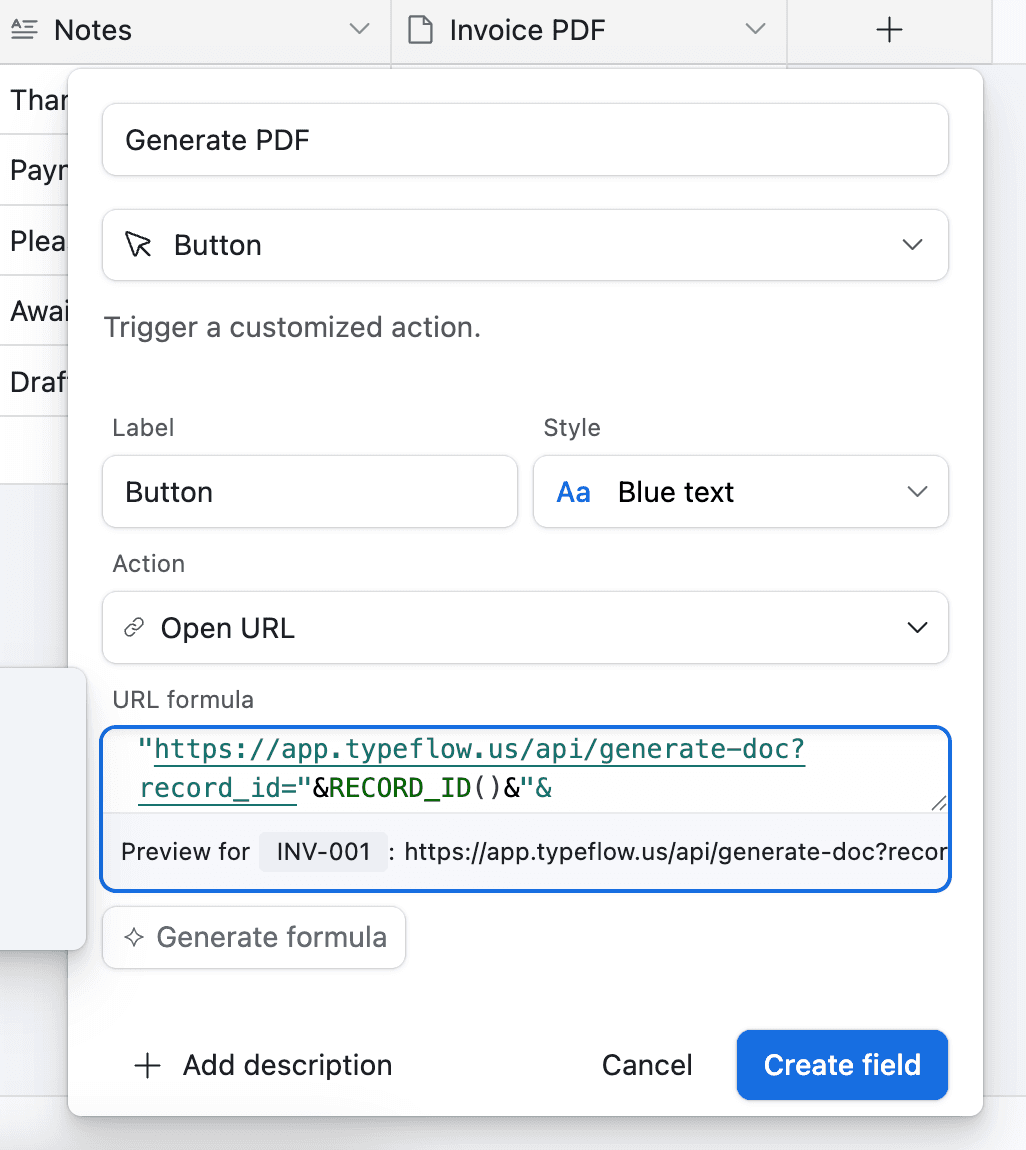
Now whenever you want to generate a contract, you can click the button in Airtable and it will generate the PDF for you. You can also email the PDF automatically to your client right after generation.
Method 2: The Airtable Automation
You can use the Airtable Automation to automate your contract generation. You can also use Zapier or Make for more complex workflows. Automations run based on specific events in your base. You can choose from several trigger options depending on your workflow.
Here are the most common triggers:
- When a record is created: Generate a contract as soon as someone adds a new client to your base.
- When a field changes: Generate a contract when a status field updates to "Approved."
- On a schedule: Generate a batch of contracts every Friday afternoon or on the first of each month.
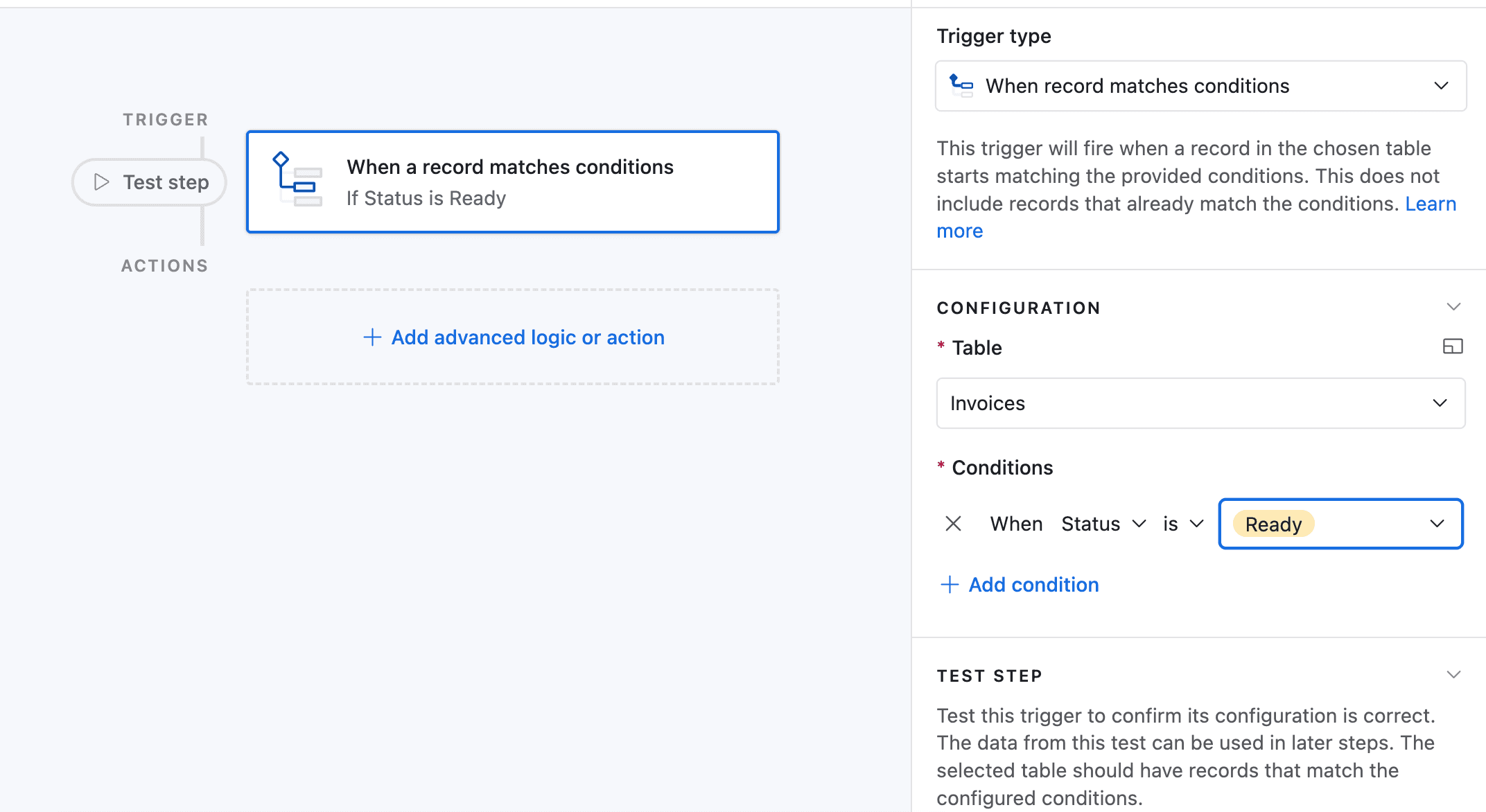
To set this up, click the Automations tab in your base, then "Create automation." Choose your trigger type and configure the conditions that activate the automation. For the purpose of this article, we will trigger the PDF genration whenever the field Status, for any invoice, is equal to "Ready".
Go to Automation in Airtable
-
Click on "Add a trigger" and Choose When a Record matches a condition
-
Select the table you want to trigger the automation on (in this case the Invoices table)
-
Select the field you want to trigger the automation on (in this case the Status field)
-
Select the condition you want to trigger the automation on (in this case "is")
-
Select the value you want to trigger the automation on (in this case "Ready")
-
Now choose a record that matches the condition
-
Now click on Add an advanced logic or action
-
Pick Run Script. A new popup appears.
-
Go back to TypeFlow and select Automation in Airtable. Copy the script.
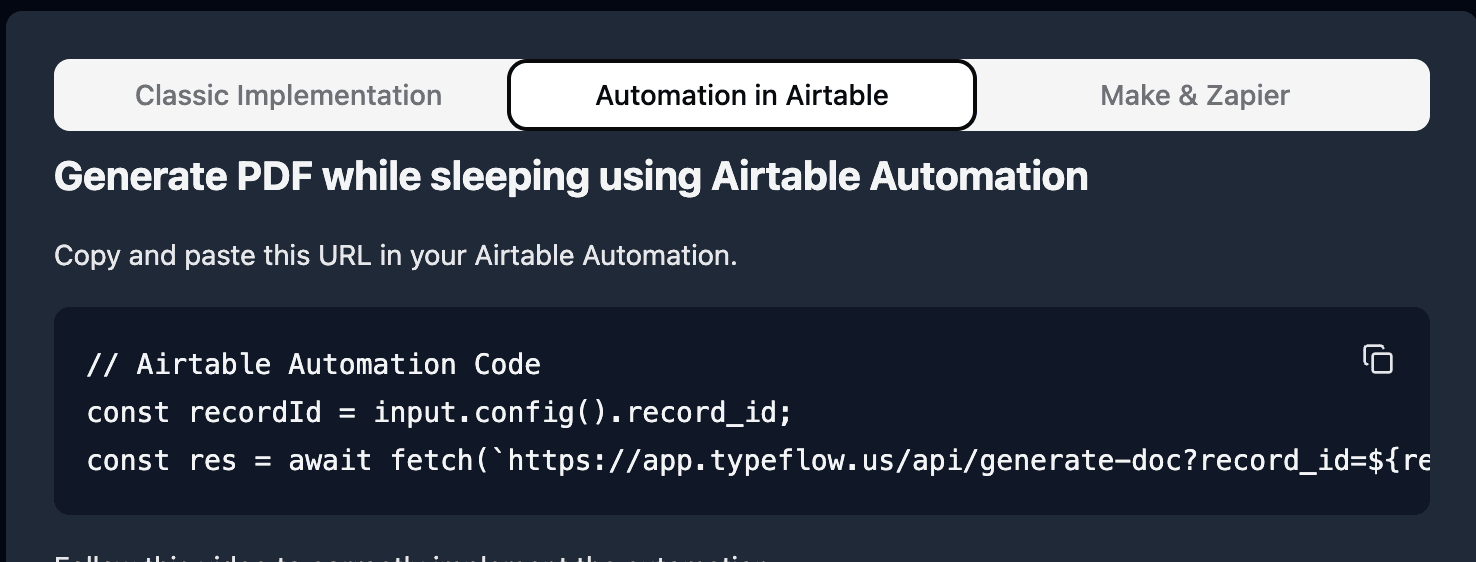
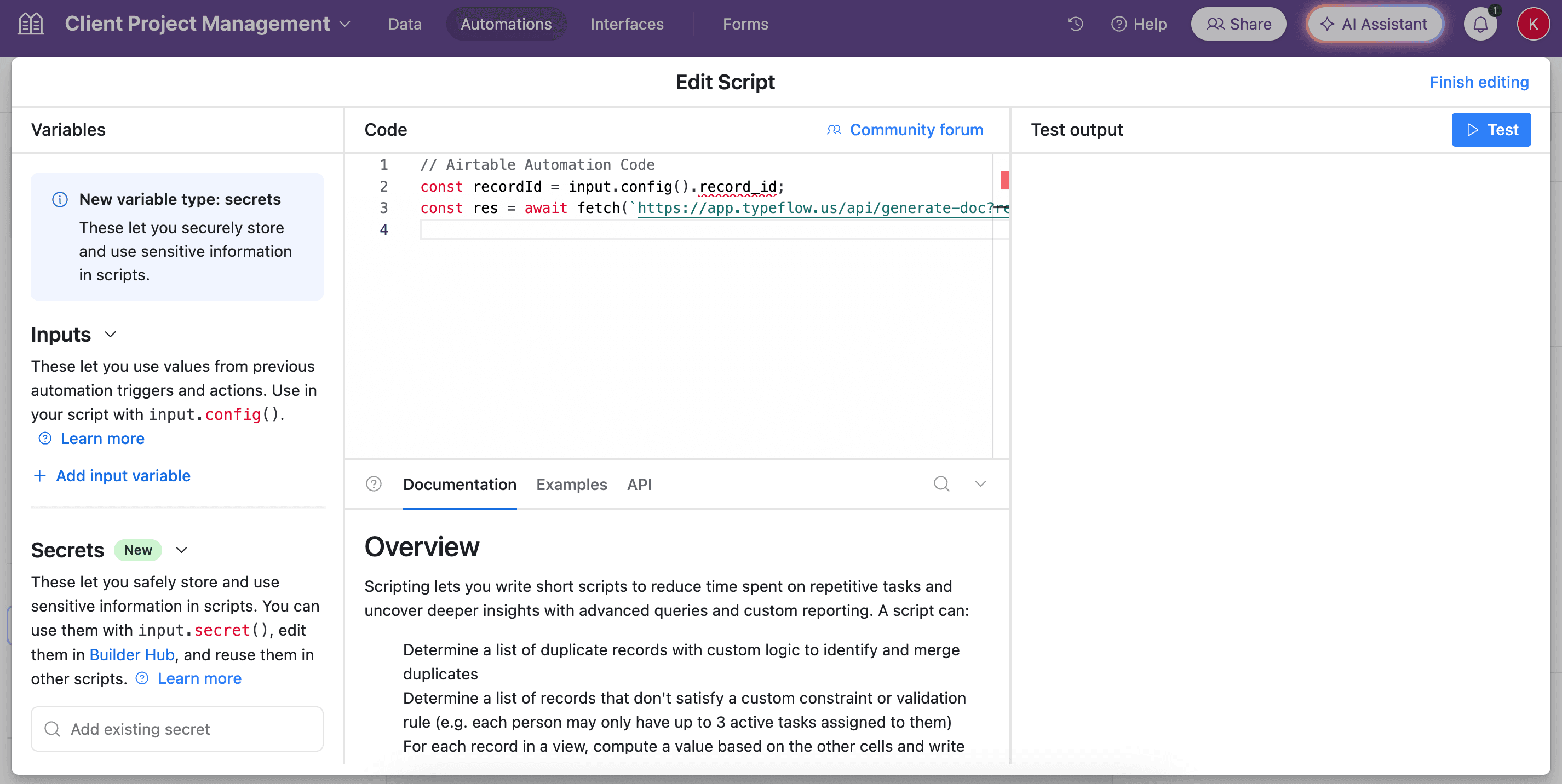
- Paste the script in the popup.
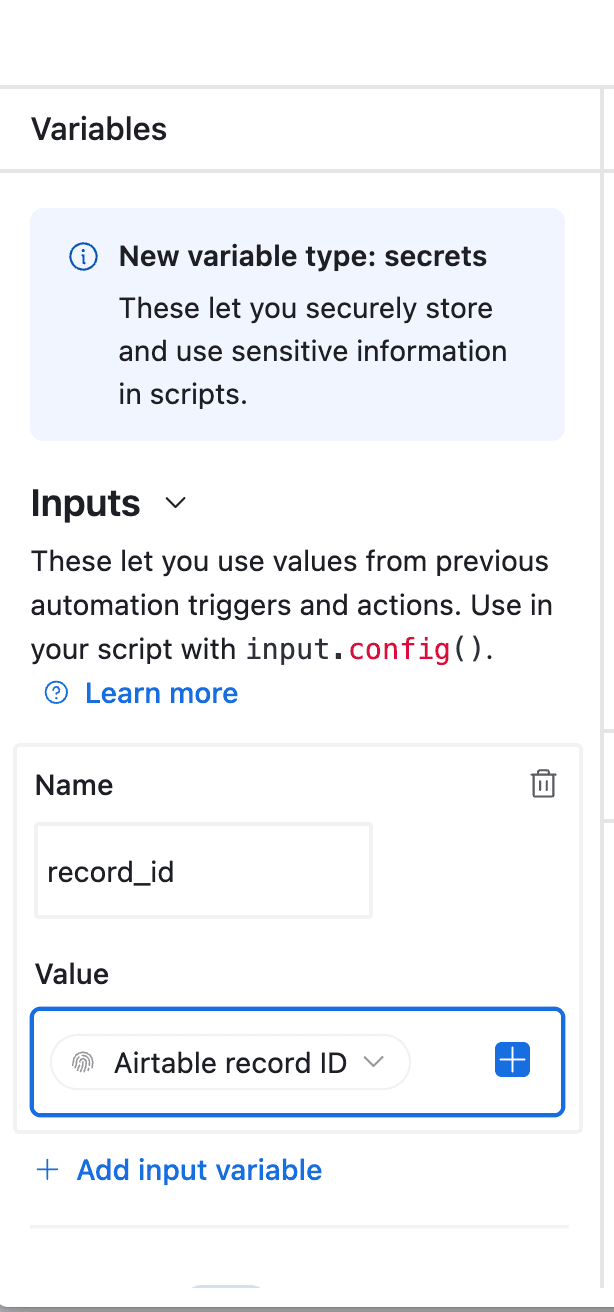
- In the left-side of the popup, do not forget to configure the variable input, record_id. You need to select Airtable Record ID from the dropdown. See the image.
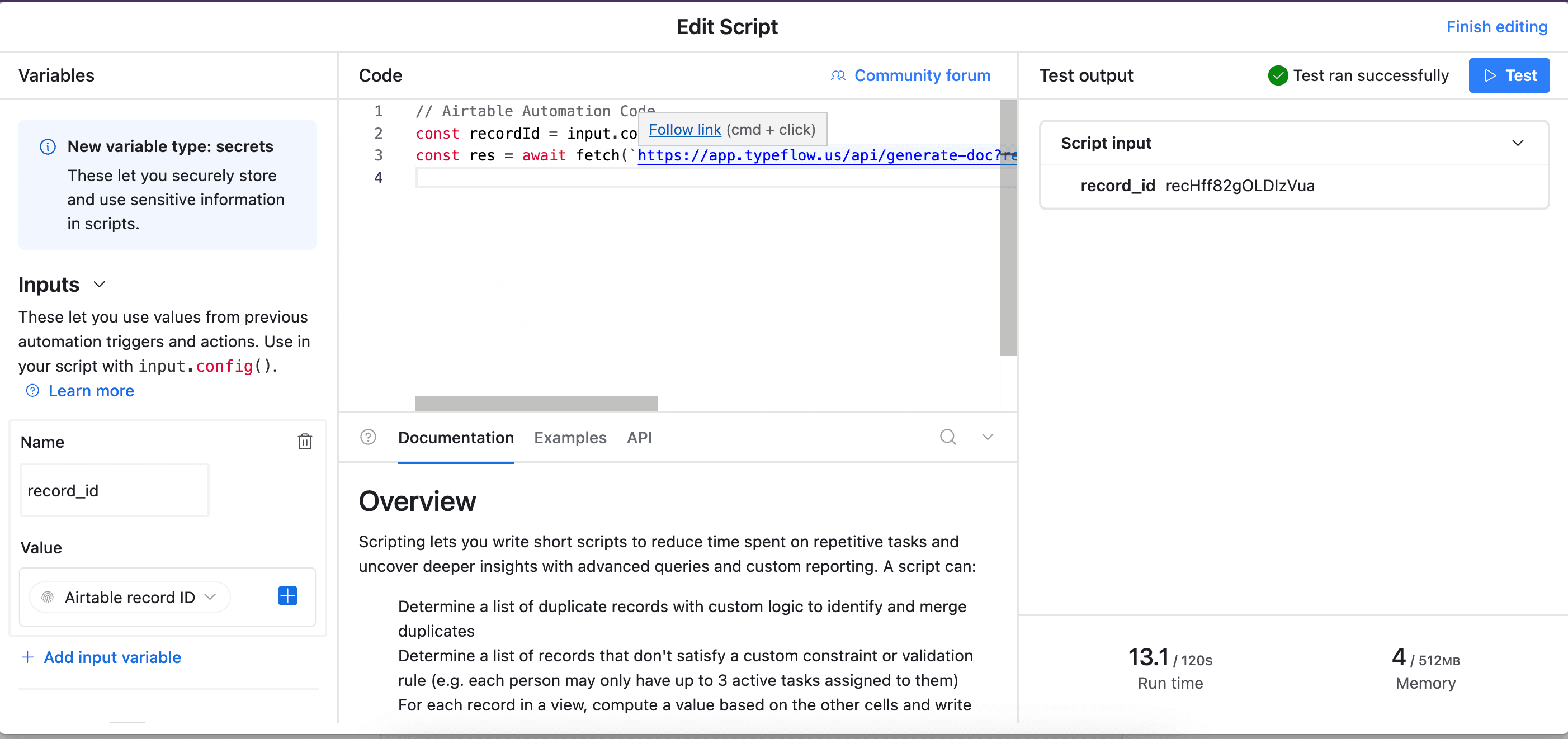
- Test your script, and see if it works. Adjust if needed (most of the time the error comes from the record_id variable - see step 12).
- Now name your automation and save it.
How to Add E-Signatures to Airtable Contracts
TypeFlow includes built-in e-signatures - no DocuSign or Zapier required. Signed PDFs return with a Certificate of Completion and audit trail.
- Add signature placeholders to your template:
{{e-signature.signature_1}},{{e-signature.signature_2}}, etc. - Set signer emails - static or pulled from Airtable fields like
{{client_email}} - Generate the contract - each signer receives a unique signing link
- Signer completes signature on any device
- Signed PDF returns to Airtable with timestamps and signer metadata
Multi-signer support: sequential signing (signer 2 waits for signer 1) or parallel signing (everyone signs simultaneously).
For a complete e-signature setup guide, see How to Add E-Signatures to Airtable Documents. You can also learn how to generate documents with e-signatures directly from Airtable. For the full quote-to-invoice workflow with e-signature, see our Airtable quote-to-invoice guide.
Try it yourself in 15 minutes
Set up contract generation with e-signatures included. No Zapier, no DocuSign fees.
Start free with 20 documents →Best Practices for Airtable Contract Automation
Use a dedicated Status field to prevent duplicate generation, test with sample data before going live, and version your templates. Addressing these upfront saves troubleshooting time later.
Use clear naming conventions
Match your Airtable field names to your template variables (e.g., Airtable field "Client Email" becomes template variable {{client_email}}). This makes mapping intuitive and simplifies future updates.
Test your template before going live
Always generate a test contract with sample data before using the automation for real clients. This helps you catch mapping errors or formatting issues early.
Store generated contracts in Airtable
Add an attachment field in Airtable to save the final PDF to each record. This creates a complete, centralized audit trail for all your agreements. For compliance-heavy workflows, see how to generate audit-ready PDF reports from Airtable.
Benefits of Automating Contract Generation
Automated contract generation saves 16+ hours per month on manual document creation, eliminates copy-paste errors, and lets you scale to hundreds of contracts without additional headcount. The benefits go beyond just speed.
Save time on repetitive document tasks
An automated contract generates in seconds, saving hours of manual work each month. This frees you up to focus on growing your business instead of administrative tasks.
Reduce errors and maintain consistency
Automation pulls data directly from your Airtable base, eliminating copy-paste errors. Every contract uses the same approved template, ensuring consistent branding and legal language.
Scale your contract workflow
An automated system handles 100 contracts as easily as it generates 10. This allows your business to grow without the administrative burden growing at the same rate.
What's the ROI of Automating Contracts?
Most businesses see a return on their automation investment within the first month. Here's the typical math:
Manual contract creation costs:
- 20 minutes per contract (find template, copy data, format, review)
- $30/hour labor cost = $10 per contract
- 50 contracts/month = $500 in labor costs
Automated contract generation:
- 30 seconds per contract (click button, download PDF)
- TypeFlow cost: starts at $22/month, includes e-signatures
- Time savings: 16+ hours per month
- Cost savings: $475+ per month
The automation pays for itself with just 2-3 contracts per month, and most customers generate 20-50 contracts monthly.
Is Automated Contract Generation Secure?
Yes. TypeFlow encrypts data in transit (TLS 1.3) and at rest (AES-256). It accesses only the Airtable bases and templates you authorize, and you can revoke access at any time. Signed documents include a Certificate of Completion with signer metadata, timestamps, and document integrity verification.
Common Issues and Solutions
The most common issue is blank fields in the generated PDF, which means a template placeholder does not match the Airtable field name exactly. Here are the most common problems and how to quickly fix them.
Variables not populating
If a variable like {{client_name}} appears in the final document, check for typos in your template. Also, confirm the field is correctly mapped in TypeFlow.
PDF formatting problems
If your PDF layout looks broken, simplify your template. For Google Docs, stick to standard fonts and simple table structures. For the HTML/CSS template builder, check your CSS for unsupported properties.
Automation not triggering
First, double-check that your trigger conditions in Airtable are being met exactly (e.g., status is "Approved" not "Approve"). Second, ensure your tool's authorization to access Airtable and Google hasn't expired.
Choosing a Tool for Airtable Contract Generation
TypeFlow is designed for teams that want to generate contracts directly from Airtable using Google Docs or HTML/CSS templates, then send them for e-signature in the same workflow. Plans start at $22/month with e-signatures included at no extra cost.
If you are comparing document-generation tools, template options, e-signature limits, integrations, or current pricing, see our complete guide to the best contract generation tools for Airtable.
Contract Generation vs. Contract Management
This guide covers creating, generating, and signing contracts from Airtable records. If you need to organize a contract repository, track renewals, build approval workflows, or assess whether dedicated CLM software is appropriate, see our guides to Airtable contract management, Airtable contract lifecycle management, and Airtable contract management vs. CLM software.
For advanced contracts with nested chapters, configurable clauses, and 3 levels of linked records, see how to build advanced contracts in Airtable.
Start Generating Contracts from Airtable
Once it's set up, you'll save hours every week on document creation. Start free with 20 documents to test your workflow. If you need help, email support responds same-day, and step-by-step video tutorials are available in your dashboard.
The setup times and best practices in this guide are based on real TypeFlow customer implementations.
Automate your document generation
Start with 20 free documents. Built for businesses using Airtable.
Frequently Asked Questions About Generating Contracts from Airtable
Find answers to the most common questions about this feature.
Popular Questions
All Questions
Need more help?
Our team is here to help you solve all your problems and answer your questions.
Contact Us
Kevin from TypeFlow
•AuthorKevin Rabesaotra is a growth engineer and automation specialist with 8+ years of experience building no-code solutions. As Founder & CEO of TypeFlow, he has helped hundreds of businesses automate document generation and streamline workflows with Airtable integrations. Previously, Kevin was a Product Lead specializing in growth engineering, running experiments to drive revenue, retention, and lead generation.
More articles
How to Print Labels from Airtable with Quantity Control (Step by Step)
Print multiple labels per Airtable record based on a quantity field. Step-by-step guide for linked records mode and quantity repeat mode with barcodes and Avery sheets.
Read articleHow to Print Avery Mailing Labels from Airtable
Print Avery mailing labels (5160, 5161, 5162) from Airtable without Word mail merge. Step-by-step guide with print label mode, automation, and bulk generation.
Read articleHow to Create Inventory Labels with Barcodes in Airtable
Create inventory labels with Code 128, EAN-13, or QR barcodes from Airtable. Step-by-step guide for warehouse, retail, and asset tracking with thermal and Avery printers.
Read article