Airtable Integrations for Document Automation: A Strategic Guide

Types of Airtable Integrations for Document Generation

Airtable helps many businesses in their operations. One thing companies often use is generating documents. From invoices, quotes, presentations, and reports, it will depend on the business needs.

In this article, we cover the different methods you can use to generate documents with Airtable. From the native solution, Airtable Page Designer, to third-party tools (no-code / low-code solutions) and custom solutions, we are covering everything.

Decision Tree: Which Integration Type Should You Choose?

Start here: How many PDFs per month?

Start here: How many PDFs per month?

├─ <10 PDFs → Airtable Page Designer (free)

├─ 50 -100 PDFs → Ask: Do you have linked records?

   ├─ No linked records → Make/Zapier (if already in stack)

   └─ Linked records → No-code tool (TypeFlow, Documint)

└─ 100+ PDFs → Ask: Do you have dedicated developers?

  ├─ No → No-code tool with high volume plan

  └─ Yes → Custom code (if strategic priority)

Now let's dive deep into each option.

No-code integration tool

No-code solutions do not require technical skills. They are perfect for teams without developers. Those tools connect to Airtable through a native integration. In some cases, you will need to connect this tool through a low-code solution like Zapier or Make (formerly Integromat).

In your case, you will need to choose a no-code integration tool dedicated to document automation with Airtable data. Setup typically takes 5 minutes to 15 minutes for simple use cases (like invoices with line items).

For complex use cases (like inspection reports with nested grouping and photos), setup can take longer like 30 minutes. Most of the process, like mapping the data, will be inside the no-code solution's tool.

Here are some factors to consider when choosing your no-code tools software.

Simplicity vs Complexity Spectrum

Based on your use case, complexity, your current stack and budget, your choice will vary. You need to ask yourself these questions:

  • What is my current stack?
  • Do I need to use linked records? Nested linked records?
  • Do I need to generate <20 / 100+ / 1000+ documents per month?
  • Do I need to implement complex templates with conditional sections, grouping, or subtotals?

All those questions will help you to know which solutions suit you the best.

A simple use case with low volume (5-10 documents per month) and Airtable Page Designer can be enough. It's free and handles basic linked records (one level deep).

If you still have a simple use case but need to generate high volume or automate the process, then you will need to automate the document generation with Airtable. In this case, it will depend on your budget and current stack.

If you already use a tool like Zapier or Make (formerly Integromat), using those low-code solutions can be a solid choice. You don't pay for another software, it's robust, and it can do the job for simple scenarios.

Alternatively, you can check some no-code tools like TypeFlow, Documint or DocsAutomator.

When your use case is complex, no-code tools are in 90% of the cases the best solution, particularly if you don't have a dedicated team to generate documents. They are the best because they take care of complex use cases and high volumes well. Indeed, those two things mean they need to carefully handle API limits and generation speed. A complex use case means nested line items, line items, conditional sections, grouping, subtotals, high volume of document generation, etc.

Choosing the right solution will also depend on your budget, your current tech stack, and the user interface. For example, building templates can be totally different from one solution to another. Some will let you build templates in Google Docs. Others will require you to import HTML files as templates. And others will need you to build templates through their software interface.

Each solution has its strengths and weaknesses. It will depend on you.

Low-Code Automation Platforms

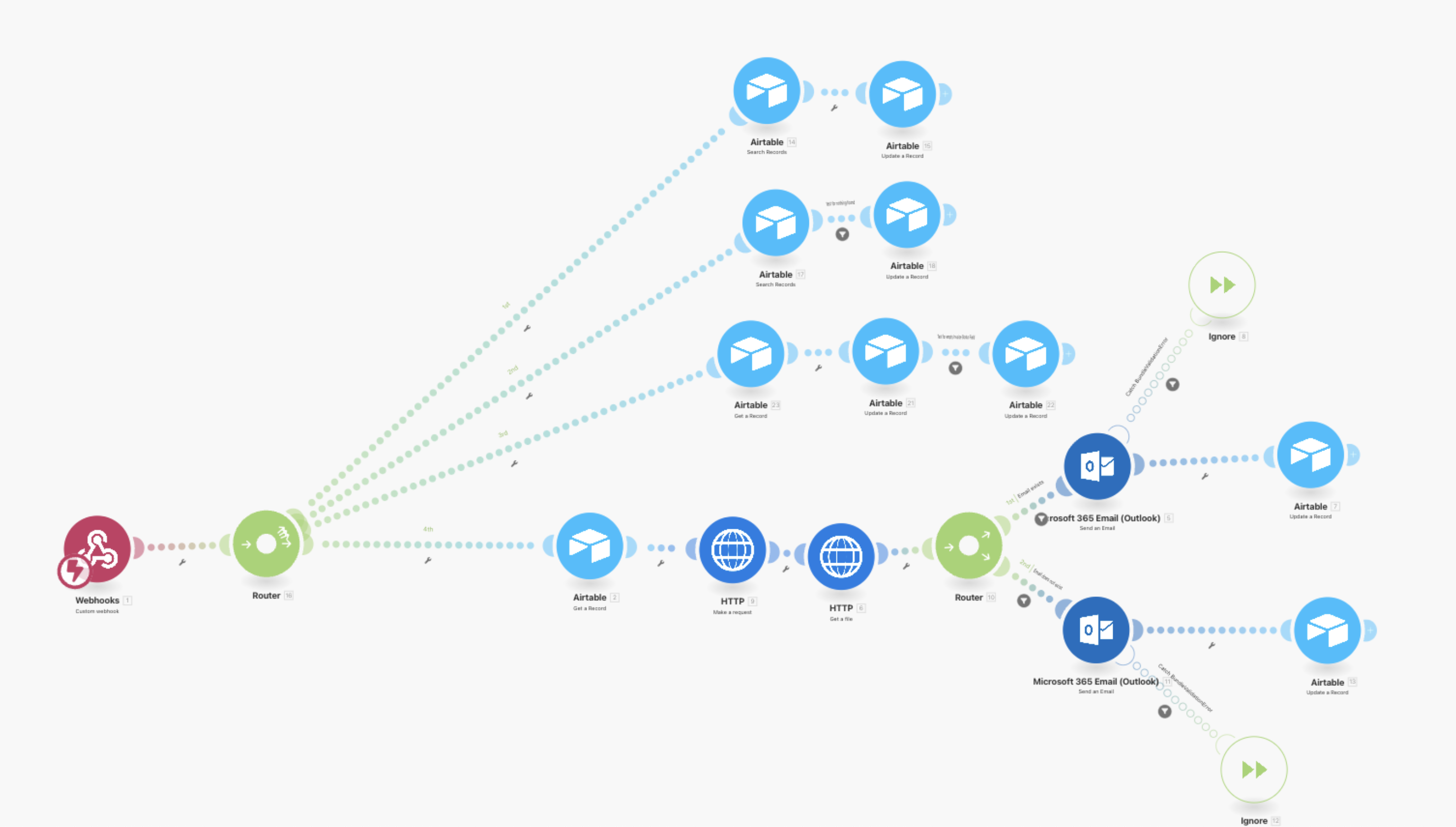
Low-code solutions like Zapier or Make (formerly Integromat) are suitable for simple use cases when automation is important. They are agnostic platforms that can handle basic document generation without adding another tool subscription (if you already have one of course).

When low-code platforms work well:

  • Your data is in a single table (no linked records)
  • You need basic automation triggers
  • You're already paying for Zapier or Make
  • You have time to configure the workflow (expect 5-10 hours setup)

Low-code platforms can struggle when you introduce complexity. It becomes challenging because:

  • Linked records require multiple API calls: Each linked record means another API request.
  • Formatting needs manual configuration: If you want the same format as in Airtable for number, date, currency, you'll need to write custom logic in Make/Zapier.
  • Nested data structures are complex to set up: Looping through line items, grouping by categories, or calculating subtotals requires understanding of arrays, iterators, and aggregators.
  • No native document generation features: You're stitching together generic automation tools, not using software designed specifically for document generation.

That's why we recommend no-code tools dedicated to document generation for complex use cases. They handle linked records, nested structures, and formatting natively - what takes couple of hours in Make/Zapier takes couple of minutes in a dedicated tool for document generation.

Custom Code Solutions

If you have access to a team to build a document generation tool for you, then it can be a solid option too. It will allow you to build a solution that perfectly suits your needs. It makes sense if you have a dedicated engineering team, and of course, if you have a big need for generating a lot of documents.

When custom code genuinely makes sense:

  • Document generation is a strategic competitive advantage (not just a supporting feature)
  • You have dedicated engineers who can build and maintain it
  • Your use case is highly specialized with proprietary business logic
  • You're generating 500+ PDFs per month with complex requirements

The hidden cost of custom code:

Be aware that custom code requires ongoing maintenance. In most situations, the opportunity cost often exceeds the tool subscription.

Here's the math: A developer spending 5 hours per month on maintenance equals $375-500 per month at typical developer rates ($75-100/hour). Most no-code document generation tools cost $50-100 per month. Over a year, that's $4,500-6,000 in maintenance cost versus $600-1,200 for a specialized tool.

And that's just maintenance. Initial development takes 20-40 hours ($1,500-4,000), plus the opportunity cost of not building features for your core product.

Building a document generation flow or tool for your company will unfocus your software engineering team from your core product. That's something to consider, and it's essential to make sure that building your custom code will bring strategic value to your company. Otherwise, it's better to buy a no-code solution.


Common Document Types You Can Automate with Airtable

Document automation works best for transactional, repeating outputs. Below are the most common use cases and why they succeed:

  • Invoices & Receipts: Recurring monthly, predictable structure, high volume. Automation saves 60+ hours/month for logistics and manufacturing teams.
  • Reports & Summaries: Multi-page, data-driven outputs (inspection reports, construction cost reports, performance summaries). Ideal when grouped by linked records (e.g., site visits tied to projects).
  • Certificates & Credentials: Batch generation for training completions, event attendees, or course graduates. Minimal customization needed.
  • Contracts & Agreements: Legal documents with conditional clauses (e.g., show payment terms only if contract type = "Net 30"). Requires careful template design.
  • HR Documents: Offer letters, onboarding checklists, performance reviews. Often tied to employee-linked records and approval workflows.

Real Customer Examples:

Example 1 - Manufacturing Company:

  • Volume: 3,000+ PDFs/month
  • Previous solution: Documint (spent weeks debugging and troubleshooting)
  • Setup time with TypeFlow: Days instead of weeks
  • Ongoing maintenance: <1 hour/month

Key benefit: Fast implementation with minimal ongoing maintenance. No more weeks spent debugging complex integrations.

Example 2 - Logistics Company:

  • Volume: 900 PDFs/month
  • Previous process: Completely manual (4 minutes per PDF including photo uploads)
  • Time saved: 60 hours/month eliminated
  • ROI calculation: $1,500/month in labor cost - $55/month tool cost = $1,445/month saved
  • First-year ROI: $17,290

Key benefit: Massive labor cost reduction with immediate payback period

When Document Automation Doesn't Make Sense

Document automation works best with repeating patterns. It struggles when:

1. Every document is unique

Marketing one-pagers, pitch decks, creative proposals; these need human intervention. Automation can't replace a designer who understands your brand and design unique layouts for each project.

3. One-off documents

If you generate 1 or 2 documents per month, the time to set up automation (even with a simple tool) often exceeds the time to create them manually. Just do it by hand.

4. Structure changes per document

If Client A's quote has 3 sections but Client B needs 8 completely different sections, automation becomes complex. Some variation is fine; conditional sections handle this well. But if every document is a snowflake with no repeating pattern, keep it manual.

The rule: If there's a repeating pattern (even with variations like conditional sections or dynamic line items), automate it. If every document is unique, don't.


How to Structure Your Airtable Base for Document Automation

In this section, we will discuss how to structure your Airtable base for document generation. Indeed, to succeed in automating your document generation, it's important to implement your Airtable base correctly.

Many people often see Airtable as a Google Sheets on steroids. So, they start to build their Airtable base in the same way, with everything in one table. But Airtable is more than that. That's why structuring Airtable is essential.

For example, let's say you want to automate your invoice flow. You have three main parts to generate the invoices: the invoice information, the client information, and the products that you are going to sell (line items).

If you flatten out all those data into one table, it's going to be a nightmare to properly automate your invoice flow. From designing a scalable template to mapping the data, all the process will be complex.

Common Mistake: Flattening Data Into One Table

What happens when you put everything in one table:

Client info repeated on every line item: Each invoice line item row duplicates client name, address, billing info; creating massive data redundancy

Can't calculate invoice totals with rollups: Airtable rollups work on linked records. With flat data, you can't automatically sum line items per invoice

Template can't loop through line items: Document generation tools expect linked records to iterate through. Flat data means manually listing every possible line item

Updating client information is a nightmare: If a client changes their address, you need to update 50+ rows instead of 1 record

The fix: Split into 3 tables with linked records.

The Three-Table Architecture for Transactional Documents

As said above, you have three main parts for invoices. It means you have three tables in your Airtable base.

For an invoice workflow, structure your base as:

  • Clients Table: Company name, contact email, billing address, tax ID
  • Invoices Table: Invoice number, date, client (linked record), total amount, status
  • Line Items Table: Invoice (linked record), product/service, quantity, unit price, line total

This design enables:

  • Lookups: Pull client billing address into the invoice template without re-entering data
  • Rollups: Sum line item totals to auto-calculate invoice totals
  • Loops in templates: Iterate over all line items for a single invoice, creating dynamic tables in your PDF

Concrete example of how this works:

  1. Create a new invoice record in the Invoices table
  2. Link it to a client (pulls in client name, address via Lookup)
  3. Add 3 line items linked to this invoice
  4. Rollup field automatically calculates: SUM(Line Items → Line Total) = Invoice Total

Template generates PDF showing:

  • Client details (from Lookup)
  • Invoice header (from Invoices table)
  • All 3 line items in a table (from linked Line Items)
  • Total at bottom (from Rollup calculation)

If you add a 4th line item, the PDF automatically includes it. If you change the client address, it updates everywhere.

Airtable Field Types That Transform Document Generation

Not all Airtable fields are created equal for document automation. Certain field types unlock conditional formatting, dynamic content, and complex layouts:

Lookup & Rollup Fields: Pull and aggregate data from linked tables. Use rollups with ARRAYJOIN to create comma-separated lists or CONCATENATE to build narrative text.

Example:

Invoices table links to Line Items table

Add Lookup field: "Line Item Descriptions" (pulls all product names)

Add Rollup: SUM(Line Items → Total) for invoice total

Template automatically shows all line items and calculates total

Formula Fields: Pre-calculate values (e.g., tax, discount, final price) so templates only reference the result, not the logic.

Example:

  • Line Items table has: Quantity, Unit Price
  • Add Formula: {Quantity} * {Unit Price} = Line Total
  • Template references {Line Total} directly - no calculation needed in template

Rich Text Fields: Preserve formatting (bold, italic, links) when mapped to Google Docs templates.

Attachment Fields: Reference images dynamically in PDFs (e.g., inspection photos, signatures).

Multiple Select & Single Select: Trigger conditional show/hide logic in templates ("Show warranty clause only if product type = 'Electronics'").

Common Setup Mistake to Avoid:

Don't map raw linked record IDs to your template. If you link Invoices → Clients, don't map the "Client" field (which shows "recXXXXX"). Instead, create a Lookup field that pulls the actual client name or address.

Templates need display values, not record IDs.


Why Google Docs Templates Outperform Proprietary Editors

Each solution offers its own templating method. The most common solutions offer Google Docs-based templating or their own template builder (or proprietary editor).

When using Google for your business, using a solution that offers Google Docs as a templating solution is certainly the natural choice. Indeed, you already use Google Docs in your daily work, and it doesn't require to learn new tool. Besides, with Google Docs, it's possible to build template for almost all use cases. At TypeFlow, we use Google Docs for templating. We've seen users creating classic invoices, contracts, but also some solid and beautiful reports that many of you could think that's not doable with Google Docs.

Another benefit of using Google Docs is the possibility to collaborate with your team. Many people can contribute to the template. You can also benefit from version history to roll back to a previous version. It's also possible to save your document as a Google Docs. It's perfect if it requires some tweaking after generating the document. And if you want to save all your PDFs to Google Drive, whenever they are generated, that's also an option.

Those are the unfair advantages of integrating with Google. It's not just a template builder; it's a tool that integrates with your whole ecosystem. Of course, if tomorrow you leave TypeFlow (we wish you wouldn't leave), you are still the owner of your template because it's a Google Docs.

To summarize this part about Google Docs templating it offers those benefits:

  • Already know Google Docs
  • Templates live in your Drive alongside other documents
  • Outputs (PDFs and editable Docs) save directly to Drive
  • No new software to learn, no context-switching between tools
  • Collaboration

On the other side, you can have a template builder. At TypeFlow, we also have it. Not all companies don't have Google. Having this alternative allows them to still have the possibility to generate documents. Of course, it requires some learning curve. You won't have the possibility to collaborate with your teams.

But using the template builder can offer many benefits. It offers endless possibilities in terms of design and flexibility. It means that you could implement templates that Google Docs can't:

  • You can implement multiple groupings (limited to one grouping with Google Docs)
  • You can build a pixel-perfect template
  • It's the fastest way to generate a document
  • It's possible to build a smart layout (automatically removes block if the variable is null)
  • You can choose the font of your choice (not limited to Google Docs font)
  • etc.

Each method has its own strengths and weaknesses. It will be you that decides which method is the best.

Comparison Table: Google Docs vs. Proprietary Editors

AspectGoogle Docs TemplatesProprietary Editors (TypeFlow)
Learning CurveNone because already familiarnew UI, new paradigm - some learnings
Template EditingCollaborative, real-time sharingSingle-user or limited collaboration
Version HistoryFull Drive history; instant rollbackLimited or vendor-dependent
Output FormatsPDF + editable Google DocOften PDF-only or limited options
Conditional LogicSupported via template placeholdersSupported
Dynamic Tables/Line ItemsFull support via loopsSupported
Lock-In RiskLow - templates are standard Google DocsHigh - proprietary format
CostIncluded in Google WorkspaceIncluded with no-code software tool

When to Use Each Type of Airtable Document Integration

Choosing the wrong tools can waste weeks of setup and creates maintenance headaches. This section helps you match your use case to the right solution.

Airtable Page Designer (Best For)

  • <30 PDFs per month, or up to the point it doesn't take you too much time
  • No needs to automate
  • One page document
  • One level Linked Record

Low-Code Tools (Best For):

  • Flat data
  • > 20 PDFs per month
  • Quick implementation prioritized over advanced features

Example: A small consulting firm generating 100 proposals per month from a Clients base.

No-Code Platforms (Best For):

  • Linked or nested linked records (e.g., Invoices → Line Items → Products)
  • >100 PDFs per month
  • Multi-step workflows (form → document → email → storage)
  • Some customization needed, but not full engineering

Example: A logistics company generating 200 invoices/month with complex line items, grouping by customer, and auto-emailing to accounting.

Case contrast: Documint struggles with Airtable's deep-linked record mental model. It requires some workaround implementation in your Airtable table to access deep linked record data ; solutions built on Airtable's native data structure (like TypeFlow) make setup intuitive for Airtable users.

Custom Code (Best For):

  • >3000 PDFs per month
  • Proprietary business logic or legal requirements
  • Dedicated engineering team
  • Strategic competitive advantage
  • Long-term maintenance budget allocated to the project

Example: A financial services firm generating 5,000+ loan documents/month with conditional clauses, compliance checks, and audit trails.

You can answer to these questions to know which method is the best for you:

If you answer yes to any of these, move up a tier:

  • Do you have nested linked records?
  • Do you need grouping or subtotals in your output?
  • Do multiple people need to edit templates?
  • Are you generating >20 PDFs per month?
  • Do you need conditional content (show/hide based on data)?
  • Do you have an engineering team that can work fully on implementing and maintaining the document generation?

Total Cost of Ownership for Airtable Document Automation

Subscription cost is only one piece. Setup time, maintenance burden, and hidden complexity costs often dwarf the monthly fee.

TCO Formula

Total cost of ownership = Subscription + Setup + Maintenance + Hidden Costs

Let's break down each component:

Subscription: Monthly or annual tool cost. This is the easy part; it's on the pricing page.

Setup: Initial template building, base structure design, testing. Count the hours spent and multiply by your hourly rate (or your team member's rate).

Maintenance: Ongoing template updates, field mapping changes, and troubleshooting. This happens every month. Most people forget to count this.

Hidden Costs: Support delays (what's the cost if your system breaks for 48 hours?), complexity tax (learning a new tool takes mental energy), opportunity cost (time not spent on core work).

Example TCO Ranges

Here's what the total cost of ownership looks like for different scenarios:

Airtable Page Designer (< 50 PDFs/month, non-technical owner)

  • Subscription: $0/month
  • Setup: $100 (2 hours at $50/hour)
  • Maintenance: $50/month (0-1 hour at $50/hour)
  • First month total: ~$100
  • Ongoing monthly: ~$0–50/month

No-Code Tool (100-1000 PDFs/month, operations person)

  • Subscription: $50–100/month
  • Setup: $37.5 (30 minutes at $75/hour)
  • Maintenance: $37.5/month (30 minutes at $75/hour)
  • First month total: ~$125–175
  • Ongoing monthly: ~$37.5/month

Low-Code Platform like Make/Zapier (200 PDFs/month, operations person)

  • Subscription: $30–50/month (Make/Zapier) + $0 (using Google Docs)
  • Setup: $75–750 (1h-10 hours at $75/hour for complex API configuration)
  • Maintenance: $225–375/month (3-5 hours at $75/hour for troubleshooting, edge cases)
  • First month total: ~$330–1,175
  • Ongoing monthly: ~$250–425/month

Custom Code (1,000+ PDFs/month, engineering team)

  • Subscription: $0 (self-hosted) or $100–500/month (infrastructure)
  • Setup: $15,000–40,000 (200-400 hours at $75-100/hour for development)
  • Maintenance: $1,500–2,000/month (15-20 hours at $100/hour for bug fixes, updates)
  • First month total: ~$16,500–42,500
  • Ongoing monthly: ~$1,500–2,500/month

ROI Worksheet

Payback threshold: Approximate when the automation cost is offset by time savings.

Calculation:

  • Monthly documents: ____
  • Minutes per document (manual): ____
  • Total manual minutes/month: × = ____
  • Hourly rate (fully loaded): ____
  • Monthly time savings value: ÷ 60 × = ____
  • Monthly tool cost: ____
  • Payback threshold: Monthly time savings value ÷ monthly tool cost = ____ months

Example: 100 invoices × 15 minutes each = 1,500 minutes/month. At $50/hour, that's $1,250/month in labor. A $50/month no-code tool pays for itself in ~2 days.

These are examples from TypeFlow's users who previously used an lternative.

Outcome from Logistics company: 900 PDFs/month automated. Previously fully manual. Saved ~60 hours/month. First-year ROI ≈ $17,000 (accounting for tool cost, setup, and maintenance).

Outcomes from Manufacturing company: 3,000+ PDFs/month automated. Setup took hours instead of weeks. Ongoing maintenance <1 hour/month. Payback in first month.


Frequently Asked Questions About Airtable Integrations for Document Automation

Find answers to the most common questions about this feature.

Page Designer is sufficient for &lt;10 PDFs/month. If you need automation, conditional content, multiple pages, or start to spend too much time to generate documents manually, a dedicated tool like Typeflow or DocsAutomator is worth the investment.
Setup typically takes 5 minutes–2 hours, depending on base complexity. Non-technical teams (operations, marketing, HR) can own and update Google Docs templates; no developer required.
Templates authenticate via OAuth SSO and inherit Google Drive permissions. Your data never leaves your organization; outputs can be saved directly to your Drive with full audit trails and version history.
Not necessarily. Free Airtable users can trigger document generation via buttons. Paid accounts (Team or Business) unlock Airtable Automations for background document generation without manual intervention.

All Questions

Need more help?

Our team is here to help you solve all your problems and answer your questions.

Contact Us
Kevin Rabesaotra

Kevin from Typeflow

Author

Founder & CEO at Typeflow. Helping businesses automate document generation and streamline their workflows with Airtable integrations.

Was this page helpful?