How to Generate PDFs from Airtable Without Page Designer
Generate PDFs from Airtable by connecting your data to a template (Google Docs or TypeFlow's built-in editor). TypeFlow pulls in linked records, handles page breaks, and generates a finished PDF - no Page Designer needed. This guide shows the setup, from template to automation.
Generate PDFs from Airtable in minutes
Use Google Docs or the HTML/CSS builder. Handle line items, automate generation, add e-signatures.
Start free with 20 documentsKey Takeaways
- Best approach: Use a template-based tool (Google Docs or HTML/CSS) that merges Airtable fields into a PDF.
- Why not Page Designer: It's manual, limited, and not built for automated document workflows.
- For recurring docs: Automate generation on record creation or a status change.
- For invoices and reports: Use linked records + repeating blocks to render line items.
- Advanced option: Add e-signatures when you need approvals and audit trails.
Use this guide when you need multi-page inspection reports, invoices with line items, or nested project/task structures from Airtable. Looking for a tool comparison? See our Page Designer alternatives guide. Looking for a full export overview? See our Airtable PDF export guide.
Why Page Designer Falls Short for PDF Generation
To generate PDFs from Airtable without Page Designer, you'll typically use a PDF tool (like TypeFlow) that merges Airtable fields into a template and outputs a PDF automatically. Page Designer is fine for basic one-page printing, but it breaks down fast when you need automation, attachments, or structured line items. For a detailed comparison of Page Designer limitations and alternative tools, see our Page Designer alternatives guide.
| Feature | Page Designer | TypeFlow |
|---|---|---|
| Automated PDF generation | No | Yes |
| Multiple records in one PDF | No | Yes |
| Automation support | No | Yes (TypeFlow Automation + Airtable Automations) |
| Nested line items | No | Yes (3 levels deep) |
| E-signatures | No | Yes (built-in) |
| Direct email delivery | No | Yes (Email Post Generation) |
PDF Generation Tools for Airtable
You can build your template in Google Docs or in TypeFlow's HTML/CSS editor. Pick Google Docs if you want the fastest setup with familiar formatting.
- Google Docs: Add your branding, then place merge variables like
{{Client Name}}and{{Inspection Date}}. - Page breaks: Insert manual page breaks wherever a new section should start.
If you need full layout control, use HTML/CSS. You can define page sizes, margins, and hard breaks with CSS.
- CSS page breaks: Use
page-break-after: alwaysto force a new page. - Repeating pages: Use loop variables (like
{{table_loop_0}}) to render linked records.
What You Need Before You Start
An Airtable Base With Your Data
Your base needs a table with the records you want in your PDF. If you have line items, set up a separate linked records table. TypeFlow traverses linked records up to 3 levels deep without creating lookup fields - a unique feature that keeps your base clean. See our linked records PDF guide for the complete setup.
A Template
Two options:
- Google Docs. Add merge variables like
{{First Name}}. Familiar and free. - TypeFlow HTML/CSS builder. Full layout control with CSS pagination.
A PDF Generation Tool
TypeFlow bridges Airtable and your template. Free tier includes 20 documents.
How to Generate a PDF from Airtable (Step by Step)
Prepare your Airtable base, create a template with variables, map fields, and generate. The same approach works for invoices, contracts, catalogs, or any document. We use a playground safety inspection report as the example below.
Step 1: Prepare Your Airtable Base
Your base needs at least two linked tables:
- Primary table (Inspections). One record per inspection - inspector name, date, client, standards reference, report number.
- Linked records table (Sites). One record per site inspected - site name, location, type, equipment list, checklist results, photos. Each site links back to the inspection.
Set up a view that filters the sites you want in each report. This is what TypeFlow reads when generating.
Here is an example base you can copy and use:
Step 2: Design Your Template
You have two options. In Google Docs, add your logo, format headers, and insert merge variables with double curly braces like {{Client Name}} and {{Inspection Date}}. Insert page breaks where sections should start on new pages.
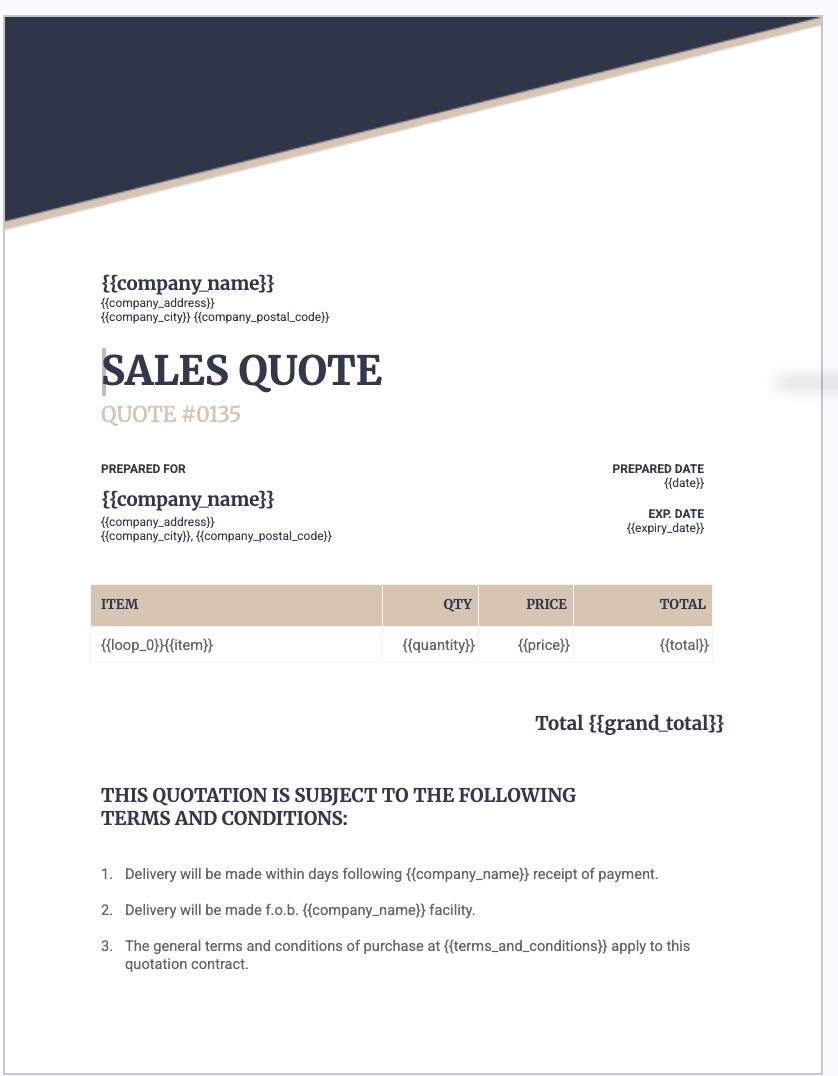
In TypeFlow's HTML/CSS editor, you get full control over the layout. Design your cover page, add page-break-after: always in CSS to separate sections, and use {{table_loop_0}} for repeating site pages. If you are comfortable with HTML/CSS, you can also import your own code.
Step 3: Map Airtable Fields to Template Variables
In TypeFlow, connect your base and select the Inspections table. Match each template variable to the corresponding Airtable field.

For the sites (repeating sections), select the linked Sites table and map each field. TypeFlow generates one page per site automatically - 3 sites means 3 inspection pages in the final PDF.
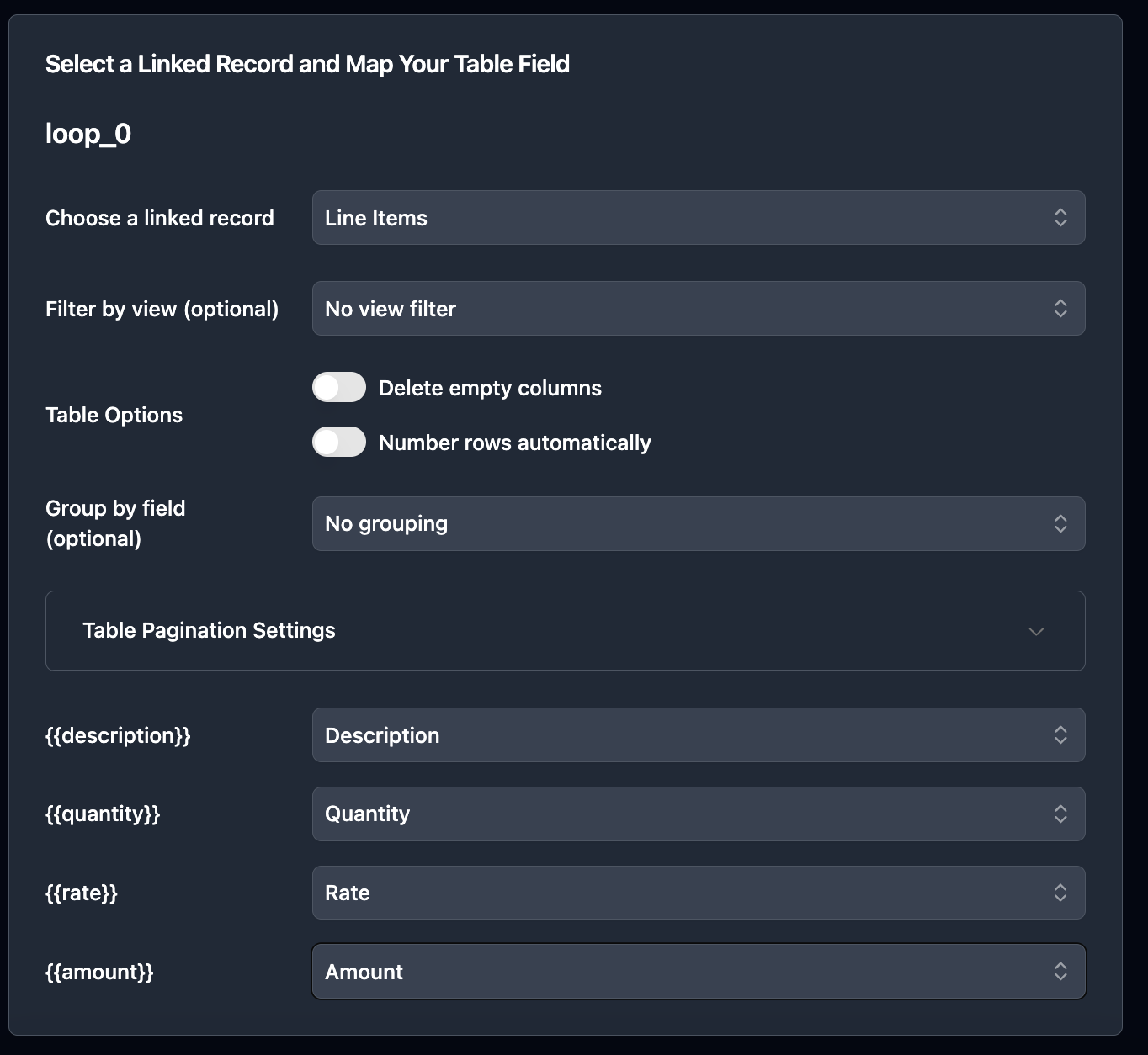
Step 4: Generate and Test Your PDF
Run a test with a real record. Check that the cover page, assessment categories, and site inspection pages all render correctly. Verify that photos appear, checklist data is in the right columns, and page breaks fall where expected.
Adjust your template and regenerate until it looks right. Most issues are spacing or variable name mismatches.
Here is an example. First, the template with variables - built in TypeFlow's HTML/CSS editor:
And here is the generated result - same template, populated with real Airtable data:
How to Handle Line Items and Linked Records
Set Up a Linked Records Table
Create a separate table for line items. Link it to your main table.
- Invoices table. Invoice number, client name, date.
- Line Items table. Product, quantity, price - linked to Invoices.
Add a Repeating Block in Your Template
A repeating block loops for each linked record. In your Google Docs template, add the special {{loop_0}} variable inside a table row. TypeFlow repeats that row for each linked record automatically.
For example, an invoice line items table in your template looks like this:
| Description | Qty | Rate | Amount |
|---|---|---|---|
{{loop_0}}``{{description}} | {{quantity}} | {{rate}} | {{amount}} |
If a record has five line items, the final PDF shows five rows - each populated with different data. You design the row once, TypeFlow handles the repetition.
For the full setup with screenshots, see our step-by-step invoice generation guide.
Group Records by View or Filter
Create an Airtable view that filters and sorts the records you want. Select that view when generating. All matching records appear sequentially in one document.
Use a Linked Table for Child Records
For parent-child relationships (project with tasks, order with line items), link the tables. TypeFlow pulls related records into the same document - the parent header followed by all child records.
Use Nested Line Items for Multi-Level Data
Some documents need grouped data - a project with phases, each containing tasks. Or an invoice with categories, each with its own line items. TypeFlow supports nested line items up to 3 levels deep. The PDF shows each group with its children, automatically formatted and paginated. For documents that go further - 50-100+ page manufacturing agreements or MSAs where each chapter is its own Airtable record - see our guide on generating long documents from Airtable.
Troubleshooting Common PDF Generation Issues
PDFs Missing Data or Fields
Check your variable mapping and confirm the record actually contains values for those fields. Most blank outputs come from a mismatched variable name.
Images Not Appearing
Airtable attachment URLs expire, so your tool should embed the image file instead of linking to a temporary URL. If images are missing, re-check how attachments are handled.
Formatting Issues
If tables overflow or page breaks land in the wrong place, adjust the template layout and regenerate. Keep loops inside the correct table row and re-test.
Automation Not Triggering
Make sure your automation is turned on and the trigger conditions match your test record. Then run a test with a record that clearly meets the trigger.
How to Automate PDF Generation in Airtable
Automate PDF generation with a button click, a field change trigger, or an Airtable Automation. Here are the three options:
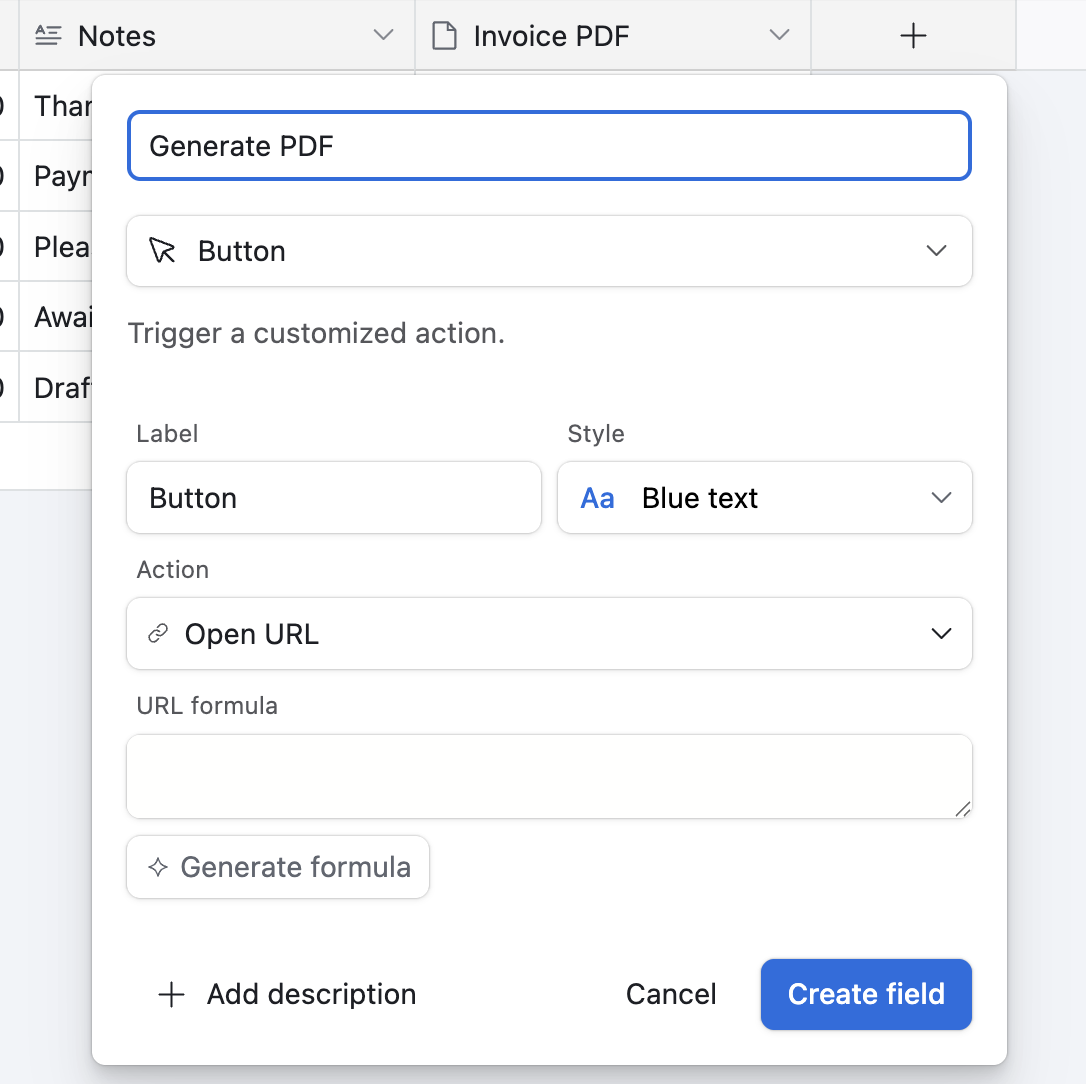
Button field. Add a button to your table. Click to generate the PDF for that record. Best for testing and manual control.
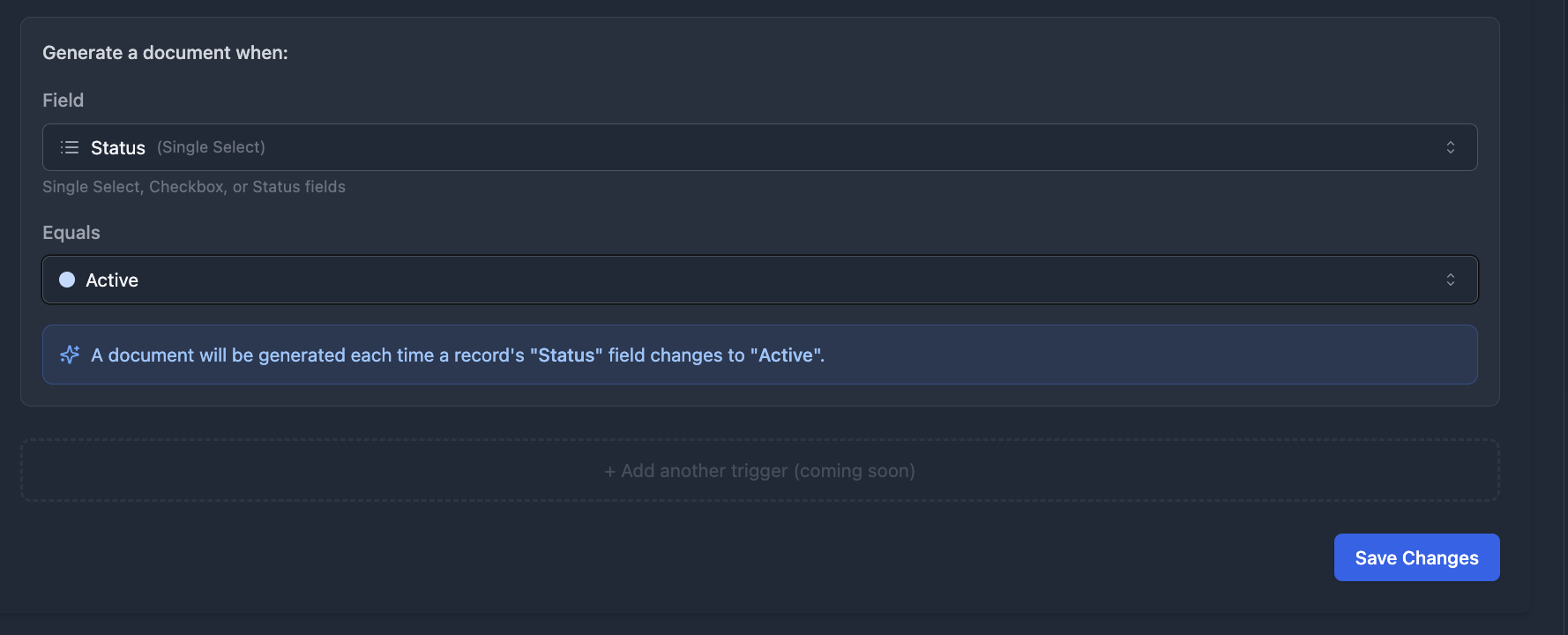
TypeFlow Automation. Set a trigger on a field value change - when Status changes to "Ready," the PDF generates automatically. Add Email Post Generation to send it to the client.

Airtable Automations. Trigger on form submission, record creation, or schedule.
Output options:
- Attach to record. Store the PDF in an attachment field.
- Email. Send to a recipient from an Airtable field.
- Cloud storage. Save to Google Drive automatically.
Add E-Signatures to Generated PDFs
TypeFlow includes built-in e-signatures at no extra cost. For contracts, reports, or any document that needs approval, enable e-signatures on your flow. The recipient signs directly and the signed PDF returns to Airtable.
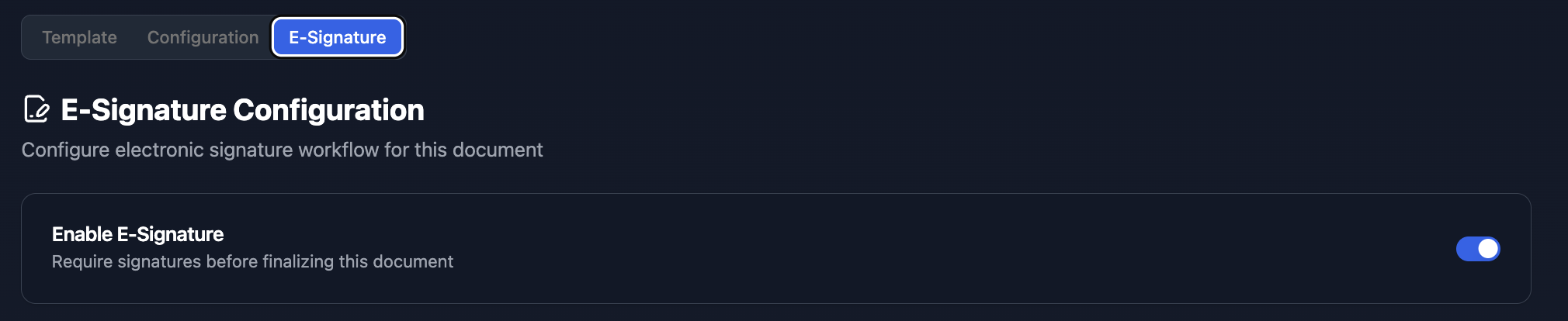
TypeFlow e-signatures comply with eIDAS and ESIGN regulations.
Common Documents You Can Generate
This workflow works for almost any document you need to generate from Airtable. Here are the most common examples:
- Invoices with line items
- Contracts and agreements
- Quotes and proposals
- Inspection reports
- Certificates
- Product catalogs
- Shipping documents
Start Generating PDFs from Airtable Today
Page Designer was built for single-page labels. Your invoices, contracts, reports, and catalogs need more. TypeFlow connects your Airtable data to Google Docs or HTML/CSS templates and handles page layouts, line items, automation, and e-signatures. Rated by Airtable users on G2.
For related guides, see how to export Airtable data to PDF, our document generation overview, and Page Designer alternatives.
Ready to generate PDFs from Airtable?
Connect your base, design your template, and generate your first document in minutes.
Start free with 20 documentsFrequently Asked Questions About Generating PDFs from Airtable
Find answers to the most common questions about this feature.
Popular Questions
All Questions
Need more help?
Our team is here to help you solve all your problems and answer your questions.
Contact Us
Kevin from TypeFlow
•AuthorKevin Rabesaotra is a growth engineer and automation specialist with 8+ years of experience building no-code solutions. As Founder & CEO of TypeFlow, he has helped hundreds of businesses automate document generation and streamline workflows with Airtable integrations. Previously, Kevin was a Product Lead specializing in growth engineering, running experiments to drive revenue, retention, and lead generation.
More articles
How to Print Labels from Airtable with Quantity Control (Step by Step)
Print multiple labels per Airtable record based on a quantity field. Step-by-step guide for linked records mode and quantity repeat mode with barcodes and Avery sheets.
Read articleHow to Print Avery Mailing Labels from Airtable
Print Avery mailing labels (5160, 5161, 5162) from Airtable without Word mail merge. Step-by-step guide with print label mode, automation, and bulk generation.
Read articleHow to Create Inventory Labels with Barcodes in Airtable
Create inventory labels with Code 128, EAN-13, or QR barcodes from Airtable. Step-by-step guide for warehouse, retail, and asset tracking with thermal and Avery printers.
Read article