How to Generate Production Orders in Airtable
Production orders authorize and instruct manufacturing of specific quantities. According to Deloitte's Smart Manufacturing Survey, 92% of manufacturers believe smart manufacturing will be the main driver for competitiveness, yet many still rely on manual documentation. If your production data lives in Airtable, you need a reliable way to generate professional production order documents - complete with Bill of Materials, operations routing, and job details.
This guide shows you how to generate production order PDFs directly from Airtable using TypeFlow, including linked BOM data and automated triggers. For a complete overview of all manufacturing documents you can automate, see our guide to manufacturing document automation in Airtable.
Key Takeaways
- Page Designer limitations: Airtable's built-in tool can't handle BOM line items, multi-page orders, or automated generation
- Template-first approach: Create a Google Docs template with
{{variables}}that map directly to your Airtable fields - BOM support: Pull component lists from linked tables as dynamic line items in your production orders
- Three generation methods: Manual button, bulk generation for shift handoffs, or fully automated on status changes
- Shop floor ready: Save generated PDFs back to Airtable records for easy access from any device
What Is a Production Order
A production order (also called a manufacturing order or work order) is a document that authorizes the production of a specific quantity of a product. It provides the shop floor with everything needed to complete the job.
A typical production order includes:
- Order identification - Order number, date, due date, priority
- Product details - What to make, quantity, specifications
- Bill of Materials - Components and quantities needed
- Operations routing - Manufacturing steps in sequence
- Notes and instructions - Quality requirements, special handling
Production orders connect planning (what to make) with execution (how to make it). Once production is complete, you will typically need to generate a certificate of conformity or a QC report before shipping.
How to Structure Your Airtable Base for Production Orders
Before generating documents, your Airtable base needs the right structure. Production order data typically spans multiple linked tables.
Production Orders Table
Your main table containing order-level information:
| Field Name | Field Type | Purpose |
|---|---|---|
| Order Number | Autonumber or Formula | Unique identifier (e.g., PO-2026-001) |
| Product | Linked record | What to manufacture |
| Quantity | Number | How many to produce |
| Due Date | Date | When the order is needed |
| Status | Single select | Draft, Released, In Progress, Complete |
| Priority | Single select | Low, Normal, High, Rush |
| BOM Items | Linked record | Components needed (from BOM table) |
| Operations | Linked record | Manufacturing steps (from Operations table) |
| Production Order PDF | Attachment | Generated document storage |
Bill of Materials Table
Stores components needed for each product:
| Field Name | Field Type | Purpose |
|---|---|---|
| Material Name | Single line text | Component description |
| Material Code | Single line text | Part number or SKU |
| Quantity Per Unit | Number | How many needed per finished product |
| Unit of Measure | Single select | Each, kg, meters, etc. |
| Product | Linked record | Which product this BOM is for |
Operations Table
Defines the manufacturing steps:
| Field Name | Field Type | Purpose |
|---|---|---|
| Operation Name | Single line text | Step description |
| Sequence | Number | Order of operations (10, 20, 30...) |
| Work Center | Single line text | Machine or station |
| Setup Time | Duration | Time to prepare |
| Run Time Per Unit | Duration | Time per piece |
| Instructions | Long text | Detailed work instructions |
Pro Tip: Use Rollups for Calculated Totals
Add rollup fields to calculate total material requirements (Quantity × BOM Quantity Per Unit) and total production time across all operations. These calculated values can be included in your production order document.
Why Airtable Page Designer Falls Short for Production Orders
Airtable Page Designer works for simple single-page documents but struggles with production order requirements.
Limited Support for BOM Line Items
Production orders need dynamic tables showing all required materials with quantities. Page Designer can't cleanly display linked records as expandable line items with proper formatting.
No Multi-Page Document Output
Complex production orders with detailed BOM lists and operations can span multiple pages. Page Designer only outputs single-page layouts.
Manual Export With No Automation
Page Designer requires manual PDF exports one record at a time. No way to auto-generate when orders are released or batch generate for shift handoffs.
Ready to automate your production orders?
Generate professional production order PDFs with BOM line items in minutes. No more manual copy-paste.
Start free with 20 documents →Methods to Generate Production Orders in Airtable
| Method | Best For | Limitations | Automation |
|---|---|---|---|
| Document automation (TypeFlow) | High-volume, professional PDFs with BOM | Requires initial template setup | Yes |
| Page Designer | Simple layouts, occasional use | One record at a time, no BOM tables | No |
| Make or Zapier | Complex multi-system workflows | Multiple subscriptions, fragile | Yes |
| Manual export | One-off needs | Time-consuming, error-prone | No |
This guide focuses on document automation - the most reliable approach for operations teams.
How to Create Production Orders From Airtable With TypeFlow
Step 1: Create a Google Docs Template With Variables
Create your production order template in Google Docs using {{variable}} placeholders where Airtable data should appear.
Example production order template:
PRODUCTION ORDER

Order Number: {{Order_Number}}
Date: {{Created_Date}}
Due Date: {{Due_Date}}
Priority: {{Priority}}

─────────────────────────────────────────

PRODUCT DETAILS

Product: {{Product.Name}}
SKU: {{Product.SKU}}
Quantity to Produce: {{Quantity}}
Unit of Measure: {{Unit_of_Measure}}

─────────────────────────────────────────

BILL OF MATERIALS

| Material | Code | Qty Required | UoM |
{{loop_0}}
| {{Material_Name}} | {{Material_Code}} | {{Qty_Required}} | {{UoM}} |

─────────────────────────────────────────

OPERATIONS ROUTING

| Seq | Operation | Work Center | Setup | Run Time |
{{loop_1}}
| {{Sequence}} | {{Operation_Name}} | {{Work_Center}} | {{Setup_Time}} | {{Run_Time}} |

─────────────────────────────────────────

NOTES

{{Special_Instructions}}

─────────────────────────────────────────

APPROVALS

Released By: ____________________  Date: ________
Completed By: ____________________  Date: ________
Variable types:
| Variable Type | Example | Source |
|---|---|---|
| Direct field | {{Order_Number}} | Production Orders table |
| Linked record | {{Product.Name}} | Products table via link |
| BOM loop | {{loop_0}} | BOM Items linked table |
| Operations loop | {{loop_1}} | Operations linked table |
The {{loop_0}} and {{loop_1}} syntax creates repeating rows for each linked record - essential for production orders with dynamic BOM and routing data.
Step 2: Connect TypeFlow to Your Airtable Base
-
Sign in to your TypeFlow account
-
Click "Start a new automation workflow"
-
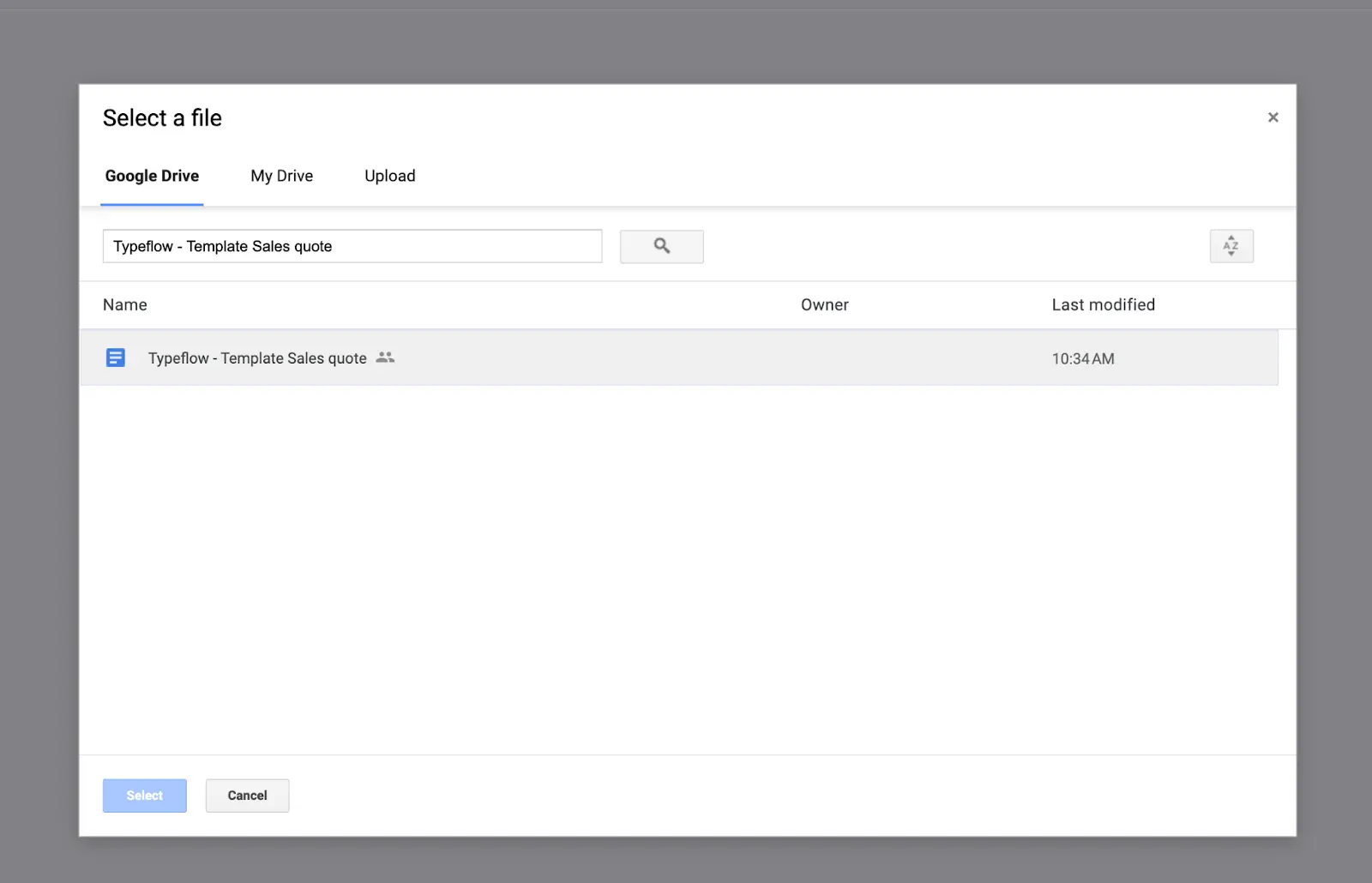
Select "Google Docs" and choose your production order template
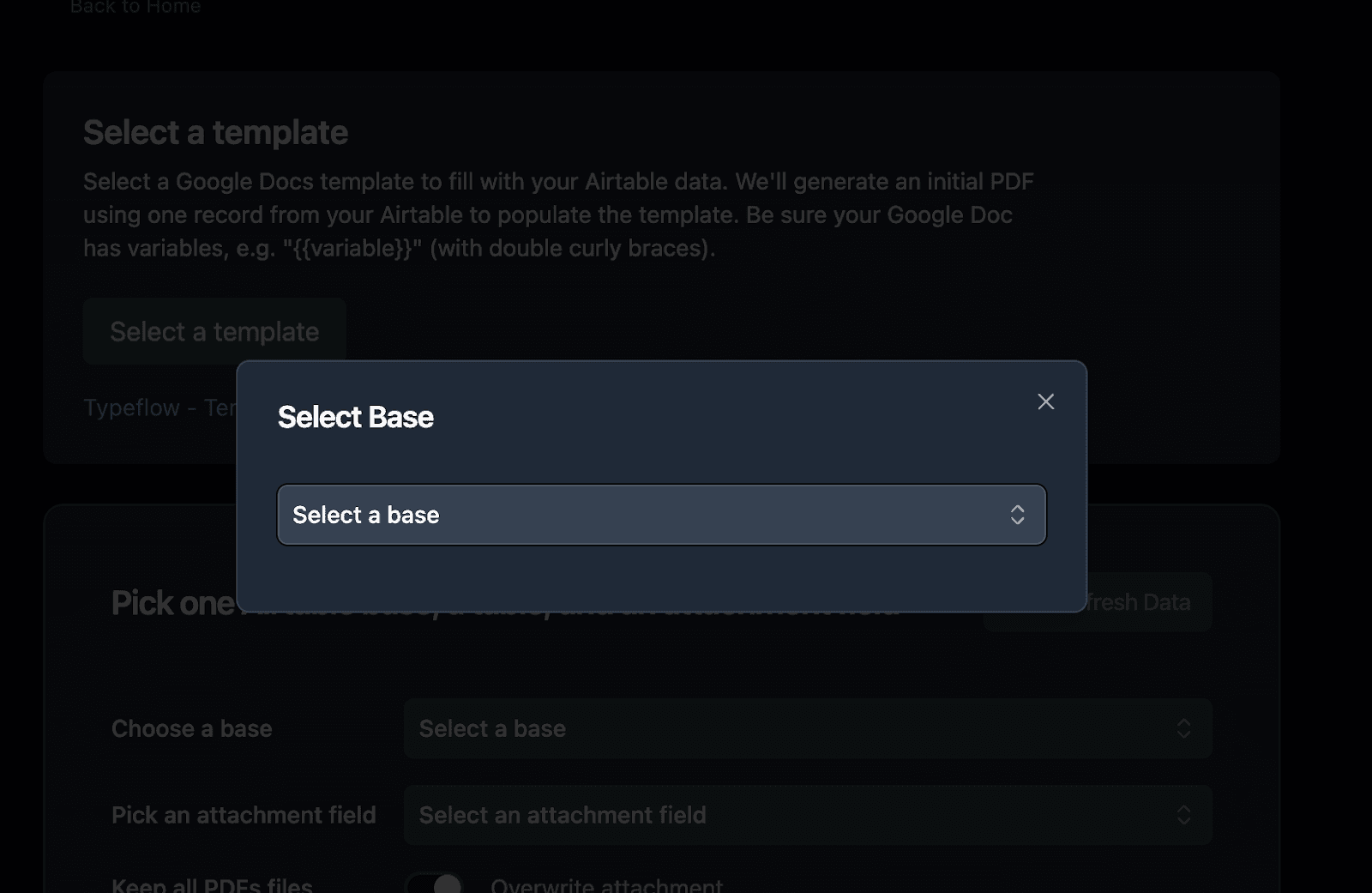
- Connect to Airtable and select your base
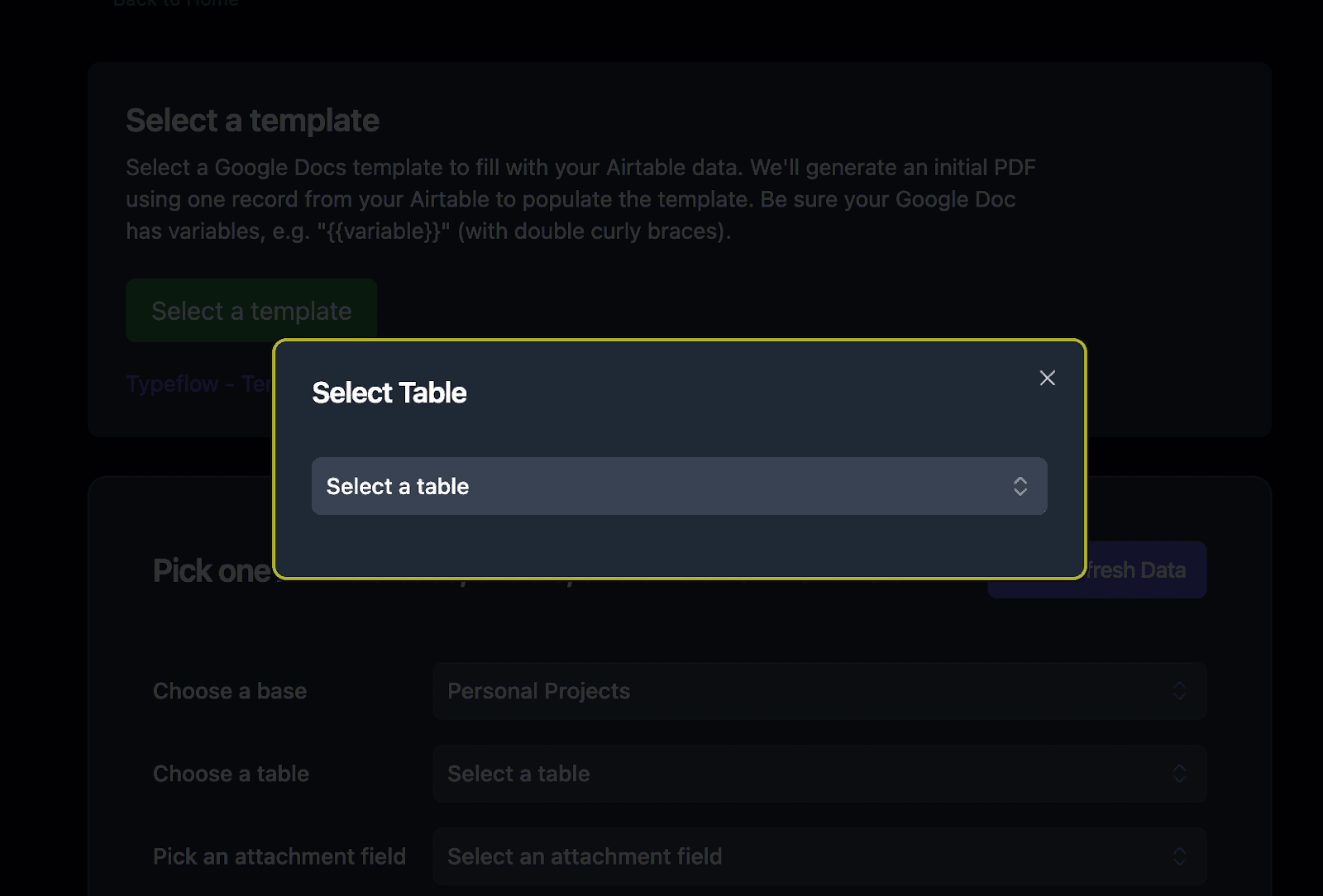
- Select your Production Orders table
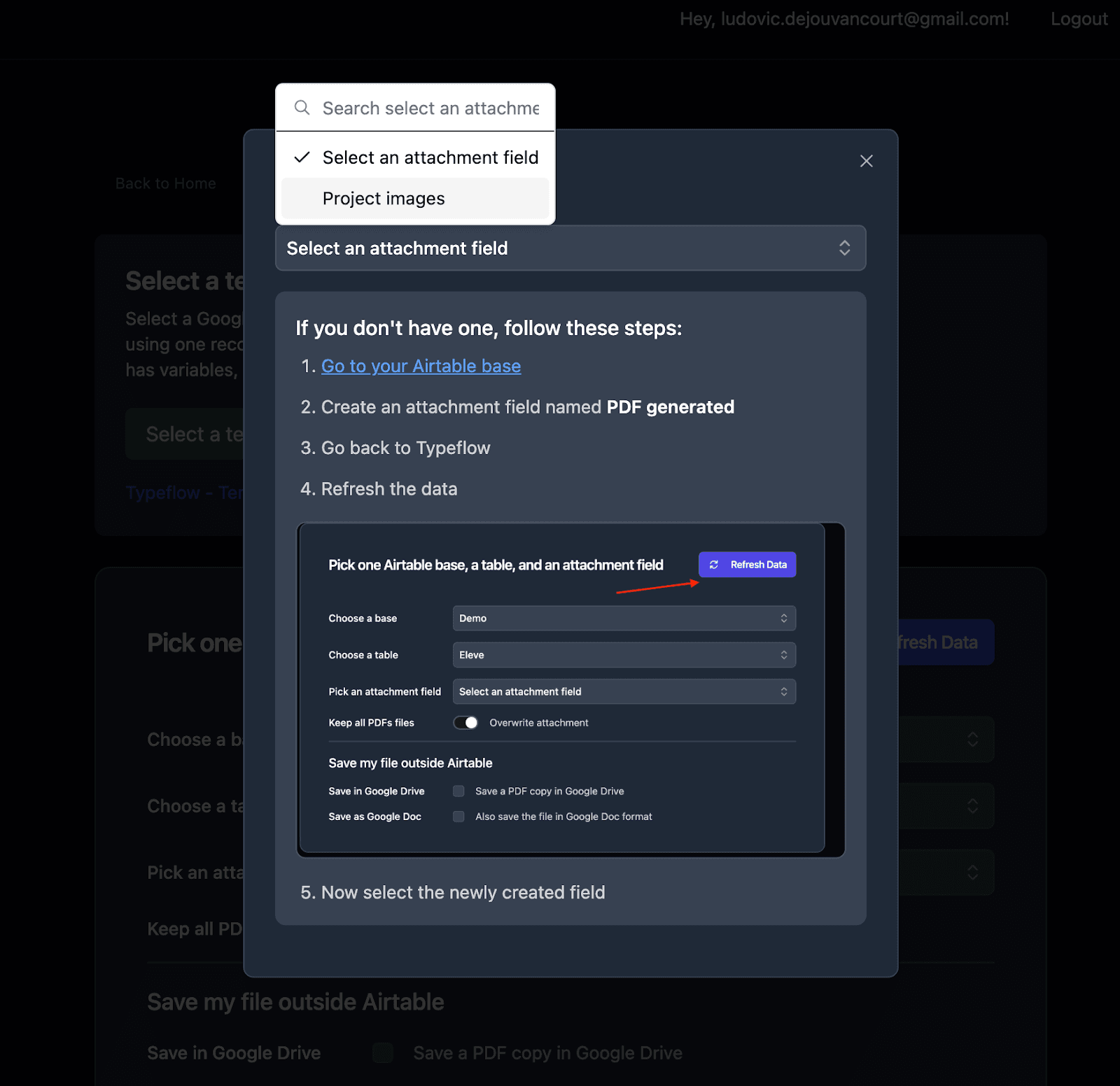
- Set up the attachment field where generated PDFs will be saved
Step 3: Map Airtable Fields to Template Variables
TypeFlow automatically detects all {{variables}} in your template. Connect each one to the corresponding Airtable field.
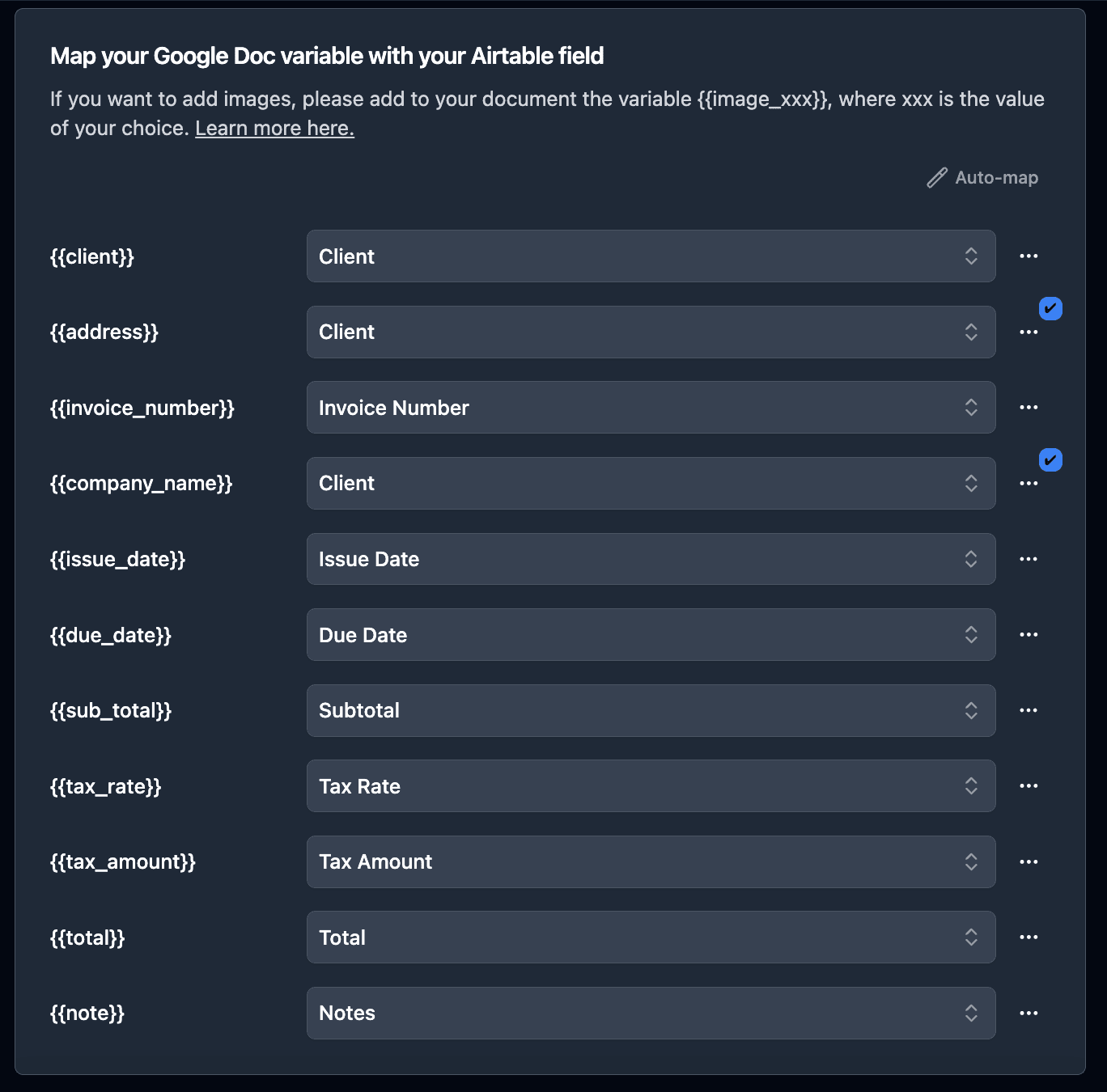
Mapping direct fields:
{{Order_Number}}→ Order Number field{{Due_Date}}→ Due Date field{{Quantity}}→ Quantity field
Mapping linked product fields:
For product details, click "Configure Linked Fields" to access nested data:
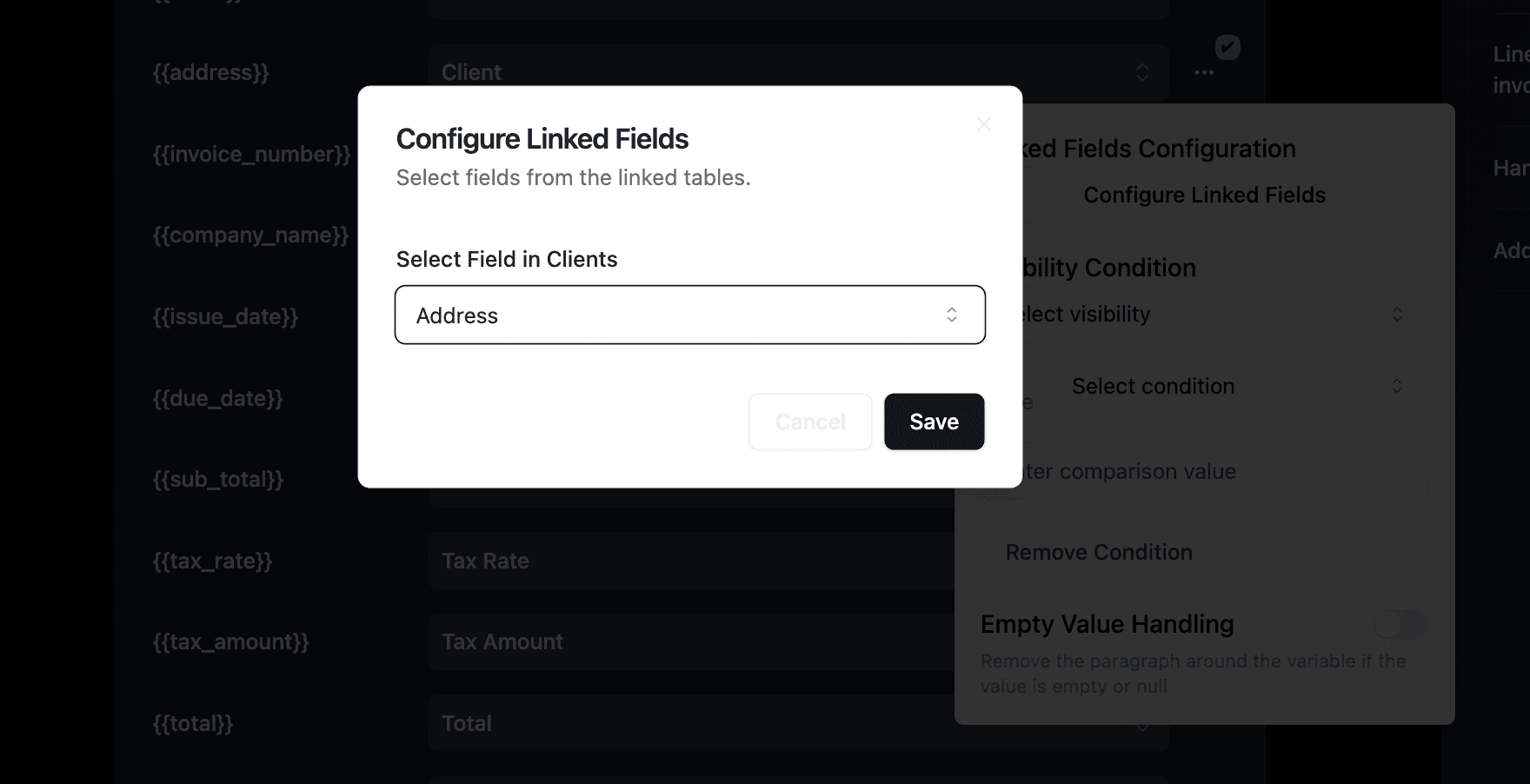
Navigate through: Production Order → Product → Name, SKU, Specifications
Mapping BOM line items:
For the materials list (loop_0), select your linked BOM Items field:
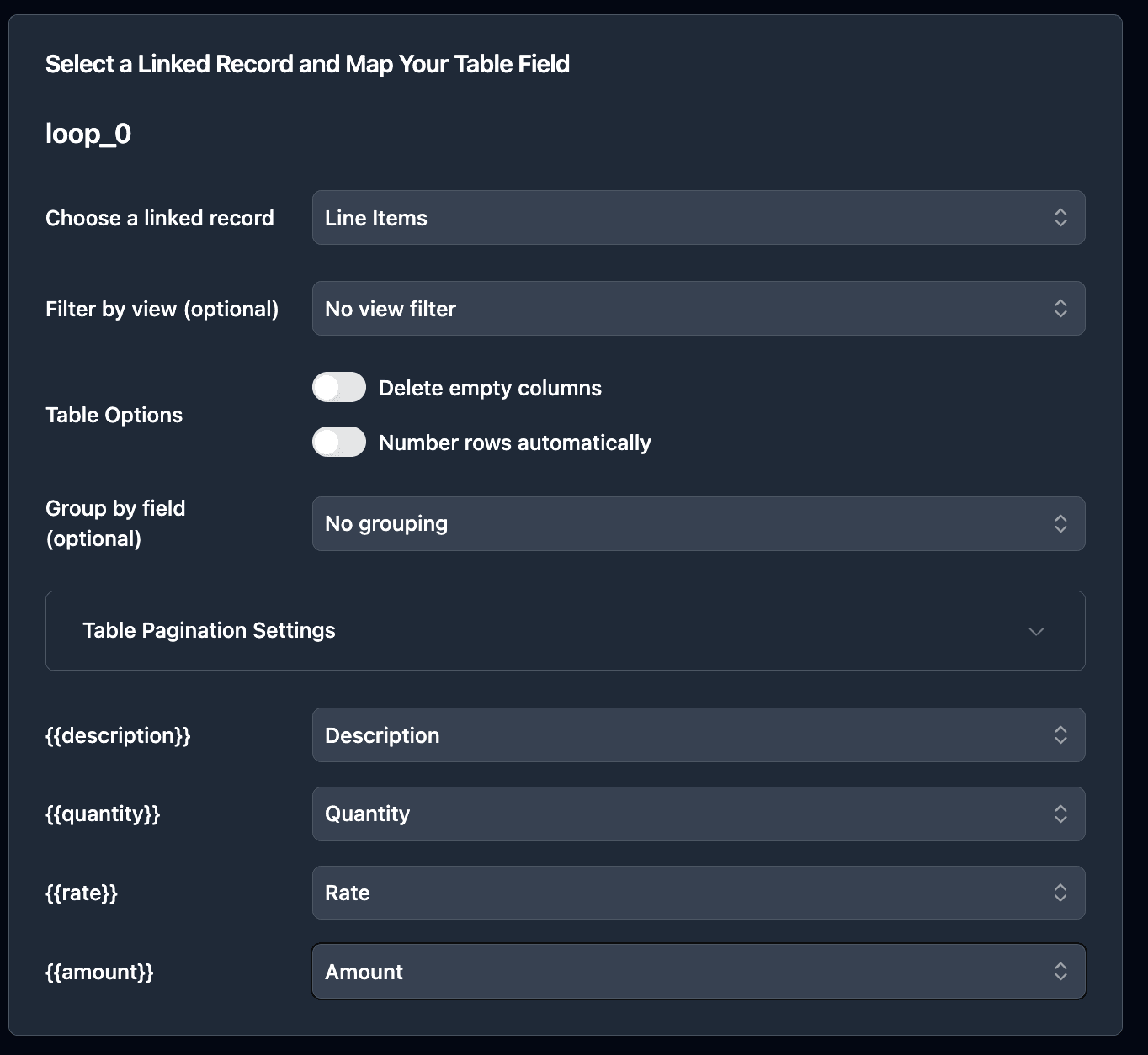
Each linked BOM record becomes a row in your production order's materials table.
Pro Tip: Calculate Material Requirements
Use a formula field in your BOM table to calculate total quantity needed: Quantity Per Unit × Order Quantity. Map this calculated field to your template for accurate material requirements per production order.
Mapping operations routing:
For the operations sequence (loop_1), select your linked Operations field and map:
{{Sequence}}→ Sequence number{{Operation_Name}}→ Operation name{{Work_Center}}→ Work center{{Setup_Time}}→ Setup time{{Run_Time}}→ Run time per unit
Step 4: Configure Output Settings
Set a custom filename format for easy identification:
PO-{{Order_Number}}-{{Product.Name}}
This generates filenames like PO-2026-001-Widget-Assembly.pdf.
How to Generate Production Orders
Once your flow is configured, you have three ways to generate production orders depending on your workflow needs.
Option 1: Manual Generation with Button Field
Add a button field to your Production Orders table for quick one-click generation:
- In Airtable, create a new Button field called "Generate PO"
- Set the action to "Open URL"
- In TypeFlow, copy the generation URL from your flow settings
- Paste the URL in the button configuration
Click the button on any production order record to generate the PDF instantly. The document saves to your attachment field within seconds.
Best for: Production planners releasing individual orders, testing your flow before automation, or orders requiring manual review before generation.
Option 2: Bulk Generation for Shift Handoffs
When you need to generate all pending production orders at once - useful for shift changes or daily production meetings.
- Install the TypeFlow extension from Airtable's extension marketplace
- Enter your API key (found in your flow settings)
- Filter your view to "Ready to Release" orders
- Select all records
- Click Generate
The extension creates PDFs for all selected records and saves them to your configured attachment field. Generate dozens of production orders in one action.
Best for: Daily shift handoffs, weekly production planning, or generating all orders for a specific product line.
Option 3: Automated Generation with Airtable Automations
Full automation removes manual steps entirely. Trigger production order generation automatically when orders are released.
According to Gartner research, 80% of executives believe automation can be applied to any business decision. Production order generation is a prime candidate.
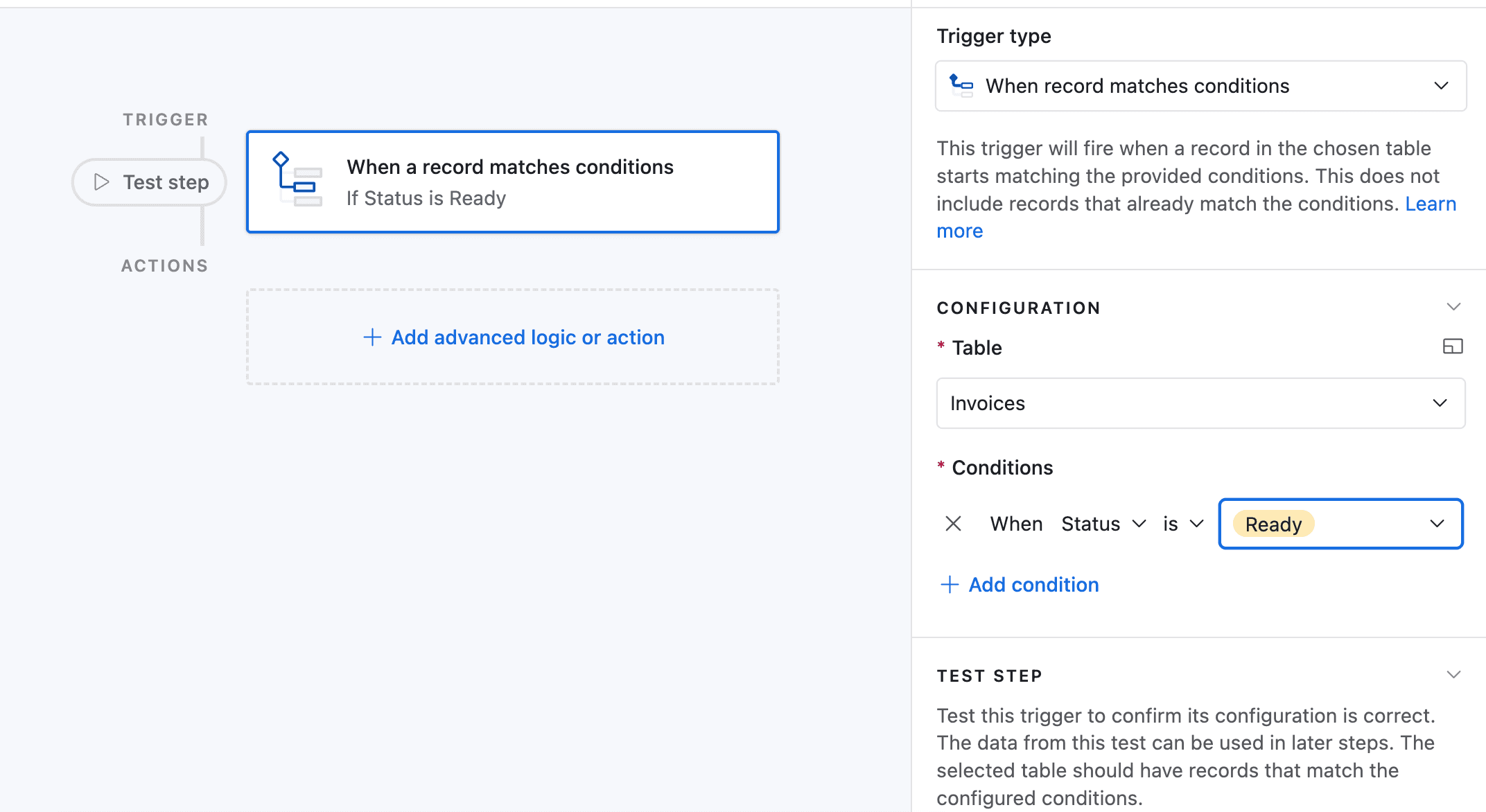
In this example, we'll trigger the automation when an order status changes to "Released."
-
Go to Automation in Airtable
-
Click on "Add a trigger" and choose When a Record matches a condition
-
Select the table you want to trigger the automation on (in this case the Production Orders table)
-
Select the field you want to trigger the automation on (in this case the Status field)
-
Select the condition you want to trigger the automation on (in this case "is")
-
Select the value you want to trigger the automation on (in this case "Released")
-
Now choose a record that matches the condition
-
Click on Add an advanced logic or action
-
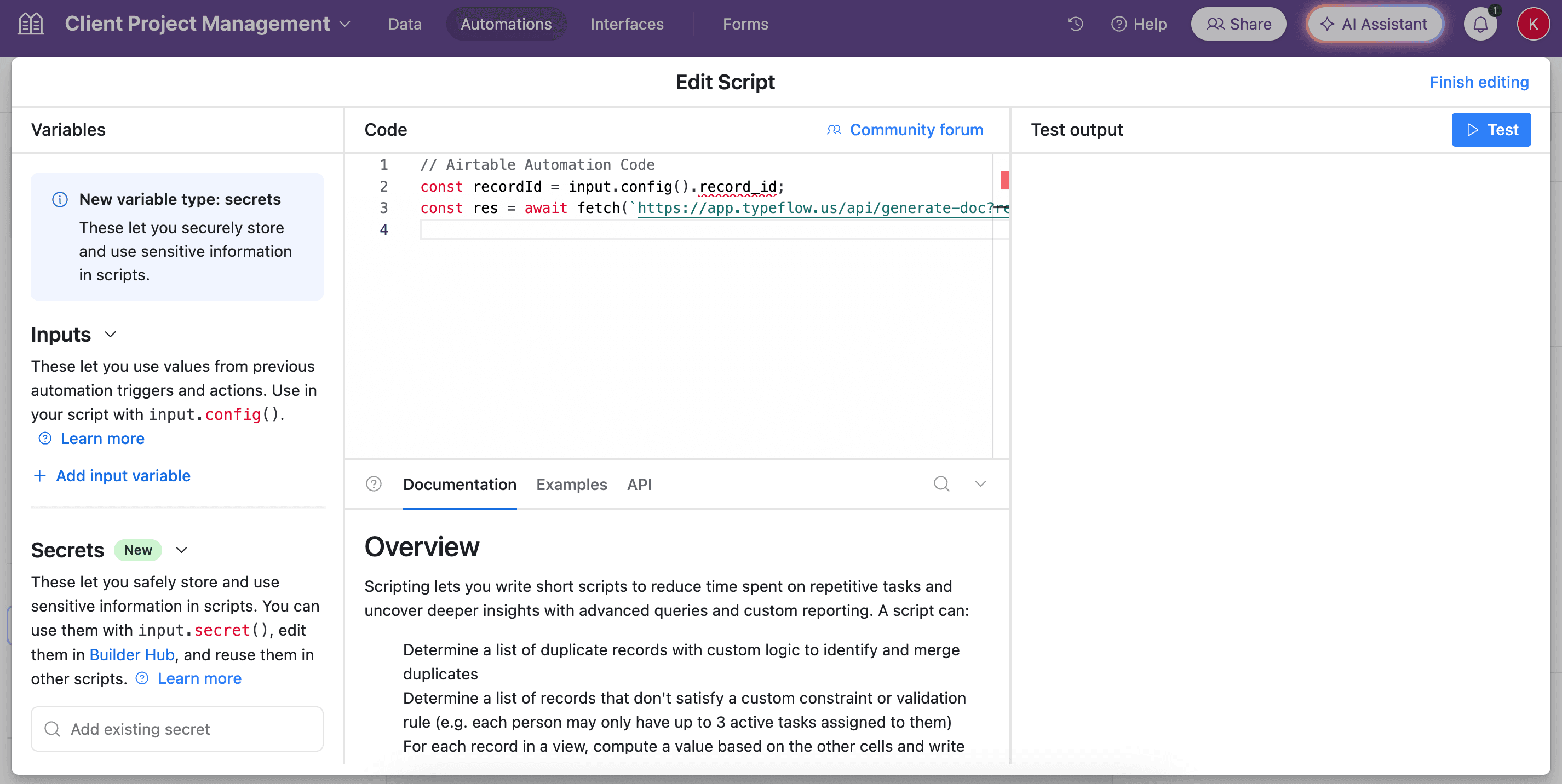
Pick Run Script. A new popup appears.
-
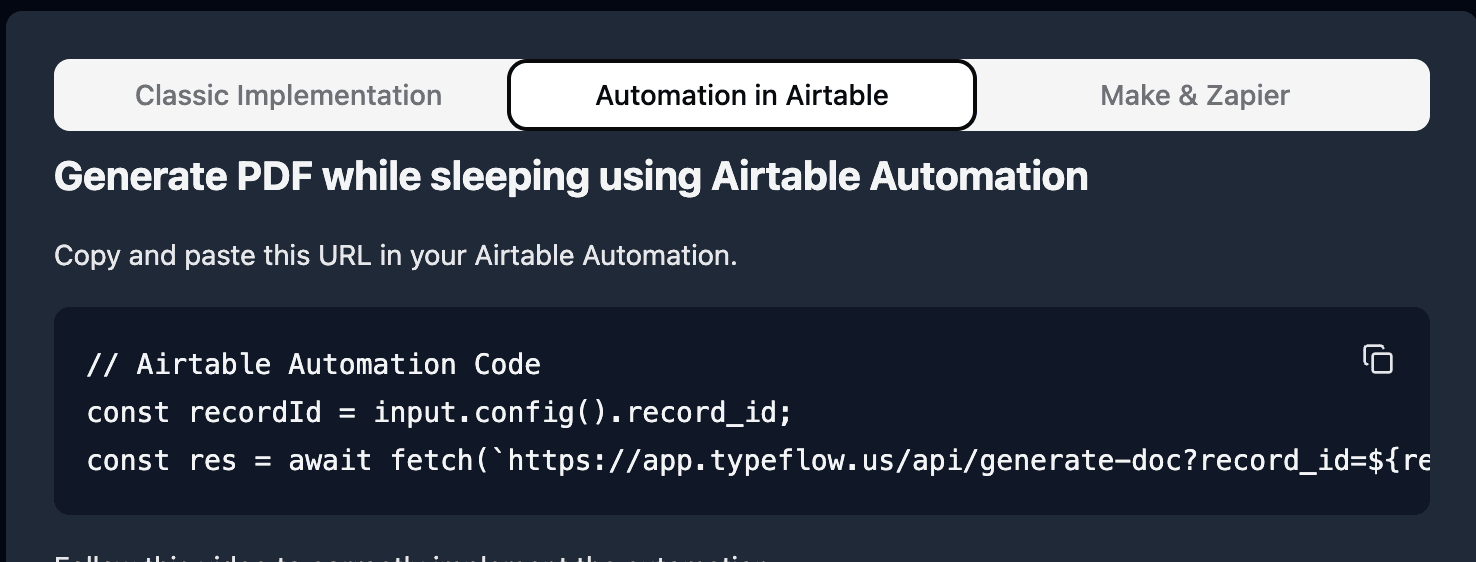
Go back to TypeFlow and select Automation in Airtable. Copy the script.
- Paste the script in the popup.
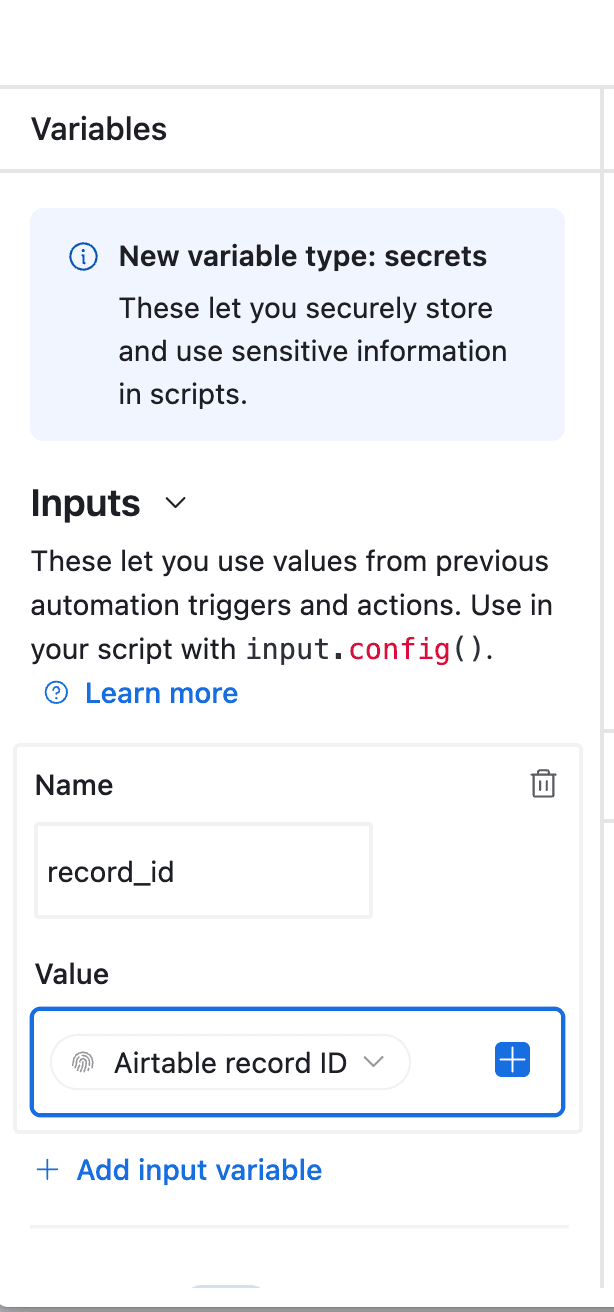
- In the left-side of the popup, configure the variable input
record_id. Select Airtable Record ID from the dropdown.
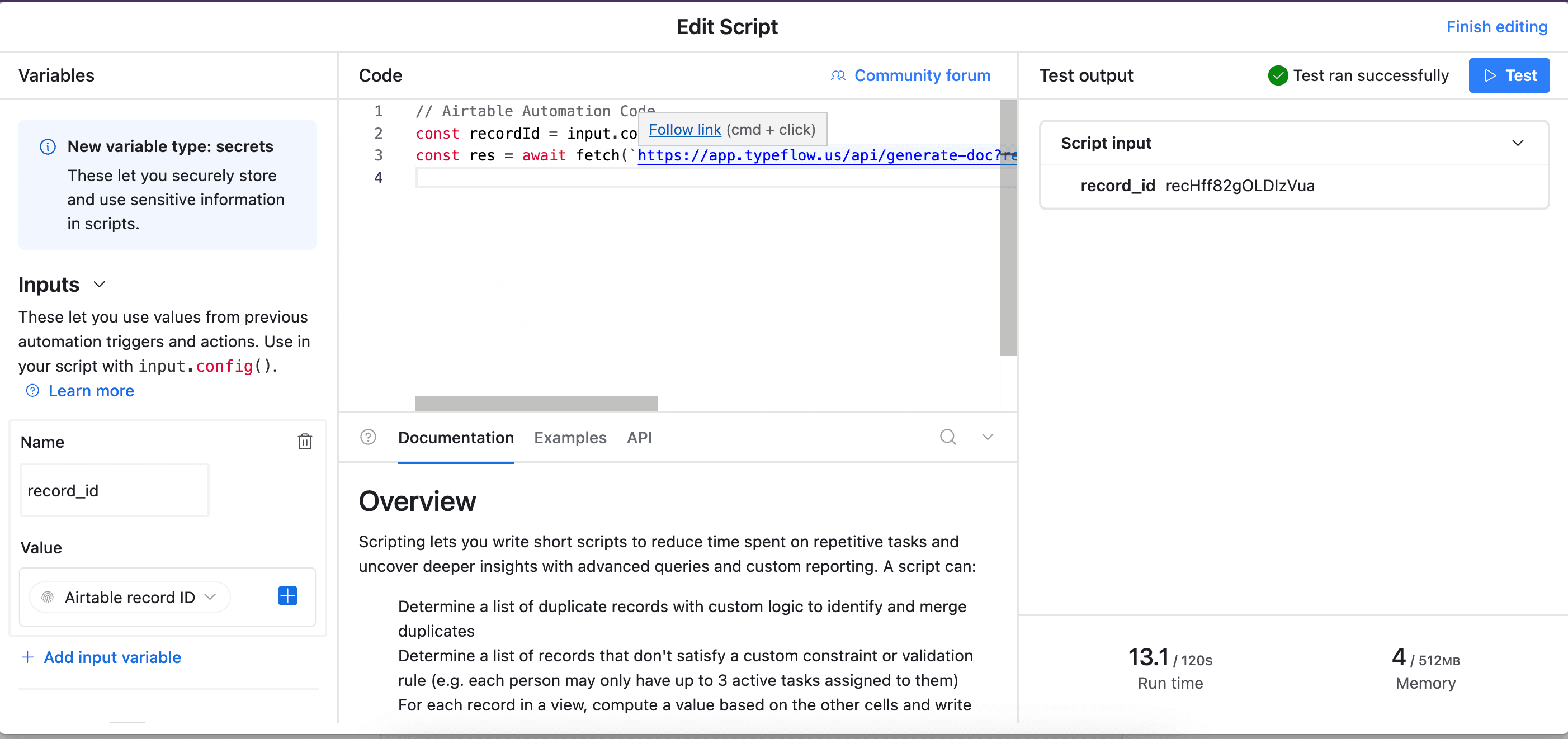
- Test your script and verify it works. Most errors come from the record_id variable not being configured correctly (see step 12).
Best for: High-volume manufacturing, hands-off document generation, or when orders must be generated immediately upon release.
Sending Production Orders to the Shop Floor
Once your production order PDF is generated, you can automatically distribute it to the team. TypeFlow includes integrated email delivery.
- Open your flow and click the Email tab
- Toggle Enable Email Delivery to ON
- Set the Recipient to your Shop Floor Supervisor Email field from Airtable
- Configure subject:
Production Order {{Order_Number}} - {{Product.Name}}
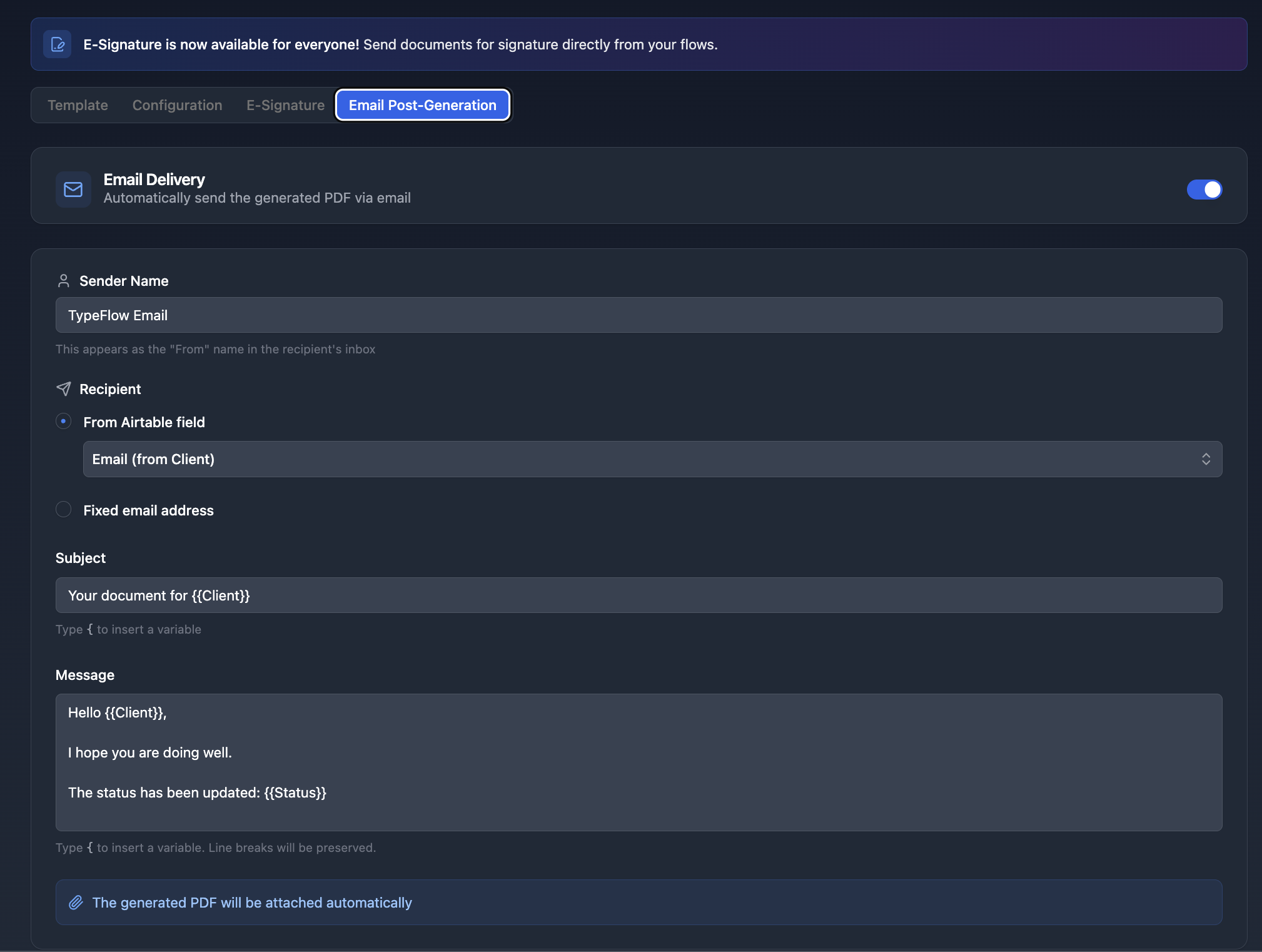
After each generation, the production order is automatically sent as a PDF attachment. Works with all three generation methods.
Use cases:
- Email to shop floor supervisors when orders are released
- Send to purchasing for material procurement
- Distribute to quality team for inspection planning - pair with automated QC reports for a complete workflow
- Archive to operations email for records
Adding Approvals to Production Orders
Some operations require supervisor sign-off before production begins. TypeFlow includes built-in e-signature that is legally compliant under eIDAS and the ESIGN Act.
Single Approval Workflow
Add signature placeholders to your template:
RELEASE AUTHORIZATION

Signature: {{e-signature.signature_1}}
Name: {{e-signature.text_1}}
Title: {{e-signature.text_2}}
Date: {{e-signature.date_1}}
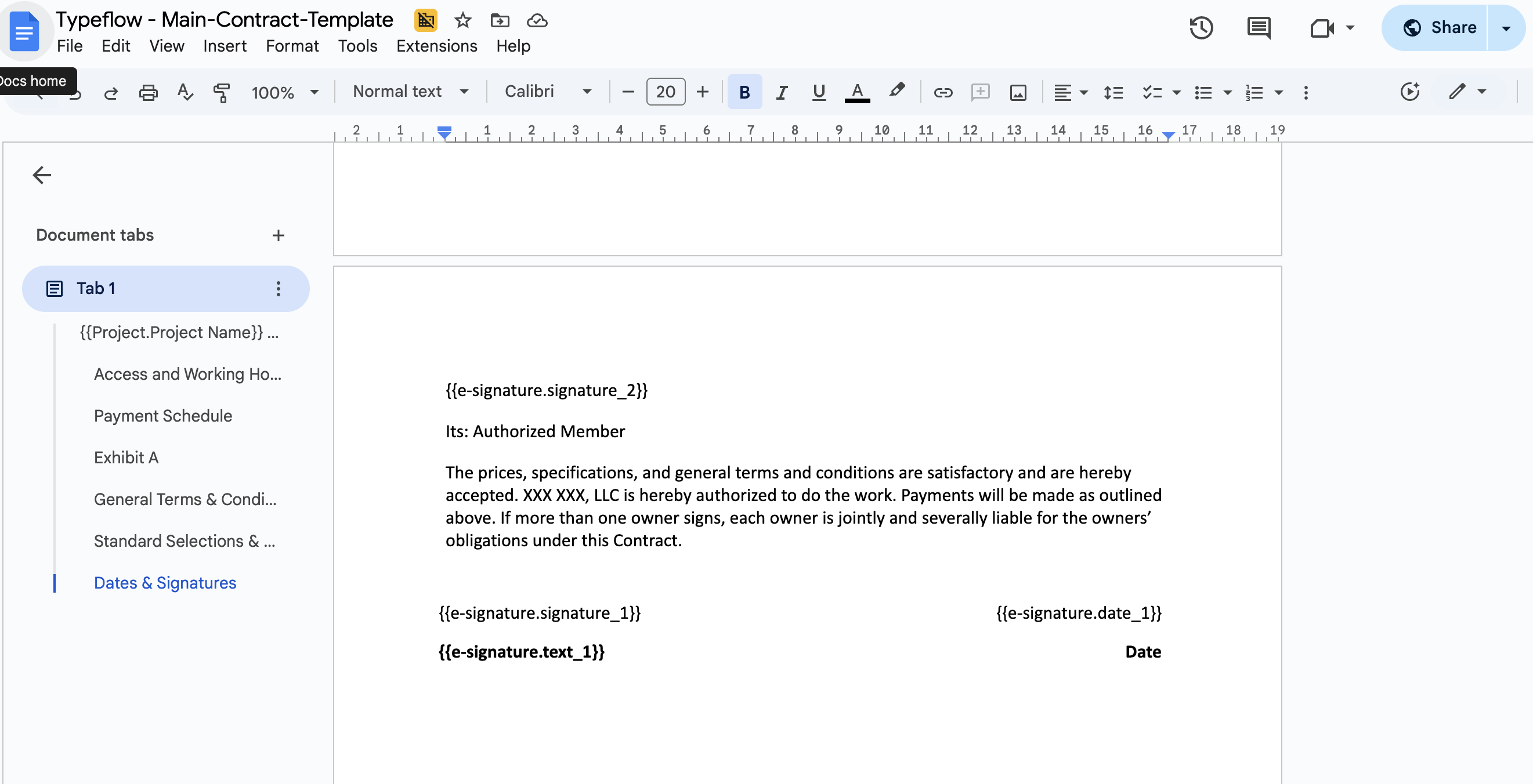
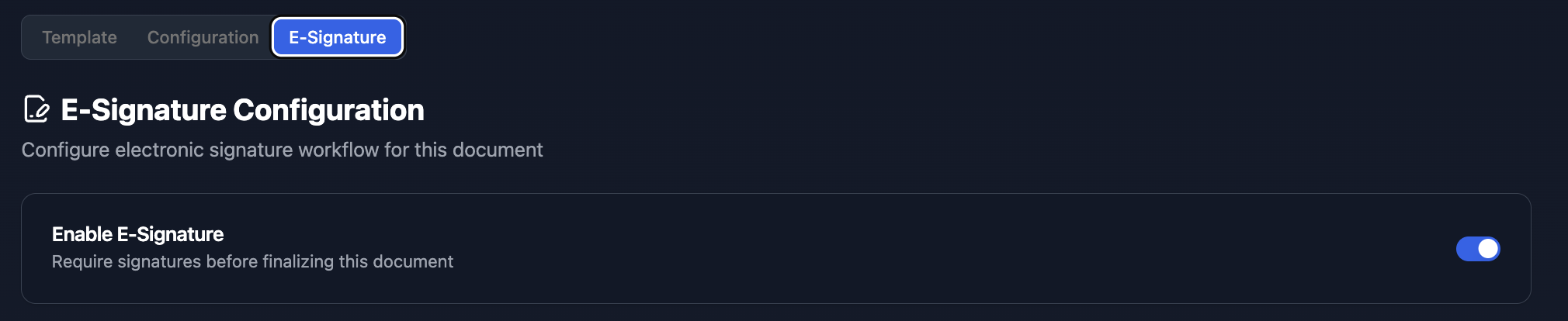
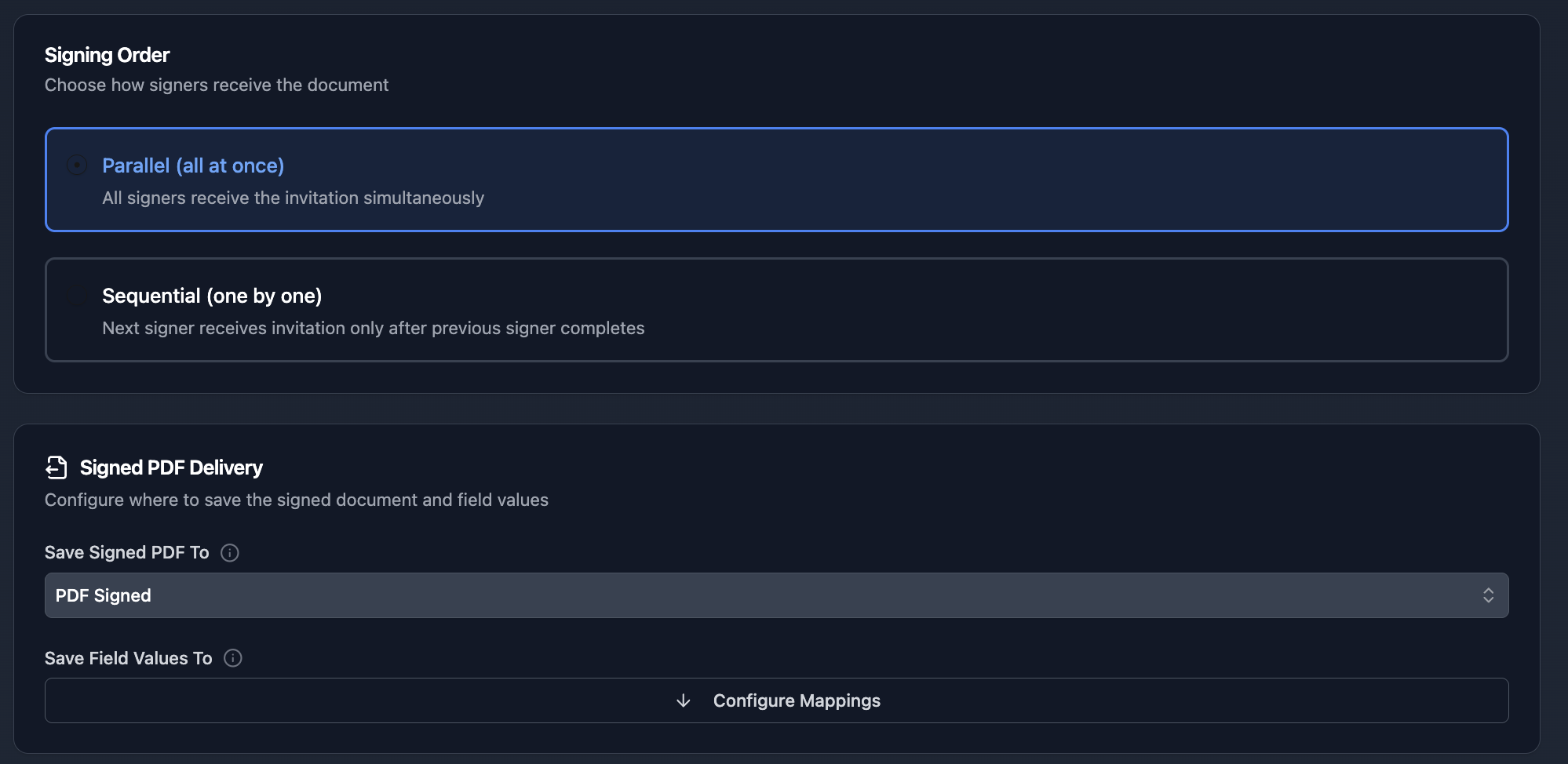
Enable e-signature in TypeFlow, configure the signer, and the production manager receives an email to approve the order digitally.
Multi-Level Approval Workflow
For organizations requiring multiple approvals (e.g., Planner → Production Manager → Quality):
PLANNING APPROVAL

Signature: {{e-signature.signature_1}}
Name: {{e-signature.text_1}}
Date: {{e-signature.date_1}}

PRODUCTION MANAGER APPROVAL

Signature: {{e-signature.signature_2}}
Name: {{e-signature.text_2}}
Date: {{e-signature.date_2}}
Configure sequential signing so approvers receive requests in order.
Automate your document generation
Start with 20 free documents. Built for businesses using Airtable.
What to Include in a Production Order Template
Header and Job Identification
- Order number (auto-generated for consistency)
- Date created and due date
- Customer name if make-to-order
- Priority level (Rush, High, Normal, Low)
- Status tracking
Product and Quantity Details
- Product name and SKU
- Quantity to produce
- Unit of measure
- Product specifications or revision level
Bill of Materials with Line Items
This is where document automation shines. Pull dynamic component lists from your linked BOM table:
- Material name and code
- Quantity required (calculated from order quantity)
- Unit of measure
- Warehouse location (optional)
- Substitution notes (optional)
Operations and Routing Steps
Sequence of manufacturing operations:
- Step number
- Operation name
- Work center or machine
- Setup time and run time
- Work instructions summary
Notes and Special Instructions
- Quality requirements
- Customer-specific instructions
- Safety notes
- Handling requirements
Best Practices for Production Order Workflows
Use Sequential Auto-Numbering
Set up an Airtable formula for consistent PO numbers:
"PO-" & YEAR(TODAY()) & "-" & REPT("0", 4 - LEN(RECORD_ID())) & RECORD_ID()
Or use the Autonumber field type for simpler sequential numbering.
Create Status-Based Views
Filter production orders by workflow stage:
- Draft - Orders being created
- Ready to Release - Pending approval or generation
- Released - Documents generated, on shop floor
- In Progress - Manufacturing started
- Complete - Finished production
Store Generated PDFs Back to Airtable
Keep documents attached to the record for easy access. Shop floor staff can view production orders on tablets without searching through folders.
Track Generation Status
Add a "Document Generated" checkbox that updates automatically when TypeFlow creates the PDF. Use this to filter which orders still need documents.
Start Generating Production Orders
Transform production order creation from a manual bottleneck into an automated system that runs reliably. McKinsey research shows that digital transformation in manufacturing increases labor productivity by 15-30%. Stop copying data between systems, stop generating orders one at a time, and stop worrying about missing information.
With TypeFlow, you set up your template once and generate professional production orders with complete BOM data for every job. Rated by quality and operations teams on G2.
Start for Free - 20 documents included, no credit card required.
Related Manufacturing Documents
- How to Create Traceability Document PDFs from Airtable - Generate audit-ready traceability PDFs from batch data
- How to Generate Spec Sheet PDFs from Airtable - Create professional product spec sheets at scale
- How to Build Quality Control Reports in Airtable - Automate QC reports with defect tables and photos
- How to Create Certificates of Conformity in Airtable - Automate CoC PDFs with test results and e-signatures
Frequently Asked Questions
Find answers to the most common questions about this feature.
Popular Questions
All Questions
Need more help?
Our team is here to help you solve all your problems and answer your questions.
Contact Us
Kevin from TypeFlow
•AuthorKevin Rabesaotra is a growth engineer and automation specialist with 8+ years of experience building no-code solutions. As Founder & CEO of TypeFlow, he has helped hundreds of businesses automate document generation and streamline workflows with Airtable integrations. Previously, Kevin was a Product Lead specializing in growth engineering, running experiments to drive revenue, retention, and lead generation.
More articles
How to Print Labels from Airtable with Quantity Control (Step by Step)
Print multiple labels per Airtable record based on a quantity field. Step-by-step guide for linked records mode and quantity repeat mode with barcodes and Avery sheets.
Read articleHow to Print Avery Mailing Labels from Airtable
Print Avery mailing labels (5160, 5161, 5162) from Airtable without Word mail merge. Step-by-step guide with print label mode, automation, and bulk generation.
Read articleHow to Create Inventory Labels with Barcodes in Airtable
Create inventory labels with Code 128, EAN-13, or QR barcodes from Airtable. Step-by-step guide for warehouse, retail, and asset tracking with thermal and Avery printers.
Read article