Send PDF by Email After Generation
Automatically send generated PDFs by email - no Zapier, Make, or second automation needed.
Overview
TypeFlow can send the generated PDF by email automatically after generation. This means:
- One automation in Airtable (not two)
- No external tools like Zapier or Make
- PDF attached automatically to the email
The Problem
With Airtable Automations, if you try to send an email in the same automation that generates the PDF, the email arrives without the attachment.
Why? Airtable can't attach a file that was just added in the same automation.
Previous workarounds
- Two automations: One to generate the PDF, another watching the attachment field to send the email
- Make/Zapier: Use an external tool to handle the email sending
Both add complexity. Now there's a simpler way.
How to Set Up
- Open your flow in TypeFlow
- Click the Email tab
- Toggle Enable email delivery on
- Configure the sender name, recipient, subject, and message
- Save - done!
The next time a document is generated, the PDF will be emailed automatically.
Configuration Options
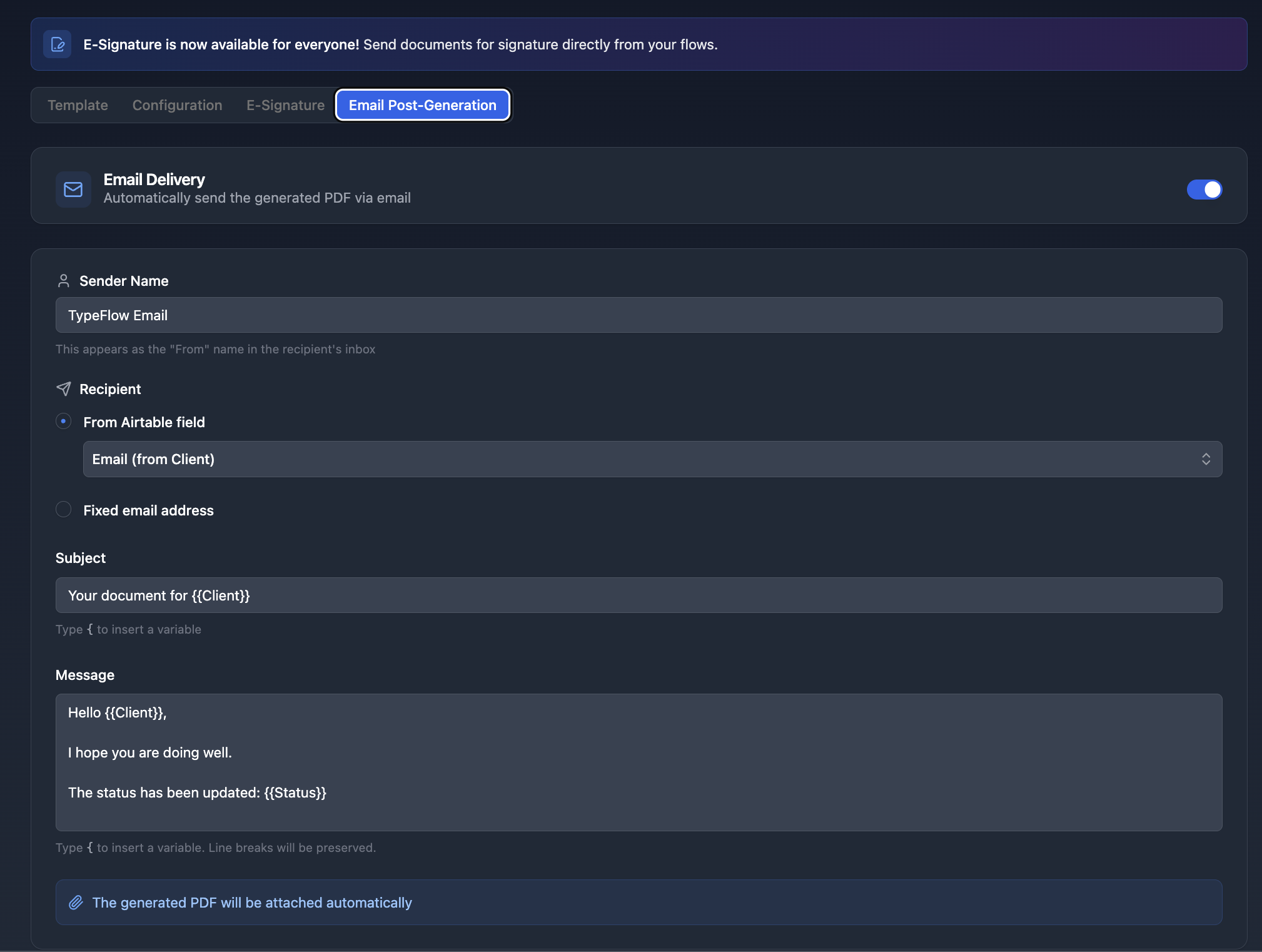
Sender Name
The name that appears in the recipient's inbox. Example: "My Company" or "TypeFlow".
To (Recipient)
Choose how to determine the recipient:
- From Airtable field: Select an email field from your table. The email will be sent to the address in that field.
- Fixed email address: Enter a specific email address. All emails will be sent to this address.
Reply-To (optional)
Set a custom email address for replies. When recipients click "Reply" in their email client, their response will go to this address instead of your TypeFlow account email.
Click "+ Reply-To" to reveal this field.
Use cases:
- Companies using branded addresses like
noreply@company.comorinvoices@acme.com - Agencies sending emails on behalf of clients
- Teams routing replies to a shared inbox
If left empty, replies go to your TypeFlow account email.
Cc and Bcc (optional)
Send copies to additional recipients:
- Cc: Recipients visible to everyone on the email
- Bcc: Hidden recipients (useful for keeping a copy for yourself)
Enter comma-separated email addresses. Example: manager@company.com, team@company.com
Click "+ Cc" or "+ Bcc" to reveal these fields.
Subject line
The email subject line. Supports variables using {{Field Name}} syntax.
Example: Your invoice {{Invoice Number}} or Document for {{Client Name}}
Message
The email body. Supports variables and line breaks.
Example:
Hello {{Client Name}},

Please find attached your document.

Best regards,
{{Company Name}}
PDF Attachment
The generated PDF is attached automatically. No configuration needed.
FAQ
Can I use an email from an Airtable field?
Yes. You can select any email field from your Airtable table as the recipient. The email will be sent to the address in that field for each record.
Can I use variables in the subject and body?
Yes. You can use {{Field Name}} syntax in both the subject and message body. TypeFlow will replace them with values from your Airtable record.
What if the recipient field is empty?
If the recipient email field is empty for a record, the email will not be sent. The PDF will still be generated and uploaded to Airtable.
Can I send to multiple recipients?
Yes! You can add CC and BCC recipients to send copies to multiple people. Enter comma-separated email addresses in the Cc or Bcc fields.
Can I change where replies go?
Yes! Click "+ Reply-To" to set a custom reply address. When recipients reply to your email, their response will go to that address instead of your account email. Useful for using addresses like noreply@company.com or invoices@acme.com.
Related Articles
- Variables and Field Mapping - Learn about using variables
- E-Signature - Send documents for signature
Need More Help?
- Email: support@typeflow.us
- Chat: Click the chat icon in the app