How to Generate Training Certificates from Airtable Data
You can generate branded training certificates directly from your Airtable trainee data. Connect your base to a certificate template - in Google Slides or the TypeFlow Template Builder - map your fields, and generate PDFs in bulk. Add optional e-signature for instructor approval and automatic email delivery to each trainee. No Zapier, no code. For the full certificate and report workflow, see our reports and certificates solution.
This is a common need for training organizations, online course platforms, and HR teams. Here is how the main approaches compare:
- Design tools (e.g., Canva): Great for one-off layouts, but manual to personalize and send at scale.
- Credential platforms (e.g., Accredible, Certifier): Full badge and verification systems - more than most teams need.
- Zapier + Google Slides (tutorial): Works, but requires multiple tools and a paid Zapier subscription.
- This guide: A simpler setup that generates, signs, and delivers PDF certificates from your Airtable data in one step.
According to Deloitte, organizations that invest in structured training programs see higher retention and productivity. McKinsey research shows that skills-based development programs outperform traditional approaches. And the Association for Talent Development reports that companies with formal training programs see 218% higher income per employee. Automating the certificate workflow removes the bottleneck at the finish line.
What You Need Before Starting
Three things to have ready before you begin.
An Airtable Base with Trainee Data
Your Airtable base holds the information that goes on each certificate - trainee names, course details, completion dates, and email addresses. If you already track training data in Airtable, you are good to go.
A Certificate Template
You have two options:
- Google Slides: Simple layouts with variables like
{{Trainee Name}}. All formatting (fonts, colors, logos) carries over to the final PDF. Good for teams already using Google Workspace. - Template Builder: Drag-and-drop design with full control over fonts, colors, borders, backgrounds, and logo placement. Good for branded certificates with specific design requirements.
Both options use the same Airtable variables. Pick whichever fits your workflow.
A TypeFlow Account
TypeFlow connects your Airtable base to your template and generates the PDFs. Start for free - your first 20 documents cost nothing.
Why Airtable Alone Cannot Generate Training Certificates
Airtable is great for organizing training data. But when it comes to turning that data into polished certificates, it falls short.
Manual Exporting Is Slow and Error Prone
Without a document tool, you copy trainee names and course details into a certificate template one at a time. For a class of 50 people, that is hours of work. And somewhere along the way, a typo will sneak in.
No Built-in PDF Branding or Layout Control
Airtable does not have a native way to create formatted PDFs with your logo, custom fonts, or certificate-style layouts. The Page Designer extension exists, but it is limited and being phased out.
Certificate Delivery Stays Manual
Even after you create the certificates, you still have to download each file and attach it to an email. That is another round of repetitive work that grows with every training session you run.
Step 1. Set Up Your Airtable Base for Training Data
A clean base structure makes everything easier. Three linked tables: Trainees, Courses, and Certificates.
Courses Table
This table holds your training programs.
- Course Name: The official title that appears on certificates (primary field).
- Program Name: The broader program track (e.g. "Data Science Professional Track").
- Instructor Name: The lead instructor who signs the certificate.
- Director Name: The program director who co-signs.
- Total Hours: Total instruction hours.
- Course Description: Brief summary shown on the certificate.
- Accreditation: The accrediting body if applicable (e.g. "CPE Accredited - 12 CEUs").
- Organization Name: Name of the issuing organization.
- Verification URL: URL where the certificate can be verified online.
Certificates Table (Main Table)
This is your working table. Each record generates one certificate PDF.
A linked record is a field that connects one record to a related record in another table. When you link a course to a certificate record, you can pull the course name, instructor, and description without typing it again.
- Certificate Title: Primary field (e.g. "Sarah Martinez - Advanced Data Analytics").
- Recipient Name: The trainee's full name as it appears on the certificate.
- Recipient Email: For automated delivery.
- Course: Linked record to the Courses table.
- Completion Date: Date formatted as Month DD, YYYY.
- Grade: The trainee's result (e.g. "Distinction", "Pass with Merit").
- Certificate ID: Unique identifier for verification (e.g. "AIT-2026-DS-0847").
- Lookup fields: Course Name, Program Name, Instructor Name, Director Name, Total Hours, Course Description, Accreditation, Organization Name, Verification URL - all pulled from the Course link automatically.
Add a Certificate PDF attachment field and a Status single select field (Pending, Completed, Sent) to track the workflow.
Here is an example base you can duplicate:
Step 2. Design Your Training Certificate Template
Option A. Google Slides Template
Open Google Slides and create your certificate layout. Add your logo, pick fonts that match your brand, and write the certificate text with variables where the data will go.
Variables use double curly brackets. When TypeFlow generates the certificate, it swaps each variable for the matching Airtable data:
Template text: "This certifies that {{Recipient Name}} has completed {{Course Name}} on {{Completion Date}}"
Final output: "This certifies that Sarah Martinez has completed Advanced Data Analytics on March 28, 2026"
Option B. Template Builder (Drag and Drop)
The Template Builder lets you design certificates visually. Drag text blocks, images, and shapes onto a canvas. Use the same {{variables}} to pull Airtable data.
Advantages over Google Slides:
- Full control over positioning, backgrounds, and decorative elements
- Built-in fonts and color pickers
- No Google account required
- Better for landscape-format certificates with complex layouts
Here are examples of training certificates you can generate. Browse the designs below:
Professional - Dark Panel with Gold Seal
Common Variables for Training Certificates
{{Recipient Name}}- pulls the trainee's full name{{Course Name}}- pulls the course title{{Completion Date}}- pulls the formatted date{{Instructor Name}}- pulls the trainer's name for the signature line{{Certificate ID}}- pulls a unique identifier for verification{{Organization Name}}- pulls your company or institution name{{Total Hours}}- pulls the course duration{{Grade}}- pulls the trainee's result (Distinction, Pass, etc.)
Any formatting in your template - fonts, colors, logos, borders - carries over to the final PDF.
Step 3. Connect TypeFlow to Your Airtable Base
In TypeFlow, authorize access to your Airtable account. TypeFlow reads your base structure automatically - you will see all your tables and fields ready for mapping.
The connection takes about two minutes. TypeFlow does not store your data - it reads it when generating certificates.
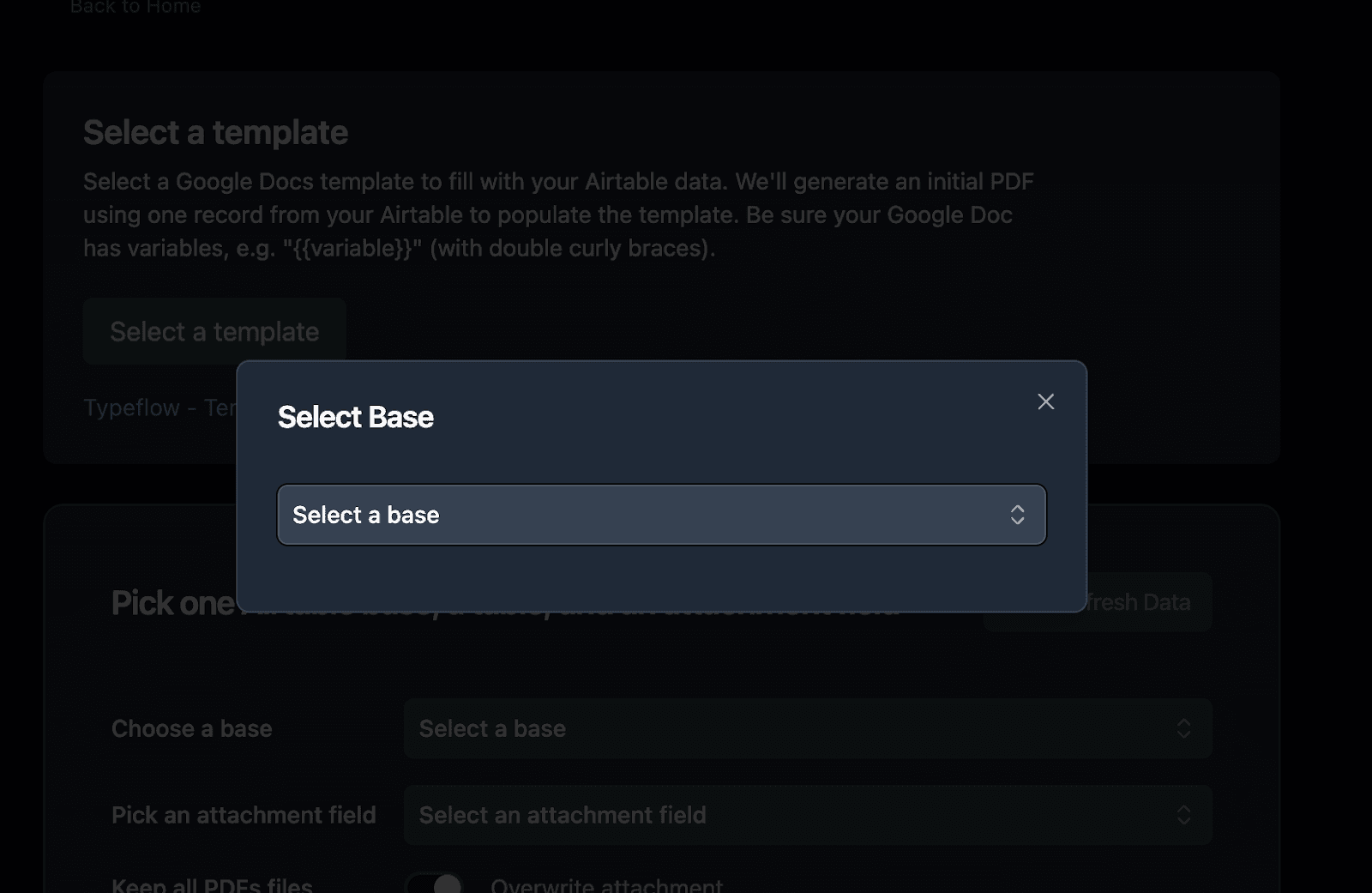
Select your Airtable base:
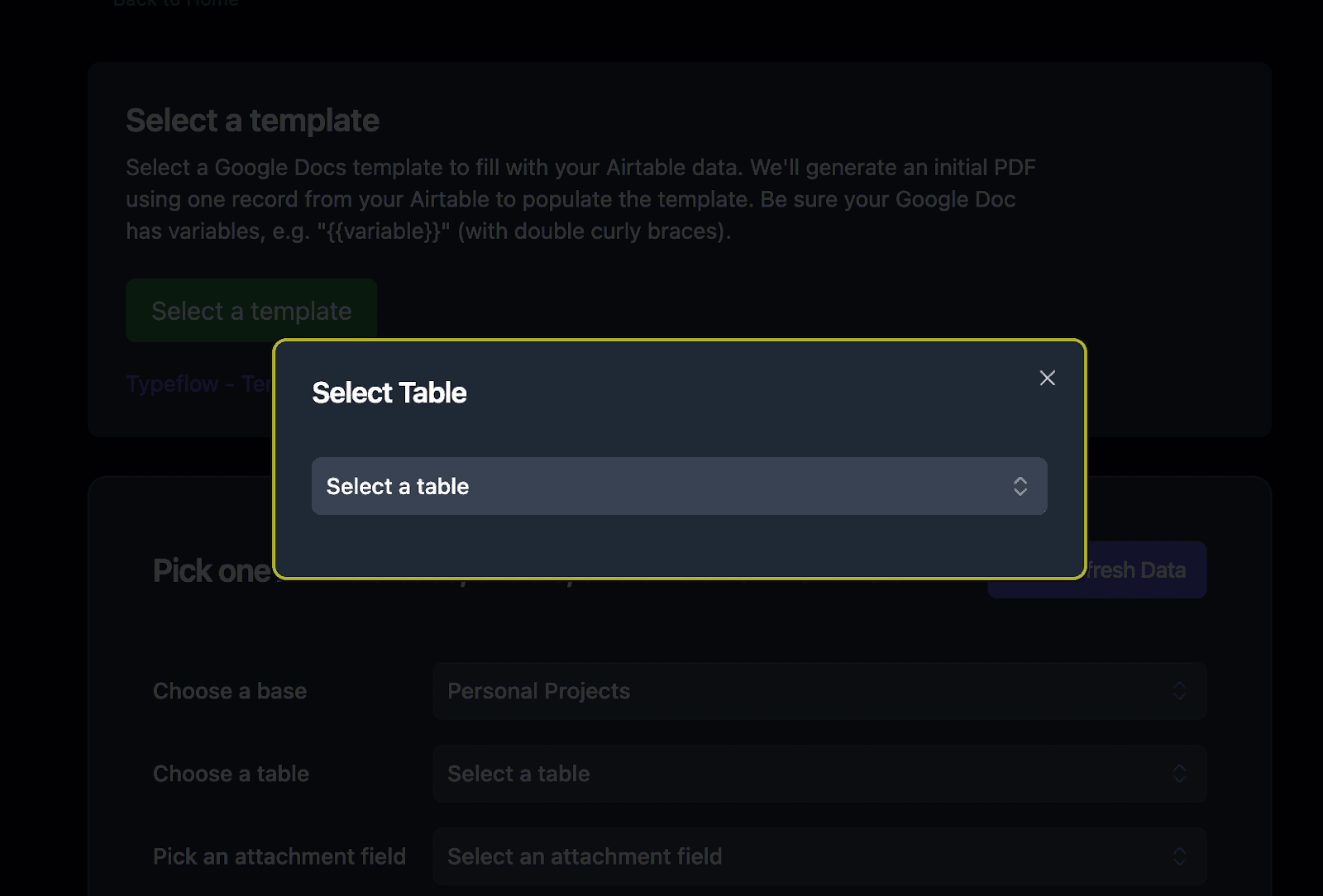
Then select the table that contains your certificate records:
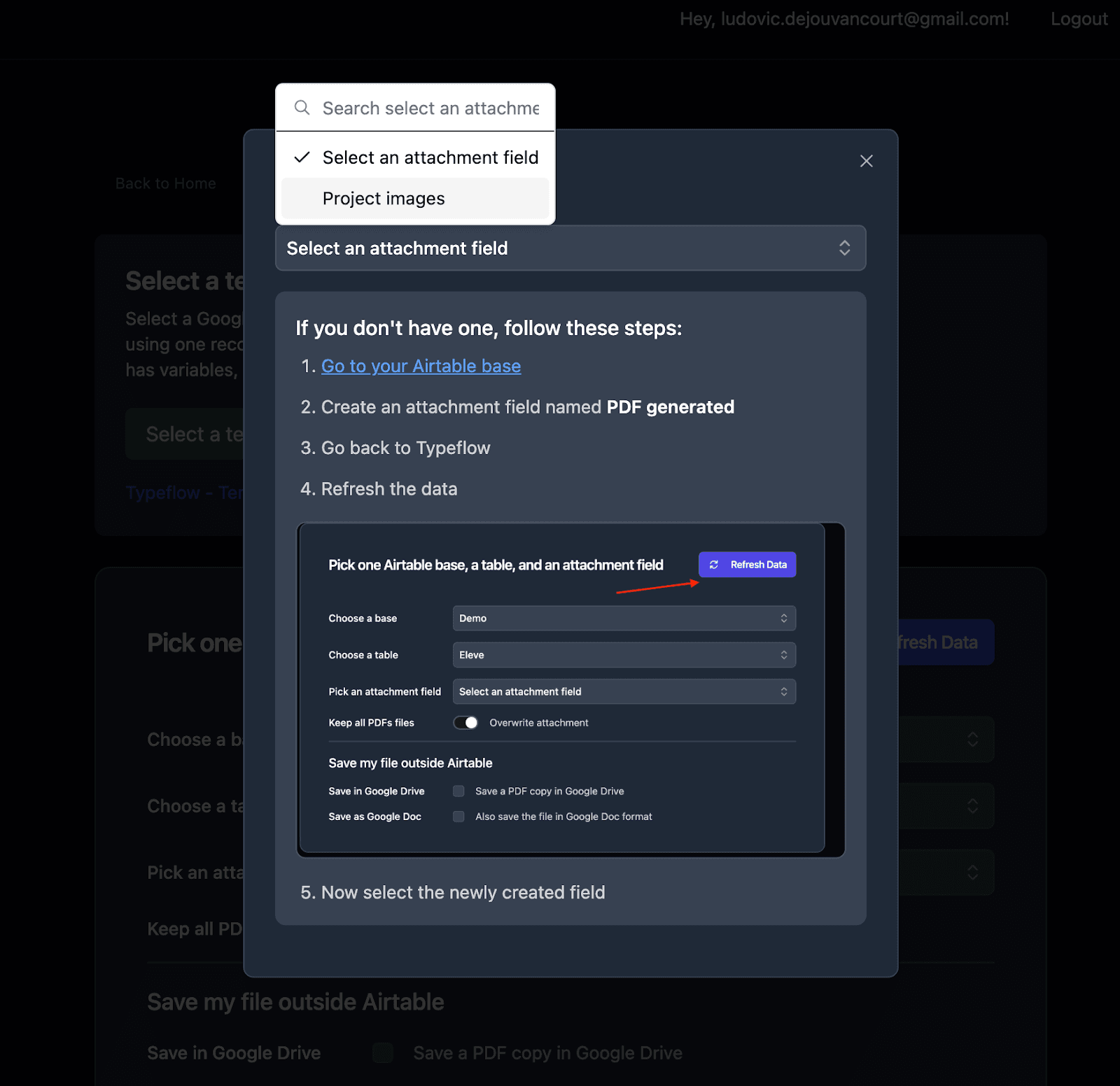
Choose the attachment field where TypeFlow will store the generated PDF:
Step 4. Map Airtable Fields to Certificate Variables
Mapping links each template variable to the corresponding Airtable field. Think of it as drawing lines between your data and your placeholders.
{{Recipient Name}}maps to Certificates table > Recipient Name field{{Course Name}}maps to Courses table > Course Name field (via linked record){{Completion Date}}maps to Certificates table > Completion Date field{{Instructor Name}}maps to Courses table > Instructor Name field (via linked record){{Certificate ID}}maps to Certificates table > Certificate ID field
For linked record fields, TypeFlow pulls data from related tables automatically - no lookup fields needed.
Here is what the mapping interface looks like:
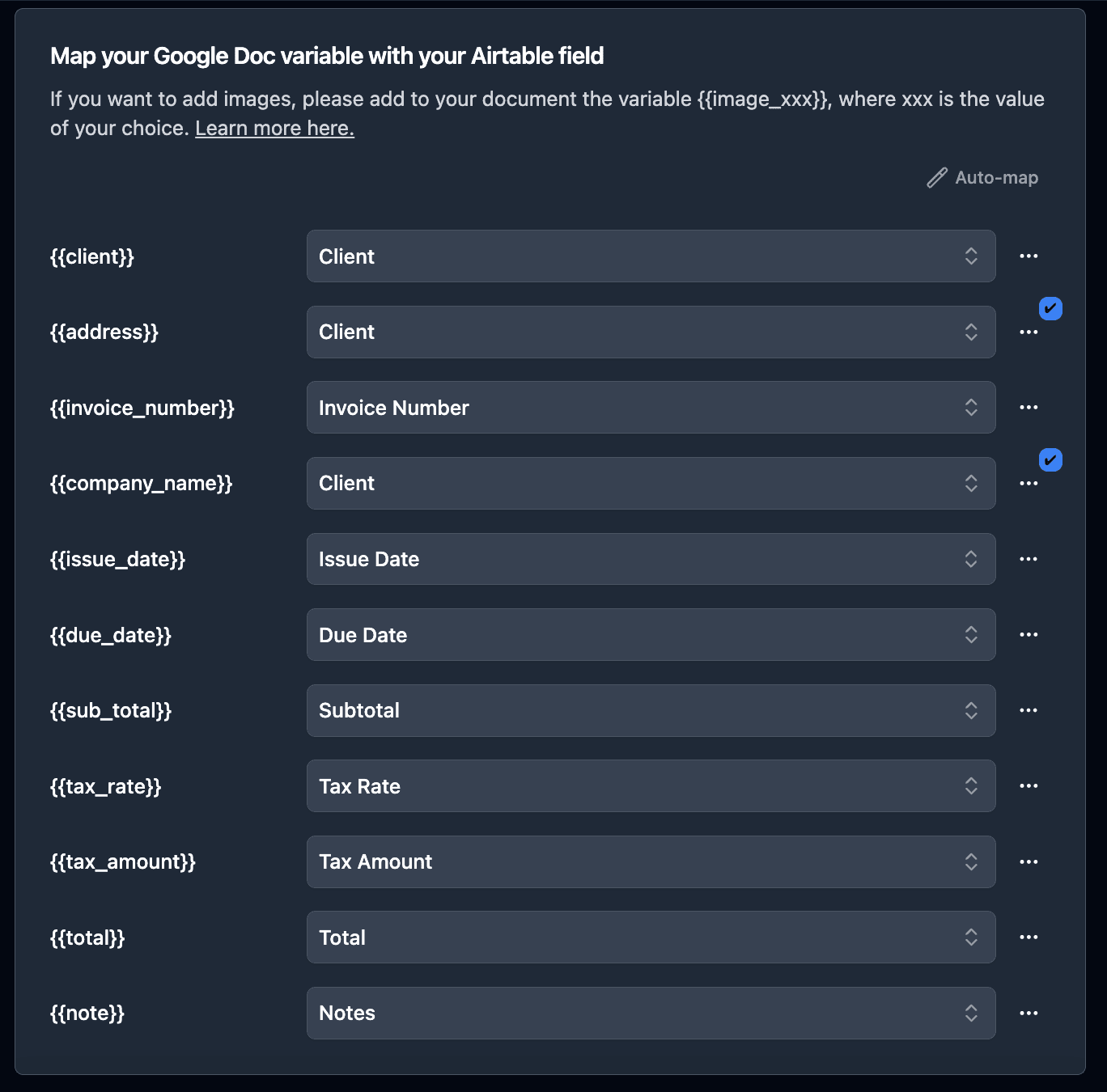
Pro tip: Use the Auto-Map button to let TypeFlow match variables to Airtable fields by name. It saves time when your field names match your template variables.
Step 5. Generate Your First Training Certificate
Before automating, test with a single record. Select one certificate record and trigger a manual generation. Check that:
- All variables replaced correctly
- The layout, fonts, and logo look right
- The date format matches your preference
- Linked record data (course name, instructor) pulled correctly
TypeFlow stores the PDF URL back in your Airtable base automatically. This gives you a permanent link to each certificate.
The generated PDF is stored back in your Airtable attachment field:
Step 6. Automate Training Certificate Generation
Once your template works, set up automation. Three methods, depending on how you run your training.
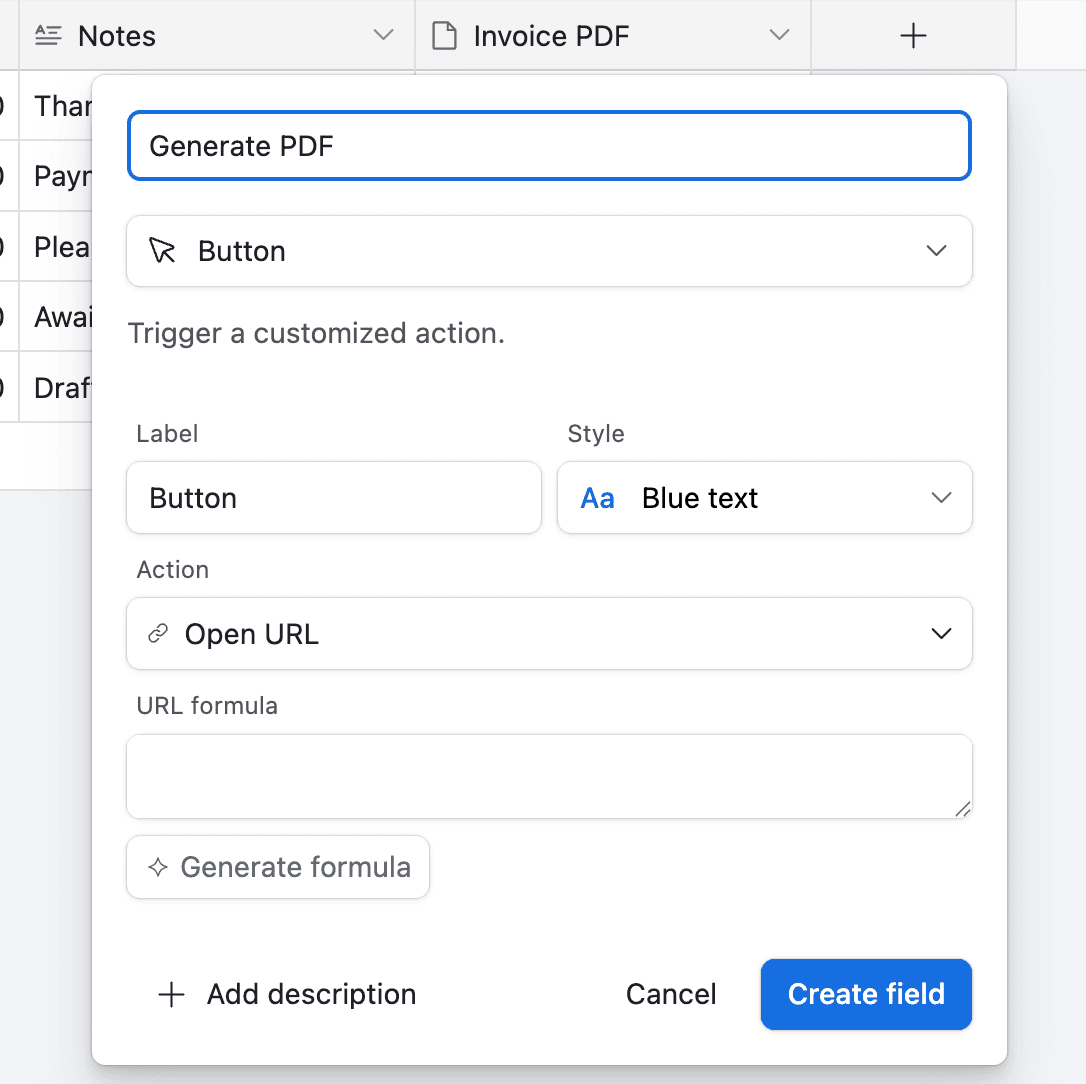
Method 1. Button Field in Airtable
Add a button field that triggers TypeFlow for one record. Click the button, the certificate generates. Best for on-demand generation when you review completion records before issuing certificates.
Method 2. TypeFlow Automation (Recommended)
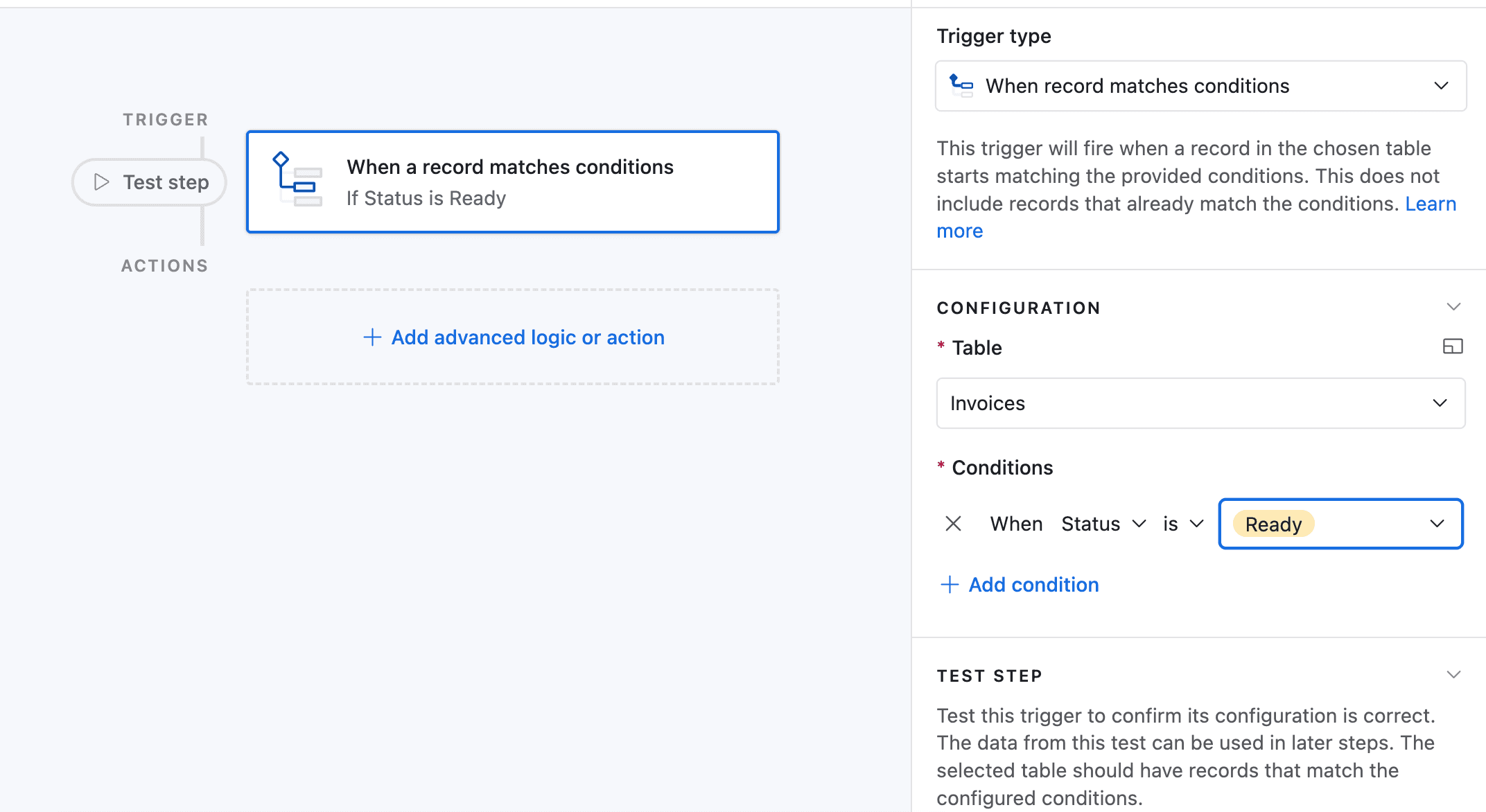
TypeFlow Automation monitors your table and generates certificates when a record meets criteria - for example, when Status changes to "Completed." Configure it entirely in TypeFlow. No webhook URLs to manage, no Airtable automation setup.
This is the recommended method. It is simpler than Airtable automations and more reliable than Zapier workflows.
Method 3. Airtable Automation
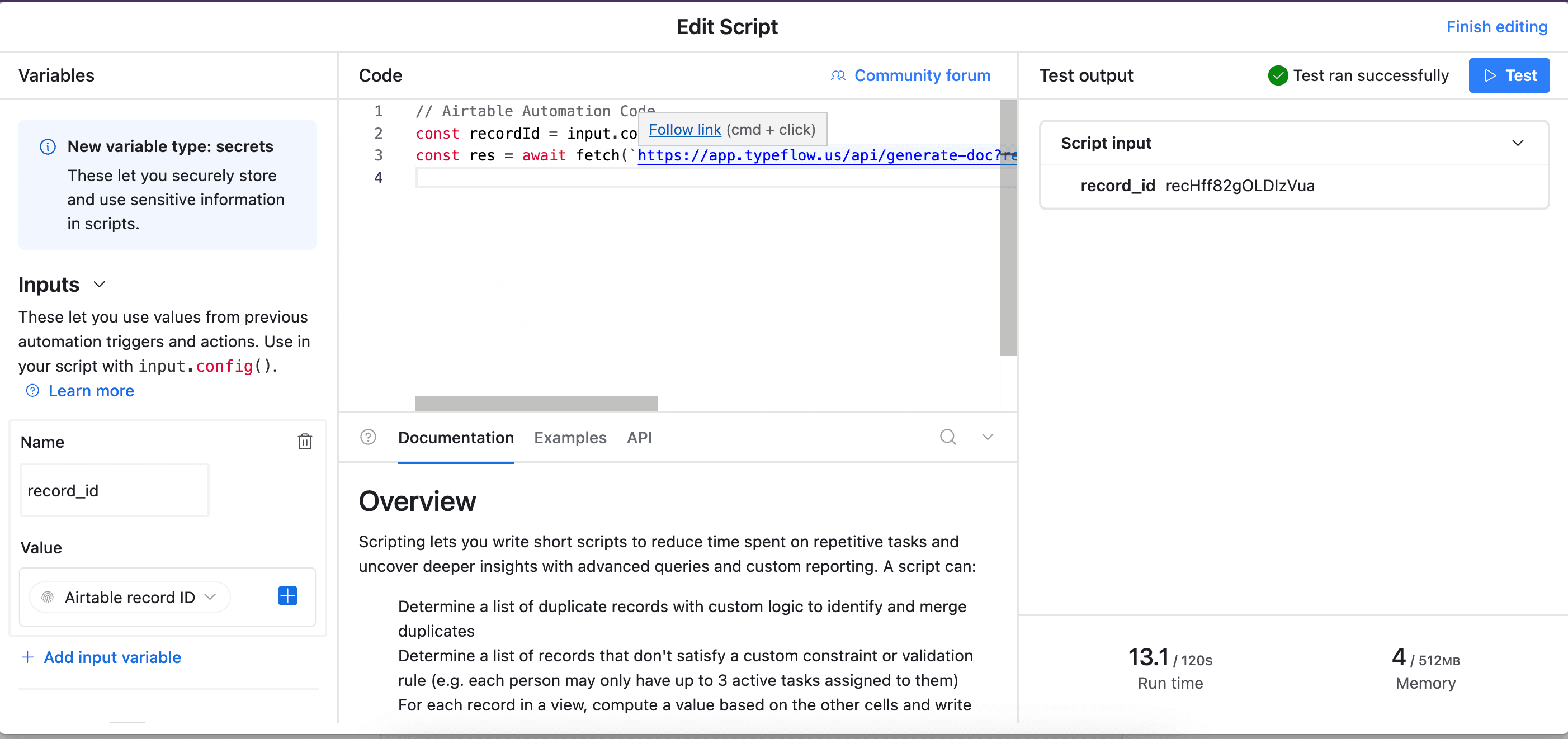
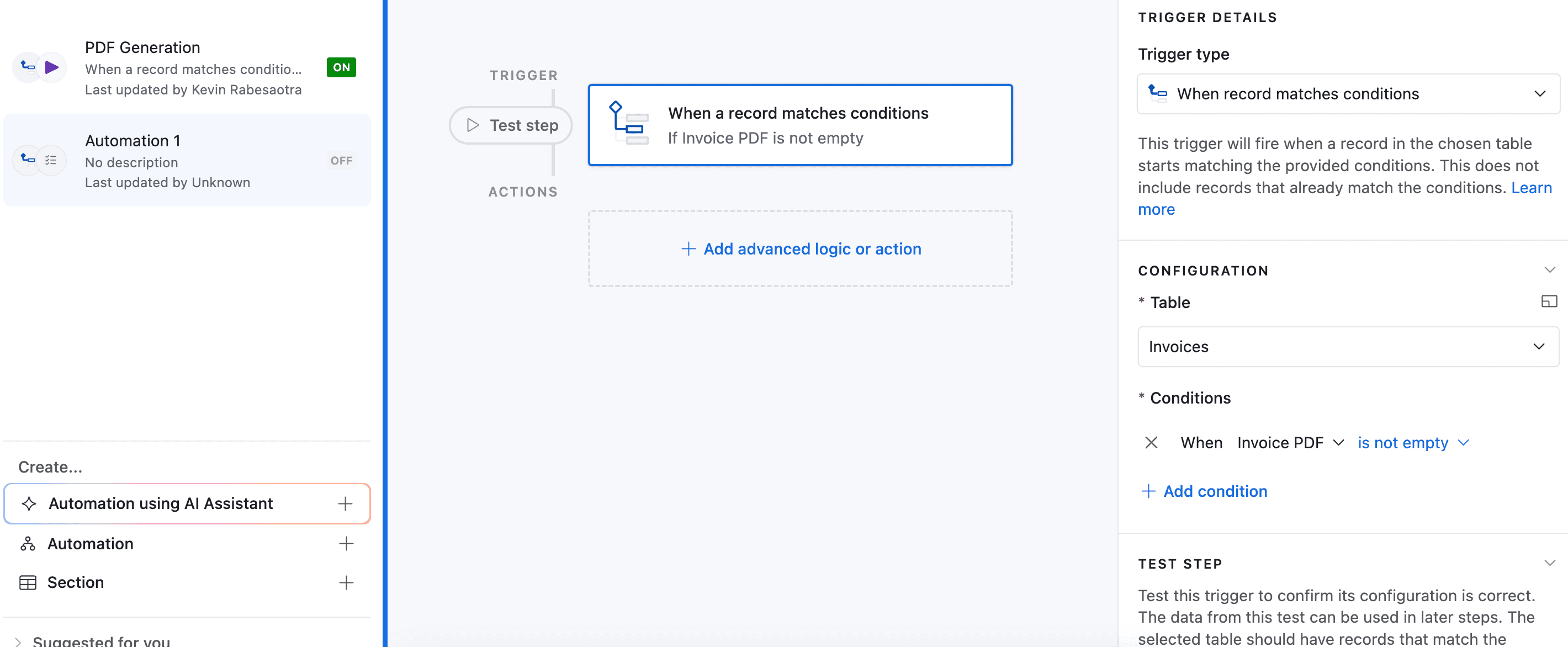
Use Airtable's native automation to call TypeFlow's API when a trigger fires. Best for teams already using Airtable automations for other workflows.
| Method | Best For | Setup | Trigger |
|---|---|---|---|
| Button field | On-demand generation | 1 min | Manual click |
| TypeFlow Automation | Real-time delivery | 5 min | Automatic on criteria |
| Airtable Automation | Existing automation workflows | 10 min | Airtable trigger |
Pro tip: TypeFlow Automation can also send the certificate by email in the same step - no separate email config needed.
How to Email Training Certificates to Trainees Automatically
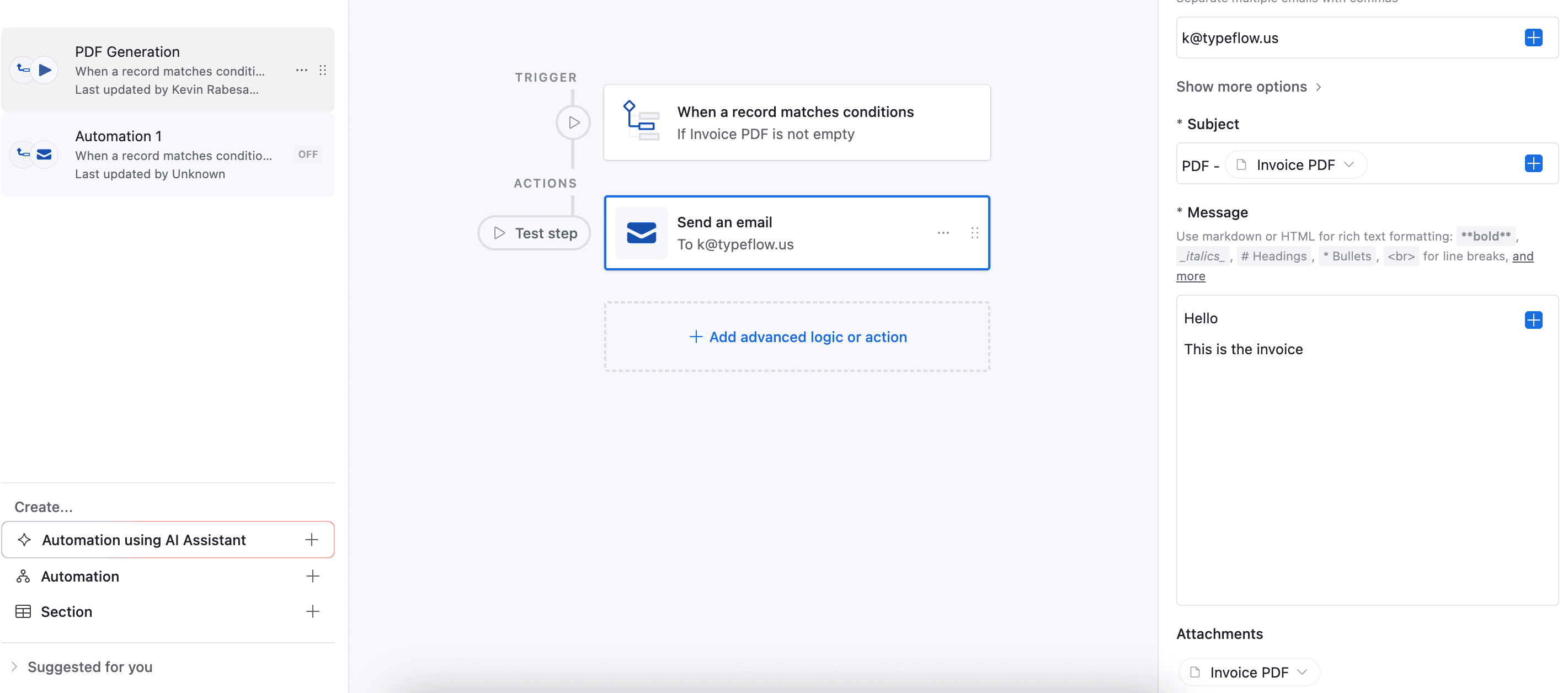
TypeFlow can send the generated PDF as an email attachment right after creating it. Configure email delivery in your flow:
- Recipient: The trainee's email from Airtable
- Subject: Customize with variables - "Your
{{Course Name}}Certificate" - Body: A congratulations message with course details
- Attachment: The generated PDF certificate
- Reply-To: The instructor's email (optional)
The trainee receives their certificate moments after completing the course. No downloading, no manual emailing, no forgetting to send it.
Add Instructor Signature with E-Signature
Most training certificates need an instructor or director signature. Instead of pasting a signature image, you can use TypeFlow's built-in e-signature to add a real, legally binding signature.
The flow works like this:
- Trainee completes the course (Status changes to "Completed")
- TypeFlow generates the certificate PDF
- Certificate is sent to the instructor for e-signature
- Instructor signs digitally
- Signed certificate is emailed to the trainee automatically
This is included in all TypeFlow plans at no extra cost. No DocuSign subscription, no per-signature fees.
Pro tip: For high-volume programs where the instructor approves an entire cohort at once, you can use a static signature image in the template instead. Reserve e-signature for programs that require individual instructor review.
Generate Certificates in Bulk for a Full Cohort
When 30 people finish training on the same day, you need bulk generation.
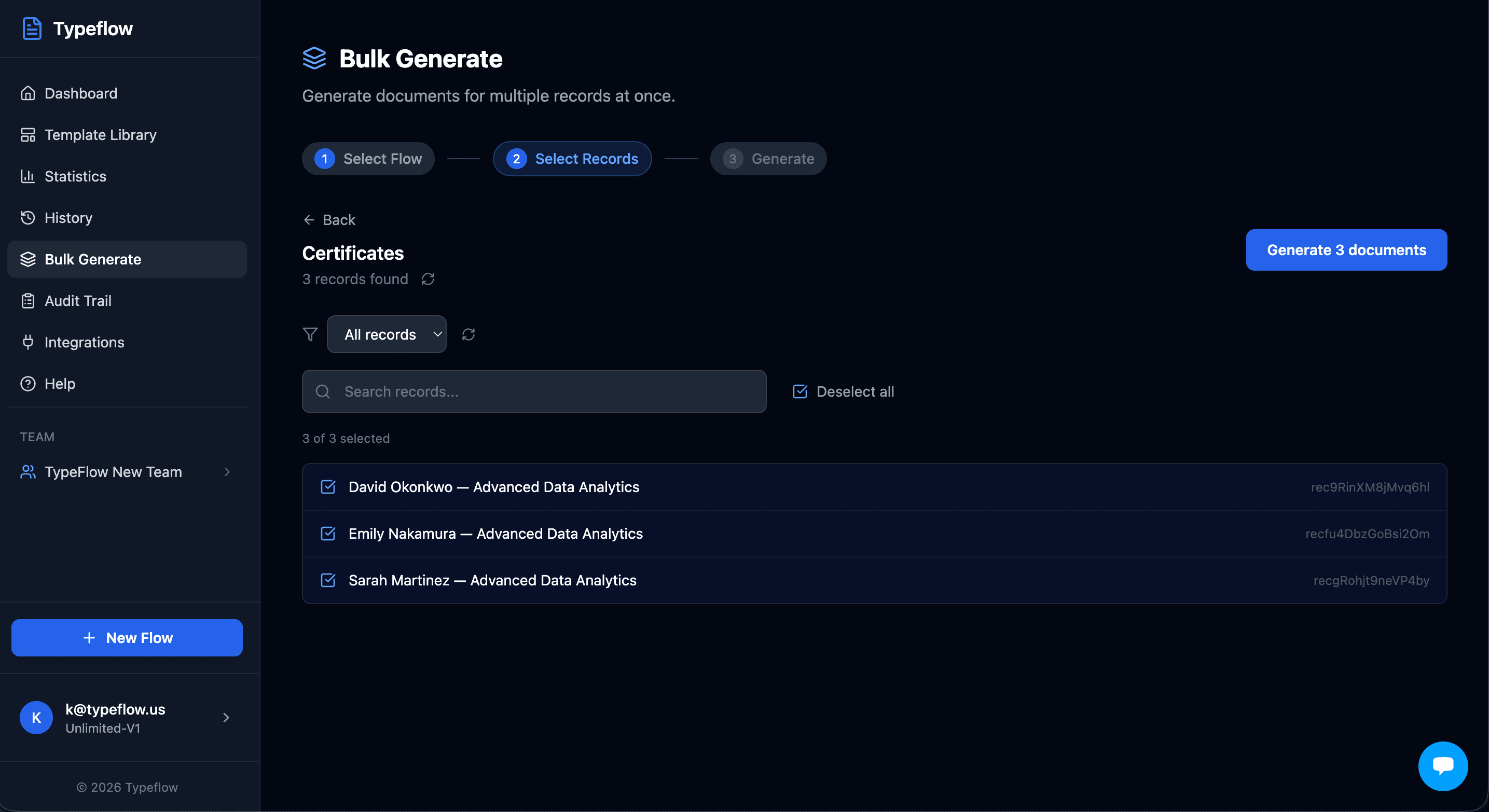
From the TypeFlow interface: Open Bulk Generate, select your flow, then pick the records you want. You can filter by Airtable view, select all, or pick specific trainees. Click "Generate X documents" and each certificate is created with the individual trainee's data.
Via Airtable Extension: Trigger bulk generation directly from within Airtable. Works for simple cases but the in-app interface gives you more control over record selection and progress tracking.
Pro tip: Create a filtered Airtable view (Status = "Completed" AND Certificate PDF is empty) and use it for bulk generation. This way you only generate for trainees who have not received their certificate yet.
Bulk generation handles 100+ certificates in minutes.
Best Practices for Training Certificate Workflows
Use Filtered Views to Control Certificate Generation
Create an Airtable view that only shows records ready for generation. Filter by Status equals "Completed" and Certificate PDF is empty. This prevents accidentally generating certificates for trainees who have not finished.
Add Expiry and Renewal Dates
For certifications that require renewal, add an Expiry Date field to your base. Use a formula: DATEADD({Completion Date}, 1, 'years'). TypeFlow includes this date on the certificate. Set up an Airtable automation to send renewal reminders when the expiry date approaches.
Store Certificate URLs Back in Airtable
TypeFlow saves the PDF link in the attachment field automatically. This lets you:
- Resend certificates if a trainee loses theirs
- Verify certificate authenticity
- Build an audit trail for compliance-heavy industries
Add QR Codes or Unique Certificate IDs
Create a formula field for a unique ID (using RECORD_ID() or an autonumber) and add it as a variable in the template. For verification, the QR code can link to an Airtable shared view showing the certificate record.
Common Issues and How to Fix Them
Variables Not Replacing in the PDF
Cause: The variable syntax in your template does not match the Airtable field name exactly.
Fix: Check for typos, extra spaces, or missing curly brackets. {{Trainee Name}} and {{ Trainee Name }} are not the same thing.
Certificate Not Generating from Automation
Cause: The automation trigger conditions are not met, or TypeFlow lost its connection.
Fix: Double-check your trigger criteria in Airtable or TypeFlow. If everything looks right, re-authorize the Airtable connection.
Wrong Trainee Data on the Certificate
Cause: The linked record fields are not mapped to the right table or field.
Fix: Go back to your mapping and confirm each variable points to the correct source. Linked record fields should resolve through the Course or Trainee link.
Do You Still Need Zapier or Make for Certificate Automation
You can use Zapier or Make to connect Airtable to document tools. But the workflow gets complicated:
- With Zapier/Make: Airtable -> Zapier -> Google Slides -> PDF conversion tool -> Email tool. Five steps, $20+/month extra, and each step is a potential point of failure.
- With TypeFlow: Airtable -> TypeFlow (template, PDF, e-signature, and email in one step). Starting at $22/month.
No middleware, no multi-tool debugging. TypeFlow connects directly to Airtable and handles the entire workflow.
Start Generating Your Training Certificates
Training certificate generation does not have to eat up your afternoon. With your Airtable data, a certificate template, and TypeFlow, you can automate the whole process - from course completion to signed certificate delivery. See what users say about TypeFlow on G2.
Start for free and generate your first certificate in about 15 minutes.
For a broader overview of certificate automation (including compliance and conformity certificates), see our complete certificate generation guide.
Automate your document generation
Start with 20 free documents. Built for businesses using Airtable.
Frequently Asked Questions
Find answers to the most common questions about this feature.
Popular Questions
All Questions
Need more help?
Our team is here to help you solve all your problems and answer your questions.
Contact Us
Kevin from TypeFlow
•AuthorKevin Rabesaotra is a growth engineer and automation specialist with 8+ years of experience building no-code solutions. As Founder & CEO of TypeFlow, he has helped hundreds of businesses automate document generation and streamline workflows with Airtable integrations. Previously, Kevin was a Product Lead specializing in growth engineering, running experiments to drive revenue, retention, and lead generation.
More articles
How to Print Labels from Airtable with Quantity Control (Step by Step)
Print multiple labels per Airtable record based on a quantity field. Step-by-step guide for linked records mode and quantity repeat mode with barcodes and Avery sheets.
Read articleHow to Print Avery Mailing Labels from Airtable
Print Avery mailing labels (5160, 5161, 5162) from Airtable without Word mail merge. Step-by-step guide with print label mode, automation, and bulk generation.
Read articleHow to Create Inventory Labels with Barcodes in Airtable
Create inventory labels with Code 128, EAN-13, or QR barcodes from Airtable. Step-by-step guide for warehouse, retail, and asset tracking with thermal and Avery printers.
Read article