← All Airtable templates
Airtable Product Label Template, Printed by Quantity
Price and SKU labels from your Airtable products, repeated as many times as a quantity field says: Print Qty = 5 gives 5 labels. Printed at 100 x 60 mm.
Page size: 100 x 60 mm, printed edge to edge
20 free documents · No credit card
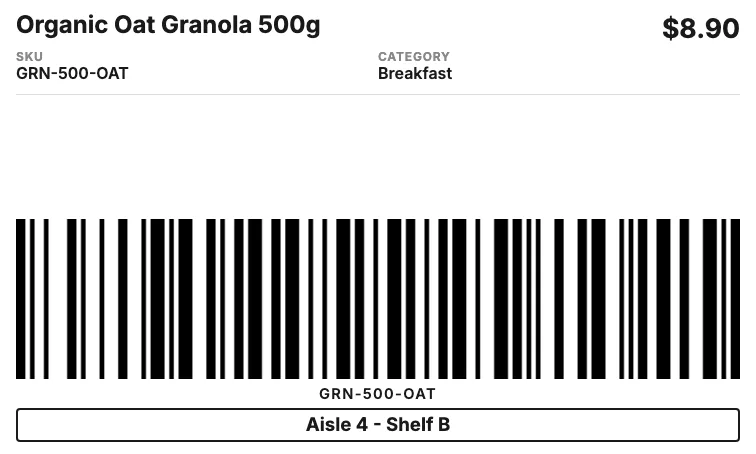
The variables in this template
One table for products, with a number field for how many labels to print. Map each variable to one of your fields when you set up the flow.
Product record
| Holds | Variable in the template |
|---|---|
| Product and category | Product Name, Category |
| Price | Price |
| SKU and its barcode | SKU, barcode:SKU |
| Location | Location |
How it works
- 1
Create your account
Connect Airtable and pick your base and table. The template is already selected for you.
- 2
Map your Airtable fields
Match each {{variable}} to a field. Change text, layout and colors in the template builder.
- 3
Generate from Airtable
Click a button on the record, run it on several records, or let an Airtable automation run it. The PDF lands in an attachment field.
Questions
- Do I need Google Docs or Word?
- No. The template is built in the TypeFlow template builder. You change the text, layout and colors in the editor, and each variable stays mapped to its Airtable field.
- How does the quantity work?
- The label block repeats once per unit in your quantity field, or once per linked record. One record with Print Qty = 5 gives 5 identical labels.
- Will it print at the right size?
- Yes. Picking the template sets the page to the label size, with no margins. Print the PDF at 100% (actual size), not "fit to page".
- Which barcode formats work?
- Code 128, EAN-13 and QR codes. You pick the format when you map the barcode variable to an Airtable field.
Full walkthrough: Print labels from Airtable with quantity control