How to Generate Investor Report PDFs from Airtable Data
If you manage investor relations in Airtable, you're probably spending hours every quarter copying commitment amounts, distribution data, and portfolio updates into Word documents. With private equity and venture capital firms managing over $13 trillion in assets, professional investor reporting isn't optional - it's expected.
This guide shows you how to generate professional investor report PDFs directly from your Airtable data using TypeFlow. No coding required. For a complete overview of all real estate documents you can automate, see our guide to real estate document automation in Airtable. If you also manage listings or rentals, see our guides on property brochures and lease agreements.
By the end, you'll have a system that:
- Creates individualized reports with each investor's specific data
- Pulls portfolio company information from linked records
- Generates reports in bulk for all investors at once
- Automates quarterly report delivery via email
Key Takeaways
- Page Designer limitations: Airtable's built-in tool can't bulk export, has limited formatting, and doesn't support multi-page documents or automation
- Three generation methods: Manual export, Zapier/Make workflows, or native document automation with TypeFlow
- Template-first approach: Create a Google Docs template with
{{variables}}that map directly to your Airtable fields - Bulk generation: Select all investor records and generate personalized PDFs in a single action
- Full automation: Schedule quarterly reports that generate and email automatically to each investor
Why Airtable Page Designer Falls Short for Investor Reports
While Airtable's Page Designer works for simple one-page documents, it has critical limitations for professional investor reporting.
No Bulk PDF Export
Page Designer exports one record at a time. When you need to send quarterly reports to 50+ investors, clicking through each record isn't sustainable.
Limited Formatting and Branding
Page Designer offers basic layout controls but lacks the sophisticated formatting options required for polished, investor-grade documents. Font choices, spacing, and branding options are limited.
No Multi-Page Documents or Automation
Investor reports often span multiple pages with detailed portfolio breakdowns. Page Designer is limited to single-page layouts and requires manual export for each record - no way to automate quarterly report generation. For a deeper look at why Page Designer falls short for multi-page documents, see our guide on multi-page PDF generation without Page Designer.
Ready to automate your investor reports?
Generate professional PDF reports for all your investors in minutes. No more manual copy-paste.
Start free with 20 documents →Three Methods to Generate Investor Report PDFs
You can generate investor report PDFs from Airtable using manual Page Designer exports, third-party automation platforms like Zapier or Make, or a native document automation tool like TypeFlow. Here is how they compare:
| Method | Best For | Limitations |
|---|---|---|
| Manual Export with Page Designer | One-off reports, simple layouts | No bulk export, limited formatting |
| Zapier/Make with PDF Tool | Teams already using automation platforms | Multiple subscriptions, complex setup |
| Native Document Automation | High-volume, recurring investor reports | Requires initial template setup |
Method 1: Manual Export with Page Designer
Only suitable for occasional, simple reports for individual investors. You design a layout in Page Designer, then manually export PDFs one record at a time. Not recommended for serious investor relations.
Method 2: Zapier or Make with a PDF Tool
Connect Airtable to an external PDF generation service through Zapier or Make. This works but requires managing multiple subscriptions, troubleshooting across platforms, and dealing with webhook complexity.
Method 3: Native Document Automation with TypeFlow
Use a dedicated document automation tool that integrates directly with Airtable. Create templates in Google Docs with {{variables}}, map them to your Airtable fields, and generate reports in bulk or on autopilot. This is the same template approach used for property brochures, lease agreements, and contract lifecycle management.
This guide focuses on Method 3 - the most efficient approach for recurring investor reports.
How to Structure Your Airtable Base for Investor Reports
Structure your Airtable base with three linked tables - Investors, Funds, and Portfolio Companies - so each investor record can pull fund-level and holdings data into a single PDF. The schema below is the exact structure used by the ready-to-use Quarterly Investor Report template. You can duplicate the demo Airtable base in one click (see the preview block below) and skip the manual setup, or reproduce it yourself using the tables below.
The base uses three linked tables: Investors (main), Funds, and Portfolio Companies. Each record in Investors generates one quarterly PDF report for one LP.
Investors Table (main)
This is where report generation is triggered. Each row = one LP = one PDF.
| Field Name | Field Type | Purpose |
|---|---|---|
| Investor Name | Single line text | LP name (primary field) |
| For automated delivery | ||
| Commitment Amount | Currency | This LP's capital commitment |
| Capital Called | Currency | Amount drawn from this LP to date |
| Distributions | Currency | Amount returned to this LP to date |
| NAV | Currency | LP's share of Net Asset Value at period end |
| Net IRR | Percent | Annualized net IRR (e.g. 0.184 = 18.4%) |
| MOIC | Number | Multiple on Invested Capital (precision 2) |
| DPI | Number | Distributions to Paid-In (precision 2) |
| TVPI | Number | Total Value to Paid-In (precision 2) |
| Reporting Period | Single line text | e.g. "Q4 2025" |
| Report Number | Single line text | e.g. "004" |
| Quarterly Commentary | Long text (rich text ON) | Fund activity narrative |
| Portfolio Commentary | Long text (rich text ON) | Short narrative below the holdings table |
| Fund | Link to Funds | Link to the fund this LP belongs to |
Funds Table
One record per fund. Holds the branding, contact info, and legal boilerplate shared across all LP reports.
| Field Name | Field Type | Purpose |
|---|---|---|
| Fund Name | Single line text | Fund identifier (primary field) |
| Vintage Year | Number | Integer (e.g. 2022) |
| Total Committed | Currency | Total fund size across all LPs |
| Fund Logo | Attachment | Rendered top-right on every page |
| GP Contact Name | Single line text | Primary GP / IR contact |
| GP Contact Title | Single line text | e.g. "Managing Partner" |
| GP Contact Email | ||
| GP Contact Phone | Phone | |
| Disclaimer | Long text (rich text ON) | Legal disclaimer shown on page 4 |
Portfolio Companies Table
One record per investment. The holdings table in the PDF expands dynamically from these records via a linked-record loop.
| Field Name | Field Type | Purpose |
|---|---|---|
| Company Name | Single line text | Investment name (primary field) |
| Row Number | Number | Row index (1, 2, 3…) used in the holdings table |
| Investment Date | Date | Format "Mon YYYY" (e.g. "Mar 2022") |
| Investment Amount | Currency | Capital deployed |
| Current Value | Currency | Fair market value at period end |
| Multiple | Number | Formula: {Current Value} / {Investment Amount}, precision 2 |
| Status | Multiple select | Active, Growth, Exited, Partial Exit, Written Off, Under Review |
| Fund | Link to Funds | Links the company back to its parent fund |
How the Links Work
- Each Investor links to one Fund (single link)
- Each Portfolio Company links to one Fund (single link)
- The template walks the chain:
Investor → Fund → Portfolio Companiesto build the holdings table via nested line items
In the template, you reference fields directly by name: {{Investor Name}}, {{Fund Name}}, {{image_Fund_Logo}}, and loop over holdings with {{loop_0}} / {{nested_0}}. No dot notation needed - TypeFlow resolves the linked fields automatically based on your field mapping.
How to Set Up an Investor Report Template
Create a Google Docs or Template Builder document with {{variable}} placeholders that map to your Airtable field names, then use nested loop tags for the portfolio holdings table. TypeFlow supports both Google Docs templates and Template Builder. For investor reports with complex formatting, Google Docs often provides more control.
Creating Your Report Layout
A professional investor report typically includes:
- Header - Fund name, logo, report period
- Investor Summary - Name, commitment, capital account
- Performance Overview - IRR, MOIC, distributions
- Portfolio Summary - Table of holdings with values
- Recent Activity - Transactions this period
- Footer - Disclosures, contact information
Adding Airtable Field Variables
Use placeholders that match your Airtable field names exactly (spaces included, no underscores). Fields on the main Investors table and on the linked Fund are both resolved from the same template:
QUARTERLY INVESTOR REPORT
{{Fund Name}} - {{Reporting Period}}
Report #{{Report Number}}

Prepared for: {{Investor Name}}

CAPITAL ACCOUNT SUMMARY
Commitment: {{Commitment Amount}}
Capital Called: {{Capital Called}}
Distributions to Date: {{Distributions}}
Net Asset Value: {{NAV}}

PERFORMANCE
Net IRR: {{Net IRR}}
MOIC: {{MOIC}}
DPI: {{DPI}}
TVPI: {{TVPI}}
For the fund logo (top-right of every page), use the image variable syntax: {{image_Fund_Logo}}.
Including Dynamic Tables for Portfolio Holdings
The holdings table is a nested linked-record loop - it walks from Investor → Fund → Portfolio Companies. Place {{nested_0}} on the parent row (the fund) and {{nested_items_0}} on the child row (the company) that should repeat:
| # | Company | Invested | Amount | Current | Multiple | Status |
| {{nested_0}}Fund: {{Fund Name}}                                  |
| {{nested_items_0}}{{Row Number}} | {{Company Name}} | {{Investment Date}} | {{Investment Amount}} | {{Current Value}} | {{Multiple}}x | {{Status}} |
The {{nested_items_0}} row repeats once per Portfolio Company linked to the LP's fund. The {{Status}} multi-select can be rendered as colored tags in Template Builder (HTML editor only).
Template Builder (Visual Editor)
Template Builder is TypeFlow's visual HTML editor - an alternative to Google Docs when you want precise control over your report layout.
Why use Template Builder for investor reports:
- Drag-and-drop layout control
- Consistent formatting across all reports
- No Google account required
- Pre-built financial document blocks
TypeFlow includes a ready-to-use Quarterly Investor Report template. Click the preview to open the full PDF, or duplicate the demo Airtable base to reproduce this example in one click:
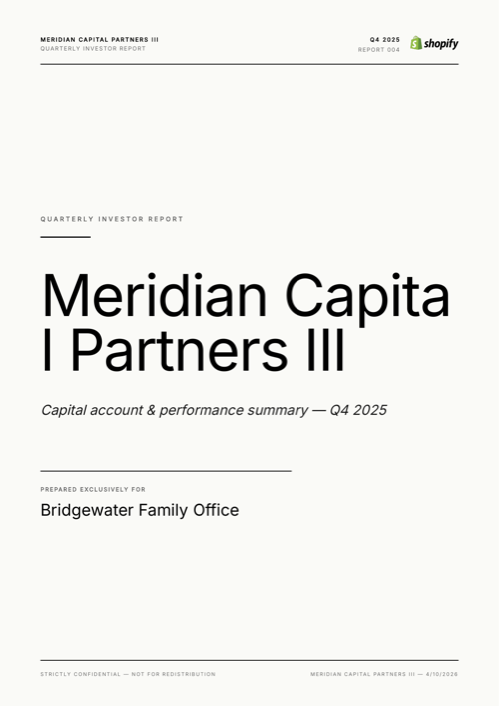
Ready-to-use template
Quarterly Investor Report
Duplicate the Airtable base, paste the template in Typeflow, then generate your first PDF in minutes.
Free tier available • No credit card required
To use Template Builder:
- Start a new flow in TypeFlow
- Choose "Template Builder" instead of Google Docs
- Select the Investor Report template or start blank
- Customize metrics, add your fund logo
- Insert variables from the Fields panel
Connect TypeFlow to Your Airtable Base
Connect your Airtable account to TypeFlow through the integrations page, then select the base and table that hold your investor records.
-
Sign in to your TypeFlow account
-
Visit this link to integrate Airtable with TypeFlow: Integrate Airtable with TypeFlow
-
Select "Connect to Airtable"
-
Authorize TypeFlow to access your Airtable account
-
Select the base and table you want to use (in this case, your Investors table)
Configure Your Investor Report Workflow
Configure your flow by selecting your report template, mapping each Airtable field to its template variable, and setting up linked record navigation for portfolio data. Once connected, follow these steps in TypeFlow:
-
Sign in to your TypeFlow account
-
Click "Start a new automation workflow"
-
Select "Google Docs"
-
Pick your investor report template
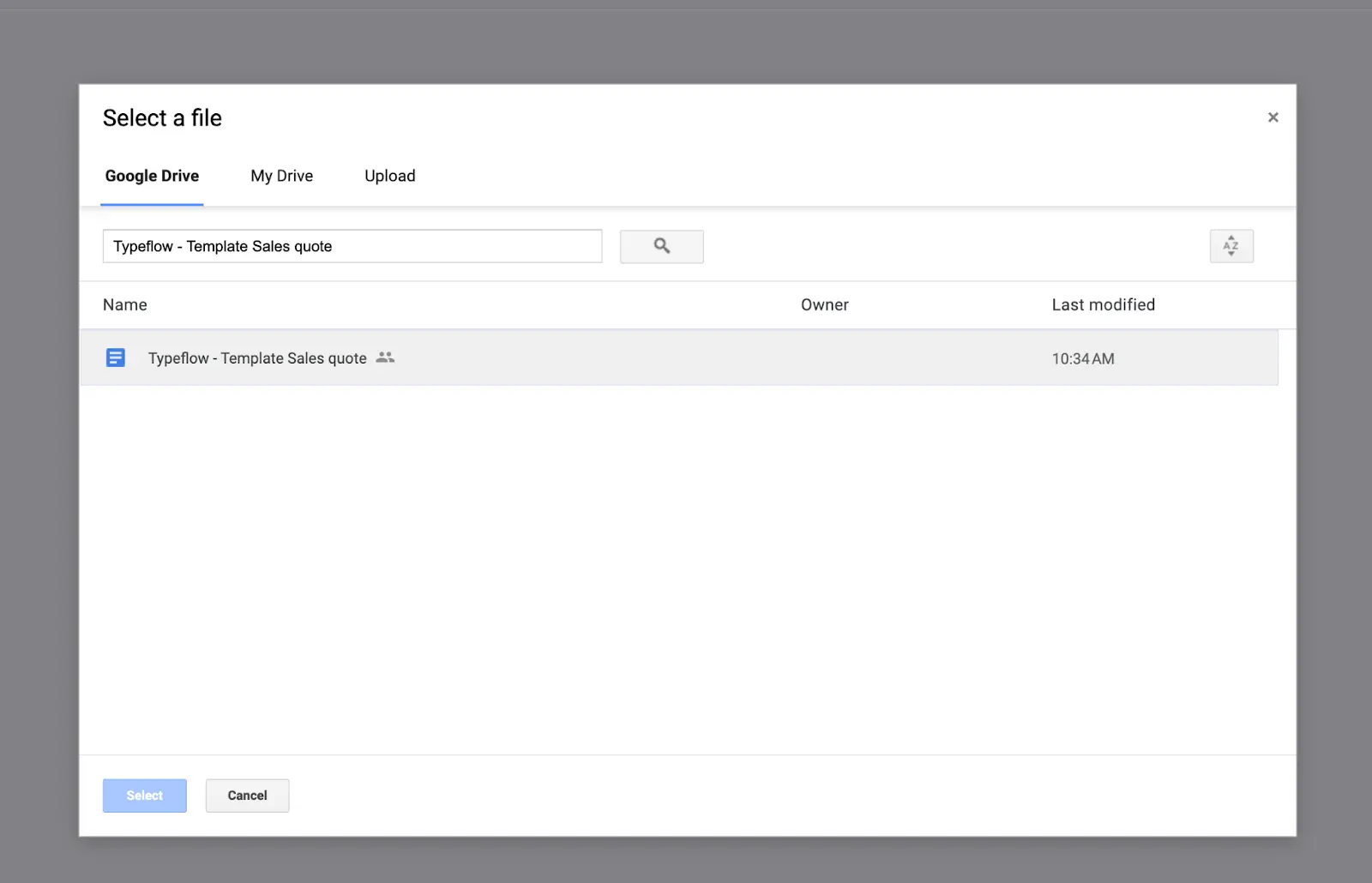
Now connect TypeFlow to your Airtable base:
- Select your Airtable base from the dropdown menu
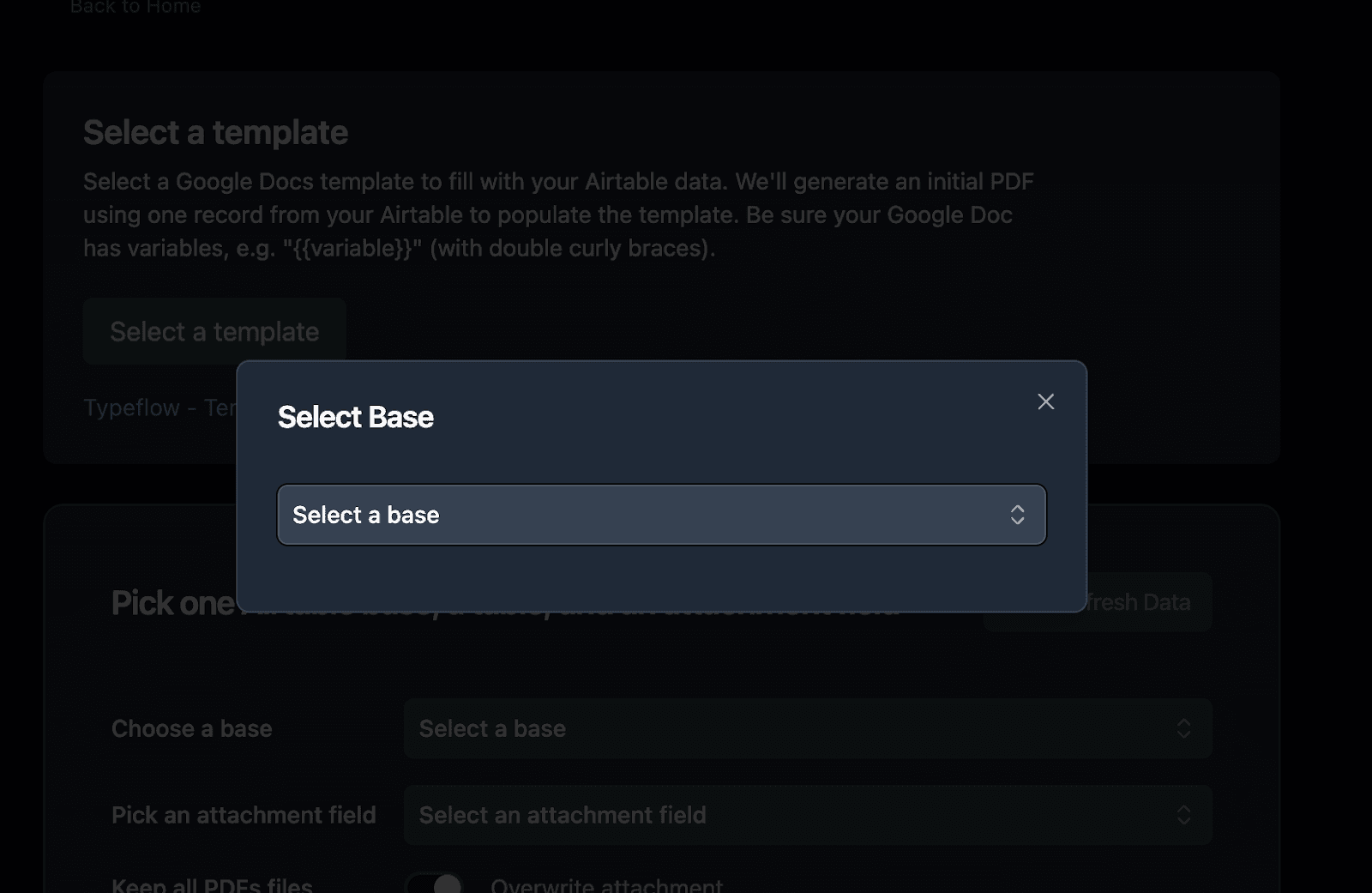
- Choose the specific table where you want to generate your PDF (in your case the Investors table)
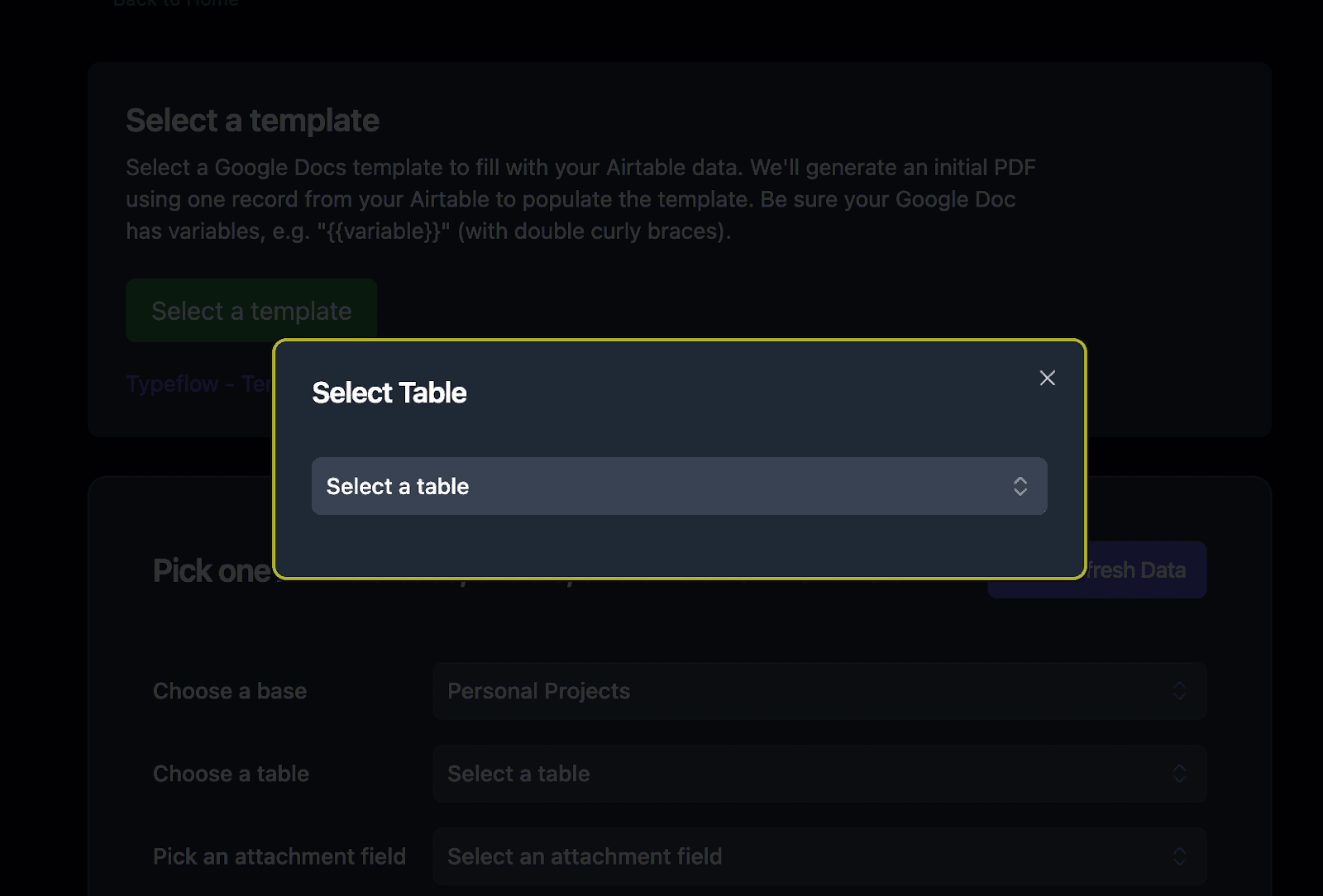
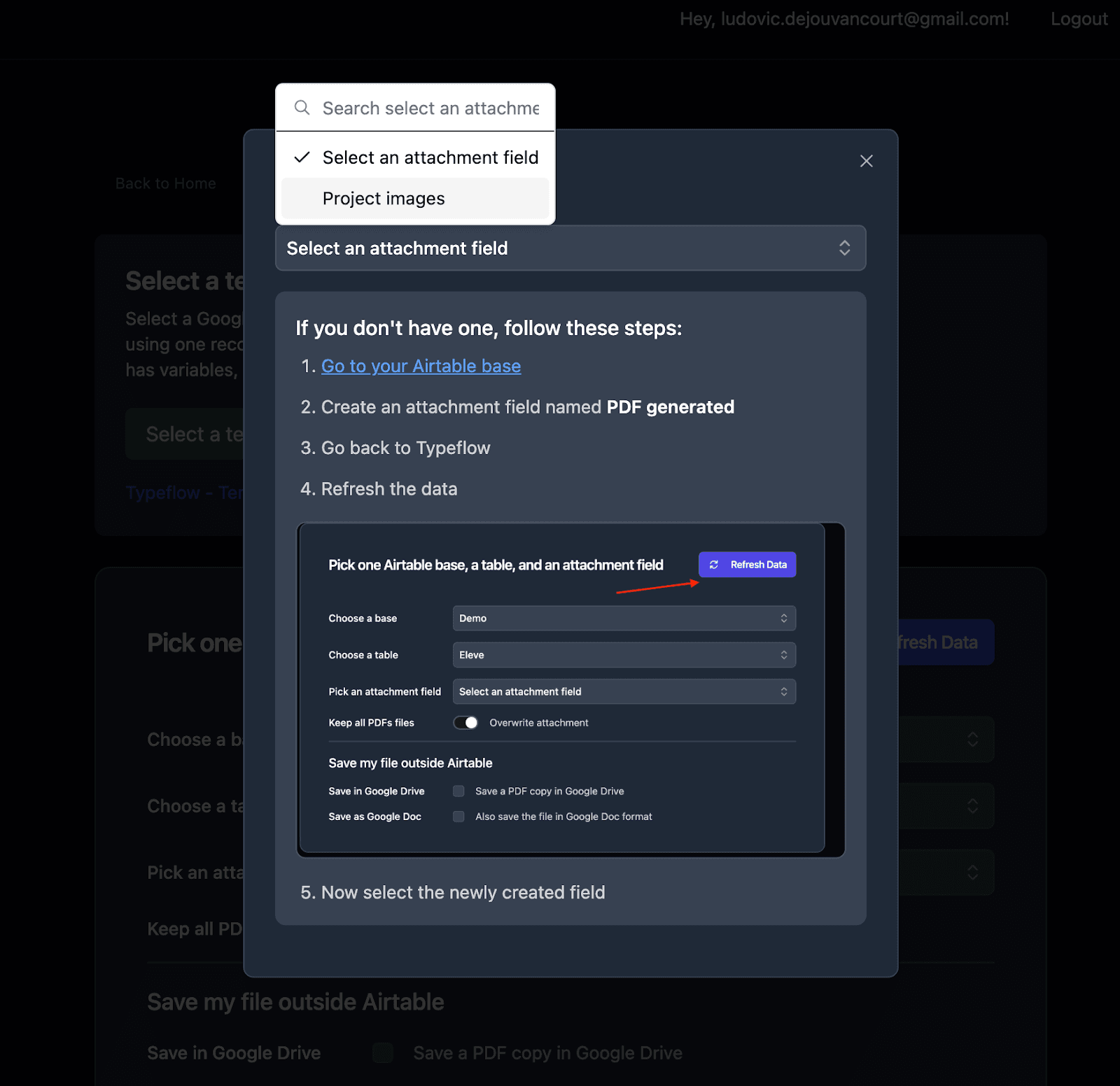
- Set up the attachment field where generated PDFs will be saved
Pro Tip
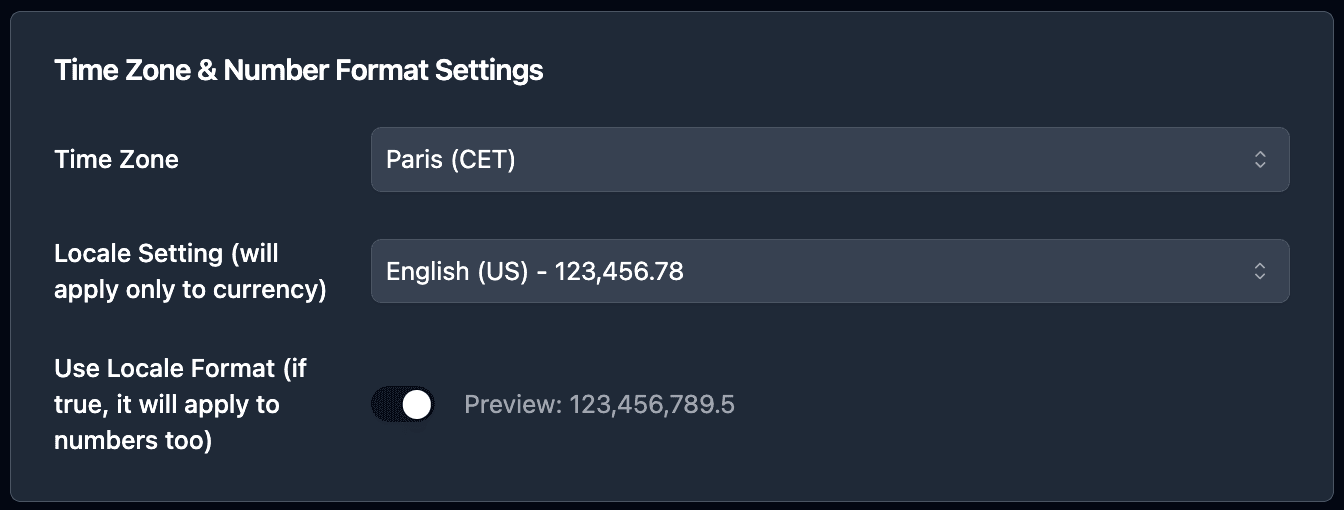
If you want to adjust the currency formatting of your investor report, you can adjust your locale settings. It will format amounts like Commitment, Distributions, and NAV according to your regional standards.
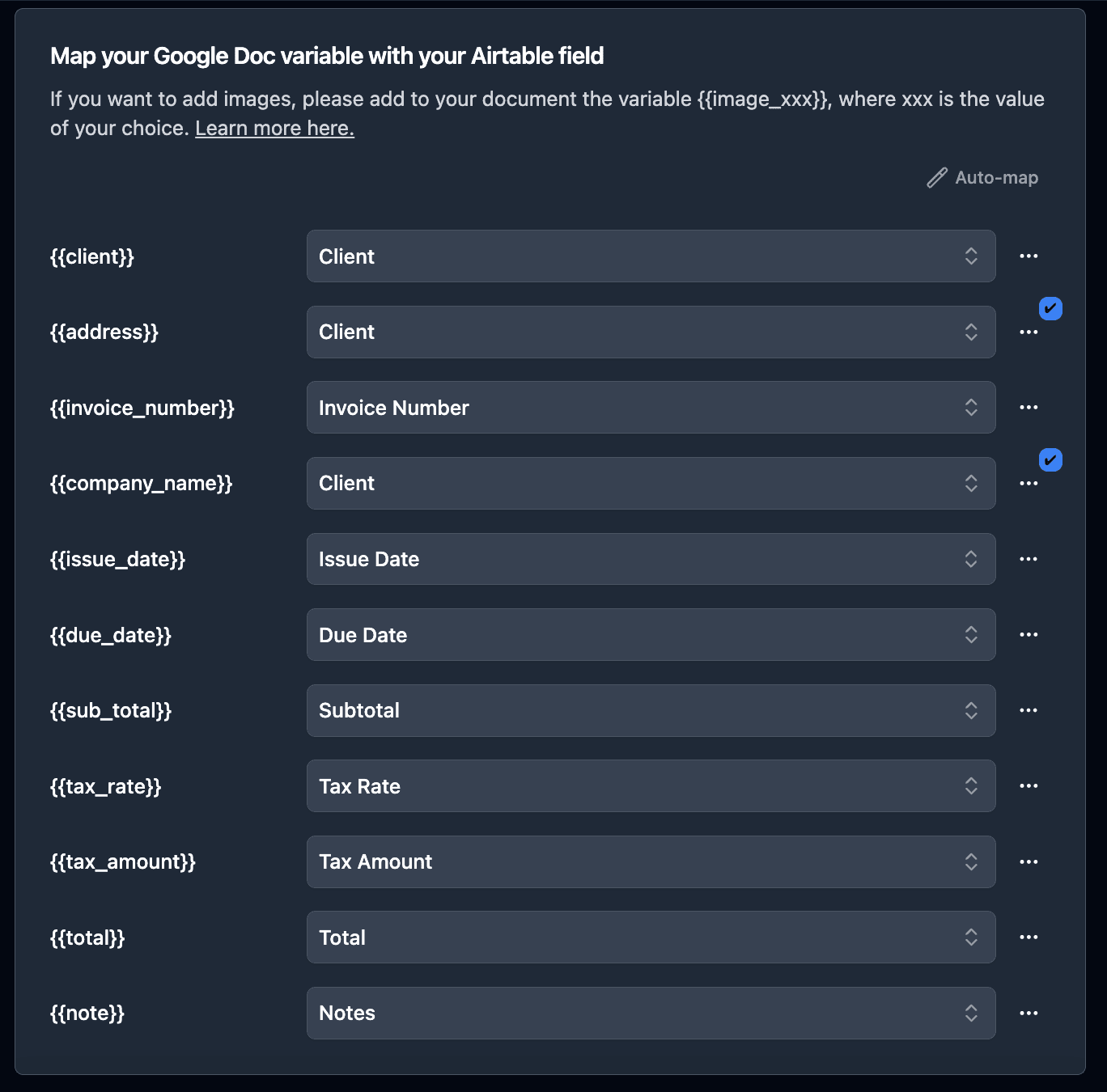
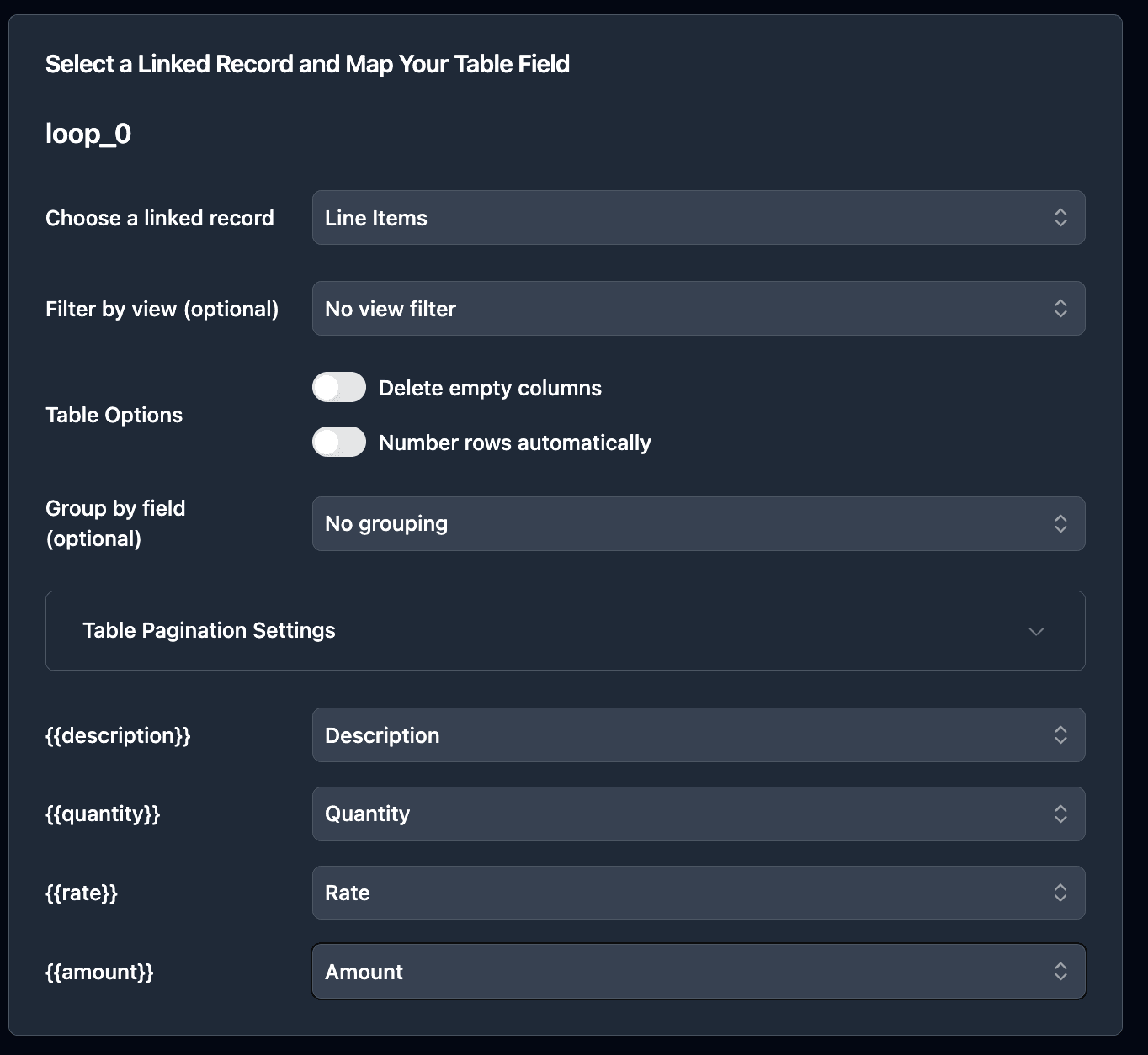
- Map Airtable fields to your template variables
Pro Tip
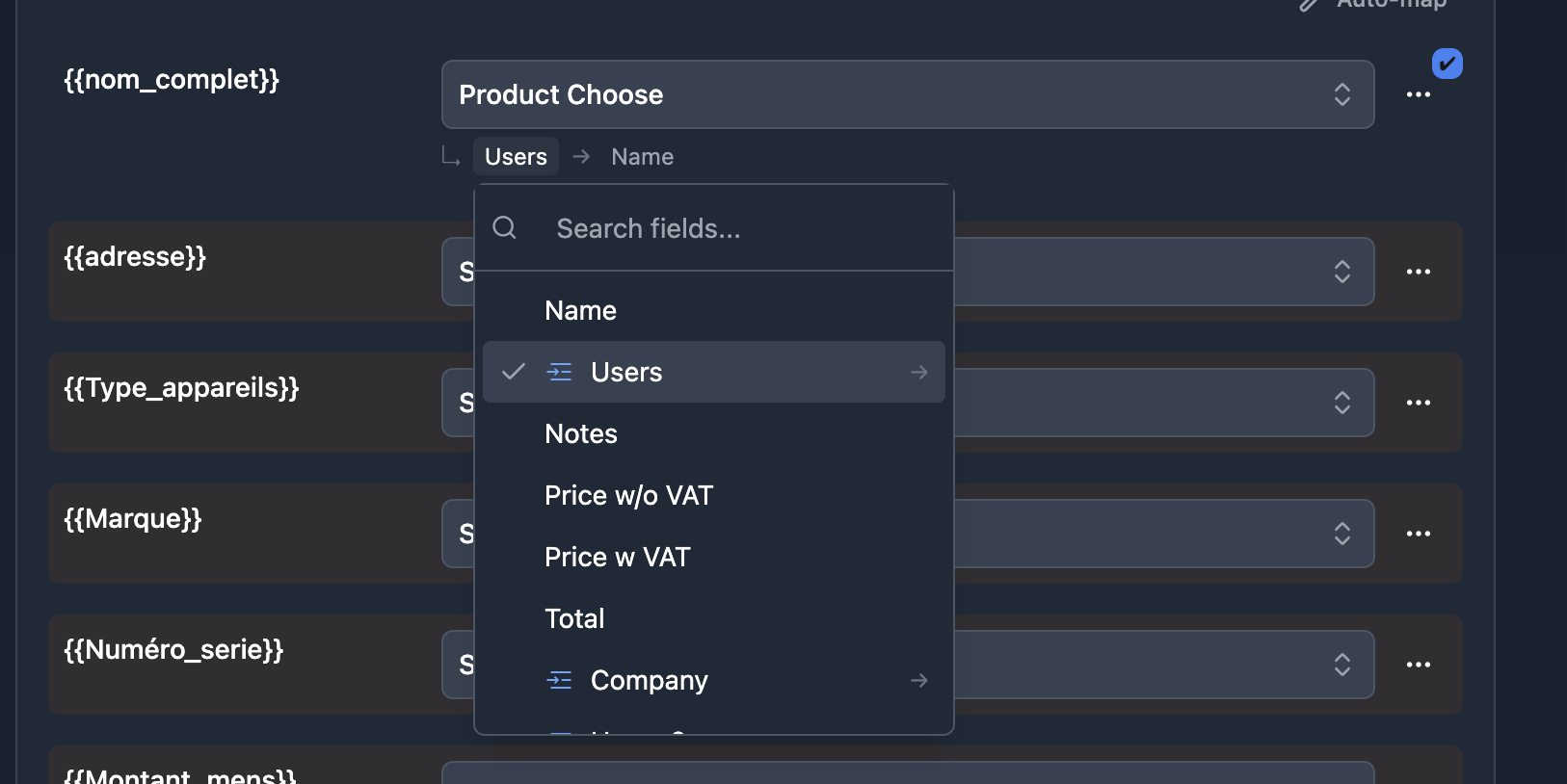
No need to add rollup fields to access data from linked tables! TypeFlow supports navigation through up to 3 levels of nested linked records. Just 2 clicks to access any field from a linked table.
- Select the linked record field from the dropdown (e.g., Fund)
- Click the breadcrumb that appears below the field
- Select the field you want to access (e.g., Fund Name, Vintage Year)
For deeper navigation like Investor → Fund → Portfolio Companies → Company Name, just keep clicking through the breadcrumbs!
- For Portfolio Companies, select your linked Portfolio Companies field
- Optionally set a custom filename format like
{{Investor_Name}} - Q4 2025 Report
Pro Tip
Test your template with a few investor records to ensure proper mapping before generating reports for all investors.
How to Generate Investor Reports in Bulk
Use the TypeFlow Airtable extension to select multiple investor records and generate all their PDFs in a single action - no record-by-record clicking required. This is the same bulk workflow used for invoice automation and audit-ready PDF reports.
Using the TypeFlow Extension for Bulk Generation
- Install the TypeFlow extension from Airtable's extension marketplace
- Enter your API key (found in your flow settings)
- Select the records you want to generate PDFs for
- Click Generate
The extension creates PDFs for all selected records and saves them to your configured attachment field. Processing time depends on document complexity and number of records. For a general walkthrough of exporting data to PDF, see our guide on how to export Airtable data to PDF or exporting an Airtable view to PDF.
According to Gartner research, 80% of executives believe automation can be applied to any business decision. Investor reporting is a prime candidate.
How to Automate Investor Report Delivery
Automate delivery by enabling TypeFlow's built-in email feature to send each PDF to the investor's email address, or use Airtable Automations to trigger generation on a schedule or status change. You can also email PDFs automatically from any Airtable workflow.
Option 1: Built-in Email Delivery
TypeFlow includes integrated email delivery - no external tools required:
- Open your flow and click the Email tab
- Toggle Enable Email Delivery to ON
- Set the Recipient to your Investor Email field
- Configure subject and body with
{{variables}}
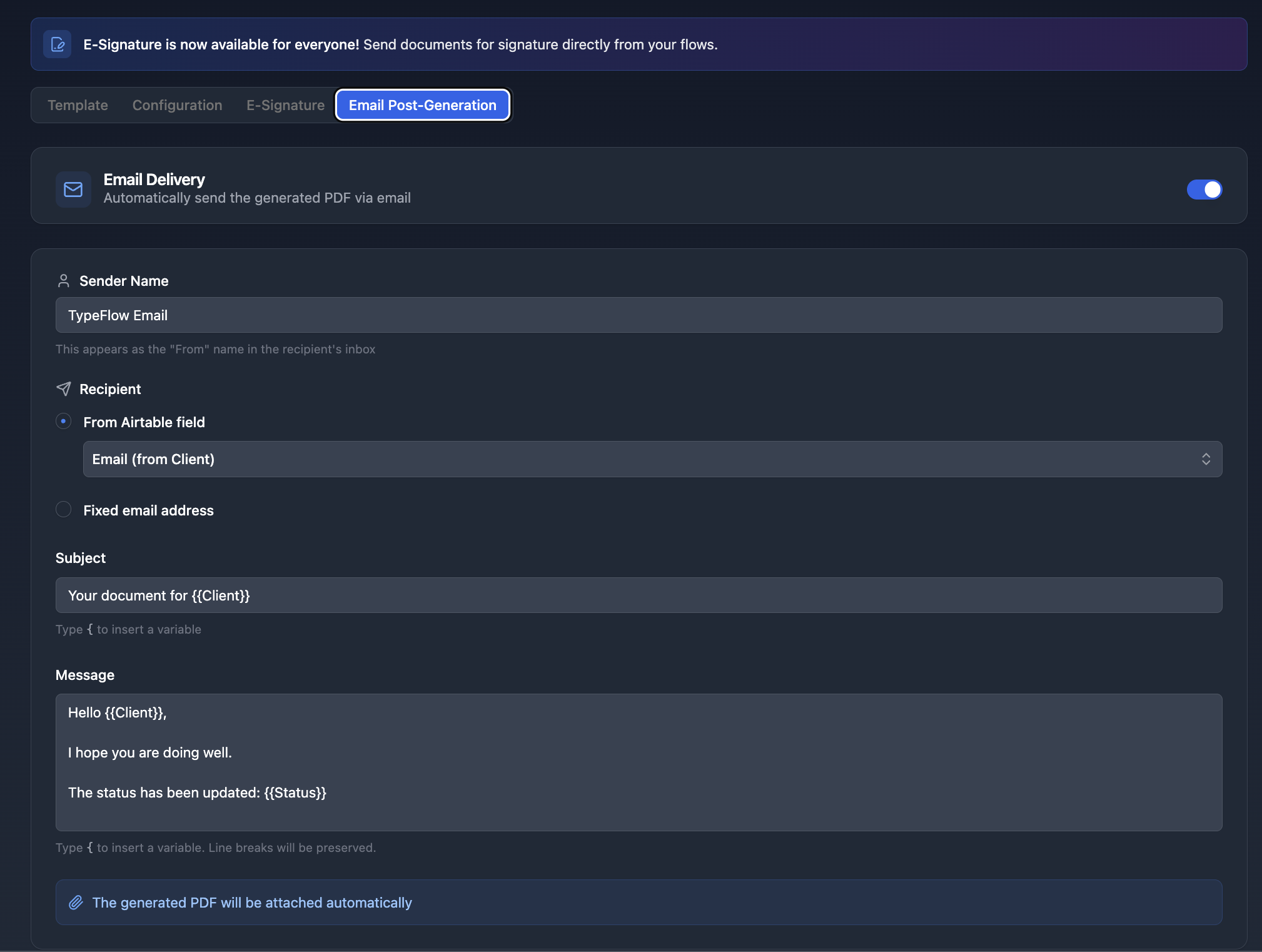
After each generation, the PDF is automatically sent to the investor. This is fire-and-forget - email sends in the background without blocking document generation.
Option 2: Airtable Automations
For more complex workflows (e.g., scheduled quarterly reports), use Airtable Automations. This method removes all manual work, generating reports automatically based on conditions you set.
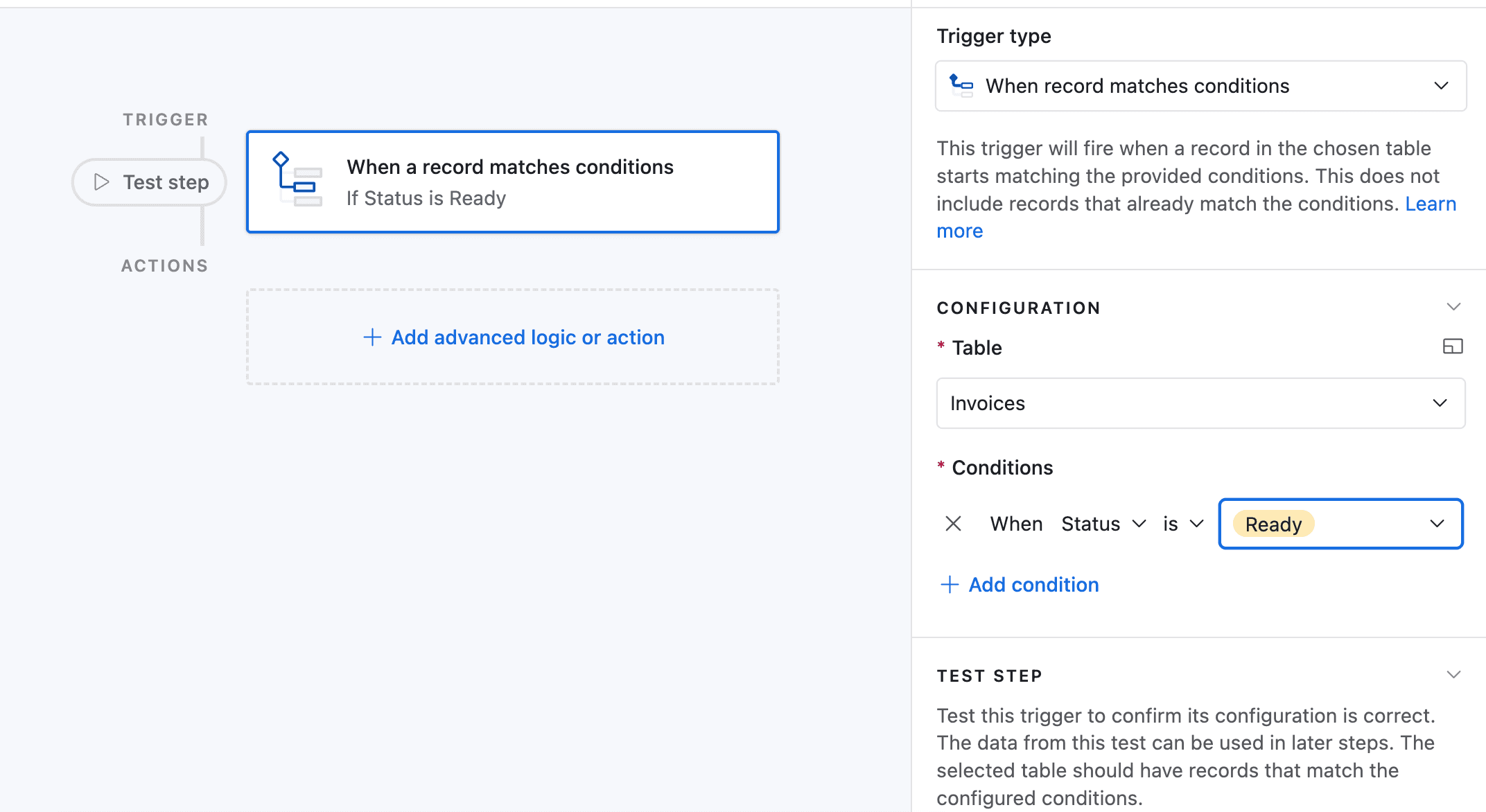
In this example, we'll trigger the automation when a report's status is changed to "Ready."
-
Go to Automation in Airtable
-
Click on "Add a trigger" and choose When a Record matches a condition
-
Select the table you want to trigger the automation on (in this case the Investors table)
-
Select the field you want to trigger the automation on (in this case the Report Status field)
-
Select the condition you want to trigger the automation on (in this case "is")
-
Select the value you want to trigger the automation on (in this case "Ready")
-
Now choose a record that matches the condition
-
Click on Add an advanced logic or action
-
Pick Run Script. A new popup appears.
-
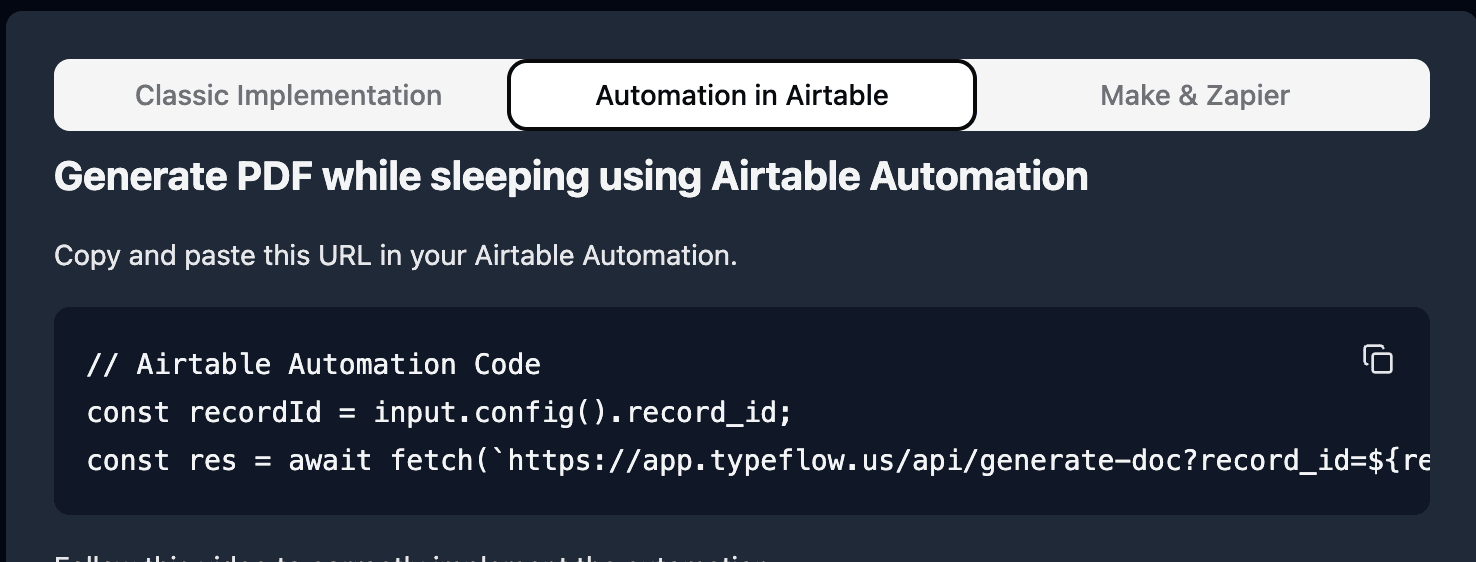
Go back to TypeFlow and select Automation in Airtable. Copy the script.
- Paste the script in the popup.
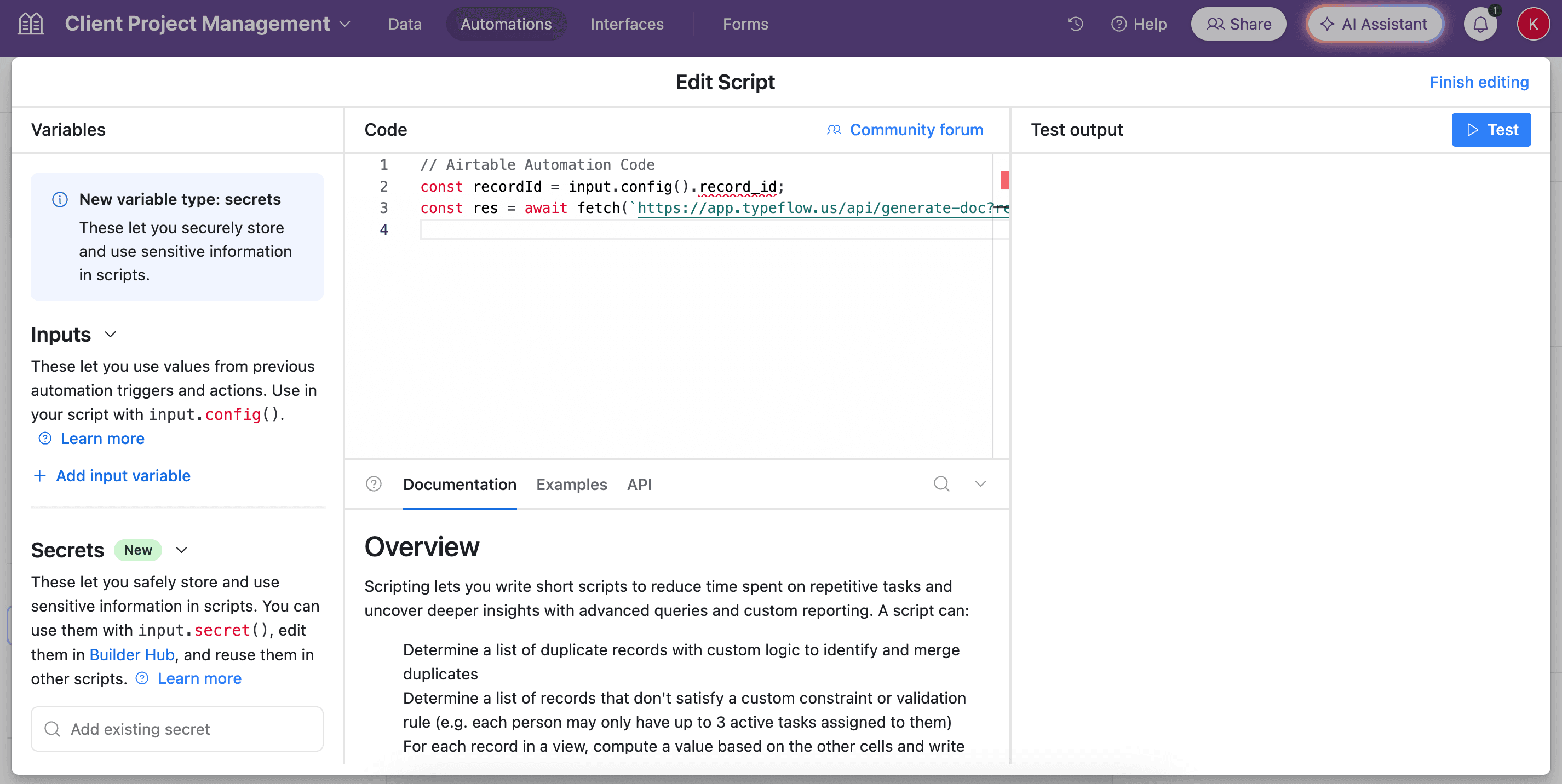
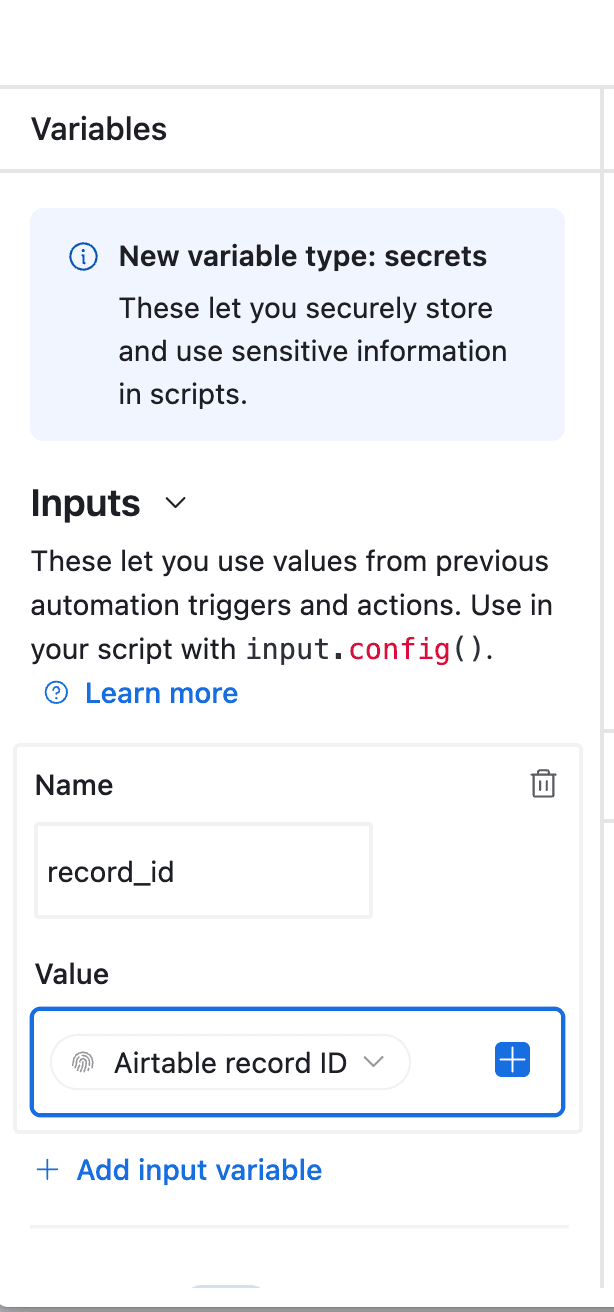
- In the left-side of the popup, configure the variable input
record_id. Select Airtable Record ID from the dropdown.
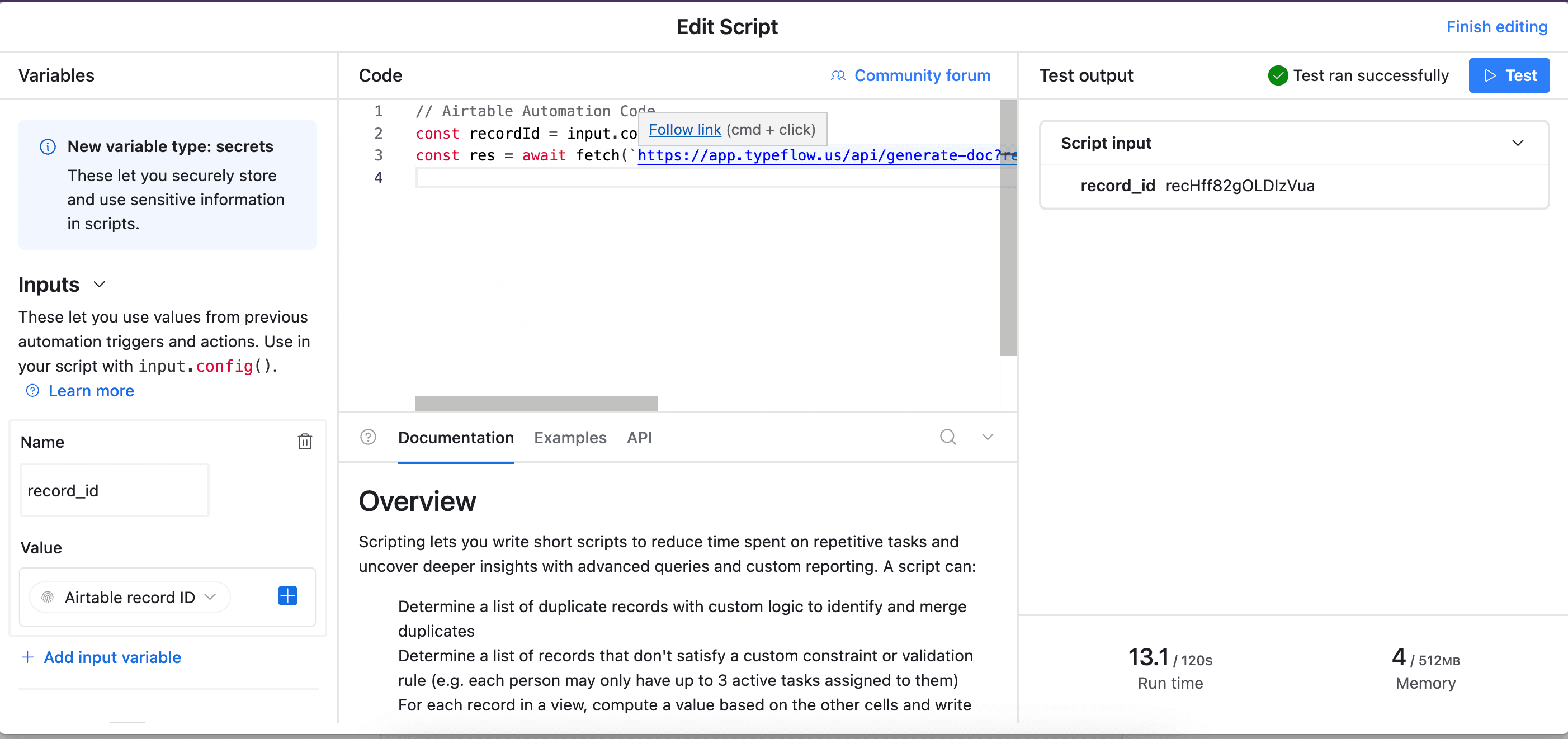
- Test your script and verify it works. Most errors come from the record_id variable not being configured correctly (see step 12).
This works well for:
- Scheduled quarterly reports (e.g., 15th of January, April, July, October)
- Triggering generation when a status field changes
- Complex conditional logic before generating
Sorting and Filtering Portfolio Data
Control the order of portfolio companies in your report by using Airtable views:
In Airtable:
- Open the Portfolio Companies table
- Create a new view (e.g., "Sorted by Value")
- Click the sort icon and select your field (Current Value, Investment Date, etc.)
- Set ascending or descending order
- Save the view
In TypeFlow:
- Open your flow settings
- Scroll to the linked record configuration (where you set up
{{loop_0}}) - Select the sorted view you created from the dropdown
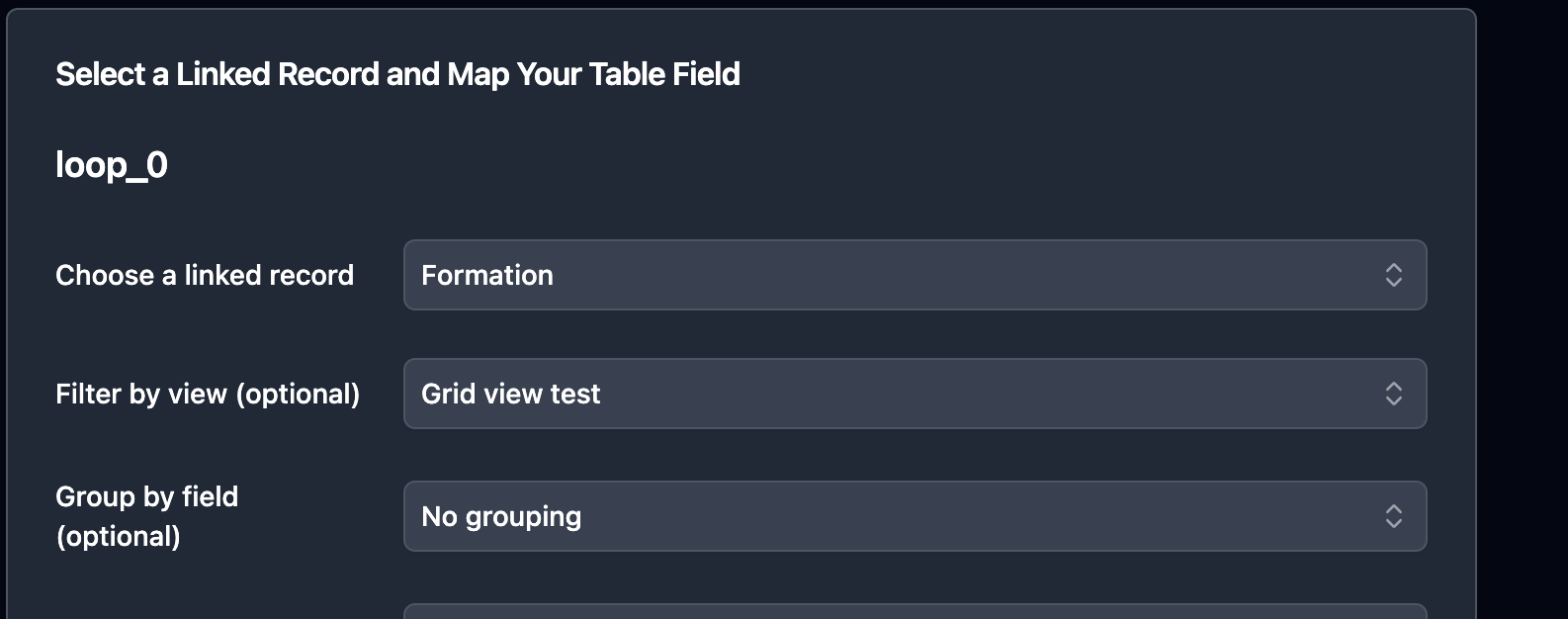
The PDF will generate with portfolio companies in the order defined by your Airtable view.
Best Practices for Investor Report Automation
Follow these naming, testing, and compliance practices to keep your investor report pipeline reliable at scale.
Use Clear Field Naming Conventions
Match your Airtable field names to template variables exactly:
| Instead of | Use |
|---|---|
| Inv. Name | Investor_Name |
| Comm. Amt | Commitment_Amount |
| IRR (Net) | Net_IRR |
Add a "Report Sent" Tracking Field
Create a "Last Report Date" or "Report Sent Q4" field in your Investors table. Configure your automation to update this field after successful generation and delivery.
Test with Sample Data First
Before sending to real investors:
- Create a test investor record with sample data
- Generate a report and review every field
- Check that linked record data displays correctly
- Verify email delivery works
Store Reports for Compliance
Many funds need to retain investor communications. Configure TypeFlow to save generated PDFs as attachments on each investor record, creating a permanent archive.
Related Real Estate Documents
- Generate Property Brochures from Airtable - Create branded listing brochures with photos and agent info.
- Generate Lease Agreement PDFs from Airtable - Automate tenant lease creation with e-signatures.
- Electronic Signatures in Airtable - Add legally binding e-signatures to generated documents.
- Generate Documents with E-Signature from Airtable - End-to-end workflow from document generation to signed copy.
- DocuSign Airtable Integration - Connect DocuSign to your Airtable document workflows.
Automate your document generation
Start with 20 free documents. Built for businesses using Airtable.
Generate Professional Investor Reports in Minutes
Transform investor reporting from a quarterly scramble into an automated system that runs reliably. Stop copying data into documents manually, stop clicking through Page Designer one record at a time, and stop worrying about missed investors or formatting errors.
With TypeFlow, you set up your template once and generate professional, personalized PDFs for every investor - whether you have 10 or 500.
Automate your document generation
Start with 20 free documents. Built for businesses using Airtable.
Frequently Asked Questions
Find answers to the most common questions about this feature.
Popular Questions
All Questions
Need more help?
Our team is here to help you solve all your problems and answer your questions.
Contact Us
Kevin from TypeFlow
•AuthorKevin Rabesaotra is a growth engineer and automation specialist with 8+ years of experience building no-code solutions. As Founder & CEO of TypeFlow, he has helped hundreds of businesses automate document generation and streamline workflows with Airtable integrations. Previously, Kevin was a Product Lead specializing in growth engineering, running experiments to drive revenue, retention, and lead generation.
More articles
How to Print Labels from Airtable with Quantity Control (Step by Step)
Print multiple labels per Airtable record based on a quantity field. Step-by-step guide for linked records mode and quantity repeat mode with barcodes and Avery sheets.
Read articleHow to Print Avery Mailing Labels from Airtable
Print Avery mailing labels (5160, 5161, 5162) from Airtable without Word mail merge. Step-by-step guide with print label mode, automation, and bulk generation.
Read articleHow to Create Inventory Labels with Barcodes in Airtable
Create inventory labels with Code 128, EAN-13, or QR barcodes from Airtable. Step-by-step guide for warehouse, retail, and asset tracking with thermal and Avery printers.
Read article