How to Generate Property Brochures in Airtable
You can generate branded property brochures directly from your Airtable listing data - photos, pricing, features, and agent details pulled automatically from your records. Connect TypeFlow, use a Google Docs or HTML/CSS template, and produce brochures on demand or automatically when a listing goes active.
For a complete overview of all real estate documents you can automate, see our guide to real estate document automation in Airtable.
By the end, you'll have a system that:
- Creates branded brochures with your property photos and details
- Pulls agent contact information from linked records
- Generates brochures on-demand or automatically when listings go active
- Saves each PDF directly to an attachment field on the Airtable record
Key Takeaways
- Generate property brochures from Airtable using TypeFlow with Google Docs templates or the visual Template Builder
- Pull data from linked records like agent name, phone, and photo using dot notation (e.g.,
{{Agent.Name}}) - Include multiple property photos by mapping attachment fields to image variables - all photos display automatically
- Three generation methods: one-click via button, automated on status change, or bulk for multiple properties
- PDFs save automatically to an attachment field on each Airtable record
What Is a Property Brochure?
A property brochure helps your listings stand out at open houses, in buyer emails, and during broker tours by presenting photos, specs, pricing, and agent contact info in one polished document. Real estate teams generate them for every active listing to maintain consistent branding.
When you generate brochures from Airtable, they stay accurate because they pull the latest listing data automatically - no manual updates when prices drop or descriptions change.
Why Generate Property Brochures Directly from Airtable
Generating brochures directly from Airtable eliminates the repetitive copy-paste work and ensures every brochure stays accurate when prices drop or descriptions change. According to the National Association of Realtors, 97% of home buyers use the internet to search for properties, and in a market where deal volume exceeds $842 billion globally, professional marketing materials help your listings stand out.
Your property data already lives in Airtable - generating brochures from that data means one update propagates everywhere. The same approach works for lease agreements and other real estate documents.
Eliminate Manual Copy-Paste from Property Listings
Every time you create a brochure manually, you're copying the address, price, square footage, bedroom count, and description from Airtable into another tool. With 20+ active listings, that's hours of tedious work each week.
Automated generation pulls data directly from your records. You update the price in Airtable once, and the brochure reflects it immediately.
Keep Brochures Updated When Listing Details Change
Price drops, status changes, and updated descriptions are common in real estate. With manual brochures, you'd need to find the original file, make edits, and re-export.
With automated generation, you regenerate the brochure with one click - or set it to regenerate automatically when key fields change.
Maintain Consistent Branding Across All Properties
When different team members create brochures manually, formatting varies. Fonts, colors, and layouts drift from your brand standards.
A template-based approach ensures every brochure matches your company branding: same logo placement, same fonts, same professional look.
Common Use Cases
- Open house handouts for walk-in visitors.
- Email attachments for buyer inquiries.
- Investor packets for multi-property portfolios - see our guide on generating investor report PDFs from Airtable.
- Print materials for broker tours.
While Airtable's built-in Page Designer works for simple one-page layouts, it doesn't support multi-page documents, has limited design flexibility, and requires manual exports for each record.
Ready to automate your property brochures?
Generate professional PDF brochures from Airtable in minutes. No design skills needed.
Start free with 20 documents →What Your Airtable Base Needs for Property Brochures
The schema below is the exact structure used by the ready-to-use Residential Property Brochure template. You can duplicate the demo Airtable base in one click (see the preview block further down) and skip the manual setup, or reproduce it yourself using the tables below.
The base uses two linked tables: Properties (main) and Agents. Each record in Properties generates one PDF brochure.
Properties Table (main)
This is where brochure generation is triggered. Each row = one listing = one PDF.
| Field Name | Field Type | Purpose |
|---|---|---|
| Property Address | Single line text | Street address (primary field) |
| City | Single line text | |
| State | Single line text | Two-letter US state code (e.g. "CA") |
| ZIP | Single line text | |
| Listing Price | Currency | USD, no decimals |
| Bedrooms | Number | Integer |
| Bathrooms | Number | Decimal allowed (e.g. 2.5) |
| Square Footage | Number | Integer with thousands separator |
| Year Built | Number | Integer |
| Status | Single select | Active, Pending, Sold, Off Market |
| Description | Long text (rich text ON) | Marketing copy |
| Features | Multiple select | Hardwood Floors, Chef's Kitchen, Private Pool, Home Theater, Wine Cellar, Smart Home, Three-Car Garage, City Views, Private Garden, Fireplace, Walk-in Closet, Spa Bathroom, Solar Panels, Central A/C, Guest House |
| Hero Photo | Attachment | Main listing photo (large hero on page 1) |
| Gallery 1 | Attachment | First gallery photo on page 2 |
| Gallery 2 | Attachment | Second gallery photo on page 2 |
| Gallery 3 | Attachment | Third gallery photo on page 2 |
| Agent | Link to Agents | Link to the listing agent |
Agents Table
One record per agent. Holds contact info, headshot, and brokerage. Linked from Properties so you never duplicate agent data across listings.
| Field Name | Field Type | Purpose |
|---|---|---|
| Agent Name | Single line text | Primary field |
| Agent Title | Single line text | e.g. "Senior Real Estate Advisor" |
| Agent Email | ||
| Agent Phone | Phone | |
| Agent License Number | Single line text | State-specific license ID (e.g. "DRE #02156789") |
| Agent Photo | Attachment | Headshot rendered in the PDF agent card |
| Brokerage | Single line text | e.g. "Prestige Realty Group" |
Why Separate Hero and Gallery Photos
Unlike a single "Photos" attachment field with multiple images, the template uses four distinct attachment fields (Hero Photo, Gallery 1, Gallery 2, Gallery 3). This gives you precise control over which photo appears where in the brochure - the hero is the full-bleed image on page 1, and the three gallery shots fill a grid on page 2. It's the difference between "dump all photos in" and "pick the 4 best shots, in order."
How the Links Work
Each Property links to one Agent. In the template, you reference fields directly by name: {{Property Address}}, {{Listing Price}}, {{image_Hero_Photo}}, {{Agent Name}}, {{image_Agent_Photo}}. No dot notation needed - TypeFlow resolves the linked Agent fields automatically based on your field mapping.
Pro Tip
Create a filtered view in your Properties table showing only "Active" listings. This makes it easy to generate brochures for current inventory without sorting through sold or pending properties.
How to Create a Property Brochure Template
TypeFlow offers two ways to create your brochure template: Google Docs for familiarity, or Template Builder for pixel-perfect control.
Option A: Google Docs Template
If you're comfortable with Google Docs, create a new document and add placeholders using double curly braces.
Example placeholders for property brochures (use the exact field names from your base, spaces included):
{{Property Address}}
{{City}}, {{State}} {{ZIP}}
{{Listing Price}}
{{Bedrooms}} beds | {{Bathrooms}} baths | {{Square Footage}} sqft
{{Description}}
{{Agent Name}} | {{Agent Phone}} | {{Agent Email}}
For images, use the {{image_FieldName}} syntax (replace spaces with underscores):
{{image_Hero_Photo}}
{{image_Gallery_1}}
{{image_Gallery_2}}
{{image_Gallery_3}}
{{image_Agent_Photo}}
TypeFlow fetches each attachment directly from Airtable and renders it at the exact position and size you define in your template.
Option B: Template Builder (Pixel-Perfect Control)
Template Builder is a visual HTML editor built into TypeFlow. It's ideal for property brochures where design matters.
Why use Template Builder for brochures:
- Drag-and-drop layout control
- Precise image sizing and positioning
- Pre-built blocks you can customize
- No Google account required
TypeFlow includes a ready-to-use Residential Property Brochure template. Click the preview to open the full PDF, or duplicate the demo Airtable base to reproduce this example in one click:
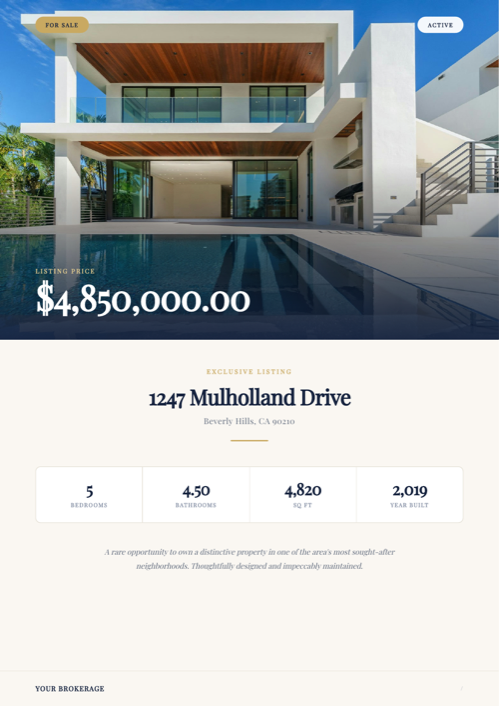
Ready-to-use template
Residential Property Brochure
Duplicate the Airtable base, paste the template in Typeflow, then generate your first PDF in minutes.
Free tier available • No credit card required
To use Template Builder:
- Start a new flow in TypeFlow
- Choose "Template Builder" instead of Google Docs
- Select the Property Brochure template from Real Estate category
- Customize colors, fonts, and layout to match your branding
- Map your Airtable fields to the template variables
Design Tips for Property Brochure Layouts
Keep it scannable: Place the hero image at the top, key specs (beds/baths/sqft) in a prominent block, description below, and agent contact at the bottom.
Use high-resolution photos: PDF quality depends on source image quality. Use professional listing photos, not phone snapshots.
Include a clear call to action: Add the agent's phone number, email, or a scheduling link prominently at the bottom.
Method 1: Generate Property Brochures with One Click
This method is best for generating brochures on-demand for individual listings.
Step 1: Connect TypeFlow to Airtable
- Create a free account at typeflow.us
- Click "New Flow" and select your Airtable base
- Choose your Properties table
- Select your template (Google Docs or Template Builder)
Step 2: Map Airtable Fields to Template Variables
In TypeFlow's mapping interface:
- Match each placeholder to its corresponding Airtable field
- For linked record fields like Agent, select "Configure Linked Fields" to access nested data like
{{Agent.Name}}and{{Agent.Phone}} - For image fields, set the display width in pixels - TypeFlow automatically calculates the height to preserve aspect ratio
Step 3: Add a Generate Button to Your Base
Add a button field to your Properties table that triggers document generation:
- In Airtable, create a new Button field
- Set the action to "Open URL"
- Paste the TypeFlow generation URL (found in your flow settings)
- Click the button on any record to generate its brochure instantly
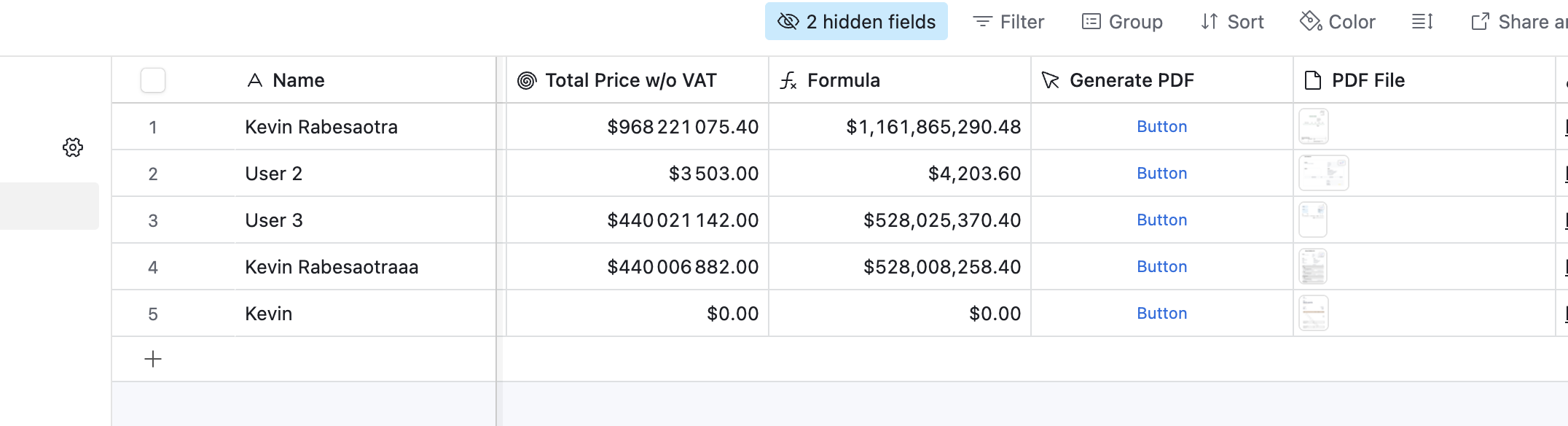
You can also add this button to an Airtable Interface for a cleaner user experience.
Method 2: Automate Brochure Generation When Listings Update
This method is best for teams that want brochures created automatically without manual intervention. According to Gartner research, 80% of executives believe automation can be applied to any business decision - document generation is no exception.
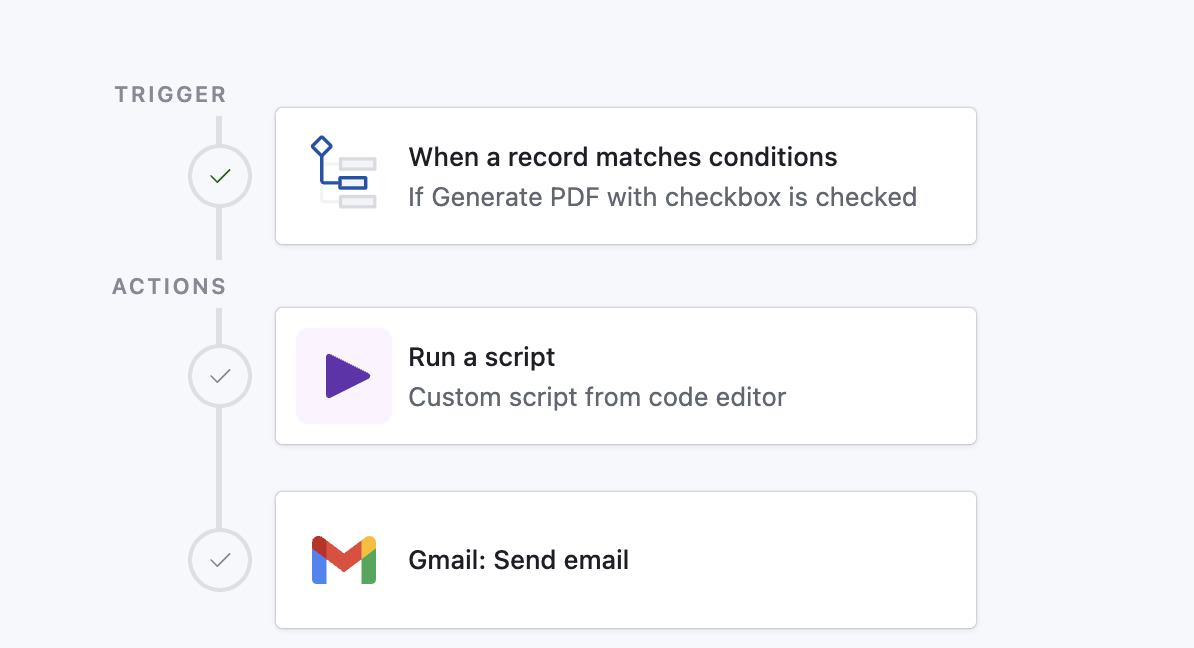
Create an Airtable Automation Trigger
- Go to Airtable Automations
- Create a new automation
- Set trigger: "When record matches conditions"
- Condition: Status = "Active"
This triggers whenever a property is marked as active.
Configure the Document Generation Action
- Add action: "Run script"
- Copy the script from TypeFlow's automation section
- Configure the record ID variable
- Test with a sample record
Now whenever you change a property's status to "Active," the brochure generates automatically and saves to the record.
Alternative: Using Make or Zapier
If you use Make or Zapier, you can trigger TypeFlow via an HTTP request when a record updates. This is useful when Airtable Automations isn't part of your stack or you want more control over the workflow. Deloitte research shows that integrating automation platforms reduces manual processing time by up to 80%.
Method 3: Bulk Generate Brochures for Multiple Properties
This method is best for generating brochures for an entire portfolio at once.
When to Use Bulk Generation
- Preparing materials for an open house event
- Onboarding a new development with multiple units
- Refreshing all brochures after a branding update
- Creating a property catalog for investors
How to Bulk Generate Brochures
- Create a view filtered to the properties you need
- Select multiple records
- Run bulk generation from TypeFlow
- All PDFs generate and save to their respective records
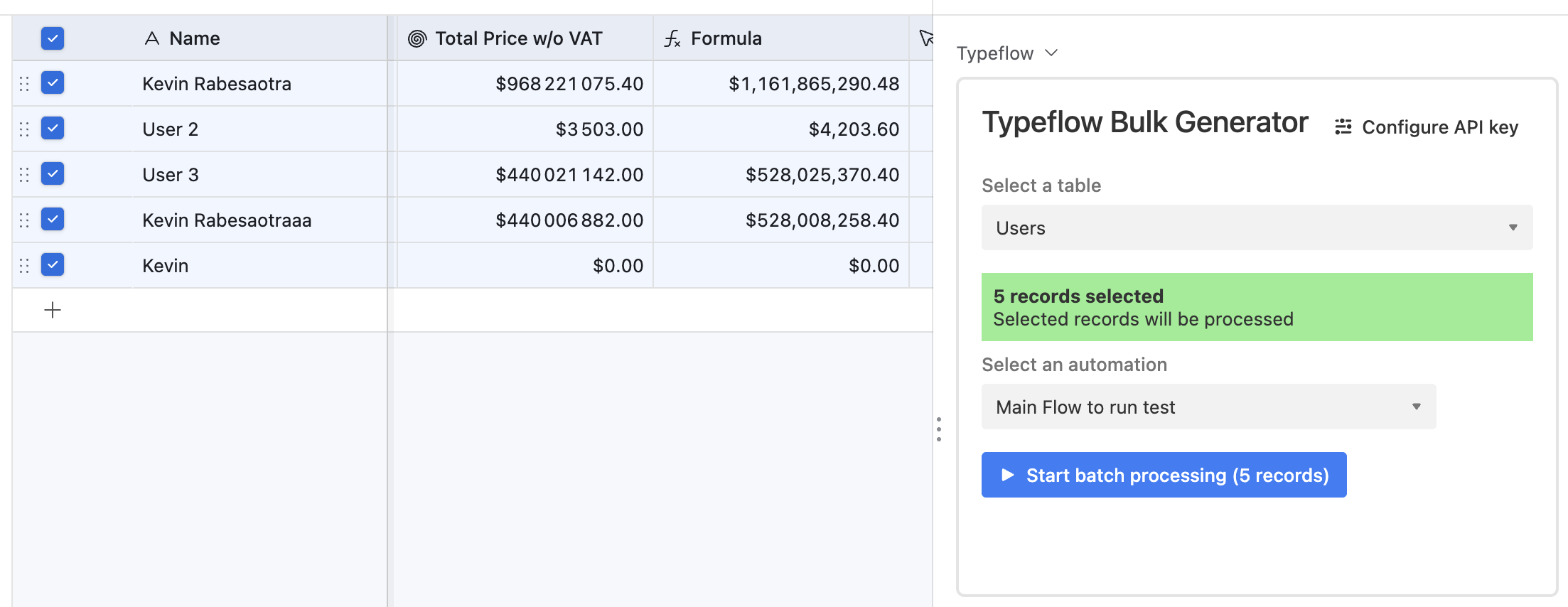
For large batches, generation runs in the background. You'll receive a notification when complete.
Automate your document generation
Start with 20 free documents. Built for businesses using Airtable.
How to Include Property Photos in Your Brochures
Property photos are the most important element of a real estate brochure. Research shows that listings with quality visuals generate significantly more inquiries - virtual staging alone can increase buyer interest by 30%. Here's how to handle photos effectively.
Supported Image Formats and Sizes
TypeFlow supports JPG, PNG, and other common formats. For best results:
- Use high-resolution images (at least 1200px wide for hero images)
- JPG works best for photos (smaller file size)
- PNG works best for logos (supports transparency)
Mapping Multiple Photos from One Field
When your Photos attachment field contains multiple images, mapping it to {{image_Photos}} displays all images.
To control sizing, set the width in TypeFlow's mapping interface. The height calculates automatically to preserve aspect ratio.
Controlling Image Layout
For precise control over which photo appears where:
Option 1: Use separate attachment fields (Hero_Photo, Gallery_Photos)
Option 2: Use Template Builder to create a specific layout with multiple image placeholders
Tips for Professional Real Estate Brochure Design
Use High-Resolution Listing Photos
The quality of your PDF depends on your source images. Professional MLS photos produce crisp brochures. Phone photos often look pixelated when printed.
Keep Layouts Clean and Scannable
Buyers scan brochures quickly. Organize information clearly:
- Hero image at the top
- Address and price prominently displayed
- Key specs (beds, baths, sqft) in a visible block
- Description in readable paragraphs
- Agent contact information at the bottom
Include Agent Branding and Contact Information
Every brochure should make it easy for interested buyers to reach out. Include:
- Agent name and photo
- Phone number and email
- Brokerage logo
- License number (required in many states)
Pull this from your linked Agents table so it's always accurate.
Start Generating Property Brochures Today
With TypeFlow, you set up your template once and generate branded brochures on-demand or automatically. No designer needed, no manual copy-paste, no inconsistent formatting.
The system handles one brochure or hundreds with the same ease. See what users say about TypeFlow on G2.
Related Real Estate Documents
- Generate Lease Agreement PDFs from Airtable - Automate tenant lease creation with e-signatures.
- Generate Investor Report PDFs from Airtable - Build quarterly investor reports with portfolio data.
Automate your document generation
Start with 20 free documents. Built for businesses using Airtable.
Frequently Asked Questions
Find answers to the most common questions about this feature.
Popular Questions
All Questions
Need more help?
Our team is here to help you solve all your problems and answer your questions.
Contact UsFor more document automation guides, see how to generate contracts from Airtable, electronic signatures for Airtable, and how to export Airtable data to PDF. For official Airtable documentation, see Linked Records, Airtable Automations, and Page Designer.

Kevin from TypeFlow
•AuthorKevin Rabesaotra is a growth engineer and automation specialist with 8+ years of experience building no-code solutions. As Founder & CEO of TypeFlow, he has helped hundreds of businesses automate document generation and streamline workflows with Airtable integrations. Previously, Kevin was a Product Lead specializing in growth engineering, running experiments to drive revenue, retention, and lead generation.
More articles
How to Print Labels from Airtable with Quantity Control (Step by Step)
Print multiple labels per Airtable record based on a quantity field. Step-by-step guide for linked records mode and quantity repeat mode with barcodes and Avery sheets.
Read articleHow to Print Avery Mailing Labels from Airtable
Print Avery mailing labels (5160, 5161, 5162) from Airtable without Word mail merge. Step-by-step guide with print label mode, automation, and bulk generation.
Read articleHow to Create Inventory Labels with Barcodes in Airtable
Create inventory labels with Code 128, EAN-13, or QR barcodes from Airtable. Step-by-step guide for warehouse, retail, and asset tracking with thermal and Avery printers.
Read article