Updated November 16, 2026 · By TypeFlow
Document Versioning: Keep Every Version of a Document Generated from Airtable
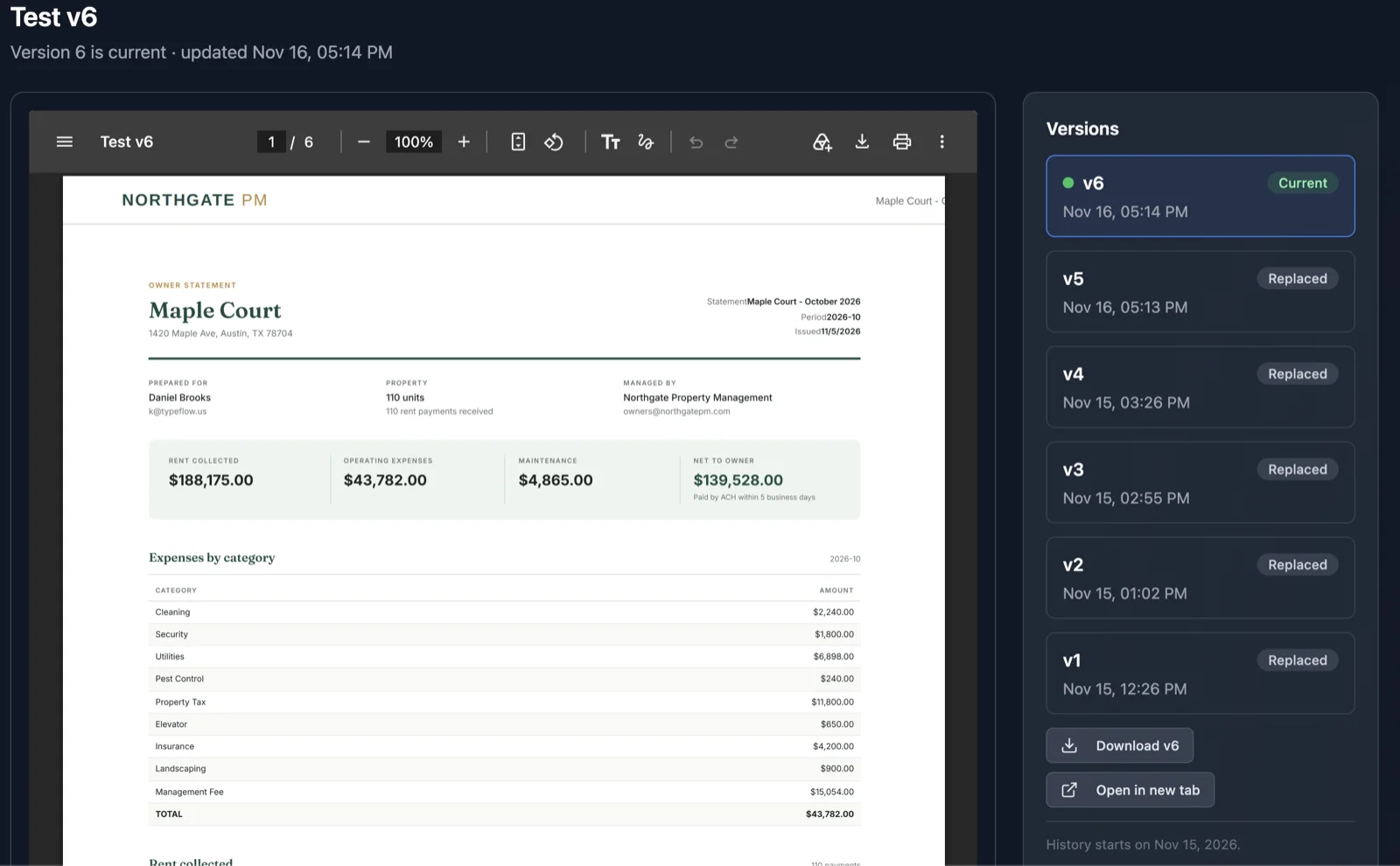
When you generate a document again for the same Airtable record, TypeFlow keeps the previous one and numbers them: v1, v2, v3. You can see what was sent before, when, and print the version number on the document itself.
Overview
Quotes, purchase orders and contracts often get regenerated: a price changes, a line is added, a date moves. Without versioning, the new PDF replaces the old one and nobody can tell what the customer received first.
With versioning:
- Each production document for a record gets the next number.
- The latest is the Current version; the earlier ones are Replaced and stay available.
- Each version keeps the values it was built from.
Which Documents Are Versioned
A document gets a version number when all of these are true:
| Condition | Where to check |
|---|---|
| It is a production document, not a test | Generated from an Airtable button or an automation |
| It is generated for a record | Not a view report |
| The flow keeps generated documents | Actions tab > Keep generated documents in TypeFlow set to Keep, or e-signature turned on |
| The flow uses private storage | Flows created since 14 November 2026. For an older flow, contact us |
Works with Template Builder (HTML), Google Docs and Google Slides templates.
Plans: Pro and above can open every version. Starter and Free documents are numbered too, but only the current version can be opened, plus any version sent for signature.
See the Versions of a Document
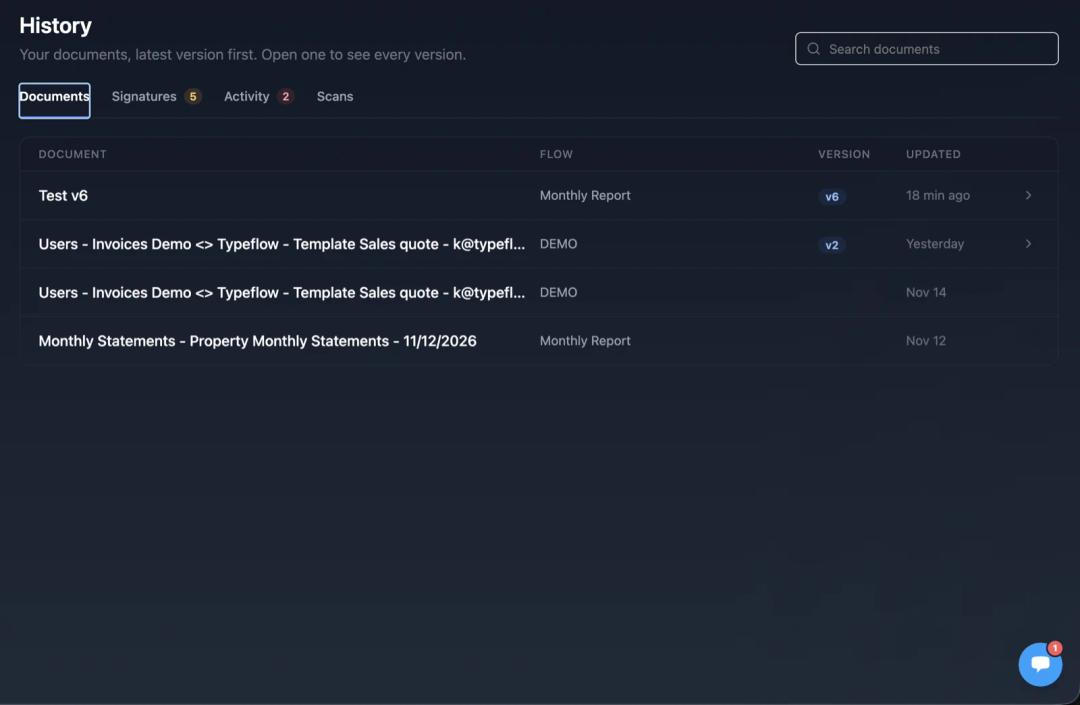
- Go to History, tab Documents: one row per record.
- Open a record to see its versions page:
- a preview of the PDF;
- the list of versions, Current and Replaced, with their dates;
- a "You are viewing vN" banner when you open an earlier version;
- Download and Open buttons.
Print the Version Number
Add the variable {{typeflow.version}} anywhere in your template, like any other variable:
| Where | Example |
|---|---|
| Body | Quote revision {{typeflow.version}} |
| Header or footer | Version {{typeflow.version}} |
| Filename | Quote-{{Quote ID}}-v{{typeflow.version}} |
The variable is optional. Without it, the PDF and the filename stay exactly as before.
Versions Link in Airtable
Reach every version of a document from the Airtable record, in one click.
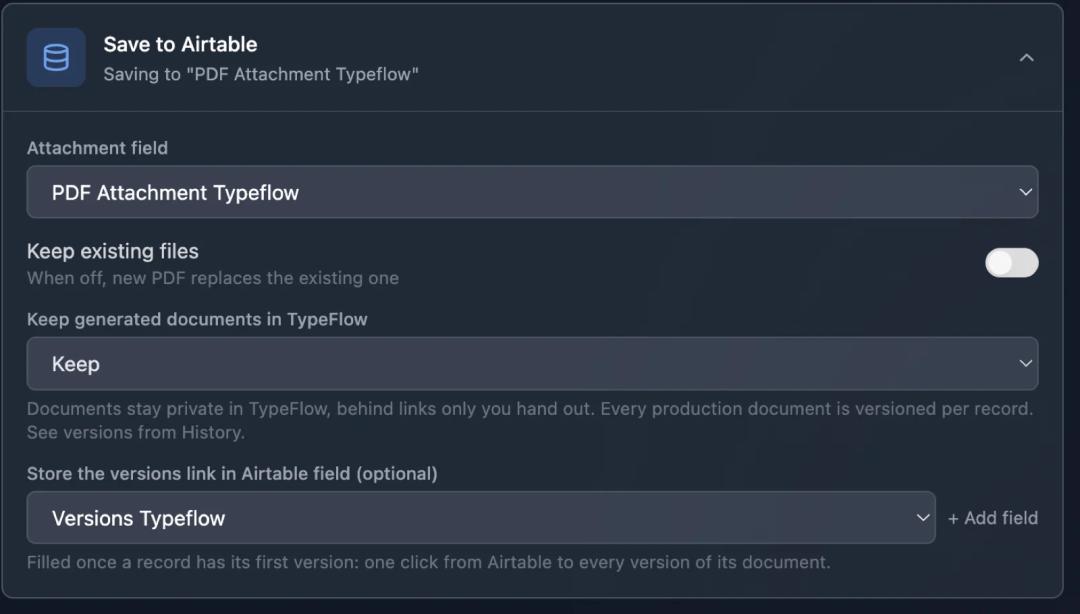
- In the Actions tab, find Store the versions link in Airtable field (optional).
- Pick a URL field, or click + Add field to create one named Versions Typeflow.
- After the record's first version, TypeFlow writes the link to its versions page in that field. It is the same link for every version, so it is written once.
The link opens for the flow owner and their team, signed in to TypeFlow.
Versions and E-Signature
When a versioned flow sends documents for e-signature, the versions page also shows the signature of each version.
In the versions list, each version sent for signature shows where it stands:
| Label | Meaning |
|---|---|
| Waiting for signature · 1 of 2 signed | Out for signature, not everyone has signed |
| Signed | Every signer signed this version |
| Replaced before signing · Jean had signed | The document was regenerated before everyone signed. Signers received the new version |
| Signature declined, expired or cancelled | The request ended without being signed |
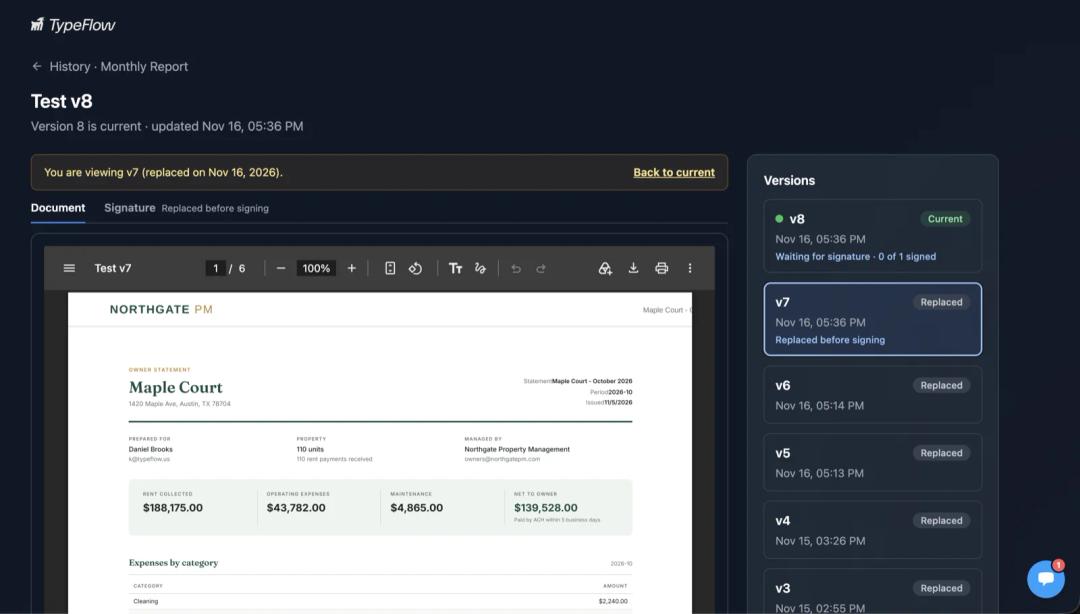
Above the PDF, a version sent for signature has two tabs:
- Document: the PDF of that version.
- Signature: the signers, the status, the actions (cancel the request, complete it with the signatures collected, legal hold) and the audit trail.
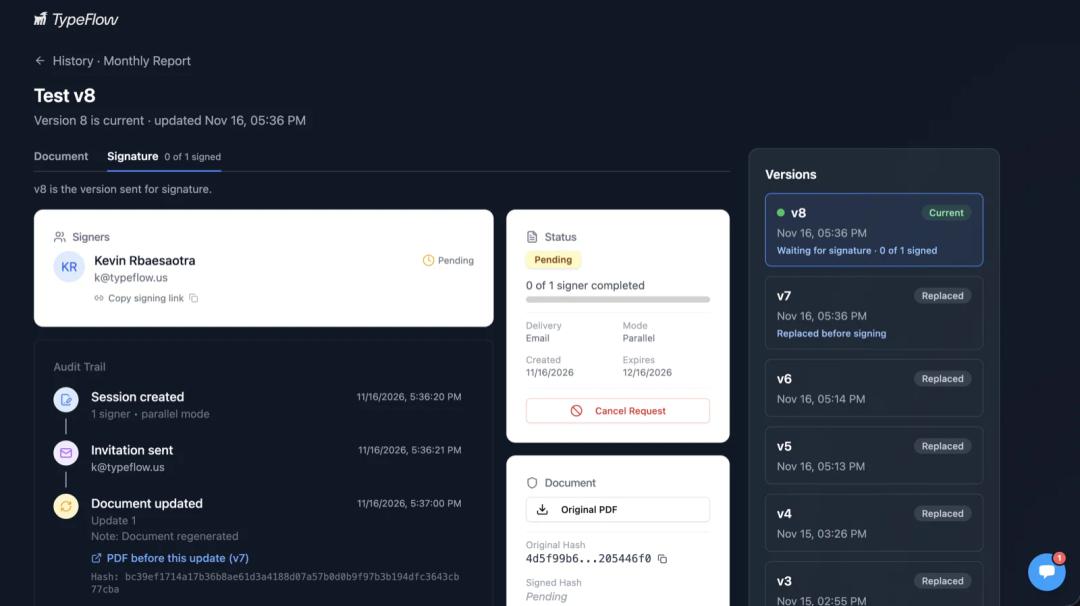
From History, open the Signatures tab and click a request: it opens the document's versions page, on the Signature tab of the version that was sent.
Regenerating during a signature. In the audit trail, each Document updated event links to PDF before this update, with its version number, who had already signed it, and its hash. You can always show what was in front of a signer.
A version sent for signature opens on every plan: it is the record of what was signed.
With Review before sending. Each time you fix a value and click Rebuild document while the document waits in To send, you get a new version. Your drafts show as Replaced, and only the version you send carries a signature. You keep an internal history of every draft before anything reaches the signer.