How to Review a Document Before It Is Sent for Signature
Turn on Review before sending and your flow stops after generating. The document waits in To send until you have read it, so a wrong date never reaches the signer.
Overview
Normally a flow with e-signature generates a document and sends it in the same step. With Review before sending, it generates and then waits.
A held document:
- is not sent to anyone until you send it
- is saved to Airtable exactly as it normally would be
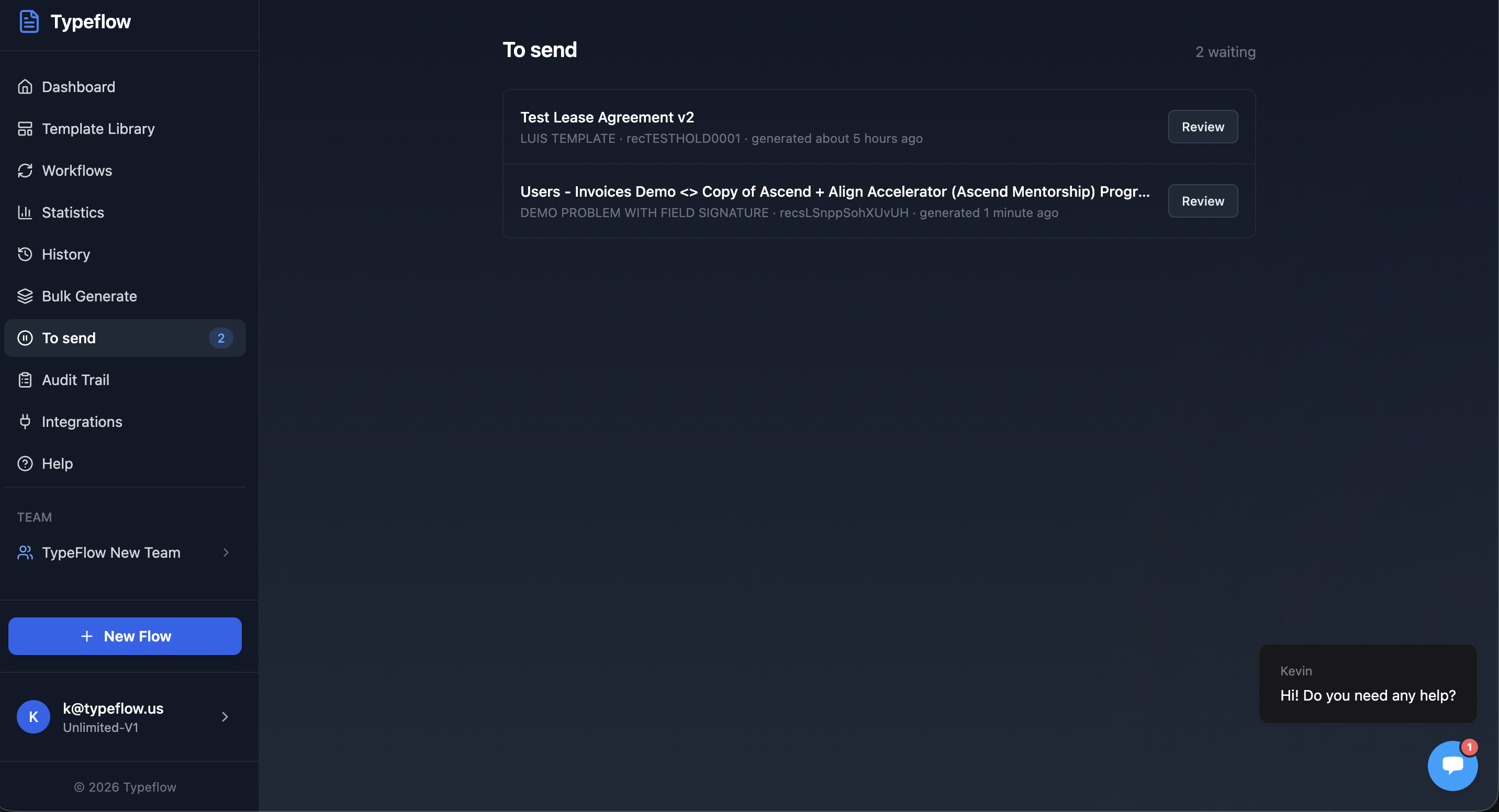
- shows up in To send, with a count in the sidebar
- triggers an email to you so you know it is waiting
From there you read it, correct anything wrong, rebuild, and send.
This suits documents where a mistake is expensive to undo: a lease with a wrong arrival date, a contract with the wrong rate, anything a client would notice. If you only spot the mistake after sending, you can still cancel the signature request and start again - reviewing first avoids that round trip.
Turning It On
- Open your flow and go to the Actions tab
- Click Configure on When the document is generated
- Scroll to Review before sending and turn it on
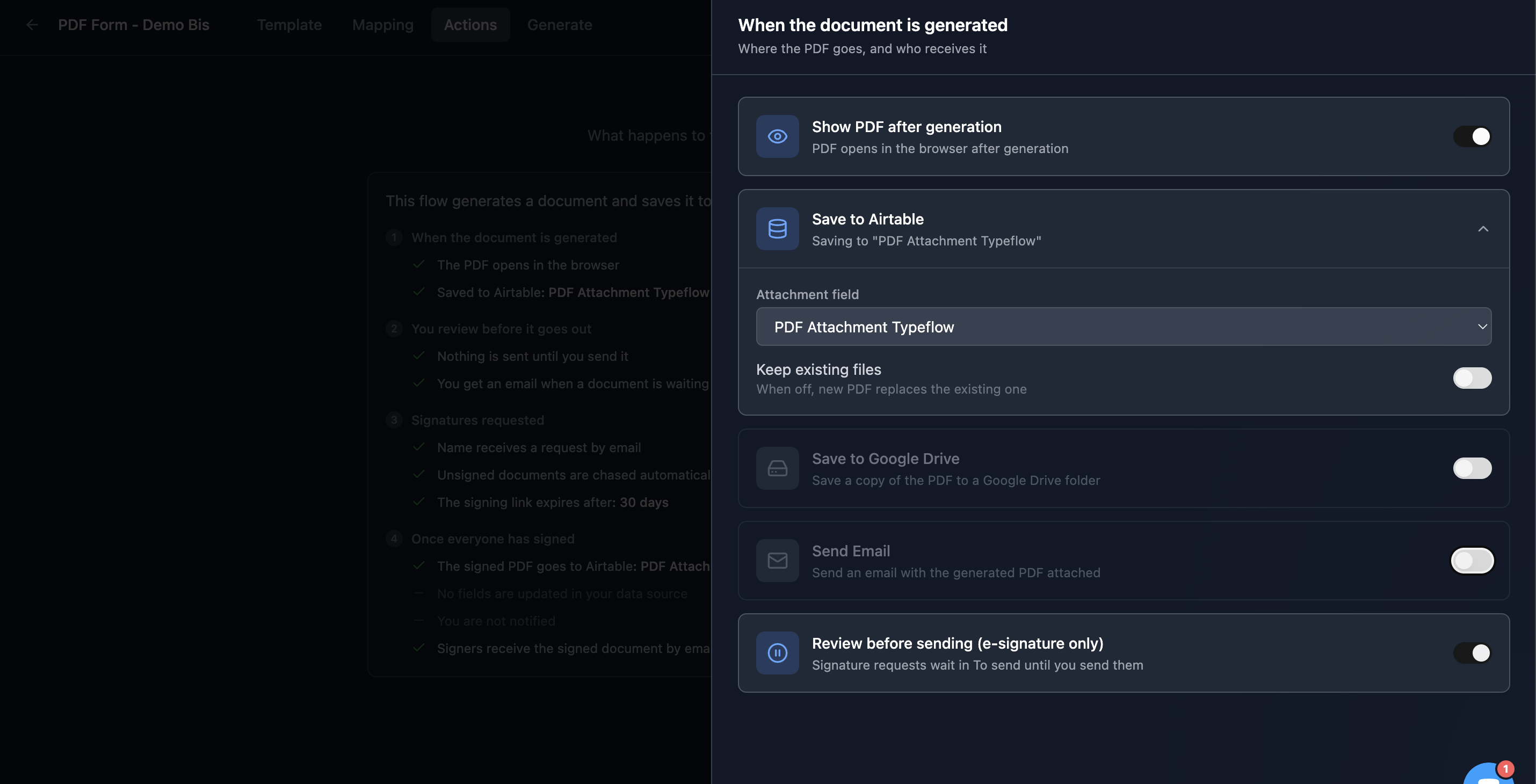
The Actions overview then shows a new stage, so the order is visible at a glance:
1  When the document is generated
2  You review before it goes out
3  Signatures requested
4  Once everyone has signed
The toggle is only available when E-Signature is on, because the hold pauses a signature request. On a flow without it, the switch is greyed out. See the e-signature guide if you have not set up signers yet.
Review before sending is included on Pro and above, and during your trial.
Reviewing a Document
Open To send in the sidebar. Waiting documents are listed oldest first, with the flow name, the record, and how long they have been waiting.
Click Review to open it. The document fills the screen, and every Airtable field that feeds it is listed on the right with its current value.
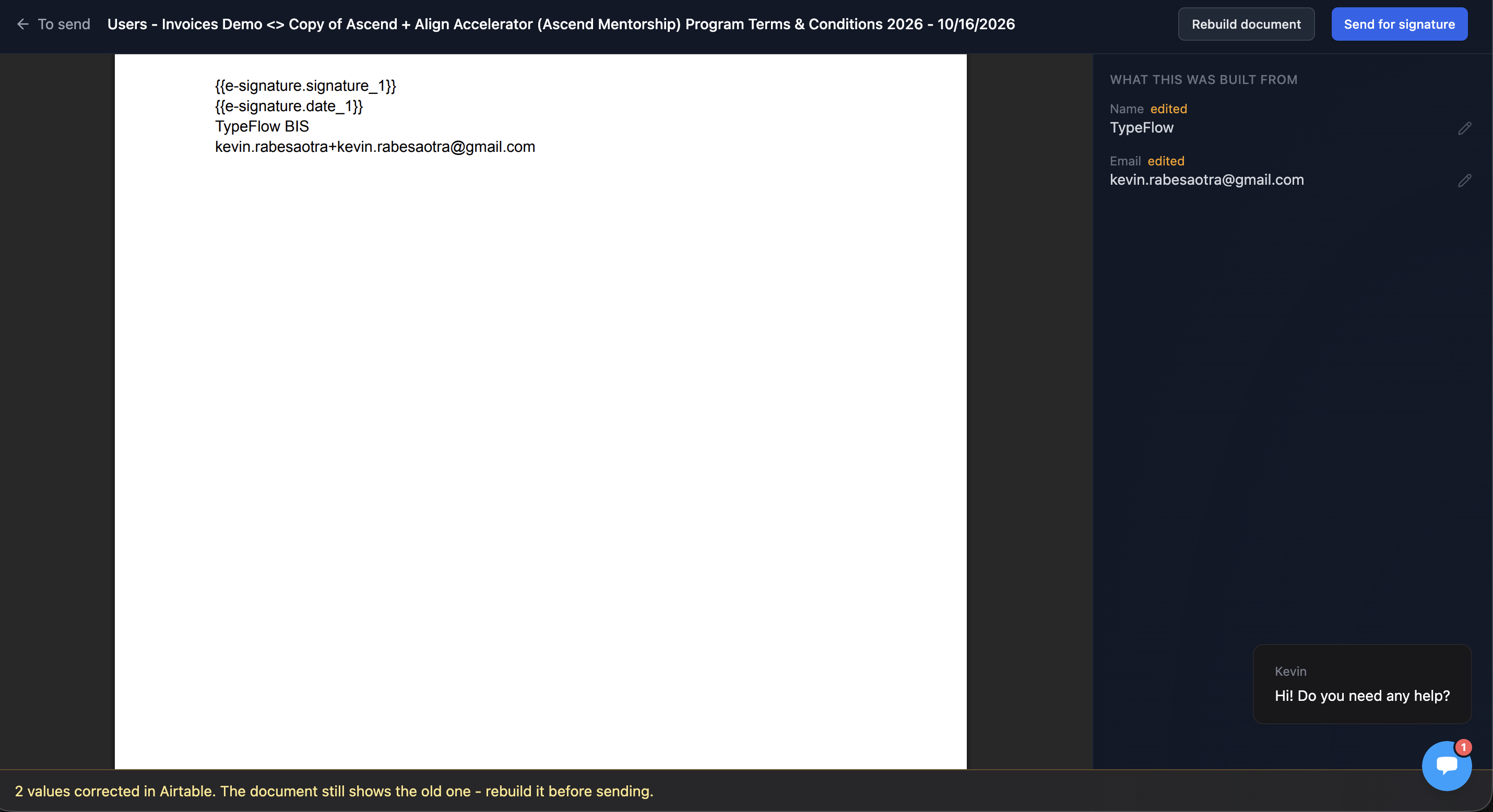
Fields you can change have a pencil. Fields Airtable calculates - formulas, rollups, lookups - show a lock and the note Change in Airtable, because nothing can write to them directly.
Correcting a Value
Click the pencil next to the value you want to change.
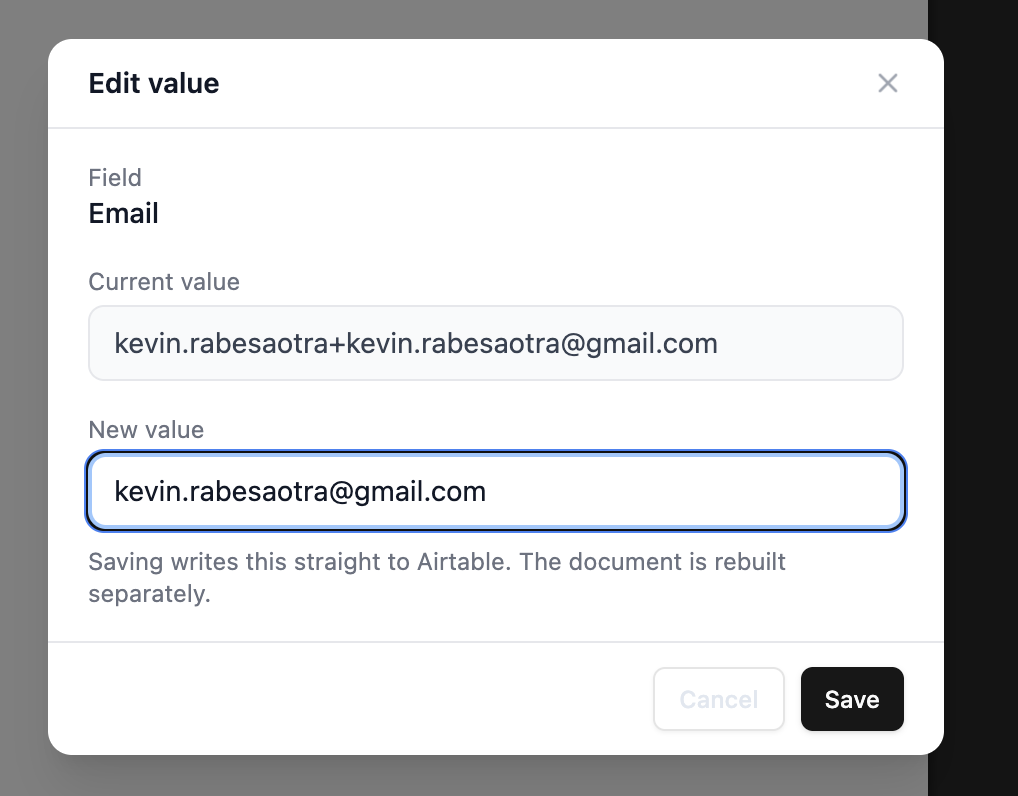
The editor matches the field: a date picker for a date, the field's own options for a single or multiple select, a plain input for text.
Click Save. The new value goes straight to Airtable, and the field is marked edited.
The document on screen is still the old one. A bar appears to say so:
2 values corrected in Airtable. The document still shows the old one - rebuild it before sending.
That is deliberate. Correcting a value is free, rebuilding produces a document and counts against your plan limit, so it is worth fixing everything you spotted and rebuilding once.
Rebuilding and Sending
Click Rebuild document. The flow runs again on the same record, with your corrections, and the document on screen is replaced. The warning bar disappears.
When the document is right, click Send for signature. From that point it behaves like any other signature request: the signers get their emails, the audit trail starts, and the document leaves To send. Anything you set up to run afterwards, such as updating an Airtable field when everyone has signed, still runs as usual.
Signers are resolved when you send, not when the document was generated - so if you corrected a signer's email address while it was waiting, the request goes to the corrected one.