Update Airtable Field When All Signers Complete
Automatically update an Airtable field when all signers finish signing a document. Use this to change a status, check a box, or trigger the next step in your workflow - like generating an invoice after a quote is signed.
Overview
When e-signature is enabled on a flow, you can configure an action that runs after all signers complete. TypeFlow updates a field on the Airtable record with a value you choose.
Two modes:
- This record - updates a field on the same record that generated the document (e.g., set Status to "Signed")
- Linked record - updates a field on a record in a different table via a linked record field (e.g., set Invoice Status to "Accepted" when a Quote is signed)
This is configured in the E-Signature settings of your flow, under "Update field when all signers complete".
Update This Record
Use this when you want to mark the source record as signed.
- Open your flow in the flow builder
- Go to the Actions tab
- In the E-Signature section, toggle on "Update field when all signers complete"
- Select "This record"
- Choose the field to update (Single Select, Checkbox, Status, or Single Line Text)
- Choose the value to set (e.g., "Signed", or checked for checkboxes)
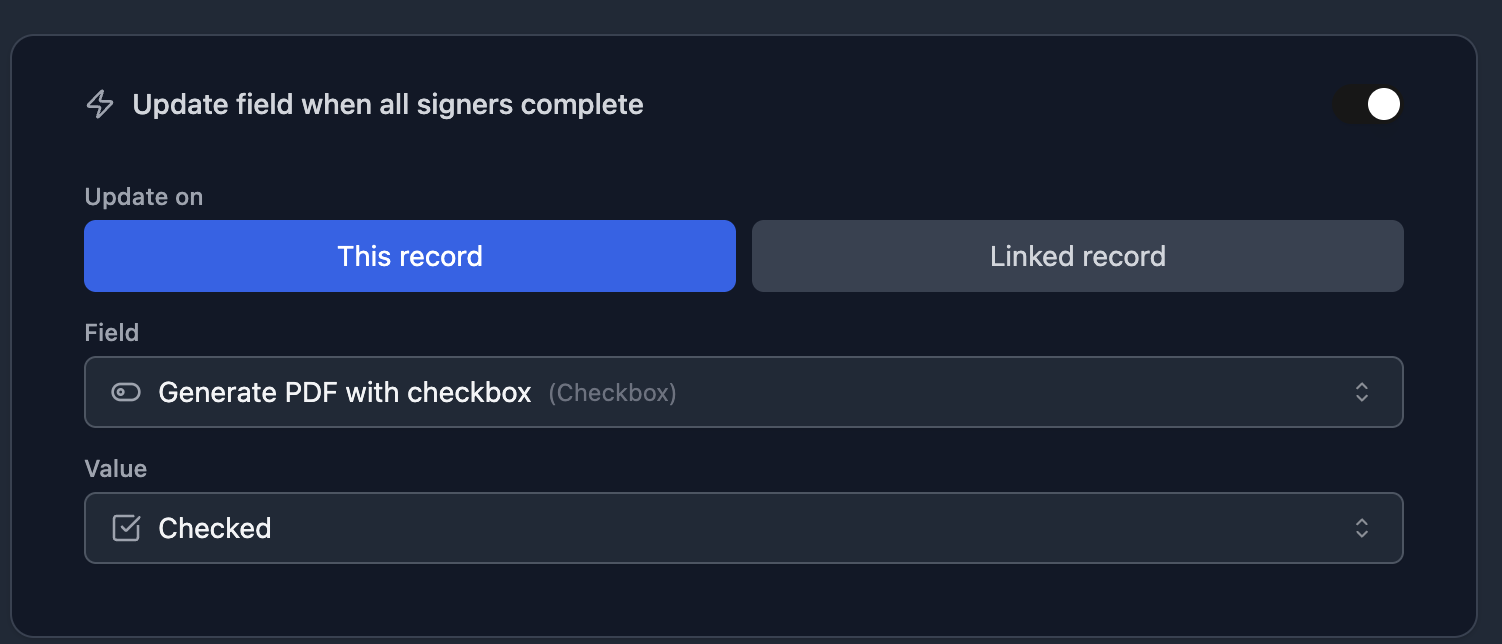
Example: A contracts table with a Status field. When the contract is signed, Status automatically changes from "Sent" to "Signed".
Update a Linked Record
Use this when signing a document should trigger an action on a different table - like converting a signed quote into an invoice.
- Open your flow in the flow builder
- Go to the Actions tab
- Toggle on "Update field when all signers complete"
- Select "Linked record"
- Choose the linked record field that connects to the target table (e.g., "Invoices")
- Choose the field on the linked table to update (e.g., "Status")
- Choose the value to set (e.g., "Accepted")
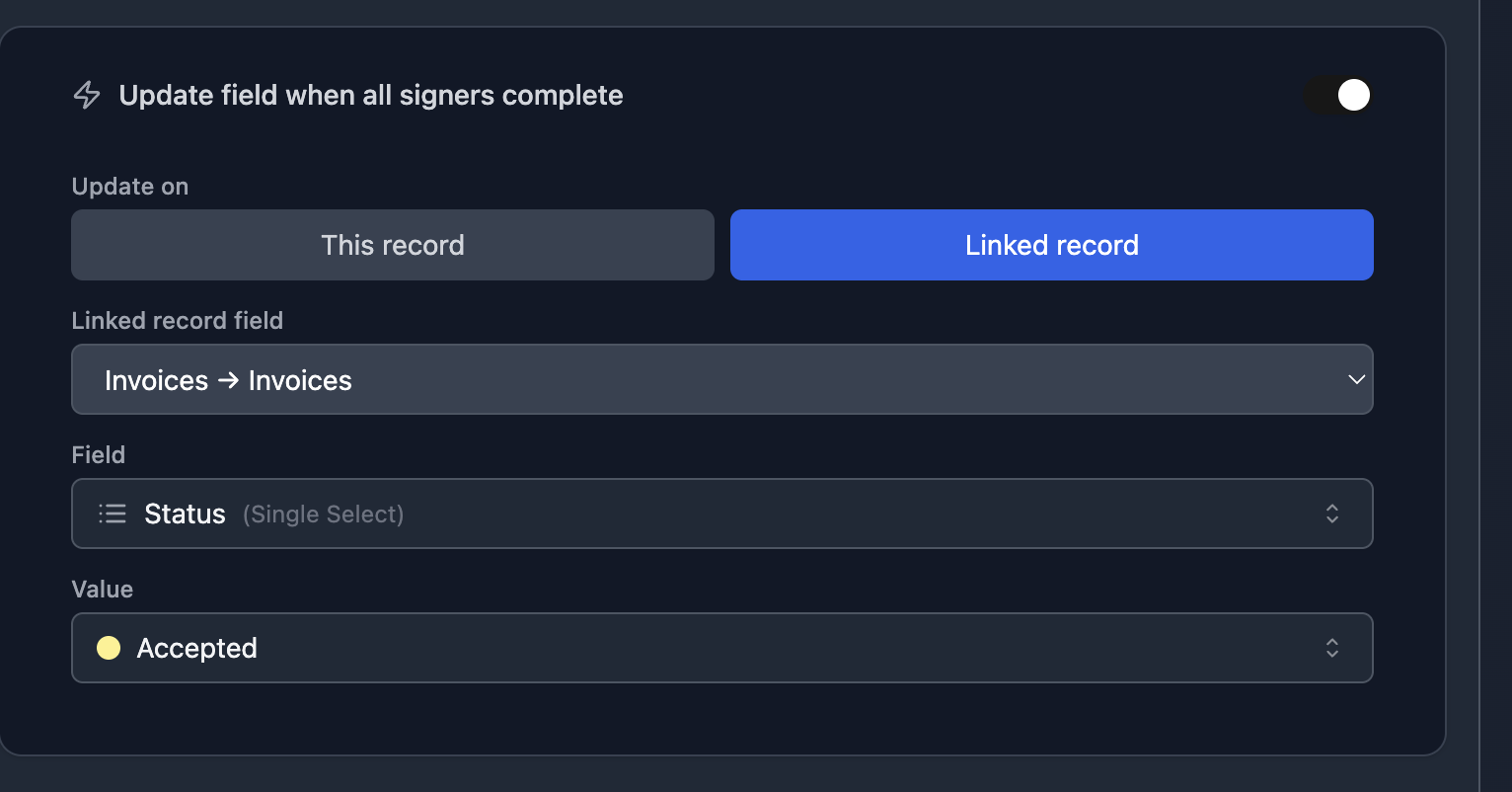
Example: Quote to Invoice workflow
Your Quotes table has a linked record field pointing to the Invoices table. When a client signs a quote:
- TypeFlow updates the linked Invoice record's Status to "Accepted"
- A second TypeFlow Automation on the Invoices table triggers on Status = "Accepted"
- The invoice PDF generates and emails automatically
This creates a fully automated chain: Quote signed -> Invoice generated -> Email sent. See our Quote to Invoice workflow guide for the full setup.
Common Workflows
Contract signed -> Status updated Update a Status field from "Sent" to "Signed" on the same record. Use a filtered Airtable view to track which contracts are pending vs completed.
Quote signed -> Invoice triggered Update a linked Invoice record's status to trigger invoice generation. No manual step between quote acceptance and invoicing.
Approval signed -> Next step unlocked Update a checkbox field to "checked" when a manager signs an approval. Use this to gate the next step in your workflow (e.g., unlock purchase order generation).
Onboarding document signed -> Employee record updated Update the employee's onboarding status from "Documents Pending" to "Documents Complete" when they sign their offer letter or NDA.