TypeFlow Automation: Auto-Generate Documents on Record Creation or Field Change
Generate documents automatically when a new record is created or a field value changes in Airtable. Add conditions to trigger only when specific criteria are met - no code, no Zapier, no scripts.
Overview
TypeFlow Automation watches your Airtable base and generates documents automatically. You choose when it triggers:
- New record created - generates once for every new record (ideal for Airtable Forms, Jotform, Typeform integrations)
- Field changes to a value - generates when a specific field reaches a target value (ideal for approval workflows)
Both modes support optional guard conditions - additional fields that must have specific values before a document is generated.
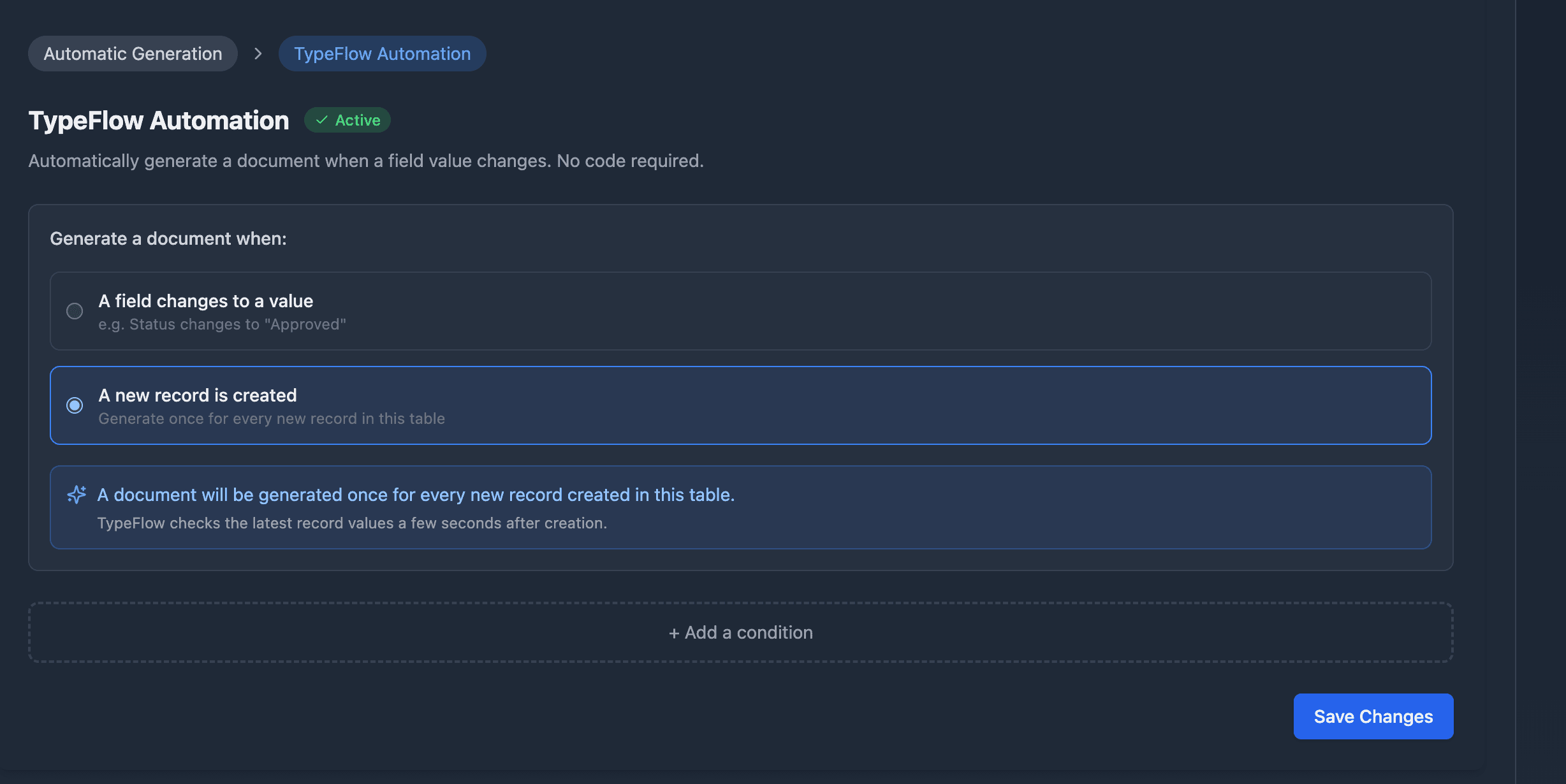
Choose Your Trigger Mode
- Open your flow and go to the Actions tab
- Under "How do you want to trigger document generation?", select Automatic
- Select TypeFlow Automation
- Choose your trigger mode:
- A field changes to a value - for approval or status-driven workflows
- A new record is created - for form submission workflows
Set Up: New Record Created
This mode generates a document once for every new record added to the table. No trigger field required.
- Select A new record is created
- (Optional) Click + Add a condition to filter which records get a document
- Click Save Changes
That's it. Every new record in the table will generate a document automatically.
How it works under the hood:
- TypeFlow detects the new record via your Airtable webhook
- Waits a few seconds for formulas, lookups, and simple automations to finish
- Fetches the full, up-to-date record from Airtable
- Checks guard conditions (if any)
- Generates the document once (duplicates are prevented automatically)
Best for: Airtable Forms, Jotform/Typeform submissions, API-created records where all required data is present at creation.
Set Up: Field Changes to a Value
This mode generates a document each time a field changes to a specific value.
- Select A field changes to a value
- Choose the field to watch (Single Select, Checkbox, or Status)
- Choose the value that triggers generation
- (Optional) Click + Add a condition to add extra rules
- Click Save Changes
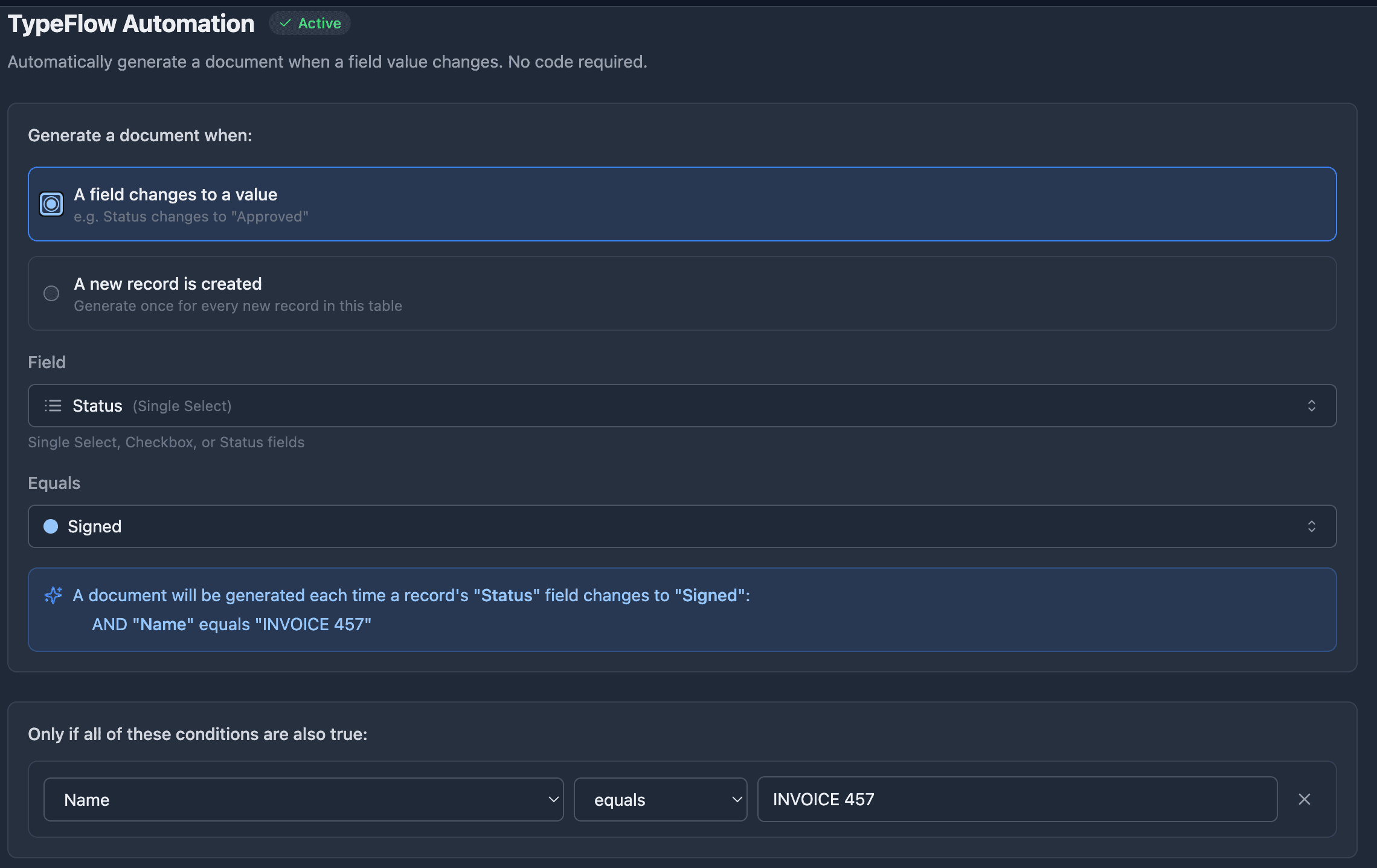
Every time a record's field changes to the selected value, a document is generated automatically.
Best for: approval workflows, status-driven pipelines, checkbox-based triggers.
Add Guard Conditions
Guard conditions work with both trigger modes. The document only generates when ALL conditions are true.
- Click + Add a condition
- Select a field (any field type - not limited to Single Select)
- Choose an operator (equals, greater than, is not empty, etc.)
- Enter the value (if applicable)
- Add more conditions if needed
- Click Save Changes
The summary shows your full rule in plain language:
When "Recovery Stage" changes to "Collections Day 30"
  AND "Outstanding Amount" >= 300
  AND "Client Regularized" is not checked
-> Generate "Collections Letter"
For the "new record created" mode, conditions work the same way:
When a new record is created
  AND "Contract Type" equals "NDA"
  AND "Client Email" is not empty
-> Generate "NDA Template"
Supported Operators
All field types
| Operator | Meaning |
|---|---|
| equals | Field value matches exactly |
| does not equal | Field value does not match |
| is not empty | Field has any value |
| is empty | Field is blank |
Number, Currency, Percent, Duration
| Operator | Meaning |
|---|---|
| > | Greater than |
| >= | Greater than or equal to |
| < | Less than |
| <= | Less than or equal to |
Text fields (Single Line, Email, URL, Phone)
| Operator | Meaning |
|---|---|
| contains | Field value contains the text (case insensitive) |
Checkbox
| Operator | Meaning |
|---|---|
| is checked | Checkbox is checked |
| is not checked | Checkbox is not checked |
Examples
Student certificate after form submission
When a new record is created
  AND "Student Name" is not empty
  AND "Course" is not empty
-> Generate "Certificate Template"
Invoice generation after approval
When "Status" changes to "Approved"
  AND "Total Amount" > 0
  AND "Client Email" is not empty
-> Generate "Invoice Template"
Debt collection letter
When "Recovery Stage" changes to "Collections Day 30"
  AND "Outstanding Amount" >= 300
  AND "Client Regularized" is not checked
-> Generate "Collections Letter"
NDA for new clients
When a new record is created
  AND "Contract Type" equals "NDA"
-> Generate "NDA Template"
Tips
- Start with a manual button before switching to automation. Test 10 documents first to make sure the template and data are correct.
- "New record created" is one-shot. Each record generates exactly one document. If you need to regenerate, use a field-based trigger or the manual button.
- The field trigger must be a change, not a static value. If a record already has "Approved" and you enable the automation, it will not generate retroactively. The field must change FROM something else TO "Approved."
- Use conditions to filter form submissions. If only some form responses should generate a document, add a condition (e.g. "Contract Type" equals "Annual").
- Keep complex logic in Airtable. If your conditions involve formulas, rollups, or multi-step logic, use an Airtable Automation to set a single status field, then trigger TypeFlow on that field.
- Conditions are AND only. All conditions must be true. If you need OR logic (condition A or condition B), create separate TypeFlow flows with different triggers.
- Switch modes anytime. Changing from "field changes" to "new record created" (or vice versa) cleans up the old rules automatically.
Related
- Airtable Audit Trail - Track every document generation, field change, and automation event.
- Variables and Field Mapping - Map Airtable fields to your document template.
- Conditional Sections - Show or hide sections based on record values.
- Email Delivery - Automatically email the generated document.
- Line Items - Repeat table rows from linked records.