How to Add Headers and Footers to PDF Templates
Headers and footers are visual zones at the top and bottom of your template that repeat on every page of the generated PDF. Drag and drop blocks into them to add logos, company info, page numbers, or disclaimers.
Overview
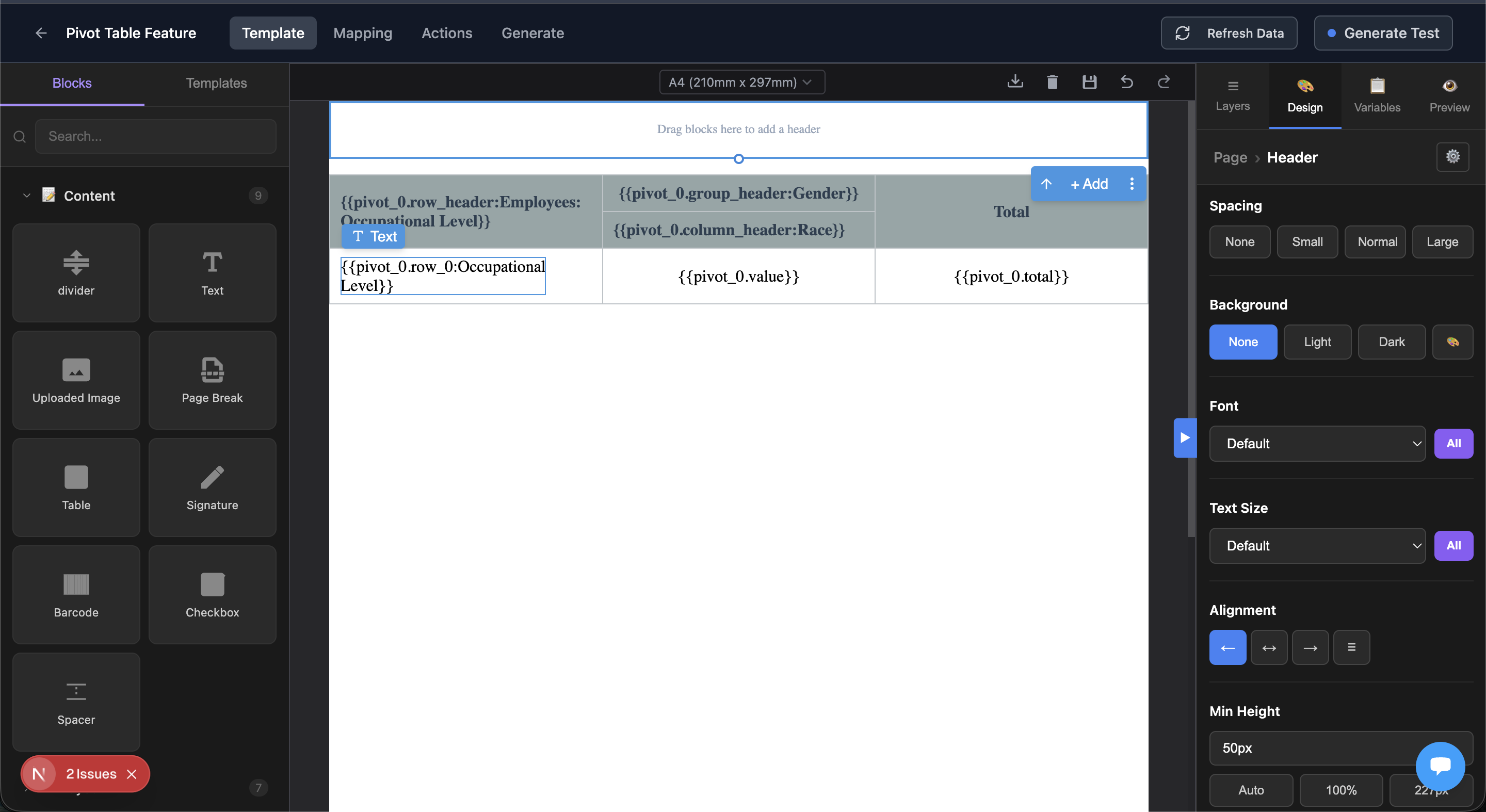
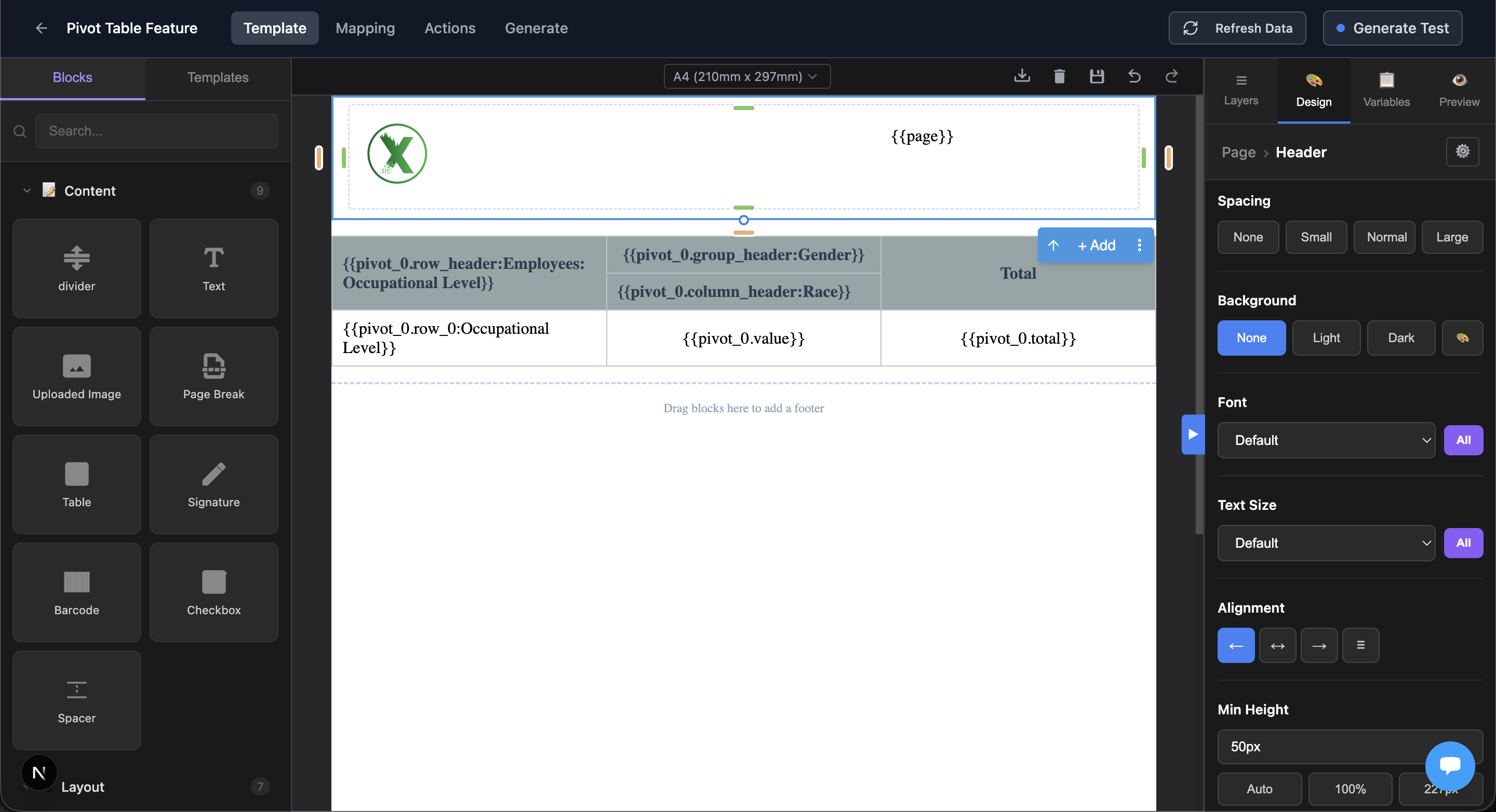
When you open the Template Builder, you see three zones:
- Header zone - at the top of the canvas, separated by a dashed line
- Body - your main document content (the existing editor)
- Footer zone - at the bottom of the canvas, separated by a dashed line
The header and footer zones work like the body - you can drag and drop any block into them (Text, Image, Layout Row, etc.) and style them using the Design panel.
Key behaviors:
- Headers and footers repeat on every page of multi-page documents
- They are saved separately from the body and sent to the PDF renderer independently
- All styles are inlined automatically - your header/footer is self-contained
Available in: Template Builder (HTML templates only)
Adding a Header
- Look for the zone at the top of the canvas with the dashed border
- Drag a block from the left panel (e.g., Text, Image, Layout Row) and drop it into the header zone
- Edit the content by clicking on it
Common header content:
- Company logo (Image block)
- Company name and address (Text block)
- Document title
- Dynamic fields like
{{Invoice Number}}or{{Date}}
Adding a Footer
- Scroll to the bottom of the canvas to find the footer zone with the dashed border
- Drag blocks into it the same way as the header
Common footer content:
- Page numbers (
{{page}}of{{topage}}) - Legal disclaimers
- Company contact info
- Document ID or reference number
Styling
Select the header or footer zone and use the Design panel on the right to style it:
- Background - set a background color for the entire zone
- Spacing - adjust padding inside the zone
- Min Height - set a minimum height for the zone
- Font, Text Size, Alignment - set default text styles for the zone
You can also style individual elements inside the zone by selecting them.
Page Numbers
To add page numbers, drag a Text block into your footer and type:
Page {{page}} of {{topage}}
{{page}}- current page number (replaced automatically){{topage}}- total number of pages (replaced automatically)
These are special variables handled by the PDF renderer, not by TypeFlow field mapping.
Import HTML/CSS
If you have existing HTML for your header or footer:
- Select the header or footer zone in the canvas
- Click Import HTML/CSS in the Design panel (scroll down)
- Paste your HTML in the modal
- Click Import
The HTML replaces the current content of the zone. You can then edit it visually in the canvas.
Related Features
- Template Builder - The visual editor where you design templates with headers and footers
- Variables & Field Mapping - Use Airtable fields in your headers (e.g., company name, document number)
- Dynamic Images - Add logos from Airtable attachment fields
- Conditional Sections - Show or hide content based on field values (body only, not in headers/footers)