Updated November 16, 2026 · By TypeFlow
Scan to Update: Update an Airtable Record by Scanning a QR Code
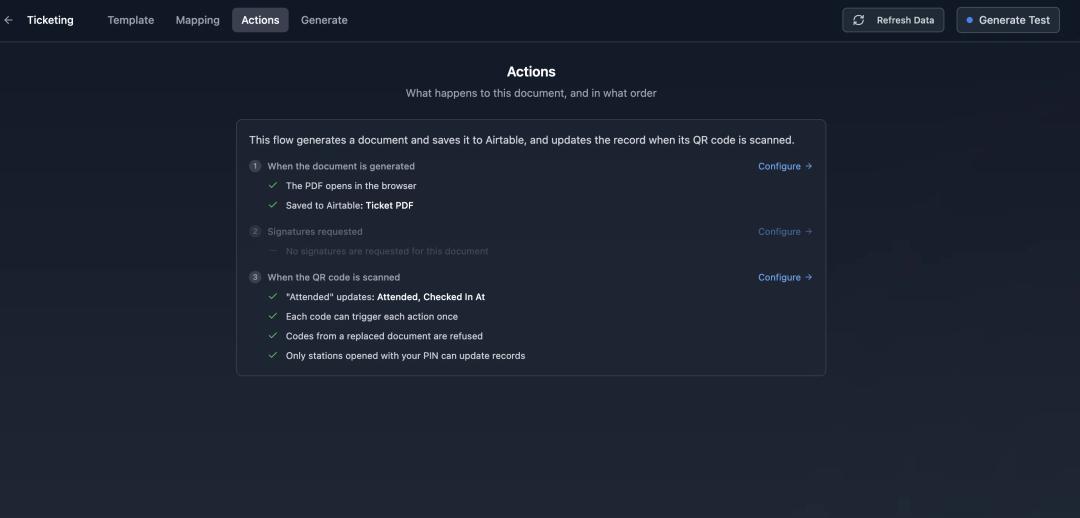
Scan to Update prints a QR code on each generated document. When someone scans it at a TypeFlow station, TypeFlow writes the value you chose to the Airtable record the document came from, for example Status = Checked in.
Overview
You already print documents with a code on them: event tickets, delivery notes, box labels, work orders. Until now, marking the record when the code was scanned meant searching for it in an Interface or using another tool.
With Scan to Update:
- TypeFlow generates the document with a QR code tied to its Airtable record.
- Someone scans the code at a station: a web page on a computer with a handheld barcode scanner, a phone or a tablet.
- TypeFlow updates the record in Airtable, and the station shows the result full screen, with a sound.
| Use case | What the scan writes |
|---|---|
| Event tickets | Status = Checked in |
| Delivery notes | Status = Delivered |
| Equipment loans | Check-in / Check-out buttons |
| Work orders | Status = Done |
Before You Start
- Plan: Pro and above.
- Early access: Scan to Update is being rolled out. If you do not see it in your flow, contact us and we will turn it on for your account.
- Template: Template Builder (HTML) templates, with Airtable as the data source.
- Airtable: the field the scan writes to, for example a Single select "Status".
How to Set Up
Step 1: Add a barcode to your template
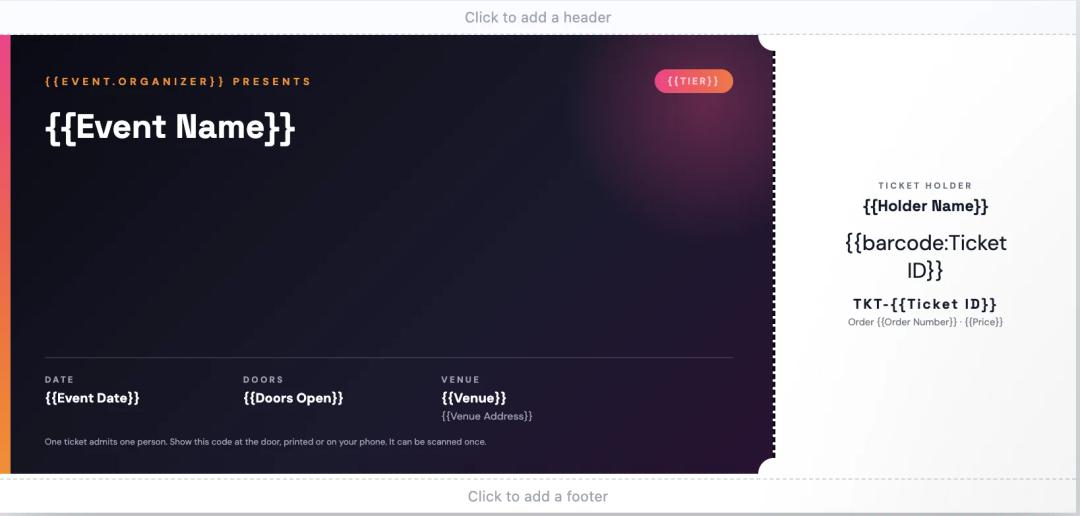
In the Template Builder, add a barcode variable where the QR code should print, for example {{barcode:Ticket ID}} on the stub of an event ticket.
Step 2: Set the barcode type to Scan link
In the Mapping tab, set that barcode's type to Scan link. TypeFlow generates the code itself, tied to the record.

Step 3: Choose what the scan does
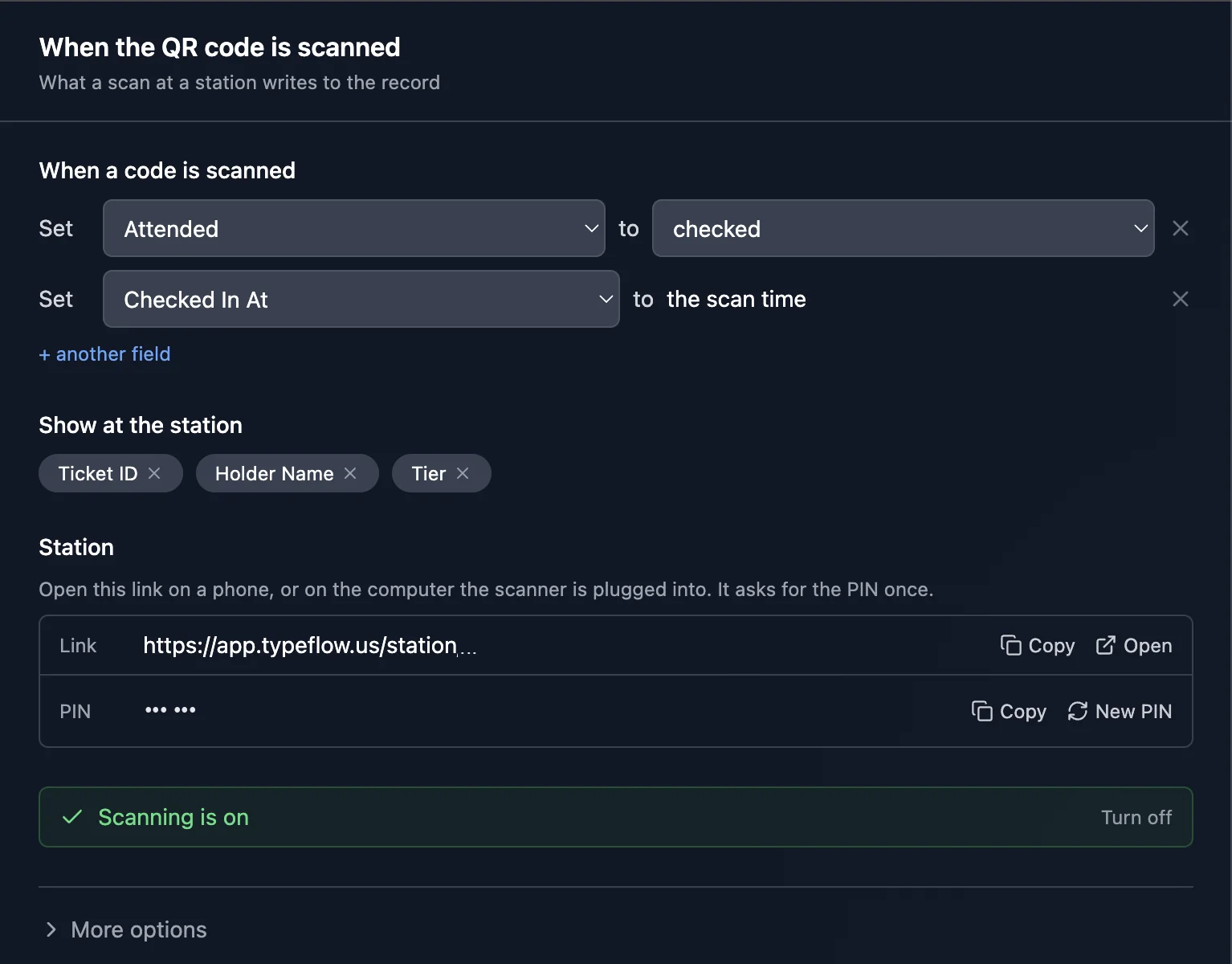
In the Actions tab, open the stage When the QR code is scanned. Under When a code is scanned, complete the sentence Set [field] to [value]:
- a checkbox, for example Set Attended to checked;
- a single select, for example Set Status to Checked in;
- a date field, set to the scan time.
Click + another field to update several fields with one scan.
Then:
- Show at the station: the fields the person scanning sees, for example Ticket ID, Holder Name and Tier.
- Station: the station link and its 6-digit PIN. Open the link on a phone, or on the computer the scanner is plugged into. It asks for the PIN once.
Step 4: Turn on scanning
Click Turn on scanning. The stage shows Scanning is on, and every production document generated from now on carries a working QR code, whether you generate it from an Airtable button or an Airtable automation. Turn off stops all stations.
More options
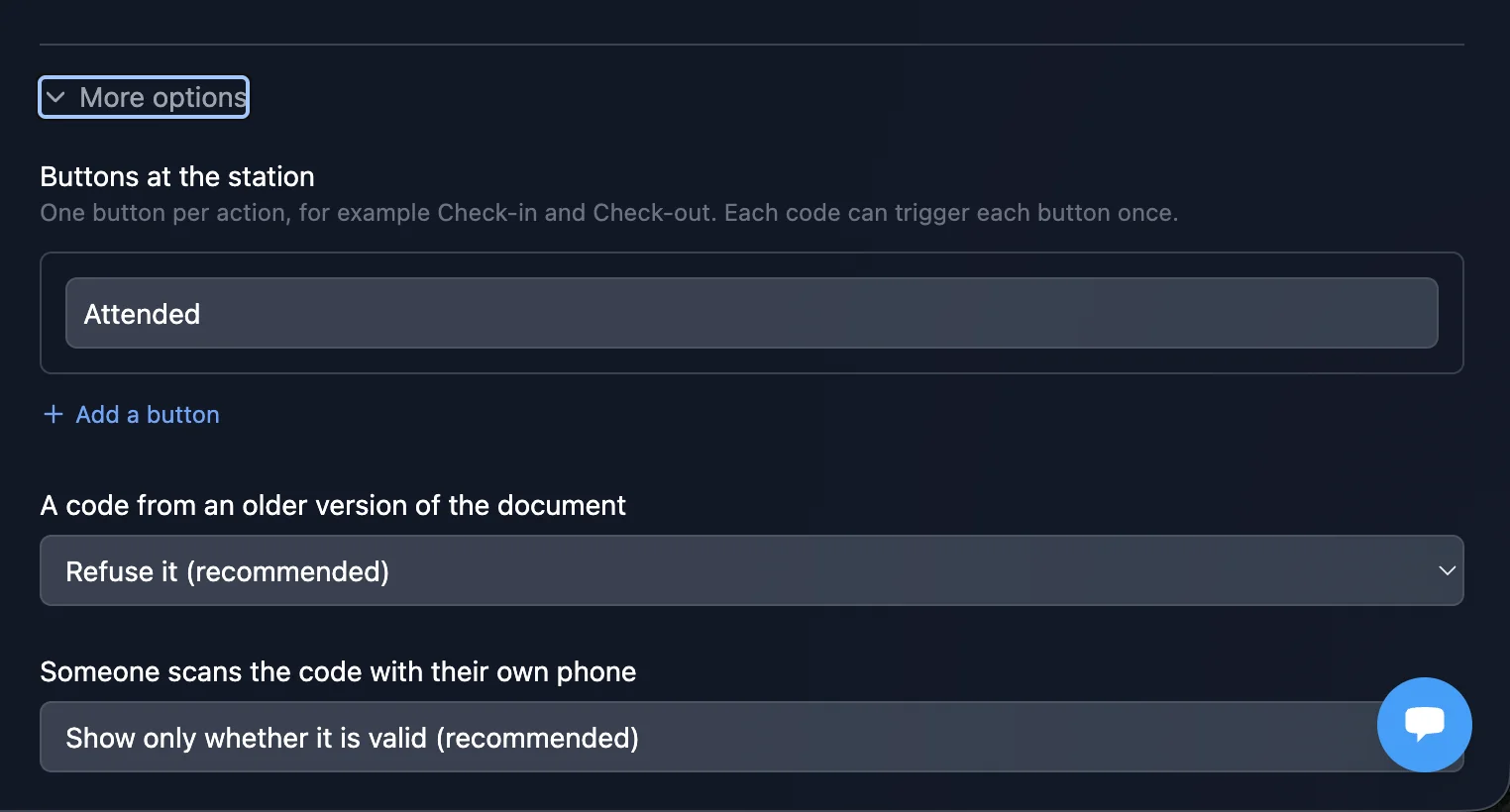
Under More options:
| Option | Choices |
|---|---|
| Buttons at the station | One button per action, for example Check-in and Check-out (+ Add a button). Each code can trigger each button once. |
| A code from an older version of the document | Refuse it (recommended), Accept it, or Accept it with a warning |
| Someone scans the code with their own phone | Show only whether it is valid (recommended), Show the station fields, or Show nothing |
Scanning at the Station
- Open the station link on the device.
- Type the PIN and a name for who or where is scanning (for example "Door A").
- Scan codes with:
- a handheld barcode scanner (USB or Bluetooth scanner gun): nothing to install, the station reads it like a keyboard, even on a French AZERTY keyboard;
- the camera of the phone or tablet;
- or type the code by hand.
Each scan shows a full-screen result:
| Color | Meaning |
|---|---|
| Green | Applied: Airtable is being updated |
| Amber | Already scanned, with when and where |
| Red | Replaced by a newer document, cancelled, or not a code for this flow |
Codes from test generations show a TEST banner and never write to Airtable.
Security: 5 wrong PINs lock the device for 15 minutes. Generating a new PIN closes every open station.
Scan Log, Undo and Retry
Every scan is listed in History > Scans, newest first, with the record, the flow, the button, the station, the time and its status: Written, Writing, Failed, Test, Already scanned, Refused or Undone.
- Undo frees the code. If Airtable was already updated, TypeFlow restores the previous values on the fields that still hold what the scan wrote.
- Retry Airtable sync sends a failed write again, for example after you reconnect a base. It never applies the scan twice.
Limits
- One record, one code. A record that prints several copies of the same label (Repeat X Times) cannot get a Scan link.
- Airtable is updated within seconds, not instantly: the station confirms the scan first, then TypeFlow writes to Airtable in the background.
- Scanning a code with a phone's own camera opens a read-only page. It never updates the record: only a station does.
Related
- Variables and field mapping: barcodes - barcode syntax and the other barcode types (EAN-13, Code 128, UPC-A, Code 39)
- Print Labels - Repeat X Times - one label per item from a quantity field
- Document Versioning - why a code from a replaced document is refused
- How to Generate Barcodes from Airtable Data
- How to Create Inventory Labels with Barcodes in Airtable