Print Labels - Repeat X Times
Duplicate the same label multiple times based on a quantity field. Perfect for bulk product labels, inventory tags, and shipping labels.
Overview
The Problem: You sell products in bulk (e.g., 33 plants) and need one label for each individual item - all with the same information.
The Solution: Enable "Repeat X Times" mode in Print Labels. TypeFlow reads a number field from your record and duplicates the label that many times.
| Mode | Description |
|---|---|
| Standard Print Labels | 1 label per linked record, different data on each |
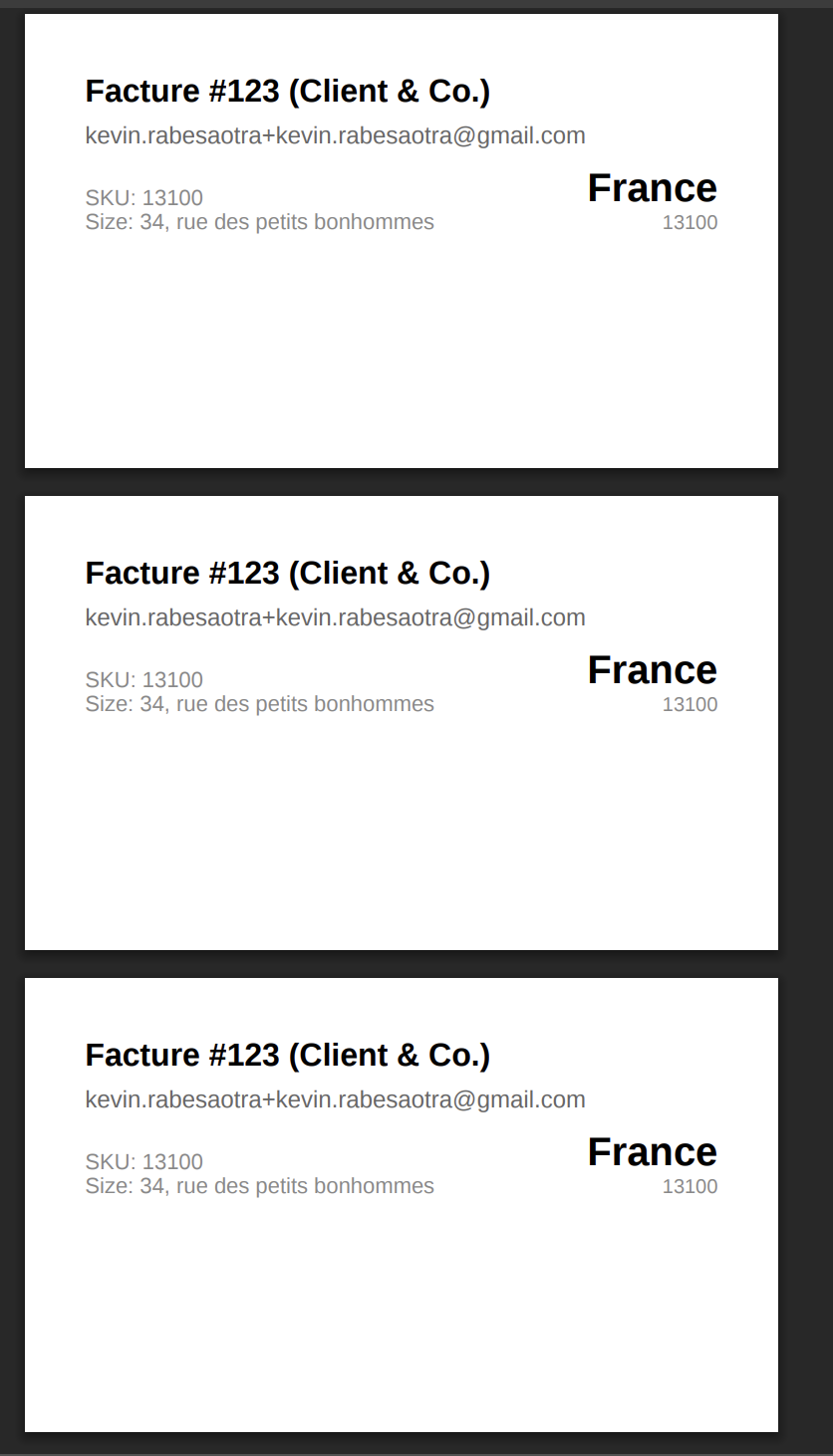
| Repeat X Times | X labels from a single record, same data on every label |
When to Use This
Use Repeat X Times when you need identical labels based on a quantity:
| Scenario | Example |
|---|---|
| Bulk product labels | 33 plants sold = 33 identical labels |
| Inventory tags | 100 items in stock = 100 tags |
| Event badges | 50 attendees in same category = 50 badges |
| Shipping labels | 12 boxes in shipment = 12 labels |
Don't use this when:
- Each label needs different data - Use standard Print Labels with linked records
- You need labels from multiple records - Use standard Print Labels or View Report
Step-by-Step Tutorial
Step 1: Create your label template
Design your label in the Template Builder:
- Start a new flow with Template Builder
- Set custom page size (e.g., 100mm x 60mm for product labels)
- Add your variables: product name, barcode, price, etc.
Step 2: Enable Repeat X Times
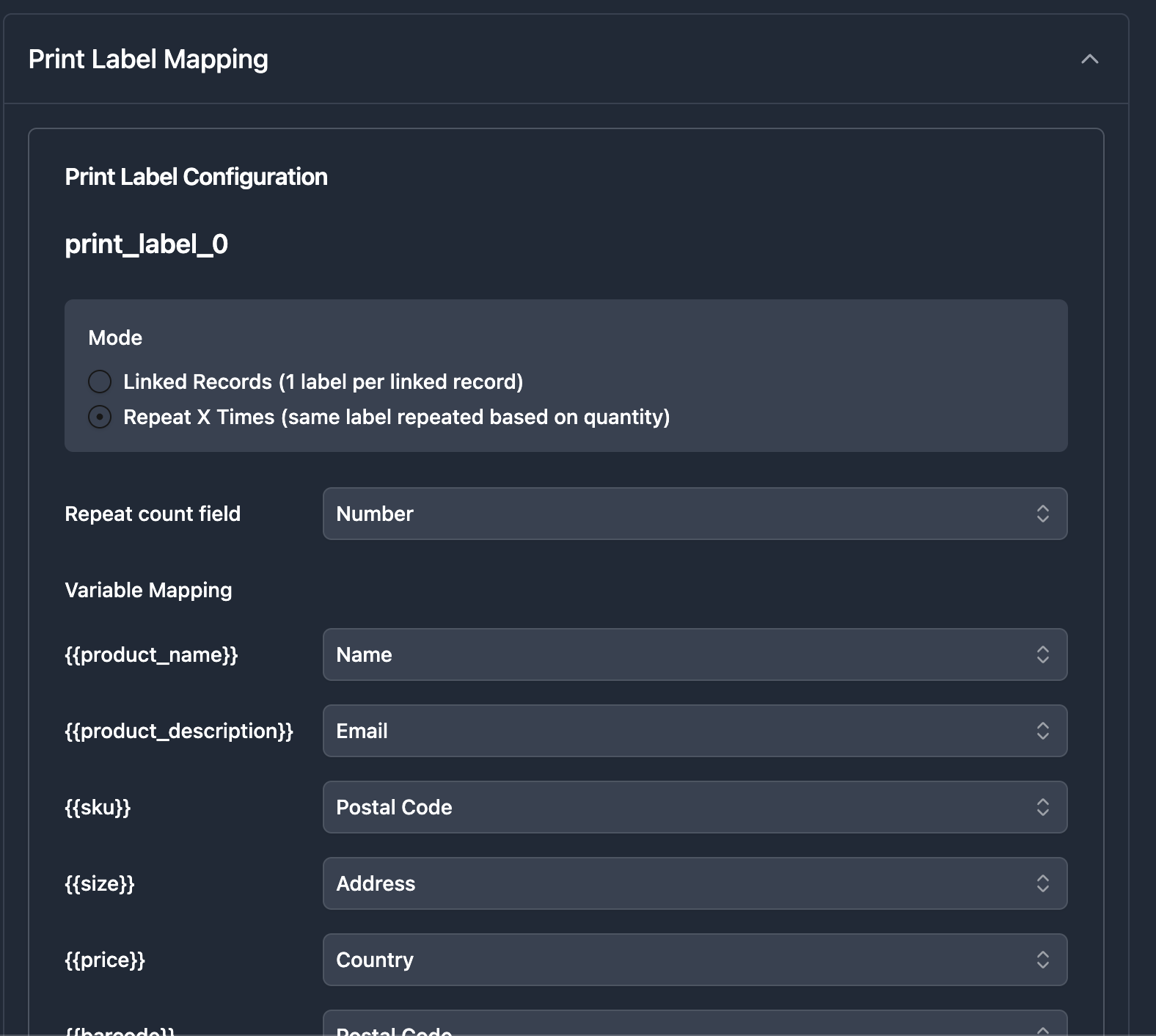
In the Mapping tab, find the Print Labels section:
- Toggle ON "Repeat X Times"
- A dropdown appears below the toggle
Step 3: Select your quantity field
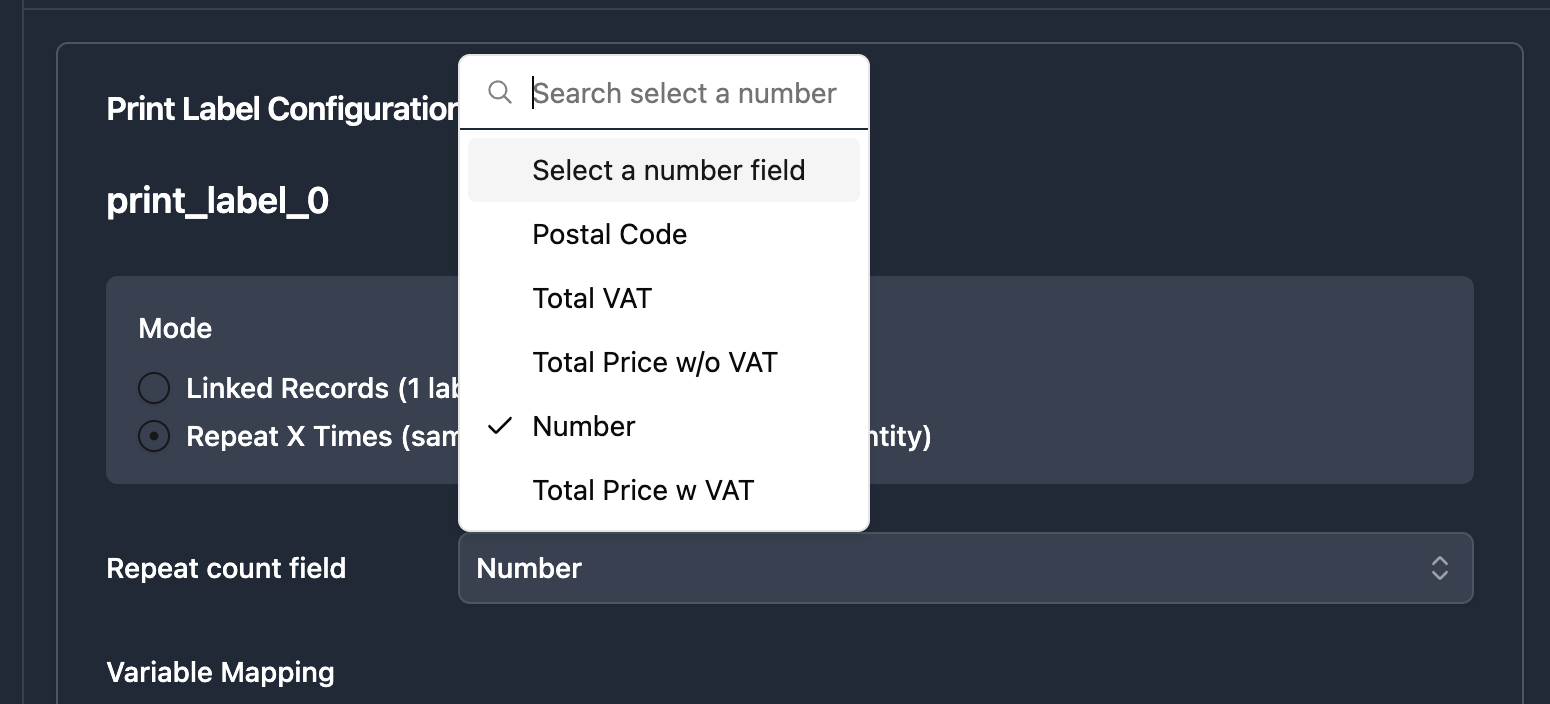
From the dropdown, select the number field that contains the quantity:
- Only number fields are shown in the dropdown
- The field value determines how many labels are generated
Step 4: Map your variables
Map each variable to the corresponding Airtable field:
| Variable | Airtable Field |
|---|---|
{{product_name}} | Product Name |
{{ean13}} | EAN13 Barcode |
{{size}} | Size |
{{price}} | Price |
Step 5: Generate your PDF
Click "Generate" or trigger via automation.
If quantity = 33:
- PDF has 33 pages
- Each page is one label
- All labels have identical content
Examples
Plant Nursery Labels
Airtable Record:
| Product | Quantity | EAN13 | Price |
|---|---|---|---|
| Lavandula Arctic Snow | 33 | 712815764559 | 16.99 |
Output: 33-page PDF, each page showing:
┌─────────────────────────────────┐
│  Lavandula Arctic Snow          │
│  |||||||||||||||||||||||||||    │
│  712815764559                   │
│  C7.5 30-35cm         16.99     │
└─────────────────────────────────┘
Warehouse Inventory Tags
Airtable Record:
| SKU | Item | Stock Count | Location |
|---|---|---|---|
| WH-001 | Widget Pro | 50 | Aisle 3, Shelf B |
Output: 50 identical tags for the 50 items in stock.
Event Badges
Airtable Record:
| Category | Badge Count | Access Level |
|---|---|---|
| VIP Guest | 25 | All Areas |
Output: 25 identical VIP badges, ready to be assigned to guests.
Tips & Best Practices
Use appropriate page sizes
| Label Type | Recommended Size |
|---|---|
| Product labels | 100mm x 60mm |
| Shipping labels | 100mm x 150mm |
| Badges | 85mm x 55mm |
| Inventory tags | 50mm x 25mm |
Set a maximum quantity
Large numbers can create huge PDFs. Consider adding validation in Airtable to cap the quantity field.
Handle zero or empty quantities
If the quantity field is 0 or empty, no labels are generated. Consider:
- Setting a default value in Airtable
- Adding validation to require a minimum of 1
Combine with barcodes
TypeFlow generates barcodes server-side. Common types:
- EAN-13 - Retail products
- Code 128 - Shipping/logistics
- QR codes - Inventory tracking
FAQ
Can I use this with Google Docs templates?
No. Repeat X Times only works with Template Builder templates. Google Docs don't support the custom page sizes needed for labels.
Can I mix repeat mode with linked records?
No. It's one or the other. Repeat X Times duplicates the same label, while linked records mode creates different labels for each linked record.
What's the maximum number of labels?
There's no hard limit, but we recommend keeping under 500 labels per PDF to avoid timeouts and large file sizes.
Can I add a page counter to each label?
Yes. Use {{page_number}} and {{total_pages}} variables in your template to show "Page 1 of 33" on each label.
Does this work with automations?
Yes. You can trigger label generation from Airtable Automations, Button fields, or the TypeFlow Extension.
Troubleshooting
Only 1 label generated
Problem: Expected 33 labels but only got 1.
Solutions:
- Check the quantity field is mapped correctly
- Verify the field type is "Number" in Airtable
- Make sure "Repeat X Times" toggle is ON
- Check the record actually has a quantity value
Labels cut off or overflowing
Problem: Label content doesn't fit on the page.
Solutions:
- Check your template page size matches your physical label size
- Reduce font sizes or content if needed
- Test with the Preview feature before bulk printing
Variables not replaced
Problem: Labels show {{variable_name}} instead of actual values.
Solutions:
- Verify each variable is mapped in the Mapping tab
- Check variable names match exactly (case-sensitive)
- Ensure the Airtable fields have values
Empty pages in PDF
Problem: Empty pages at the start or end of the PDF.
Solution: This was fixed in version 2026-03-19. If you still experience this:
- Regenerate the document
- Contact support if the issue persists
Related Articles
- Template Builder - Visual editor overview
- Variables & Field Mapping - Map your database fields
- View Report - Generate reports from multiple records
Need More Help?
- Email: support@typeflow.us
- Chat: Click the chat icon in the app