How to White-Label the E-Signature Signing Page with Your Brand
Add your company logo, name, and primary color to the signing page so your signers see your brand - not TypeFlow's. Available on the Enterprise plan.
Overview
When you send documents for e-signature, the signing page is what your clients, partners, and vendors interact with. With white-label branding, you control what they see:
- Your company logo in the page header
- Your company name next to the logo
- Your brand color on all CTA buttons, checkboxes, and progress indicators
- "Powered by Your Company" in the sidebar footer (optional)
No TypeFlow branding appears anywhere in the signing experience.
Enterprise Plan Feature
White-label branding is available on the Enterprise plan ($199/month).
What You Can Customize
| Setting | What It Does | Required |
|---|---|---|
| Company logo | Displayed in the signing page header, error pages, and consent modal | No |
| Company name | Displayed next to the logo and in "Powered by" text | No |
| Primary brand color | Applied to all CTA buttons, checkboxes, and progress indicators | No |
| Show "Powered by" | Toggle to show "Powered by Your Company" in the sidebar | No |
All settings are optional. You can configure just a logo, just a color, or all of them together.
How to Set Up
- Open your flow in TypeFlow
- Go to the E-Signature tab
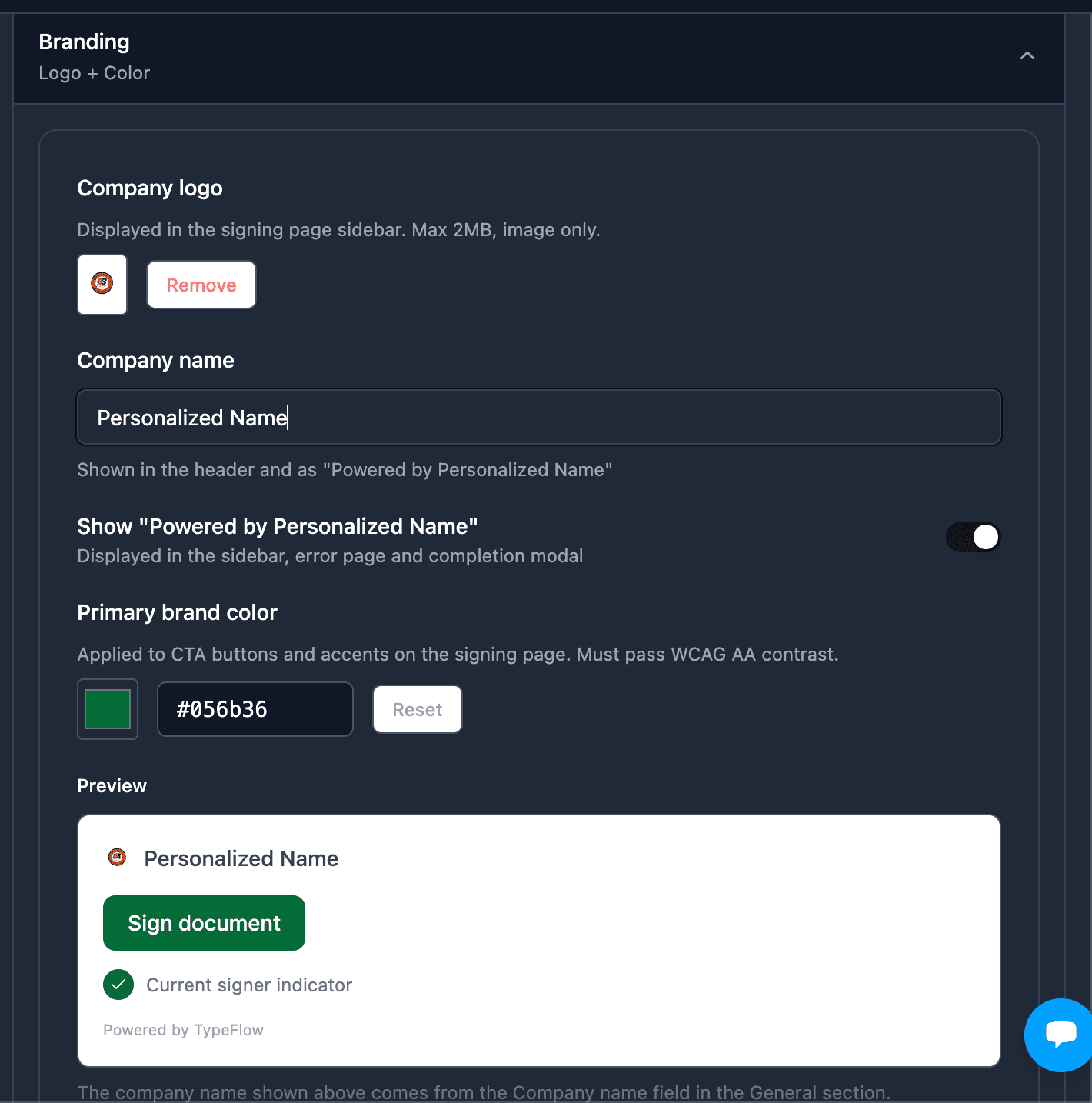
- Scroll down to the Branding section
- Configure your settings:
Upload Your Logo
Click Upload logo and select an image file (PNG or SVG recommended, max 2MB). The logo appears in the signing page header.
Set Your Company Name
Type your company name in the Company name field. This name appears:
- Next to the logo in the header
- As "Powered by Your Company" in the sidebar (if the toggle is on)
Choose Your Brand Color
Click the color picker or type a hex code (e.g. #056b36). The color must pass WCAG AA contrast - if your color is too light for readable button text, you'll see an error asking you to pick a darker shade.
Toggle "Powered by"
Turn on Show "Powered by Your Company" to display your company attribution in the sidebar, error pages, and completion modal. The text is translated to the signing language (English, French, or German).
Where Branding Appears
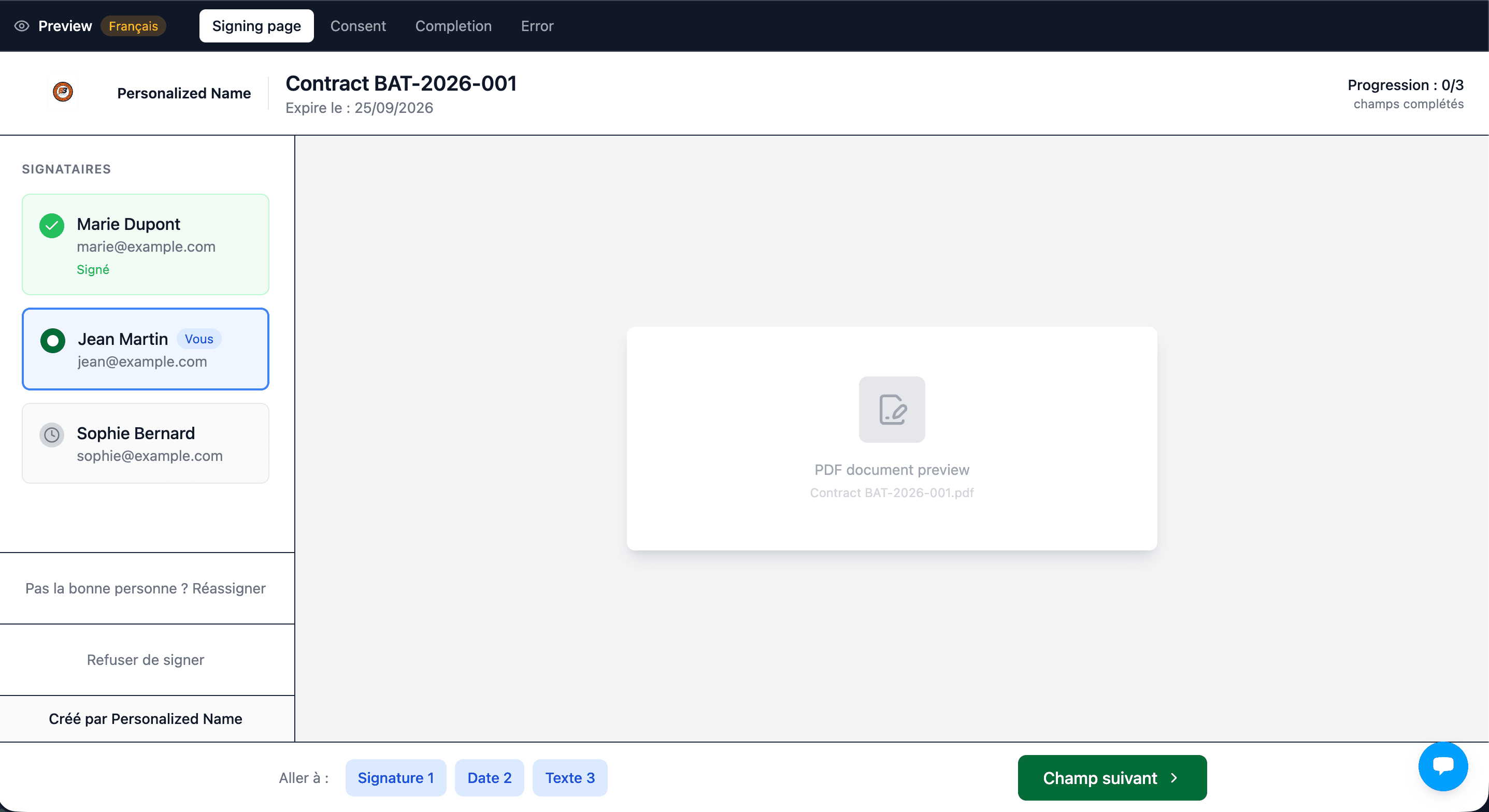
Signing Page (Desktop)
- Header: Logo + company name on the left, separated from the document title by a vertical divider
- Sidebar footer: "Powered by Your Company" below the Decline button
- All CTA buttons: Sign, Continue, Next Field - use your brand color
- Progress indicator: Current signer dot uses your brand color
Consent Modal
- Header: Logo + company name at the top
- CTA button and checkbox: Use your brand color
- Footer: "Powered by Your Company" on the left
Completion Modal
- Download button: Uses your brand color
- Attribution: "Powered by Your Company" below the download button
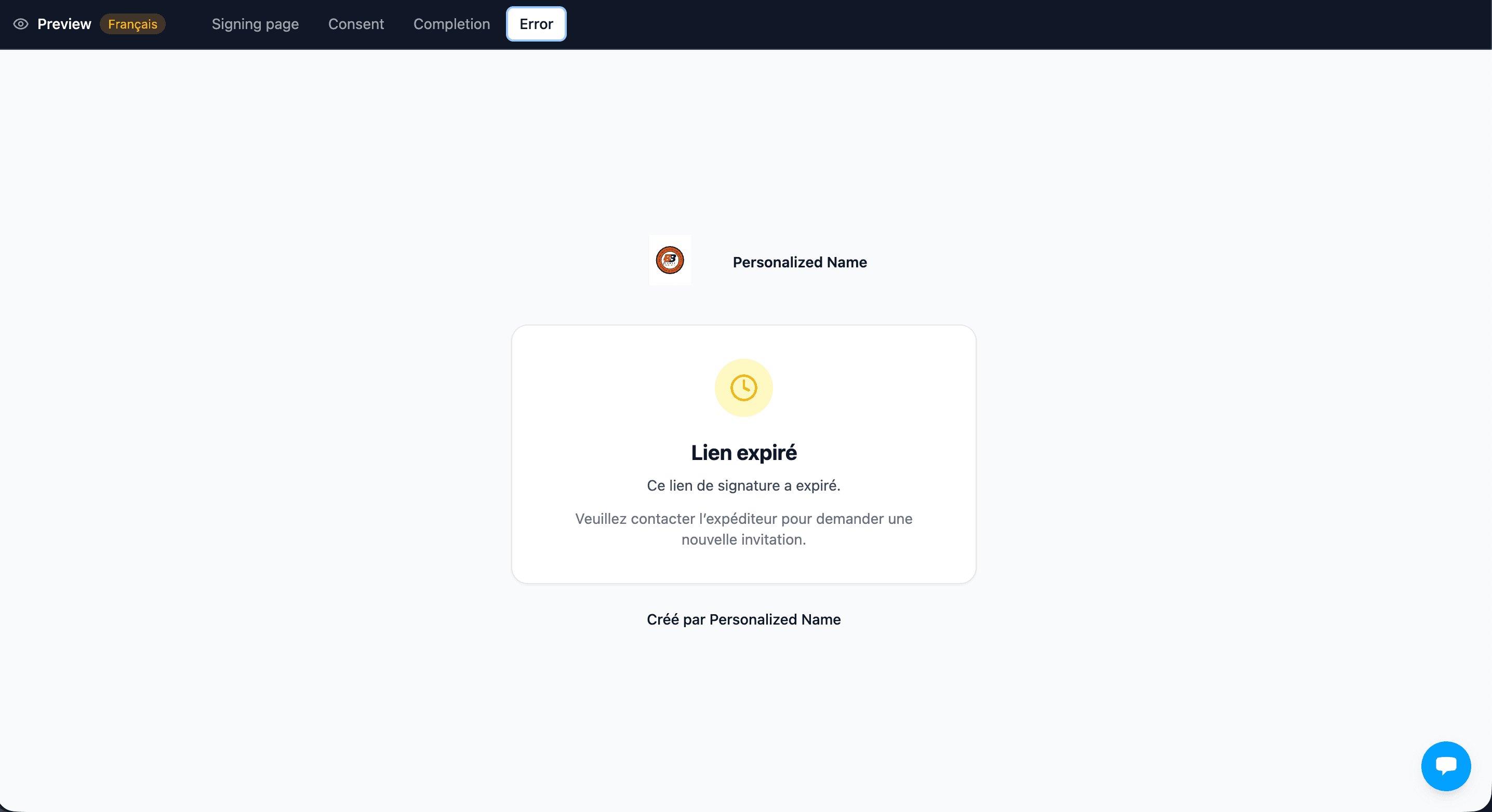
Error Page (Expired, Declined, etc.)
- Logo + company name: Centered above the error card
- Attribution: "Powered by Your Company" below the card
Preview Your Branding
Before sending documents, preview exactly what your signers will see.
Inline Preview
The Branding section shows a small preview card with your logo, a sample button in your brand color, and the "Powered by" text. This updates live as you change settings.
Full Preview
Click Full preview to open a dedicated preview page in a new tab. This page has four tabs:
| Tab | What It Shows |
|---|---|
| Signing page | Full layout with sidebar, header, PDF placeholder, and bottom navigation |
| Consent | The consent modal signers see before accessing the document |
| Completion | The success screen after all signers complete |
| Error | The expired link error page |
The preview uses mock signer data and renders in the locale you selected in your flow settings.
Logo Tips
- Use a transparent background (PNG or SVG). Logos with a white background will show a white rectangle on the page.
- Keep the logo readable at small sizes - it displays at roughly 40-56px tall.
- Horizontal logos work best in the header. Tall/square logos may look cramped.
- Max file size: 2MB, image files only.
FAQ
Related Articles
Signing Language: French, German, or English
Set the signing page, emails, and consent text in your signer's language.
Customize the E-Signature Invitation Email
Write your own signing invitation email with Airtable variables.
Send E-Signature Emails from Multiple Gmail Accounts
Connect multiple Gmail accounts and choose the sender per record.
E-Signature Legal Validity
Learn about ESIGN Act, UETA, eIDAS compliance and why TypeFlow e-signatures are legally binding.