How to Send E-Signature Emails from Multiple Gmail Accounts
Connect multiple Gmail accounts to TypeFlow and send signing invitations from the right email address for each record. Use a fixed account or let TypeFlow pick the sender dynamically from an Airtable field.
Overview
By default, TypeFlow sends e-signature emails from signatures@typeflow.us. With the Gmail connection (Enterprise plan), you can send from your own email address instead.
Multi-account Gmail takes this further. If your organization uses multiple sender identities - for example, different sales reps or different brands - you can connect all of them and let TypeFlow pick the right one automatically.
Three sending modes are available:
- TypeFlow - sends from
signatures@typeflow.us - Your Gmail - sends from one specific connected account
- From Airtable field - reads the sender email from a field in each record and matches it to a connected account
Connect Gmail Accounts
- Open your flow and go to the Actions tab
- In the E-Signature section, enable Email Customization
- Under Send via, select Your Gmail
- Click Connect to link your first Gmail account
- Click + Connect another account to add more
When multiple accounts are connected, a dropdown lets you pick which one to use.

Static Mode: Pick One Account
Select Your Gmail and choose an account from the dropdown. All e-signature emails for this flow will be sent from that account.
If the Gmail connection fails (token expired, account disconnected), TypeFlow automatically falls back to sending via signatures@typeflow.us and notifies you by email.
Dynamic Mode: From Airtable Field
Select From Airtable field to send from a different account per record. This is useful when:
- Multiple sales reps each send from their own email
- Different brands or departments use different sender addresses
- The sender is determined by business logic in Airtable (formula, lookup)
Setup
- Select From Airtable field
- Pick the Airtable field that contains the sender email address
- Connect all the Gmail accounts that might appear in that field
- Choose a failure policy (what happens if the email does not match)
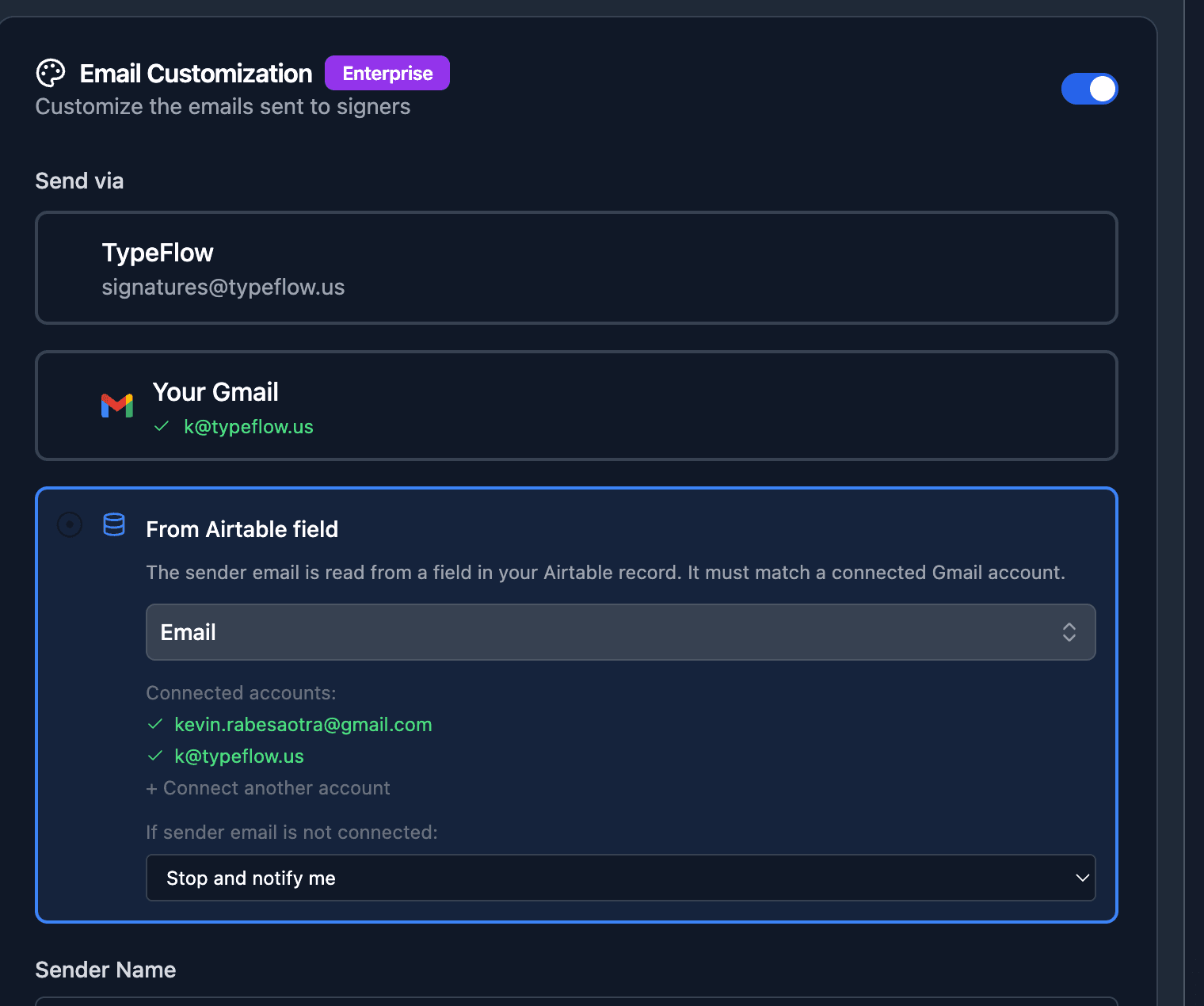
The field value must be an email address that exactly matches one of your connected accounts. TypeFlow normalizes the comparison (case-insensitive, trimmed).
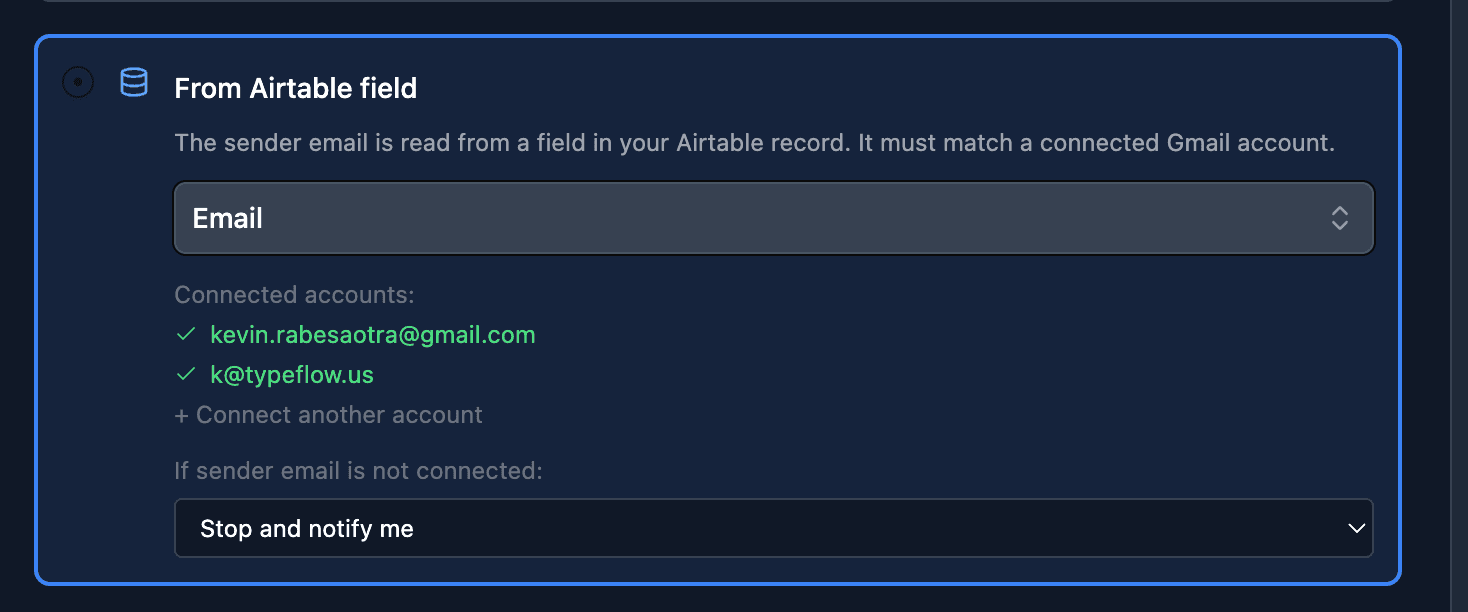
Connected accounts
The configuration shows all currently connected Gmail accounts. The sender email in your Airtable field must match one of these accounts.
Failure Policy
When using "From Airtable field", you choose what happens if the email in the record does not match any connected account:
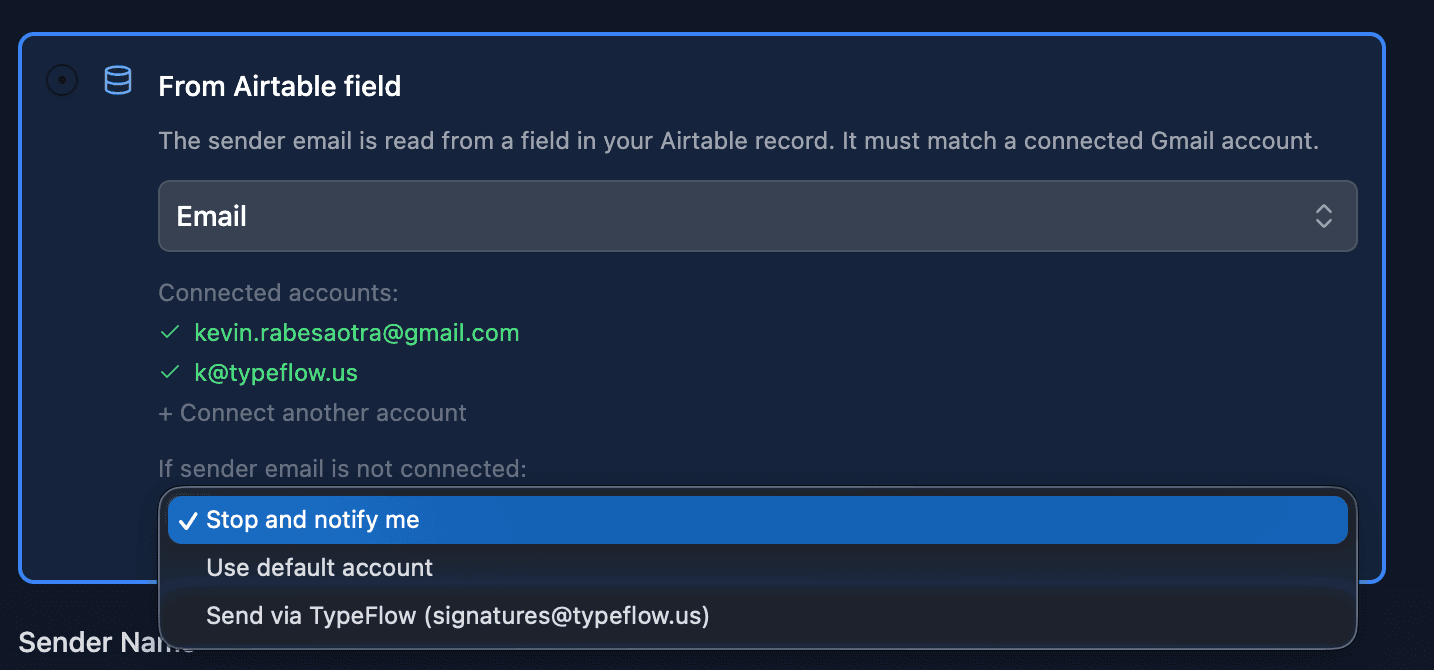
- Stop and notify me - the generation fails and you receive an error notification email. Use this when sending from the wrong address is not acceptable.
- Use default account - falls back to the flow's default Gmail connection or the primary account. The document is still generated and sent.
- Send via TypeFlow - falls back to
signatures@typeflow.us. The document is still generated and sent, but the recipient sees TypeFlow as the sender.
Team vs Personal
Gmail accounts are scoped to your workspace:
- Team flow - connects and shows Gmail accounts belonging to the team. Any team admin can connect accounts from the Team Settings page.
- Personal flow - connects and shows your personal Gmail accounts only.
Accounts do not cross between team and personal flows. A Gmail connected from a team flow will not appear in a personal flow, and vice versa.