How to Customize the E-Signature Invitation Email
Write your own signing invitation email with Airtable field variables. Customize the subject line, body text, sender name, and reply-to address so your signers receive emails that match your brand and workflow.
Overview
When you send a document for e-signature, TypeFlow sends an invitation email to each signer. By default, this email uses a standard template in your selected language (English, French, or German).
With email customization (Enterprise plan), you can:
- Write your own email body with Airtable variables
- Set a custom subject line with variables
- Change the sender name
- Set a reply-to address
- Customize the footer text
- Send from your own Gmail address
The signing button and document details are always included in the email - your custom text replaces only the message portion.
How to Set Up
- Open your flow in the Flow Builder
- Go to the E-Signature tab
- Scroll down to Email Customization and toggle it on
- Fill in the fields you want to customize:
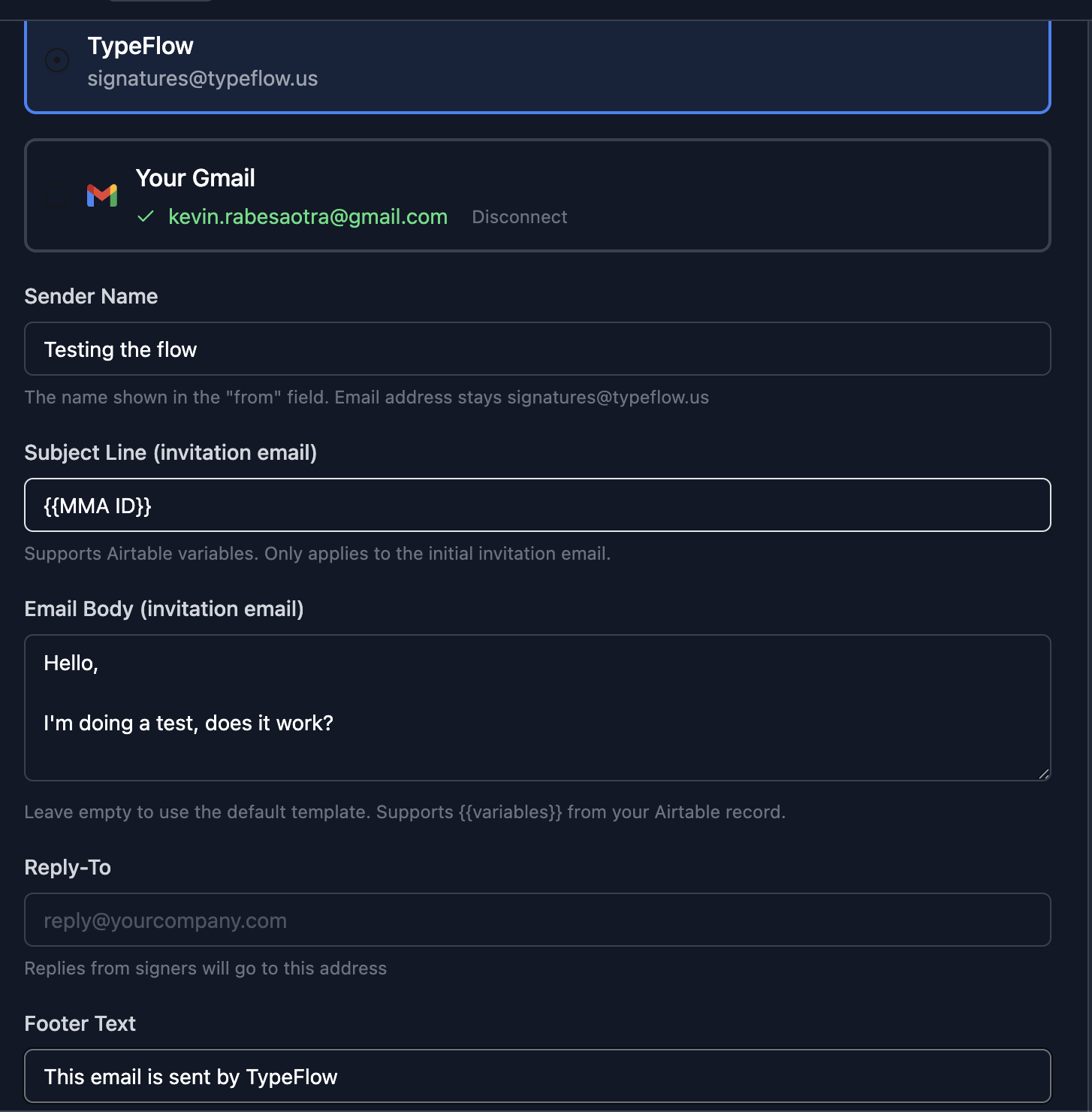
- Subject Line - supports variables. Example:
Please sign: Contract Name - Email Body - write your custom text. Use variables for dynamic content. Leave empty to use the default template.
- Sender Name - the name shown in the "from" field
- Reply-To - where replies from signers go
- Footer Text - small text at the bottom of the email
- Click Save - changes apply to all future signing invitations from this flow
Available Fields
You can customize these fields:
| Field | Supports Variables | Default |
|---|---|---|
| Subject Line | Yes | "Please sign: [Document Name]" |
| Email Body | Yes | Standard greeting + "You have been invited to sign" |
| Sender Name | No | Company name or "TypeFlow Signatures" |
| Reply-To | No | None (replies go to noreply) |
| Footer Text | No | "Powered by TypeFlow" |
Using Variables
Use the double curly brace syntax (e.g. Field Name wrapped in braces) to insert values from your Airtable record. The variable name must match your Airtable field name exactly.
Example body:
Dear [Client Name],

Please find attached the insertion order for [Magazine Name], reference [Order Number].

Click the button below to review and sign the document. The link is valid for 90 days.
Replace [Client Name], [Magazine Name], and [Order Number] with your actual Airtable field names wrapped in double curly braces.
This produces an email like:
Dear Mairie de Charenton,
Please find attached the insertion order for L'Echo Social du Gendarme, reference INS-2026-0142.
Click the button below to review and sign the document. The link is valid for 90 days.
The document card and "Sign Document" button appear automatically below your text.
Tips:
- Use line breaks for readability - they are preserved in the email
- If a variable has no value, it is replaced with an empty string
- Variables are case-insensitive (
{{client name}}works the same as{{Client Name}})
Send from Your Own Gmail
Instead of sending from signatures@typeflow.us, you can send signing emails from your own Gmail address:
- In Email Customization, under Send via, select Your Gmail
- Click Connect and authorize your Gmail account
- All signing invitation emails will now come from your Gmail address
This means:
- Signers see your name and email address
- Replies go to your inbox
- Better deliverability (no risk of spam filters blocking unknown senders)
[screenshot: Send via toggle showing TypeFlow vs Gmail options with connected Gmail address]