Updated November 1, 2026 · By TypeFlow
Acceptance Mode: Get a Quote or Order Accepted in One Click
Acceptance mode sends a document generated from Airtable to one recipient, who reads it and clicks Accept. Nothing to draw, nothing to place in your template. The acceptance is recorded in a Certificate of Acceptance attached to the PDF.
Overview
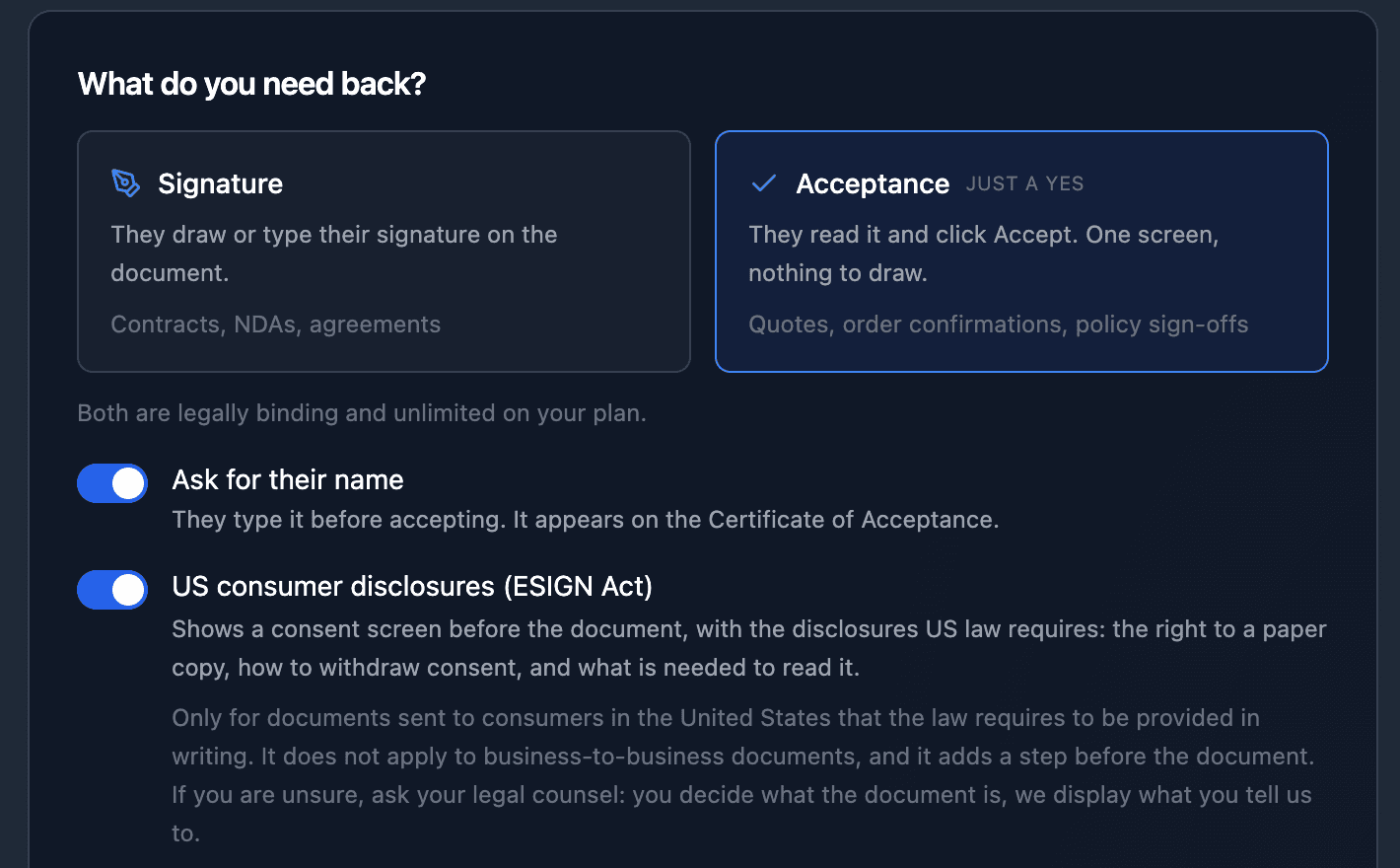
When you turn on e-signature in a flow, TypeFlow asks What do you need back?
| Mode | What the recipient does | Typical documents |
|---|---|---|
| Signature | Draws or types a signature in the document | Contracts, NDAs, agreements |
| Acceptance | Reads the document and clicks Accept | Quotes, order confirmations, change orders, policy sign-offs |
Both are legally binding. Acceptance is the shorter path when you only need a yes: one screen, one click.
How to Set Up
- Open your flow and turn on E-Signature.
- Under What do you need back?, choose Acceptance ("Just a yes").
- Choose the options under it:
- Ask for their name: the recipient types their full name before accepting. It appears on the Certificate of Acceptance.
- US consumer disclosures (ESIGN Act): shows a consent screen before the document, with the disclosures US law requires (the right to a paper copy, how to withdraw consent, what is needed to read the document). Only for documents sent to consumers in the United States that must be provided in writing; it does not apply to business-to-business documents.
- In Who accepts, set the recipient:
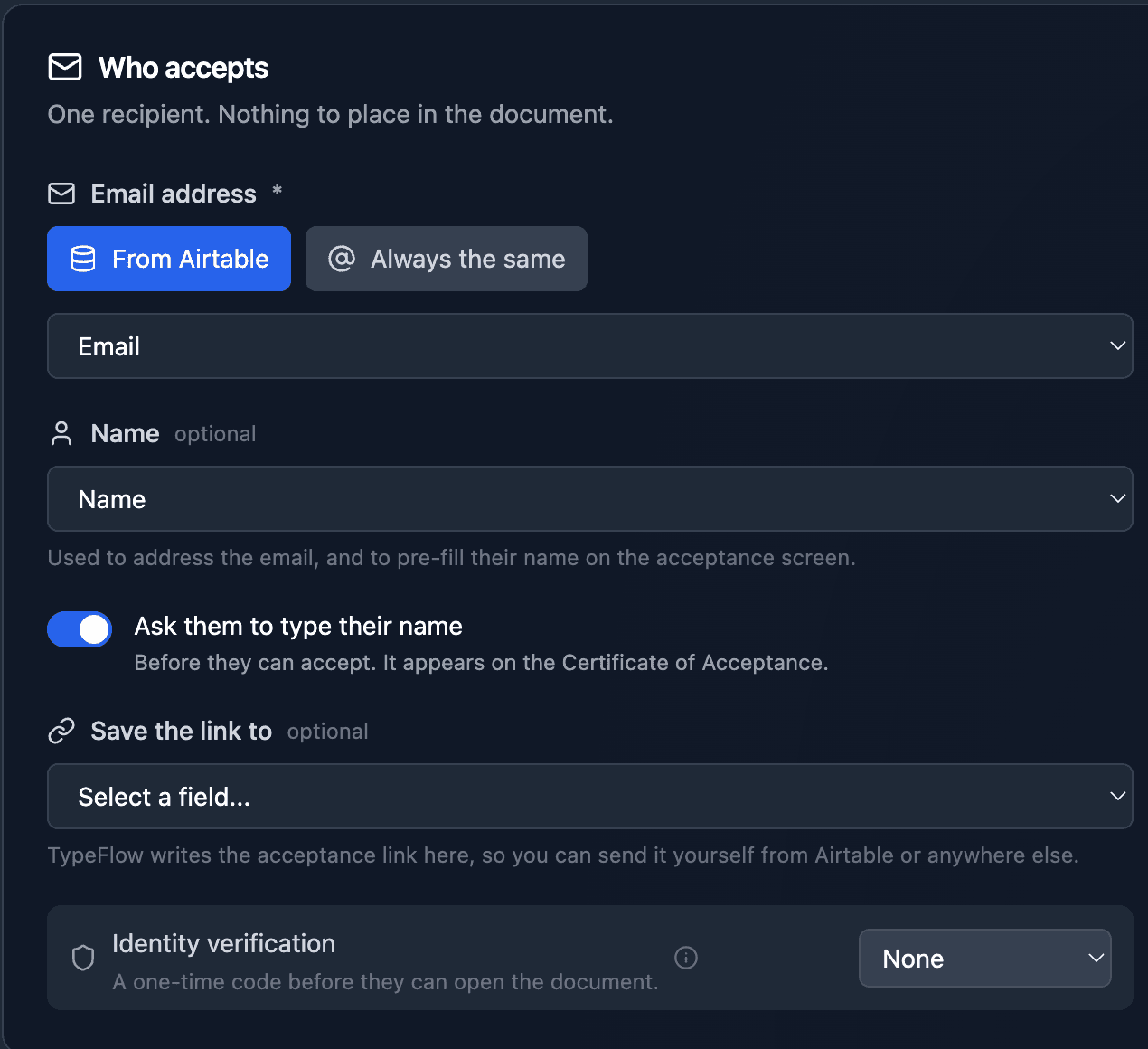
- Email address (required): From Airtable picks the field that holds it; Always the same sends every document to one fixed address. The email identifies the recipient on the certificate.
- Name (optional): used to address the email and to pre-fill their name on the acceptance screen.
- Save the link to (optional): TypeFlow writes the acceptance link into this Airtable field, so you can send it yourself from Airtable or anywhere else.
- Identity verification: a one-time code before they can open the document, on the Pro plan and above.
- Choose the Airtable attachment field where the accepted PDF is saved.
Your template needs no {{e-signature.*}} tags in acceptance mode: the recipient comes from the flow settings, not from the document.
Acceptance goes to one recipient. If your flow already has several signers configured, remove the extra ones or switch back to Signature.
What the Recipient Sees
- They open the link from the email, or the link you sent them from the Save the link to field.
- If you turned on the US disclosures, they read them and tick "I consent to receive and accept this document electronically".
- They read the document. At the bottom: "By clicking Accept, you agree to the terms of this document."
- If you asked for their name, they type it.
- They click Accept. The page confirms that the acceptance is recorded and that a copy of the document will be emailed to them.

They can also Decline the document, or use Not the right person? Reassign to pass it to someone else. See Decline Types to write a different Airtable value when a document is refused.
The signing page and emails follow the signing language of your flow.
Certificate of Acceptance
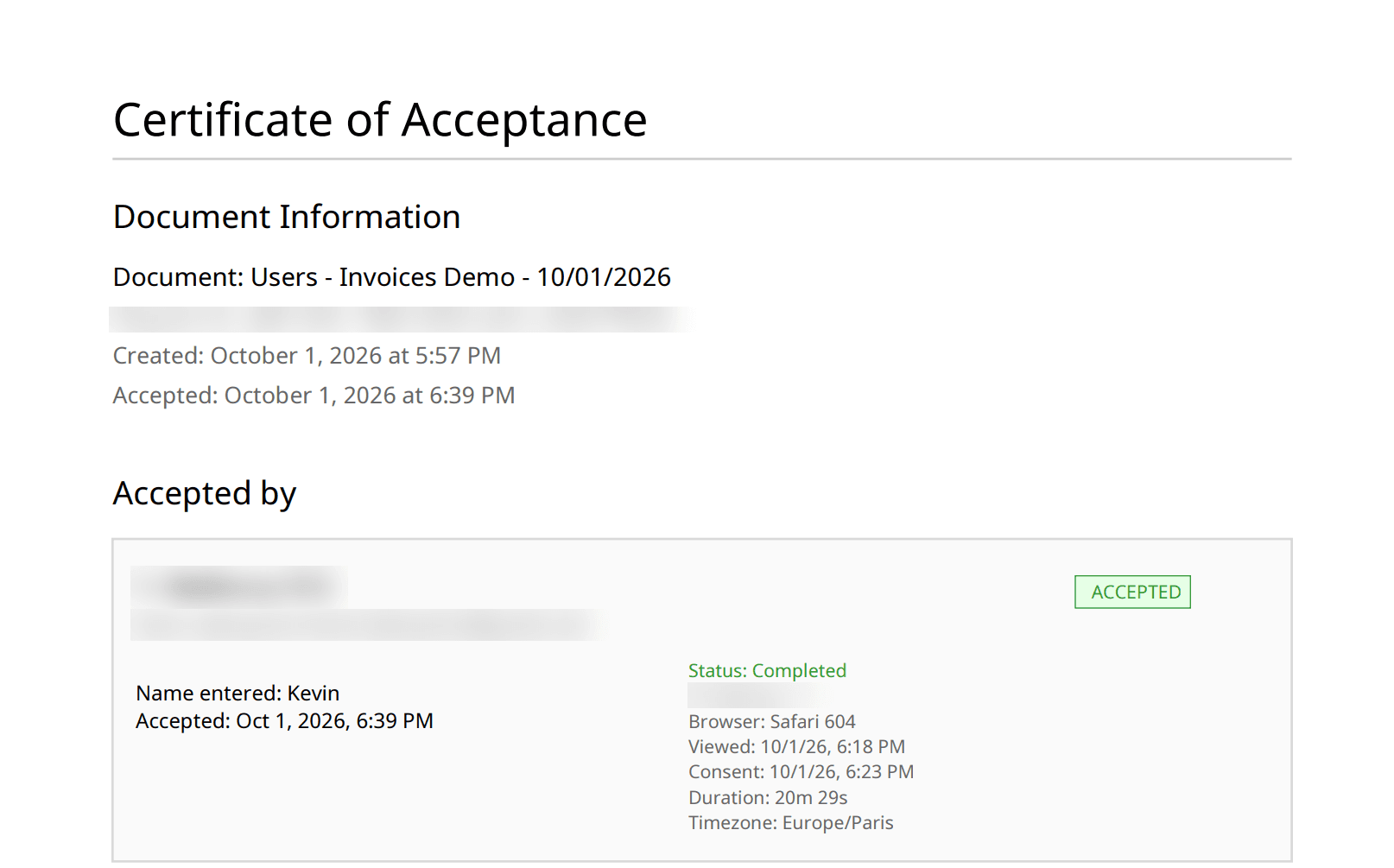
Every acceptance produces a Certificate of Acceptance, the equivalent of the Certificate of Completion for signed documents. It records:
- the document: its name, the request ID, when it was created and when it was accepted
- who accepted: their name and email address, and the name they typed if you asked for it
- how: IP address, browser, timezone, when they viewed the document, when they consented, when they accepted, and the time spent on it
- integrity: the SHA-256 hash of the original document, to prove it has not been modified
- legal basis: accepted electronically under the US ESIGN Act, UETA and the EU eIDAS Regulation (simple electronic signature)
The certificate is attached to the accepted PDF, which TypeFlow writes back to your Airtable attachment field. To trigger what comes next, such as turning an accepted quote into an invoice, see Update an Airtable Field When Signing Is Complete and the quote-to-invoice workflow.