Updated November 6, 2026 · By TypeFlow
How to Redirect Signers to Your Own App After Signing
Enter an address in your e-signature settings and TypeFlow sends each signer there after they sign, once their signed PDF is ready to download.
Overview
By default, signers stay on the TypeFlow final screen after signing. With a redirect, they go back to your app, portal or website.
Available on paid Pro plans and above. The redirect does not run during a free trial.
How to Set Up
- Open your flow and go to the e-signature settings
- Open the When signing is complete section
- Under After signing, send signers to, enter the full address, starting with
https://
The setting saves automatically. Leave the field empty to keep the final screen.
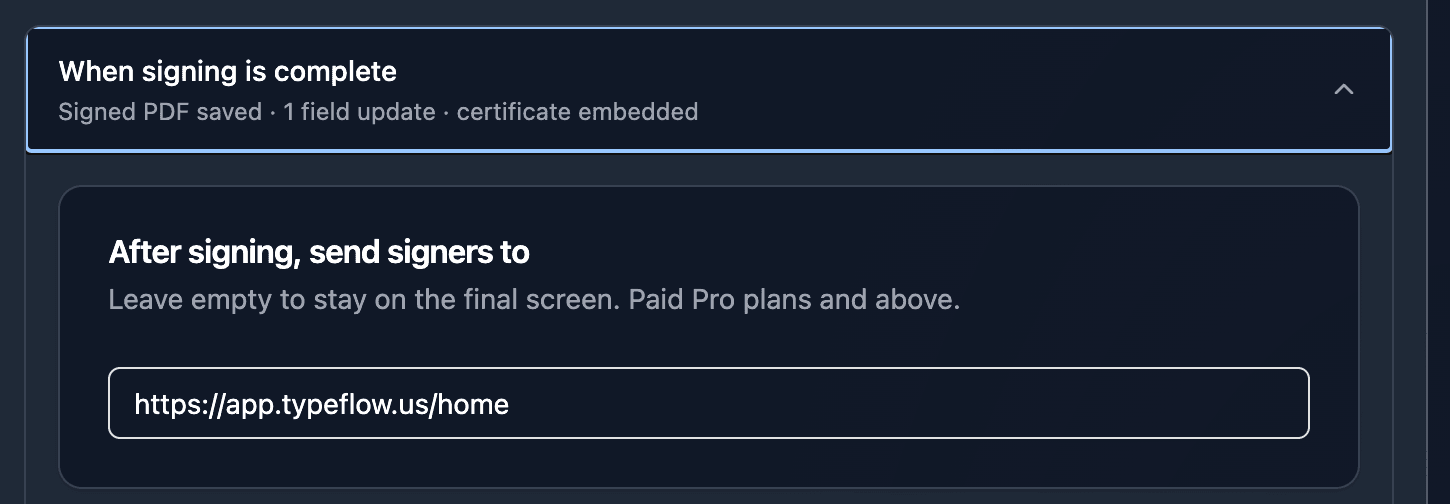
In acceptance mode, the section is called When accepted and the field After accepting, send the recipient to.
What the Signer Sees
| Situation | What happens |
|---|---|
| Last signer | "Preparing your document...", then the Download button and a Continue button, then the redirect after 5 seconds |
| Other signers still have to sign | Continue and the 5-second countdown appear right away |
| The signer clicks Download | The countdown stops, and Continue stays available |
| The signed PDF takes more than 2 minutes | The redirect runs anyway, and the PDF keeps generating |
| The signer declines | No redirect |
TypeFlow waits for the PDF because a signing link cannot be reopened once it is signed. A signer who leaves that page cannot come back to download the document.
Stop the Signed Document Email
If your app already gives signers their document, you can stop the email that sends it:
- In When signing is complete, find Completion email
- Uncheck Send the signed document to each signer
The final screen then stops mentioning an email. This applies to new signature requests only: requests already sent keep the setting they were sent with. See email preferences for the other emails.
A signer who gets no email and leaves before downloading has no copy from TypeFlow, so make the document available in your app.
Good to Know
- Requests already sent: the redirect applies to them too, as soon as you save the address
- One address per flow: all signers go to the same address, including internal signers who may not have access to your app
- Https only: addresses starting with
http://are refused - Nothing is added to the address: TypeFlow does not pass the signer or the document to your app. To record the signature in your data, see update a field on completion