Auto-Fill Date on Signature
Configure e-signature date fields to auto-fill with the signing date instead of showing a date picker popup. The date is set automatically the moment the signer opens the document - no click needed, no wrong date possible.
Overview
By default, date fields in e-signatures show a date picker popup where the signer manually selects a date. This works but adds friction - signers sometimes pick the wrong date or skip the field.
Auto-fill removes this step entirely. The date is set to the exact moment the signer opens the document, using your flow's date format settings.
How to Enable Auto-Fill Date
- Go to your flow's E-Signature settings
- Click Configure Fields for the signer
- Check "Auto-fill with signing date" on any date field
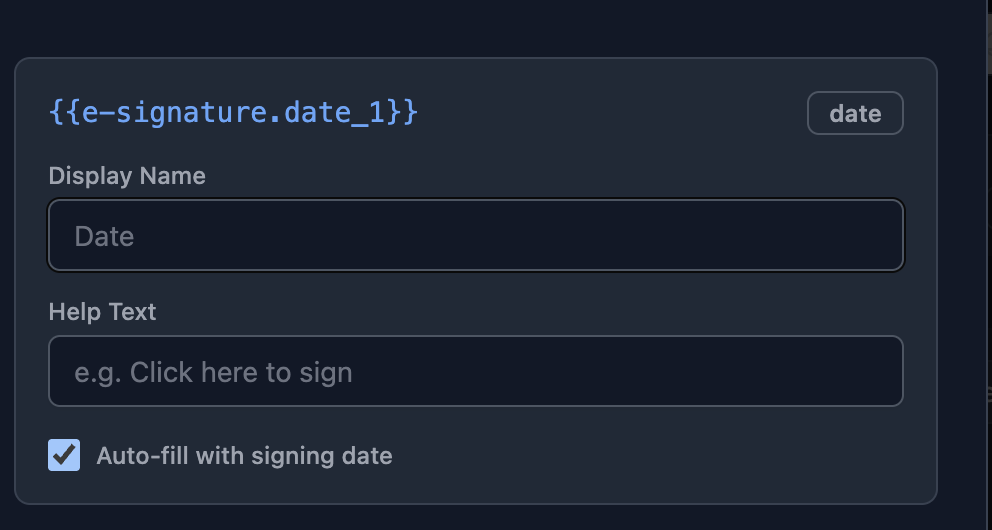
That's it. The next document generated will auto-fill the date when the signer opens it.
How It Works
- The signer clicks their signing link
- The date field is automatically populated with the current date
- The signer sees the date already filled in - no popup, no interaction needed
- The date is recorded in the audit trail along with the signature
Each signer gets their own date. In a sequential signing flow, Signer 1 might sign on Monday and Signer 2 on Wednesday - each date field reflects when that specific signer opened the document.
Date Picker vs Auto-Fill
| Date Picker (default) | Auto-Fill | |
|---|---|---|
| Signer interaction | Clicks to open popup, selects date | None - date is pre-filled |
| Date accuracy | Signer can pick any date | Always the actual signing date |
| Use case | When the signer needs to enter a specific date (e.g., start date) | When you want the signing date (e.g., "Date Signed") |
| Can signer change it? | Yes | No |
Use auto-fill for: "Date Signed", "Execution Date", or any field where you want the actual signing timestamp.
Use date picker for: "Start Date", "Effective Date", or any field where the signer needs to enter a future or custom date.
Related: Identity Verification (Email OTP) | Cancel Signature Request | E-Signature Overview