Identity Verification (Email OTP)
Identity verification adds an extra security layer to your e-signature flow by requiring signers to enter a 6-digit code sent to their email before they can view or sign a document. This prevents unauthorized access even if a signing link is shared or forwarded - only the person with access to the signer's email can proceed.
Overview
By default, anyone with a signing link can open and sign the document. Identity verification changes this: the signer must first prove they control the email address you configured in your flow.
This is similar to how DocuSign and other enterprise e-signature platforms handle signer authentication - but it's included in TypeFlow's Pro plan ($59/month) at no extra cost.
How it works:
- You enable identity verification for a signer in your flow settings
- When the signer clicks their signing link, they see a verification screen instead of the document
- A 6-digit code is sent to their email
- They enter the code to access the document and sign
How to Enable Identity Verification
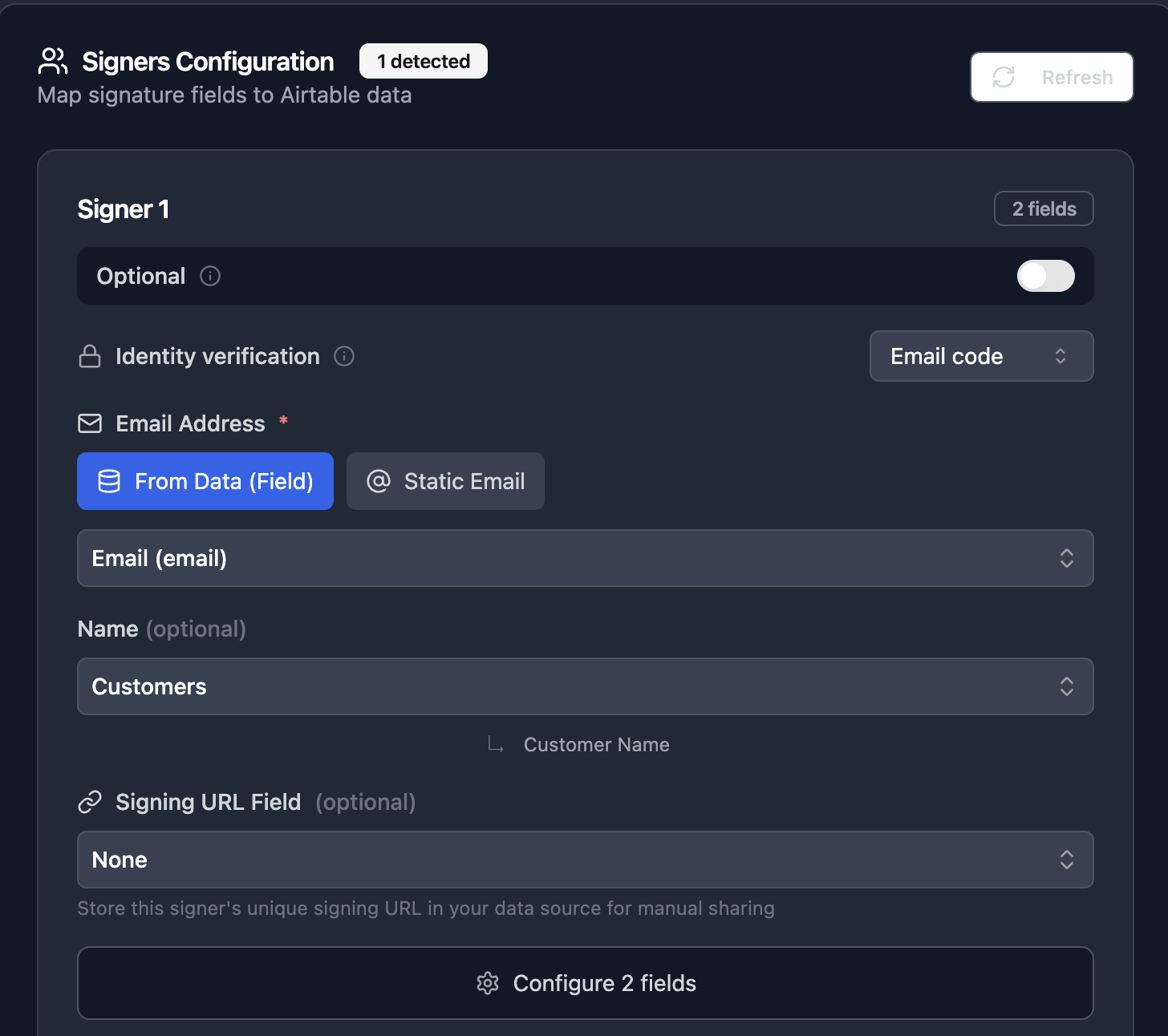
- Go to your flow's E-Signature settings
- Find the signer you want to verify
- Set Identity verification to Email code
That's it. The next time a document is generated and sent for signature, the signer will need to verify their identity before accessing it.
How It Works for the Signer
- Signer clicks their signing link - from the email invitation or a shared URL
- Verification screen appears - instead of the document, they see a prompt to verify their identity
- 6-digit code sent to their email - the code arrives within seconds
- Signer enters the code - it auto-submits when all 6 digits are entered
- Document loads - once verified, the signer sees the document and can sign normally
- Session persists - no need to re-verify if they come back in the same browser session
Security Details
| Setting | Value |
|---|---|
| Code length | 6 digits |
| Code expiry | 10 minutes |
| Max attempts per code | 3 |
| Max code requests per hour | 5 |
| Audit trail logging | All events logged (code sent, entered, success, failure) |
| Session duration | Browser session (no re-verify in same session) |
All verification events are recorded in the audit trail with timestamps and IP addresses, providing a complete record if the signature is ever challenged.
When to Use Identity Verification
Use it when:
- You send contracts to external parties (clients, vendors, freelancers)
- The signing link could be forwarded to the wrong person
- Your compliance requirements demand signer authentication
- You want parity with DocuSign's identity verification features
Skip it when:
- Internal team members are signing (you trust the email went to the right person)
- Speed matters more than verification (e.g., event waivers, permission slips)
- You're in a low-risk scenario where the signer's identity is already confirmed
Related: How to Cancel (Void) a Pending Signature Request | Audit Trail | E-Signature Overview