Multiple Grouping Levels (Template Builder)
Organize your table data into hierarchical groups with up to 3 levels of nesting. Perfect for invoices, project reports, quotes, and any document that needs structured data presentation.
Video Tutorial
Overview
Multiple Grouping lets you organize your linked records into a hierarchy. Instead of a flat list of rows, you get structured sections with headers at each level.
Single grouping:
Category A
- Item 1
- Item 2
Category B
- Item 3
Multiple grouping (2 levels):
Category A
Subcategory 1
- Item 1
- Item 2
Subcategory 2
- Item 3
Category B
Subcategory 3
- Item 4
When to Use
| Use Case | Level 1 | Level 2 | Level 3 |
|---|---|---|---|
| Invoice | Category | Subcategory | - |
| Project Report | Project | Phase | Task Type |
| Construction Quote | Lot | Sub-lot | Service |
| Inventory Report | Warehouse | Aisle | Shelf |
| Event Budget | Department | Event | Expense Type |
How It Looks
2-Level Grouping Example
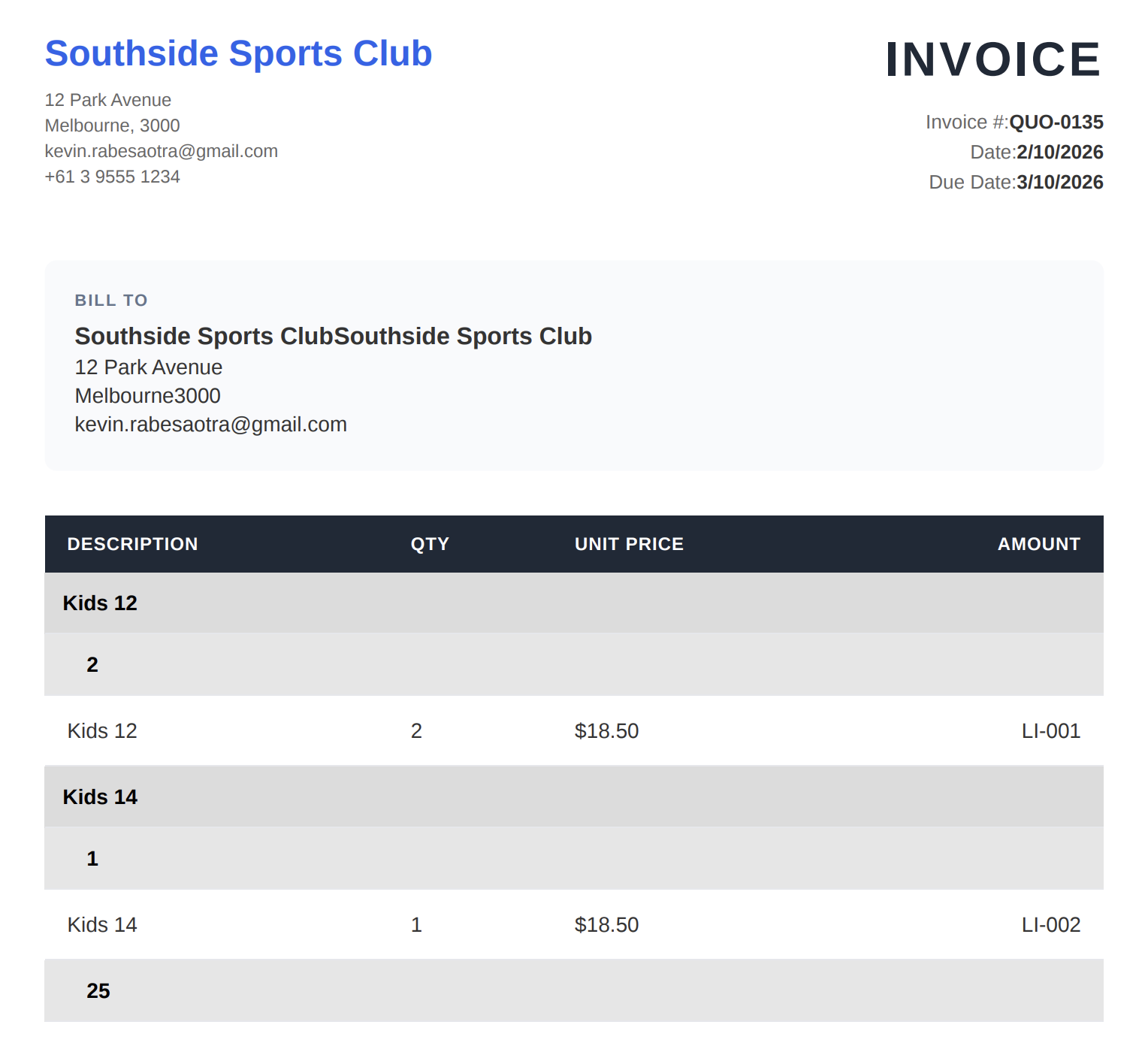
Your PDF will display data with hierarchical headers:
- Level 1 headers: Dark background, bold text (e.g., "Kids 12", "Kids 14")
- Level 2 headers: Lighter background, indented, bold text (e.g., "2", "1")
- Level 3 headers (if used): Even lighter, more indented
Setting Up Multiple Grouping
Prerequisites
- You must have a linked record field in your table
- You need at least 2 fields to group by (e.g., Category and Subcategory)
- Multiple grouping is available in the Template Builder only
Step-by-Step Setup
1. Open your Flow and go to the mapping section
2. Select your linked record in the Line Items card
3. Enable basic grouping first
- Find "Group by field (optional)"
- Select your primary grouping field (Level 1)
4. Add additional levels
- Once grouping is enabled, click "+ Add grouping level"
- Select your secondary field (Level 2)
- Repeat for Level 3 if needed
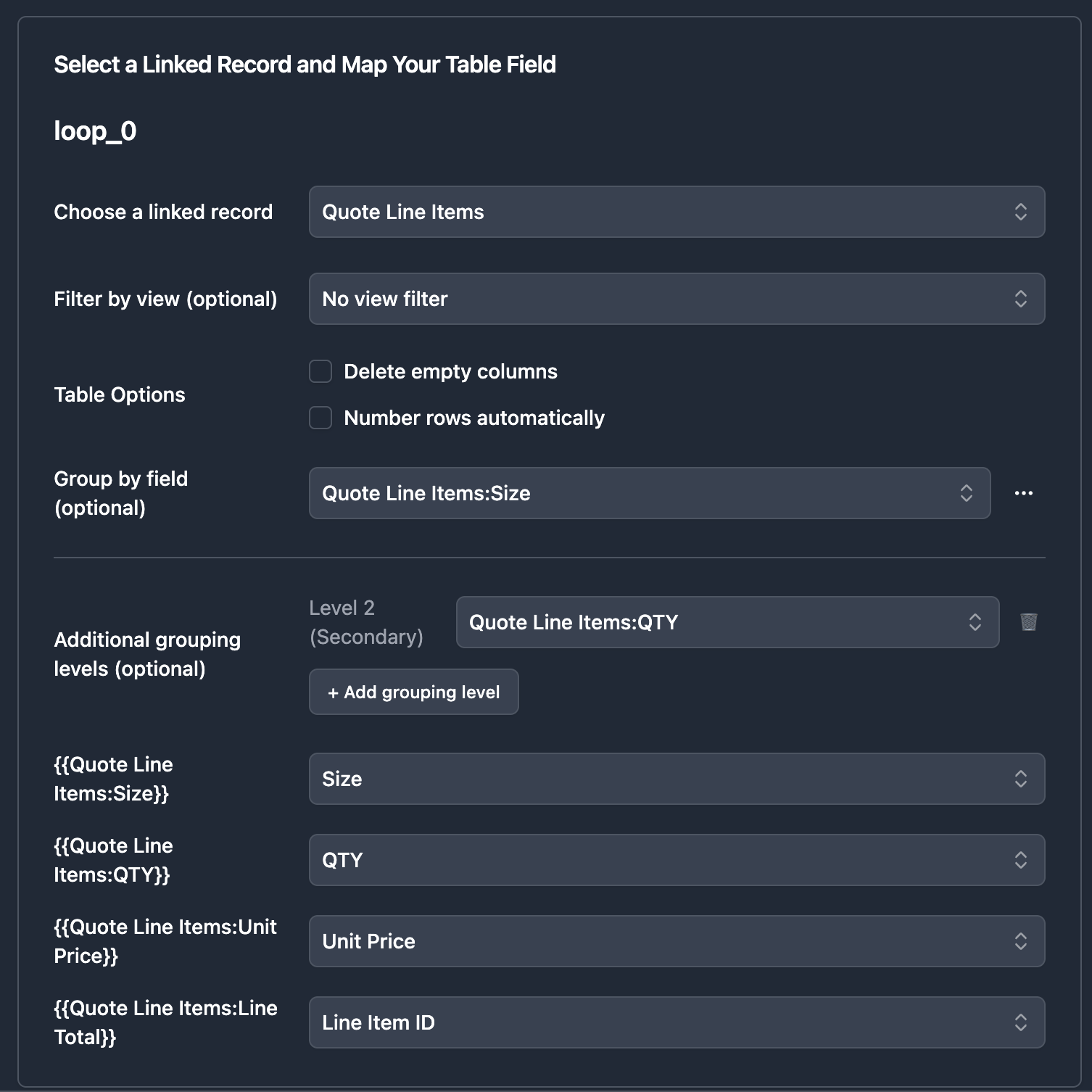
5. Save and test your document
Tip: You can add up to 3 grouping levels: Primary, Secondary, and Tertiary.
Examples
Example 1: Invoice by Category and Subcategory
Airtable structure:
| Product | Category | Subcategory | Price | Qty |
|---|---|---|---|---|
| Laptop | Electronics | Computers | $999 | 2 |
| Mouse | Electronics | Accessories | $29 | 5 |
| Desk | Furniture | Office | $299 | 1 |
Grouping setup:
- Level 1:
Category - Level 2:
Subcategory
Result:
Electronics
Computers
Laptop - $999 - Qty: 2
Accessories
Mouse - $29 - Qty: 5
Furniture
Office
Desk - $299 - Qty: 1
Example 2: Project Report by Phase and Task Type
Airtable structure:
| Task | Phase | Type | Hours |
|---|---|---|---|
| Design mockups | Design | Creative | 8 |
| Review mockups | Design | Review | 2 |
| Write code | Development | Engineering | 20 |
| QA testing | Development | Testing | 6 |
Grouping setup:
- Level 1:
Phase - Level 2:
Type
Result:
Design
Creative
Design mockups - 8h
Review
Review mockups - 2h
Development
Engineering
Write code - 20h
Testing
QA testing - 6h
FAQ
Can I use multiple grouping with Google Docs templates?
Multiple grouping is only available with the Template Builder. Google Docs and Google Slides templates support single-level grouping only.
What happens if a record doesn't have a value for a grouping field?
Records with empty grouping fields will be grouped under a blank header. We recommend ensuring all records have values for your grouping fields.
Is there a limit to how many records I can group?
No limit on records. However, very large datasets (1000+ rows) may take longer to process.
Can I combine multiple grouping with calculations?
Yes! You can enable "Group Calculation" in the grouping options (click the "..." icon) to add subtotals for each group. This works with all grouping levels.
Related Articles
- Line Items - Basic line items setup
- Sorting & Grouping - Using Airtable views for sorting
- Template Builder - Visual template editor
Need More Help?
- Email: support@typeflow.us
- Chat: Click the chat icon in the app