How to Save and Reuse Your Signature Across Documents
Repeat signers can save their signature once and reuse it on future documents with a single click. No need to redraw, retype, or re-upload every time.
Overview
When you sign a document in TypeFlow, you can check a box to save your signature. The next time you receive a document to sign (from any TypeFlow user), your saved signature appears automatically. You can use it instantly or draw a new one.
Your saved signature is linked to your email address. It works across all TypeFlow documents sent to that email, regardless of the sender.
How to Save Your Signature
- Open the signing link from your email
- Click the signature field on the document
- Draw, type, or upload your signature as usual
- Check the "Save this signature for next time" checkbox at the bottom of the signing modal
- Click Save Signature
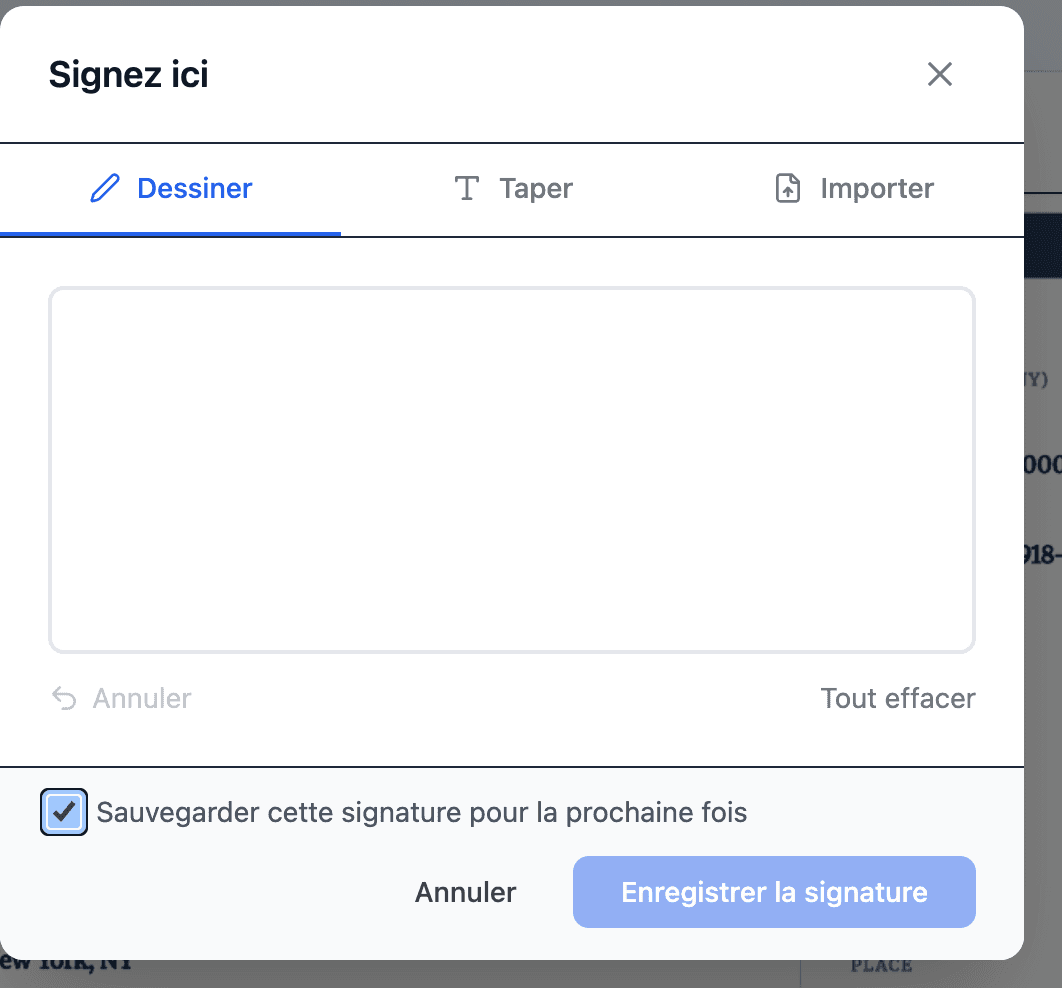
Your signature is stored securely and linked to your email address.
How to Reuse a Saved Signature
The next time you open a signing link sent to the same email:
- Click the signature field
- A banner appears at the top: "Use your saved signature" with a preview
- Click the banner to apply your saved signature instantly
- Or click "Draw a new signature instead" to create a fresh one
When you have a saved signature, a banner appears at the top of the signing modal.
If you draw a new signature and check the save checkbox again, it replaces your previously saved signature.
Managing Your Saved Signature
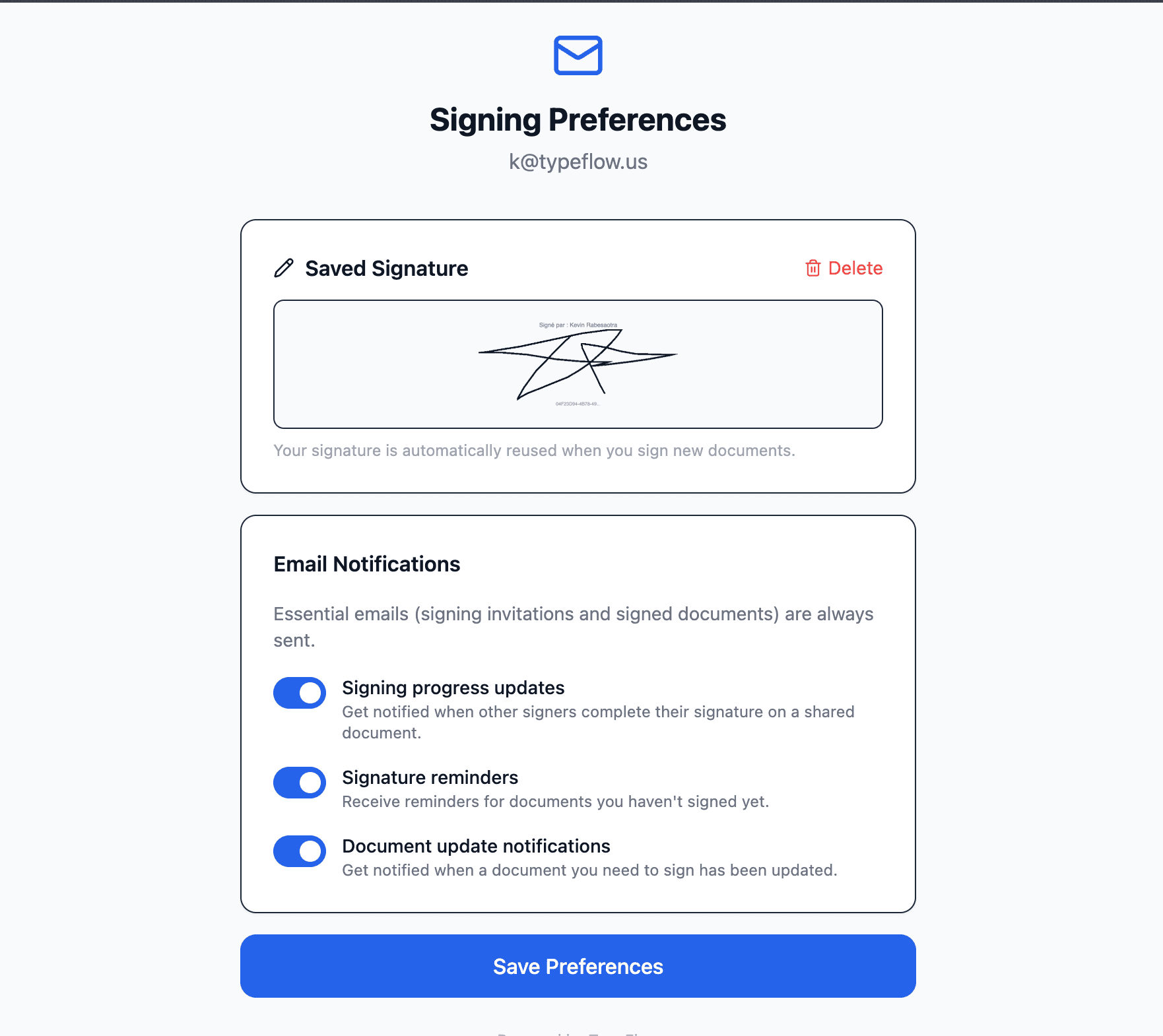
You can view and delete your saved signature from the Signing Preferences page:
- Open any signing email you received from TypeFlow
- Scroll to the footer and click "Manage email preferences"
- Your saved signature is displayed with a Delete button
- Click Delete to remove it - you will need to draw a new one next time