How to Reassign a Signing Request to Another Person
If you receive a document to sign but you are not the right person, you can reassign the signing responsibility to someone else directly from the signing page. The new person receives an invitation email with their own signing link, and you are notified that the reassignment is complete. No need to contact the sender or decline the document.
Overview
Reassignment is useful when:
- The document was sent to the wrong person
- The signer wants to delegate to a manager or authorized representative
- The signer is out of office and needs someone else to handle the signing
The reassignment happens instantly. The new signer gets a fresh signing link and the original link is invalidated.
How to Reassign
-
Open your signing link
-
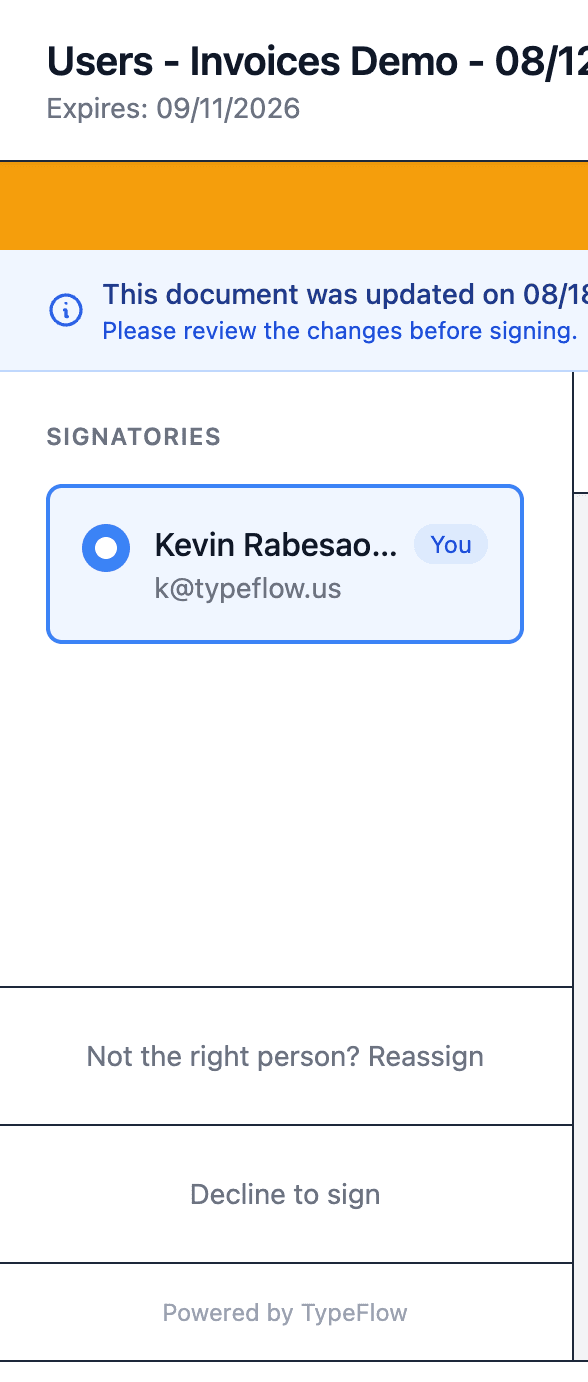
In the sidebar (desktop) or bottom of the page (mobile), click "Not the right person? Reassign"
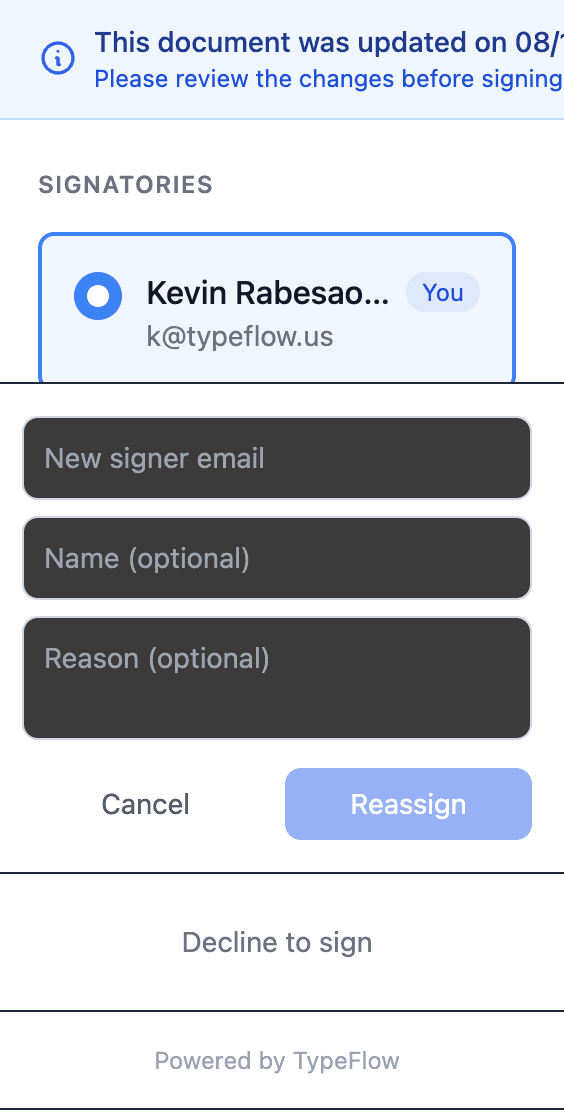
- Enter the new signer's email address. Name and reason are optional.
-
Click Reassign
-
You will see a confirmation message: "Document Reassigned"
What Happens After Reassignment
- New signer receives an invitation email with a signing link
- Original signer receives a confirmation email that the document has been reassigned
- Original signing link is invalidated - it can no longer be used
- Airtable signing URL field updates automatically with the new link (if configured)
- Audit trail records the reassignment with both email addresses and the reason
- Signing order stays the same in sequential mode - the new signer takes the same position
Limits and Restrictions
- Each signer position can be reassigned a maximum of 3 times to prevent abuse
- You cannot reassign to yourself
- You cannot reassign to someone who is already a signer on the same document
- You cannot reassign after you have signed or declined
- You cannot reassign if the signing session has expired or been cancelled
- Reassignment is available on Pro plans and above