How to Link Repeated E-Signature Fields in TypeFlow
When the same e-signature field appears in multiple locations in your document, you control whether the signer fills it once or at every location. By default, each location is independent. You can link them so the signer enters the value once and it copies to all locations automatically.
Overview
Documents often contain the same field in multiple places. A driver's license number might appear on the release page and again in the terms section. A signature might be needed at the bottom of every page.
TypeFlow gives you two options for how repeated fields behave:
- Fill each occurrence separately (default) - the signer completes each location independently. Use this when each instance represents a separate acknowledgment.
- Fill once and copy to all occurrences - the signer enters the value once and it appears in every matching location. Use this when the same information is simply repeated for reference.
How It Works
TypeFlow identifies repeated fields by their tag. For example, if {{e-signature.text_1}} appears three times in your document (or once in a footer that repeats on every page), TypeFlow detects three physical locations in the generated PDF.
When you enable linking for a field:
- The signer sees all three locations in the document
- Clicking any one of them opens the input modal
- After entering the value, all three locations are filled instantly
- The signer can click any location to edit - changes update everywhere
When linking is off (default):
- Each location is treated as a separate field
- The signer must fill each one individually
- Each location can have a different value (though they usually match)
How to Configure
- Open your flow in the flow builder
- Scroll to the E-Signature section
- Click Configure Fields on the signer card
[screenshot: Configure Fields button on the signer card in the e-signature section]
- For each field, you will see a Repeated field behavior section with two options:
- Fill each occurrence separately (selected by default)
- Fill once and copy to all occurrences
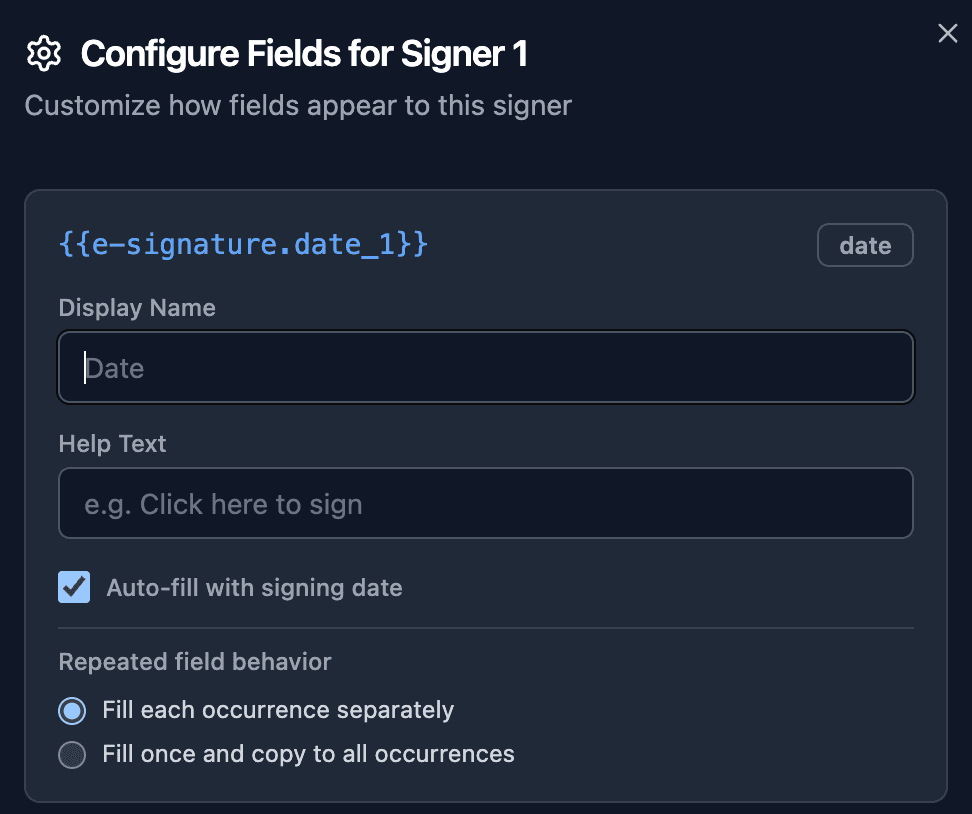
- Select your preferred option. The setting auto-saves.
- Generate a new document to apply the change. Existing signing sessions are not affected.
Examples
License number on multiple pages (link it)
Your work order has {{e-signature.text_1_license}} on the release page and again on the terms page. The signer should only type their license number once.
- Set Repeated field behavior to Fill once and copy to all occurrences
- The signer enters their license number on the first page, and it automatically appears on the second page
Initials on every page (keep independent)
Your contract has {{e-signature.signature_1}} at the bottom of every page. You need the signer to initial each page to prove they read it.
- Keep Repeated field behavior set to Fill each occurrence separately (default)
- The signer draws their initials on each page individually
- If you need distinct acknowledgments, consider using separate tags like
{{e-signature.signature_1_page1}},{{e-signature.signature_1_page2}}
Address in a footer (link it)
Your document has {{e-signature.text_1_address}} in the footer, which repeats on every page of the PDF. The signer should only enter their address once.
- Set Repeated field behavior to Fill once and copy to all occurrences
- The signer enters their address once, and it appears in the footer on every page